
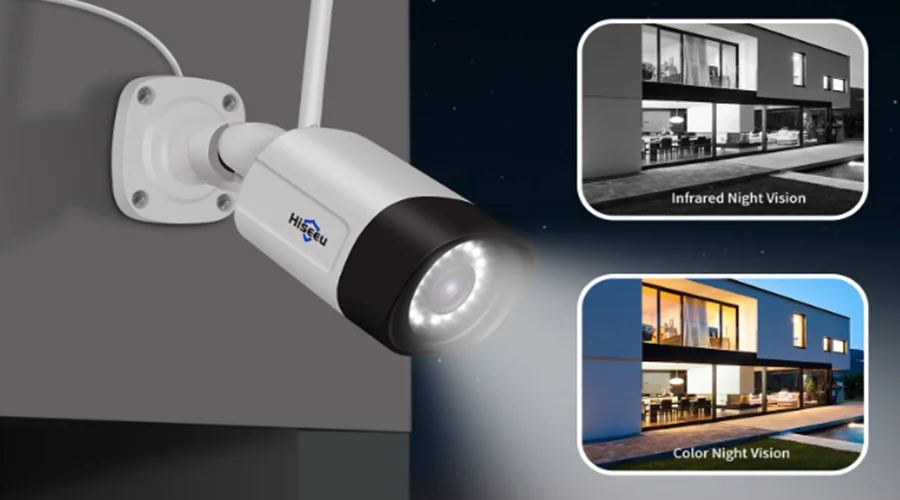

Hiseeu 2.5K 5MP WiFi Security Camera System
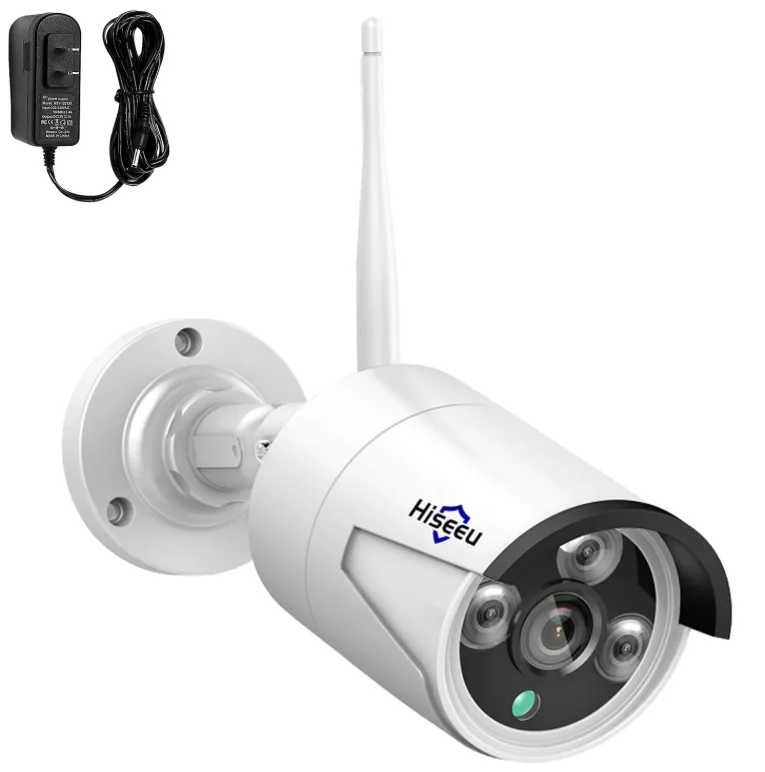
Safety Caution
- Please do not put any fluid container on the product.
- Please use the product in a ventilated environment and prevent blocking the vents.
- Please use the included power supply with the product to prevent damage to the product.
- Please use the product under its standard working temperature and humidity (as advised in this manual or the distributor’s website)
- Dust on the PCB may cause a short circuit. It is suggested to clean the dust on the PCB on time to make the product work properly.
- Please obey the regulations and policies in your country and area during the installation of this.
Out of the Box Audit
After receiving the product, please check all products according to the distributor’s Package Includes information. If any are missed or damaged, please contact the distributor.
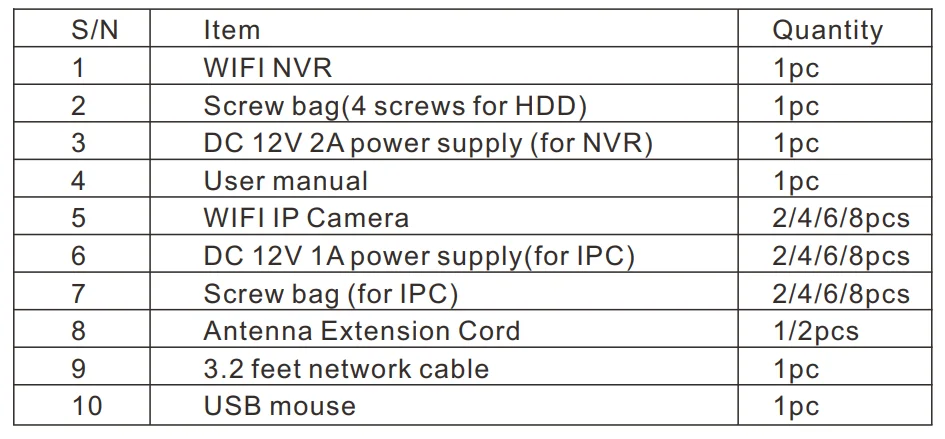
All Products & Parts
This product may require cabling. We suggest testing all products and parts before installation and cabling.

NVR
- WIFI Antenna Ports: Double antennas for the WIFI range
- WAN Port: Connect your NVR to the Internet
- VGA Port: For viewing on a VGA monitor
- HDMI Port: For viewing on HDTV
- USB Ports: For mouse and backup
- Power Input
IP Cameras
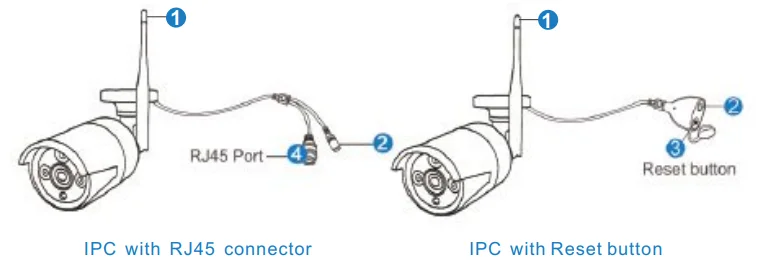
- WiFi antenna: WiFi connection with NVR;
- DC Port: input power 12V 1A;
- Reset Button: Press the reset button for 10 seconds to restore factory settings and enter matching-code mode.
- RJ45 Port: for pairing the camera with the NVR, or connecting the camera by wired connection
Note: Working temperature ranges from -13 degrees Fahrenheit to 122 degrees Fahrenheit
Installation Instruction Of WIFI NVR KIT
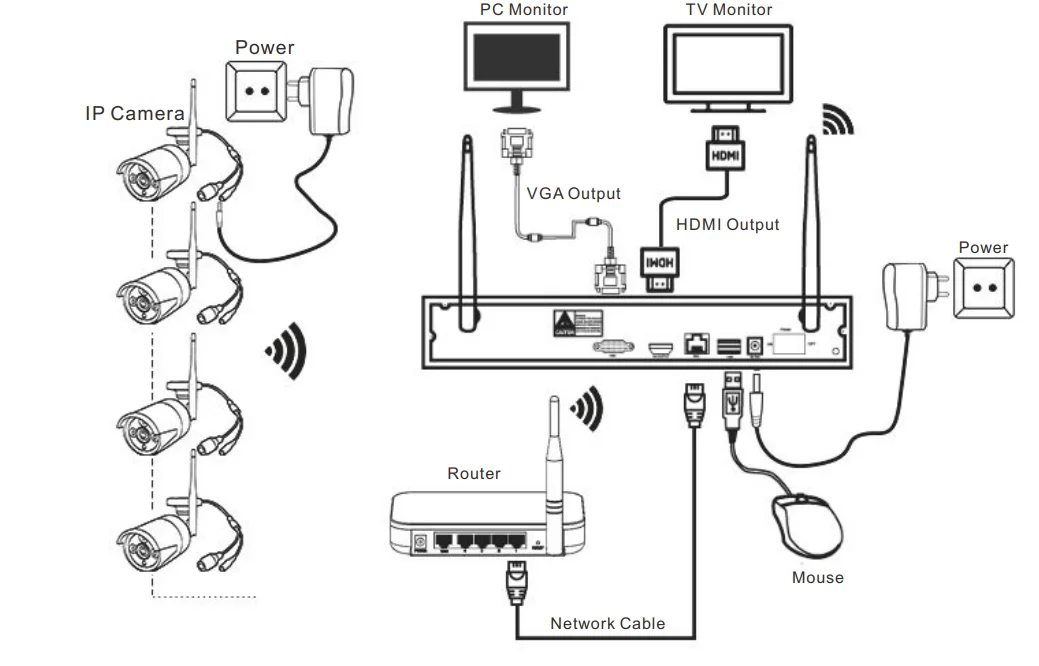
- Install antennas for cameras;
- Connect a screen to the NVR via its HDMI or VGA port(HDMI cables are included for a no-monitor NVR);
- Plug the NVR to power(use bigger 12V 2A power adapter);
- Plug cameras to power(use smaller 12V 1A power adapters);
- Within seconds, you should see the cameras’ images on the screen.
- Plug the mouse(included) into a USB port on the back of the NVR. Then you can log in to the system.
- In the OS, you can find the fullest functionalities, including live view, record, playback, video backup, and all settings.
Note: The NVR can work with the router by wireless connection and wired connection. Wired connection: When your NVR connects by RJ45 to your router, it will get network settings automatically.
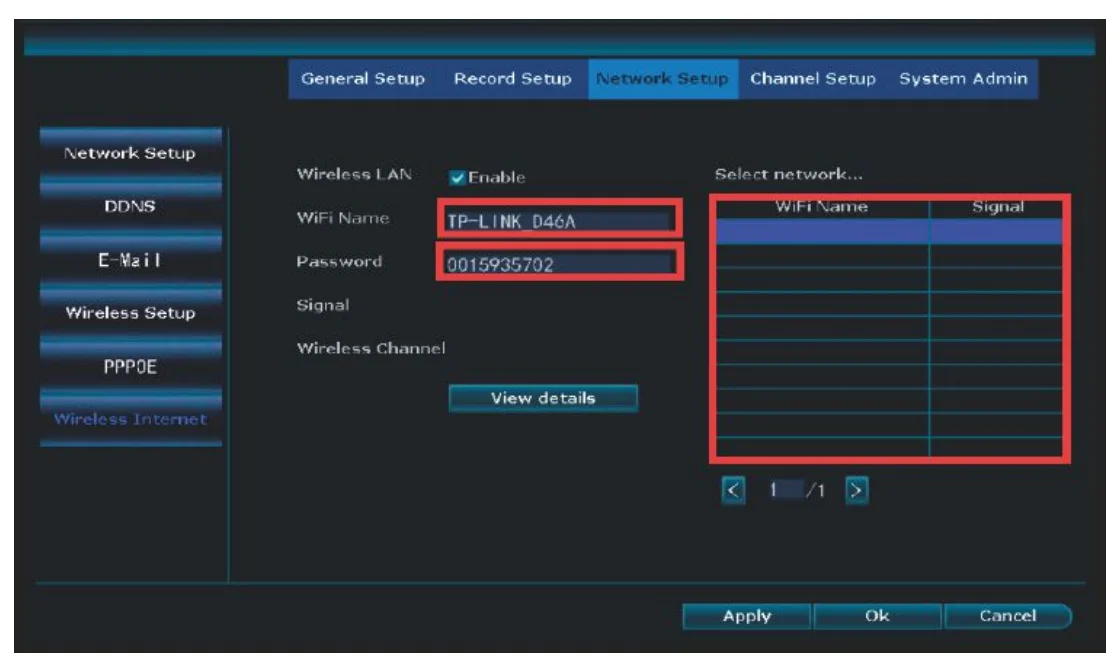
Wireless connection: right-click your NVR mouse and choose System Setup>Network Setup> Wireless Internet> Enable the Wireless LAN > find your own wifi network, and put wifi password. Here (pls notes it doesn’t work with 5G WIFI network)
Set up the System
This system is standalone with an embedded Linux Operating System in the NVR. Just like a desktop PC, you need to hook a screen to the NVR to enter the OS. Any TV or monitor with a VGA or HDMI input should work for it. If you connect the NVR with a monitor that shows the Hiseeu logo or shows black, it is because your monitor resolution is lower than the NVR’s. You can press the left side of the mouse for 30 seconds, then it will reboot. If it still can’t work, pls change a monitor, thanks.
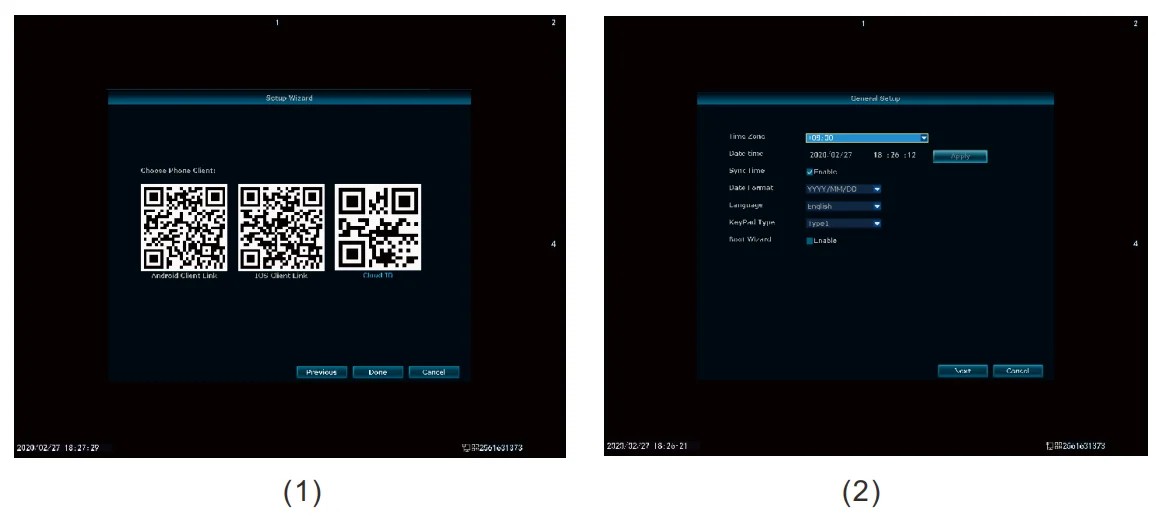
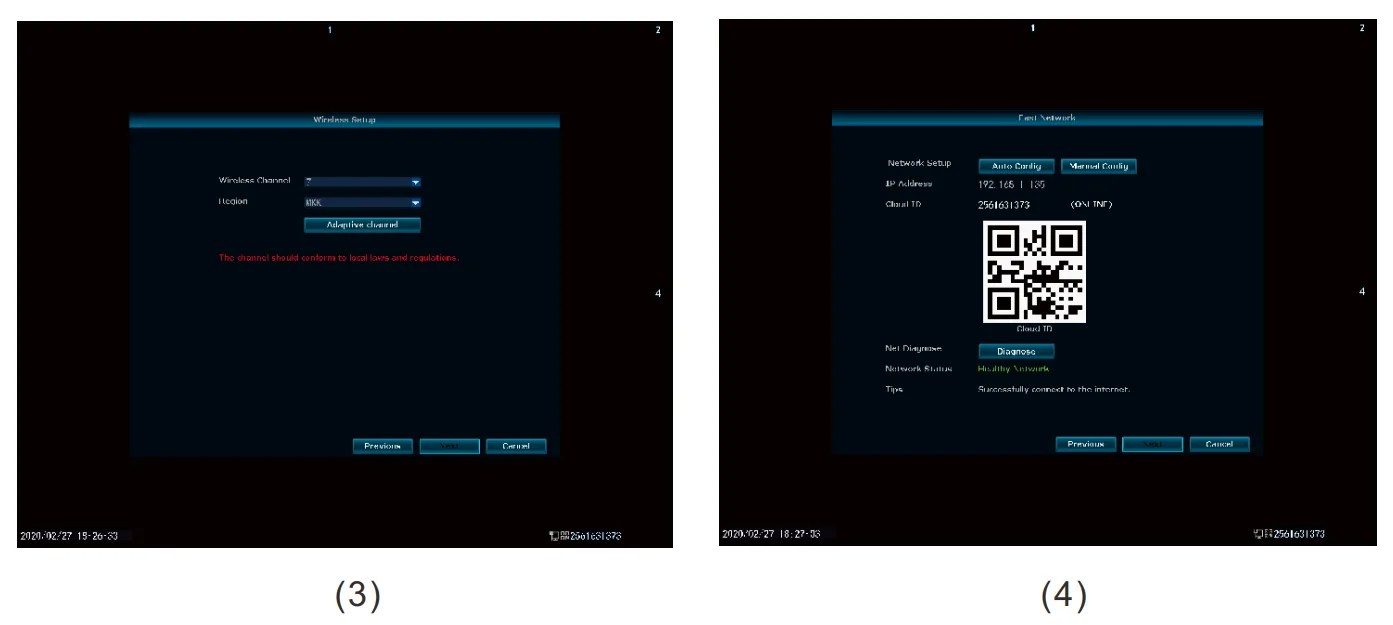
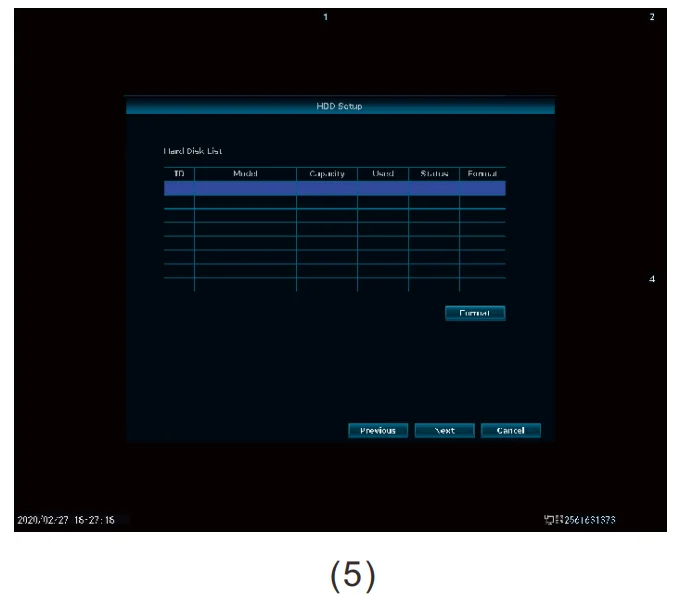
When you turn on the NVR box, the monitor will get the following interface: Setup Wizard→Down→General setup→Next→wireless setup→Next→Fast network→Next→Format the hard drive→Next
CHECK NVR NETWORK, CHANGE NVR SYSTEM LOGIN PASSWORD
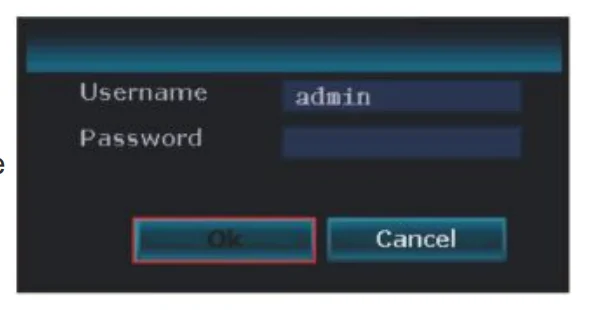
Once you have completed connecting the NVR, wait approximately 2-3 minutes. Next, you will see the window below on your monitor screen. For your first time to log in, the username is admin, there is no password, just choose ok to get into the menu. (If you forget the password, pls find the solution on the FAQ page)
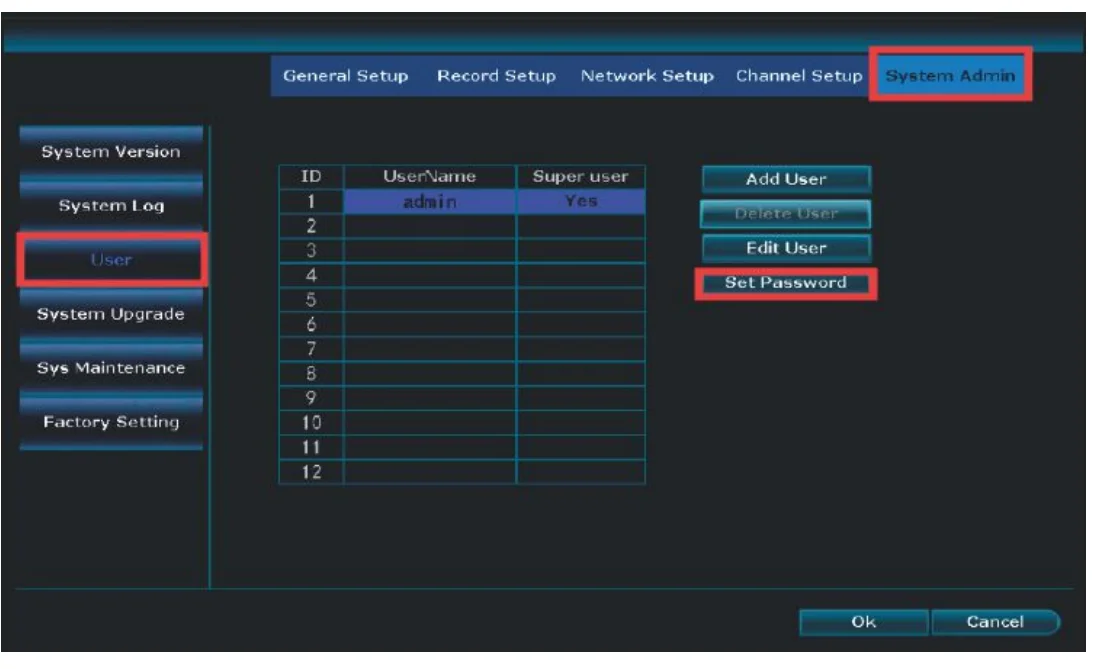
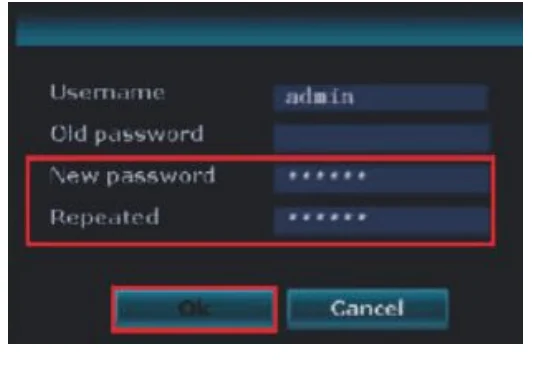
Tips: To protect your privacy, please set your password at your earliest convenience(don’t set the password over 8 characters). Right-click the mouse→System Setup→System Admin→User to set password.
How to check if your Cloud is online and the network status is healthy?
Right-click the mouse on the register, choose Fast Network. In the middle of the window, you should see Cloud status as ONLINE and Network Status as Healthy Network. If this does not appear, select Manual Config, then enable DHCP, click Apply, then power off the NVR box, wait a few seconds, and power up.
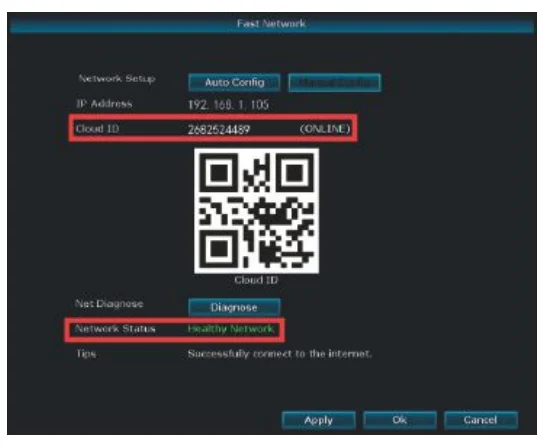
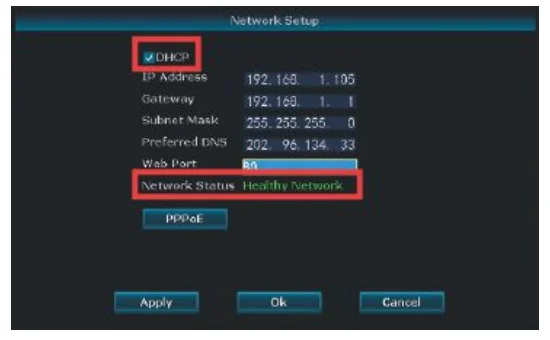
Once you power up, repeat the steps outlined above. Cloud status must be ONLINE, and Network Status must be Healthy Network. If this does not happen, you will not be able to view remotely.
Menu Do What
Menu bar
Click the right button, you can enter the main menu; click the right button again, you can exit the current menu or return.
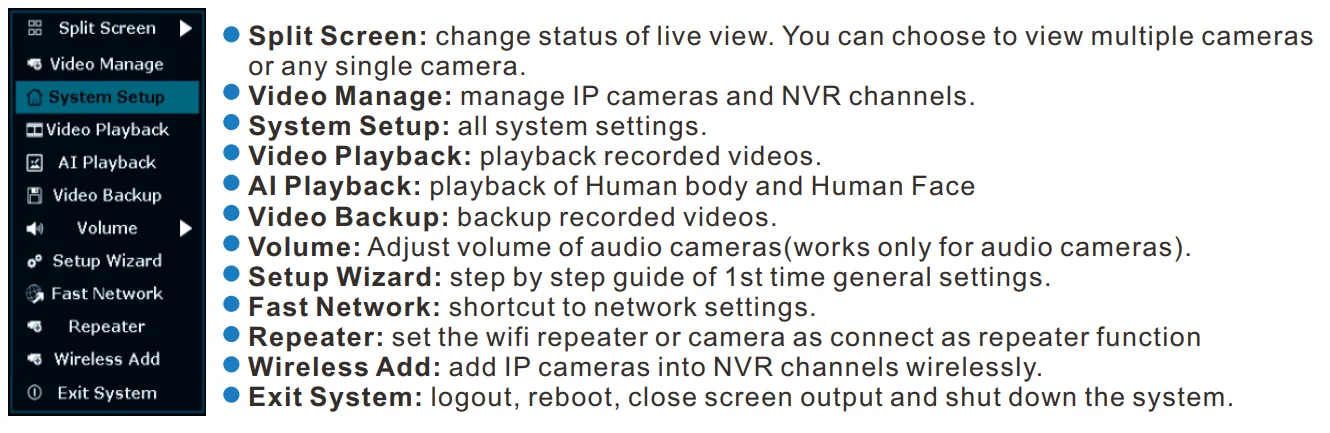
System Setup
Click the right button→Choose System setup; enter the menu that enables you to do all settings related to this system.
- General setup(This enables you to set)
- Language
- Display Resolution
- Time
- HDD informaion
- Error
- Record setup(This enables you to set)
Record a plan for each channel video detection - Network setup(This enables you to set)
All network-related settings - Channel setup(This enables you to set)
Manage channels and cameras - System admin(This enables you to set)
- System version
- System maintenance, including system upgrade
- User and password management
- Restore to default settings
AI Humanoid/Humanface Detection
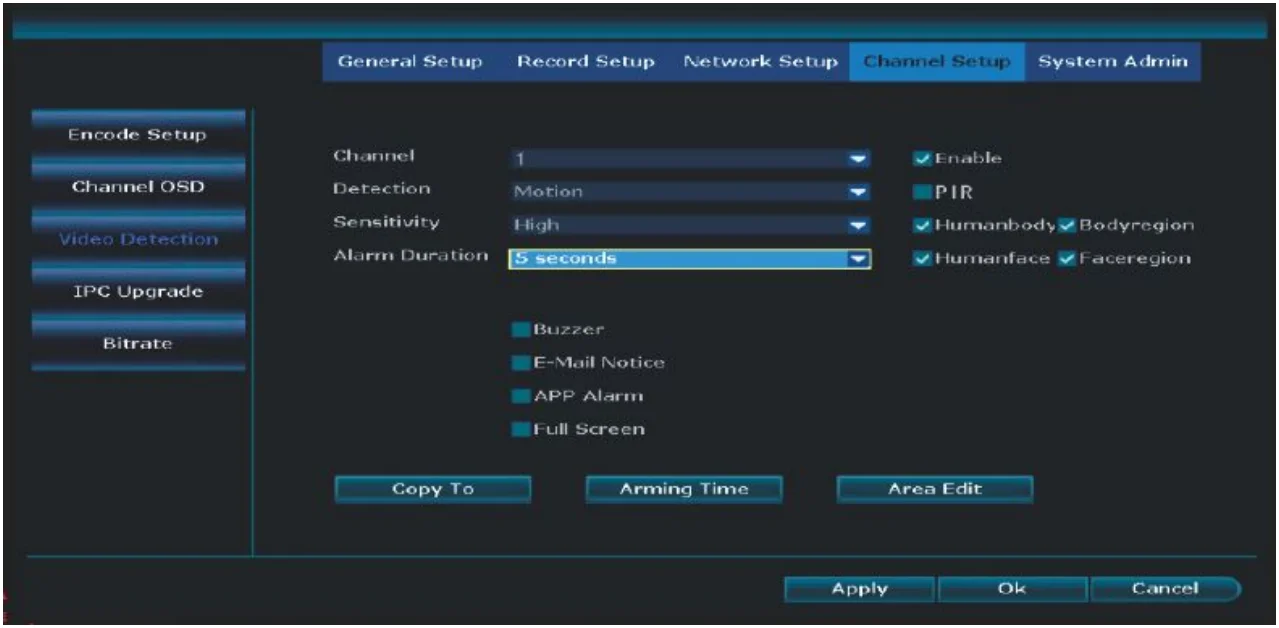
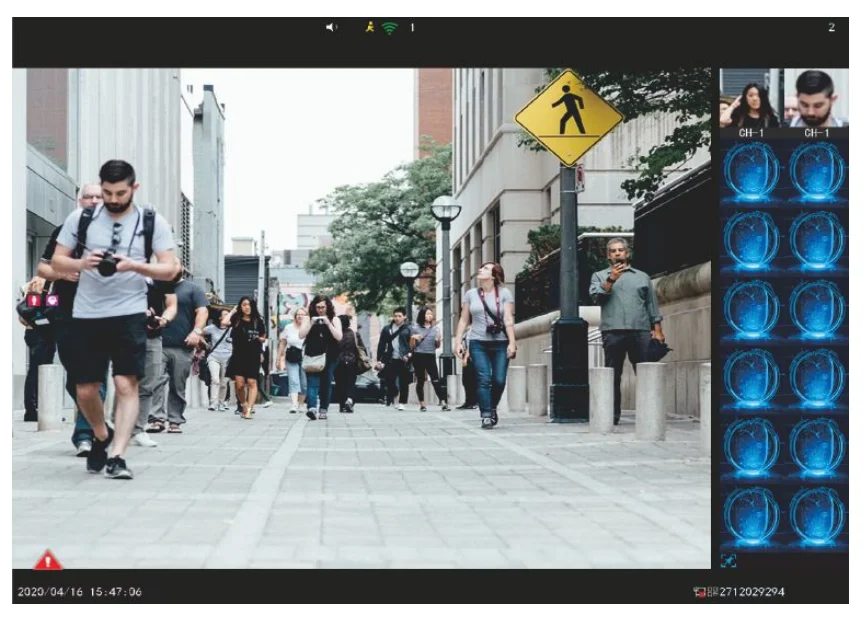
Right-click your NVR mouse, choose system setup→channel setup→enable channel at first. There are Humanbody and Humanface you can set, when someone goes through the camera, your monitor will show a window of human body and human face.
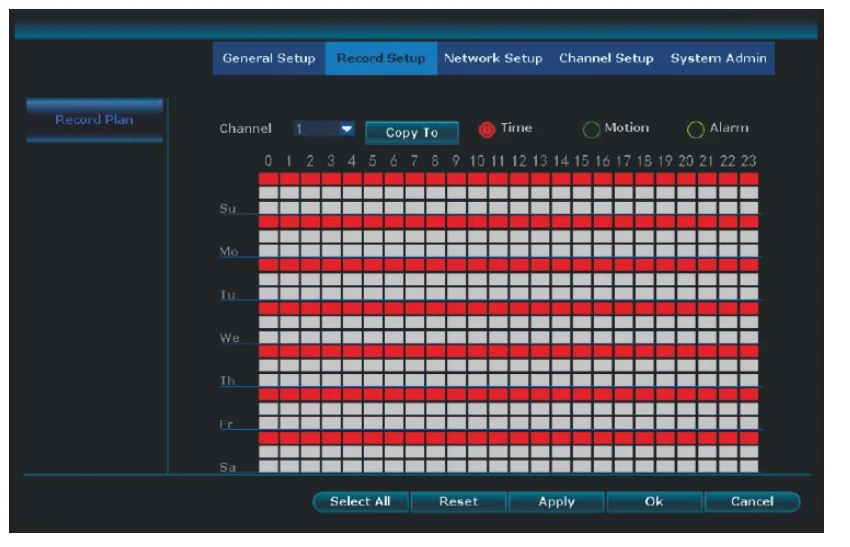
How to set up the record video plan?
There are 3 modes for recording.
- Time Recording: Set the recording period of time of recording on the NVR GUI. Right click mouse→System
Setup→Record setup→Record Plan. Click “time” and put the mouse icon on the upper left corner (for example, “1” as the picture shows), press and drag the mouse to the right to choose the time. The list will turn red. - Motion Recording: Only detects motion and then starts recording. Right click mouse→System Setup→Record setup→Record Plan. Click“motion” and put the mouse icon on the upper left corner, press and drag the mouse to the right to choose the time. The list will turn green.
- Alarm recording: Right click mouse→System Setup→Record setup→Record Plan. Click “Alarm” and put the mouse icon in the upper left corner, press and drag the mouse to the right to choose the time. The list will turn yellow.
Note: Users can set up any period of time they want, for example, 0:00:00-23:59:59. That’s 24 hours×7 days recording. When NVR detects a hard disk, the default setting will be 24 hours×7 days
recording.
The priority of Alarm is higher than that of Motion, and the priority of Motion is higher than that of Time.
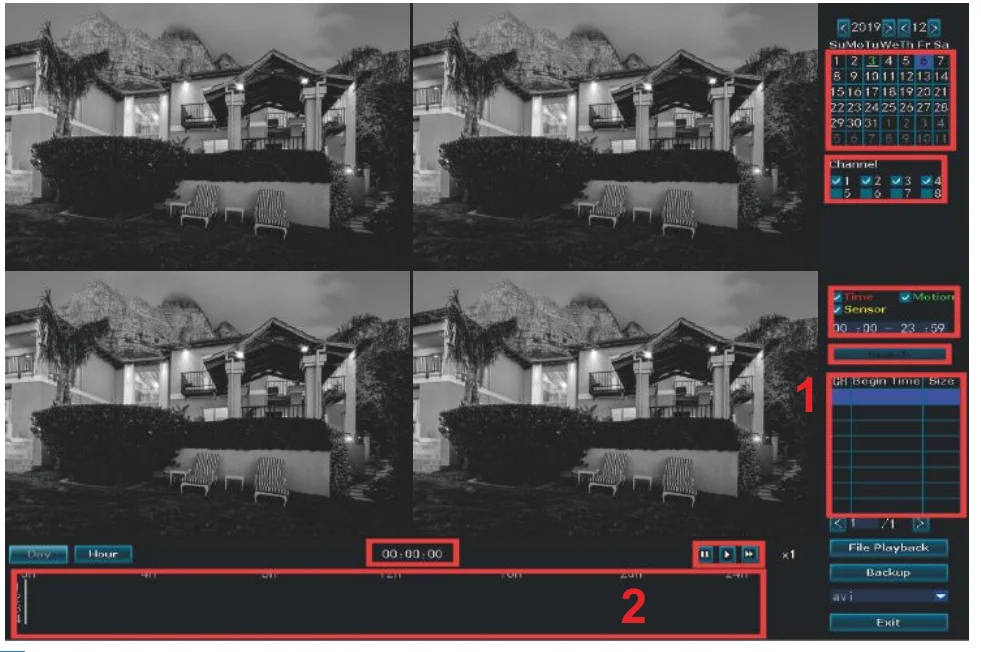
Video Playback
Steps: right click the mouse in the main menu→Video playback→choose date, channel, record mode→ click search→then can view the playback file (IE browser can’t check the playback directly, so you can use the Eseecloud software on a computer or check on your phone app Eseecloud)
Warm prompt:
- Illustration for playback button: play
 , pause
 , fast forward
 ×2,×4,×8.
 - Play file: Choose the recording file in the file list, as number “1” shown in the picture. Choose one of the recordings, and click “play” to play the recording file.
- Video backup: Choose the recording file in the file list, as number “1” shown in the picture. Insert the U flash disk, click “video backup” to backup the file;
- Timeline: Click “date” and “time” at the bottom left to check the timeline of recording, as shown in number 2 in the picture.
- On the timeline with the recording file, left-click the mouse, and you can playback the file.
 , pause
 , fast forward
 ×2,×4,×8.
Notes: You can see four-channel camera playback at the same time. If you want to check other channels, you need to select the correct channel first, then choose search to find its playback.
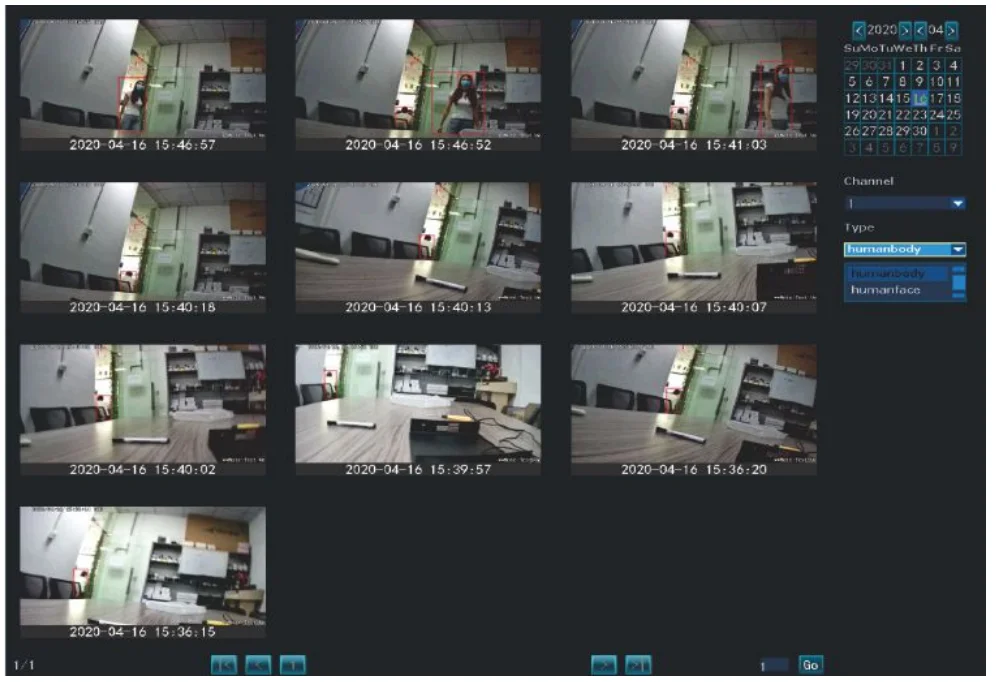
AI Playback
To check the human detection record, pls set the record on motion at first, then right-click your NVR mouse and choose AI playback Type, choose Human body or humanface. Then it will show some videos here; double-click it to check the video here.
How to Back Up the Video?
Use U disk to copy video, so easy and convenient!
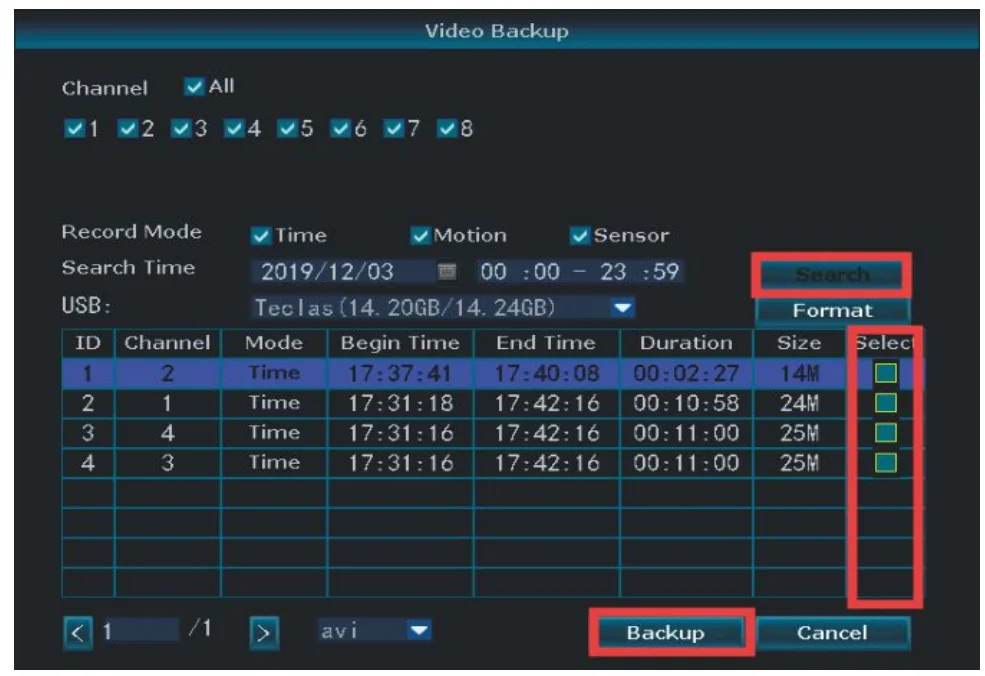
- 2 USB ports: Plug U flash disk into the USB port of the NVR. Right click on the main menu →Video backup→choose backup channel→choose video mode→setup searching time→search→ choose recording file on the list→video backup (supports 32G U flash disk at max. Recording file is packed one hour per time.)
- 1 USB port: Right click on main menu→video backup→choose backup channel→choose video mode→setup searching time→search→choose recording file on the list→video backup, insert U flash disk within 1 minute, then the system will backup the recording file to U flash disk.
The playback file is an AVI. format, you can use the VLC player to check it on your computer. VLC player download link : http://download.dvr163.com/tool/Video-player%20.zip
Use Eseecloud software to back up the video
It can only make a backup by the NVR IP address. Here is the video for you to check: https://youtu.be/kR7QN_2UKdI
View on PC via IE or Eseecloud and Phone APP Eseecloud
View the camera remotely
Tip: before you remotely check it on the phone app and Eseecloud, you need to make sure the cloud ID is online, and the Network Status is a healthy network.
- To View on the PC
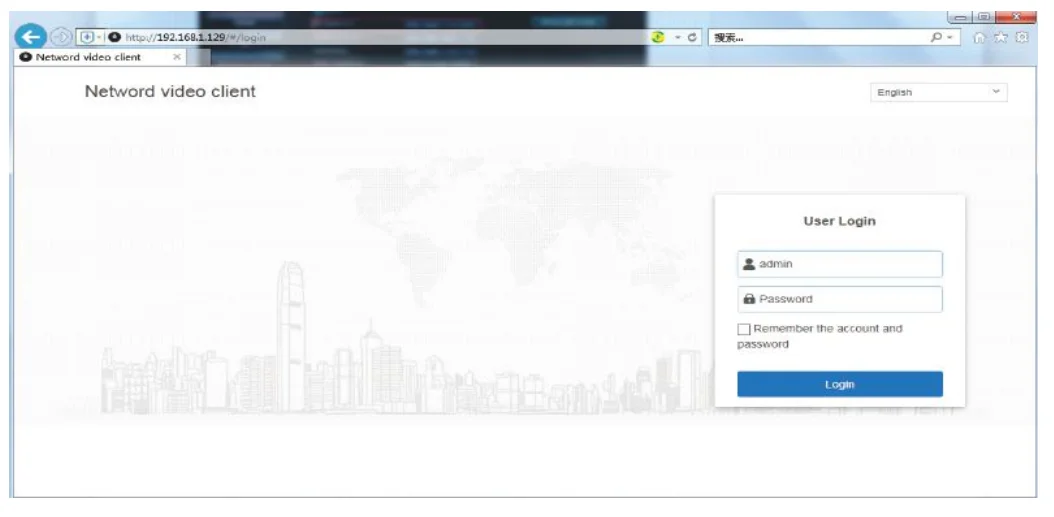
- a) To view on a browser, you have to connect the NVR and your computer to the same router. Enter the IP address of the NVR in the browser’s address bar. (We recommend using IE or Microsoft Edge. Right-click the mouse> System Setup>Network Setup>IP address (Start with 192.168… ). You can change the language in the top right corner.

- b) To view on the Eseecloud software on PC
Input Cloud ID (Right click the mouse>fast network>Cloud ID). Input User Name and Password (If you don’t change the user name and password, User Name is admin, no password). Windows system, please download Eseecloud software from www.hiseeu.com.
Or download from this link: https://www.dropbox.com/s/o7z59qiret93hr9/EseeCloud%20for%20Windows.rar?dl=0
Or http://download.dvr163.com/tool/EseeCloud_Setup_3.0.3_20191119.exe
MAC OS system download link: https://www.dropbox.com/s/g0vwpomcd7cdi5a/EseeCloud%20for%20Mac.zip?dl=0
Or:http://download.dvr163.com/tool/EseeCloud-mac2.0.7_20190517.zip
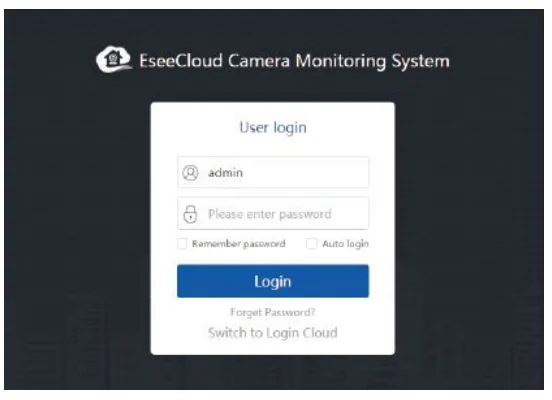
user name is admin, no password, choose login
- *Select “Add.”
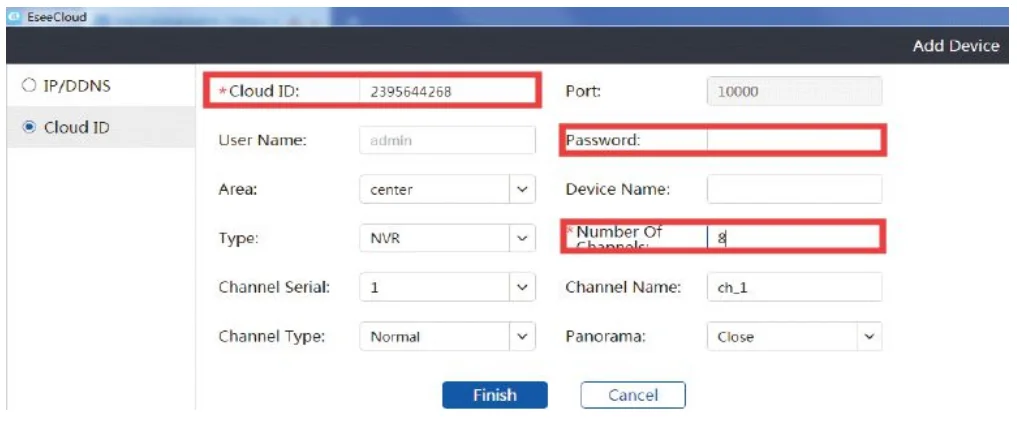
- *Select “Cloud ID”.enter the cloud ID(9 or 10 numbers). You can find it on your home monitor screen. Or right-click the mouse, choose Fast network find cloud ID here
- * Username is the NVR system user name on your home monitor screen
- * Password is your NVR system password on your home monitor screen. (If you don’t change it in your setup, there should be no password.)
- * Channels: Input 4, 6, or 8. If you have 4 cameras, enter 4, etc.
- * Click Confirm, and you will see the video.

If you check in the local network, you can use the NVR IP address to add the system (Find the IP address on the Fast network page or the Network setting page)
- c) To view on the IE browser
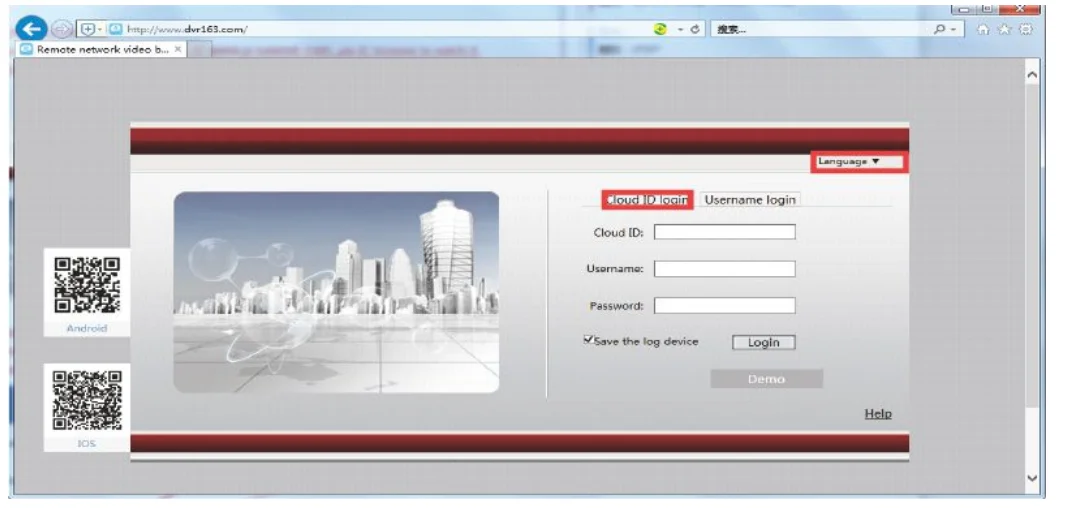
You can also visit www.dvr163.com or www.e-seenet.com via the IE browser to watch it. Change the language in the top right corner. Choose ID login, input your Cloud ID, Username, and Password
- d) To view on the IE browser by IP address
Find the IP address: right-click your mouse and choose Fast network, and you will see the IP address here. Enter the NVR’s IP address in your IE browser, for example: http://192.168.1.105(If the default WEB port 80 has been changed, e.g., to 100, you need to add the new port number when inputting the IP address in the browser, for example: http://192.168.1.7:100).

- a) To view on a browser, you have to connect the NVR and your computer to the same router. Enter the IP address of the NVR in the browser’s address bar. (We recommend using IE or Microsoft Edge. Right-click the mouse> System Setup>Network Setup>IP address (Start with 192.168… ). You can change the language in the top right corner.
- To view on the Phone
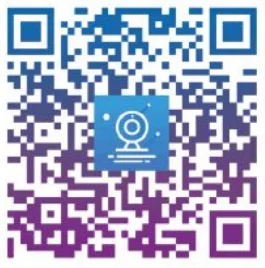
Users can use a cellphone to scan the QR code below to install the APP free of charge, or users can search “Eseecloud” on the App Store or Google Play, then install the APP.
Note: For IOS system,it requires IOS 8.0 version or above. For Android, Android 4.4 or above, and if you still can’t download, please log in to our official website link:http://www.hiseeu.com/news/wsk

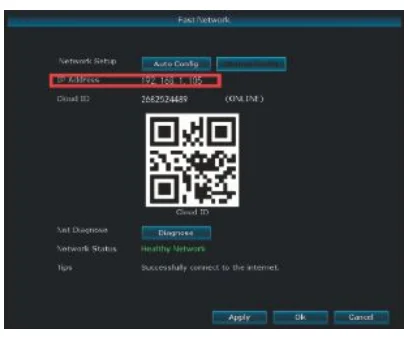
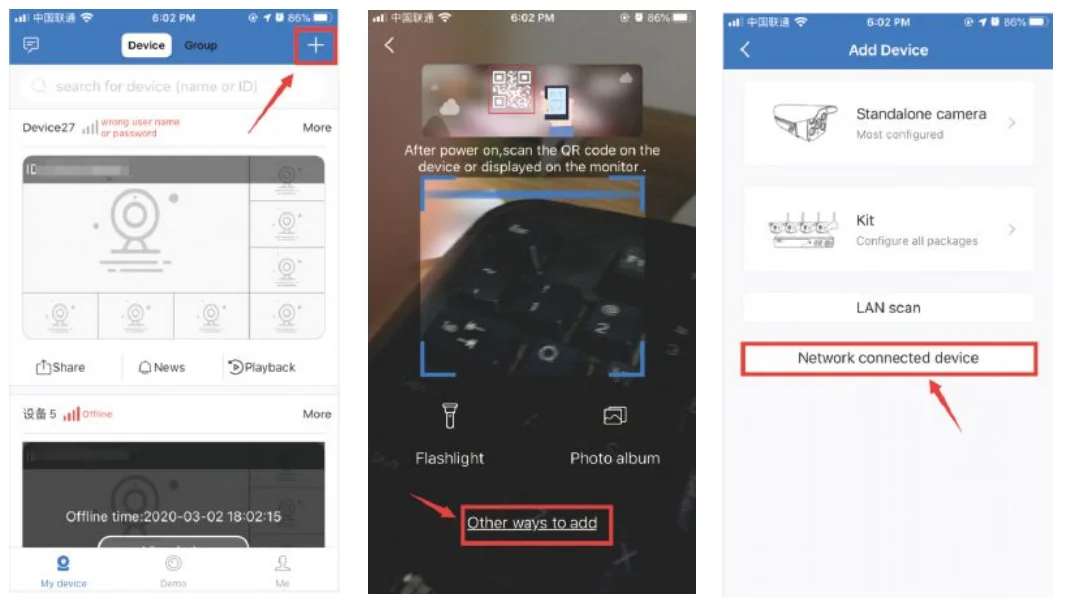
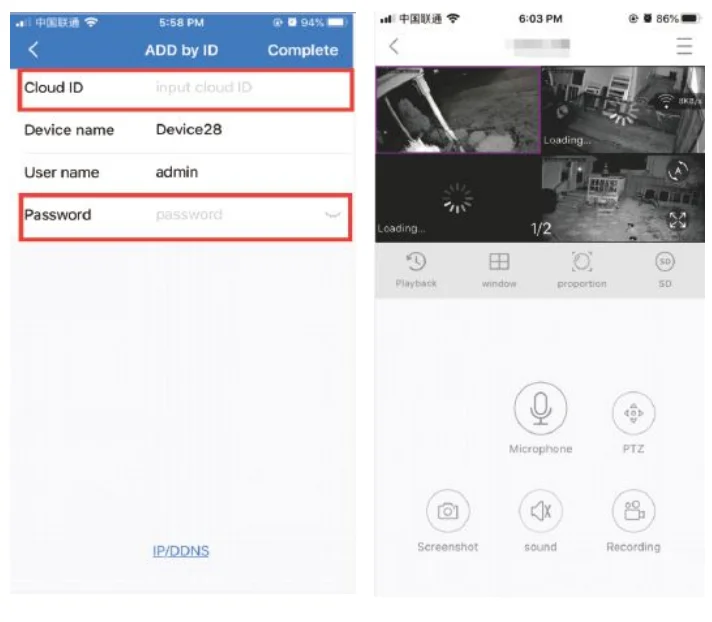
Click “+”>other ways to add/ scan the QR code on your fast network page >Network connected device> input Cloud ID and User name and password (user name and password are the same ones you use to log in to NVR)
Tips: if you’ve set a password on your NVR system, please update your password on the APP to view. And if your camera is loading for a long time and doesn’t show an image, you can right-click your NVR mouse and choose System Setup–Network setup, change the MTU to 1000.
Playback On Mobile
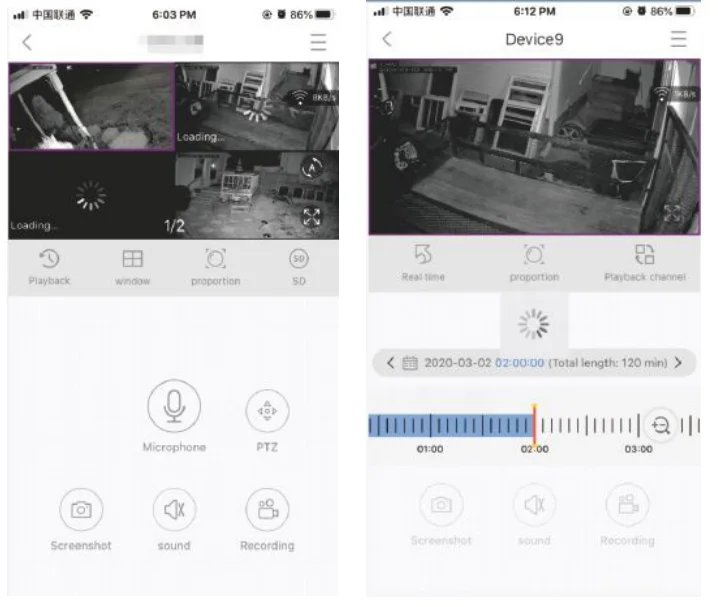
In the Eseecloud APP, while viewing live video of the system, click Playback, and you will enter the remote playback menu. The APP Playback only checks one channel at a time.
Tips: Videos in playback are in HD mode for real-time, which requires very good transmission conditions. We suggest to playback in LAN. Remote playback out of the LAN may not 100% work due to connection & network conditions.
Extend Wi-Fi Range
Wireless connection is easy and convenient, but it’s not a universal application. Because of the nature of WIFI, the WIFI signal will decrease when going through some obstacles. Some methods can be applied to bypass obstacles and extend the WiFi range.
Position The Antenna Correctly
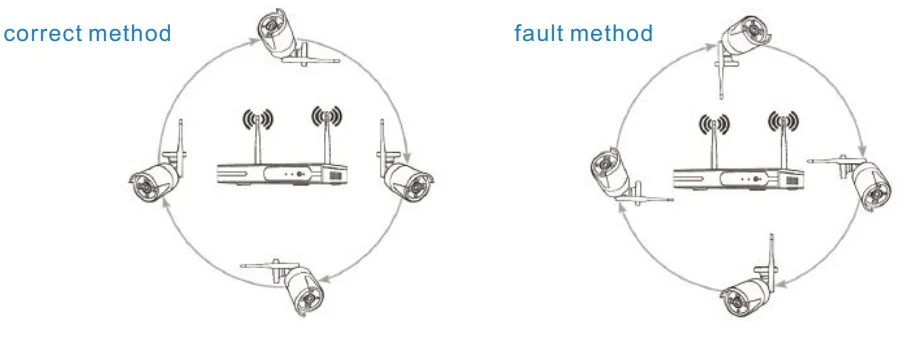
The Wi-Fi range is like an apple, and the antenna of the NVR is in the center of it. The Wi-Fi signal is strong all around the WIFI range. The antenna of the NVR should be put straight up; otherwise, the Wi-Fi signal will be weak. According to the signal transmission character of the antenna, the antenna of cameras should overlap or be parallel to the NVR WIFI range, as pictures below:
Use an Antenna Extension Cord to prolong the Wi-Fi distance
Installation method of antenna extension cord
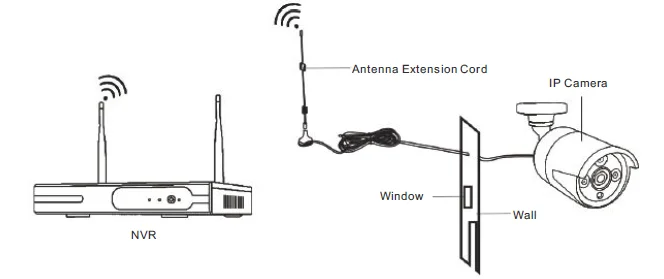
Note: When the Wi-Fi signal is not strong enough against walls, users can take off the original antenna and substitute the antenna extension cord. Drill a hole in the wall to let the extension cord go through and place it where the Wi-Fi signal is strong.
Set up a cascading connection in a reasonable solution, and extend the Wi-Fi signal transfer distance
Note:
- The repeater function can’t strengthen the Wi-Fi signal for the wireless NVR kit, but it can extend the distance with repeaters — WIFI cameras.
- Only when the repeater cameras are positioned correctly will the Wi-Fi distance be extended.
- The repeater function and 3 meters antenna extension cord are two methods to extend the Wi-Fi range. Users can choose one according to the real situation.
Repeater Setup
- Step 1. Right-click the NVR mouse, and choose “Video Manage” → then left-click “Repeater.”
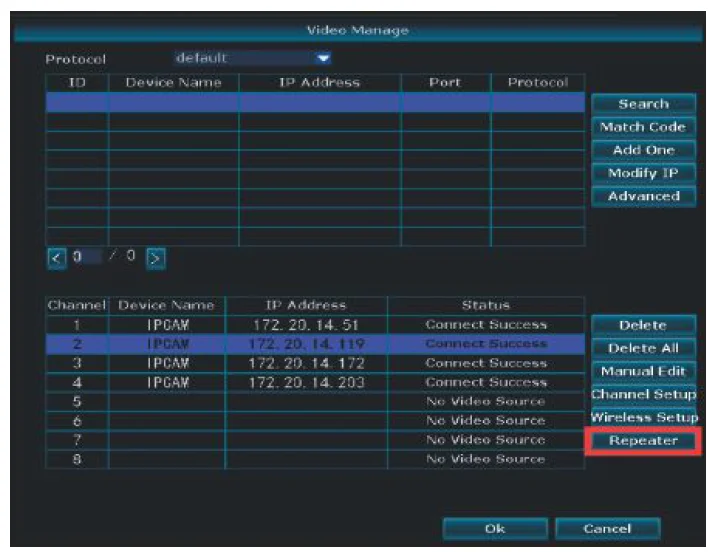
- Step 2. Add repeater
As shown in the picture below, click the icon + beside channel 3, and choose another channel.
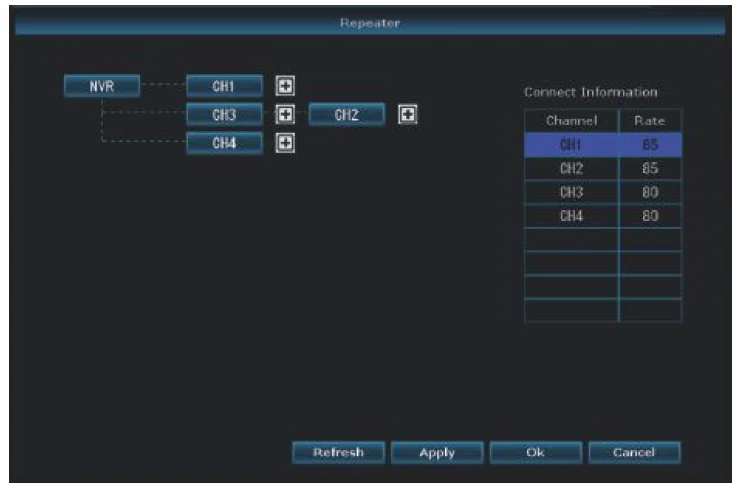
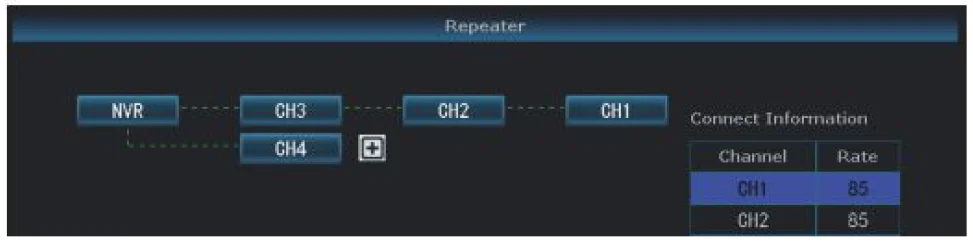
- Step 3. As shown in the picture below, it means IPC1 is connected to NVR through IPC2 and IPC3. IPC2 is connected to NVR through IPC3. IPC3 is connected to the NVR directly.
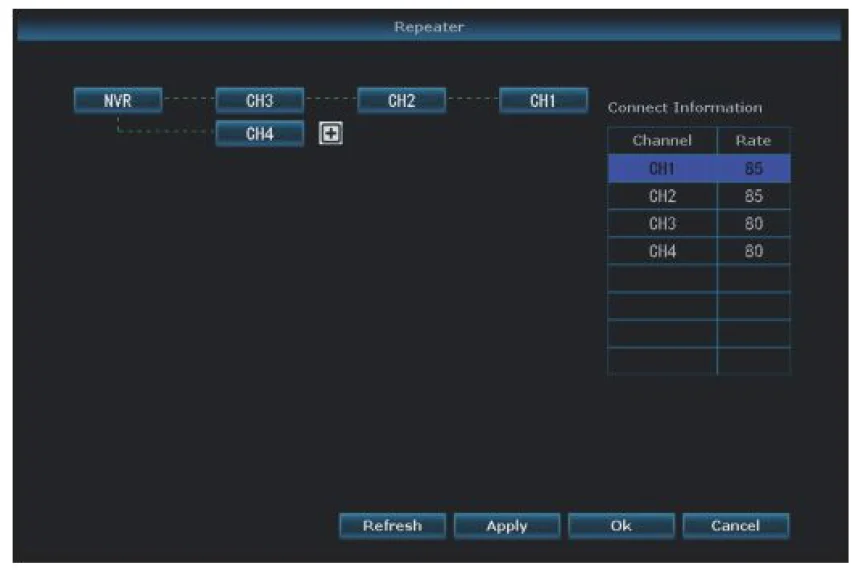
- Step 4. Click “Apply” and then click “refresh” to check if the setting is successful.
Delete Repeater
Move the mouse to targeted channels, left click to delete, and then click “Apply” and “OK”.
Application Example
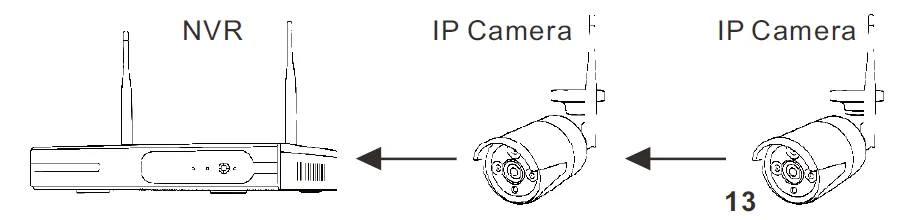
As shown in the picture above, when IPCAM1 is put somewhere out of NVR WIFI range, and there is IPCAM2 between them with a strong WIFI signal, users can put IPCAM1 close to NVR and power it, set up IPCAM1 to repeat IPCAM2, and then install IPCAM1 in the presupposed place.
Warning
The device will not be guaranteed if caused by below reason:
- Accident; negligence; disaster; mis-operation.
- Do not conform to the environment and conditions, such as improper power, working temperature too high or too low, or lightning strike. etc.
- Ever been maintained by another center which not belong to the real factory.
- Goods have already been sold for more than 12 months.
Frequently Asked Questions
How do I add a new camera? What should I do when there is no camera display on the screen?
A: In some situations, you may need to add a new camera to your NVR. For example, you may need to replace a broken camera, or if you have an expandable NVR, you can add extra cameras.
- IPC with RJ45 connector
- Pls use an Ethernet cable to connect the camera to your NVR first.
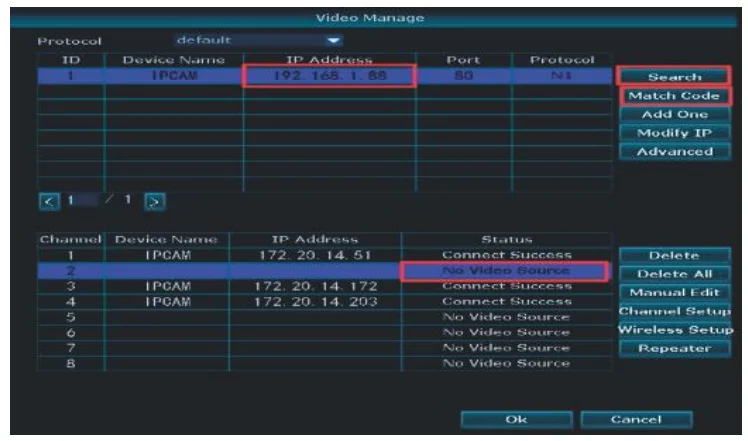
- Right-click the mouse>Video manage>Search>Match Code>“Exit” after adding. Matching code completes>Add one
- After that, you can unplug the Ethernet cable. You can refer to this YouTube video. https://youtu.be/kmNnFgjLiPI

- IPC with reset button

- Connect the camera with the power adapter, and put it close to your NVR,
- Make the camera antenna and the NVR wifi antenna parallel
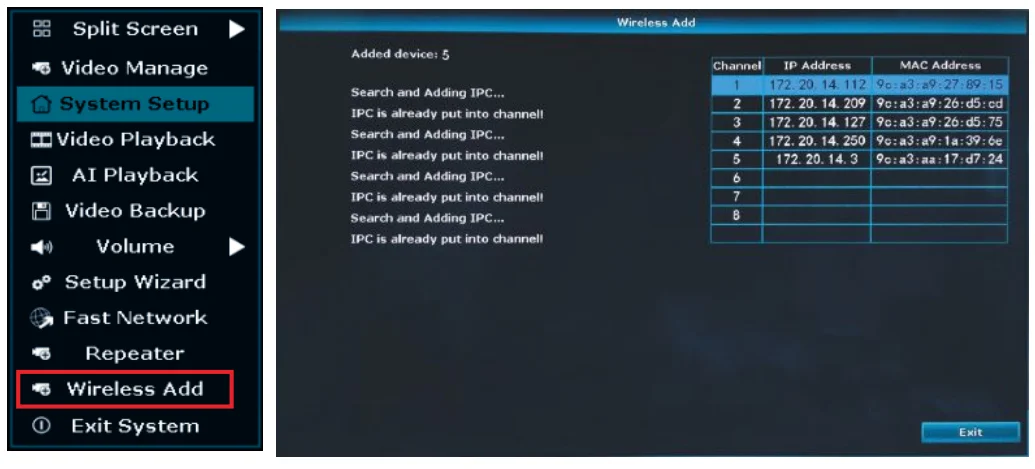
- Right-click the mouse → Wireless Add
- When the camera is blinking, press the camera reset button for 5 seconds
- Wait for the power port light to stay on for a few seconds, then it will blink again.
- About 1 minute, the camera will show on the wireless add page, see IP address 172.20.14.**, then you can exit it ( if the first time the camera doesn’t show an image, pls try several times, each time pls wait about 1 minute)
How can I get motion notifications on my phone?
A: First, check that the status of your Cloud ID is ONLINE and the Network Status indicates a Healthy Network. Second, from the home screen of your monitor, right-click the mouse, choose System setup >
Channel Setup > Video detection. Next, select the following: Enable for Motion Detection, Alarm, E-mail Notice, and APP Alarm. Click Ok.
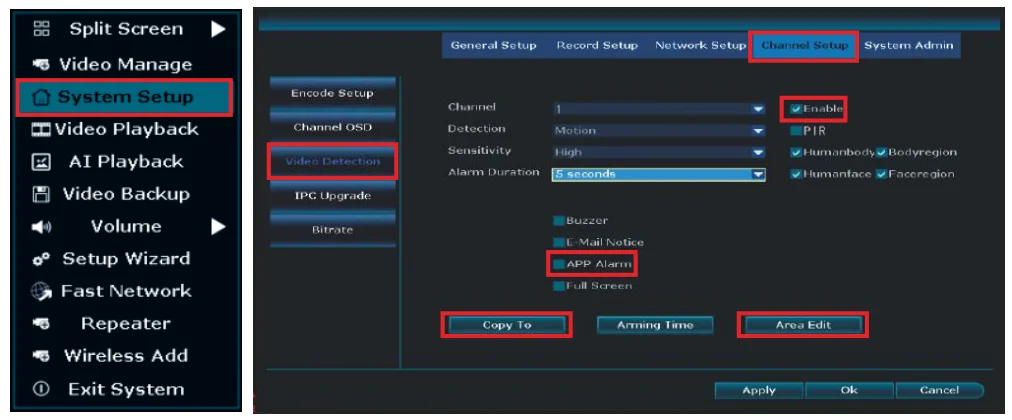
After you have finished setting your preferred channel as outlined above, repeat the process for your remaining preferred channels. Starting from the home screen of your monitor, right-click the mouse, navigate to System setup > Channel Setup >Video detection. Next, select Copy to and either select the All option for all cameras, or you can select the specific channel(s) you prefer. Click ok. You can adjust the sensitivity at any time by returning to this screen. When people pass by, you will get a motion detection signal and notification as shown.
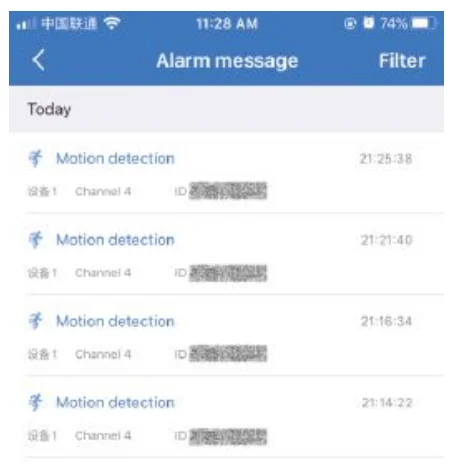
How can I receive email notifications for motion detection?
A: First, ensure you follow the steps outlined in the previous question. How can I get motion notifications on my Smartphone?
- To receive notifications, you need an email account (Such as Hotmail, Gmail, Yahoo, etc)
- Next, log in to the web version of your Email account. In the upper right-hand corner, click on the Settings button, then select Forwarding and POP/IMAP → Check “Enable POP for all mail” and “Enable IMAP” → Save the settings.
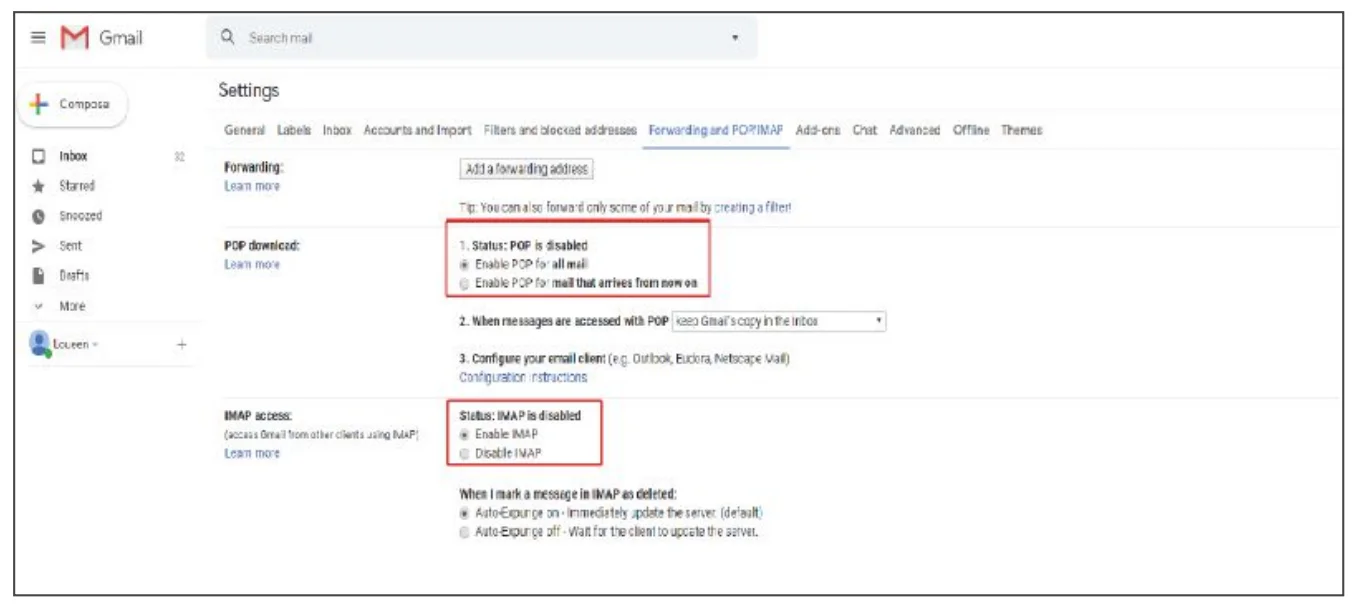
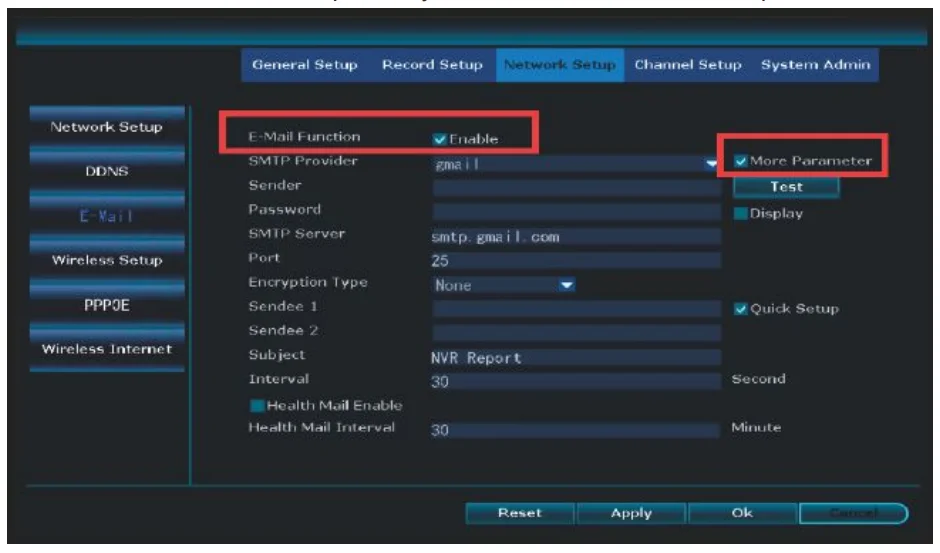
From the home screen of your monitor, right-click your mouse and choose System Setup, select Network setup, select Email from the left menu bar. From there, click Enable, enter the information in the fields as shown in the figure below.
- Complete the fields on the screen as follows(take a Hotmail account as an example)
- SMTP Server: smtp.live.com
- Port: 25
- Username: Sender e-mail address (click shift on the virtual keyboard for “@” symbol, Hotmail e-mail address) to send alarm
- Password: Sender E-mail login password
- Encryption Type: SSL
- Sender: Sender’s e-mail address to send alarm
- Sendee: Receiver e-mail address to receive alarm (it must be different from the sender; you can use another Hotmail/Gmail/Yahoo Email address)
- If you use another email account as the sender, such as Gmail, Yahoo, etc, you need to find out their own SMTP server and port, or you can contact our service person.
- After you have entered all of your information, click Test until the Test success message appears on the screen. Please allow a few minutes for the testing cycle to complete. If the test failed, try another Email account. Click Ok. Whether or not your test was successful, be sure to click Ok to save your settings.
- To test your alarm, walk past your camera. You will receive an Email notification within 2 to 3 minutes as shown in the sample figure below.
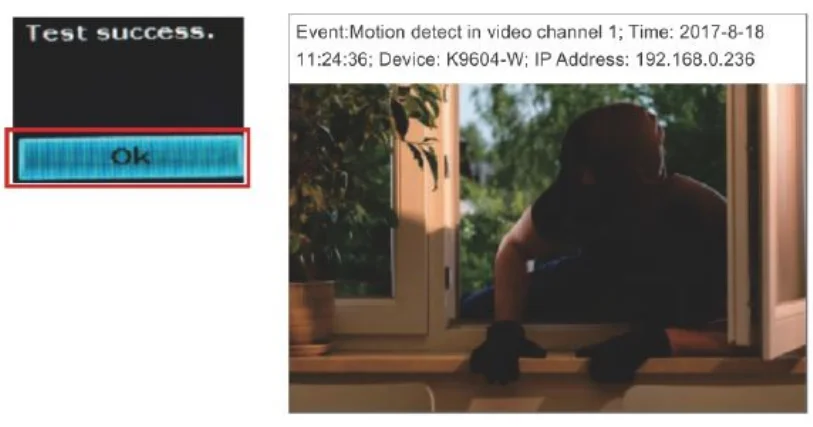
For more manuals by Hiseeu, visit ManualsLibraryy
Hiseeu 2.5K 5MP WiFi Security Camera System-FAQs
Are Hiseeu cameras waterproof?
Yes, most Hiseeu outdoor cameras are designed with weatherproof protection (commonly IP66 rating). This makes them suitable for both indoor and outdoor use, allowing them to handle rain, dust, and varying temperatures without affecting performance.
Is a 5MP camera good for security?
A 5MP camera offers clear and detailed video quality, making it ideal for home or business surveillance. It provides better clarity than standard HD, allowing you to recognize faces, objects, and important details more easily.
Can security cameras work with mobile data?
Yes, cameras can function with mobile data if connected through a hotspot. However, this may not be as reliable or cost-effective as a stable broadband connection.
What internet speed is needed for security cameras?
A minimum of around 25 Mbps is generally sufficient for smooth performance with multiple cameras. Higher speeds improve video streaming quality and reduce buffering.
Is 2.4GHz WiFi good for security cameras?
Yes, 2.4GHz is widely used for security cameras because it provides better coverage over longer distances and through walls, ensuring a stable connection.
Can I view the cameras remotely?
Yes, the system supports remote viewing through a mobile app. Once connected to the internet, you can monitor live footage, playback recordings, and receive alerts from anywhere.
Do Hiseeu cameras record audio?
Yes, many Hiseeu cameras include built-in microphones and support audio recording. Some models also offer two-way audio, allowing you to communicate through the camera.
Can Hiseeu cameras work without WiFi?
Some Hiseeu systems can record locally using an NVR (Network Video Recorder) even without internet. However, WiFi or internet is required for remote viewing and mobile access.
Can a 2.4GHz camera work with a 5GHz router?
Yes, but only if your router is dual-band. The camera will connect to the 2.4GHz band, while other devices can use the 5GHz band for faster speeds.