

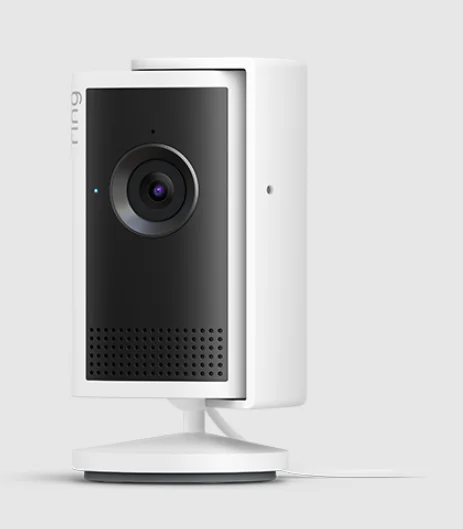
Indoor Cam Plus
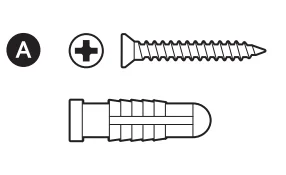
Hardware included
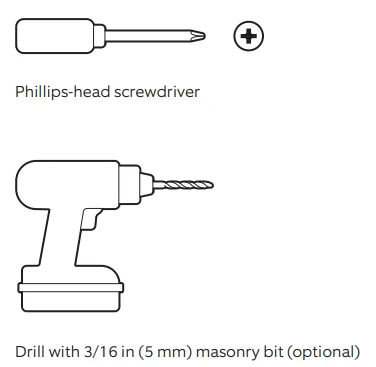
Tools needed
- Remove the protective wrap.

- Download the Ring app.

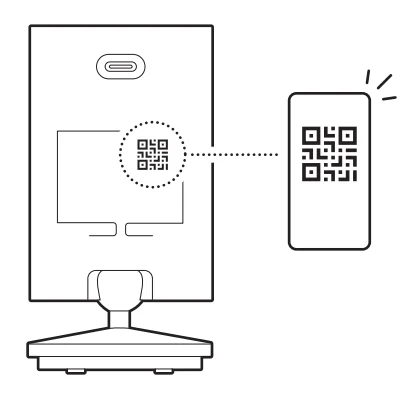
- Scan the QR code on your device.

- Choose a location.

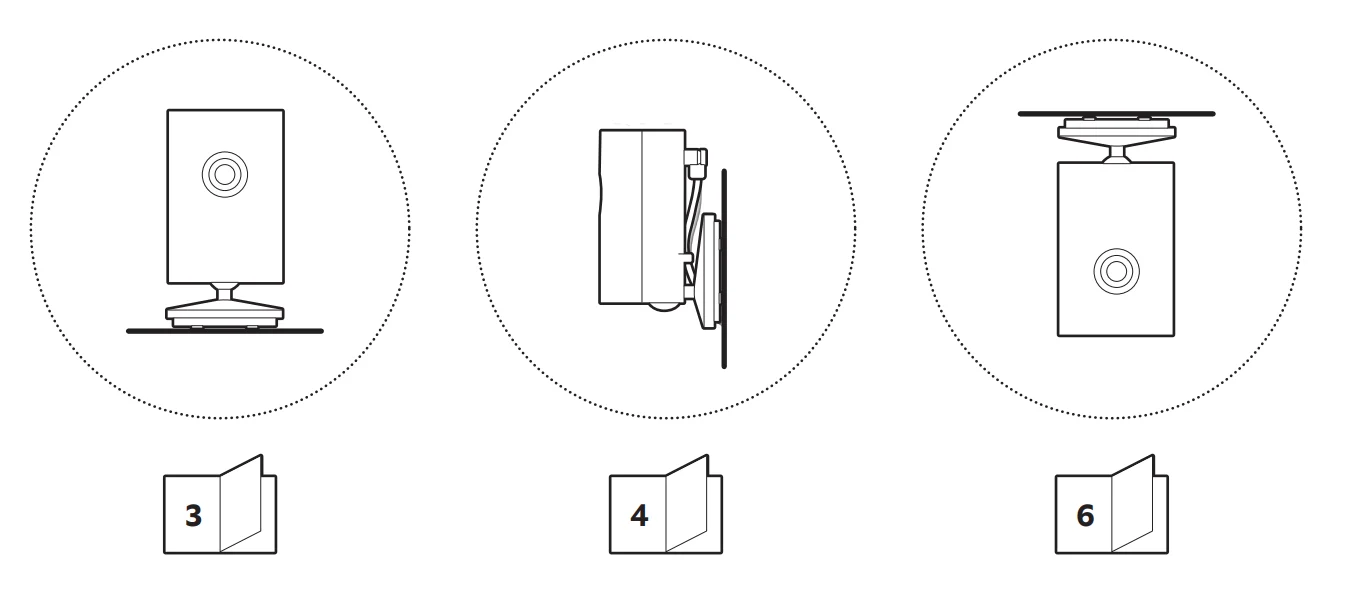
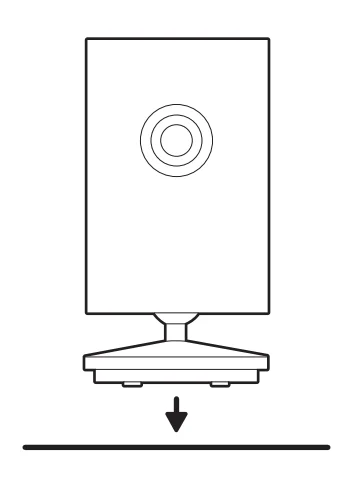
Flat installation
- Place your camera on a level surface.

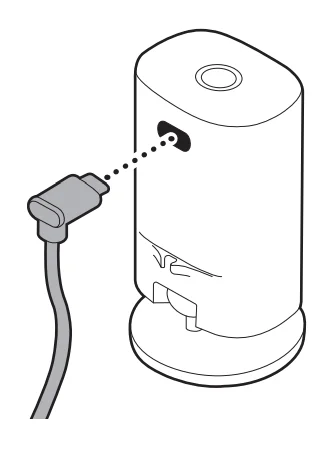
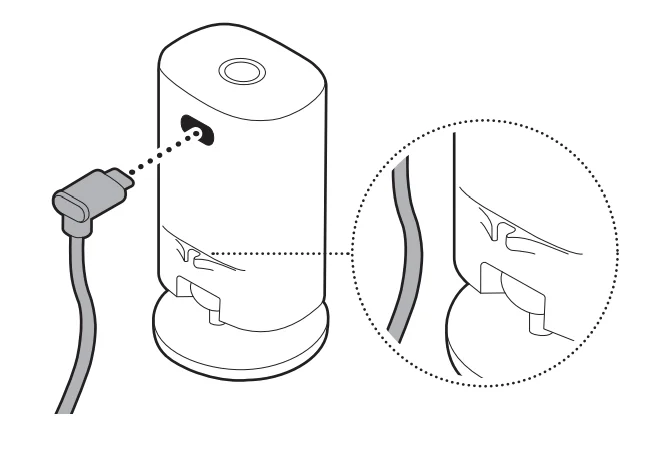
- Plug the power cable into your camera.

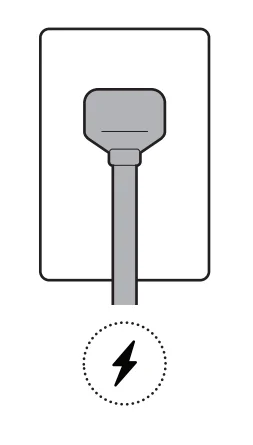
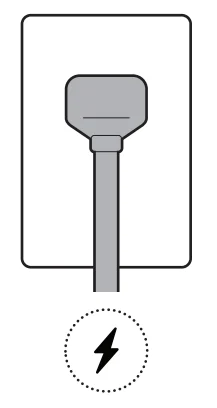
- Connect the power cable to the power adapter and plug it into an outlet.

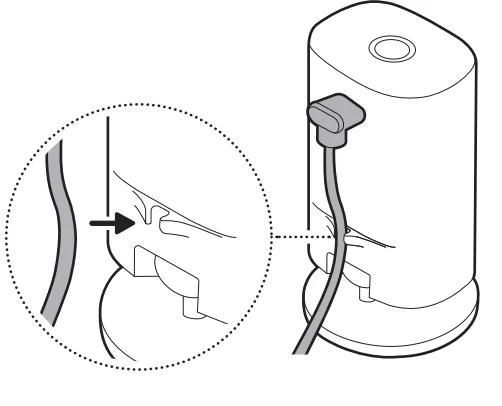
- Secure the power cable with the base clip.

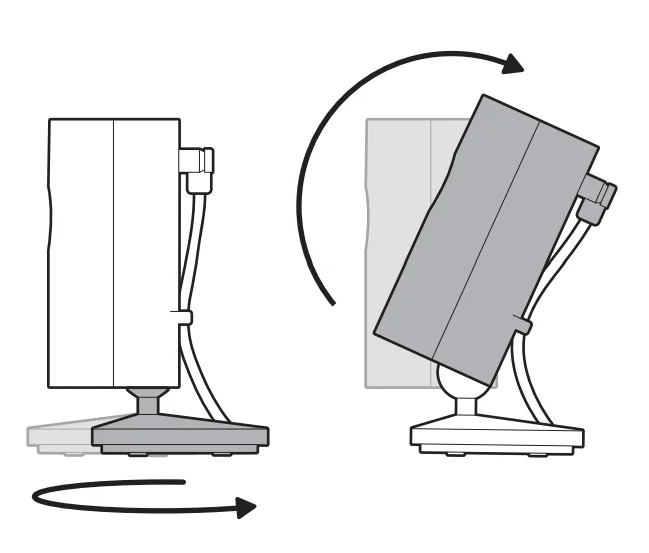
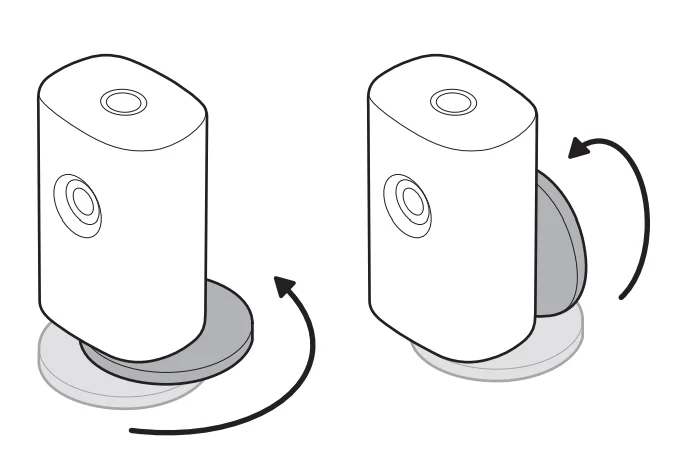
NOTE: For an upward angle, swivel the base toward the back and tilt your camera up accordingly.
Wall installation
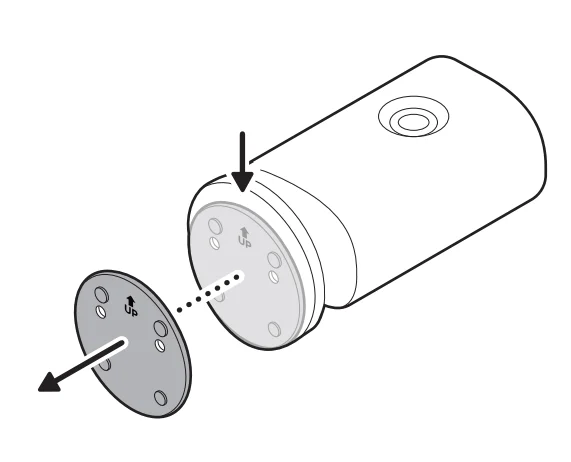
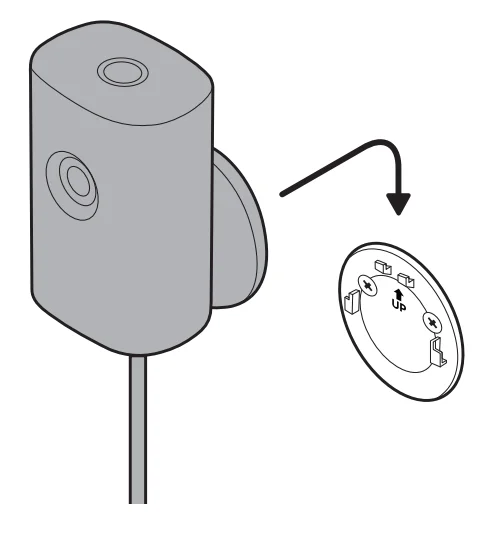
- Slide the mounting plate in the direction opposite to the UP arrow to remove.

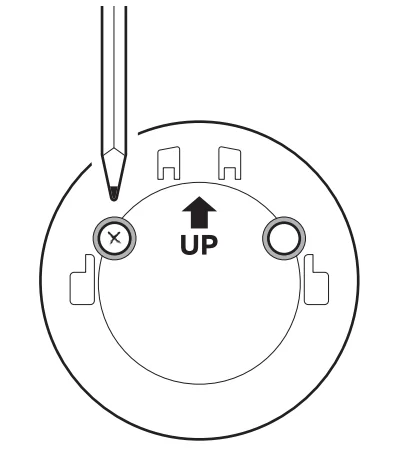
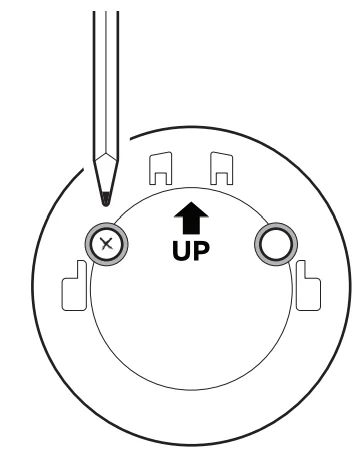
- Use the mounting plate as a guide to mark screw holes on the wall.

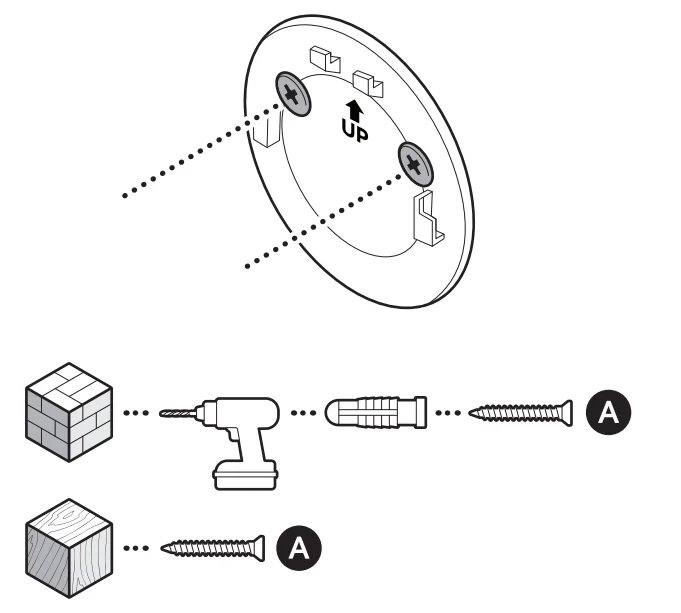
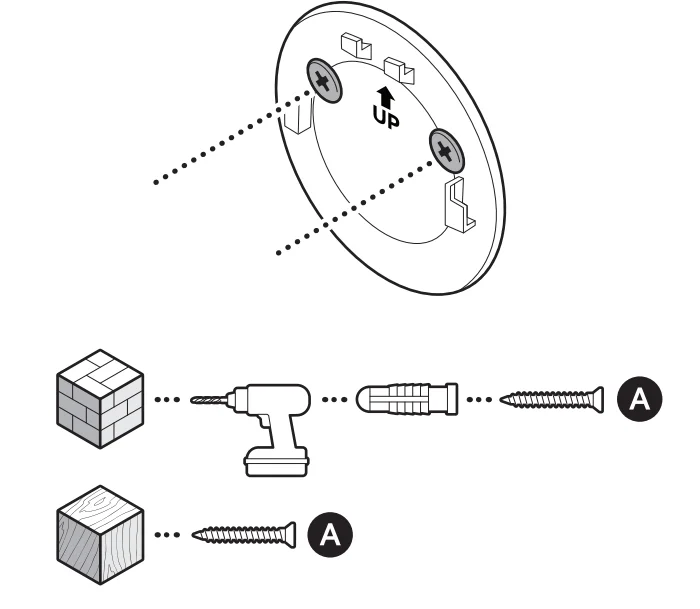
- Install the mounting plate with the UP arrow pointing up.
On stucco, brick, or concrete, use a 3/16 in (5 mm) masonry bit to drill holes for the included wall anchors.
- Plug the power cable into your camera.

- Swivel your camera’s mount toward the back.

- Secure your camera to the mounting plate by sliding until you feel a click.

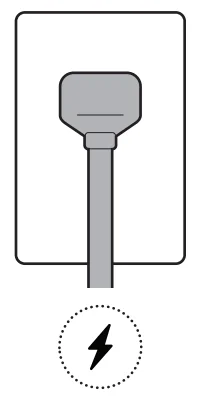
- Connect the power cable to the power adapter and plug it into an outlet.

Ceiling installation
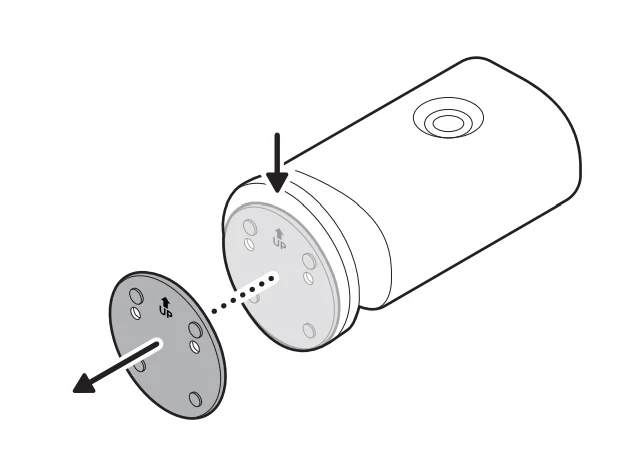
- Slide the mounting plate in the direction opposite to the UP arrow to remove.

- Use the mounting plate as a guide to mark screw holes on the ceiling.

- Install the mounting plate with the UP arrow pointing toward your desired viewing direction.
On stucco, brick, or concrete, use a 3/16 in (5 mm) masonry bit to drill holes for the included wall anchors.
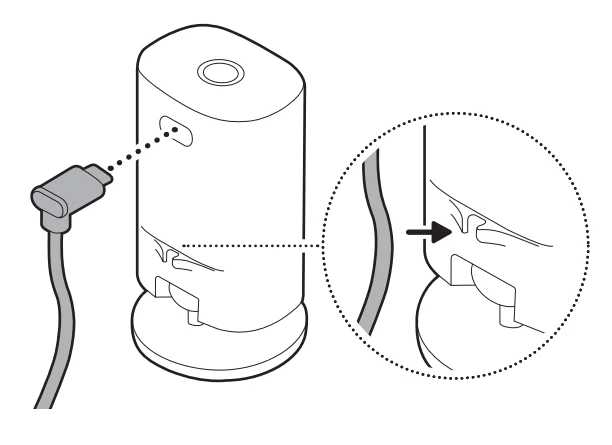
- Plug the power cable into your camera.
NOTE: For best results, use the base clip on your camera to secure your cable.
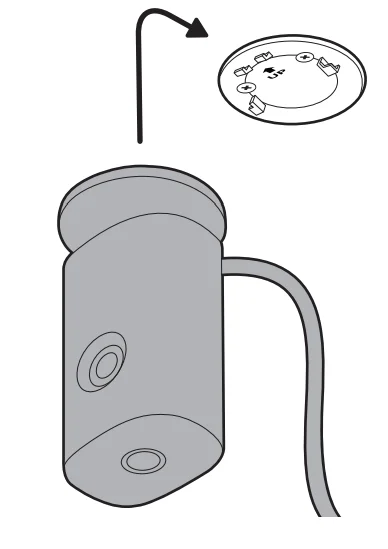
- Secure your camera to the mounting plate by sliding until you feel a click.

- Connect the power cable to the power adapter and plug it into an outlet.

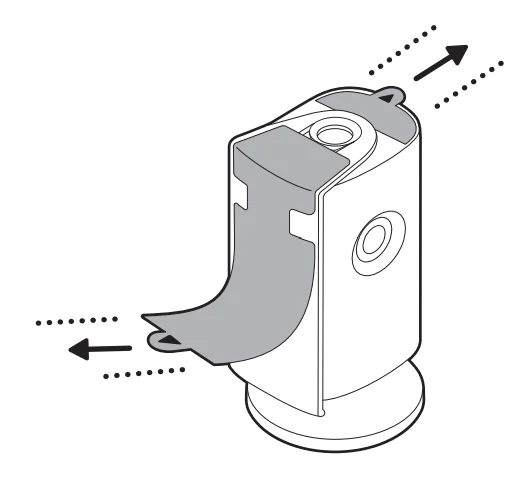
Attaching the lens cover
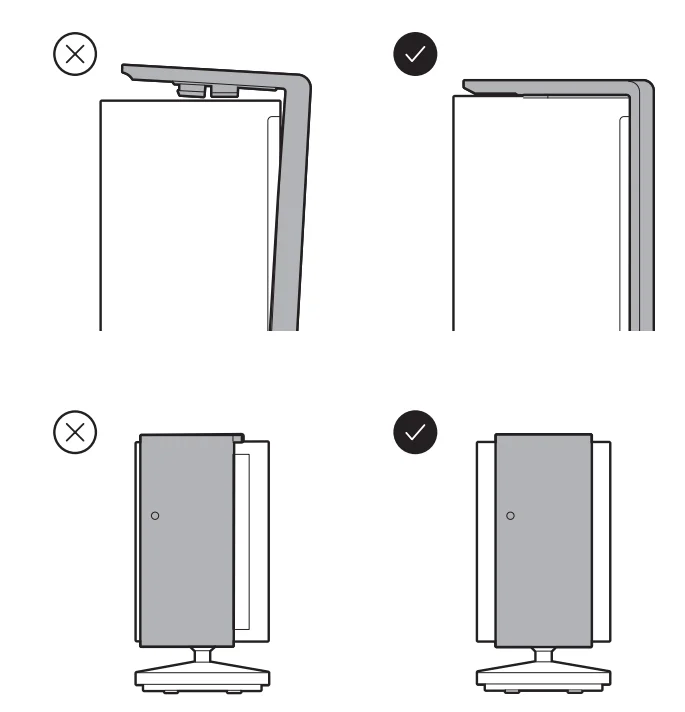
- Align the dotted line on your lens cover with the dotted line on top of your camera.

- Push the cover onto your camera until you hear a click.

- Push the peg at the bottom of your cover into the notch at the bottom of your camera.

- Pull the tabs to remove.


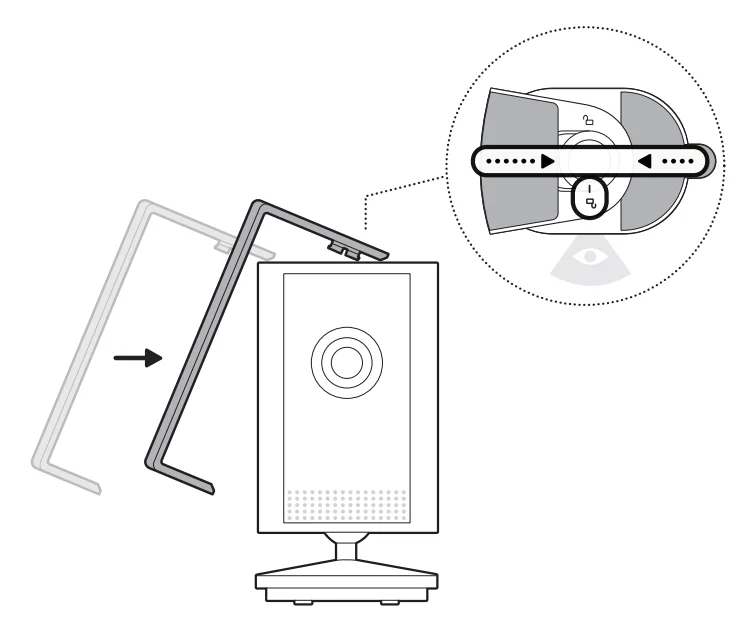
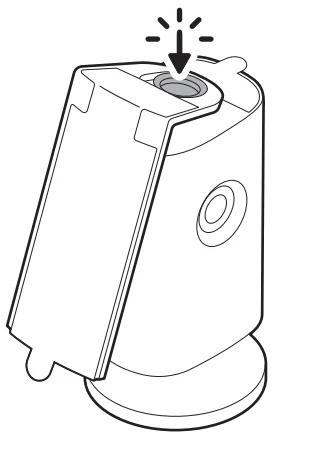
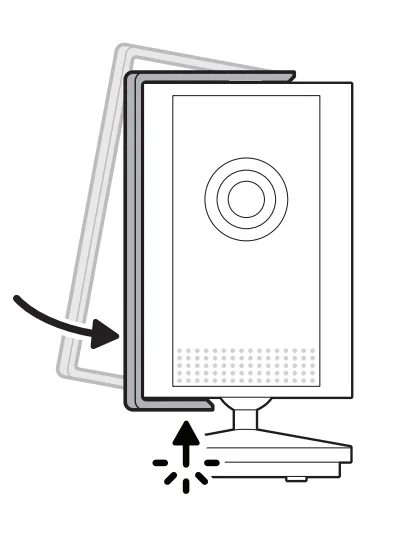
Using the lens cover
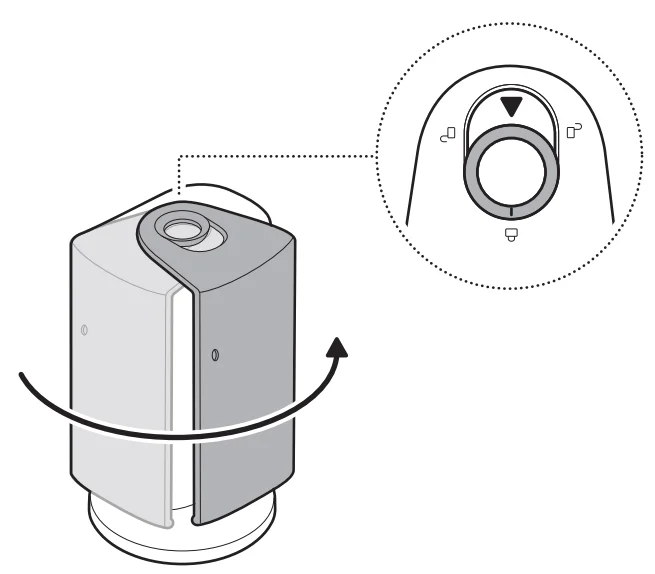
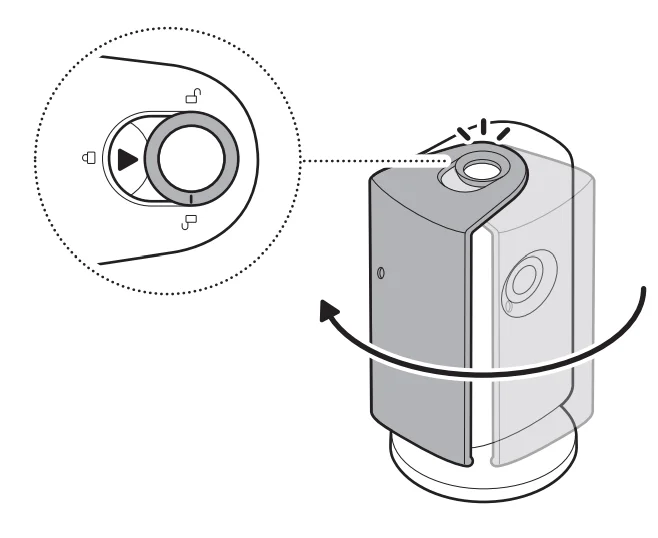
- To cover your camera, slide the lens cover to the locked position until you hear a click.

- To uncover your camera, slide the lens cover to the unlocked position until you hear a click.

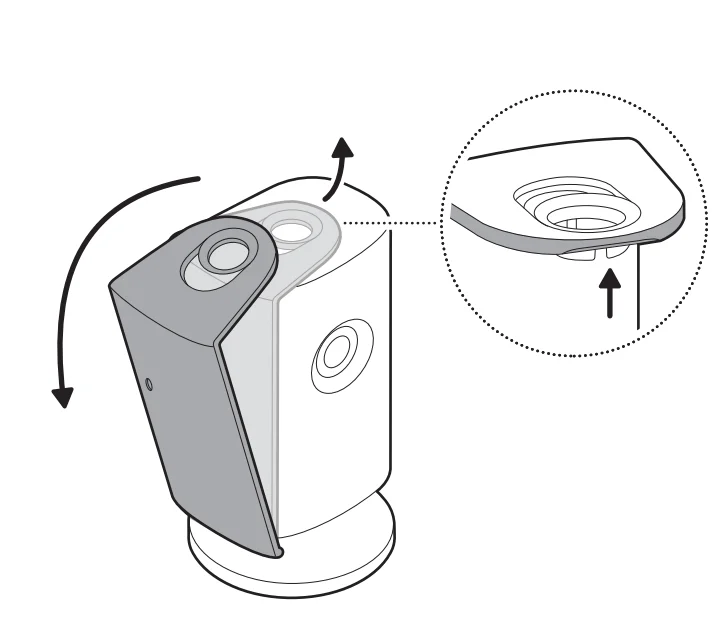
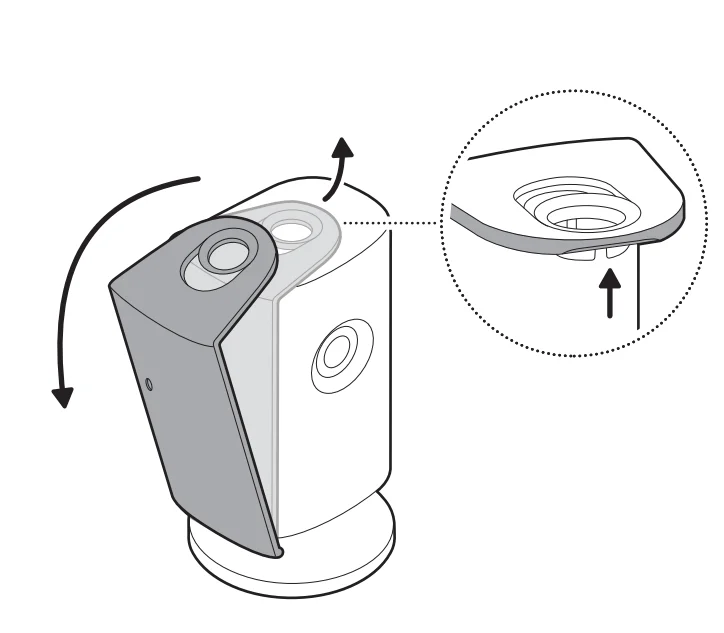
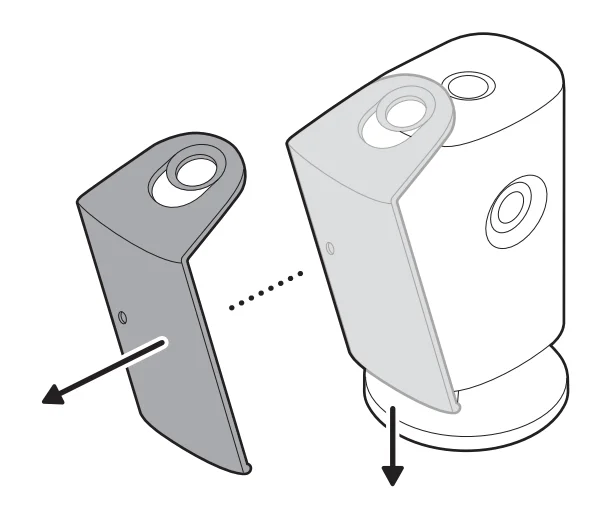
Removing the lens cover
- Slide to unlock the lens cover.

- Lift from the top to detach.
- Push down and detach from the bottom.

For more manuals by Ring, visit ManualsLibraryy
Indoor Cam Plus-FAQs
How do I set up the Indoor Cam Plus for the first time?
To set up the Indoor Cam Plus, plug the camera into a power outlet and download the Ring app on your smartphone. Open the app, create or sign in to your account, and select Add Device. Scan the QR code on the camera and follow the on-screen instructions to connect it to your Wi-Fi network. Once connected, you can adjust camera placement, enable motion alerts, and begin monitoring your home through the app.
How do I activate my Indoor Cam Plus in the Ring app?
Activation is done through the Ring mobile app. After installing the camera and connecting it to power, open the app and tap Set Up a Device. Choose the camera category and scan the QR code on the device. The app will guide you through connecting the camera to Wi-Fi and finishing the setup process. Once activated, you can view live footage, receive alerts, and customize camera settings.
How can I reset the Indoor Cam Plus if it stops working properly?
To reset the Indoor Cam Plus, locate the reset button on the device. Press and hold it for about 15–20 seconds until the indicator light begins flashing. This process restores the camera to factory settings. After the reset, you will need to set up the camera again through the Ring app, reconnecting it to your Wi-Fi network and account.
What does the green light on the Indoor Cam Plus mean?
A green light on the Indoor Cam Plus generally indicates that the device is connected and functioning normally. It shows the camera has a stable connection to your Wi-Fi network and is ready to operate. If the light changes to other colors or begins blinking, it may indicate connection issues, setup mode, or that the device is updating or restarting.
What does the blue light on my Indoor Cam Plus indicate?
The blue light typically appears when the camera is recording or someone is viewing the live feed. This may happen when motion is detected or when you open the live view in the Ring app. The light is designed as a privacy indicator so you know when the camera is actively monitoring or recording activity in the room.
Can the Indoor Cam Plus work without Wi-Fi?
The Indoor Cam Plus relies on a Wi-Fi connection to function fully. It uses the internet to send video feeds, alerts, and notifications to your phone through the Ring app. Without Wi-Fi, the camera cannot stream live video or record events to the cloud. Some security cameras offer alternative connectivity options, but Ring indoor cameras typically require an active internet connection.
What is the best placement for an Indoor Cam Plus?
For optimal monitoring, place the Indoor Cam Plus in high-traffic areas such as living rooms, entrances, hallways, or near staircases. Position it at a slightly elevated angle to capture a wider field of view. Avoid placing it directly facing bright lights or windows, as this can reduce video clarity. A stable surface or wall mount helps maintain clear, consistent footage.
How can I reconnect my Indoor Cam Plus to Wi-Fi?
If your camera loses connection, open the Ring app and select the device from your list. Go to Device Settings and choose the option to reconnect or change the Wi-Fi network. Follow the instructions to place the camera back into setup mode and select your Wi-Fi network. Ensure your router is working properly and the camera is within a strong signal range.
How do I know if my Indoor Cam Plus is actively recording?
You can check if the camera is recording by looking for the blue indicator light on the device or by reviewing the Event History in the Ring app. When motion is detected or someone accesses live view, the camera begins recording and logs the event. The app also sends notifications so you can quickly check activity happening inside your home.