
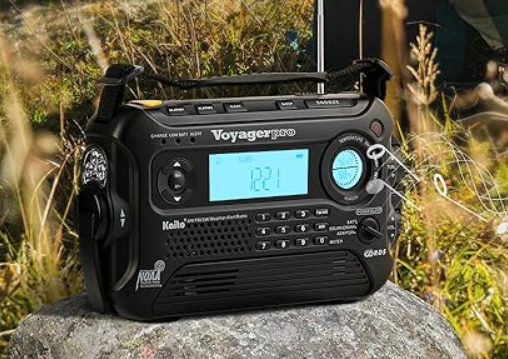

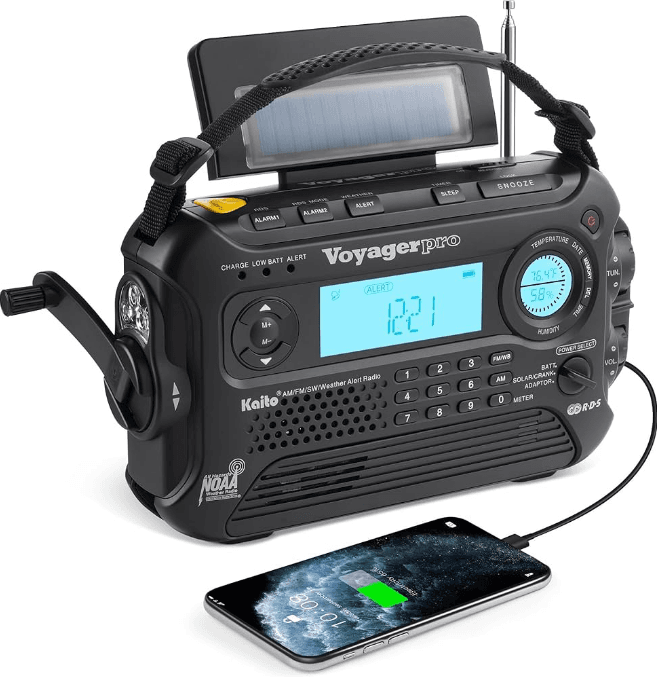
Kaito Voyager Pro KA600 Digital Solar Dynamo Crank
LOCATION OF CONTROLS
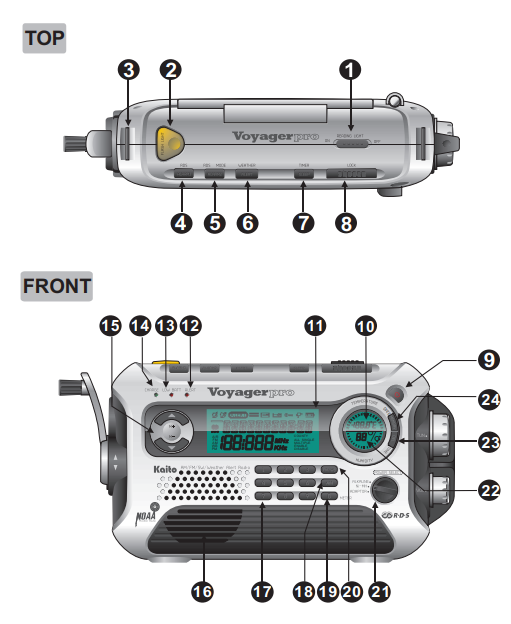
- Reading Light Switch
- Flashlight Button
- Hand Strap Hole
- RDS/Alarm1 button
- RDS/Alarm2 button
- Alert button
- Sleep button
- Snooze button
- Power button
- Temperature indicator
- LCD Display
- Alert light

- Low battery light
- Charge light
- M+/M- Button
- Speaker
- Numeric Button
- AM button, Power On: select AM, Power Off: select step 9K/10K
- Numeric 0 Button: select meter band
- FM/WB Button
- Power select switch
- Moister Indicator
- DEL Button
- Memory button
- Front: Solar Panel; Rear: Reading Light
- Telescopic Antenna
- Battery Compartment
- Charge switch
- DC in 5V port
- Charge out port
- DC in 6v port
- Earphone Jack
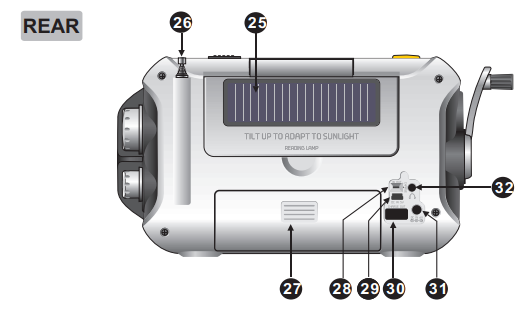
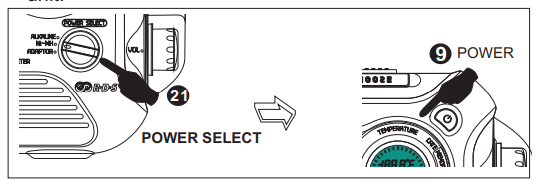
Power On and Power Off
- Rotate the to the valid charging position. ALKALINE. AA Battery Charging ADAPTOR. External Adapter Charging
- In the unit off mode, press the button to turn on the unit, and press the button again to turn off the unit.
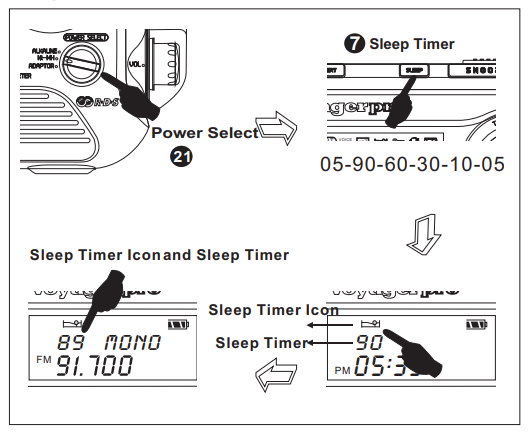
Sleep Timer
- Rotate the to the valid charging position.
- In the unit’s off mode, press the <SLEEP> button repeatedly to select your desired sleep timer, ranging from 5 to 90 minutes.
- If you select the sleep timer, the unit will turn on automatically after a few seconds with the icon ” ” and the minute appearing in the display.
- As you reach your set sleep time, the unit will automatically turn off.
POWER ON/POWER OFF
NOTE: If the unit turns on by pressing the button, you can also select the sleep timer by pressing the button shortly to select your desired sleep timer.
Alarm On/Off
The unit has two alarm functions: alarm1 and alarm2.
- In the unit off mode, press and hold the button or with the icon ” ” flashing to enter the alarm on/off function. The setting order: hour, minute, presetting off time.
- Press the button or enter the next setting.
- Rotate the knob to adjust the alarm time and preset off time
Example: Set the ALARM1 on at 8:05, and alarm off after 15 minutes.
A. In the unit off mode, press and hold the button with the icon ” ” and the hour flashing 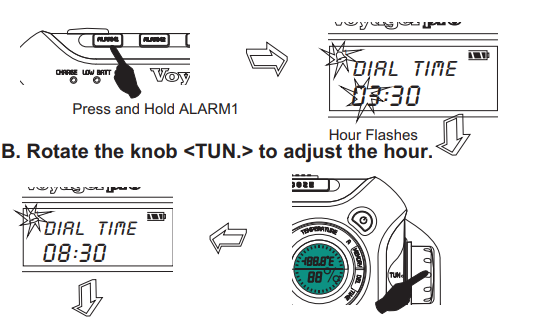
C. Press the and then rotate the knob to adjust the minutes. Press the button to set the off time by rotating the knob
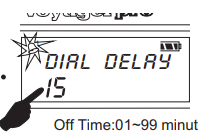
D. Press the button shortly to confirm
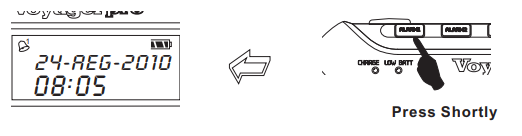
Activate and Cancel the Alarm Function
In the unit off mode, press the button or shortly with the icon ” ” flashing in the display, the alarm function is activated. Press the button again; if the icon ” ” disappears from the display, the alarm function is canceled.
Snooze 5 Minutes
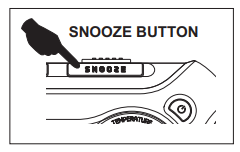
When the unit alarm on, press the button shortly, then the unit is powered off for 5 seconds.
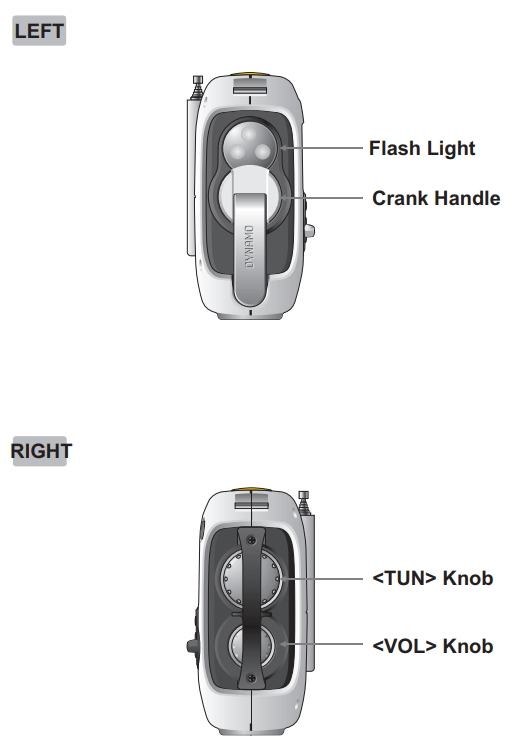
Adjust the Volume
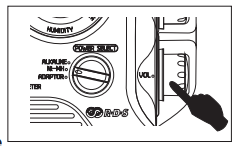
In the unit on mode, rotate the knob to adjust the volume.
Band Selecting
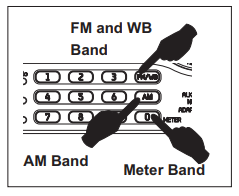
- In the unit on mode, press the button <FM/WB> to listen to the FM/AM band.
- Press the button shortly to listen to the AM band. Press the button repeatedly to convert between MW, LW, and SW.
- Press the numeric button<0> shortly
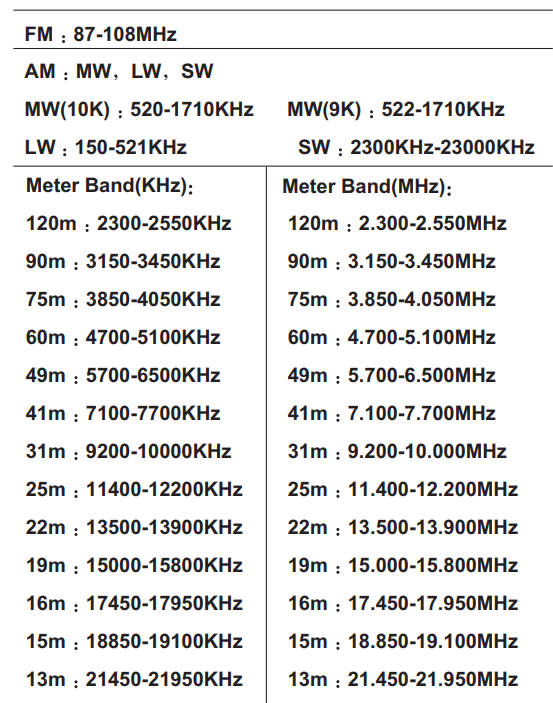
Frequency Diagram
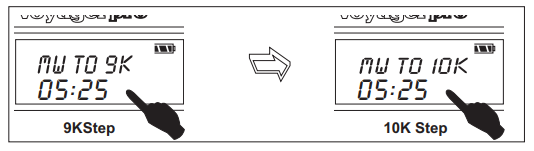
Select AM Step 9K/10K
In the unit off mode, press and hold the button for about 5 seconds with the step 9K or 10K appearing in the display. Press and hold the button again to convert between 9K and 10K.
Using the Antenna
While listening to the FM or AM programs, please extend the telescopic antenna fully and get close to the window to get the best reception. The unit uses an internal, ferrite bar antenna for AM or LW. While listening to the AM or LW programs, please rotate the unit to get the best reception.
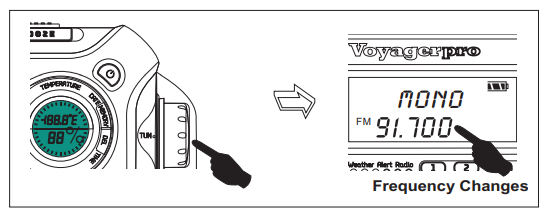
Manual Tuning in Stations
- Turn on the unit and select the band.
- Adjust the volume.
- Rotate the knob <TUN.> to listen to your desired program.
Auto Scan Tuning
- Turn on the unit and select the band.
- Press and hold the button <M+> or <M-> with the frequency changing in the display, then release the button, the unit is auto scan tuning the stations. When
Auto-tuning the strong signal, the unit will broadcast the station.
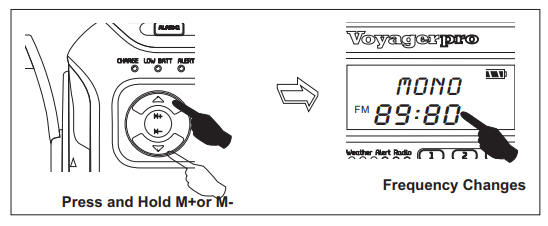
Direct Frequency Entry
Input FM Band Frequency
After inputting the FM band number, press the <FM/AM> button shortly to listen to the FM program.
Input AM Band Frequency
First select the frequency range(MW, AM, or LW), then input the frequency number. After inputting the number, press the button to confirm.
TUNING IN STATIONS
Example1: Input FM 95.80MHz
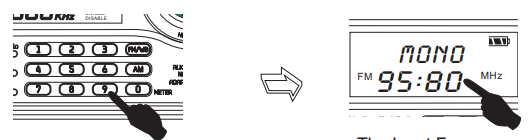
Press the numeric button 9 5 8 0, and then press the <FM/WB> button shortly to
confirm.
Example 2: Input AM (9K) 1287KHZ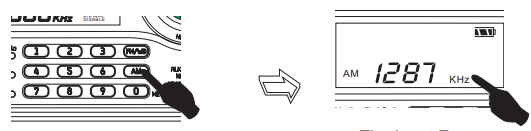
Example 3 Input SW 4900KHZ
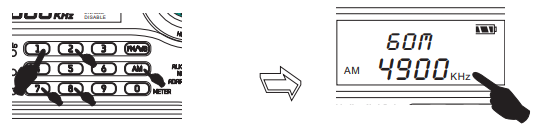
Firstly, press the button, and then press the numeric buttons 4, 9, 0, 0, and finally press the button shortly to confirm.
Auto Tuning Storage (ATS)
- Select the band.
- Adjust the volume.
- Press and hold the < MEMORY > button until the frequency starts auto-tuning, then release the button. The unit will store the station while scanning.g
- FM (ATS ): 50 memories, (from 50)
- AM (ATS ): 10 memories, (from 15)
- LW (ATS ): 5 memories, (from 05)
- SW( ATS ): 50 memories, (from 50)
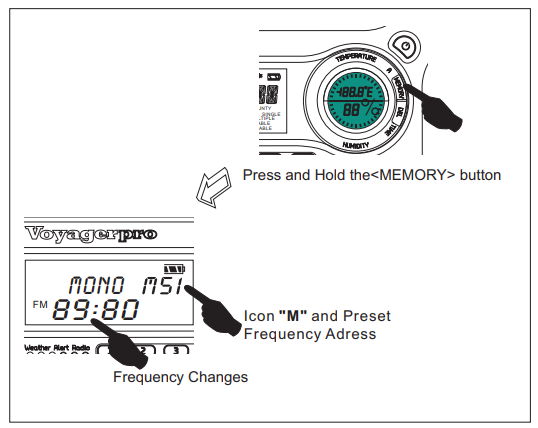
Listening to Preset Stations
(1) Manual
- Select the band.
- Press the <M+> or <M-> button shortly to select the preset frequency address. In this way, you can find the preset station quickly.
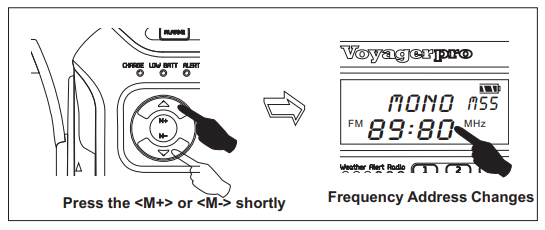
(2) Direct Frequency Entry Listening
- Select the band.
- In the preset mode, input the frequency address directly, and then press the button shortly to listen to the program.
Manual Tuning Storage
- Press the button shortly to enter into the memory mode with “M” and the preset memory address flashes, then press the <M+> or button shortly to select the preset memory address.
- Press the button once again to confirm. The station address
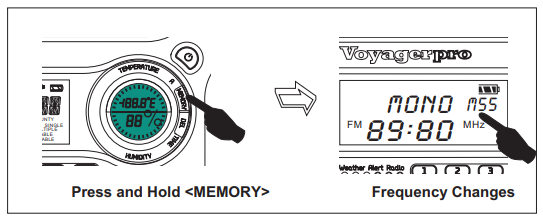
- FM can store 100 memories, and address 00 is advised to be stored while manual tuning.
- AM can store 25 memories, and address 00 is advised to be stored while manual tuning.
- LW can store 10 memories, and address 00 is advised to be stored while manual tuning.
- SW can store 100 memories, and address 00 is advised to be stored while manual tuning.
DELETE PRESET STATIONS
Delete A Preset Station
- Select the band.
- Press the <M+> or shortly to select the address where the frequency is saved.
- Press the button shortly with the icon flashing, then press the button shortly again to delete the address.
Delete ALL Preset Stations
- Select the band.
- Press and hold the button (about 3 seconds) with ” ” flashing, then press the button once again to delete all the preset frequencies.
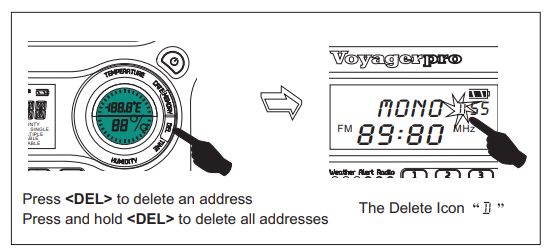
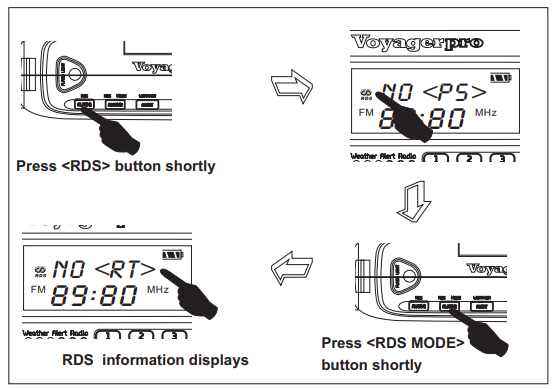
FM RDS
- Select a strong FM signal station of FM.
- Press the button shortly with the icon in the display.
- Press the button repeatedly to see what is being transmitted.
- Rt Station Text Message
- PTY Program Type
- PS Station Name
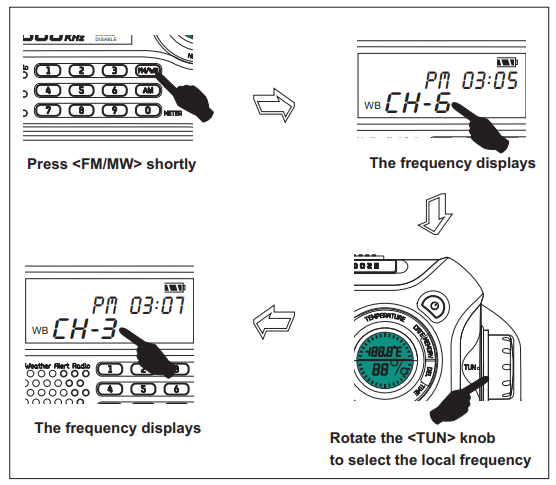
Listening to the Weather Report
- Press the <FM/WB> button shortly to enter weather reception mode.
- Rotate the <TUN.> knob to select the local frequency position. Then you can listen to the weather report.rt
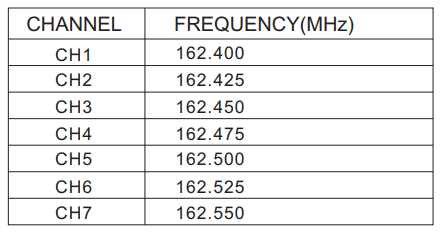
Weather Band Channel Frequencies
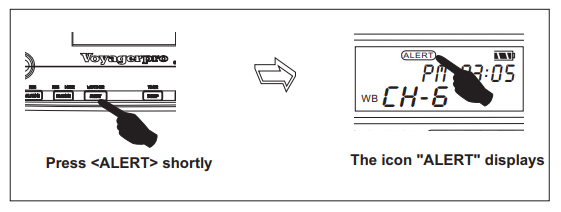
Weather Emergencies Reception
- Press the <FM/WB> button shortly to enter the local weather frequency position.
- Press the button to enter the weather emergencies reception, the icon “ALERT” will show in the display, and the light “ALERT” will flash. You can power off the unit. If there is a weather emergency, the unit will power on and report the weather emergency automatically.
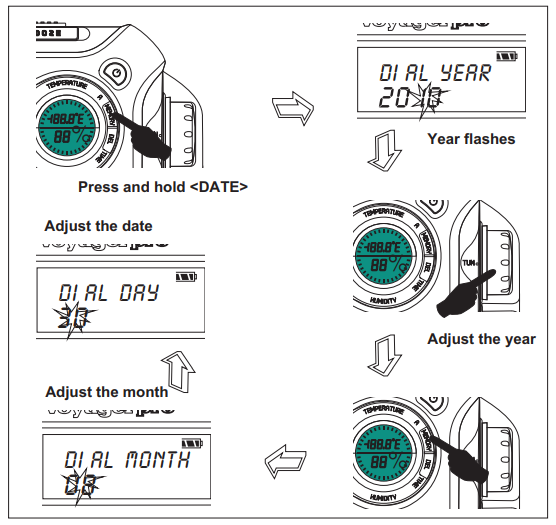
Adjust the date
- In the unit off mode, press and hold the button(about 2 seconds) with the year flashes. Then, tune the knob to adjust the year, and finally press the button to confirm.
- After setting the year, press the button shortly with the month flashes. Then, tune the knob to adjust the month, and finally press the button to confirm.
- After setting the month, you can use the same method to set the date.
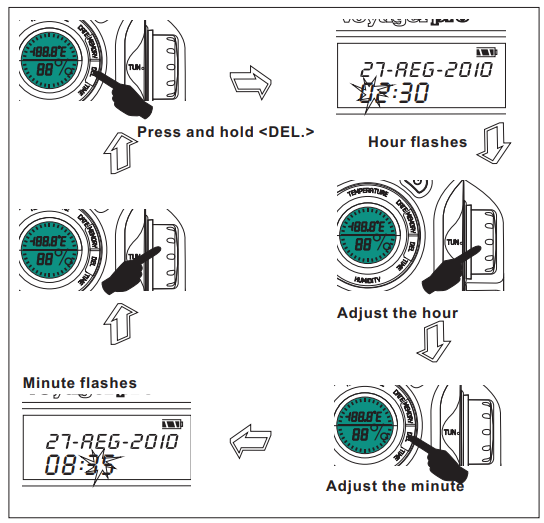
Adjust the clock
- In the unit off mode, press and hold the button (about 2 seconds) with the hour flashes. Then tune the knob to adjust the hour.
- After tuning the hour, press the button shortly once again,then tune the knob to adjust the minute, and finally press the button once again to confirm
.
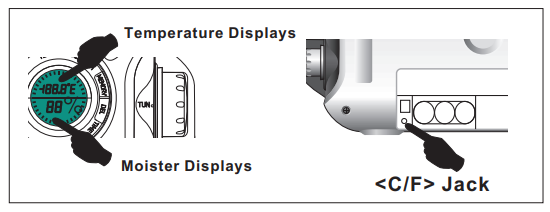
Moister and Temperature Display
There is a moisture and temperature indicator on the left side of the unit; the upper indicator displays temperature, and the downside displays moisture. You can press the <C/F>jack in the battery compartment with the pointy object to convert between the
fahrenheit and celsius.
Using Flashlight
Press the button on the top of the unit, and the flashlight will be on. Press the button once again shortly to turn off the light.
Using Reading Light
Firstly, open the solar panel, then push the switch to the “ON” side; the reading light is on. Push the switch to the “OFF” side, and the reading light is off.
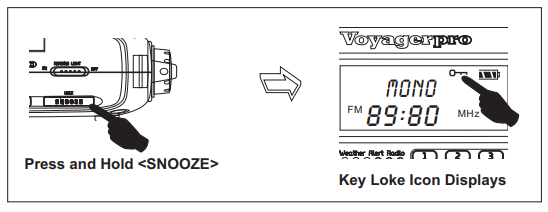
Key Lock Function
Press and hold the button(about 2 seconds)with the icon ” ” shows in the display, the key lock function is activated. Press the button again, with the icon disappearing, and the key lock function is deactivated.
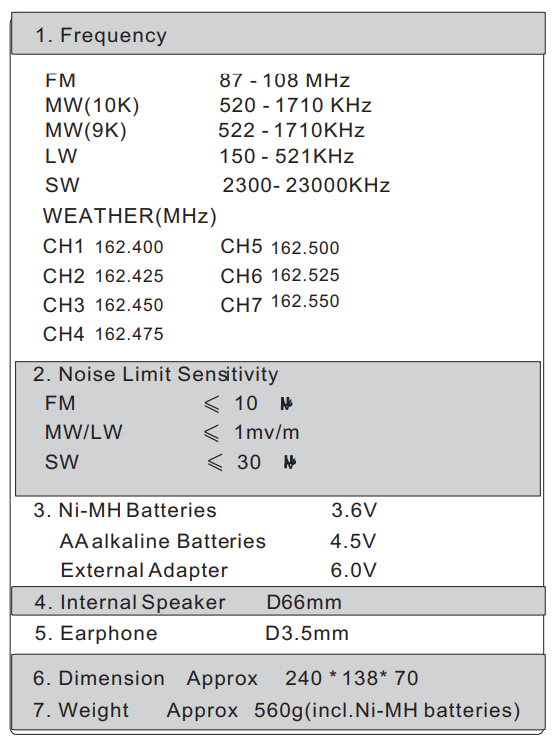
SPECIFICATION
FOR MORE MANUALS BY KAITO ELECTRONIC, VISIT MANUALSLIBRARYY
Kaito Voyager Pro KA600 Digital Solar Dynamo Crank-FAQs
How can I charge the Kaito Voyager Pro KA600?
You can charge it by hand crank, solar panel, AC adapter, or USB cable, making it reliable in any situation.
How long should I crank the radio to get power?
About 1 minute of cranking can provide 15–20 minutes of radio playtime, depending on usage.
Can the KA600 charge a mobile phone?
Yes, it has a USB output port to charge phones and small devices, though charging is slower than a wall charger.
Does the Kaito KA600 have multiple bands?
Yes, it covers AM, FM, shortwave, and NOAA weather alerts, keeping you updated during emergencies.
How do I use the NOAA weather alert function?
Switch to the “Alert” mode on the NOAA setting — the radio will stay in standby and automatically activate when an alert is broadcast.
How long does the solar panel take to charge the battery?
It depends on sunlight strength; usually, 8–10 hours of direct sunlight can fully recharge the built-in battery.
What kind of battery does the KA600 use?
It comes with a rechargeable Ni-MH battery pack but can also run on 3 AA batteries as backup.
Is the Kaito Voyager Pro KA600 good for outdoor use?
Yes. It’s designed for camping, hiking, and emergency kits, with multiple charging methods and durable build quality.