
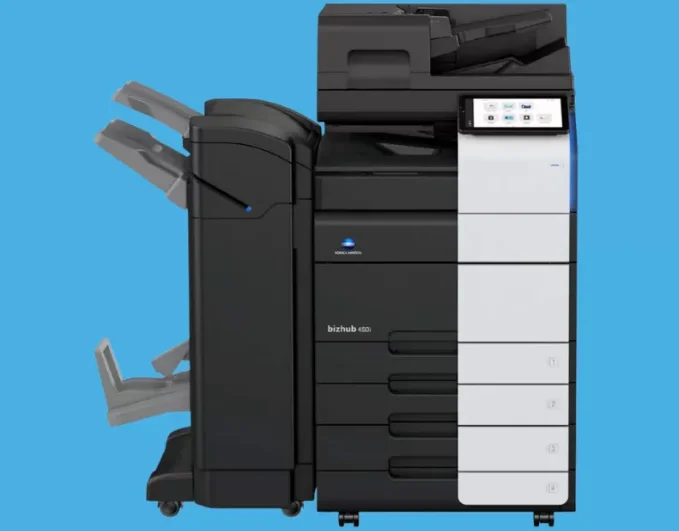

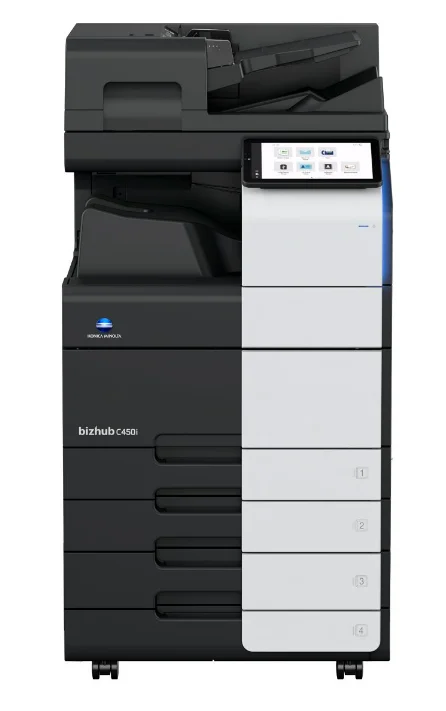
Konica Minolta bizhub C450i Multifunction Office Printer
Safety information
Introduction
This [Quick Guide] uses illustrations to describe operating procedures for the most commonly used functions in an easy-to-understand way. Start by using this manual to become proficient with the useful functions that this machine offers. For details on the various functions, refer to the User’s Guide on the User’s Guide CD/DVD included with this machine. In order to operate the machine safely and properly, be sure to read the safety information on pages 1-5 of this manual before use. In addition, this manual contains the following information. Be sure to read the manual before using the machine
- Items that must be observed to use the machine safely
- Information regarding product safety
- Precautions when using the machine
The illustrations and screens used in this manual may appear slightly different from views of the actual equipment and screens.
Tips
- Please keep this manual as well as the attached CD/DVD in a safe place where you can access them easily.
Environmental information
Environmental benefits of power management
The electricity consumption of a device depends on both its properties and the way of using the device. Suitable power management settings offer you a resource-saving way of usage. By setting the time to go into power saving modes (e.g., sleep mode), shorter (or optimal), electricity consumption can be reduced.
Recycled paper
This product can print on recycled paper and environmentally certified paper, which complies with the European standard EN 12281, as well as virgin paper. In addition, it can print on lighter paper, 64g/m2, for example. Using such light paper contributes to resource-saving.
Duplex printing
With a product that has a duplex unit, you can print on both sides of paper automatically. Using this function leads to reducing the consumption of natural resources and your costs. The attached printer driver provides this duplex printing function as the initial setting in your computer (The setting can be changed after installation manually).
Regulation notices
About the certified model name
This product is certified by the following model names: KONICA MINOLTA-branded model bizhub C650i, bizhub C550i, and bizhub C450i. CE Marking (Declaration of Conformity) for users of the European Union (EU). Hereby, Konica Minolta declares that the radio equipment models specified above comply with Directive 2014/53/EU. The full text of the EU declaration of conformity is available at the following internet address: “https://www.konicaminolta.eu/en/business-solutions/support/download-center.html“.
Choose your product and open the section “Safety Documents”.
WARNING
- This device must be used with a shielded interface cable. The use of non-shielded cables is likely to result in interference with radio communications and is prohibited under EU directives. If IC-420 is installed: This is a Class A product. In a domestic environment, this product may cause radio interference in which case the user may be required to take adequate measures.
Laser safety
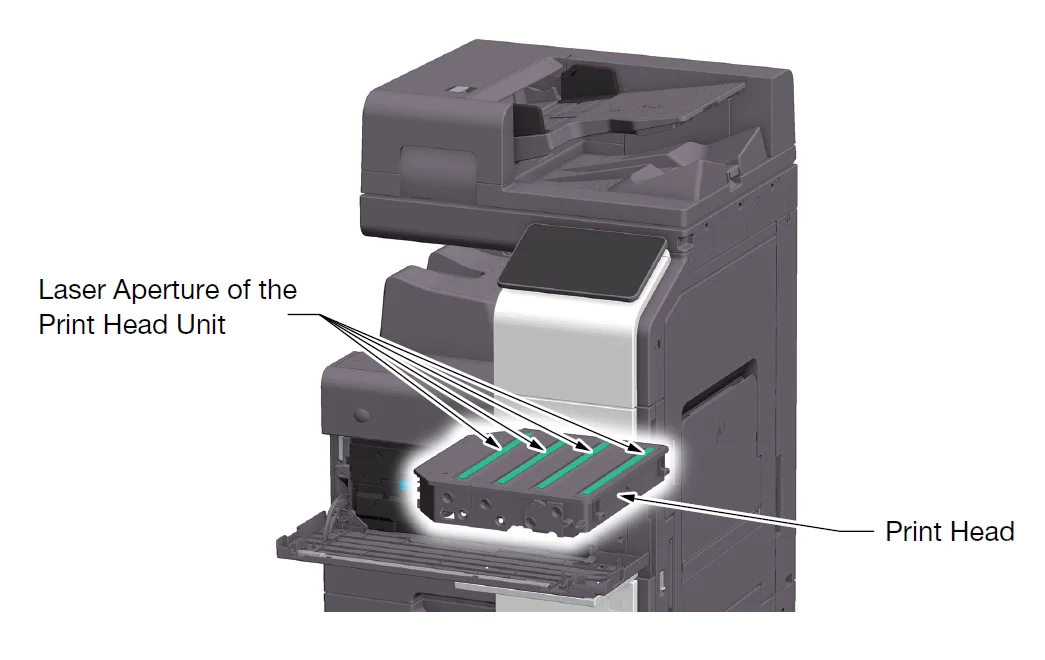
This is a digital machine that operates using a laser. There is no possibility of danger from the laser provided the machine is operated according to the instructions in the manuals. Since radiation emitted by the laser is completely confined within protective housing, the laser beam cannot escape from the machine during any phase of user operation. This machine is certified as a Class 1 laser product per IEC 60825-1: 2014. This means the machine does not produce hazardous laser radiation.
Internal laser radiation
Maximum Average Radiation Power: 15.1 μW (bizhub C650i), 13.1 μW (bizhub C550i), 9.9 μW (bizhub C450i) at the laser aperture of the print head unit. Wavelength: 775-800 nm (bizhub C650i/C550i)/770-800 nm (bizhub C450i). This product employs a Class 3B laser diode that emits an invisible laser beam. The laser diode and the scanning polygon mirror are incorporated in the print head unit. The print head unit is NOT A FIELD SERVICE ITEM: Therefore, the print head unit should not be opened under any circumstances.
Operation precautions
To ensure the optimum performance of this machine, observe the precautions described below.
Power source
The power source requirements are as follows.
- Voltage fluctuation: Maximum ± 10% (at 110 V/120 V/220 to 240 V AC)
- Frequency fluctuation: Maximum ± 3 Hz (at 50 Hz/60 Hz)
- Use a power source with as few voltage or frequency fluctuations as possible.
Operating environment
The environmental requirements for the correct operation of the machine are as follows.
- Temperature: 50°F (10°C) to 86°F (30°C) with fluctuations of no more than 18°F (10°C) within an hour
- Humidity: 15% to 85% with fluctuations of no more than 10% within an hour
Storage of copies
To store copies, follow the recommendation listed below.
- Copies that are to be kept for a long time should be kept where they are not exposed to light in order to prevent them from fading.
- An adhesive that contains solvent (e.g., spray glue) may dissolve the toner on copies.
- Color copies have a thicker layer of toner than normal black-and-white copies. Therefore, when a color copy is folded, the toner at the fold may peel off.
Data stored in this machine
It is suggested to delete all data stored in all storage areas using the overwrite all data function to prevent leakage of data before transfer or disposal of the machine, or returning of the leased machine. For details of the overwrite all data function, refer to the User’s Guide. Contact your service representative before deleting data. It is recommended to back up storage periodically as the measures for storage defects. For detailed information of storage backup, contact your service representative.
Before using this machine
Environmental initiatives
The company continuously strives to reduce the negative environmental impacts of all stages of its business operations. As part of such activities, the company is implementing resource-saving steps by reducing the number of pages in the User’s Guide. For the information necessary to operate the machine, please refer to the bundled User’s Guide CD/DVD (HTML format). This guide has an excellent search function.
Functions such as keyword search and filtering by purpose are very useful to help users find what they need to know.
Intended use of office MFP devices
Intended use
This Multi-Function Product incorporates the functionality of multiple office devices in one. It is designed to be used as an office system for the following purposes:
- Print, copy, scan, and fax documents.
- Use available finishing functions such as duplexing, stapling, hole-punching, and booklet creation if appropriate options are installed.
- Store scanned documents on external USB memory devices; send scanned documents to network scan destinations such as FTP, WebDAV, and E-mail.
The intended use also requires that:
- The system is used within the limits of device specifications and specifications of optional components.
- All safety instructions in the related user guides are observed,
- Legal restrictions on reproduction (pages 1-20) are observed,
- Inspection and maintenance instructions are adhered to.
- General, national, and company safety provisions are observed.
Impermissible operating conditions
The system may not be operated if:
- Errors or damage have been discovered,
- Maintenance intervals have been exceeded,
- Mechanical or electrical functions do not work as they should.
Exclusion of liability
The manufacturer of the system assumes no liability for damages if the system is operated under impermissible conditions.
Target groups
The user’s guides are intended for the following users of the system:
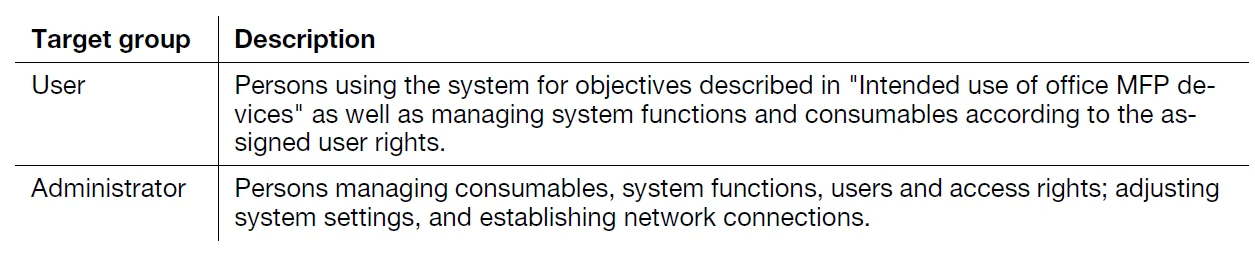
Everyone who uses this system must have read and understood the related user guides.
Administrator password
The administrator password is set to [1234567812345678] by factory default. Try this password if the administrator password has not been changed. Change the administrator password periodically.
Security measures of this machine
About security measures
This section describes the security measures that customers should take in order to use this machine safely. By taking appropriate security measures, it is possible to prevent unauthorized access, infection by viruses, information leaks, and more via the MFP.
To prevent unauthorized access from the outside
When connecting this machine to the network, use it in an environment protected by a firewall. In addition to that, we recommend that you set a private IP address for the IP address of this machine. If a private IP address is set, the machine can only be accessed by users on the local area network, such as the corporate LAN, which prevents unauthorized access from the outside. When you must use a global IP address, be sure to install this machine in a firewall.
Changing the administrator password
This machine provides the setting (Administrator Setting) that can only be changed by the administrator. When changing the administrator setting, you will be prompted to enter the administrator password. To prevent malicious third parties from changing the settings, change the administrator password from the factory default. Be sure to remember the changed password so that you do not forget it.
Tips
- For details on how to change the administrator password, refer to the HTML User’s Guide.
- If you forget the administrator password, it must be set by a service engineer. For details, contact your service representative.
How to use the HTML User’s Guide
About the HTML User’s Guide
Select a desired function on the top page (Home), and check the details of the function. Selecting [Introduction] on the top page (Home) allows you to view detailed methods for using the HTML User’s Guide.
Operating environment
Supported operating systems
- Microsoft Windows 7 (SP1)/Windows 8.1/Windows 10 Apple Mac OS 10.10/10.11/10.12/10.13/10.14
Supported Web browsers
- Windows:
Microsoft Internet Explorer 10/11 (Desktop version), Microsoft Edge, Firefox latest version, Google Chrome latest version
- Mac OS:
Safari latest version
Display resolution
- 1024 e 768 pixels or more
Tips
- We recommend that you use the latest Web browser that is compatible with your operating system to help you use this machine more conveniently and comfortably.
- Check that JavaScript in your Web browser is enabled. The HTML User’s Guide uses JavaScript for the page display and search functions.
About this machine
Optional components
List of optional components
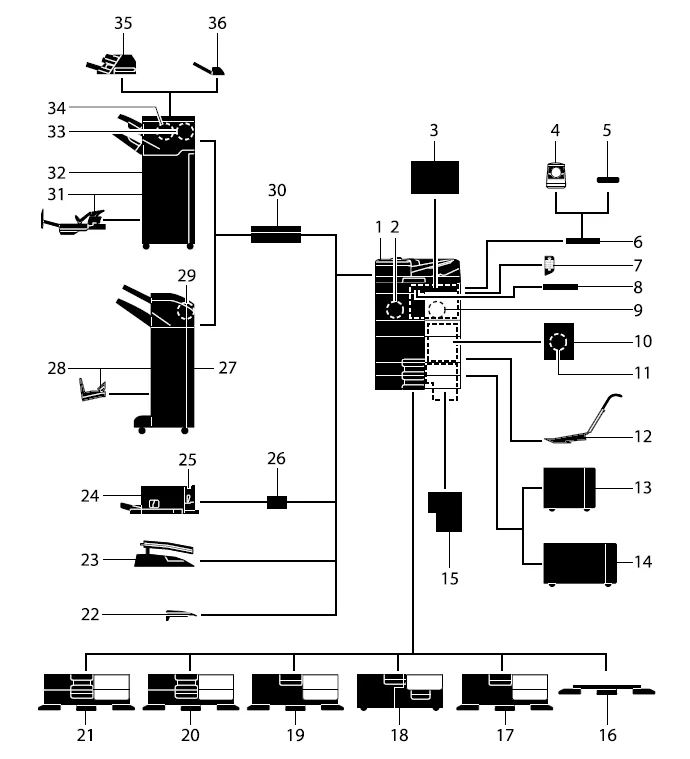
- Main unit: Scans the original in the scanner section and prints a scanned image in the printer section. This unit is referred to as “this machine” or the “main unit” in the manual.
- Fax Kit FK-514: Used to operate this machine as a fax machine. Alternatively, this kit allows more telephone lines to be connected.
- Clean Unit CU-102: Collects small particles (UFP) generated in this machine to prevent them from escaping this machine.
- Authentication Unit AU-102: Performs user authentication by scanning vein patterns in the finger. The Working Table WT-506 is required to install the Authentication Unit AU-102.
- Authentication Unit AU-201S: Performs user authentication by scanning information recorded on the IC card or NFC-compatible Android terminal. The Mount Kit MK-735 is required to install the Authentication Unit AU-201S. This unit can also be installed on the Working Table WT-506.
- Working Table WT-506: Provides an area to temporarily place an original or other materials. This is also used when the Authentication Unit, AU-102 or AU-201S, is installed.
- Keypad KP-102: It is equipped on the side of the Control Panel. Allows you to operate this machine or enter a number by using hardware keys.
- Keyboard Holder KH-102: Install this holder to use an external keyboard. For details on external keyboards, contact your service representative.
- Security Kit SC-509: Supports the copy guard and password copy functions to prevent unauthorized copying.
- Fax Mount Kit MK-742: This unit is required to install the FAX Kit FK-515. This option is available in North America and Hong Kong.
- FAX Kit FK-515: Used to add telephone lines. Fax Mount Kit MK-742 is required to install FAX Kit FK-515. This option is available in North America and Hong Kong.
- Mount Kit MK-730: Used to print data on banner paper.
- Large Capacity Unit LU-302: Allows you to load up to 3000 sheets of 8-1/2 e 11 (A4) size. To install the Large Capacity Unit LU-302, the Paper Feed Cabinet PC-116, PC-216, PC-416, or PC 417 must be installed on this machine.
- Large Capacity Unit LU-207: Allows you to load up to 2500 sheets of SRA3 or 11 e 17 (A3) size. When changing the paper size, contact your service representative. To install the Large Capacity Unit LU-207, the Paper Feed Cabinet PC-116, PC-216, PC-416, or PC-417 must be installed on this machine.
- Image Controller IC-420: Provides a high-quality printing result. Video Interface Kit VI-516 and Upgrade Kit UK-115 are required to install Image Controller IC-420. In addition, the Paper Feed Cabinet PC-116, PC-216, PC-416, or PC-417 or Desk DK-516 must be installed on this machine.
- Desk DK-705: Used to install this machine on the floor.
- Desk DK-516: Used to install this machine on the floor.
- Paper Feed Cabinet PC-417: Allows you to load up to 1500 sheets of 8-1/2 e 11 (A4) size in the left tray and up to 1000 sheets in the right tray.
- Paper Feed Cabinet PC-416: Allows you to load up to 2500 sheets of 8-1/2 e 11 (A4) size.
- Paper Feed Cabinet PC-216: Allows you to load up to 500 sheets respectively in the top and bottom trays.
- Paper Feed Cabinet PC-116: Allows you to load up to 500 sheets in the top tray and use the bottom tray as a storage box.
- Output Tray OT-513 Outputs printed pages.
- Job Separator JS-508: Install this unit onto the output tray of this machine. This unit sorts printed sheets. This unit can only be installed on Bizhub C550i/C450i.
- Finisher FS-533: Install this unit onto the output tray of this machine. Sorts, groups, and staples printed paper before outputting it. This unit can only be installed on Bizhub C550i/C450i.
- Punch Kit PK-519: Install this unit onto the Finisher FS-533. This unit supports the punching function.
- Mount Kit MK-607. This unit is required to install Finisher FS-533 on Bizhub C550i/C450i.
- Finisher FS-539 Sorts, groups, and staples printed paper before outputting it. To install the Finisher FS-539, the Relay Unit RU 513 is required. In addition, the Paper Feed Cabinet PC-116, PC-216, PC-416, or PC-417 or Desk DK-516 must be installed on this machine.
- Finisher FS-539 SD Sorts, groups, staples, folds, and binds printed paper before outputting it. To install the Finisher FS-539 SD, the Relay Unit RU-513 is required. In addition, the Paper Feed Cabinet PC-116, PC-216, PC-416, or PC-417 or Desk DK-516 must be installed on this machine.
- Punch Kit PK-524: Install this unit onto the Finisher FS-539/FS-539 SD. This unit supports the punching function.
- Relay Unit RU-513: This unit is required to install the Finisher FS-540/FS-540 SD/FS- 539/FS-539 SD on this machine.
- Finisher FS-540 SD: Sorts, groups, staples, folds, and binds printed paper before outputting it. To install the Finisher FS-540 SD, the Relay Unit RU-513 is required. In addition, the Paper Feed Cabinet PC-116, PC-216, PC-416, or PC-417 or Desk DK-516 must be installed on this machine.
- Finisher FS-540: Sorts, groups, and staples printed paper before outputting it. To install the Finisher FS-540, the Relay Unit RU 513 is required. In addition, the Paper Feed Cabinet PC-116, PC-216, PC-416, or PC-417, or the Desk DK-516 must be installed on this machine.
- Punch Kit PK-526: Install this unit onto the Finisher FS-540/FS-540 SD. This unit supports the punching function.
- Z Folding Unit ZU-609: Install this unit onto the Finisher FS 540/FS-540 SD. This unit is used for Z-folding.
- Post Inserter PI-507: Install this unit onto the Finisher FS 540/FS-540 SD. This unit inserts cover paper between the copied or printed sheets. The finisher can also be operated manually (only the lower tray is available).
- Job Separator JS-602: Install this unit onto the Finisher FS 540/FS-540 SD. This unit sorts printed sheets.
Turning the power on and off
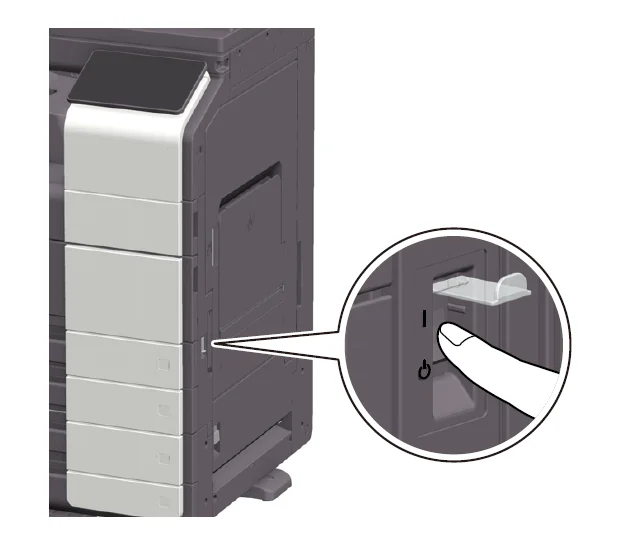
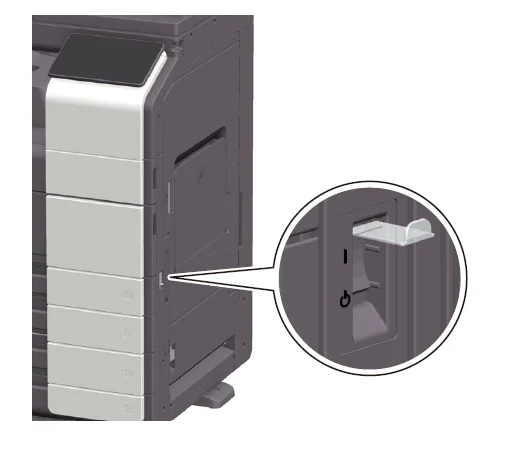
- When turning on the main power, open the Main Power Switch Cover and press the Main Power Switch.

The Power Indicator on the Control Panel lights up, and the start screen is displayed on the Touch Panel. - When turning the main power off, open the Main Power Switch Cover, and press the reset button of the Main Power Switch.
NOTICE
When restarting this machine, turn the Main Power Switch off, then on again after 10 or more seconds. Not doing so may result in an operation failure.
Read this if you have a problem
Main messages and remedies
Checking a notification message on the Touch Panel
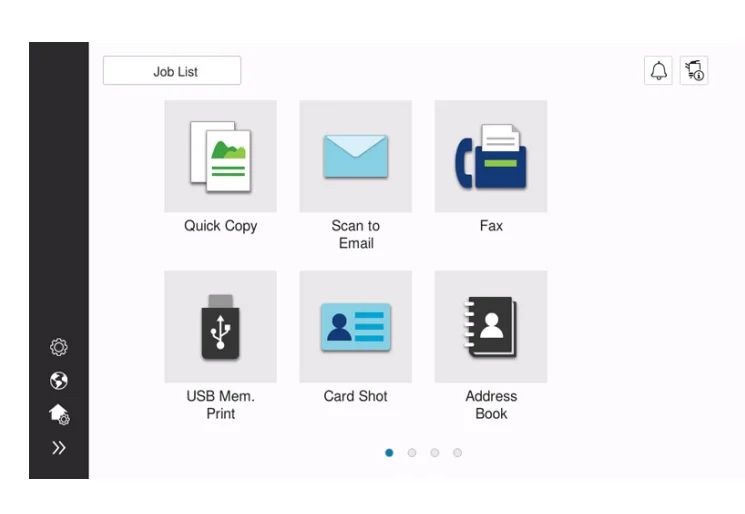
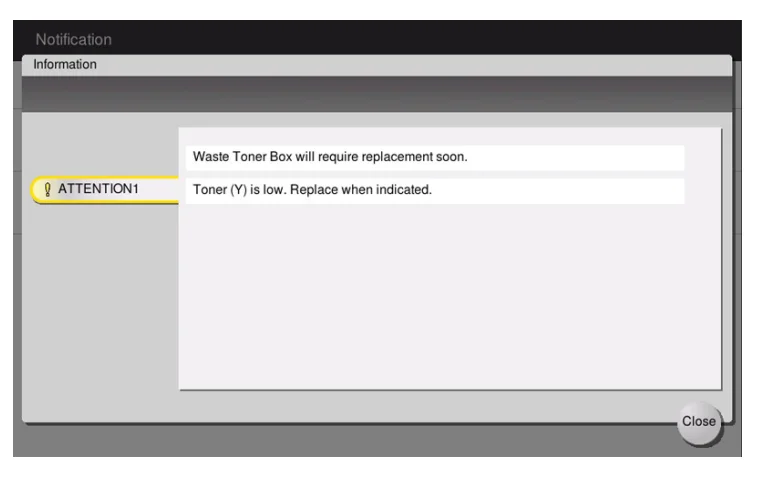
The notification icon is displayed on the home screen when there is a machine condition warning or notice notification. You can tap the icon to check the notification contents.
- Tap the notification icon on the home screen.

- Tap [ATTENTION List], and check the notification list.

The screen that appears when a paper/staple jam has occurred
If any paper or staple jam occurs on this machine, the paper jam clearing procedure and the paper or staple jam location are displayed on the screen of this machine. Confirm the clear procedure and jam location, and follow the guidance to clear the jam. If a paper jam is not cleared securely, the warning message is not reset. For details on how to take an action when a paper jam message is not reset, refer to the HTML User’s Guide.
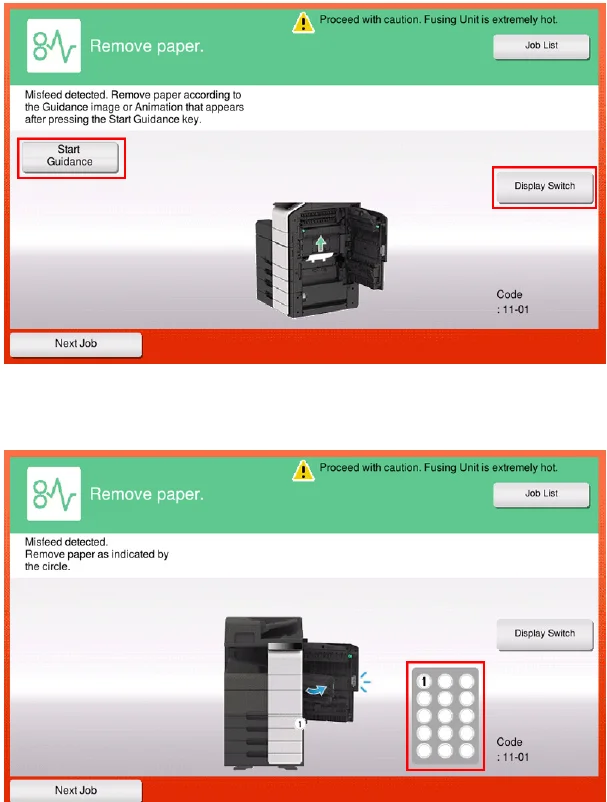
When a paper jam is cleared, a screen showing how to correctly load paper or the original is displayed.
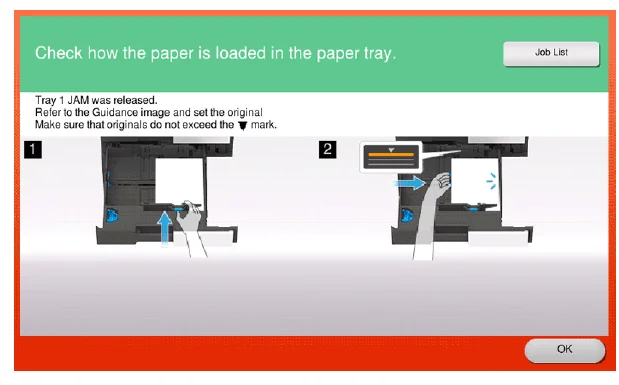
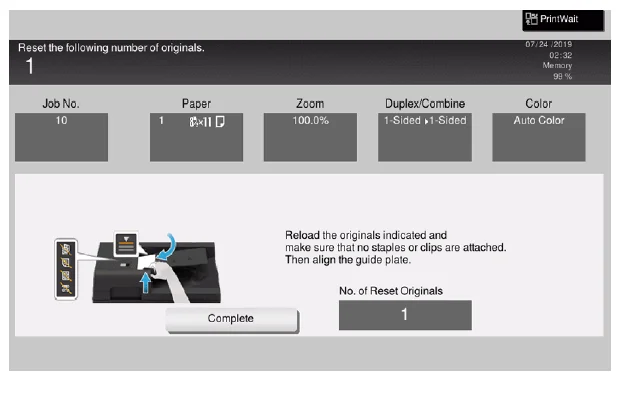
Return the original or paper, and tap [OK] or [Complete]; the system restarts scanning or printing of the original.
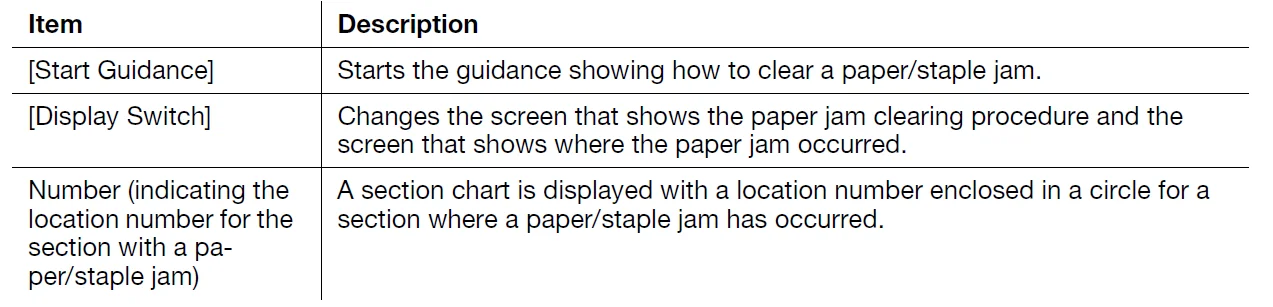
When an error message appears
When an error is detected, the following message appears. Take the appropriate action according to the message displayed on the screen. If you cannot resolve the error, write down the [Trouble Code], and contact your service representative with the power plug disconnected from the power outlet. In normal circumstances, the phone number and fax number for your service representative appear in the center of the screen.
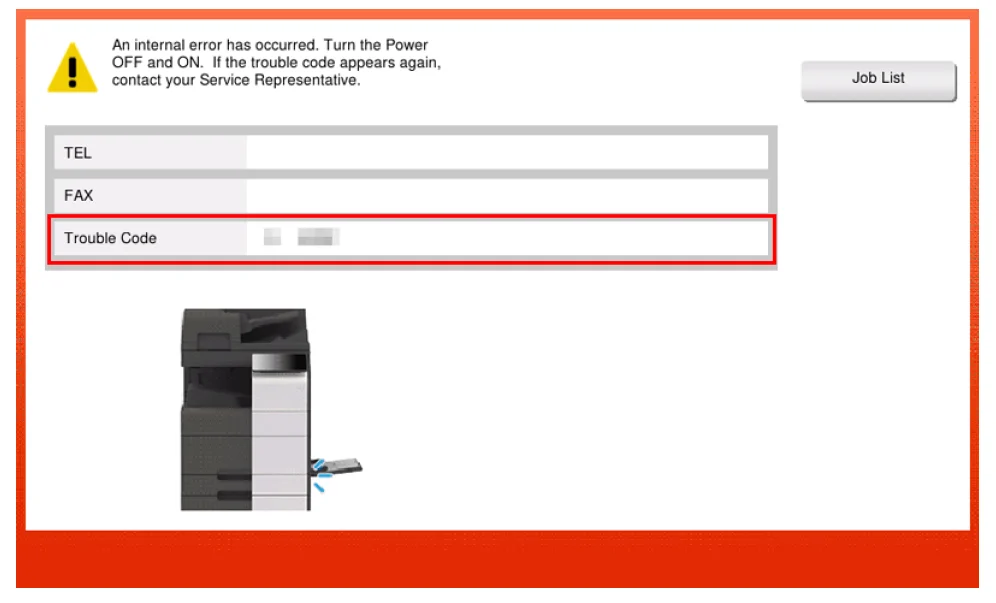
NOTICE
If a defective part can be separated in order to be able to continue operations after a problem has been detected, [Continue] or [Recover Data] is displayed. To continue operations, select any key. However, the problem has not been resolved, so contact your service representative immediately.
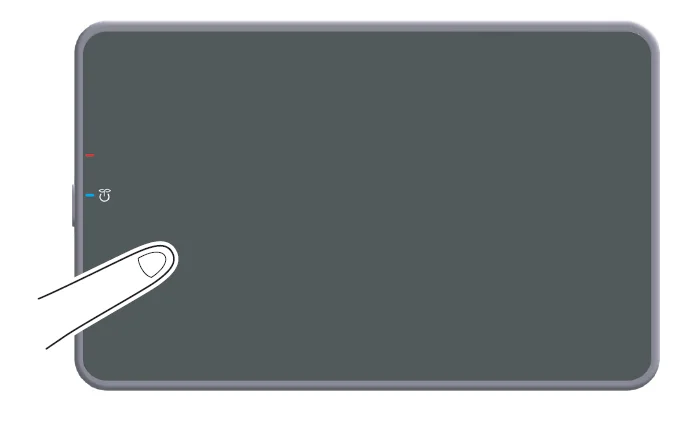
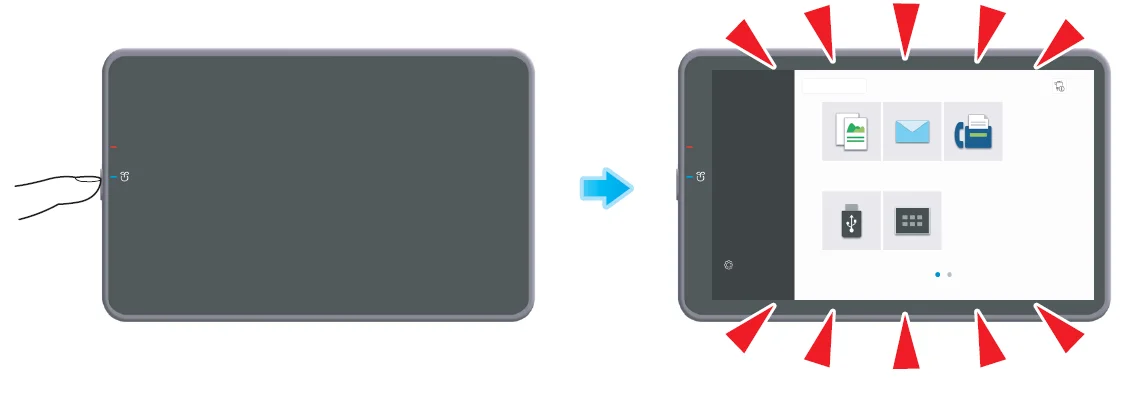
When the Touch Panel is not visible
If a certain length of time has elapsed without any operations being carried out on this machine, the Touch Panel may turn off.
Check the following items:
- Touch the Touch Panel. In Power Save (Low Power/Sleep) mode, this machine returns from Power Save mode when the Touch Panel is touched or a key on the Control Panel is pressed, and the Touch Panel appears normally.
- On the Control Panel, press the Power key. If the Weekly Timer setting has put the machine in Erp Auto Power off mode, press the Power key to display the Touch Panel. To use it outside the preset operating hours, follow the on-screen instructions.
- Check to see that the Main Power Switch is turned ON.
For more manuals by Konic Minolta, visit ManualsLibraryy
Konica Minolta bizhub C450i Multifunction Office Printer-FAQS
How do I turn on the Konica Minolta bizhub C450i?
To power on the printer, press the main power switch located on the front or side panel. Ensure the device is properly plugged into a working outlet. Once powered, the system will initialize automatically, and the touchscreen display will become active when the printer is ready.
What is the default admin password for the bizhub C450i?
The factory default administrator password is usually 12345678 or a longer version depending on firmware settings. It is strongly recommended to change this password during setup to improve device security and prevent unauthorized access to system settings.
How can I find the IP address of the printer?
You can find the IP address by accessing the control panel. Navigate to Menu > Utility > Device Information, where the network details are displayed. This IP address allows you to connect the printer to a network or access its web-based management interface.
How do I restart the bizhub C450i?
To restart the printer, switch off the main power button, wait about 10 seconds, and then turn it back on. This simple reboot can resolve minor issues like connectivity problems, slow performance, or temporary system errors.
What are common problems with the bizhub C450i?
Common issues include paper jams, print quality problems, and network connectivity errors. These are often caused by improper paper loading, low-quality paper, or outdated settings. Regular maintenance and correct setup help minimize such problems.
Why is my bizhub C450i not printing properly?
Printing issues may occur due to low toner levels, incorrect driver installation, or connectivity problems. Check toner cartridges, ensure drivers are updated, and verify network connections. Running a test print can help identify and resolve the issue quickly.
How do I reset the printer to factory settings?
To perform a factory reset, access the admin settings via the control panel. Navigate to system settings and select the reset option. Keep in mind this will erase all custom configurations, so it’s best used when troubleshooting major issues or reconfiguring the device.