
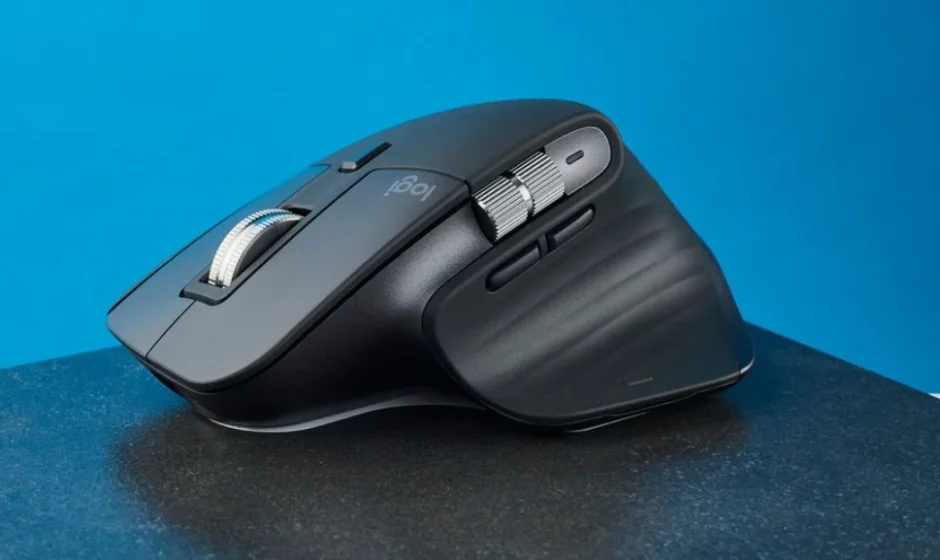

Logitech MX Master 3S Wireless Mouse
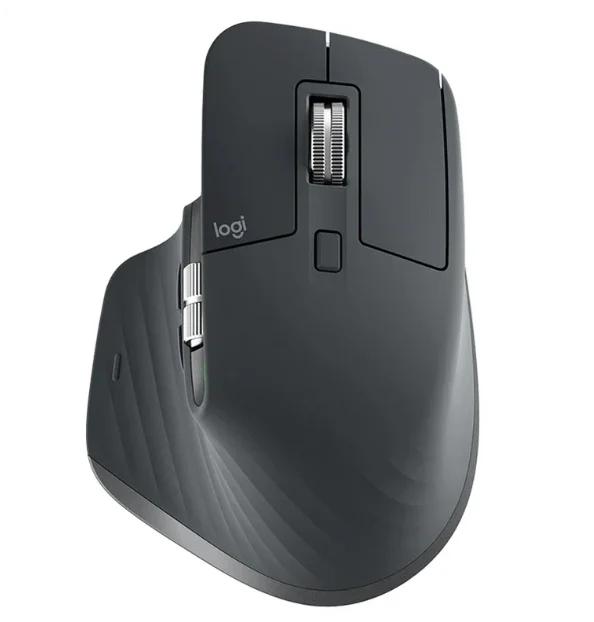
Getting Started – MX Master 3S
DETAILED SETUP
- Make sure the mouse is turned on.
The number 1 LED under the mouse should be blinking fast.
NOTE: If the LED is not blinking fast, do a long press of 3 seconds. - Choose how you want to connect:
- Use the included LOGI BOLT wireless receiver:
Plug the receiver into a USB port on your computer - Connect directly via Bluetooth:
Open the Bluetooth settings on your computer to complete the pairing. Click here for more details on how to do this on your computer. If you experience issues with Bluetooth, click here for Bluetooth troubleshooting.
- Use the included LOGI BOLT wireless receiver:
- Install Logitech Options+ Software.
Download the Logitech Options+ version to use all the possibilities this mouse has to offer. To download and learn more about the possibilities, click here.
PAIR TO A SECOND COMPUTER WITH EASY-SWITCH
Your mouse can be paired with up to three different computers using the easy-switch button to change the channel.
- A short press on the Easy-Switch button will allow you to switch channels. Select the channel you want and go to the next step.
- Press and hold the Easy-Switch button for 3 seconds. This will put the mouse in discoverable mode so that it can be seen by your computer. The LED will start blinking fast.
- Choose between two ways to connect your keyboard to your computer:
- Bluetooth: Open the Bluetooth settings on your computer to complete the pairing. You can find more details here.
- USB receiver: Plug the receiver into a USB port, open Logitech Options+, and select: Add devices > Setup Logi Bolt device, and follow the instructions.
LEARN MORE ABOUT YOUR PRODUCT
Product Overview
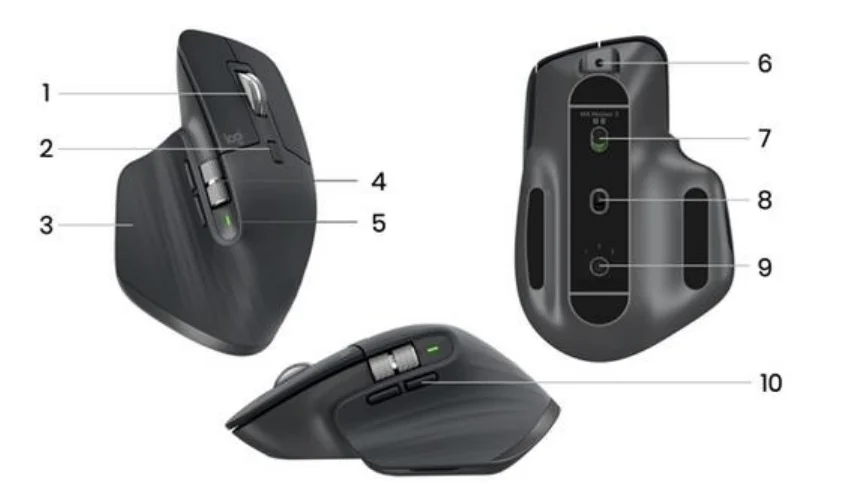
- MagSpeed scroll wheel
- Mode shift button for the scroll wheel
- Gesture button
- Thumb wheel
- Battery status LED
- USB-C charging port
- On/Off button
- Darkfield 8000 DPI sensor
- Easy-Switch & connect button
- Back/forward buttons
MagSpeed adaptive scroll-wheel
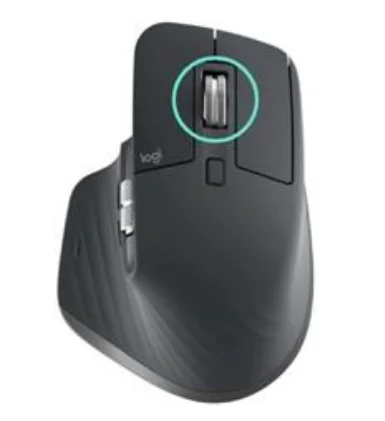
The speed-adaptive scroll wheel shifts between two scrolling modes automatically. As you scroll faster, it will automatically shift from line-by-line scrolling to free-spinning.
- Line-by-line (ratchet) mode — ideal for precise navigation of items and lists.
- Hyper-fast (free-spin) mode — near-frictionless spinning, letting you fly through long documents and web pages.
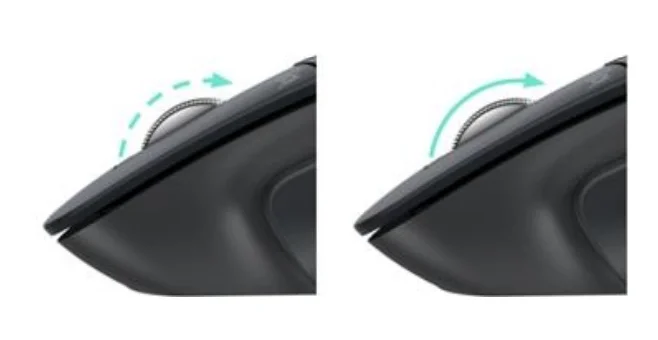
Switch modes manually
You can also manually switch between modes by pressing the mode shift button.
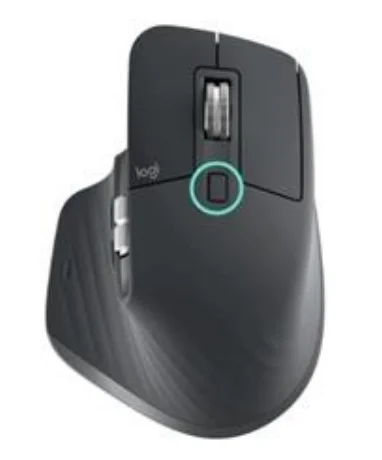
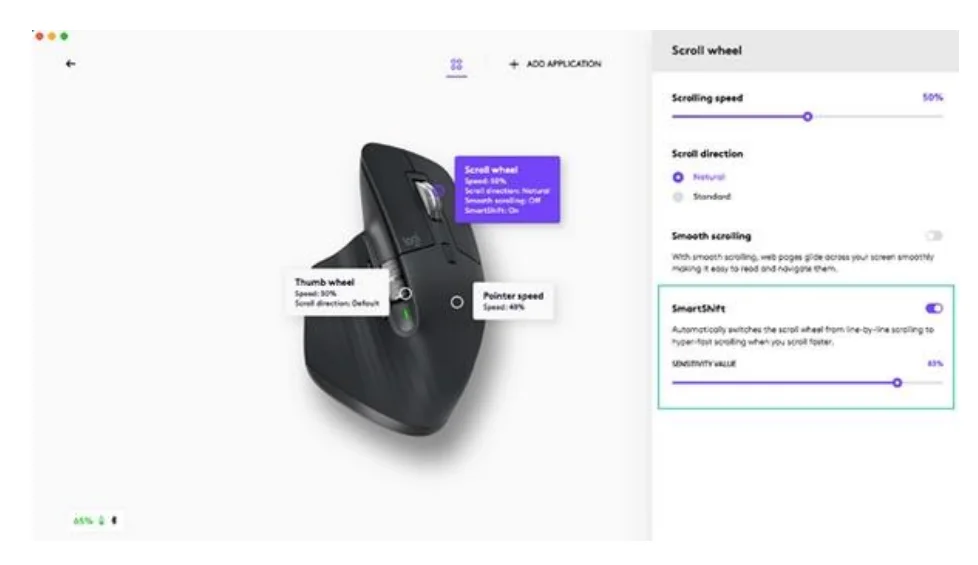
By default, mode shift is assigned to the button on top of the mouse. In the Logitech Options+ Software, you can decide to disable smart-shift if you prefer to stay in a single scrolling mode and always shift manually. You can also adjust the smartshift sensitivity, which will change the speed required to automatically shift into free spinning.
Thumb wheel
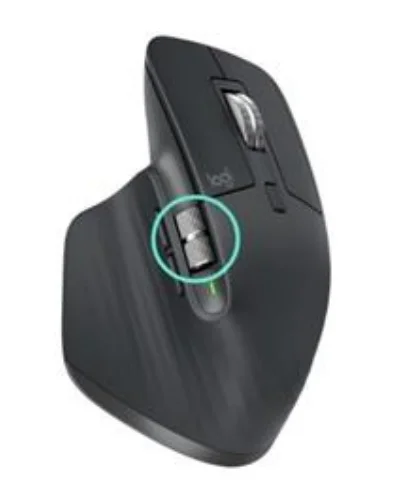
Scroll side to side effortlessly with a stroke of your thumb.
Install Logitech Options+ software to extend thumb wheel capabilities and more:
- Adjust thumbwheel scrolling speedand direction
- Enable app-specific settings for the thumbwheel
- Zoom in Mion crosoft Word and PowerPoint
- Adjust brush size in Adobe Photoshop
- Navigate your timeline in Adobe Premiere Pro
- Switch between tabs in the browser
- Adjust volume
- Assign custom keystrokes to the wheel rotation (up and down)
Gesture Button
Install Logitech Options + software to enable gestures.
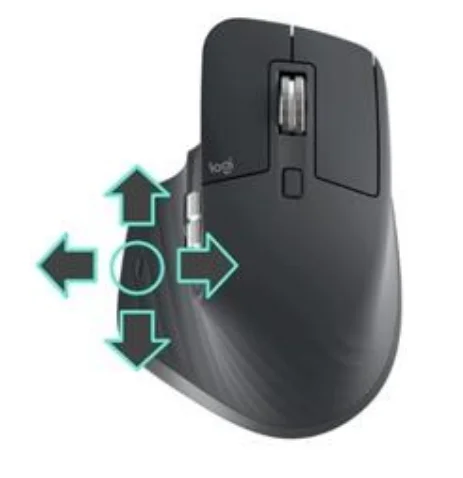
To use the gesture button:
- Hold down the Gesture button while moving the mouse left, right, up, or down.
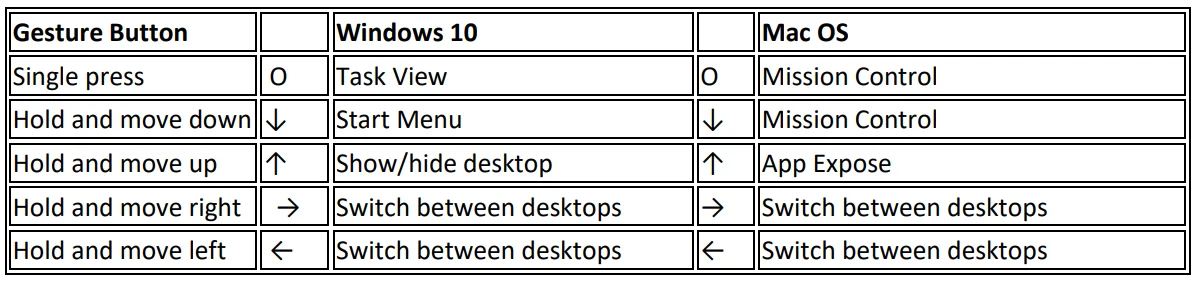
You can use gestures for desktop navigation, app management, pan, and more. You can assign up to five different actions to the Gesture button. Or map gestures to other MX Master 3S buttons, including the middle button or manual shift button.
Back/Forward buttons
Conveniently located, the back and forward buttons enhance navigation and simplify tasks.
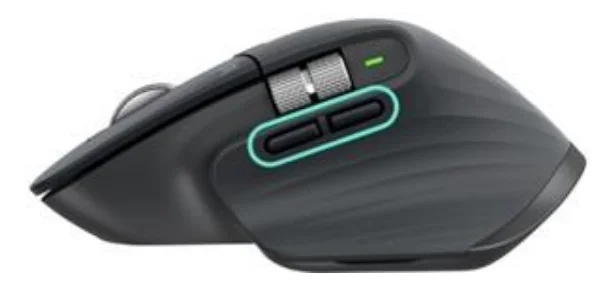
To move back and forward:
- Press the back or forward button to navigate web or document pages, depending on the location of the mouse pointer.
NOTE: On the Mac, enabling the back/forward buttons requires installation of Logitech Options+ software.
Install Logitech Options+ software to unlock new capabilities for the back/forward butto..ns.
In addition to enabling the buttons for use with Macs, Logitech Options+ software lets you map other useful functions to the buttons, including undo/redo, OS navigation, zoom, volume up/down, and more.
Darkfield 8000 DPI Sensor
Install Logitech Options+ software to enable the new capabilities of the Darkfield 8000 DPI Sen..sor
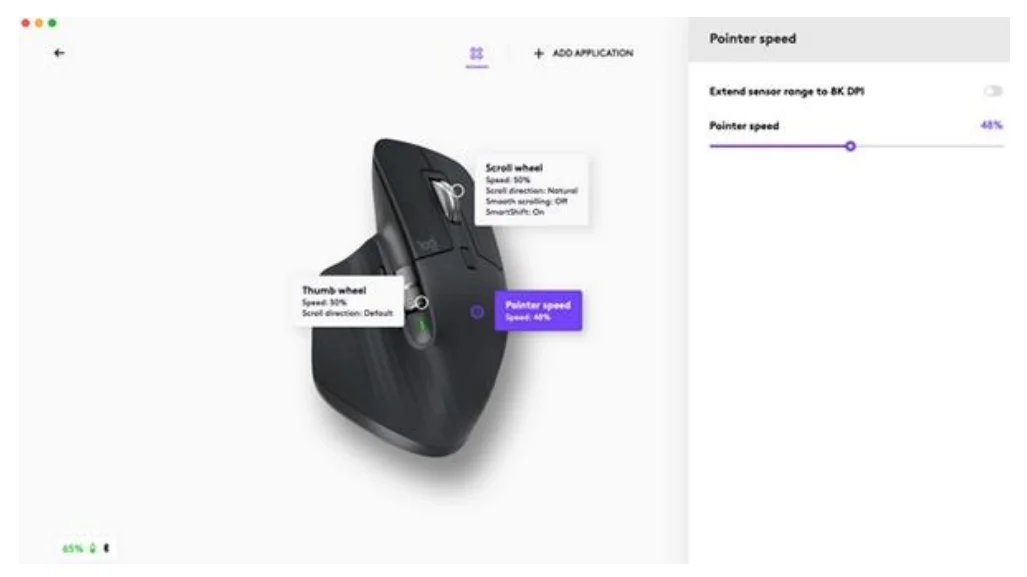
By default, the MX Master 3S has a 1000 DPI configuration. In the Logitech Options+ Software, you can extend the sensor range to up to 8000 DPI.
Enabling this option will allow you to work faster and more precisely, allowing you to adjust the pointer speed to match high-resolution monitors.
App-Specific Settings
Your mouse buttons can be assigned to perform different functions for different applications. For instance, you can assign the thumb wheel to do horizontal scrolling in Microsoft Excel and zoom in Microsoft PowerPoint.
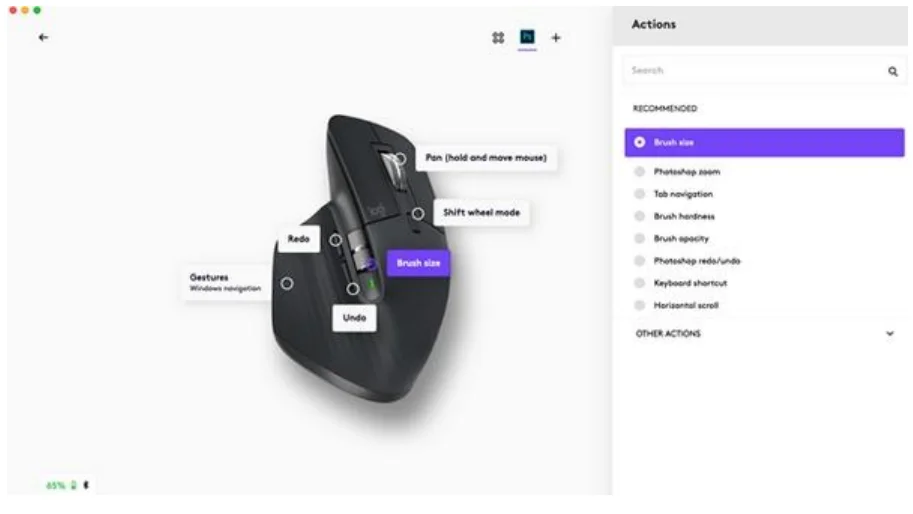
When installing Logitech Options+ou will have the possibility to install predefined app-specific settings that will adapt the mouse button behavior to be optimized in selected applications.
Here are the app-specific settings we have created for you:
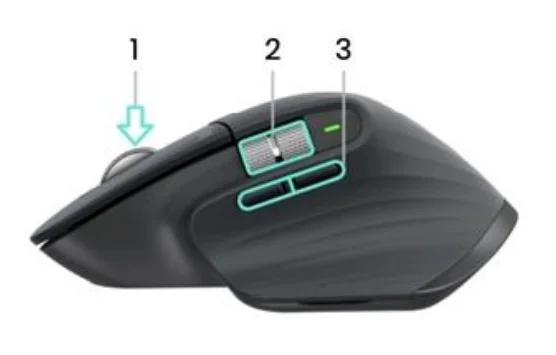
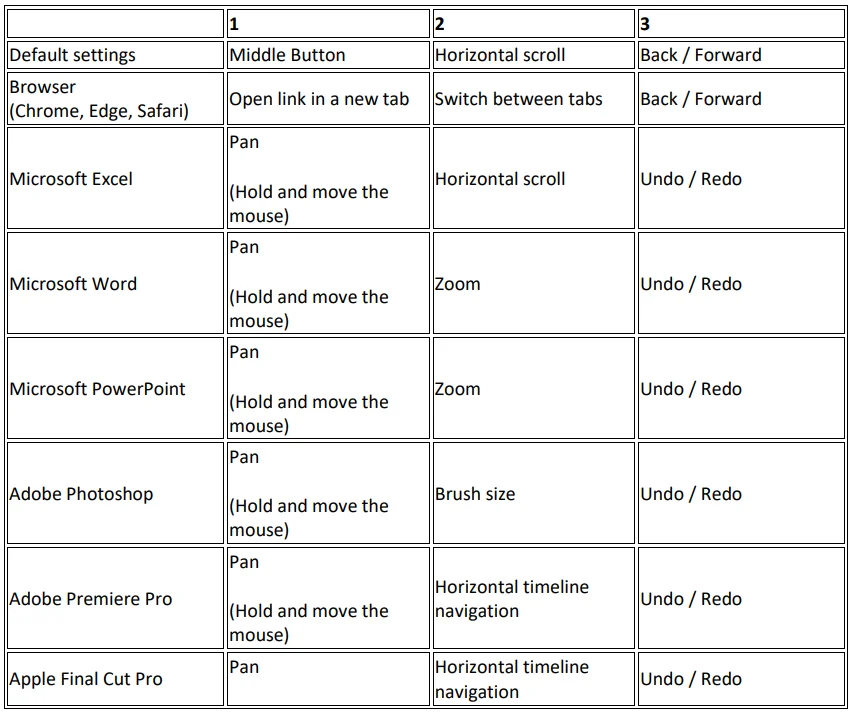

With these settings, the Gesture button and the wheel mode-shift button keep the same functionality across all applications.
Each of these settings can be customized manually for any application.
Flow
Work on multiple computers with a single MX Master 3S.
With Logitech Flow, you can use the mouse cursor to move from one computer to the next. You can even copy and paste between computers, and if you have a compatible Logitech Keyboard, such as MX Mechanical, the keyboard will follow the mouse and switch computers at the same time.
You will need to install Logitech Options+ software on both computers and follow these instructions.
Battery
RECHARGE MX MASTER 3S
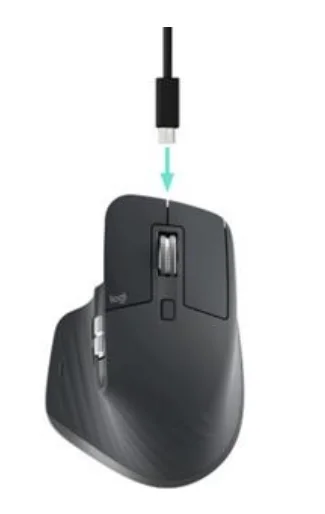
Connect one end of the provided charging cable to the USB-C port on the mouse and the other end to a USB power source.
A minimum of 3 minutes of charging gives you enough power for a full day of use. Depending on how you use the mouse, a full charge can last up to 70 days*.
* Battery life may vary depending on user and operating conditions.
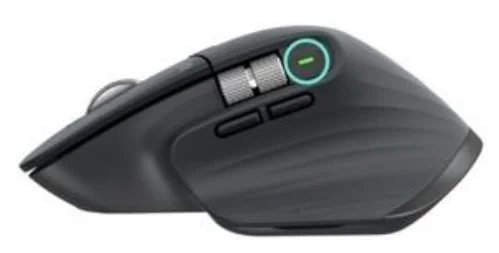
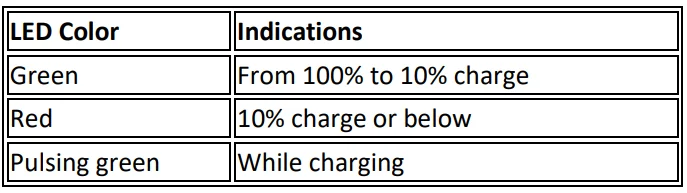
CHECK BATTERY STATUS Three LED lights on the side of the mouse indicate battery status.
Install Logi Options+ software to receive battery status notifications, including low-charge warnings.
How to clean your device
To clean your MX Master 3S, you can use a ratio of 70% Isopropyl alcohol to 30% water, as found in common cleaning solutions.
Other alcohols cause damage, and bleach is not recommended by the CDC.
For more manuals by Logitech, visit ManualsLibraryy
Logitech MX Master 3S Wireless Mouse- FAQs
What are the common problems with the Logitech MX Master 3S?
Common issues include occasional input lag, scroll wheel inconsistencies, intermittent connectivity, and delayed response when switching devices. Most problems can be fixed through software updates or cleaning.
How does the Logitech MX Master 3S connect to a computer?
The MX Master 3S connects via Bluetooth or the included Logi Bolt USB receiver, allowing flexible wireless use.
Can the MX Master 3S connect without Bluetooth?
Yes. You can use the mouse with the USB receiver if your device does not support Bluetooth.
How many devices can the MX Master 3S connect to?
It can pair with up to three devices and switch between them using the button on the bottom.
What is the performance of the MX Master 3S mouse?
It features an 8,000 DPI optical sensor, works on almost any surface including glass, offers ultra-quiet clicks, and has MagSpeed scrolling for fast and precise control.
Is the Logitech MX Master 3S silent?
Yes. The mouse uses Quiet Clicks technology, reducing click noise by about 90% compared to previous models.
How long does the MX Master 3S battery last?
On a full charge, the battery can last up to 70 days, depending on usage.
How do I know if my MX Master 3S is fully charged?
The LED indicator lights on the side show battery status. You can also check battery level using Logitech Options+ software.
Can I use the MX Master 3S while charging?
Yes. You can continue using the mouse normally while it is connected via the USB-C charging cable.