
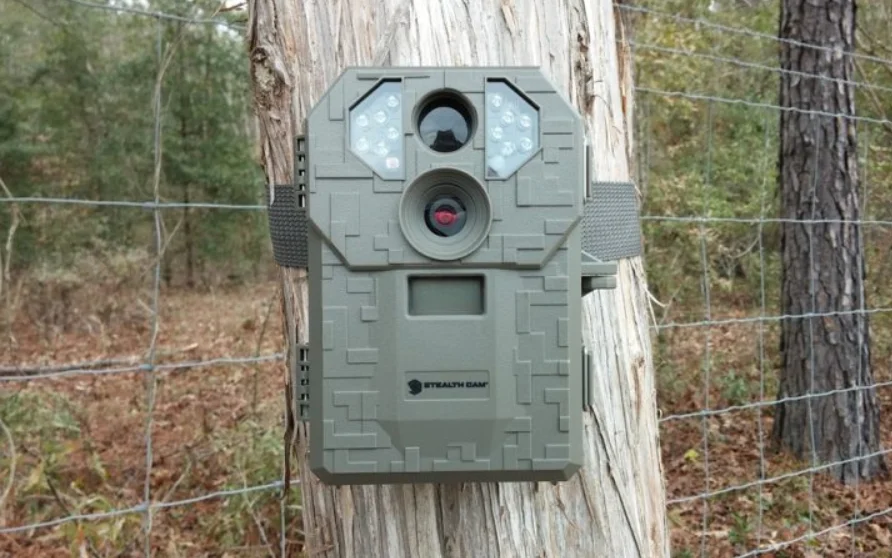

Stealth Cam STC-P12 Trail Camera
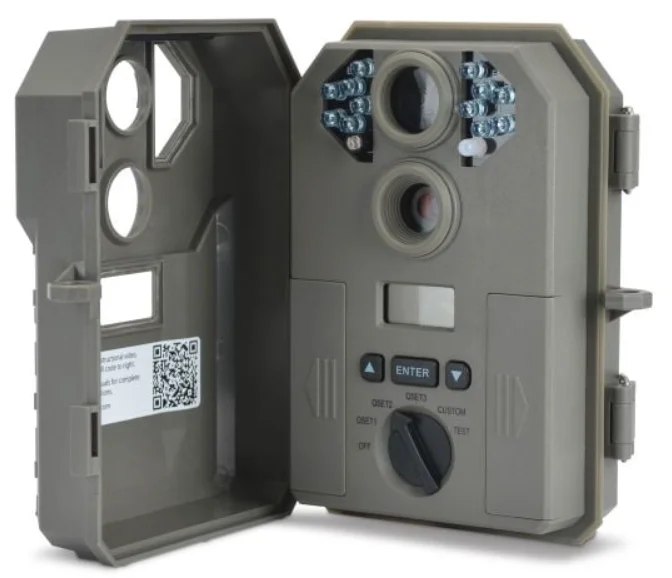
CAMERA OVERVIEW
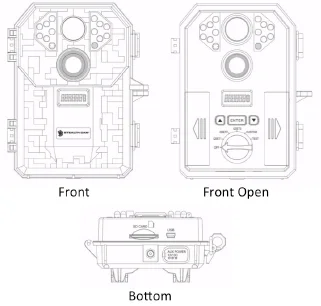
QUICK START GUIDE
Power Options (Select one)
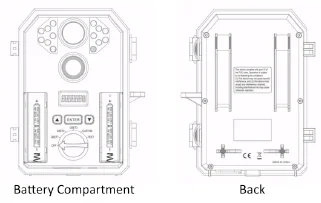
- Insert 8 ‘AA’ batteries into the (2) inside battery compartments.
- Connect the 12V Battery Box to the bottom of the unit under the AUX POWER 12V DC gasket.
Memory
Insert a clean Class 10 SD memory card, between 2GB and 32GB, into the memory card slot. The memory card must be inserted in the correct orientation until the spring lock mechanism engages.
Mount Camera
Mount the camera at the desired location using the strap mount, Python Lock cable, Articulating Ball Joint Mount, or other desired mounting mechanism. Position the camera so that it does not face East or West directly, as the rising and setting of the sun can cause false positive triggers.
Activation
Move the program dial to the desired activation position: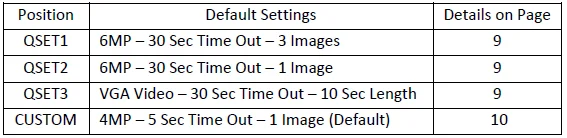
GENERAL INFORMATION
Storing conditions
Operating Environment: 14 to 104 deg F (‐10 to 40 deg C). 20-‐85% relative humidity, non-‐condensing.
Special care instructions!!
- The camera is designed to be weather-resistant. Never attempt to immerse the unit in water or any other liquid. This will damage the unit and void the warranty.
- Do not mix old and new batteries.
- Do not mix alkaline, standard, or rechargeable batteries.
- Use a soft lens cloth for cleaning the lens. Avoid touching the lens with your fingers.
- Remove dirt or stains with a soft cloth dampened with water or neutral detergent. Keep your camera in a dry and cool, dust-free environment or container when it is NOT used.
- Remove batteries when the camera is NOT in use for an extended period of time.
- Avoid dropping your camera onto a hard surface.
- Do not disassemble your camera.
- Do not mix new and old batteries.
- Do not access the camera’s internal components compartment for unauthorised service, as this could cause serious damage to the unit and WILL void the warranty.
NOTE: This camera is a precision electronic device. Do not attempt to service this camera yourself, as opening or removing covers may expose you to dangerous voltage points or other risks.
CAMERA PROGRAMMING
This P12 features 6 distinct modes of operation: OFF / QSET1 / QSET2 / QSET3 / CUSTOM / TEST. Each setting is activated based on the position of the program dial on the inside of the unit.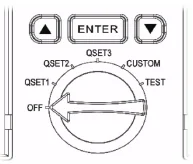
- OFF: This position completely powers down the unit.
- QSET1: This is the first Quick Set programming mode. When the camera is changed to this mode, the display screen will give a digital readout of the following:
- 1st - dLY 30 – (Delay) Counts down from 30sec to 0sec
- 2nd - rdY – (Ready) Camera is in a ready and active state
With this setting, the camera is preprogrammed to take photos at 6MP resolutions, a 30-second timeout delay between activations, and takes a burst of 3 photos every trigger activation
- QSET2: This is the second Quick Set programming mode. This setting is preprogrammed to take photos at 6MP resolution, 30-second timeout delay, and take a single photo per trigger activation.
- QSET3: This is the third Quick Set programming mode. This setting is preprogrammed to take a VGA Video with audio, and has a 30-second timeout delay between activations, and each video will be 10 seconds in length.
- CUSTOM: This is the fifth setting and is defined by the “user”. When the camera is changed to this mode, the display screen will give a digital readout of the following:
dLY 30 – (Delay) Counts down from 30 seconds to 0 seconds
The system default programming is set to take photos at 4MP resolution, 5-second timeout delay, and 1 Photo Burst. The 30-second timer will count down towards 0, showing how much time is left to enter the Custom configuration menu.
To make changes to the programming, press the UP or DOWN arrow to enter the configuration menu before the countdown reaches zero. By pressing the DOWN arrow button, you will move to the next setting option, which is DATE. By pressing the UP or DOWN arrow, you will be allowed to scroll through all the different menu choices. Once you find the option you want to change, press the ENTER button. Pressing the ENTER button on a listed configuration option will cause the option to blink and allow it to be changed. Pressing ENTER again once an option has been changed will set the new configuration, save it to the camera’s memory, and return to the options section of the MENU configuration. Once all the settings have been changed to the operator’s desired settings, scroll through the menu till you see the word QUIT and then press ENTER.
The following are all the options and descriptions of how to change each configuration:
- DATE–(01/01/14 default): This setting is used to give the camera the correct date to use on the Info Bar of the images. The format is in a MM/DD/YY msetup. With the MM (month) setting blinking, use the UP and DOWN arrows to change the setting from 1 to 12. Once this setting is on the appropriate month, press the ENTER button to move to the DD (day) setting, and it will start to blink. Using the UP and DOWN arrows will allow the setting to be changed from 1 to 31. Again, when this setting is on the appropriate day, press the ENTER button to move to the YY (year) setting, and it will start to blink. Using the UP and DOWN arrows will allow the setting to be changed from 14 to 35. Press the ENTER button to accept all your changes and to go back to the main options menu.
- TIME–(12:00 AM default): This setting is used to give the camera the correct time to use on the Info Bar of the images. The default format is in a HH/MM/AP setup. With the HH (hour) setting blinking, use the UP and DOWN arrows to change from 12 am to 11 pm. Once this setting is on the appropriate hour, press the ENTER button to move to the MM (minute) setting, and it will start to blink. Using the UP and DOWN arrows will allow the setting to be changed from 00 to 59. Again, when this setting is on the appropriate minute, press the ENTER button to accept all your changes and to go back to the main options menu.
- MODE–(PHOTO default): This setting is used to tell the camera how it should take its images or videos. With this option blinking, use the UP or DOWN arrow key to move between the options, either PHOTO or VIDEO. Press the ENTER button to accept all your changes and to go back to the main options menu.
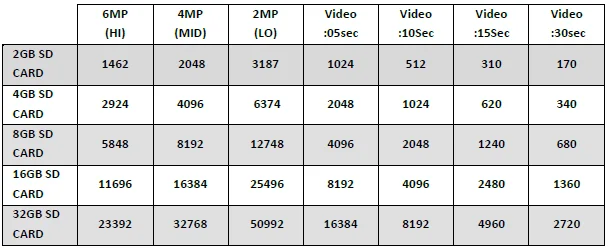
- RESOLUTION–(MED default): This setting is used to determine the megapixel resolution of each image taken by the camera. This is only for PHOTO mode. With this option blinking, use the UP or DOWN arrow key to move between the options of: 6MP(HI), 4MP(MED), 2MP(LO). The higher the resolution of an image, the more space the file will take on the SD memory card. Press the ENTER button to accept all your changes and to go back to the main options menu.
- DELAY-(5SEC default): This setting is used to determine the length of time that the camera will wait before it reinitialises its PIR sensor for the next activation. With this option blinking, use the UP and DOWN arrows to choose how many seconds you want the delay to be set for - 120S / 60S / 30S / 15S / 10S / 5S. Once this setting is on the appropriate time, press the ENTER button to accept all your changes and to go back to the main options menu.
- BURST–(1P default): This setting is used to determine the number of photos the camera will take during its activation. This setting can be changed between 1 PHOTO to 6 PHOTOS. With this option blinking, use the UP or DOWN arrow key to move between the value range in increments of 1. Press the ENTER button to accept all your changes and to go back to the main options menu.
- VIDEO LENGTH–(15SEC default): This setting is used to determine the length of time, in seconds, of the video recording. This setting can be set to either 30S / 15S / 5S. With this option blinking, use the UP or DOWN arrow key to make your selection. Press the ENTER button to accept all your changes and to go back to the main options menu.
- FACTORY RESET–(NO default): This setting is used to reset the camera to its factory defaults. With this option blinking, pressing the UP or DOWN arrow buttons will switch between the two options of NO or YES. When the YES option is chosen, and the ENTER button is pressed, the camera will default all configurations made up to this point. Once the reset is completed, the screen will flash DONE and return to the main options menu.
- DELETE SD CARD–(NO default): This setting is used to format the SD memory card installed. This will also delete ALL FILES from the card. This is always recommended to do when a brand new card is being used. With this option blinking, use the UP or DOWN arrow key to move between the options, either YES or NO. When YES is chosen, you will see the screen say dEL---, then DONE. Once completed, the screen will return to the main options menu.
- QUIT–This setting will allow you to exit the main options menu and enter camera-‐ready mode. Simply press the ENTER button.
- TEST–This is the final switch setting, and is used to determine the camera’s PIR sensor coverage area. When moved to this setting, the display will display TEST. By simply walking back and forth in front of the camera, the light will illuminate green when you have passed into the coverage area.
MEMORY CARD
INSTALLATION
To insert the SD memory card into the camera: first, locate the SD card slot on the inside bottom of the camera case.
Next, with the SD card label facing towards the front of the camera, insert the SD card.
When the card has been pressed in fully, there will be a noticeable resistance as the spring locking mechanism activates to hold the SD card.
No force should be required to insert the card; should it feels as though the card will not freely slide into the slot, remove the card and check for any obstructions and that it is being inserted properly.
IMAGE CAPACITY CHART
BATTERY REMOVAL & INSTALLATION
To remove the batteries, open the case and slide the battery compartments doors outwards. (See pages 5 and 6)
New, Alkaline or Lithium ‘AA’ batteries must be inserted with the orientation as shown in the compartment. As with most electronic devices, the negative ( – ) orientation of the batteries should be against the springs. Failure to insert the batteries properly will cause damage to the unit.
Once batteries are properly installed and the orientation is correct, simply slide the battery compartment doors back into their final locked position. Should the battery doors not willingly slide into their destination, remove them and examine the area of possible debris that may be causing the issue.
NOTE: Replacing the batteries will not reset the camera’s current configurations.
WARNING
- Do not mix new and old batteries.
- Remove batteries from the tray if the unit will not be in use for an extended period of time.
VIEW & DELETING IMAGES
The camera allows for two (2) ways to view your images. First is the direct connection from the camera to the computer via a USB cable (not included). This is a USB mini to standard USB (type A/B) cable. By simply turning the unit to the OFF position, and plugging the USB mini end into the camera and the standard USB end into the computer, the computer will register the camera as a card reading device. Once a connection with the computer has been established, the files may be reviewed based on the software installed on the computer. Please refer to the software’s Owner’s Manual for exact viewing of images.
NOTE: Support for this operation is limited to, but not exclusive to, the Windows Vista operating system and above, and also the Mac OS 10.6 and above. Any operating systems below the above-mentioned are not guaranteed to be compatible and may result in system errors.
The second option is to remove the SD memory card from the camera and use a card reading device to view the images. Please refer to your computer’s Owner’s Manual for the particular device in use for viewing the files.
NOTE: SD memory card viewers not manufactured by Stealth Cam may create conflicts on the memory card. Should this occur and the card is no longer working properly with the unit, the SD memory card will need to be reformatted.
FREQUENTLY ASKED QUESTIONS
Can I mix batteries together?
NO, you should never mix old with new OR Alkaline with Lithium with Rechargeable.
Is my game camera Mac compatible?
Yes, this camera model works with 10.6 and above.
Can 1 use rechargeable batteries in the camera?
Rechargeable batteries are fine for the unit; regular alkaline batteries designed for digital electronics are recommended for best performance.
When I use a memory card, can 1 view the pictures on my personal digital camera?
We do not recommend viewing SD memory card images taken in your game camera on any other digital camera. You may experience compatibility issues.
Will I lose my images and settings when the batteries die?
The images are stored on your external SD memory card, so your images will be intact only on your card. However, you will need to reset your settings.
What are my options if my camera is past its warranty?
We have an out-of-warranty program in which you may purchase a refurbished/reconditioned replacement unit for 50% or more off (based on the retail price of the unit), discount exchange of your old unit.
TECHNICAL SUPPORT
- EMAIL: [email protected]
- Toll Free: 877-‐269-‐8490
- CALL CENTER HOURS: Mon–Fri/8 AM–5 PM (CST)
For more Manuals by Stealth Cam, visit ManualsLibraryy
Stealth Cam STC-P12 Trail Camera-FAQs
Is the Stealth Cam STC-P12 a good trail camera?
Yes, the Stealth Cam STC-P12 Trail Camera delivers sharp daytime images with natural colors and good clarity. Motion detection is reliable, and night photos are above average for a no-glow camera, with solid video performance.
What are the main specifications of the Stealth Cam STC-P12?
The camera features 6MP image resolution, up to a 50-foot flash range, burst mode (up to 6 photos), mini-USB output, and support for external 12V power.
How do I set up the Stealth Cam STC-P12 for the first time?
Insert AA batteries and an SD card, set the date and time, adjust photo or video settings, mount the camera securely, take test shots, and then leave it in place for monitoring.
How do I set the date and time on the STC-P12?
Use the camera’s internal menu buttons to navigate to date and time settings, then save before exiting setup mode.
Does the Stealth Cam STC-P12 need Wi-Fi or a SIM card?
No. The STC-P12 is a non-cellular trail camera and works independently without Wi-Fi, mobile apps, or SIM cards.
What size SD card should I use with the STC-P12?
A 16GB to 32GB SD card is ideal for most users, offering plenty of storage for photos and short video clips.
Can I use a 128GB SD card in this trail camera?
While some trail cameras support large cards, smaller capacities (up to 32GB) are generally more reliable for this model.
How many batteries does the Stealth Cam STC-P12 use?
The camera is powered by AA batteries and also supports an external 12V power source for extended use.