

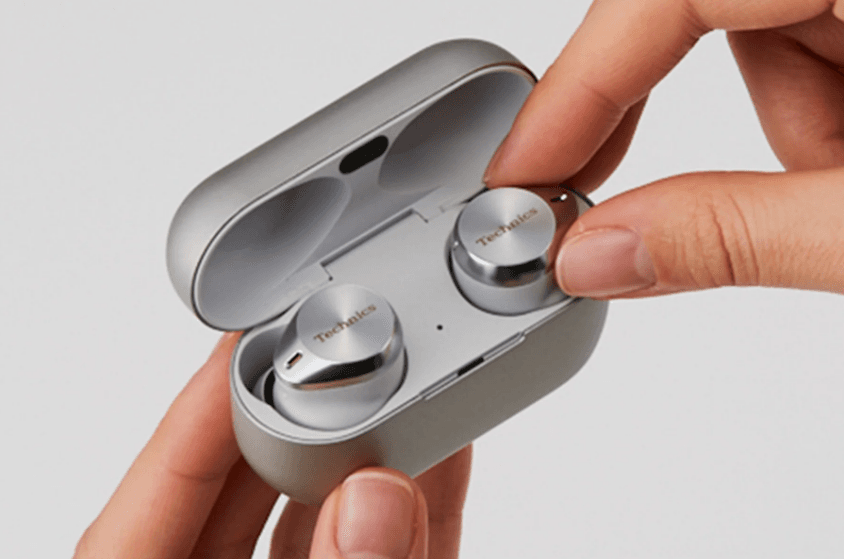

Technics EAH-AZ80-K Premium Hi-Fi True Wireless Earbuds
Quick start
 {{“Google Play”|tolink(“https://play.google.com/store/apps/details?id=com.panasonic.technicsaudioconnect“)}}
{{“Apple Store”|tolink(“https://itunes.apple.com/app/id1498029651“)}} 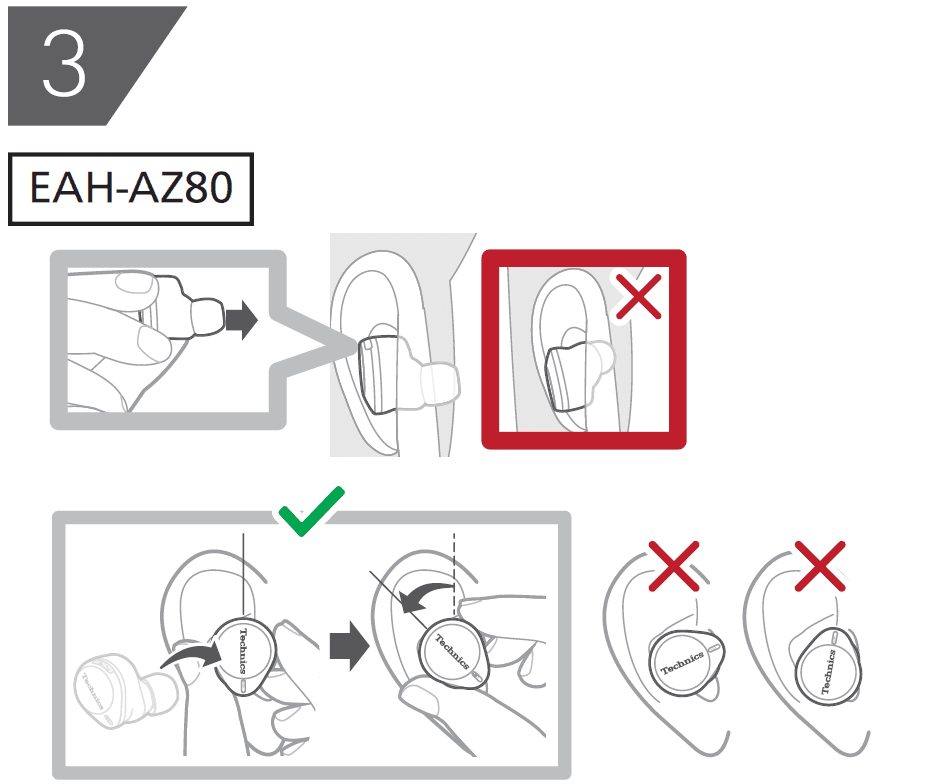
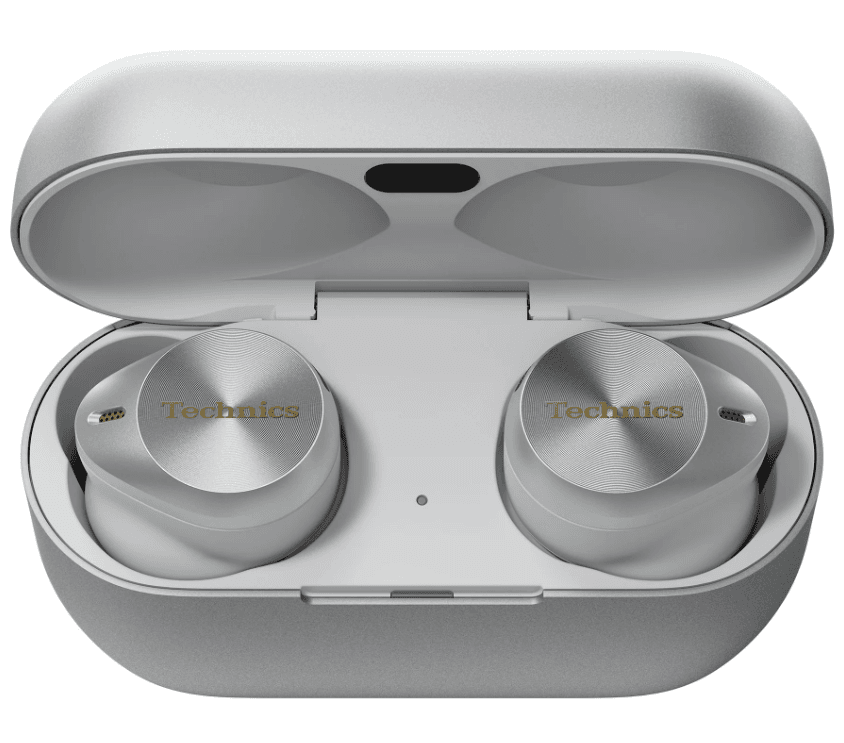
Part names and functions
EAH-AZ80
Earphones
- Microphones for noise cancelling
- Touch sensor (L) (left)
- Operate the earphones by touching.
- Touch sensor (R) (right)
- Operate the earphones by touching.
- Microphones for calls
- Raised dot indicating the L side
- Indicates the left earphone.
- Charging terminals
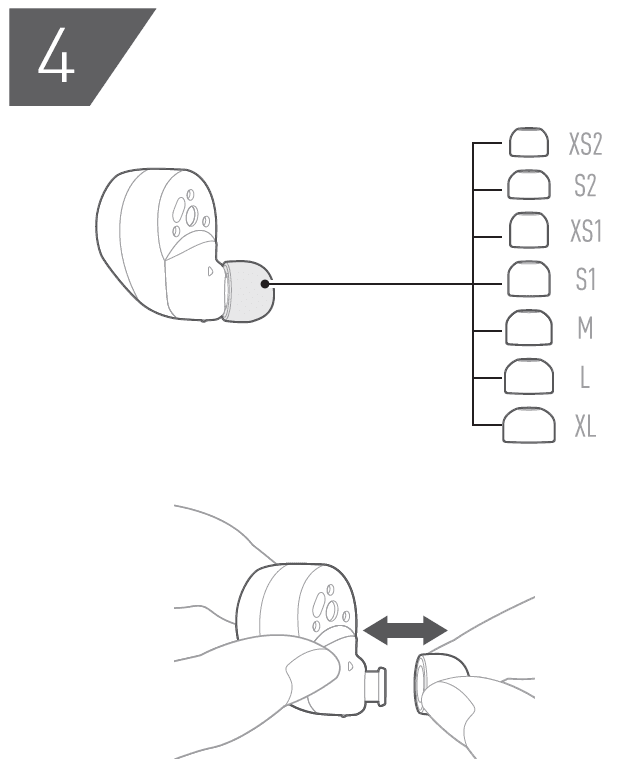
- Earpieces
- Select the size with the best audio quality and comfort.
- Wear sensors
- Detects whether earphones are worn and pauses/resumes music accordingly.
Charging cradle
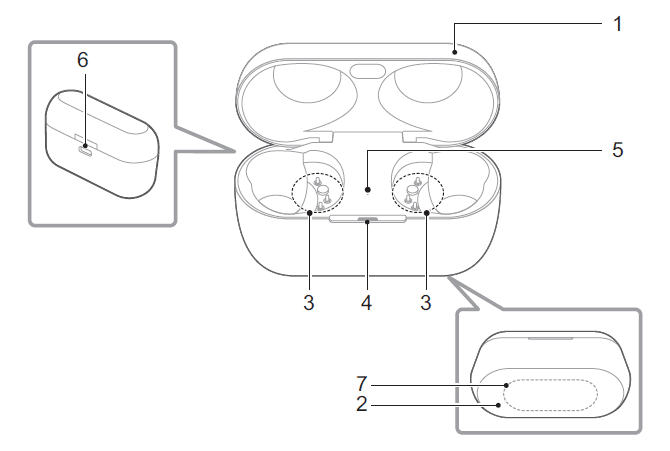
- Charging cradle lid
- Rating
- Displays the model number.
- Terminal section
- Charging cradle status indicator LED
- Indicates the status of the charging cradle. “Status Indicator LEDs”, Page 17
- Earphone status indicator LED
- Indicates the status of the earphones when they are in the charging cradle. (No LEDs on the earphones) “Status Indicator LEDs”, Page 17
- Charging terminal
- Use when charging with the USB charging cord.
- Qi charging contact
- Use when charging with a separately sold Qi standard-certified wireless charger.
EAH-AZ60M2
Earphones
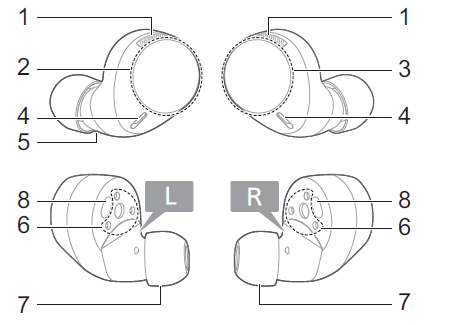
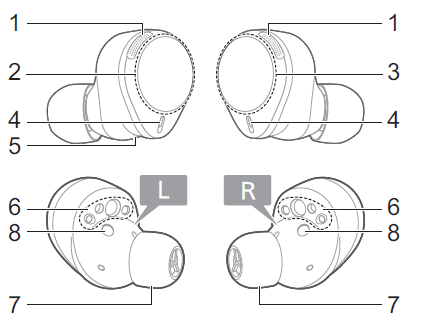
- Microphones for noise cancelling
- Touch sensor (L) (left)
- Operate the earphones by touching.
- Touch sensor (R) (right)
- Operate the earphones by touching.
- Microphones for calls
- Raised dot indicating the L side
- Indicates the left earphone.
- Charging terminals
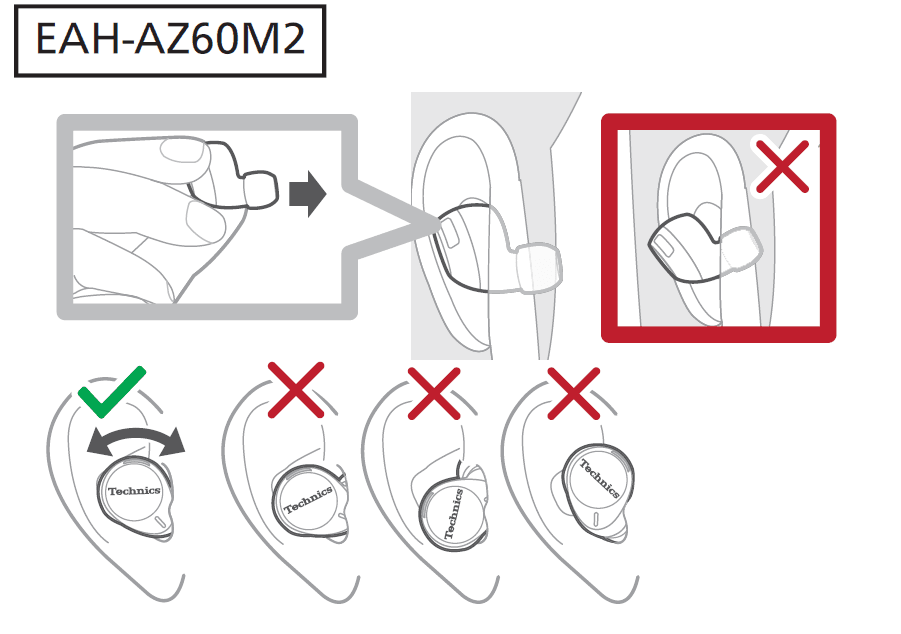
- Earpieces
- Select the size with the best audio quality and comfort.
- Wear sensors
- Detects whether earphones are worn and pauses/resumes music accordingly.
Charging cradle
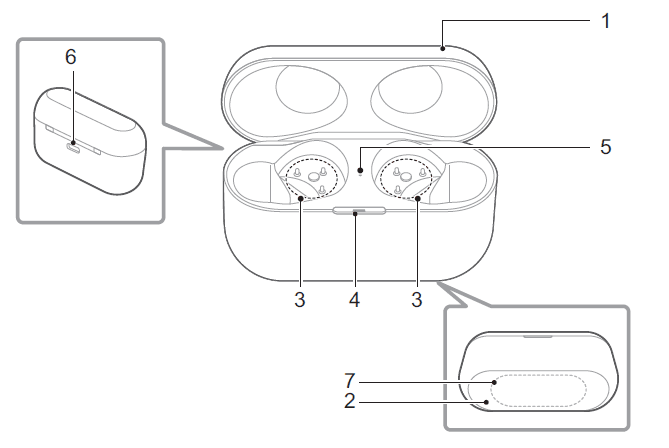
- Charging cradle lid
- Rating
- Displays the model number.
- Terminal section
- Charging cradle status indicator LED
- Indicates the status of the charging cradle. “Status Indicator LEDs”, Page 17
- Earphone status indicator LED
- Indicates the status of the earphones when they are in the charging cradle. (No LEDs on the earphones) “Status Indicator LEDs”, Page 17
- Charging terminal
- Use when charging with the USB charging cord.
- Qi charging contact
- Use when charging with a separately sold Qi standard-certified wireless charger.
Charge
Charging
Upon purchase, charge first before use.
Important:
- Do not touch the terminal section with your bare hands.
- The device cannot charge properly if there is dust or water droplets on the charging terminal, earphones, or charging cradle terminal section. Remove dust and water droplets before
charging. “Clean the charging terminals of the earphones”, Page 59. “Clean the charging cradle terminal section”, Page 59 - Hold the plug of the USB charging cord straight when plugging in or out. (Plugging the USB charging cord at an angle to the charging terminal will deform the plug and cause a malfunction.)
- Confirm (L) and (R) on the earphones, and align the terminal section of the charging cradle with the charging terminals of the earphones. (Earphones will not charge if their charging contact positions are incorrect.)
- We recommend charging at a room temperature between 10°C 35 35°C.
Charge the earphones and the charging cradle at the same time
The illustrations use EAH-AZ60M2 as an example.
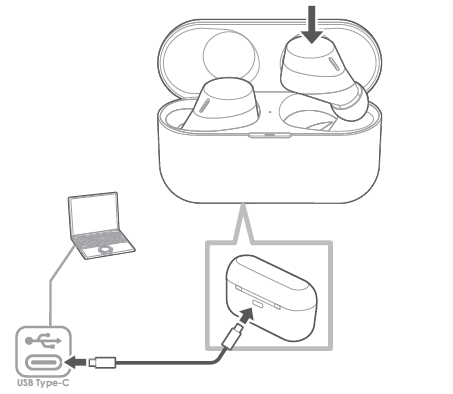
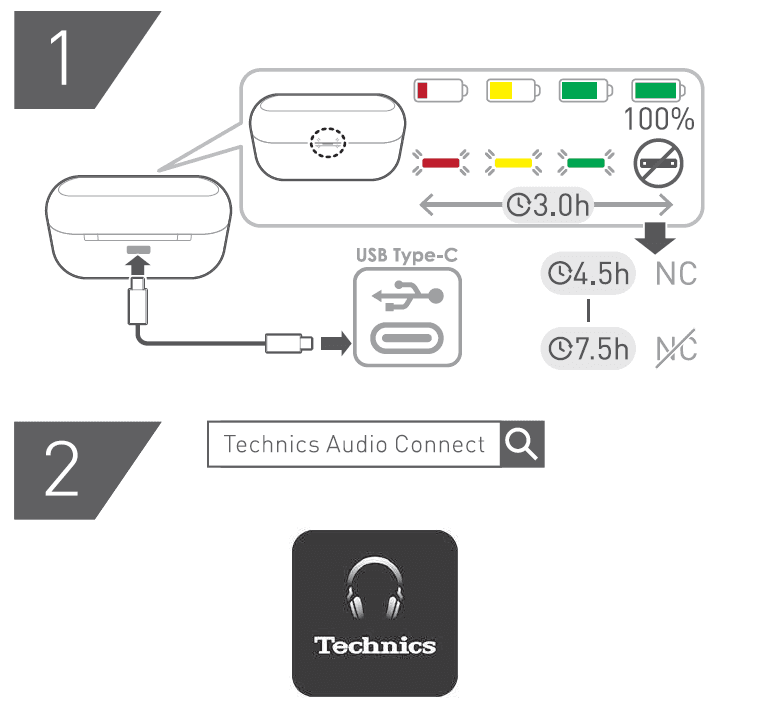
- Use the included USB charging cord to connect the charging cradle to a separately sold USB PD-supported AC adapter (USB Type-C).
- You can also charge from a USB Type-C port on a computer. Turn on your computer. It may not charge if the computer is in standby or sleep mode.
- The charging cradle status indicator LED flashes (red, yellow, or green), and charging starts.
- Put the earphones into the charging cradle.
- The earphone status indicator LED quickly flashes red (twice). (Put the earphones into the charging cradle again if the LED does not flash.)
- The earphone status indicator LED lights up (red), and charging starts.
- Charging for the earphones is complete when the earphone status indicator LED turns off.
- Charging for the charging cradle is complete when the charging cradle status indicator LED turns off.
- Charging time (the time from empty to full charge)
Charging the earphones and charging cradle at the same time: About 3.0 hours
Note:
- You cannot turn on the earphones or connect them to a Bluetooth® device when they are charging in the charging cradle.
- You can charge using a separately sold AC adapter.
Recommended AC adapter specifications- Supports PD (Power Delivery)
- DC 5 V (500 mA or higher)
- USB Type-C port
We do not guarantee that all AC adapters can be used for charging.
Charge only the charging cradle
To charge only the charging cradle, charge without putting in the earphones.
- Use the included USB charging cord to connect the charging cradle to a separately sold USB PD-supported AC adapter (USB Type-C).
- The charging cradle status indicator LED flashes (red, yellow, or green), and charging starts.
- Charging is complete when the charging cradle status indicator LED turns off.
- Charging time (the time from empty to full charge)
Charging only the charging cradle: About 2.5 hours
Charge only the earphones
You can charge the earphones with the charging cradle if it is sufficiently charged, even when there is no power supply nearby.
- Put the earphones into the charging cradle.
- The earphone status indicator LED quickly flashes red (twice). (Put the earphones into the charging cradle again if the LED does not flash.)
- The earphone status indicator LED lights up (red), and charging starts.
- Charging is complete when the earphone status indicator LED turns off.
- Charging time (the time from empty to full charge)
Charging only the earphones: About 2.0 hours
Note:
- If the charging cradle is fully charged, you can charge earphones with no charge about two times.
Charge wirelessly
You can charge this unit with a separately sold Qi standard wireless charger. For information about your wireless charger, please refer to its manual.
- Close the charging cradle lid.
- Place the charging cradle on the wireless charger with the Technics logo facing up.
- Qi charging contact position
EAH-AZ80: Qi charging Contact Page 14
EAH-AZ60M2: Qi charging Contact Page 16
Important: - The unit is not guaranteed to charge with all commercially available Qi standard wireless chargers.
- This unit does not support wireless chargers that are not Qi standard certified or have magnetic attachments. Do not use these chargers to charge the charging cradle. (It may cause the charging cradle to malfunction.)
- Do not charge wirelessly in the following places. In humid, dusty, or shaky areas, or near telephones, TVs, radios, or devices with built-in magnets
- Before charging wirelessly:
- Remove any covers attached to the charging cradle.
(The material and thickness of covers, or foreign matter such as dust caught between the charging cradle and covers, may prevent the battery from charging properly and result in fire, burns, or injury.) - If there are other devices that support wireless charging nearby, keep them at least 30 cm away. (The wireless charger may not detect the charging cradle correctly and charging may fail.)
- Remove any covers attached to the charging cradle.
- While charging wirelessly:
- Do not place metal objects (such as coins, or straps and clips that contain metal) on the wireless charger. (It may result in fire, burns, or injury.)
- If you hear noise from a TV or radio, charge in a place farther away from the TV or radio.
- Do not use a wireless charger while it is covered with something such as a blanket.
- If you have an electronic medical device such as an implanted cardiac pacemaker or defibrillator, consult your physician before using a wireless charger. (It may result in radio waves that adversely affect the operation of electronic medical devices.)
- Do not attach metal objects (such as stickers with materials that contain metal) to the wireless charger or charging cradle. (It may result in fire, burns, or injury.)
- Keep IC cards, magnetic cards, and magnetic objects away from the wireless charger.
- IC cards may malfunction. Magnetic data on cash cards, credit cards, telephone cards, and floppy disks may be erased. Placing the charger close to a strong magnetic field may also result in malfunction.
Note:- If the charging cradle is not placed properly during wireless charging, charging may be slower, charging may stop, or the wireless charger, earphones, and charging cradle may get hot.
- Depending on your wireless charger, charging may be slower or may stop at high or low temperatures. Also, although the earphones and charging cradle may get warm while and after charging, it is not a malfunction.
- IC cards may malfunction. Magnetic data on cash cards, credit cards, telephone cards, and floppy disks may be erased. Placing the charger close to a strong magnetic field may also result in malfunction.
- Qi charging contact position
Turn the earphones on/off
Turn on
- Take out the earphones from the charging cradle.
- A startup sound will play.
Turn off
- Put the earphones into the charging cradle.
- When you put them in, the earphone status indicator LED quickly flashes red (twice). (Put the earphones into the charging cradle again and charge the charging cradle if the
LED does not flash.)
Important:- Bringing a magnetic object close to the earphones during use may turn off the earphones. Do not bring magnetic objects close to the earphones during use.
- When you put them in, the earphone status indicator LED quickly flashes red (twice). (Put the earphones into the charging cradle again and charge the charging cradle if the
Listen to music
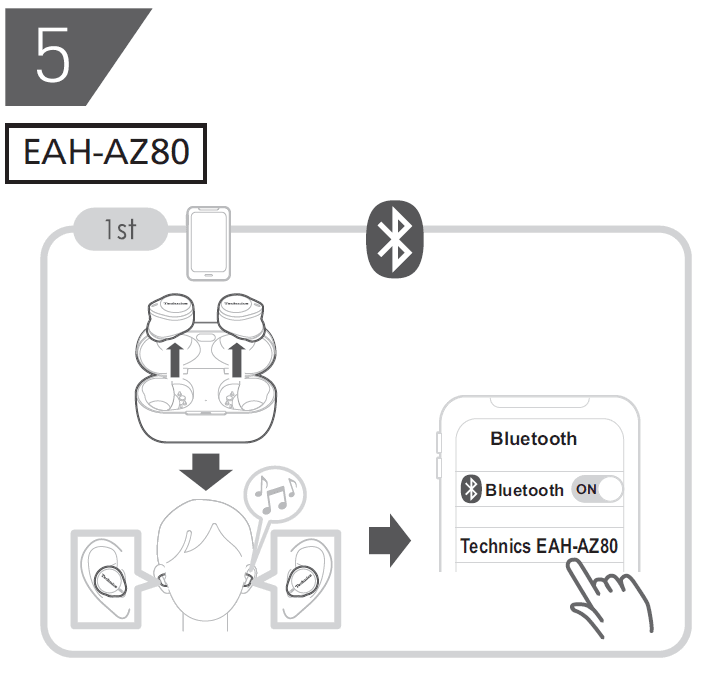
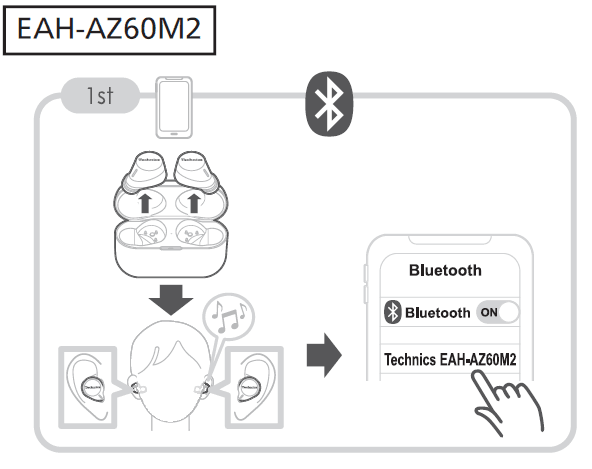
If a Bluetooth® device supports the “A2DP” and “AVRCP” Bluetooth® profiles, you can use the earphones to play music and video.
- Connect the Bluetooth® device and earphones.
- On the Bluetooth® device, select and play the music or video.
- The earphones will play the audio of the music or video.
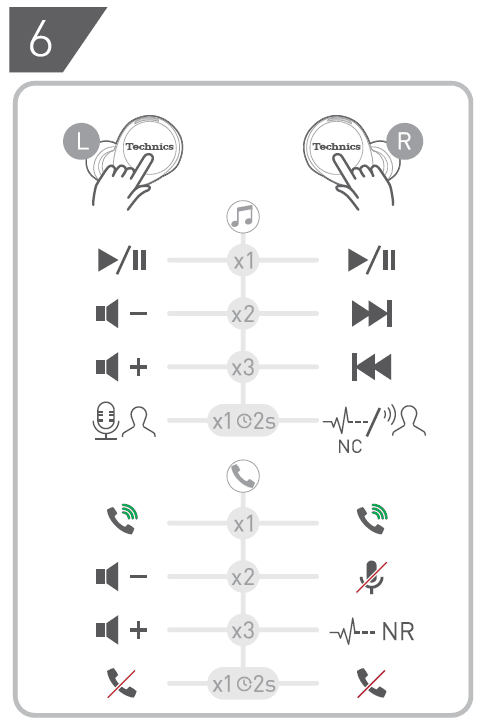
- You can adjust the volume by using the touch sensor (L) on the earphones. “Use the touch sensors”, Page 29
“Operating time (Earphones)”, Page 61
Note: - A2DP (Advanced Audio Distribution Profile): Transmits audio to the earphones.
- AVRCP (Audio/Video Remote Control Profile): Allows remote control with the earphones.
- Be aware that sound may leak from the earphones depending on the volume.
- Music may sound distorted if you increase the volume to near maximum. Decrease the volume.
- At default settings, the music pauses when you take off the earphones during playback, and resumes when you wear them again within about 1 minute. You can change the settings. “Set the headphone fitting sensor”, Page 38
Talk
If a Bluetooth® phone (mobile phone or smartphone) supports the “HSP” or “HFP” Bluetooth® profile, you can use the earphones to talk.
- Connect the Bluetooth® phone and earphones.
- When receiving a call, touch the earphone touch sensor (L or R) once to answer.
- When receiving a call, the ringtone plays from the earphones.
- (HFP only) To reject a call, touch and hold a touch sensor (L or R) for about 2 seconds.
- Talk.
- You can adjust the volume or mute the call by using the touch sensors on the earphones. “Use the touch sensors”, Page 29
- “Call time (Earphones)”, Page 61
- Touch and hold an earphone touch sensor (L or R) for about 2 seconds to end the call.
Note:- HSP (Headset Profile): Allows the earphones to receive monaural audio and the microphone to transmit audio.
- HFP (Hands-Free Profile): Provides incoming and outgoing communication in addition to the HSP functions. (The earphones cannot make calls.)
- You may have to configure hands-free settings on the Bluetooth® phone.
- Depending on the Bluetooth® phone, you may hear incoming and outgoing ringtones from the earphones.
- You can use the microphone on the earphones and the app on a Bluetooth® device to have the Bluetooth® device make a call. “Activate voice assistant features”, Page 28
Use only one earphone
You can use just one earphone after completing the initial settings and after connecting to a Bluetooth® device. For example, if you take out only the right earphone (R) and leave the left earphone (L) in the charging cradle, the earphone (R) will connect to the smartphone. You can listen to music or make calls with one earphone while charging the other.
Note:
- The audio will be monaural.
- If you take out the other earphones from the charging cradle when using only one earphone, the earphones will automatically connect wirelessly and switch to using both. The audio will be stereo.
Use external sound control
External sound control switches between noise-cancelling and ambient sound.
- While wearing the earphones, touch and hold the touch sensor (R) for about 2 seconds.
- The mode switches between noise-cancelling and ambient sound every time you touch and hold. (A voice prompt will notify you of the mode you switched to.)
- The default setting is “Noise canceling”.
Note: - The [Technics Audio Connect] app allows you to turn off external sound control. “Set external sound control”, Page 34
- Noise Cancelling: Reduces sound (noise) from the surroundings. While using noise-cancelling, you may hear a slight noise from the noise reduction circuit, but this is not a malfunction. (You may hear this slight noise in quiet places or during the silence between songs.)
- Ambient Sound: The microphones capture sound from the surroundings and play it into the earphones. You can hear sounds from your surroundings, such as train announcements, while wearing earphones.
- The default setting is “Noise canceling”.
- The mode switches between noise-cancelling and ambient sound every time you touch and hold. (A voice prompt will notify you of the mode you switched to.)
Activate voice assistant features
You can activate voice assistant features (such as Amazon Alexa or Siri) with a touch sensor on the earphones.
- Connect the Bluetooth® device and earphones. “When using Amazon Alexa as a voice assistant”, Page 29
- Touch and hold the touch sensor (L) for about 2 seconds.
- The voice assistant feature in the Bluetooth® device is activated.
Note: - Voice assistant features may not activate depending on the smartphone specifications and the app version.
- For details about voice commands for the voice assistant feature, please refer to the manual of the Bluetooth® device that uses the voice assistant feature.
- The voice assistant feature in the Bluetooth® device is activated.
When using Amazon Alexa as a voice assistant
Use the [Technics Audio Connect] app to complete the setup.
Important:
- Install the latest version of the Amazon Alexa app.
- Connect the Bluetooth® device and earphones.
- In the home screen of the [Technics Audio Connect] app, tap [SETTINGS].
- Tap [Select voice assistant] and select Amazon Alexa.
- Follow the on-screen instructions.
- After signing in to Amazon, you will need to add the headphones in the Amazon device setup.
Note:- Amazon Alexa is not available in all languages and countries. Amazon Alexa features may also vary by location. For details, please refer to the manuals of the apps.
- After signing in to Amazon, you will need to add the headphones in the Amazon device setup.
Establish multi-point connections
Multi-point allows the earphones to connect up to 3 Bluetooth® devices at the same time.
Note:
- Multi-point connections are established only with the last device connected via Bluetooth® (up to 3).
- When connecting 3 devices with multi-point, set the number of multi-point devices to 3. “Use multi-point”, Page 39
- For information about using the Bluetooth® devices, please refer to the manuals of the Bluetooth® devices.
- This feature may not work with some apps or software.
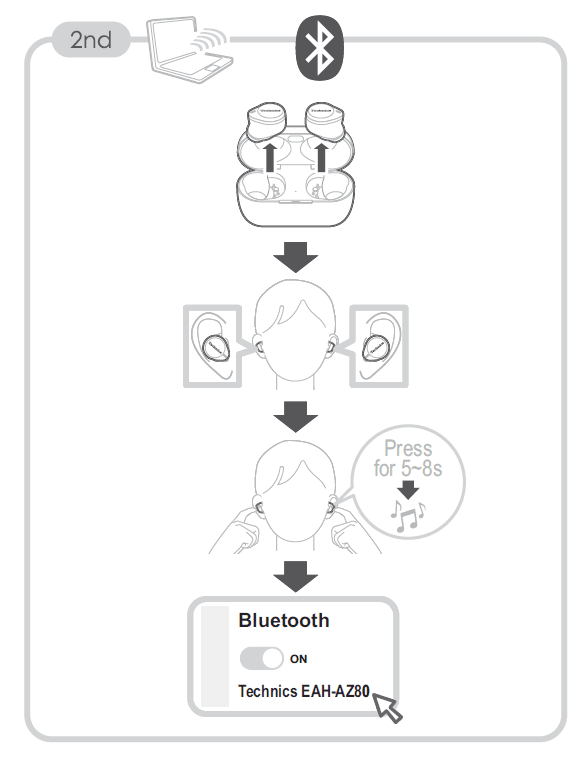
- Confirm that the earphones are paired with the Bluetooth® devices.
- Connect the first Bluetooth® device and earphones.
- From the Bluetooth® menu in the Bluetooth® device, select your headphones.
- Connect the subsequent Bluetooth® device and earphones.
- From the Bluetooth® menu in the Bluetooth® device, select your headphones.
Troubleshooting
Before requesting repair:
- Update the firmware.
- Resetting to factory settings may resolve the problem.
- Refer to “FAQ”.
{{“https://av.jpn.support.panasonic.com/support/technics/product-faq/AZ3/index.html“tolink(“https://av.jpn.support.panasonic.com/support/technics/product-faq/AZ3/index.html“)}}
If the FAQ or the following measures do not resolve the problem, or if the problem is not described below, please contact your dealer.
Cannot connect to a Bluetooth® device.
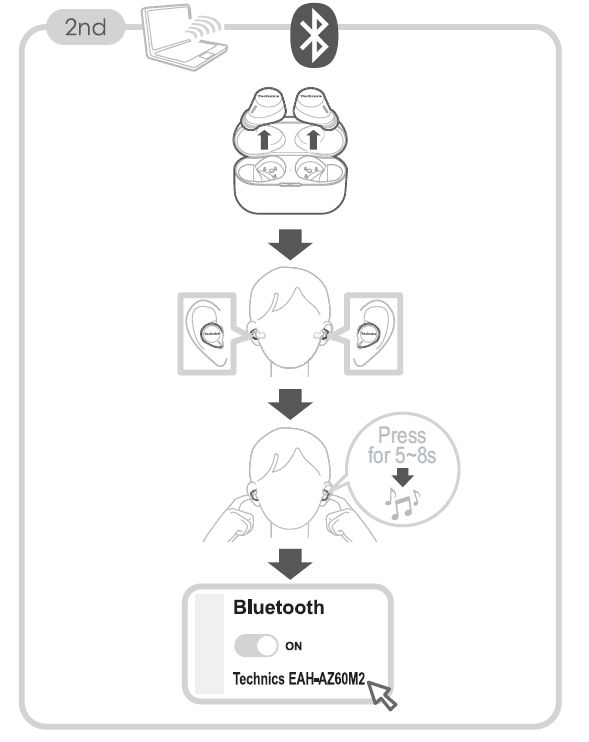
- Up to 10 Bluetooth® devices can be paired with the earphones. If you pair a device when the maximum number of paired Bluetooth® devices is exceeded, previously paired devices will be overwritten. To use overwritten devices again, pair them again.
- Unpair this unit from the Bluetooth® menu in the Bluetooth® device, and pair again. “Use the app to pair with a Bluetooth® device”, Page 23
“Pair with a Bluetooth® device without the app”, Page 24
There is no sound.
- Check if the earphones and the Bluetooth® device are connected.
- Check if music is playing on the Bluetooth® device.
- Check if the earphones are on and if the volume is not too low. “The volume is low./The other party’s voice is low.”, Page 46
- Pair/connect the earphones and the Bluetooth® device again. “Use the app to pair with a Bluetooth® device”, Page 23 “Pair with a Bluetooth® device without the app”, Page 24
- Check if the Bluetooth® device supports the “A2DP” profile. For details, please refer to the manual of the Bluetooth® device. “Listen to music”, Page 27
The sound cuts out./Lots of noise./Poor audio quality.
- Are you covering the earphones or Bluetooth® device with your palm? The signals and audio may be interrupted.
- Are you out of the Bluetooth® communication range (about 10 m)? Bring the earphones and the Bluetooth® device closer together.
- Are there any obstacles between the earphones and the Bluetooth® device? Avoid obstacles.
- Turn off wireless LAN devices that you are not using.
- Using devices that interfere with radio waves, such as microwaves, may affect communication
- Depending on the signal conditions, radio waves in the same 2.4 GHz band as Bluetooth® may interfere and cause sound skipping.
- When using LDAC and multi-point together, change the “LDAC playback sound quality setting” and “connection setting” of the playback device from “prioritize sound quality” to “best effort” or “prioritize connectivity” to lower the bit rate. You may not be able to change the settings on some playback devices. For details, please refer to the manual of the playback device.
- Setting [Suppression of sound interruptions and delays] to [Suppress the interruption of the sound] in the [Technics Audio Connect] app may resolve the problem.
My voice doesn’t go through during a call
- Check if the Bluetooth® device supports the “HSP” or “HFP” profile. For details, please refer to the manual of the Bluetooth® phone. “Talk”, Page 27
FAQ for the smartphone app (Technics Audio Connect)
Q01. What products can I use with Technics Audio Connect?
- EAH-AZ70W, EAH-AZ60, EAH-AZ40, EAH-A800, EAH-AZ80, EAH-AZ60M2 (as of February 2023)
- This manual describes instructions for EAH-AZ80 and EAH-AZ60M2.
Q02. What devices can run Technics Audio Connect?
Android™ devices
- Operating system Android 6.0 or later. However, operation of the app on all Android™ devices running these operating systems is not guaranteed.
iPhone/iPad/iPod touch
- Operating system iOS 12 or later. However, the app may not operate correctly depending on the OS version.
Q03. What languages are supported?
- The app supports the display of Japanese, English, French, German, Spanish, Canadian French, Italian, Polish, Russian, Ukrainian, Simplified Chinese, and Traditional Chinese. The language switches automatically to match the language of the smartphone. The display is set to English if the language is not Japanese, English, French, German, Spanish, Canadian French, Italian, Polish, Russian, Ukrainian, Simplified Chinese, or Traditional Chinese.
Q04. How do I unpair the headphones?
- You cannot unpair from this app.
To unpair, remove the headphones from the Bluetooth® settings on the device.
Q05. Cannot connect to the headphones.
- When pairing new headphones or when the headphones are not paired, on the home screen of the [Technics Audio Connect] app, tap [SETTINGS]®[Add headphones] and follow the on-screen instructions. When the headphones are not connected, tap [Add headphones] in the headphone list and follow the on-screen instructions.
- If you cannot connect to paired headphones, turn on the headphones and connect from the Bluetooth® settings of your device.
- If your device is in airplane mode, turn off the mode.
- If the device’s Bluetooth® is off, turn it on.
- You may be able to connect by bringing the device and headphones closer together or by turning off other Bluetooth® devices.
- If you cannot connect even after doing the above, follow the steps below to pair the headphones and device again.
For more manuals by Technics, visit ManualsLibraryy
Technics EAH-AZ80-K Premium Hi-Fi True Wireless Earbuds-FAQs
Do the Technics AZ80 earbuds have noise cancellation?
Yes! The Technics AZ80 features Dual Hybrid Active Noise Cancelling (ANC) with feedforward and feedback mics, plus analog/digital processing for superior noise blocking.
How do I take care of my wireless earbuds?
Clean them regularly with a soft, dry cloth.
Store them in the charging case to protect from dust and damage.
Avoid exposing them to excessive moisture or heat.
Are the Technics AZ80 earbuds waterproof?
They have an IPX4 rating, meaning they’re splash-resistant but not fully waterproof. Avoid submerging them in water.
Can I use just one earbud at a time?
Yes! The AZ80 supports single-earbud mode, so you can use either the left or right earbud independently.
Is it safe to sleep with earbuds in?
While possible, it’s not recommended for long periods. Low volume and comfortable fit are key to avoiding ear fatigue or wax buildup.
Why does one earbud sound louder than the other?
This could be due to:
Ear shape differences (one ear canal may fit differently).
Audio balance settings (check your device’s sound settings).
Dirty earbud mesh (clean gently with a dry cotton swab).
Are the Technics AZ80 earbuds comfortable?
Many users find them extremely comfortable thanks to their ergonomic concha fit and multiple ear tip sizes.
How do I check if my earbuds are waterproof?
Look for the IP rating:
IPX4 = Splash-resistant.
IPX7/IPX8 = Waterproof (can handle submersion).
How can I extend my earbuds’ battery life?
Turn off ANC when not needed (it drains battery faster).
Store them in the case when not in use.
Keep firmware updated for optimized performance.
Can I leave my earbuds charging overnight?
Yes, but it’s best to unplug once fully charged to preserve long-term battery health.