
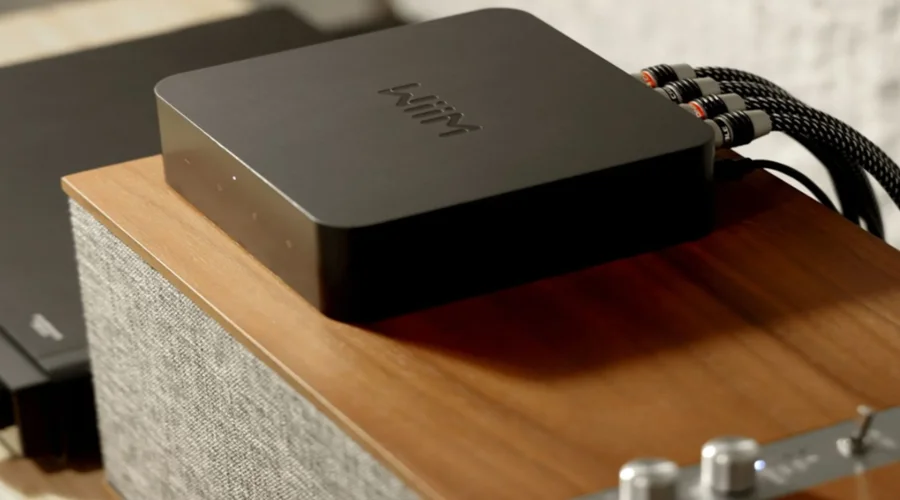

WiiM Pro Plus Hi-Res Music Streamer
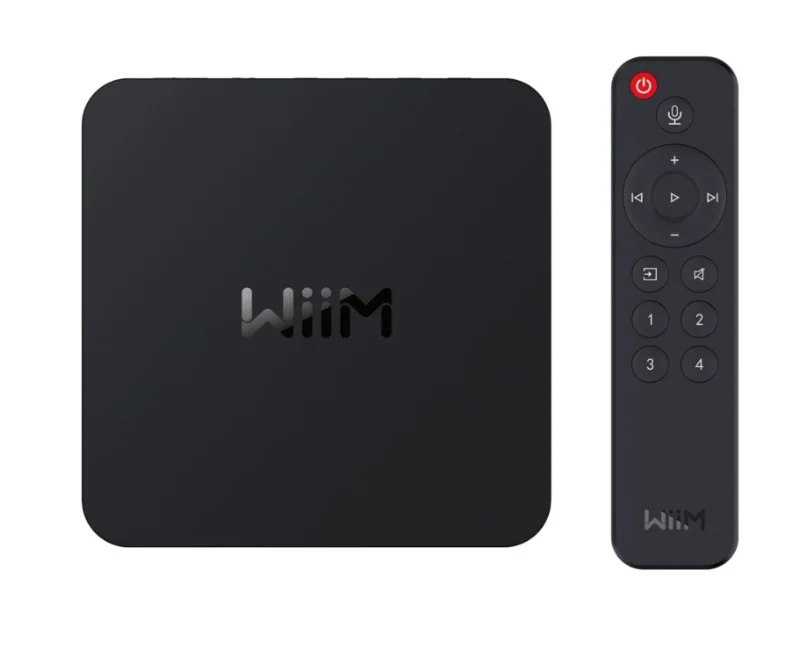
INTRODUCTION
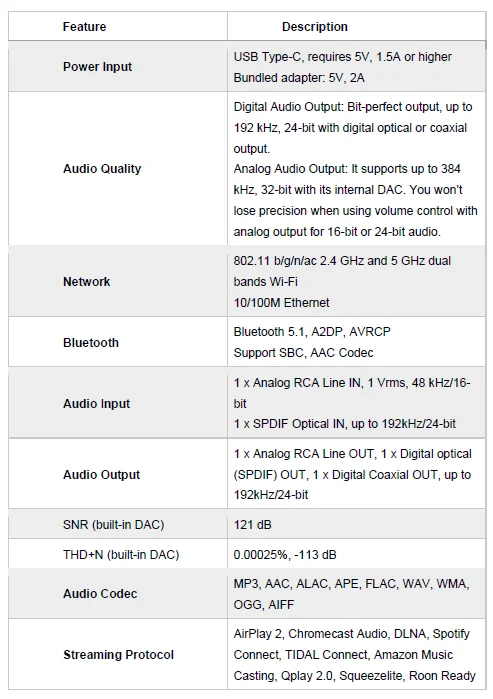
At WiiM, our goal is to offer you the simplest and most affordable Hi-Fi, lossless audio systems. Every product we create showcases top-tier design and an intuitive user interface. With our patented audio streaming solution integrated into all our premium products and user-friendly mobile apps, you can effortlessly enjoy music throughout your entire home. Introducing the WiiM Pro Plus, an exceptionally versatile network music streamer that stands out in the market. With features like Google Chromecast, AirPlay 2, Spotify Connect, TIDAL Connect, DLNA, Roon Ready, MQA, Alexa Cast, and seamless playback of Hi-Res 192k/24-bit lossless audio, it transforms your stereo system. Enjoy cloud-based music services or your own library via Wi-Fi or Ethernet. It features a next-gen AKM 4493SEQ premium DAC, leveraging AKM’s Velvet Sound Technology to deliver industry-leading low distortion and wide dynamic range. It boasts a Signal-to-Noise Ratio (SNR) of 121 dB (A-wt) and a Total Harmonic Distortion plus Noise (THD+N) of -113 dB across sample rates from 44.1k to 192k, courtesy of its ultra-low noise clock and optimized power and circuit design.
Additionally, it features a cutting-edge TI Burr-Brown PCM1861 ADC, which achieves a 110 dB SNR for analog-to-digital conversion, making it ideal for input sources like turntables, MP3 players, or TVs. Simply plug the WiiM Pro Plus into your stereo receiver, DAC, or amplifier, and control it using the user-friendly WiiM Home App, popular platforms like Spotify, TIDAL, Amazon Music, or any Chromecast-enabled apps. Voice control is also a breeze through iPhone, HomePod, compatible Echo and Google Home devices, as well as the Alexa App, Google Home, or Apple Home App. Create synchronized groups with HomePods, Echo devices, Google Home, AirPlay 2 devices, or other Alexa-compatible devices, and stream music throughout your home or play different tracks in separate rooms. Boasting both digital and analog audio inputs and outputs, the WiiM Pro Plus seamlessly integrates with your existing stereo setup. Elevate your audio gear with the smart capabilities of the WiiM Pro Plus, delivering high-fidelity, gapless music through the exceptional innovation of WiiM.
TYPICAL USE CASES
The WiiM Pro Plus is designed to enhance your existing audio setup by adding wireless streaming capabilities and smart features. Here are a few common use cases for the WiiM Pro Plus:
- Upgrade your Favorite Legacy Audio Systems: If you have a traditional stereo system or speakers that you want to integrate into your Apple AirPlay 2, Google Chromecast, Amazon Alexa or LinkPlay ecosystem, the WiiM Pro Plus allows you to stream music to those speakers wirelessly. It bridges the gap between your older audio equipment and the modern world of streaming music.
- High-Quality Audio: It supports bit-perfect, high-resolution audio formats and delivers rich, detailed sound, enhancing the listening experience of your existing audio system.
- Streaming Services and Music Libraries: The WiiM Pro Plus allows you to access various streaming services such as Spotify, Amazon Music, or Tidal, bringing a wide range of music to your existing audio setup. You can also connect it to your personal music library stored on a computer or network-attached storage device for seamless playback.
- Podcasts and Internet Radio: In addition to streaming music, the WiiM Pro Plus provides access to a wide range of podcasts and internet radio stations. You can browse through different genres, podcasts, or specific radio stations to enjoy on your existing audio system.
- Multi-Room Audio: The WiiM Pro Plus seamlessly integrates with other 3rd party popular smart speakers and components, or another WiiM/Linkplay device, allowing you to create a whole-home audio system with synchronized music playback in multiple rooms.
- Smart Home Integration: The WiiM Pro Plus supports voice control through platforms like Apple Siri, Amazon Alexa or Google Assistant, allowing you to control your music hands-free and integrate with other smart home devices.
- Vinyl or CD Integration: If you have a turntable or CD player that you want to incorporate into your WiiM or AirPlay system, the WiiM Pro Plus can connect to the analog or digital outputs of these devices. This enables wireless audio streaming to other speakers via another WiiM or AirPlay compatible device, allowing you to relish the sound throughout your entire home, all in sync.
- Home Theater Integration: The WiiM Pro Plus can be used as a bridge between your home theater system and the WiiM ecosystem. By connecting the Pro Plus to your AV receiver or soundbar, you can stream music wirelessly to your home theater speakers and synchronize audio playback with other WiiM devices for a cohesive audio experience.
OTHER DEVICES NEEDED TO USE WIIM PRO PLUS
To use the WiiM Pro Plus, you will need a few essential devices and components. Here’s a list of what you’ll need:
- Audio System: The WiiM Pro Plus is designed to connect to an existing audio system. This can be a stereo system, powered speakers, passive speakers with an amplifier/receiver, or a home theater setup with an AV receiver or soundbar. Make sure you have the appropriate audio system in place.
- Wi-Fi Network: The WiiM Pro Plus requires a stable Wi-Fi network connection to function. Ensure that you have a reliable Wi-Fi network available in the area where you plan to set up the WiiM Pro Plus. You’ll need the Wi-Fi network credentials during the setup process.
- Smartphone or Tablet: You’ll need a compatible smartphone or tablet (iOS or Android) with the WiiM Home app installed. The WiiM Home app is used for initial setup, configuration, and control of the WiiM Pro Plus.
- Power Source: The WiiM Pro Plus needs to be connected to a power source using the included power adapter and cable. Ensure that you have an electrical outlet nearby to power the device.
- Ethernet Cable (optional): While the WiiM Pro Plus primarily connects to your Wi-Fi network, it also has an Ethernet port. If you prefer a wired connection for added stability, you can use an Ethernet cable to connect the WiiM Pro Plus directly to your router or network switch.
These are the core components required to use the WiiM Pro Plus. It’s important to have an audio system that you want to integrate with the Pro Plus, a stable Wi-Fi network, and a compatible device with the WiiM Home app for setup and control.
AUDIO DEVICES WORK WITH WIIM PRO PLUS
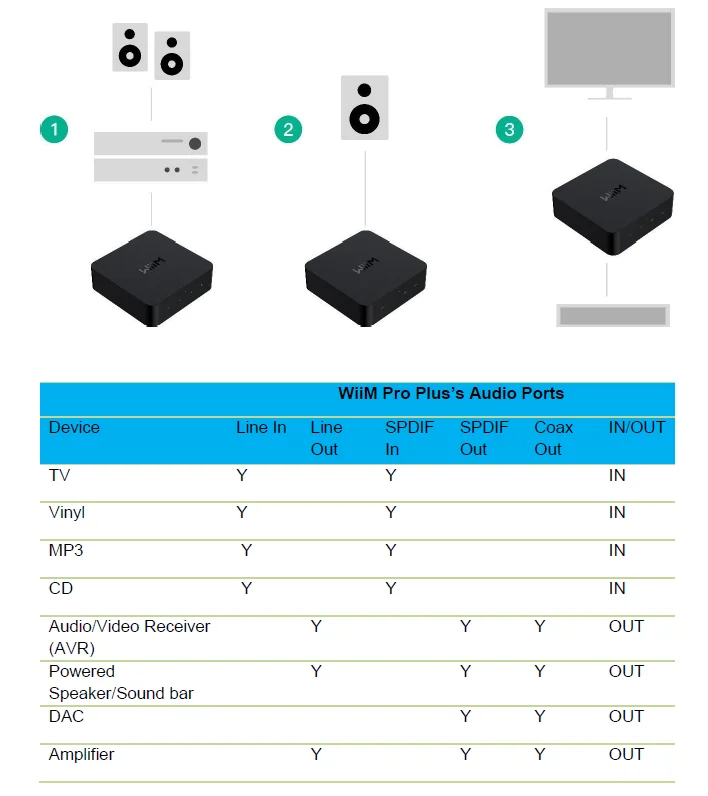
The WiiM Pro Plus can work with your audio source devices, smart speakers and other legacy stereo systems, DAC, amplifier, speakers or soundbars etc. The audio source device includes TV, record player and MP3 player. The block diagram below shows how you can connect your audio system with the WiiM Pro Plus.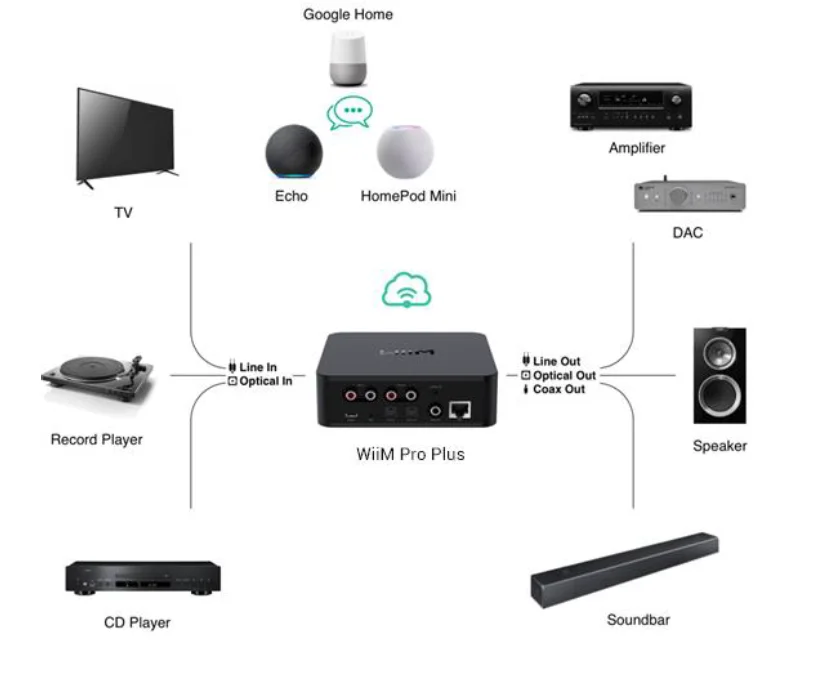
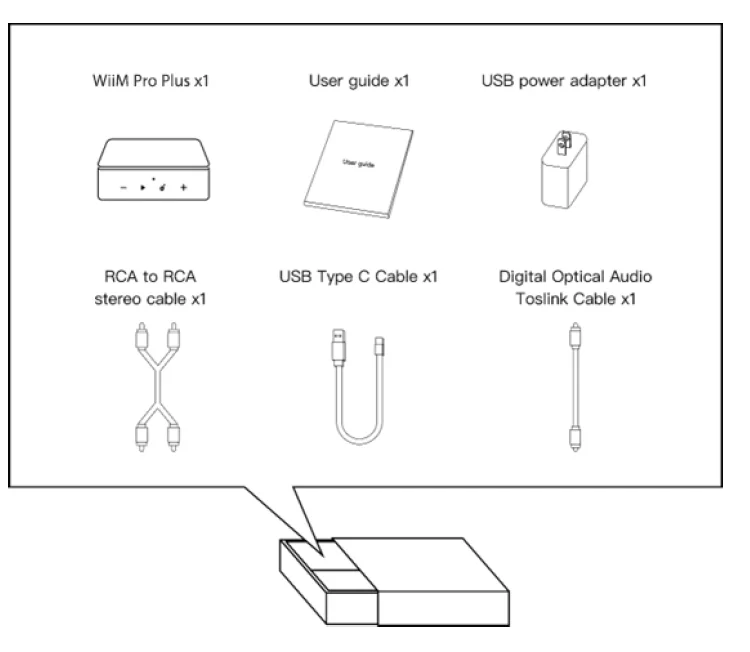
WHAT’S IN THE BOX
TECHNICAL SPECIFICATIONS

CONTROLS AND LIGHTS
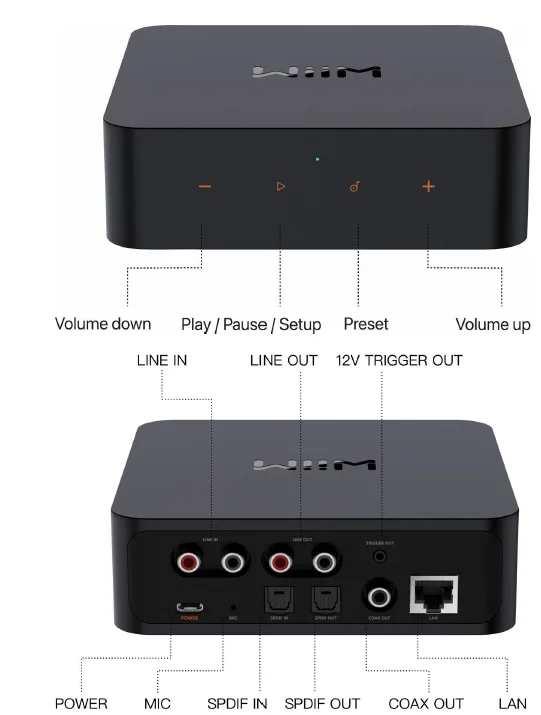
BUTTONS AND INPUT/OUT INTERFACE

NOTES:
- WGR: Three-color LED, no color mix
- W: Wi-Fi as the audio source (product default mode)
- G: Audio source from Analog, digital audio input, or BT
- R: Error (Not connected to a network or a faulty error)
Three modes: Solid, flashing slow, flashing fast
HOW TO SET UP
CONNECT AUDIO INPUT to IN PORT ON WIIM PRO PLUS
The WiiM Pro Plus features two distinct audio input interfaces: the analog LINE IN and the digital optical (TOSLINK) SPDIF IN. This versatile device functions as both a preamplifier and a network audio transmitter through Wi-Fi or Ethernet. You can stream analog audio input from sources such as CD players, vinyl players, TVs, or computers to other WiiM Pro Plus, Pro, or Mini devices, as well as to AirPlay-enabled devices (using AirPlay Cast), either singly or in multiple combinations.
- Scenario 1: Analog Audio Source Input (CD Player, Vinyl Player, or Computer)
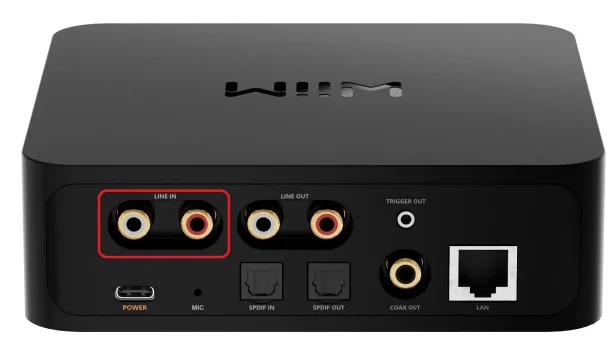
Connect your source device to the WiiM Pro Plus’s LINE IN port using a line-in cable. One of two types of cable as follows, might be used, i.e., RCA to RCA or Aux to RCA.
Connect to WiiM Pro Plus’s Line IN port
 Connect to CD player, vinyl player, TV or computer
Steps to set up the WiiM Pro Plus with the line-in input:
(Perform step 3/4/5 after the WiiM Home App is installed)- Insert the line-in cable into the LINE IN port located at the back of the WiiM Pro Plus.
- Connect the other end of the cable to the AUX or LINE OUT port on your audio source device (CD player, vinyl player, TV, or computer).
- In the WiiM Home app, navigate to the ‘Browse’ tab, choose ‘Select source on device,’ then opt for ‘LINE IN’ to set it as your audio distribution source.
- For creating a multiroom music group with your WiiM Pro Plus, access the Devices section in the WiiM Home app. Select the WiiM Pro Plus linked to your LINE-IN device, tap the group button (displaying a “link” icon within a box) in the upper-right corner of the device box, and choose the WiiM Pro Plus you wish to transmit audio to.
- Once done, the music from the device connected to the WiiM Pro Plus will play across your multiroom music group.
- Scenario 2: Digital Audio Source Input (TV or PC)
Connect your source device to the WiiM Pro Plus’s SPDIF IN (optical) port using an optical cable. Steps to set up the WiiM Pro Plus with the SPDIF IN are the same as Line-in, replacing Line-in with SPDIF IN.
Notes:
• You can also enable “Autosense” on the WiiM Pro Plus to automatically play your Line-In or Optical-In source when WiiM Pro Plus detects a signal. You can enable this feature from the WiiM Home App.
• WiiM Pro Plus has a built-in EQ to process the audio input based on your taste. You can also control the audio volume in the App remotely without adjusting your audio input.
• Some source devices may require a preamp. For example, some turntables do not have a preamp built-in, so you will need to connect your turntable to an external preamp and then connect the preamp to WiiM Pro Plus.
 Connect to CD player, vinyl player, TV or computer
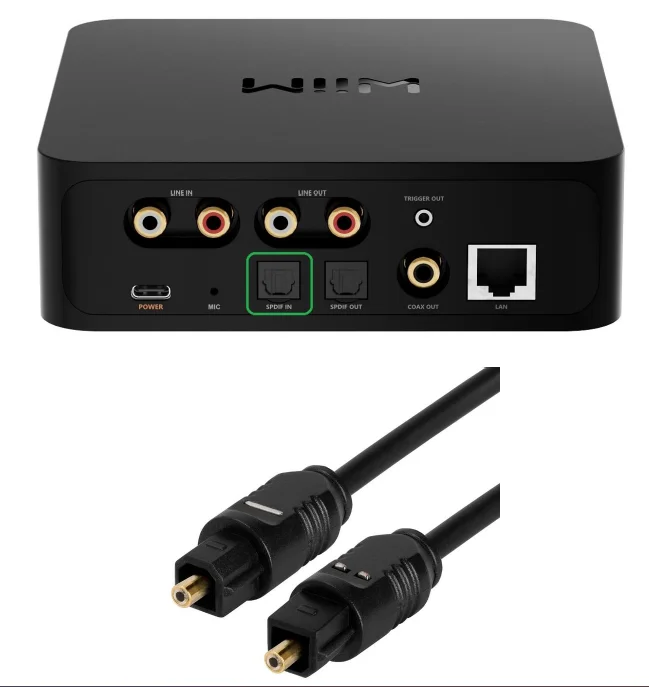 Steps to set up the WiiM Pro Plus with the SPDIF IN are the same as Line-in, replacing Line-in with SPDIF IN.
CONNECT WIIM PRO PLUS’S AUDIO OUT PORT
The WiiM Pro Plus features three distinct audio output interfaces that offer flexibility in connecting your DAC, amplifier, or powered speaker. These interfaces include the analog LINE out, the digital optical (TOSLINK), and the Coaxial port. It’s important to note that the WiiM Pro Plus is designed to output audio through a single one of these audio output options.
Setting Up WiiM Pro Plus Audio Output:
(Note: Perform steps 3, 4, and 5 after installing the WiiM Home App)
- Depending on your preferred audio equipment, select the appropriate connection method: RCA cable, optical cable (TOSLINK), or coaxial.
- For the RCA cable, plug it into the LINE OUT port on the back of the WiiM Pro Plus.
- For optical cable (TOSLINK), plug it into the SPDIF OUT port.
- For the coaxial cable, plug it into the COAX port.
- Connect the other end of the cable to your audio equipment (DAC, amplifier, or powered speaker).
- Within the WiiM Home App on your iOS or Android device, designate the desired output port. Remember that the WiiM Pro Plus only outputs audio through one of these options.
- Enhance sound quality with customized sound equipment connection:
- EQ settings
- Calibration (latency from the WiiM Pro Plus to the speaker)
- Test music playback
- You’re now ready to begin playing audio on your selected output devices.
Notes:
- Selecting the appropriate audio output port is crucial to ensure sound output. Incorrect selection may result in no audio.
- For bit-perfect audio output, opt for the digital audio output and activate the fixed volume output, disable EQ, and mono audio in the WiiM Home App’s device settings.
- You have two ways to control the volume of your system:
- Utilize your AVR or amplifier for volume control (When the ‘Fixed Volume Output is set on the WiiM Pro Plus).
- Control volume through the WiiM Home App, but remember to disable fixed volume output for this option.
SUMMARY OF DEVICE CONNECTIONS
- If connecting to an audio/video receiver (AVR), DAC, or amplifier, utilize the Line Out, Optical Out, or Coaxial Out port.
or - When connecting directly to powered speakers or a soundbar, opt for the Line Out, Optical Out, or Coaxial Out port.
or - For PC, TV, vinyl, or MP3 player connections, employ the Line In or Optical In port.

POWER THE WIIM PRO PLUS
Please use the provided USB power adapter to power your WiiM Pro Plus. If you want to use your own linear power supply, please ensure it can support 5V, 1.5A or higher power.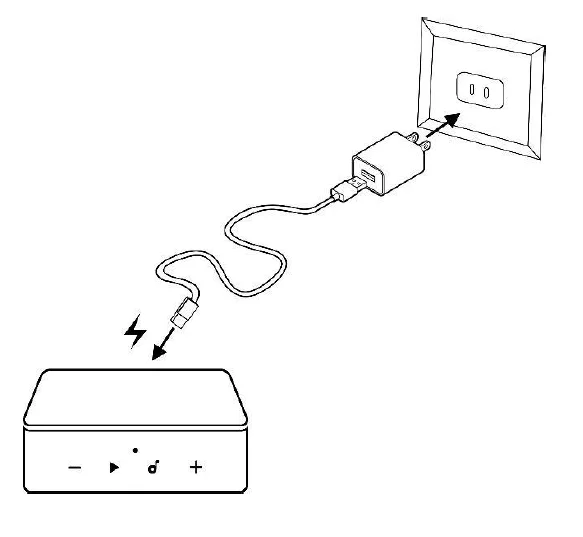
CONNECT TO YOUR NETWORK WITH THE WIIM HOME APP
You can use Ethernet or Wi-Fi to connect WiiM Pro Plus to your network. Before the setup, please download the WiiM Home App. If you want to use the Wi-Fi to connect to WiiM Pro Plus, please have your network password ready.
- DOWNLOAD THE WIIM HOME APP

- Wi-Fi OR ETHERNET SETUP
- Power on the speaker, audio/video receiver (AVR), amplifier, or DAC.
- Power on the WiiM Pro Plus streamer and wait 30 seconds until it fully boots up.
- Open the WiiM Home App.
- Click on the device you want to configure.
- Select the network and enter the correct network password. (Ethernet doesn’t have this step)
- Select the maximal bit depth and sample rate for your downstream audio device if you use the digital audio output of WiiM Pro Plus. Please note that some legacy DACs, amplifiers, or speakers can’t support up to 24-bit/192 kHz audio via their digital audio interface. (Please check your DAC, amplifier, or speaker’s manuals for details.)
If you use an iOS system, you can also use Apple Wireless Accessory Configuration (WAC) protocol or Home App to set up the device.
- SETUP with Apple WAC
- Power on the speaker, audio/video receiver (AVR), amplifier, or computer.
- Open iPhone settings and tap your selected device’s name in the WAC setup section
- SETUP with Apple Home App
- Tap the Home app located on the home screen of the iOS device.
- Tap the “+” button located at the top-right corner of the screen.
- Tap “Add Accessory.”
- Tap “Don’t Have a Code or Can’t Scan?”
- Tap your selected device, which MUST be listed under “Nearby Accessories.”
FILL YOUR HOME WITH SOUND
Immerse yourself in your favorite music and radio stations through seamless Wi-Fi or Bluetooth streaming. With multiple WiiM Pro Plus devices, enjoy music throughout your entire home. Alternatively, connect stereo components like an amplified turntable, CD player, or MP3 player, and simultaneously cast music to multiple WiiM Pro Plus, WiiM Pro, or WiiM Mini connected speakers, or AirPlay compatible devices via AirPlay Cast. Expand your audio experience by grouping with AirPlay 2-enabled devices, Amazon Echo, or Google Home, creating a synchronized whole-home audio setup across multiple rooms. Note that grouping with non-WiiM or LinkPlay devices requires the respective apps like Alexa or Google Home. It’s important to mention that when using Amazon Echo or Google Home devices, the WiiM Pro Plus functions as the audio receiver. Please be aware that it cannot transmit its physical audio input (via Line-In or Optical-In) to non-WiiM devices or devices that don’t support AirPlay, like Amazon Echo, or Google Home devices over Wi-Fi. However, it can transmit its audio input to AirPlay compatible speakers such as HomePod, Sono,s etc.
USE 12 V TRIGGER OUT
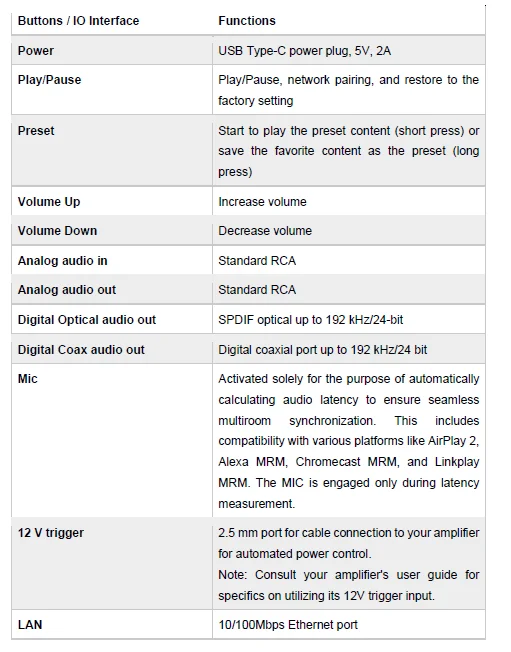
The WiiM Pro Plus raises the voltage on the 12v trigger rail as soon as the music playback starts. It lowers the trigger’s voltage two and a half minutes after playback stops. The responsiveness of the connected amplifier to this voltage change varies based on the manufacturer and their individual timeout settings. For an external DAC or amplifier, the 12 V trigger can be utilized to detect music start or stop events. Please consult your device’s manual that features a trigger input for details.
AUDIO OUTPUT VIA BLUETOOTH OUT
You can use the WiiM Pro Plus as a Bluetooth source device, enabling seamless pairing with your Bluetooth speakers. Bluetooth Pairing Procedure for Audio Output:
- Launch the WiiM Home App on your iOS or Android device.
- Select the ‘Device’ Tab and tap the gear icon for device settings.
- Select the ‘Audio Output’ setting and opt for ‘Bluetooth’ to establish a connection with an external Bluetooth receiver, such as an amplifier or speaker.
- Start playing music.
AUDIO OUTPUT VIA AIRPLAY CAST
You can use the WiiM Pro Plus as an AirPlay source, seamlessly connecting with AirPlay-enabled speakers like the HomePod.
Here’s how to set up AirPlay Cast step by step:
- Launch WiiM Home App: Open the App and tap the ‘Device’ tab.
- Access Device Settings: Select your WiiM device, then tap the Gear Setting icon to access the device-specific configurations.
- Navigate to Audio Output: Go to ‘Audio Output’ to configure WiiM Pro Plus’s output.
- Select AirPlay Receiver: Choose the ‘AirPlay Receiver’ and tap the ‘Connect’ to pick your casting device.
- Choose Your Device: A list of available AirPlay 2-enabled devices will appear. If your desired speaker isn’t listed, tap the ‘Refresh’ icon to update your device list.
- Select Your Receiver: Pick your AirPlay 2 receiver, even multiple devices.
- Play Your Audio: Finally, select your preferred audio and hit ‘Play’.
VOICE CONTROL
With voice control, you can navigate and interact with your device to search, play, stop, or skip music and more. When voice control is configured, you can speak commands as you would act by touch.
WORKS WITH ALEXA
Download the Amazon Alexa App and turn on Amazon devices or 3rd party Alexa built-in devices.
- Set up your Amazon account for your WiiM device
If your WiiM device is not logged into your Amazon account in the WiiM Home App,- Open WiiM Home App, click “Browse -> Amazon Alexa -> Sign in to Amazon.”
- Log in to your Amazon account
- Open the Amazon Alexa app
- Tap the “Devices” at the bottom of the page.
- Tap the “+” in the top right corner.
- Tap “Combine speakers,” then select “Multi-room music.”
- Select the configured Echo or other Amazon devices and the configured WiiM Pro Plus device
- Click “Next” and choose the group name (i.e., Bedroom)
- Amazon Alexa app prompts that the group has been created.
- Try “Alexa, play some music in the Bedroom” for the multi-room audio with the Echo. Or
- Choose the WiiM device as the preferred speaker. Thus, you don’t need to say your device name when using Alexa.
WORKS WITH SIRI
- Configure one to more devices
- Open a music app (like Apple Music) and select a track to play
- Tap
 .
. - Select your speaker/speakers or Home Pod
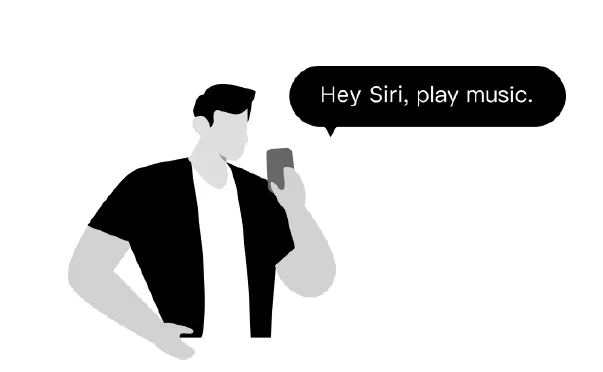
- Say “Hey Siri, stop the music/Play music” on your phone or HomePod
 .
.WORKS WITH GOOGLE VOICE ASSISTANT
Let’s assume you’ve set up your Google Home and WiiM Pro Plus separately. Now, you must link them together in the Google Home app for Android or iOS:
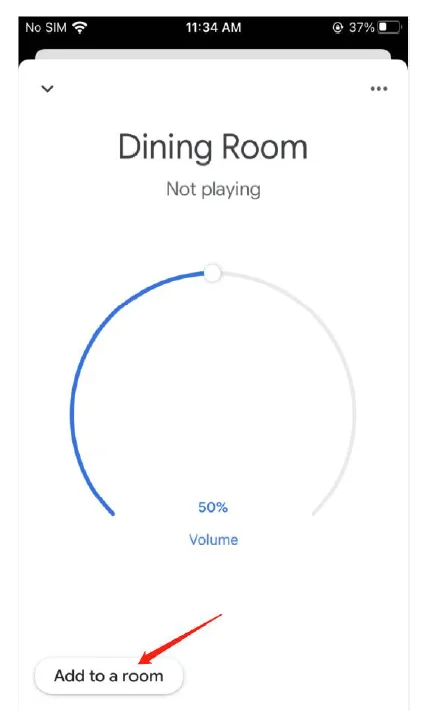
- Open the Google Home app, and you will find the WiiM Pro Plus enabled as a Chromecast audio device under “Local devices.”
- Tap the name of the WiiM Pro Plus and enter the device control UI.
- Tap the “Add to a room” button under the volume circle to add WiiM Pro Plus to one room.
- You can use voice to control the WiiM Pro Plus with your Google Home or Android devices.

DIRECT CONTROL VIA YOUR FAVORITE APP
You can stream from your favorite apps directly to your WiiM Pro Plus with the following approaches. Depending on your mobile devices and music service, there may be multiple ways to stream from your music app to WiiM devices. I.e., if you use the Spotify App on an iOS device, you can use either Spotify Connect or AirPlay 2. However, Spotify Connect gives you better audio quality compared with AirPlay 2 and liberates your phone for other tasks.
SPOTIFY CONNECT
Spotify Connect is a way of playing Spotify through your wireless-compatible device over Wi-Fi. That means you can play your favorite tunes anywhere in the house without the need for convoluted Bluetooth pairing between devices whenever you want to listen to music. Spotify Connect works from smart phone, tablet, or PC that functions as a remote control for Spotify. Both free and premium accounts are supported. Go to Spotify.com/connect to learn more. It’s the best way to play Spotify on a WiiM device, giving the best possible audio quality and streaming experience.

The Spotify Software is subject to third-party licenses found here: https://www.spotify.com/connect/third-party-licenses
To use Spotify Connect with multiroom or stereo pairing, you can first group multiple WiiM devices on the WiiM Home App, then stream Spotify to the grouped devices. The group name is the same as the group master device.
AIRPLAY 2
WiiM device turns your stereo into an AirPlay 2-enabled speaker to stream the music you love from iOS, Mac, and PC devices, or stream audio from Apple TV. It’s an easy and affordable way to connect your Apple devices to your favorite audio equipment and upgrade to an AirPlay 2 receiver. AirPlay 2 lets you stream music from your iOS, MAC, PC, and Apple TV device to more than one product to create a multiroom audio experience over Wi-Fi.
NOTES:
- To use AirPlay 2, you need an Apple device running iOS 11.4 or later.
- Your Apple device and WiiM device must be connected to the same Wi-Fi network.
- For more information about AirPlay 2, visit: https://www.apple.com/airplay
You can either start the AirPlay 2 streaming from the music App or the iOS control center. The steps are shown below for both cases.
STREAM AUDIO FROM THE CONTROL CENTER
- On your Apple device, open the Control Center.
- Tap and hold the audio card in the top-right corner of the screen, then tap the AirPlay icon.
- Select your WiiM device.
STREAM AUDIO FROM AN APP
- Open a music app (like Apple Music) and select a track to play.
- Tap.
- Select your WiiM device.
TIDAL CONNECT
TIDAL is a global music streaming platform bringing fans closer to artists through unique experiences and the highest sound quality. Stream your favorite music seamlessly from the TIDAL App straight to your devices in the highest possible quality. TIDAL Connect is a feature that allows you to stream music from the TIDAL App to compatible devices. It’s similar to Apple AirPlay and Spotify Connect in that it lets users stream music to connected devices from within the App. This means you can use your smartphone or computer as a controller to play music on the WiiM device. WiiM Pro Plus also supports the MQA decoder for the TIDAL Connect up to 24-bit/96 kHz if you subscribe to the TIDAL Hi-Fi+ tier. If your external DAC or Amplifier can support MQA decoder or render, you can get even higher sample rate/bit depth than 24-bit/96 kHz. To use Tidal Connect, you need to launch the Tidal App on your mobile device. Then find and play a song you like and head to the ‘Now Playing’ screen. Touch on the ‘cast’ icon at the top right on the ‘Now Playing’ screen and select a WiiM device from the list.
AMAZON MUSIC CAST (ALEXA CAST)
Alexa Cast is a feature that allows you to play and control music on any of your Alexa devices from your Amazon Music iOS or Android app. You can discover all your Alexa devices from your music app. Your devices do not need to be on the same Wi-Fi network as your mobile device. You can target any device from anywhere. Once you pick a target device, the music you selected on your App will start playing on the chosen device. You can now follow along on your App. When you tap skip on your App, your device skips to the next track. Your App becomes a remote control for the device. WiiM Pro Plus is one of the first devices that support Alexa Cast with bit-perfect output up to 192 kHz/24-bit. Thus, you can listen to your Amazon Music Ultra HD directly from the native Amazon Music to WiiM Pro Plus in the highest possible quality. To use this, please log in to your Amazon account for Amazon Alexa on the WiiM Home App. Also, make sure you have the latest version of the Amazon Music app. Next, on the “Now Playing” screen, you will see a casting icon in the top right. Tapping the icon will bring up the list of all your available Alexa devices for you to select. Once you have started casting, you can still use voice to control the music playing on the device. You can switch between using your voice and your App based on your convenience. When you want to stop casting to a device and resume playing on your phone, you will have to pull up the device list and tap the disconnect button.
CHROMECAST AUDIO
Chromecast audio lets you instantly stream your favorite music, radio, or podcasts from your favorite Chromecast-enabled apps on your mobile device to your speakers over Wi-Fi. Once you have set up WiiM Pro Plus, you can enable Chromecast from the WiiM Home companion app. Then, open a compatible app on your smartphone or tablet and tap the Cast button. This will allow you to select your WiiM Pro Plus and start streaming audio to it. Most music apps on both iOS and Android already support Chromecast, such as Spotify, Apple Music, TIDAL, Amazon Music, YouTube Music, and Deezer. You can also cast any audio from your Chrome browser by selecting Menu > Cast. Chromecast can also be used for multi-room audio, playing music in sync to multiple speakers from compatible brands and WiiM Pro Plus, using the Google Home app.
DLNA
DLNA stands for Digital Living Network Alliance. It is a trade organization that sets standards and guidelines for home networking devices, including PCs, smartphones, tablets, smart TVs, Blu-ray Disc players, home theater receivers, and media streamers, among others. When a DLNA-certified device is added to a home network, it can automatically communicate and share media files with other connected DLNA products on the network. WiiM Pro Plus is the DLNA digital media render. When it’s connected to the same network as your other DLNA devices or apps, it appears in the menus of other networked components. Your computer and other media devices discover and recognize the WiiM Pro Plus without any setup. You can control the WiiM Pro Plus from other DLNA digital media player or controller. You can also play content to the WiiM Pro Plus from other DLNA digital media servers, all without additional setup.
CE/FCC Statements
RF Exposure Information: To maintain compliance with FCC RF exposure requirements, use the product that maintains a 20cm separation distance between the user’s body and the host. MPE limit for RF exposure at the prediction frequency and satisfy RF exposure compliance.
FCC Statement:
This device complies with part 15 of the FCC rules. Operation is subject to the following two conditions:
- This device may not cause harmful interference, and
- This device must accept any interference received, including interference that may cause undesired operation.
NOTE: The manufacturer is not responsible for any radio or TV interference caused by unauthorized modifications or changes to this equipment. Such modifications or changes could void the user’s authority to operate the equipment.
NOTE: This equipment has been tested and found to comply with the limits for a Class B digital device, pursuant to part 15 of the FCC Rules. These limits are designed to provide reasonable protection against harmful interference in a residential installation. This equipment generates uses and can radiate radio frequency energy and, if not installed and used in accordance with the instructions, may cause harmful interference to radio communications. However, there is no guarantee that interference will not occur in a particular installation. If this equipment does cause harmful interference to radio or television reception, which can be determined by turning the equipment off and on, the user is encouraged to try to correct the interference by one or more of the following measures:
- Reorient or relocate the receiving antenna.
- Increase the separation between the equipment and receiver.
- Connect the equipment into an outlet on a circuit different from that to which the receiver is connected.
- Consult the dealer or an experienced radio/TV technician for help.
CE Statement:
RF exposure information: The Maximum Permissible Exposure (MPE) level has been calculated based on a distance of d=20 cm between the device and the human body. To maintain compliance with RF exposure requirements, use a product that maintains a 20cm distance between the device and the human body.
Do not use the device in an environment that is too hot or too cold; never expose the device to strong sunlight or a wet environment. The suitable temperature for the product and accessories is 0℃-40℃.
Operating frequency range and maximum transmit power
- Bluetooth: 2402MHz ~ 2480MHz, <9.11 dBm EIRP
- WLAN 2.4GHz: 2412MHz ~ 2472MHz, <20 dBm EIRP
- WLAN 5GHz: 5150MHz ~ 5825MHz, <20 dBm EIRP
For more manuals by WiiM, visit ManualsLibraryy
WiiM Pro Plus Hi-Res Music Streamer-FAQs
What is the WiiM Pro Plus?
The WiiM Pro Plus is a high-resolution music streamer designed to bring studio-quality audio to your home audio system using Wi-Fi, Ethernet, and Bluetooth connectivity.
What audio quality does the WiiM Pro Plus support?
It supports Hi-Res lossless audio up to 192kHz / 24-bit, allowing you to hear music exactly as recorded in the studio.
Which music streaming services work with the WiiM Pro Plus?
It works with popular platforms such as Spotify, Amazon Music, TIDAL, Qobuz, Deezer, YouTube Music, and more.
Does the WiiM Pro Plus support lossless audio streaming?
Yes. It fully supports lossless and Hi-Res formats from compatible services, ensuring premium sound quality.
Can I use Spotify lossless with WiiM Pro Plus?
Yes. When Spotify lossless is available on your Premium account, it can be streamed directly via Spotify Connect on the device.
What DAC is used in the WiiM Pro Plus?
The device features a premium AKM 4493SEQ DAC, delivering clean, detailed, and low-distortion audio output.
What are the key features of the WiiM Pro Plus?
Key features include a high-end DAC, dual-band Wi-Fi, Bluetooth 5.1, Ethernet support, multiple digital and analog outputs, and advanced audio performance with low noise and distortion.
What audio outputs are available on the WiiM Pro Plus?
It includes analog line-out, optical SPDIF, and coaxial digital outputs, making it compatible with amplifiers, DACs, and powered speakers.
Does the WiiM Pro Plus come with a remote control?
Yes. A physical remote is included, and the device can also be controlled using voice assistants or the WiiM mobile app.
Can the WiiM Pro Plus be used as a DAC?
Yes. It functions as both a music streamer and a standalone DAC for external digital sources.