
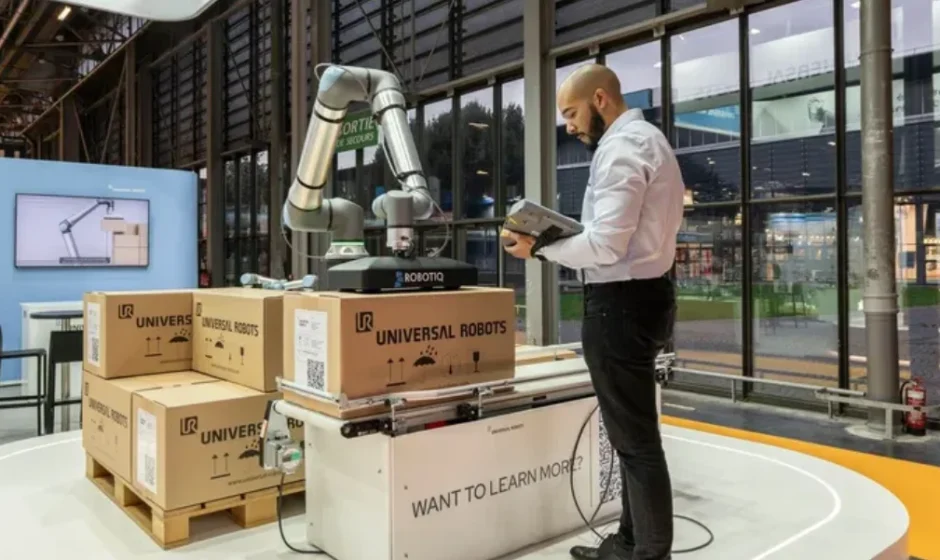

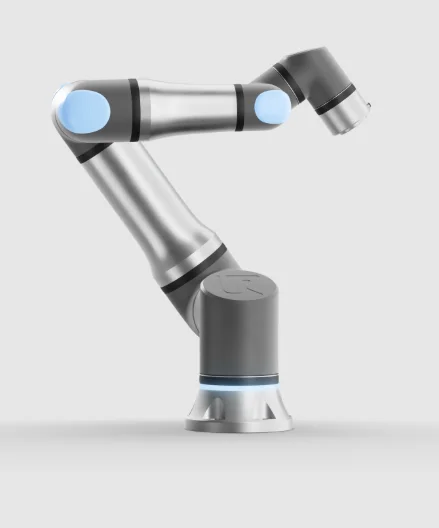
Universal Robots UR18 Heavy-Duty Collaborative Robot
Liability and Intended Use
Limitation of Liability
Description: Any information provided in this manual must not be construed as a warrantyy by UR that the industrial robot will not cause injury or damage, even if the industrial robot complies with all safety instructions and information for use.
Intended Use
Description
NOTICE
Universal Robots takes no responsibility and assumes no liability for unapproved uses of its robots or uses for which its robots are not intended, nd Universal Robots will provide no support for unintended uses.
READ MANUAL
Failure to use the robot in accordance with the intended use can result in hazardous situations.
- Read and follow the recommendations for intended use and the specifications provided in the User Manual.
Universal Robots robots are intended for industrial use, to handle tools/end effectors and fixtures, or to process or transfer components or products. All UR robots are equipped with safety functions, which are purposely designed to enable collaborative applications, where the robot application operates together with a human. The safety function settings must be set to the appropriate values as determined by the robot application risk assessment.
The robot and Control Box are intended for inside use where, normally, only nonconductive pollution occurs,i.,e. Pollution degree 2 environments. Collaborative applications are only intended for non-hazardous applications, where the complete application, including tool/end effector, work piece, obstacles, and other machines, is low risk according to the risk assessment of the specific application.
 Warning
Using UR robots or UR products outside of the intended uses can result in injuries, deathh,and/or property damage. Do not use the UR robot or products for any of the following unintended uses and applications:
- Medical use, i.e., uses relating to disease, injury, or disability in humans, including the following purposes:
- Rehabilitation
- Assessment
- Compensation or alleviation
- Diagnostic
- Treatment
- Surgical
- Healthcare
- Prosthetics and other aids for the physically impaired
- Any use in proximity to patient/s
- Handling, lifting, or transporting people
- Any application requiring compliance with specific hygienic and/or sanitation standards, such as proximity or direct contact with food, beverage, pharmaceutical, and /or cosmetic products.
- UR joint grease leaks, and can also be released as vapor into the air.
- UR joint grease is not “food grade”.
- UR robots do not meet any food, National Sanitization Foundation (NSF), Food and Drug Administration (FDA), or hygienic design standards. Hygienic standards, for example ISO 14159 and EN 1672-2, require a hygiene risk assessment be conducted.
- Any use or any application, deviates from the intended use, specifications, and certifications of UR robots or UR products.
- Misuse is prohibited as the result could be death, personal injury, and /or property damage.
UNIVERSAL ROBOTS EXPRESSLY DISCLAIMS ANY EXPRESS OR IMPLIED WARRANTY OF FITNESS FOR ANY PARTICULAR USE.
Warning
Failure to consider the added risks due to the reach, payloads, operating torque,,s and speeds associated with robot applicatncan result in injury or death.
- Your application risk assessment shall include the risks associated with the application’s reach, motion, payloadd,and speed of the robot, end effector and workpiece.
Your Robot
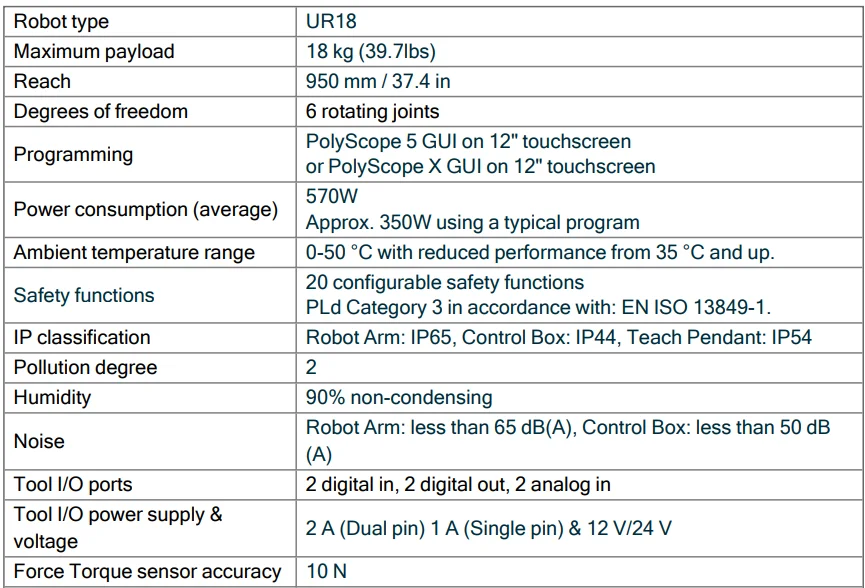
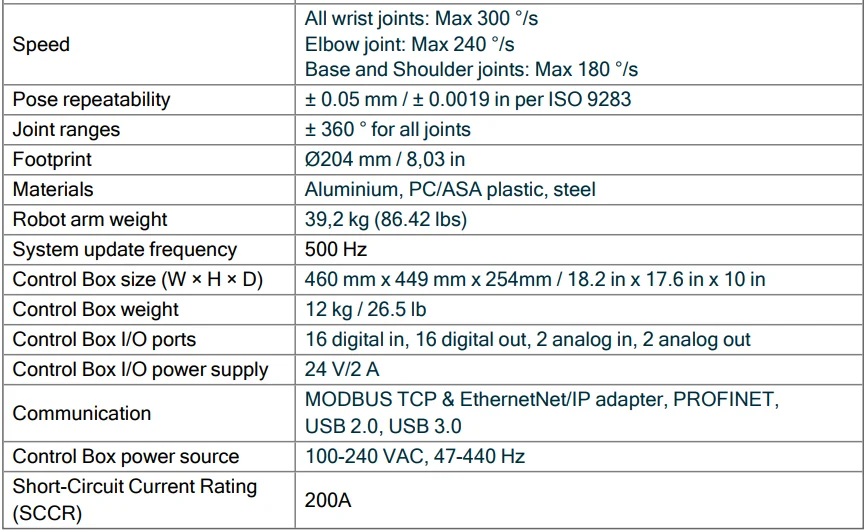
Technical Specifications UR18
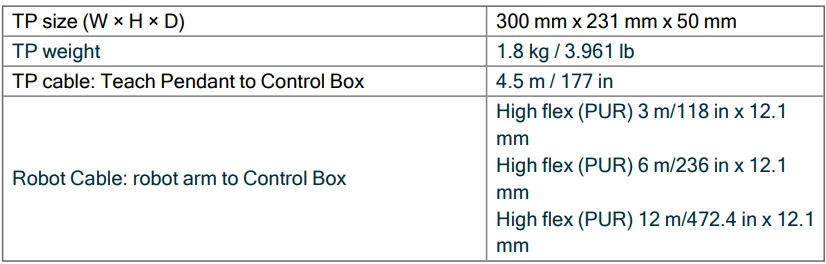
What Is In The Box
In the boxes
- Robot arm
- Control Box
- Teach Pendant or a 3PE Teach Pendant
- Mounting bracket for the Control Box
- Mounting bracket for the 3PE Teach Pendant
- Key for opening the Control Box
- Cable for connecting the robot arm and the Control Box (multiple options available depending on robot size)
- Mains cable or power cable compatible with your region
- Round sling or lifting sling (depending on robot size)
- Tool cable adapter (depending on robot version)
- This manual
Robot Arm
About the robot arm
The Joints, Base, and Tool Flange are the main components of the robot arm. The controller coordinates joint motion to move the robot arm.
Attaching an end effector (tool) to the Tool Flange at the end of the robot arm allows the robot to manipulate a workpiece. Some tools have a specific purpose beyond manipulating a part, for example, QC inspection, applying adhesives, and welding.
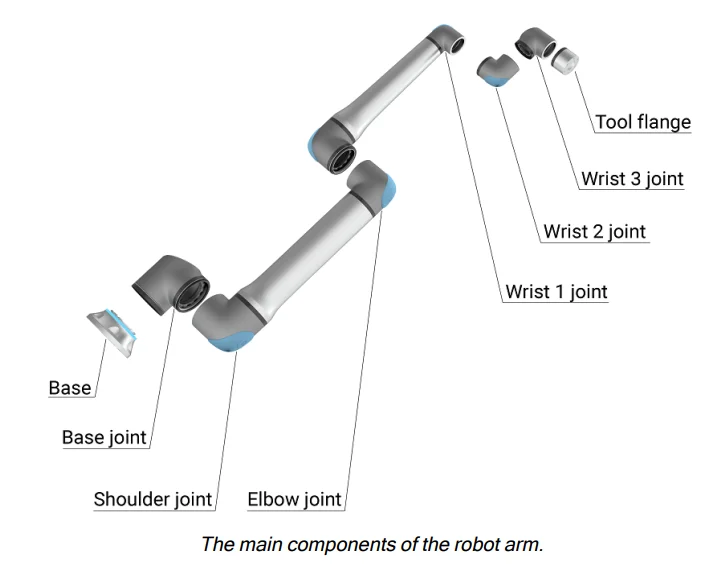
- Base: where the robot arm is mounted.
- Shoulder and Elbow: make larger movements.
- Wrist 1 and Wrist 2: make finer movements.
- Wrist 3: where the tool is attached to the Tool Flange.
The robot is partly completed machinery, as such, a Declaration of Incorporation is provided. A risk assessment is required for each robot application.
Light Ring
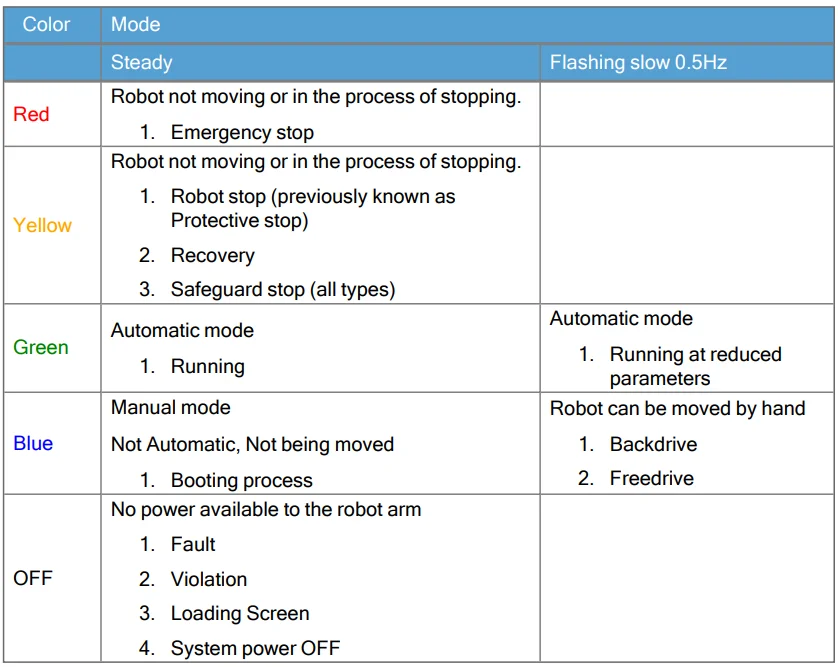
Description The light ring at the base of the robot arm provides status indication as described in the table below.
NOTICE
The light ring configuration can be modified and/or disabled by the user. See the Script Directory for further information.
NOTICE
The color spectrum of the light ring can deviate at maximum ambient temperature.
Robot base
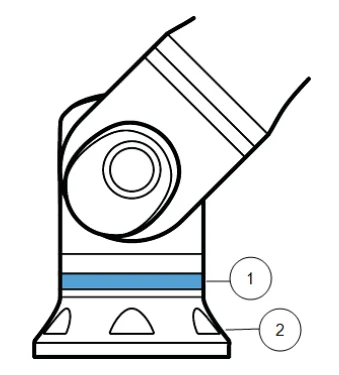
- Light ring
- Base
Color codes
Control Box
About the Control Box
The Control Box houses the connection ports and Controller Inputs and Outputs (I/O) used in robot arm programs and installations. The connection ports are used for external connections. The I/O is a group of electrical interfaces used for communication and configuration.
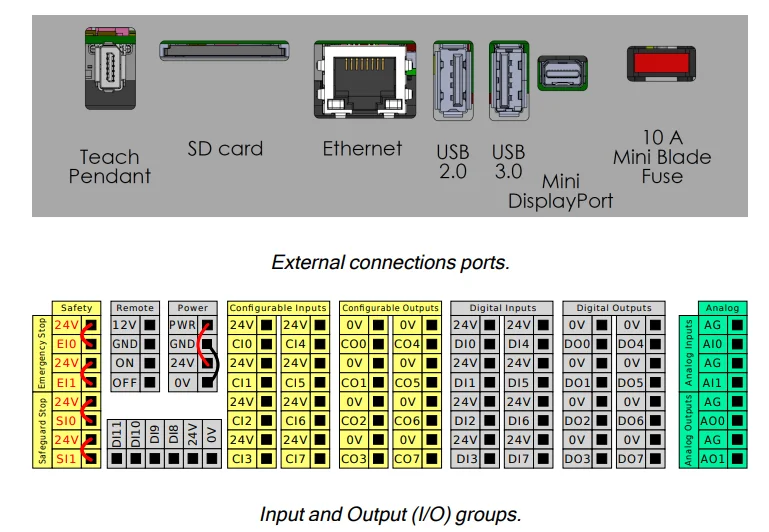
For detailed descriptions of the Control Box connection ports and the Controller I/O, see the Installation.
Teach Pendant with 3-Position Enabling Device
Description
Depending on the robot generation, your Teach Pendant can include a built-in 3PE device. This is called a 3-Position Enabling Teach Pendant (3PE TP). Higher payload robots can only use the 3PE TP.
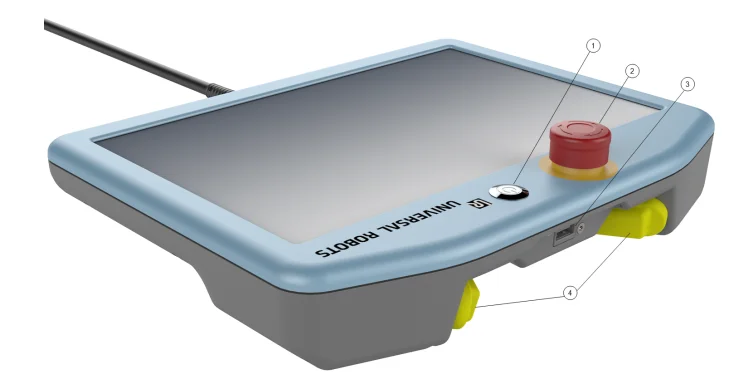
If you are using a 3PE TP, the buttons are located on the underside of the Teach Pendant, as illustrated below. You can use either button, according to your preference. If the Teach Pendant is disconnected, you are required to connect and configure an external 3PE device. The 3PE TP functionality extends to the PolyScope interface, where there are additional functions in the Header.
NOTICE
- If you have bought a UR15, UR20 o,, or UR30 robot, a Teach Pendant without the 3PE device will not work.
- Using a UR15, UR20, or UR30 robot requires an external enabling device or a 3PE Teach Pendant when programming or teaching, within the reach of the robot application. See ISO 10218-2.
- The 3PE Teach Pendant is not included with the purchase of the OEM Control Box, so enabling device functionality is not provided.
Overview of TP
- Power button
- Emergency Stop button
- USB port (comes with a dust cover)
- 3PE buttons
Freedrive
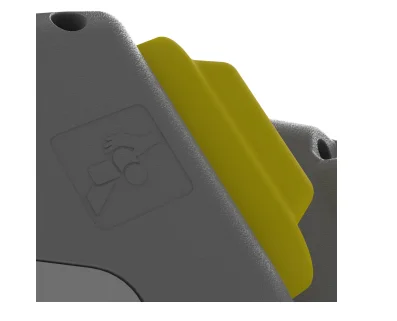
A Freedrive robot symbol is located under each 3PE button, as illustrated below.
3PE Teach Pendant Button Functions
Description
NOTICE
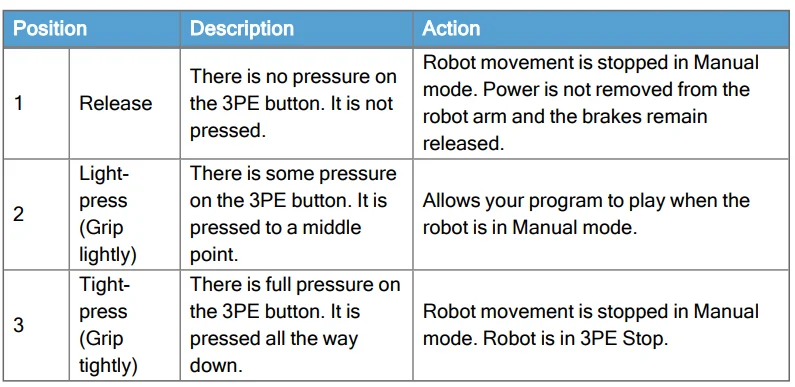
The 3PE buttons are only active in Manual mode. In Automatic mode, robot movement does not require the 3PE button action.
The table below describes the functions of the 3PE buttons.
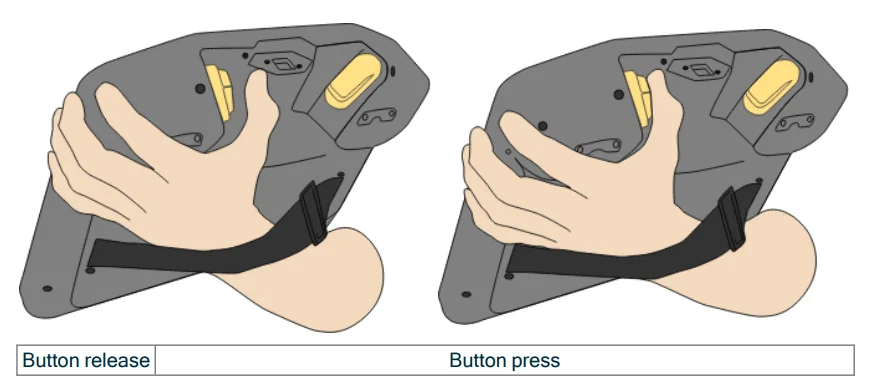
Using the 3PE Buttons
Using the 3PE
- To play a program
- On PolyScope, ensure the robot is set to Manual mode, or switch to Manual mode.
- Maintain a light-press on the 3PE button.
- On PolyScope, tap Play to run the program.
The program runs if the robot arm is in the first position of the program.
If the robot is not in the first position of the program, the Move Robot into Position screen appears.
- To stop a program
- Release the 3PE button or, on PolyScope, tap Stop.
- To pause a program
- Release the 3PE button, or, in PolyScope, tap Pause.
To continue the program execution, keep the 3PE button light pressed and tap Resume in PolyScope.
- Release the 3PE button, or, in PolyScope, tap Pause.
Freedrive with 3PE Buttons
Description: Freedrive allows the robot arm to be manually pulled into desired positions and/or poses.
Use the 3PE button to free-drive the robot arm: Rapidly light-press, release, light-press again, and keep holding the 3PE button in this position.
Now you can pull the robot arm into a desired position, while the light-press is maintained.
Using Move Robot into Position
Description: Move Robot into Position allows the robot arm to move to that start position after you complete a program. The robot arm must be in the start position before you can run the program.
Move into position
To use the 3PE button to move the robot arm into position:
- When your program is complete, press Play.
- Select Play from the beginning.
On PolyScope, the Move Robot into Position screen appears displaying robot arm movement. - Light-press and hold the 3PE button.
- Now, on PolyScope, press and hold Automove for the robot arm to move to the start position. The Play Program screen appears.
- Maintain a light-press on the 3PE button to run your program. Release the 3PE button to stop your program.
PolyScope Overview
Description
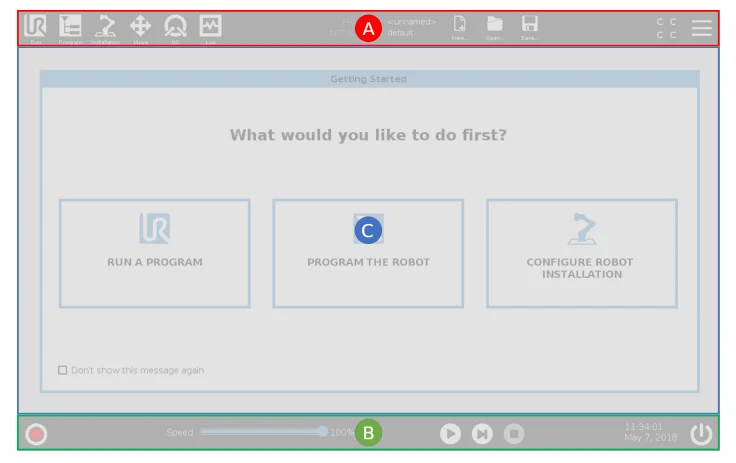
PolyScope is the Graphical User Interface (GUI) on the Teach Pendant that operates the robot arm via a touch screen. You create, lo, ad, and execute programs for the robot in PolyScope. The PolyScope interface is divided as shown in the following illustration:
- A: Header with icons/tabs that make interactive screens available to you.
- B: Footer with buttons that control your loaded program/s.
- C: Screen with fields and options to manage and monitor robot actions.
Using the Touch Screen
The touch sensitivity is designed to avoid false selections on PolyScope and to prevent unexpected motion of the robot. The Teach Pendant touch screen is optimized for use in industrial environments. Unlike consumer electronics, Tthe Pendant touch screen sensitivity is, by design, more resistant to environmental factors such as:
- water droplets and/or machine coolant droplets
- radio wave emissions
- other conducted noise from the operating environment.
For best results, use the tip of your finger to make a selection on the screen. In this manual, this is referred to as a “tap”. A commercially available stylus may be used to make selections on the screen if desired.
Safety
Description:: Red the safety information here to understand key safety guidelines, important safety messamessagesnd your responsibilities when working with the robot. System design and installation are not covered here.
General
Description
Read the general safety information and the instructions and guidance pertaining to risk assessment and the intended use. Subsequent sections describe and define safety-related functions particularly relevant for collaborative applications.
Read and understand the specific engineering data relevant to mounting and installation, in order to understand the integration of UR robots before the robot is powered on for the first time.
It is essential to observe and follow all assembly instructions in the following sections of this manual.
NOTICE
Universal Robots disdisclaimsability if the robot (arm Control Box with or without Teach Pendant) is damaged, changed,, omodified in any way. Universal Robots cannot be held responsible for any damages caused to the robot or any other equipment due to programming errors, unauthorized access to the UR robot and its contents, or malfunctioning of the robot.
General Warnings and Cautions
Description
Thefollowing warninggs messages can be repeated, explained,,r detailed in subsequent sections.
Warning
Failure to adhere to the general safety practices,isted below can result in injury or death.
- Verifythat he robot arm and tool/end effector are properly and securely bolted in place.
- Verify the robot application has ample space to operate freely.
- Verify the personnel are protected during the lifetime of the robot application,, cluding transport, installation, commissioning, programming/ teaching, operation and use, dismantlin,, and disposing.
- VVerify that yourthat the robot safety configuration parameters are set to protect personnel, including those who can be within reach of the robot application.
- Avoid using the robot if it is damaged.
- Avoid wearing loose clothing or jewelry when working with the robot. Tie back long hair.
- Avoid placing any fingers behind the internal cover of the Control Box.
- Inform users of any hazardous situations and the protection that is provided, explain any limitations of the protecti,, and the residual risks.
- Inform users of the location of the emergency stop button(s) and how to activate the emergency stop in case of an emergency or an abnormal situation.
- Warn people to keep outside the reach of the robot, including when the robot application is about tto start upup.
- Be aware of throbot’sot orientation to understand the direction of movement when using the Teach Pendant.
- Adhere to the requirements in ISO 10218-2.
Warning
Handling tools/end effectors with sharp edges and/or pinch points can result in injury.
- Make sure tools/end effectors have no sharp edges or pinch points.
- Protective gloves and/or protective eyeglasses could be required.
WARNING: HOT SURFACE
Prolonged contact with the heat generated by the robot arm and the Control Box, during operation, can lead to discomfort resulting in injury.
- Do not handle or touch the robot while in operation or immediately after operation.
- Check the temperature on the log screen before handling or touching the robot.
- Allow the robot to cool down by powering it off and waiting one hour.
CAUTION
Failure to perform a risk assessment before integration and operation can increase the risk of injury.
- Perform a risk assessment and reduce risks before the operation.
- If determined by the risk assessment, do not enter the range of the robot movement or touch the robot application during operation. Install safeguarding.
- Read the risk assessment information.
CAUTION
Using the robot with untested external machinery or in an untested application,an increase the risk of injury to personnel.
- Test all functions and the robot program separately.
- Read the commissioning information.
NOTICE
Very strong magnetic fields can damage the robot.
- Do not expose the robot to permanent magnetic fields.
READ MANUAL
Verify all mechanical and electrical equipment is installed according to relevant specifications and warnings.
Integration and Responsibility
Description
The information in this manual does not cover designing, installing, integrating,, and operating a robot application, nor does it cover all peripheral equipment that can influence the safety of the robot application. The robot application must be designed and installed in accordance with the safety requirements outlined in the relevant standards and regulations of the country where the robot is installed.
The person/s integrating the UR robot are responsible for ensuring that the applicable regulations in the country concerned are observed and that any risks in the robot application are adequately reduced. This includes, but is not limited to:
- Performing a risk assessment for the complete robot system
- Interfacing owith ther machines and additional safeguarding if required by the risk assessment
- Setting the correct safety settings in the software
- Ensuring safety measures are not modified
- Validating the robot application is designed, installed,, and integrated
- Specifying instructions for use
- Marking the robot installation with relevant signs and contact information of the integrator
- Retaining all documentati,n; including the application risk assessment, this manual,, and additional relevant documentation.
Stop Categories
Descripti::on Depending on the circumstances, the robot can initiate three types of stop categories defined according to IEC 60204-1. These categories are defined in the following table.
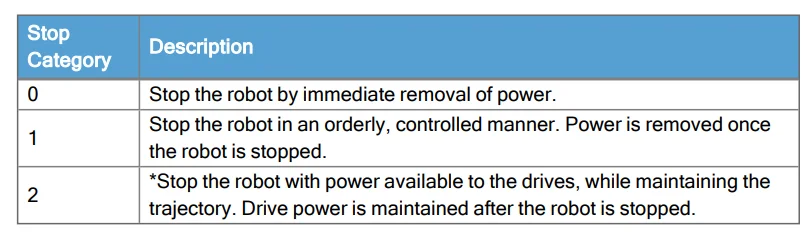
*Universal Robots robots’ Category 2 stops are further described as SS1 or as SS2 type stops according to IEC 61800-5-2.
For more manuals by Universal Robots, visit ManualsLibraryy
Universal Robots UR18 Heavy-Duty Collaborative Robot- FAQs
What are collaborative robots used for?
Collaborative robots, or cobots, are designed to work safely beside humans. They usually handle repetitive or simple tasks while workers focus on more complex work.
How do Universal Robots work?
Universal Robots cobots operate through an intuitive touchscreen interface. Users can program them by guiding the arm manually or using built-in software.
How long do Universal Robots typically last?
UR cobots have drive systems rated for at least 35,000 hours of operation—equal to about 4.5 years of continuous use. Many units run reliably for over 10 years in real-world industry settings.
What is the repeatability of a Universal Robot?
UR cobots offer a repeatability of ±0.03 mm, ensuring precise, consistent performance in inspection, assembly, and handling tasks.
How much power does a Universal Robot use?
Most UR cobots consume around 350 watts, similar to a small home appliance. Larger models like the UR20 use about 500 watts.
Can robots, including cobots, work 24/7?
Yes. Robots can run continuously throughout the day without fatigue, making them ideal for high-productivity applications.
What are the disadvantages of collaborative robots?
Cobots have limited strength and payload compared to industrial robots and may not suit very heavy or high-speed tasks. Initial setup and integration costs can also be significant.
What is the difference between a collaborative robot and a traditional robot?
Collaborative robots are built for safe human interaction and flexible tasks. Traditional robots are faster and stronger but typically operate in fenced-off work cells.
What standards apply to collaborative robots?
Cobots follow ISO 10218 and ISO/TS 15066 safety standards, which define guidelines for safe human-robot interaction.
What are the main components of a robot?
A robot includes a structure, actuators, sensors, power supply, control system, software, and end-effectors.