
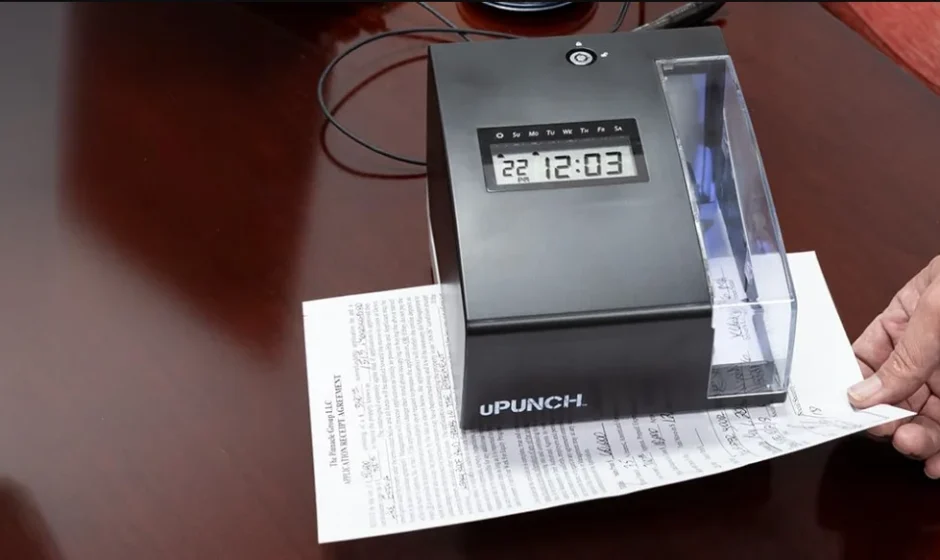

uPunch CR1000 Digital Time Clock and Date Stamp
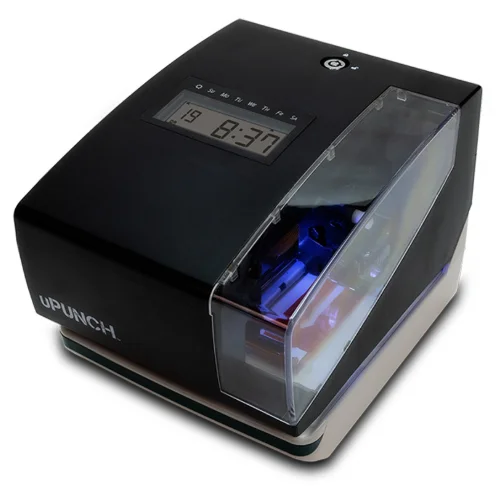
INTRODUCTION
Thank you for purchasing the CR1000 Digital Time Clock & Date Stamp, part of the uPunch system by Workwell Technologies. In just a few steps, your Time Clock & Date Stamp will be set up and ready to use. Complete the following 4 steps to begin using your device:
- Establish Preferred Printing Position
- Set the Date and Time
- Program Print Order, Print Style and Display
- Select Automatic or Manual Printing
SETUP
To prepare your Digital Time Clock & Date Stamp for first use, follow these instructions to ensure everything is set up the way you would like.
Open and Close Device
Open Device
Insert the key into the lock onthe over of the device. Turn the key in the clockwise position to unlock. Remove the cover by lifting it upward. When you open the device for the first time, you must remove the protective pad and cardboard insert.
The ribbon may have dislodged during shipping. To avoid damage to the printer, press the ribbon cartridge firmly into position after removing the protective pad.
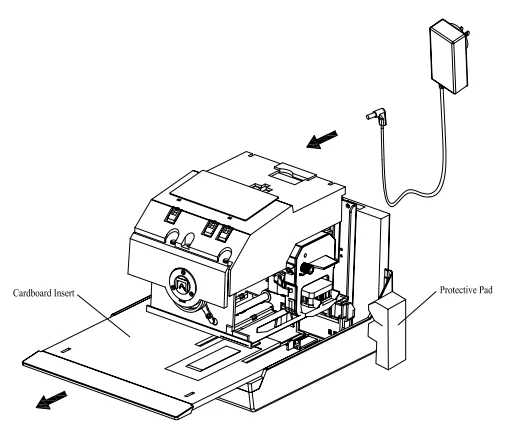
Once the protective pad and cardboard insert have been removed, plug the AC adapter into the back of the device.
Close Device
Replace the cover. Insert the key into the lock on the cover of the device. Turn the key counterclockwise to lock the device.
Set Print Positioning
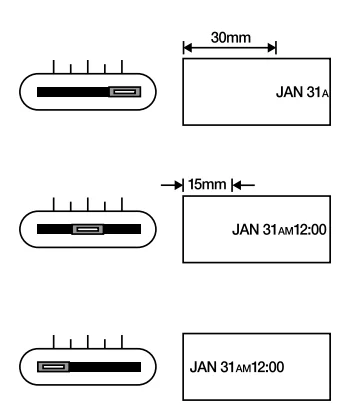
Plug the transformer into the AC outlet and insert a card to get a sample print. Print position from the card edge is adjustable by pressing and sliding the print position button located on the right outside bottom of the device. Maximum distance from edge of form to print is approximately 1-3/16” (30 mm).
WALL MOUNTING
CAUTION! The uPunch CR1000 Digital Time Clock & Date Stamp should be mounted on 1/2 inch drywall using two of the enclosed screws and the fasteners.
Install Wall-Mount Screws and Hang the Device
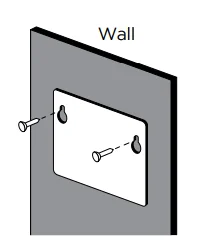
- Install the supplied wall-mount screws using the provided template.
Be sure to keep about 6mm (1/4”) of the screw head away from the wall. The recommended height from the floor to the bottom of the Clock is 45”.

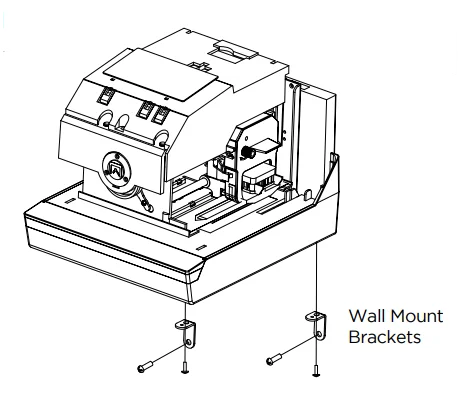
- Install Wall Mount Brackets to the bottom back of the device as illustrated below.
- Remove the cover from the device.
- Hang the device on the wall-mounted screws.
- Insert remaining screws into wall mount brackets.
- Replace the cover on the device.
PROGRAMMING THE DEVICE
Use the reference guide on the following page to explore the menu options and function keys available within the Digital Time Clock & Date Stamp.
IMPORTANT THINGS TO REMEMBER WHEN PROGRAMMING THE CR1000
You must open the device to make changes to the settings. Locate each of the 3 buttons that appear in the shape of a white rectangle with the word “SELECT”, “CHANGE” or “SET”. These are the buttons you will use to program the device. To exit program mode anytime, press SET until the device returns to normal operation mode. After each use, replace the cover and lock it.
To make any changes, you must first press SELECT. This puts the device into program mode, showing ▲ on the display positioned under the “TIME” mark. Continue pressing SELECT until you reach the desired number or option. When you are setting a number, flashing means that it is ready to be changed. Use the CHANGE button to cycle through the options. Then press SET to save the desired value.
Printing is always disabled while settings are being changed. Once the final SET has been completed in any given operation, printing is enabled.
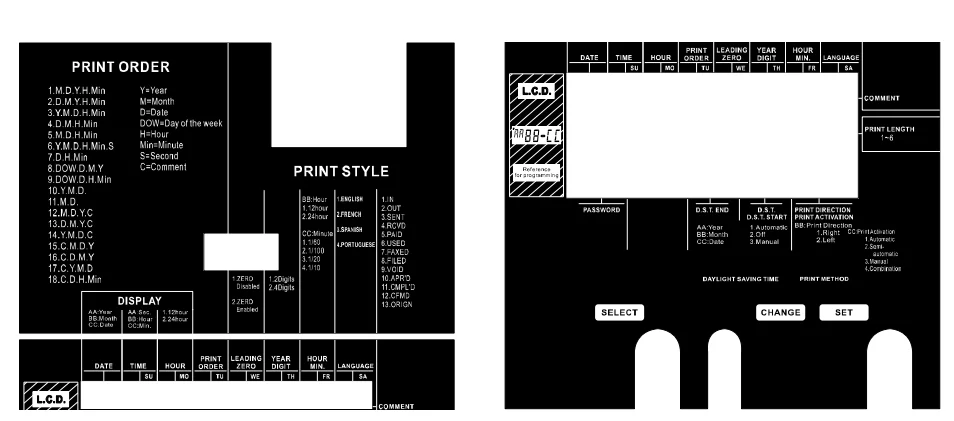
Time Recorder Function Buttons

SETTINGS
The uPunch CR1000 settings allow you to change the date and time, hour format, language options and much more. Follow the instructions below to select your preferences.
Date
Example: Change the date from September 20, 018, to October 21, 2019.
- Press SELECT until the ▲ is under the “DATE” mark.
- “Year” flashes.
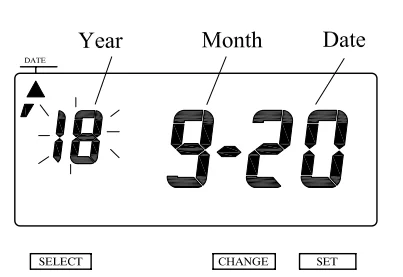
Change Year
- Press CHANGE until the Year is “19”.
- Press SET.
- The flashing changes from “Year” to “Month”.
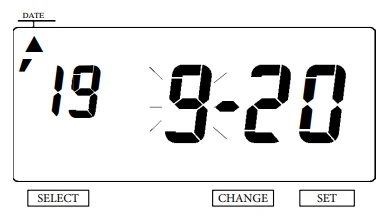
Change Month
- Press CHANGE until the Month is “10” for October.
- Press SET.
- The flashing changes from “Month” to “Date”.
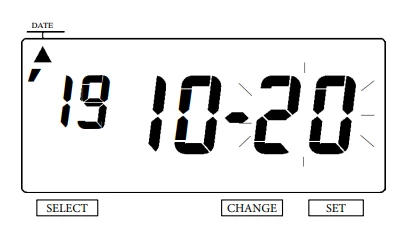
Change Date
- Press CHANGE until the Date is “21”.
- Press SET. Press SET again to return to normal operation.
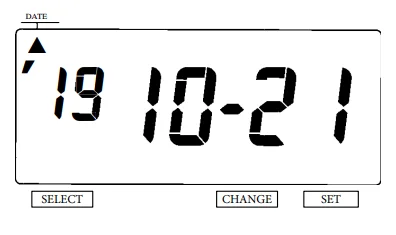
Time Display
Example: Change the time from 9:08 AM to 10:09 AM.
- Press SELECT until the ▲ is under the “TIME” mark.
- “Hour” flashes.
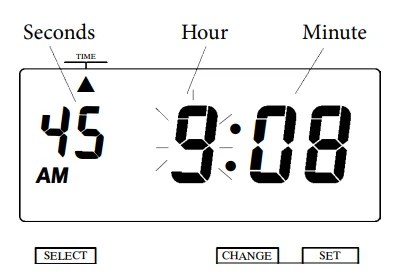
Change Hour
- Press CHANGE until the Hour is “10”.
- Press SET.
- The flashing changes from “Hour” to “Minute”.
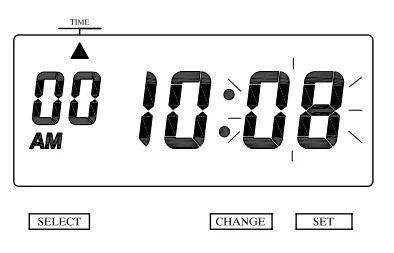
Change Minute
- Press CHANGE until the Minute is “09”.
- Press SET.
- The “Second” starts to run from “00”.
- Press SET again to return to normal operation.
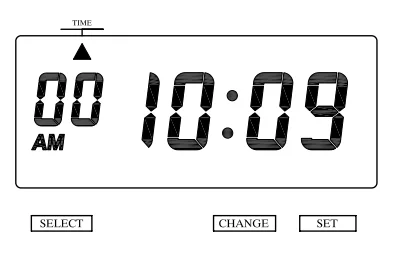
12/24 Hour Format
- Press SELECT until the ▲ is under the “HOUR” mark.
- The flashing digit indicates “Hour Display Format Options”.
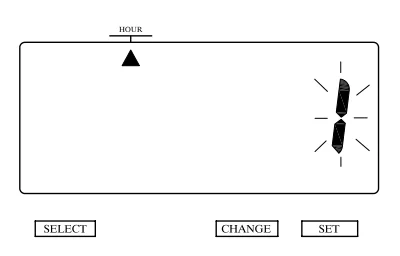
Change Hour
- In this example, press CHANGE until the option is “2” (24 Hour Format). Refer to Hour Display Options below.
- Press SET. Press SET again to return to normal operation.
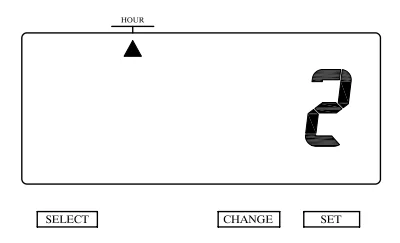
Hour Display Options

Print Order
The Print Order setting allows you to select the way the printed date appears (see chart on next page for options). Choose from 18 different Print Order options, including 7 options that print the date with a preset comment. To change the comment, follow the Preset Comment instructions on page 22.
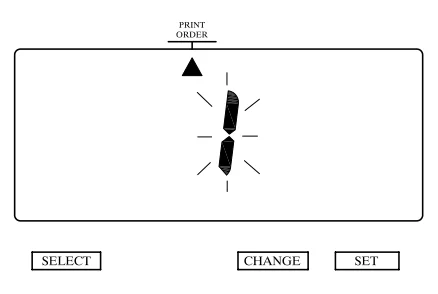
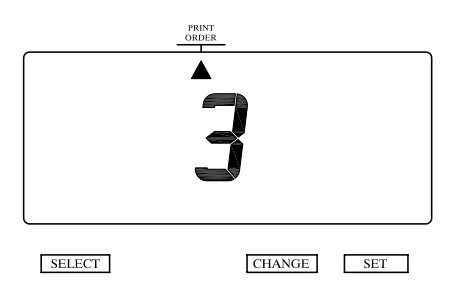
Example: Set the print order to “Year, Month, Date, Hour, Minute”.
- Press SELECT until the ▲ is under the “PRINT ORDER” mark.
- The flashing number indicates “Print Order Options”.
- Refer to Print Order Options on the following page.
- In this example, press CHANGE until the option is “3” (Y.M.D. H.Min.).
- Press SET. Press SET again to return to normal operation.
RESET FACTORY DEFAULT SETTINGS
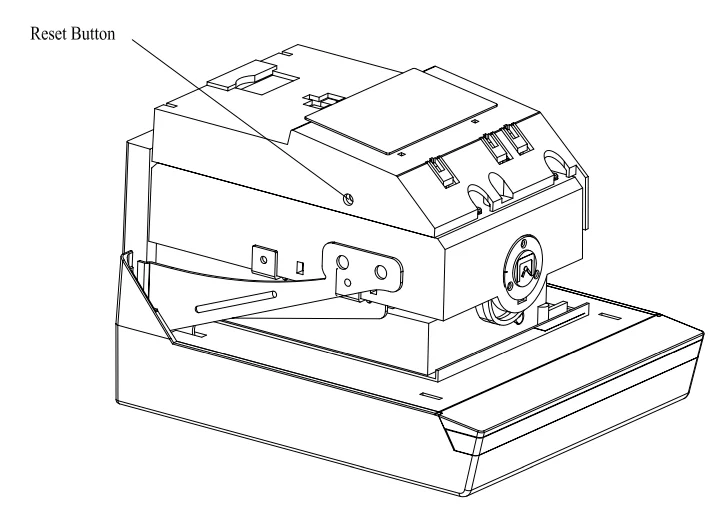
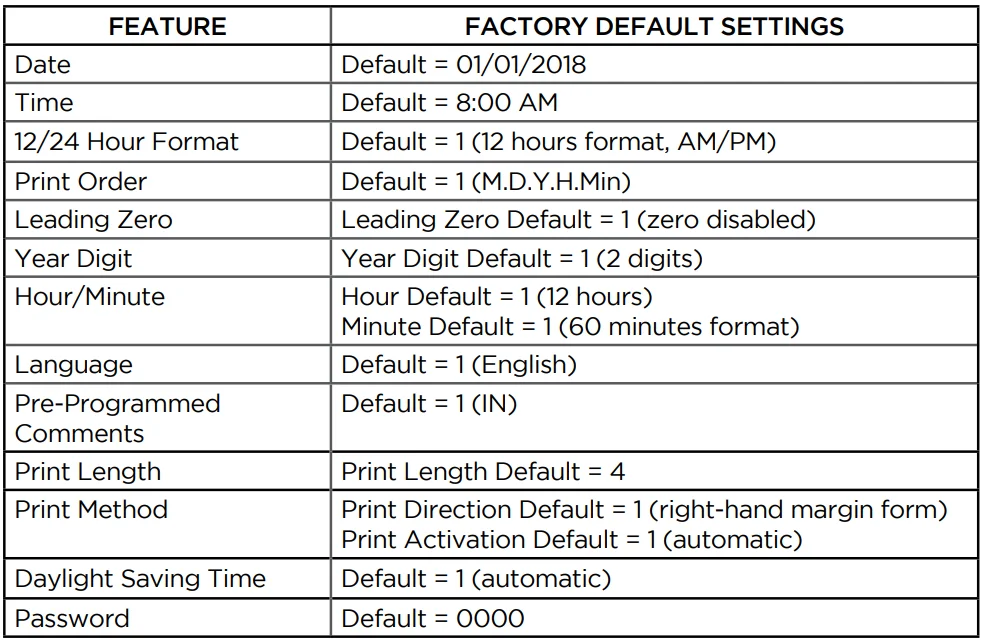
Press the reset button with a pointed object to return all settings to the factory default settings. Refer to the graphic below to locate the reset button. All custom settings will be deleted and will revert to the factory default settings when the reset switch is pressed.
REPLACING THE RIBBON CARTRIDGE
Refer to the following steps to replace your ribbon cartridge:
- Unplug the device from the power source and remove the cover.
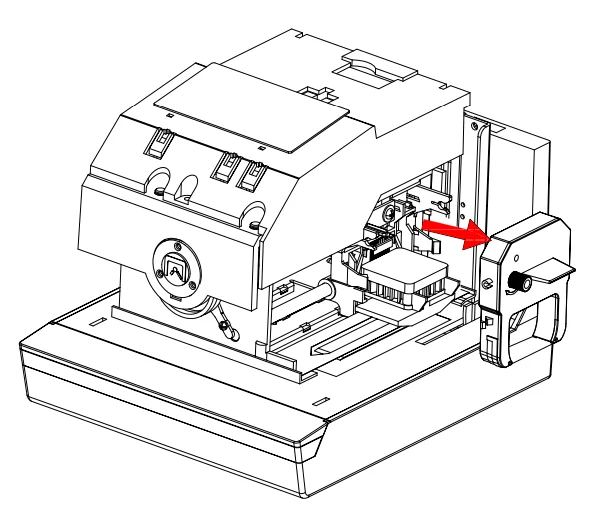
- Hold the ribbon cartridge by its tab and pull the cartridge straight out to removet.
- Turn the knob of the new ribbon cartridge clockwise in the direction of the arrow to tighten the ribbon and make installation easier.

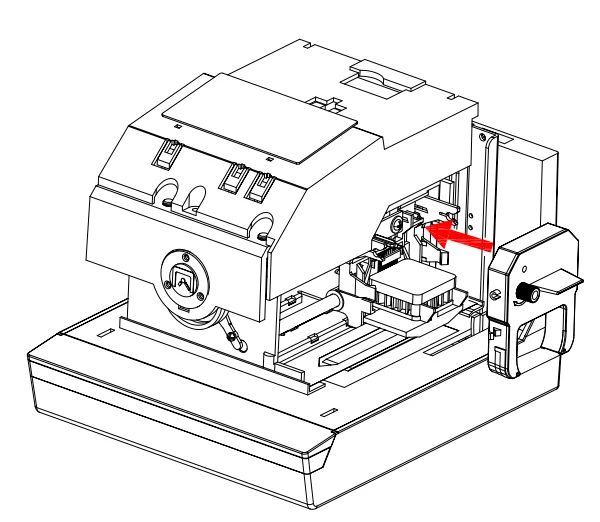
- Install the ribbon cartridge inside the device as shown in the graphic on the right. Ensure the ribbon is between the print head and the ribbon mask. Printing will not function properly if the ribbon is placed behind the ribbon mask.
- Push the ribbon cartridge until it snaps into position.
- Close the device.

TROUBLESHOOTING
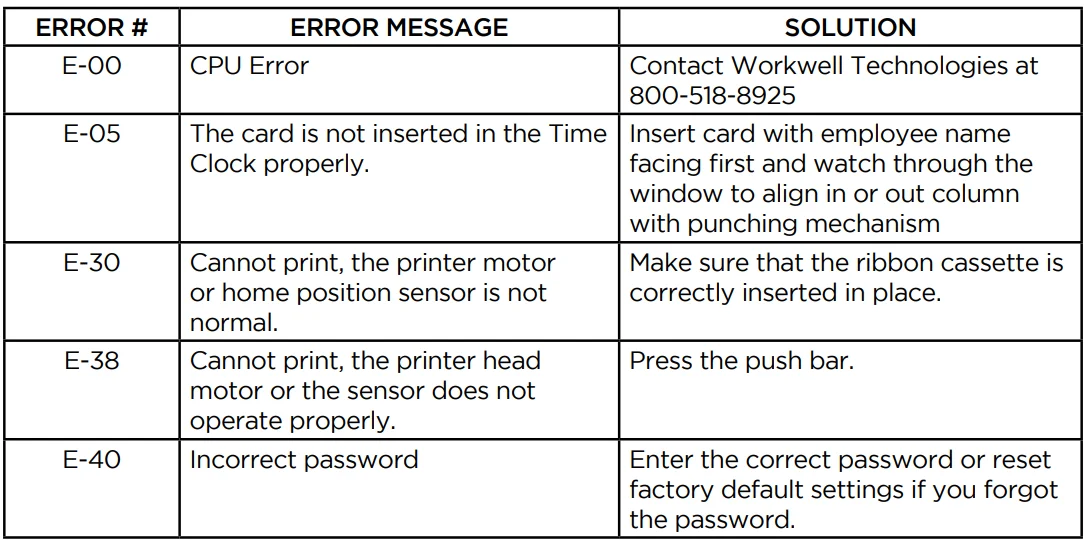
Should you encounter an error message on your device, refer to the guide below for possible solutions.

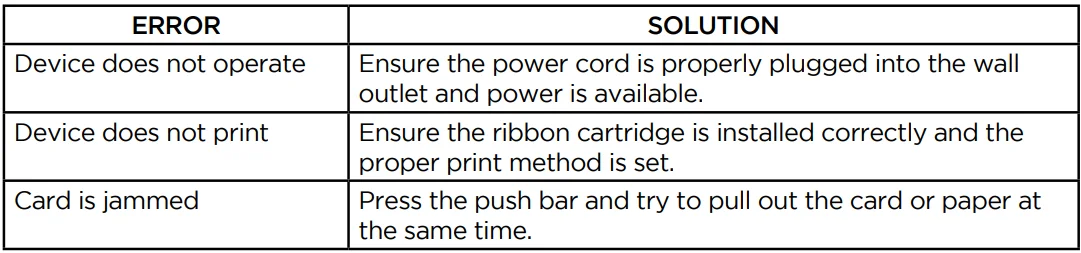
Other Issues
SPECIFICATIONS
Refer to the specs below for the uPunch CR1000 Digital Time Clock & Date Stamp.
- Device Accuracy: Monthly accuracy +/- 15 seconds at ordinary temperatures.
- Calendar: Year up to 2099. Automatically adjusted to leap years, 31-day months and months with 30 or fewer days, and the days of the week.
- Settings Backup: Internal backup batteries are included and store device settings only, in the event of a power outage, and are functional for approximately 3 years.
- Operating Environment:
- Temperature: -5° to +45°C, +25° to +113°F
- Humidity: 20 to 80%, no condensation
The unit operates normally at temperatures of 5°C (25°F) or below, but the print density and reaction of the liquid crystal display are inferior to those at normal temperature operation.
- Dimensions:
- 6.45” (w) x 5.63” (h) x 6.77” (d)
- 164 (w) x 143 (h) x 172 (d) mm
- Weight: Approx. 4.4 lbs. with AC Adapter (2.0 kg with AC Adapter)
- Rating: AC Adapter: I/P 120 VAC 60 Hz, O/P 12 V 2000mA. Use only the supplied AC Adapter with this unit.
uPUNCH WARRANTY AND TERMS OF SERVICE
This Warranty covers the CR1000 Digital Time Clock & Date Stamp, and any subsequent uPunch Device models.
- Warranty and Warranty Periods. Workwell Technologies, Inc. (“WWTech”) warrants only to the original Purchaser that the Device will be free from material defects and mechanical failures for two years from the date of purchase, starting from the date of shipment from WWTech to the client.
- WWTech’s Obligation Under Warranty. WWTech’s sole obligation under the above warranty shall be to repair or replace Devices and parts during the Warranty Period. WWTech does not assume responsibility for delays ithe n the replacement or repair of products or parts. WWTech may, at its sole discretion, replace Devices with refurbished Devices. This warranty gives end users specific legal rights, and particular end users may also have other rights which may vary from jurisdiction to jurisdiction. WWTech will also provide two years of free customer and technical support via telephone and email.
- DISCLAIMER OF ALL OTHER WARRANTIES. NO OTHER WARRANTIES, EXPRESSED OR IMPLIED, ARE GIVEN, AND WWTECH EXPRESSLY DISCLAIMS ALL OTHER WARRANTIES, INCLUDING AND WITHOUT LIMITATION, THE IMPLIED WARRANTIES OF MERCHANTABILITY AND FITNESS FOR A PARTICULAR PURPOSE. Some jurisdictions do not allow limitations on how long an implied warranty lasts, so the above limitation may not apply to particular end users.
- Limitations. No salesperson, representative, or agent of WWTech is authorized to make any guaranty, warranty, or representation that contradicts the terms contained in this Limited Warranty. Any waiver, alteration, addition, or modification to the warranties contained herein must be in writing and signed by authorized representatives of WWTech to be valid, binding, and enforceable. WWTech does not assume responsibility for any specific application to which any products or parts are applied, including, but not limited to, compatibility with other equipment. All statements, technical information, or recommendations relating to the products or parts are based upon tests believed to be reliable, but do not constitute a guaranty or warranty. WWTECH SHALL NOT UNDER ANY CIRCUMSTANCES WHATSOEVER BE LIABLE TO ANY PARTY FOR LOSS OF PROFITS, DIMINUTION OF GOOD WILL, OR ANY OTHER SPECIAL, CONSEQUENTIAL, OR INCIDENTAL DAMAGES WHATSOEVER WITH RESPECT TO ANY CLAIM IN CONNECTION WITH WWTech PRODUCTS AND/OR PARTS. Some jurisdictions do not allow the exclusion or limitation of incidental or consequential damages, so the above limitation or exclusion may not apply to particular end users.
- May Void the Warranty. This Limited Warranty shall be null and void in the following circumstances:
- Modification or repair by the end user or any non-authorized WWTech service provider; or Improper use or installation, or damage by accident or neglect, by the end user or any third party, or intentional damage by the end user or any third party; or
- Failure of the end user or any third party to exercise caution to protect from electrostatic discharge damage and adverse temperature, or physical abuse; or
- Power surges; or
- Use of non-compatible ribbons or time cards; or
- Failure by the end user to follow the Return Appointment Process set forth below.
- Return Appointment Process. As a condition precedent to the above Limited Warranty, the end user must:
- Obtain a return material authorization (RMA) from WWTech, which will include an RMA number that must be prominently displayed on the outside of the shipping container. Returns without an RMA number may be rejected by WWTech and immediately returned tthe o the end user, freight collect.
- Ship the items being returned to WWTech, freight prepaid, together with a written description of the claimed defect.
- Pack the items being returned in the original packing carton or equivalent. Damage in transit is the end user’s responsibility and may cause to void the warranty claim.
- Transportation Costs. WWTech will pay surface freight to return products covered by this Limited Warranty. However, if WWTech determines in the exercise of its reasonable but sole discretion that the product or part returned for warranty service is not defective, or does not otherwise qualify for warranty service, the end user shall be liable for all costs of handling and transportation.
uPUNCH SAFETY INFORMATION
IMPORTANT SAFEGUARDS FOR SAFE OPERATION & USE.
SAVE THESE INSTRUCTIONS.

THIS PRODUCT IS FOR COMMERCIAL USE ONLY.
The time clock is an electrical device. To reduce the risk of fatal electrical shock and fire, basic safety precautions should be followed, including the following:
- Read all instructions before operating.
- This time clock must be properly installed and located in accordance with these instructions before use
- Do not use outdoors.
- Do not expose to water or any liquid.
- Do not place objects into the device.
- For best operation, plug the device into its own electrical outlet.
- Do not operate the device with a damaged cord or plug.
- If an extension cord is used, the marked electrical rating of the extension cord should be at least as great as the electrical rating of the device.
- Plug the device into a surge protector or uninterruptible power supply (UPS).
If a surge protector is not used and there is a power surge, your warranty may be voided.
WARNING
RISK OF FIRE OR ELECTRIC SHOCK – DO NOT OPEN
WARNING: TO REDUCE THE RISK OF FIRE OR ELECTRIC SHOCK, DO NOT OPEN THE TIME CLOCK. NO USER SERVICEABLE PARTS ARE INSIDE. REPAIRS SHOULD BE COMPLETED BY AUTHORIZED SERVICE PERSONNEL ONLY.
For more manuals by uPunch, visit ManualsLibraryy
uPunch CR1000 Digital Time Clock and Date Stamp- FAQs
How do I align the printing position on my uPunch CR1000?
If your punches are misaligned, enter the alignment setting until code “02” appears. Use the + or – buttons to shift the print position up or down, then press Enter to save.
How do I change the date on the uPunch CR1000?
Go into the date setup mode. Use the + / – buttons to set the month and day, then press Enter to confirm.
How do I set the time on my uPunch CR1000?
After entering the time setting mode, adjust the hour and minute using + / –, then press Enter to lock in the time.
How do I turn off or adjust the alarm on the CR1000?
Open the alarm settings and scroll through the days using + / –. Press Back to toggle the alarm on or off for each day. Press Enter to save.
What is the purpose of the employee punch card system?
It records employee in/out times using punch cards. It’s simple, cost-effective, and ideal for small businesses needing reliable attendance tracking.
How do I change the pay period on a uPunch time clock?
Open the front panel using the key, move the Set Switch to the right, and navigate to code 01. Choose your pay period option and press Enter to confirm.
Why is my clock printing the wrong time?
Incorrect time can result from wrong time/date settings, low batteries, or a need to reset the internal clock. Re-enter the setup mode and correct the time.
Which type of battery does the uPunch CR1000 use?
Most uPunch clocks use standard AA backup batteries. Always check the label inside the battery compartment for the exact type.
What happens if I use 1.2V rechargeable batteries instead of 1.5V?
The lower voltage may cause weak performance, incorrect timekeeping, or failure to save settings during power loss. Use 1.5V batteries only.