

Beflo Pebble Pro Portable Laptop Docking Station
Product Description
Beflo Pebble Pro Portable Laptop Docking Station is a compact and powerful connectivity solution designed for modern professionals on the move. Built to expand your laptop’s capabilities without adding bulk, this sleek docking station delivers essential ports in a minimalist, travel-friendly form factor. Whether you’re working from home, the office, or a café, the Pebble Pro helps you stay productive wherever you plug in.
Equipped with versatile USB-C connectivity, the dock supports fast data transfer, external displays, and reliable power delivery through a single cable. It allows you to connect monitors, keyboards, mice, storage devices, and other peripherals effortlessly, eliminating the need for multiple adapters. The thoughtfully engineered layout ensures stable performance while keeping your workspace clean and organized.
Designed with durability and style in mind, the Beflo Pebble Pro features a premium finish that complements modern laptops and work setups. Its lightweight construction makes it easy to slip into a bag, making it ideal for remote workers, digital nomads, and hybrid professionals. With dependable performance and elegant design, the Beflo Pebble Pro Portable Laptop Docking Station is a smart upgrade for seamless, efficient, and flexible connectivity.
Introduction of Ports

In the Box
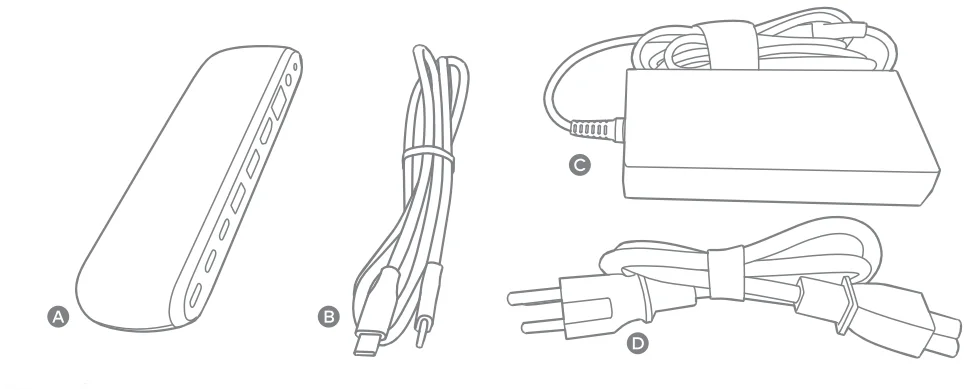
- A. Pebble Pro
- B. USB-C 3.2 Gen2 Cable
- C. Power Supply
- D. Power Cord (plug style may vary based on regional regulations and requirements.)
Specifications
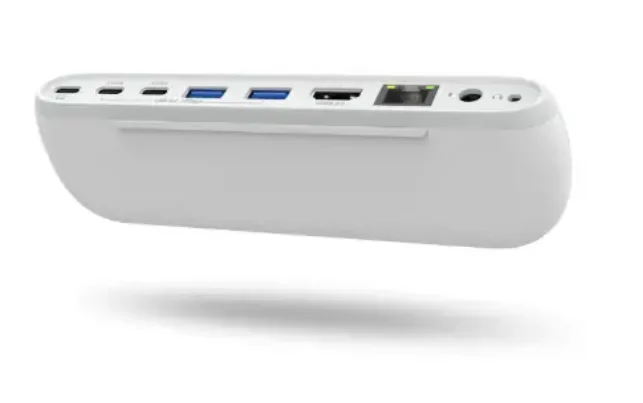
- USB-C 3.2 Gen 2 Female x1
(Connects to host device) - USB-C 3.2 Gen 2 Female x2
Transfer Speed: Up to 10 Gbps
Output Power: Up to SV= 3A - Gigabit Ethernet Female x 1
IEEE standard: 802.3
Dato rate: 10/100/1000 Mbps - HDMI 2.0 Std.A Fe mole x1
Up to 4K (3840 x 2160) @60Hz - USB-A 3.0 Gen 1 Female x2
Transfer Speed: Up to 10 Gbps
Output Power: Up to SV= 0.9A
(Up to SV= 24A when the host device is disconnected) - 3.5 mm Audio Jack x1
Output: Up to 4BKHz, 16 bit stereo - Size: 171 x 53 x 17 mm Weight: 88 g
- Warranty: 18 months
- OS Compatibility: macOS 10.12 Sierra or later / Windows 7, 8, 10 or later
Powering the Pebble Pro
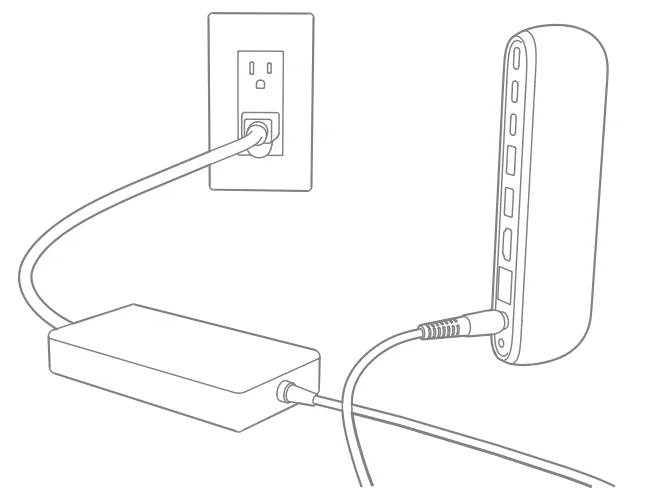
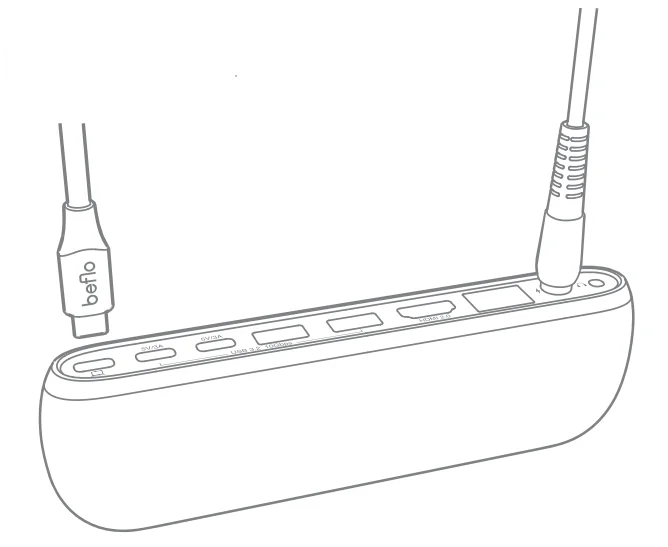
The Pebble Pro requires power from the AC adapter to operate. Connect the AC adapter connector to the DC Jack on the Pebble Pro and the other side to an AC outlet.
To power off the Pebble Pro, disconnect the power cable from the AC outlet.
Connecting the Pebble Pro to your computer
Once the Pebble Pro has been powered on, connect the device using a USB-C 3.2 Gen 2 Cable from one of the USB-C 3.2 Gen 2 ports labeled “ ” on the Pebble Pro to a USB-C port on your computer. This single connection will now provide 100W charging for your laptop in addition to expanding your connectivity options.
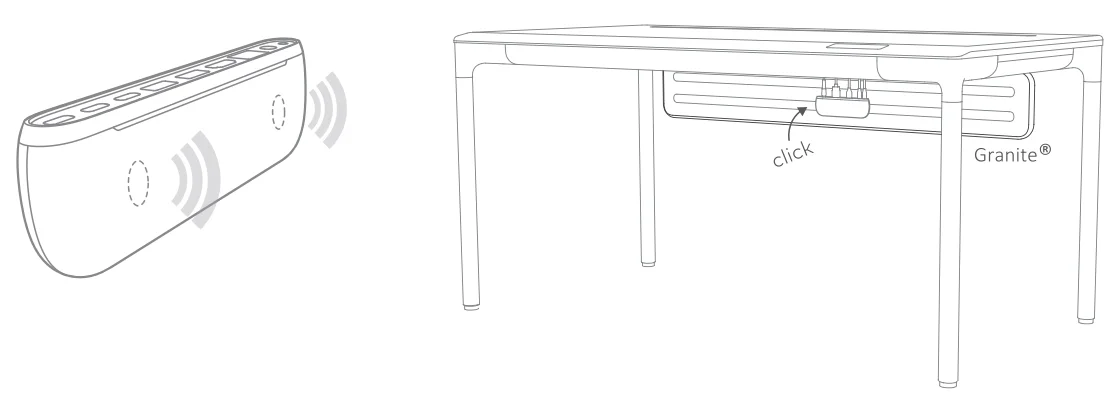
Built-in Magnet
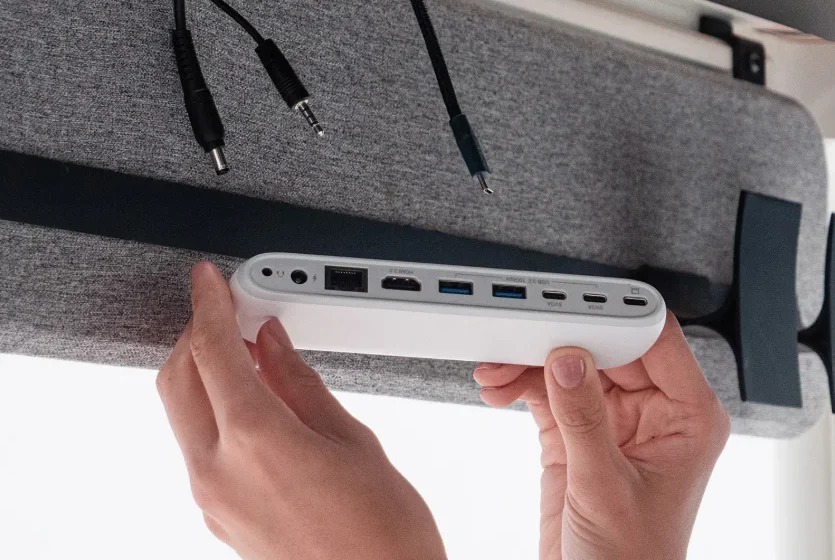
The Pebble Pro comes with built-in magnets for easy attachments to the Granite’s metal rails or any ferromagnetic surface.
Caution
Please read the Pebble Pro manual thoroughly and familiarize yourself with the product before use.

- Avoid using the Pebble Pro in extremely hot and cold environments. A safe temperature range is between 40°F – 95°F (4.4 C – 35°C).
Avoid using the Pebble Pro in humid environments. Moisture and condensation can accumulate in the device and cause damage to the electrical components. Only use the power adapter that has been supplied with the Pebble Pro. An excessive or inadequate power supply can result in unstable performance or device failure. - Keep the Pebble Pro away from liquids and moisture. Exposure to liquids can result in damaging the unit, cause an electric shock, and result in a fire hazard.
If your Pebble Pro gets wet while it is still off, do not turn it on. In the case of any issue with the device, do not attempt to repair or open the device yourself. Doing so can result in personal injury, damage the device, and void the warranty.
Compliance Information Statement
FCC Part 15
This device complies with Part 15 of the FCC Rules. Operation is subject to the following two conditions:
- This device may not cause harmful interference, and
- This device must accept any interference received, includinginterference that may cause undesired operation.
This equipment has been tested and found to comply with the limits for a Class 8 digital device, pursuant to Part 15 of the FCC Rules. These limits are designed to provide reasonable protection against harmful interference in a re5idtmtial in5tcllation. Thi5 aquipment g11nerate51 UH5 and am radiate radio frequency energy, and if not installed and used in accordance with the instruction51 may cause harmful interference to radio communications. However, there is no guarantee that interference will not occur in a particular installation. If this squipmant doss cause harmful interference to radio or television reception, which can be determined by turning the equipment off and on, the user is encouraged to try to correct the interferenc:e by one or more of the following measures:
- Reorient or relocate the receiving antenna
- Increase the separation between the equipment and the receiving device
- Connect the equipment into an outleton dia fferent circuit fromthe receiving device
- Consult the dealer or an experienced radio/TV technician for help
- Changes or modifications not expressly approved by the party responsible for compliance could void the user’s authority to operate the equipment.

For more informaition, please vist beflo store
© Copyright 2022 Nonet Inc. or its subsidiaries. All rights reserved.
Windows is either a registered trademark or trademark of Microsoft Corporation in the United States and/or other countries. The information contained herein is subject to change without notice. The only warranties for Beflo products and services are seoutlined ine express warranty statements accompanying such products and services. Nothing herein should be construed as constituting an additional warranty. Nonet shall not be liable for technical or editorial errors or omissions contained herein.
Customer Service: www.gobeflo.com/support
First Edition: Mar 2022
Document Part Number: L13366-001
For more manuals by Beflo, visit ManualsLibraryy
Beflo Pebble Pro Portable Laptop Docking Station- FAQs
How do I set up the Beflo Pebble Pro docking station for my laptop?
Connect the docking station to a power source if required, then link it to your laptop using the provided USB-C cable. Once connected, plug in your monitors, keyboard, mouse, and other peripherals.
How do I get my laptop to recognize the docking station?
Ensure the USB-C cable is firmly connected, the dock has power, and your laptop supports USB-C DisplayPort Alt Mode or Thunderbolt. Reconnect the cable or restart your laptop if needed.
What cable connects the laptop to the Beflo Pebble Pro dock?
A USB-C to USB-C cable is used to connect the docking station to your laptop, enabling data transfer, display output, and charging.
Can I plug any laptop into the Beflo Pebble Pro docking station?
Most modern laptops with USB-C ports are compatible. However, older laptops may require adapters or may not support video output through USB-C.
Do I need a special USB-C cable for the docking station?
Yes. Use a USB-C cable that supports DisplayPort Alt Mode or Thunderbolt to ensure video, data, and power delivery work properly.
How do I use a USB-C docking station?
Connect the dock to your laptop, then attach monitors, Ethernet, USB devices, and storage drives to the dock. Your laptop will function like a desktop with a single connection.
Why is my docking station not connecting?
Check that all cables are securely plugged in, the dock has sufficient power, and no cables are damaged. Try reconnecting or restarting your laptop.
Why is my USB device plugged in but not recognized?
This can happen due to outdated drivers, a faulty USB port, or an incompatible device. Try updating drivers or switching to a different port.
What are common docking station problems?
Typical issues include power supply problems, display flickering, USB devices not working, or monitors not being detected.