
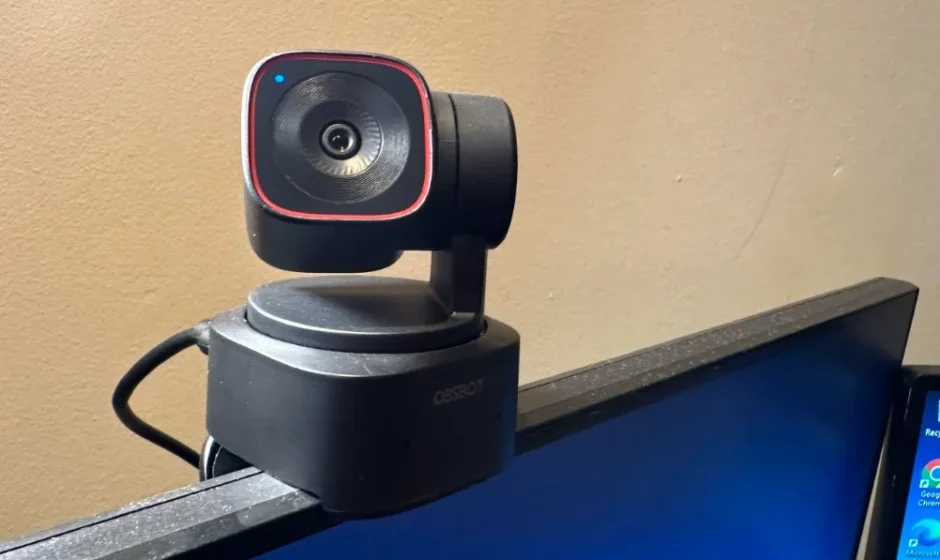

OBSBOT Tiny 2 Lite 4K Webcam for PC
Reading Guide
Note
⚠ Important consideration
Recommendation
We recommend that users watch tutorial videos and read the user manual first to understand the usage process. https://www.obsbot.com/download
Tutorial Video
Users can access and watch tutorial videos through the following link and QR code to learn how to use the product correctly. https://www.obsbot.com/explore/obsbot-tiny-2-lite
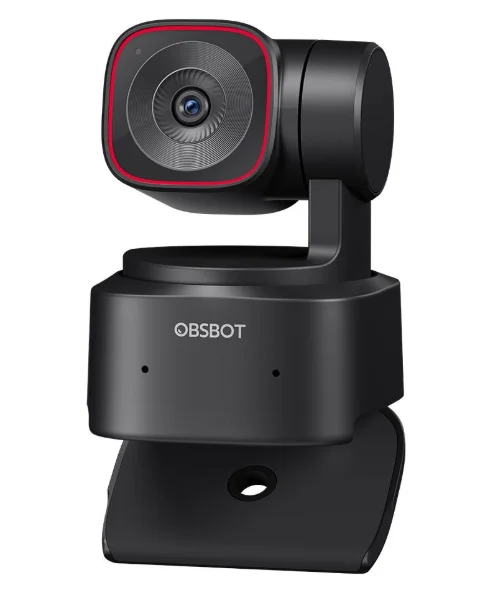
OBSBOT Tiny 2 Lite Overview
About Tiny 2 Lite
OBSBOT Tiny 2 Lite is an AI-powered PTZ webcam equipped with a two-axis gimbal. It supports a variety of intelligent shooting modes and is supplemented by various gesture control functions to meet users’ needs in different scenarios.
OBSBOT Tiny 2 Lite is connected to the computer via USB, plug and play. It also comes with OBSBOT Center software to expand more advanced functions.
⚠ System Requirements
Windows 10 (64-bit) or later, macOS 11.0 or later
⚠ Recommended for 1080p 60fps and 4K
Recommended Apple computers
- MacBook Pro (2018, 8th Gen Intel® Core™ i5 Processors or later)
- MacBook Air (2018, 8th Gen Intel® Core™ i5 Processors or later)
- iMac Retina (2019, 8th Gen Intel® Core™ i5 Processors or later)
Recommended PC configuration
- CPU: 7th Gen Intel® Core™ i5 Processors or later
- RAM: 8GB
Parts Info
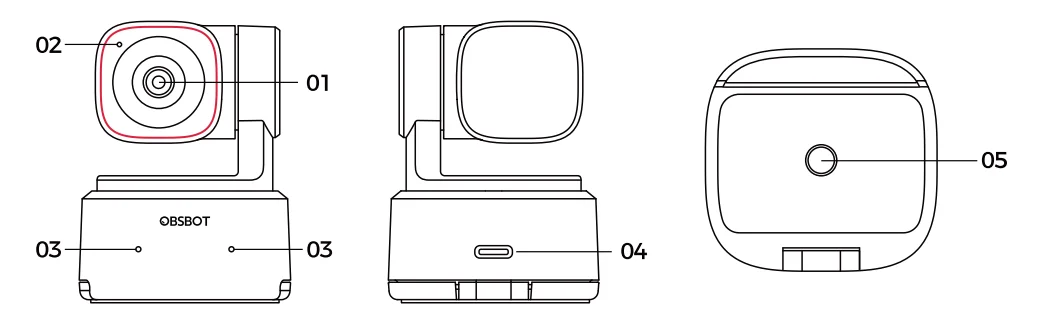
- 4K Ultra HD lens
- Camera Indicator
- Dual Microphones
- USB-C Port
- UNC 1/4-20 Interface
Setting Up Tiny 2 Lite
Placement Instructions
Placement on a Monitor
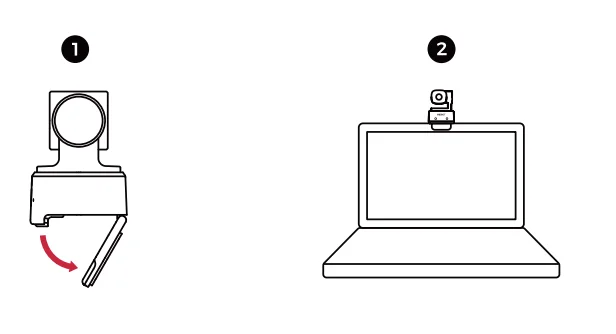
Please operate as shown in the following figure:
- Open the built-in stand at the bottom of Tiny 2 Lite.
- Place Tiny 2 Lite on the monitor.
- Adjust the angle of the stand to make the base as parallel as possible to the horizontal plane.
Placement on a Desktop
Place Tiny 2 Lite directly on your desktop.
Placement on a Tripod
OBSBOT Tiny 2 Lite is equipped with a standard UNC 1/4-20 nut connector on the base for mounting the camera to a stand/tripod.
Connect to the Computer
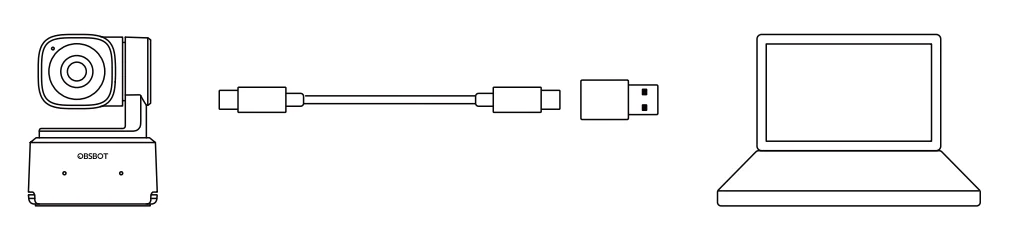
OBSBOT Tiny 2 Lite is compatible with both Windows and Mac computers. To set up your OBSBOT Tiny 2 Lite, use the standard data cable to connect it to the USB port on your laptop or desktop computer. If necessary, use the provided USB-C to USB-A adapter. The webcam will automatically install on your device. Please wait a few seconds for the installation to finish before attempting to access the webcam. After the installation is complete, you can use popular video call platforms such as Zoom, Microsoft Teams, Skype, or Google Meet to start streaming with your Tiny 2 Lite.
⚠
- If the product is in working condition for a long time, the bottom of the product will heat up, which is a normal situation.
- To avoid compatibility problems, be sure to use the standard data cable to connect the computer.
- To prevent the product from malfunctioning due to insufficient power supply, please connect it directly to your computer or use an expansion dock with an independent power supply.
- 4K streaming requires compatible third-party software.
Gimbal
OBSBOT Tiny 2 Lite is equipped with a 2-axis brushless motor gimbal. The controllable rotation range for the pan is ±140°, and for the tilt is 30° to -70°.
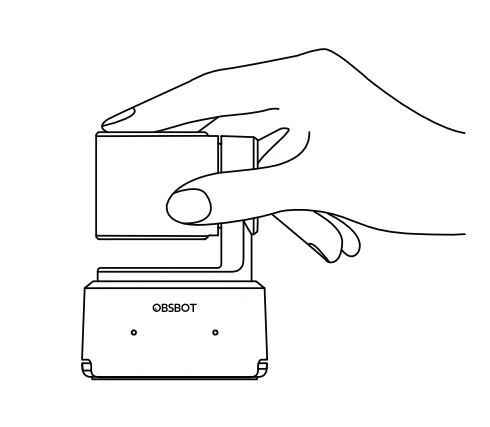
Sleep Mode
- Manual Sleep
Please adjust the lens to point straight down. If the indicator light is off, it means that the sleep mode is activated. - Device Auto Sleep
You can use OBSBOT Center software to set the sleep time so that it automatically enters sleep mode as needed.
Gesture Control 2.0
Turn On/Off Human Tracking
To enter human tracking mode, perform the gesture as shown in the figure. The current status light will flash twice in succession and then turn to a steady blue state, indicating that you have successfully entered human tracking mode. To exit human tracking mode, perform the same gesture again. The blue status light will flash twice continuously and then turn to a steady green state, indicating that you have successfully exited human tracking mode.

Zoom to 2x (default) / Cancel
Perform the gesture control as shown in the figure. The status light will flash twice continuously to indicate that the zoom-in/out operation has been performed.
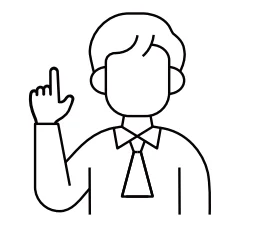
Dynamic Zoom
Perform gesture control as shown in the figure until the status light starts flashing, which means the dynamic zoom function is activated. Zoom in or out as the distance between your hands changes, until no gesture is detected or the zoom status can no longer be adjusted.
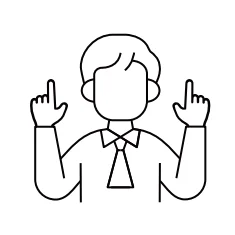
⚠ Please be careful not to cover your face with your hands, and keep your fingers open for the gesture control.
⚠ Please go to the link below to find the tutorial video for gesture control. https://www.obsbot.com/explore/obsbot-tiny-2-lite
Zoom
OBSBOT Tiny 2 Lite supports 4x digital zoom.
- Gesture Control
By default, the zoom setting is 2x. Users can create customized gesture zoom settings from 1x to 4x via OBSBOT Center software. - Manual Control
Users can do the manual control for zoom settings from 1x to 4x via OBSBOT Center software.
Focus
The OBSBOT Tiny 2 Lite supports two focusing methods.
- Auto-Focus
Utilizing OBSBOT’s advanced AI technology, the auto-focus feature intelligently adjusts the lens in real time, ensuring that you remain in focus at all times, regardless of your proximity to the camera. - Manual Focus
Users can disable the auto-focus feature and manually adjust focus when using OBSBOT Center software.
HDR
By default, the HDR feature is disabled. However, users have the option to enable HDR on the OBSBOT Center software to enhance their appearance on video, even in low light or direct sunlight.
Various Shooting Modes
The OBSBOT Tiny 2 Lite offers three shooting modes, with landscape mode being the default.
- Landscape shooting
This mode is suitable for conventionally mounted cameras. - Portrait shooting
By horizontally placing the camera through an external accessory, it will automatically enter portrait mode.
⚠ The automatic rotation feature can only be used in software that supports it, such as OBS, etc. Some other software may require manual rotation. - Upside-downshooting
The camera can be installed upside down, and the screen will automatically rotate for use.
Human Tracking
Activate human tracking using gesture control or OBSBOT Center software. OBSBOT Tiny 2 Lite will automatically track and ensure that the figure is in the best composition position.
Group Mode
When you activate the group mode, the view will automatically adjust as participants join or leave the image. This ensures that everyone is properly covered and visible. By using the group more, the view will always focus on the right amount of the view.
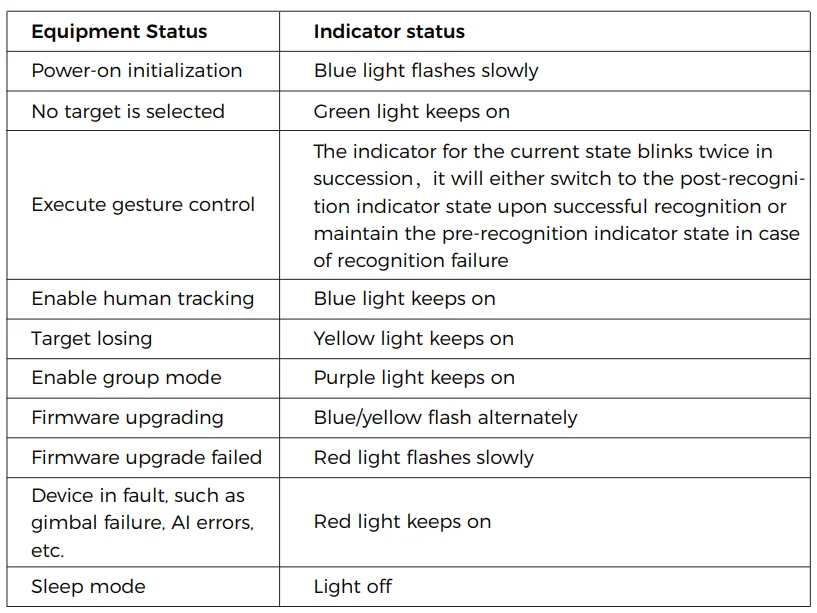
Indicator Description
OBSBOT Center
Software Overview
OBSBOT Tiny 2 Lite provides advanced users of Windows and Mac with control software for OBSBOT Center, which allows you to perform a series of extended operations on the camera, such as controlling the motion trajectory of the pan-tilt, selecting or canceling tracking targets, setting presets, or expanding various creative gameplay.
Download and Installation
Download and install OBSBOT Center through https://www.obsbot.com/download to further enhance your user experience.
Firmware Upgrade
OBSBOT Tiny 2 Lite upgrades through the OBSBOT Center software. When firmware is available for update, there will be corresponding prompts after connecting the device. Please follow the info on prompts.
⚠ Do not disconnect the camera during the firmware upgrade process.
For more manuals by OBSBOT, visit ManualsLibraryy
OBSBOT Tiny 2 Lite 4K Webcam for PC- FAQs
What video quality does the OBSBOT Tiny 2 Lite support?
The OBSBOT Tiny 2 Lite captures video in UHD 4K at up to 30fps and 1080p at up to 60fps, giving you crisp, high-resolution livestreams and recordings. This makes it great for professional‑looking video calls, streaming, or content creation, even in varied lighting conditions.
Does the Tiny 2 Lite have AI tracking features?
Yes. The Tiny 2 Lite includes AI Auto Tracking with Auto Zoom and Gesture Control 2.0, allowing the webcam to follow your movements automatically and adjust framing without manual interaction. You can also control zoom and tracking with simple hand gestures.
How do I connect the OBSBOT Tiny 2 Lite to my computer?
The webcam uses a USB‑C connection compatible with USB 3.0, 3.1, and 3.2 Gen1 ports. Windows (10 or later) and macOS (11 or later) both support the camera. An included USB‑C to USB‑A adapter expands compatibility with older systems.
Can I customize tracking zones and presets?
Absolutely. The Tiny 2 Lite supports Preset Modes and Dynamic Zone Tracking, letting you define specific areas to track or ignore. This makes workflow smoother for presentations, teaching, or creative video content.
Do I need special software to use all features?
While basic webcam functionality works out of the box, the OBSBOT Center app unlocks full control—like tracking modes, presets, Beauty Mode, PTZ control, and more. It runs on Windows 10+ and macOS 11+.
How easy is it to install and position the Tiny 2 Lite?
Installation is simple thanks to a built‑in stand and a standard 1/4″ tripod mount. You can position it on top of your monitor, on a desk, or mounted upside down if needed for creative setups.
Are there known performance considerations with this webcam?
Some users report lag or system strain when using certain filters, high resolutions, or virtual camera features, especially on older or heavily loaded systems. Reducing load settings or disabling some AI features can improve responsiveness.
What should I do if the webcam doesn’t show video?
If the camera powers on but shows a black screen in apps, ensure it’s not being used by another program and verify that the USB cable is fully seated. Updating drivers and the OBSBOT Center app often resolves recognition issues. If problems persist, contact OBSBOT support.
Will this webcam work well for streaming and video calls?
Yes. With 4K/30fps video, dual mics with noise‑reduction, and AI tracking, the Tiny 2 Lite is suitable for streaming, professional calls, and content creation. However, performance can depend on your system, software, and settings.