
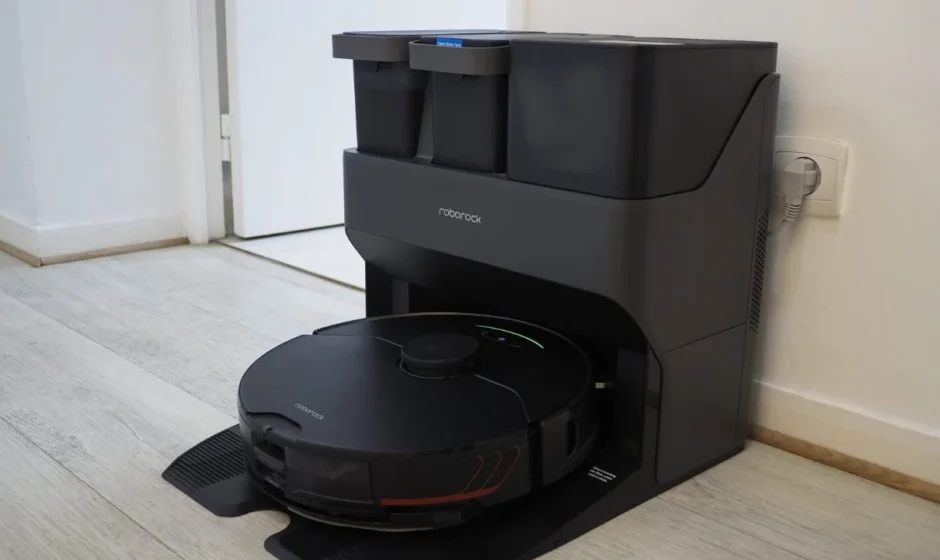

Roborock S7MaxV Ultra CE
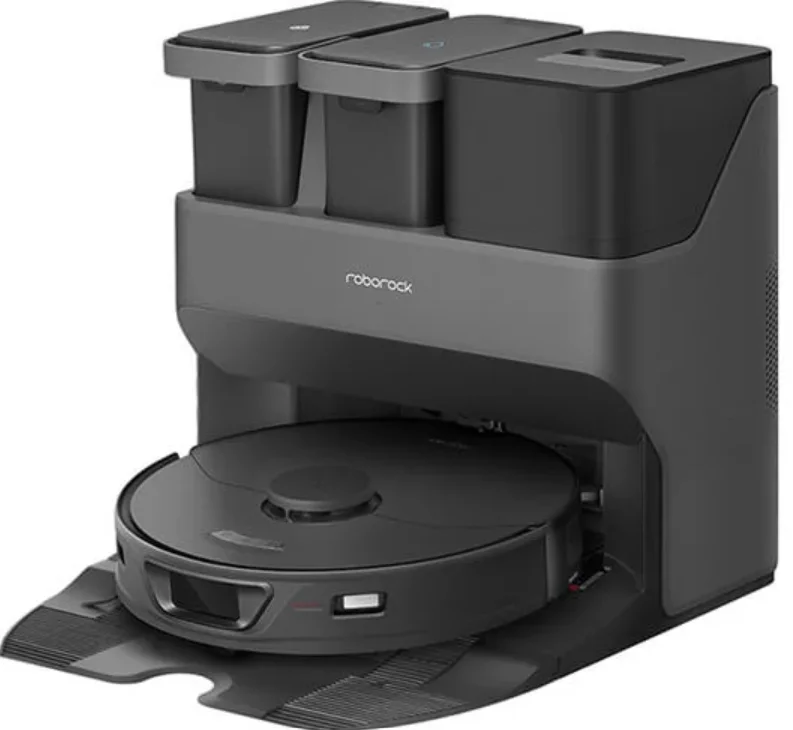
Safety Information
Restrictions
WARNING
- For the purposes of recharging the battery, only use the detachable supply unit Roborock CDZ11RR, CDZ12RR, AED01HRR, AED02HRR, EWFD01HRR or EWFD02HRR provided with this product.
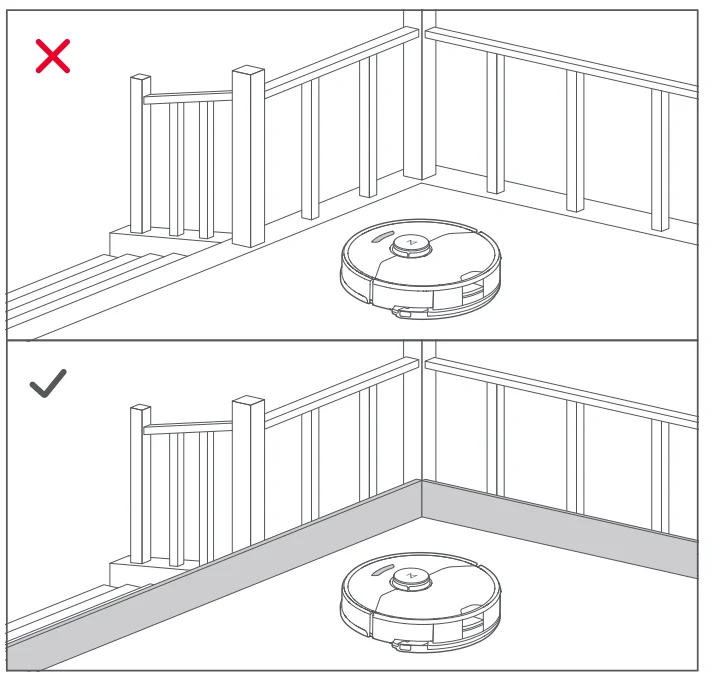
- Do not use this product on elevated surfaces without barriers, such as the floor of a loft, an open-ended terrace, or on top of furniture.
- To prevent blocking the product and to avoid damage to valuables, remove lightweight items (such as plastic bags) and fragile objects (such as vases) from the floor before cleaning.
- Do not use the product to clean hard or sharp objects (such as decoration wastes, glass, and nails).
- The product must be switched off, and the plug must be removed from the socket outlet before cleaning or maintaining the product.
- If placing the robot into storage, charge it fully and turn it off before placing it in a cool, dry place. Recharge it at least every three months to prevent the battery over over-discharging.
- Do not place any object near the suction inlet of the dock.
- Do not put fingers into the seam of the dock to avoid possible injury.
- Do not operate the product in a room where an infant or child is sleeping.
- Do not carry the product using a dock base or a dustbin.
- Make sure the robot is compatible with the dock, emptying or charging may fail.
- Do not use the dock to pick up stones, paper scraps, or other objects that may block the air duct. If the air duct gets blocked, clean it immediately.
- Place the dock on a flat floor away from fire, heat, and water. Avoid narrow spaces or locations where the robot may be suspended in the air.
- Do not place any object (including children and pets) on the product or dock, or cover it with any item (including a dust-proof cover), whether it is in operation or not.
- Do not pick up anything that is burning or smoking, such as cigarettes, matches, or hot ashes.
- Do not use the dock to pick up flammable or explosive objects such as firelighters, gasoline, or toner used in printers or copiers.
Battery and Charging
WARNING
- Always use a properly grounded power outlet to minimise the risk of electric shock. If such a socket is not available, consult an electrician to make one available.
- In order to avoid a hazard due to inadvertent resetting of the thermal cut-out, this appliance must not be supplied through an external switching device, such as a timer, or connected to a circuit that is regularly switched on and off by the utility.
- Be sure that the supply voltage meets the requirements listed on the dock.
- Only use the power cable provided with the product to prevent potential smoke, heat or fire.
- Do not use the product with any type of power adapter, as this may cause danger and void the warranty.
- If the dock is placed in an area susceptible to thunderstorms or with unstable voltage, take protective measures.
Product Overview
A1 Robot (Top View)
 Power/Clean
 Power/Clean
- Press and hold to turn the robot on or off
- Press to start cleaning
Power Indicator
- White: Battery level = 20%
- Red: Battery level < 20%
- Pulsing: Charging or starting up
- Flashing red: Error
 Spot Clean/Child Lock
 Spot Clean/Child Lock
- Press to Spot clean
- Press and hold for 3 seconds to turn on/off the child lock
 Dock
Dock
 Dock
Dock- Press to return to the dock/start emptying
- Press and hold to wash the mop
Note: Press any button to stop the robot during cleaning or docking.
A1-1—Vertical Bumper
A1-2—Microphone
- For use with Video Calls
Note: Only available in the Roborock app.
A1-3—Status Indicator Light
- White: Vacuuming
- Blue: Vacuuming and Mopping
- Orange: Alert
- Green: Docking/Recharging
A1-4—Wall Sensor
A1-5—Bumper
A1-6—Charging Contacts
A1-7—ReactiveAl Obstacle Recognition
A1-8—LED Fill Light
A2 Robot (Bottom View)
A2-1—Cliff Sensors
A2-2—Carpet Sensor
A2-3—Omni-Directional Wheel
A2-4—Charging Contacts
A2-5—Side Brush
A2-6—Main Wheel
A2-7—Main Brush
A2-8—Main Brush Cover Latches
A3 Robot (Upper Cover Open)
A3-1—WiFi Indicator Light
- Off: WiFi disabled
- Flashing slowly: Waiting for connection
- Flashing quickly: Connecting
- Steady: WiFi connected
A3-2—Reset Button
A3-3—Air Inlet
A3-4—LiDAR Sensor
A3-5—Mop Wash Sensor
A3-6—Water Tank Latch
A3-7—Positioning Button
A3-8—Water Tank
A3-9—VibraRise Module
A3-10—Air Outlet
A4 Dustbin
A4-1—Filter Cover
A4-2—Dustbin Latch
A4-3—Cover Latch
A4-4—Air Inlet
A4-5—Washable Filter
A5 Electric Water Tank
A5-1—Stopper
A5-2—Water Filter
A5-3—Water Tank Latch
A5-4—Self-Filling Port
A6 VibraRise Mop Bracket
A6-1—Vibration Module
A6-2—Mop Cloth Attachment Slot
A6-3—Mop Bracket Latches
A7 VibraRise Mop Cloth
A7-1—Hook and loop pads
A8 Power Cable
A9 Dock Base
A10 Disposable Dust Bag
Installation
Important Information
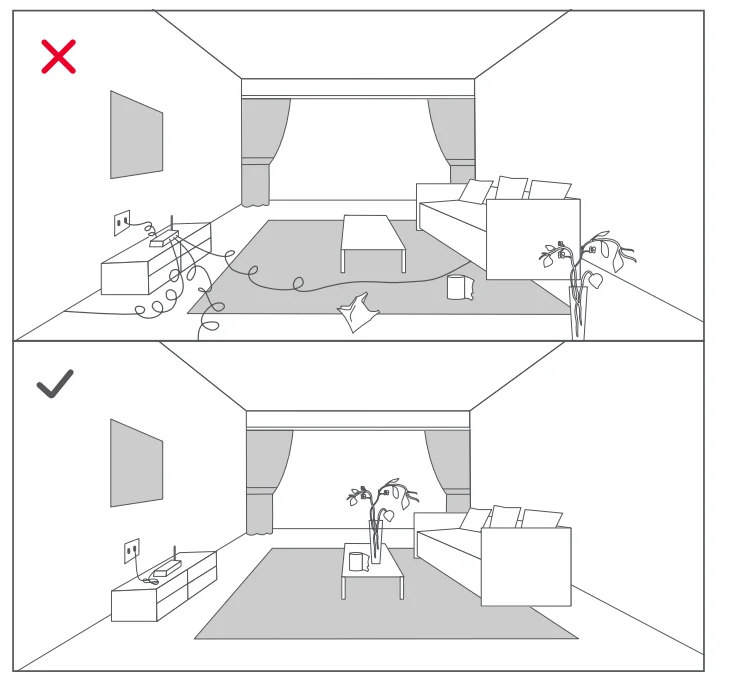
- Tidy cables and loose items from the ground and move any unstable, fragile, precious, or dangerous items to prevent personal injury or property damage due to items becoming tangled in, struck by, or knocked over by the robot.
- When using the robot in a raised area, always use a secure physical barrier to prevent accidental falls that may result in personal injury or property damage.
Note: When using the robot for the first time, follow it throughout its whole cleaning route and watch for potential problems. The robot will be able to clean itself in the future.
B1 Position the charging dock
B1-1—Place the dock on a hard and flat floor, and remove the foam used to secure the high-speed maintenance brush components in shipment at the bottom.
B1-2— Attach the base by pressing down both sides of the base firmly, and then pressing the connecting part in the middle until you hear a click.
Note: Remove the water tanks and the dustbin before moving the dock.
B1-3—Connect the power cable to the back of the dock, and keep excess cable inside the storage slot.
B1-4—Place the dock on a hard and flat floor (wood/tile/concrete, etc.), flat against a wall. Keep at least 0.5 m (1.6 ft) of clearance on either side, 1.5 m (4.9 ft) in front, and 1 m (3.3 ft) above. Make sure the location has good WiFi for a better experience with the mobile app, and then turn it on.
B1-5—more than 0.5 m (1.6 ft)
B1-6—more than 1.5 m (4.9 ft)
B1-7—more than 1 m (3.3 ft)
Notes:
- If the power cable hangs vertically to the ground, it may be caught by the robot, causing the dock to be moved or disconnected.
- The dock indicator is on when the dock is powered on, and off when the robot is charging.
- The dock indicator turns red if an error occurs.
- Place the dock on a flat floor away from fire, heat, and water. Avoid narrow spaces or locations where the robot may be suspended in the air.
- Placing the dock on a soft surface (carpet/mat) may cause the dock to tilt over and cause problems docking and departing.
- Keep the dock away from direct sunlight or anything that may block the dock location beacon; otherwise, the robot may fail to return to the dock.
- Do not use the dock without a clean water tank, a dirty water tank, a high-speed maintenance brush, a dustbin, a dust bag or a water filter.
- Maintain the dock according to the maintenance instructions. Do not clean the dock with a wet cloth or tissue.
- All docks are subject to water-based tests before leaving the factory. Normally, a small amount of water remains in the waterway of the dock.
B2 Power on and charge the robot
Press and hold the ( ) button to power on the robot. Wait until the power light is steady, and then place the robot on the dock to charge. The robot is equipped with a high-performance lithium-ion rechargeable battery pack. To maintain battery performance, keep the robot charged during normal use.
Note: The robot may not be turned on when the battery is low. In this case, connect the robot to the dock.
B3 Mopping
Note: To prevent excessive dirt buildup during first-time use, floors should be vacuumed at least three times before mopping
B3-1—Install the VibraRise mop cloth
Insert the VibraRise mop cloth into the bottom along the attachment slot and stick it firmly in place.
B3-2—Install the mop bracket. Slide the bracket forward under the water tank. A click indicates that it is locked in place.
B3-3—WARNING
Risk of injury. Do not place your finger between the VibraRise mop bracket and the water tank.
Connecting to the App
This robot supports both Roborock and Xiaomi Home apps. Choose the one that best meets your needs.
Download App
Option 1: Search for “Roborock” in the App Store or Google Play, or scan the QR code to download and install the app.

Option 2: Search for “Xiaomi Home” in the App Store or Google Play, or scan the QR code to download and install the app.

Reset WiFi
- Open the top cover and find the WiFi indicator.
- Press and hold the
 and
and buttons until you hear the “Resetting WiFi” voice alert. The reset is complete when the WiFi indicator flashes slowly. The robot will then wait for a connection.
Notes:
- If you cannot connect to the robo due to your router configuration, a forgotten password, or any other reason, reset the WiF and add your robot as a new device.
- After resetting the WiFi, the robot will activate its WiFi hotspot and camera for network configuration. The camera is used for QR Code scanning purposes in the Roborock app. Information obtained by the camera will neither be saved onboard nor transmitted to a server. Once connected successfully or if a QR code is not scanned within 5 minutes, the camera will automatically turn off.
Add device
Open the Roborock App, tap the “Search for device” button, or open the Xiaomi Home app, tap “+” in the top right corner and add the
device as instructed in the app.
Notes:
- The actual process may vary due to ongoing app updates.
Follow the instructions provided in the app. - Only 2.4 GHz WiFi is supported.
- If the robot waits more than 1 hour for a connection, WiFi will be automatically disabled. If you want to reconnect, reset the WiFi before proceeding.
Instructions
Filling the Clean Water Tank
Open the clean water tank. Fill with water until the Max line. Close the lid, lock the latch, and fit the tank back in place.
Notes:
- To prevent corrosion or damage, only use the Roborock
branded floor leaner in the water tank. - To avoid water tank deformation, do not place hot water in the tank
- If water marks remain on the water tank, wipe them dean before reinstallation.
On/Off
Press and hold thebutton to turn on the robot. The power indicator will turn on, and the robot will enter standby mode. Press and hold thebutton to turn off the robot and complete the cleaning cycle.
Note: The robot cannot be turned off when it is being charged.
Starting Cleaning
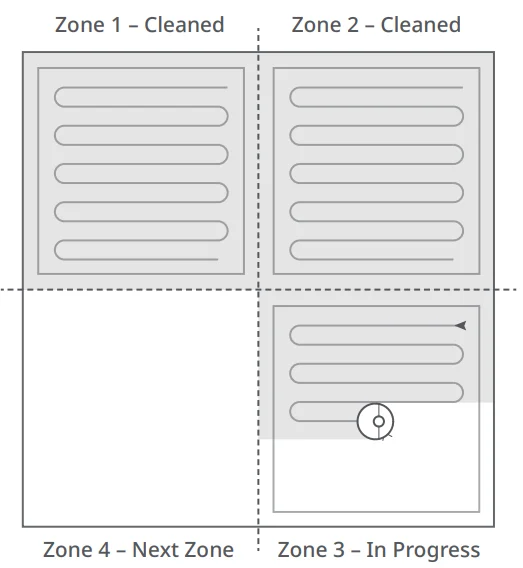
Press thebutton to start cleaning. The robot will plan its cleaning route according to its scan of the room. It splits a room into zones, first draws out zone edges, and then fills the zone in a zigzag pattern. In so doing, the robot cleans all zones one by one, efficiently cleaning the house.
Notes:
- To allow the robot to automatically vacuum and return to the dock, start the robot from the dock. Do not move the dock during cleaning.
- Cleaning cannot start if the battery level is too low. Allow the robot to charge before starting cleanup.
- If cleaning is completed in less than 10 minutes, the area will be cleaned twice.
- If the battery runs low during the cleaning cycle, the robot will automatically return to the dock. After charging, the robot will resume where it left off.
- When the mop bracket is attached, the robot will retract it when cleaning the carpet. You can also set the carpet as a no-go zone in the app to avoid it.
- Before starting each mopping task, make sure that the VibraRise mop has been properly installed.
Spot Cleaning
Press the button to start spot cleaning.
- Cleaning range: The robot cleans a 1.5m (4.9 ft) x 1.5 m (4.9 ft) square area centred on itself.
Note: After spot cleaning, the robot will automatically return to the starting point and enter Standby mode.
Auto Mop Washing
During cleaning, the robot automatically determines when it should return to the dock for mop washing and water tank refilling to maximise its mopping performance.
Note: To allow the robot to wash the mop automatically, start the robot from the dock once it is fully charged. Do not move the dock during cleaning.
Manually Activated Mop
Washing
During cleaning, press any button to pause, then press and hold the button to send the robot back for mop washing.
Auto-Emptying
Auto-emptying will begin when the robot returns to the dock after cleaning.
Notes:
- If the dock has not emptied for an extended period, empty the robot dustbin manually and clear the air inlet of any debris to ensure optimum performance.
- If necessary, auto-emptying can be disabled in the app.
Manually Activated Emptying
Emptying can be triggered manually by pressing thebutton while the robot is charging.
Note: Avoid frequent manual emptying.
Stopping Emptying
Press any button to stop emptying.
Sleep
If the robot is paused for over 10 minutes, if will go to sleep, and the power indicator will flash every few seconds. Press any button
to wake the robot up.
Notes:
- The robot will not go to sleep when it is charging
- The robot will automatically shut down if left in sleep mode for more than 12 hours.
DND Mode
The default Do Not Disturb (DND) period is from 22:00 to 08:00. You can use the app to disable the DND mode or modify the DND period. When DND mode is activated, the robot will not automatically resume cleanup, the power indicator light will dim, and the volume of the voice prompts will be lowered.
System Reset
If the robot does not respond when a button is pressed or cannot be turned off, reset the system. Press the Reset button, and the robot will reset automatically.
Note: After resetting the system, scheduled cleaning, WiFi, etc., will be restored to factory settings.
Restore Factory Settings
If the robot does not function properly after a system reset, switch it on. Press and hold thebutton, and at the same time, press the Reset button until you hear the “Restoring factory settings” voice prompt. The robot will then be restored to factory settings.
App Features
Cleaning Map
- Multi-map management
- Real-time vacuum and mop route
- Carpet display
- Map zoning
- Map editing
Custom Cleaning Modes
- Scheduled
- Selective Room
- Zone
- No-Go Zones, No-Mop Zones, and Invisible Wall
- Custom
- Carpet Boost
Cleaning Mode Switch
- Suction Power Levels
- Mop Intensity Levels
Robot Information
- Cleaning History
- Battery Level
- Care & Maintenance
More Features
- Firmware Update
- Video Call
Note: Only available in the Roborock app. - Volume Adjustment
- Language Selection
- Do Not Disturb Mode
- Voice Assistant Support
Note: Functions and details of the app may vary slightly due to continuous app development and updates.
Basic Parameters
Robot
- Model: 5270RR
- Battery: 14.4V/5200mAR lithium-ion battery
- Weight: Approx. a7kg
- Rated Input: 20v = 128
- Charging Time: 6 hours.Note: The sera numbers on the underside of the robot.
Empty Wash Fill Dock
- Name: Empty Wash Fil Dock
- Model: EWFDOTHRR, EWFDO2HRR
- Rated Input Voltage: 220-240VAC
- Rated Frequency: 50-60Hz
- Rated Input (Dust Collection): 5A
- Rated Input (Charge): 0.5A
- Rated Output: 20VDC 184
- Charging Battery: 144V/5200mAh lithium-ion battery
Errors
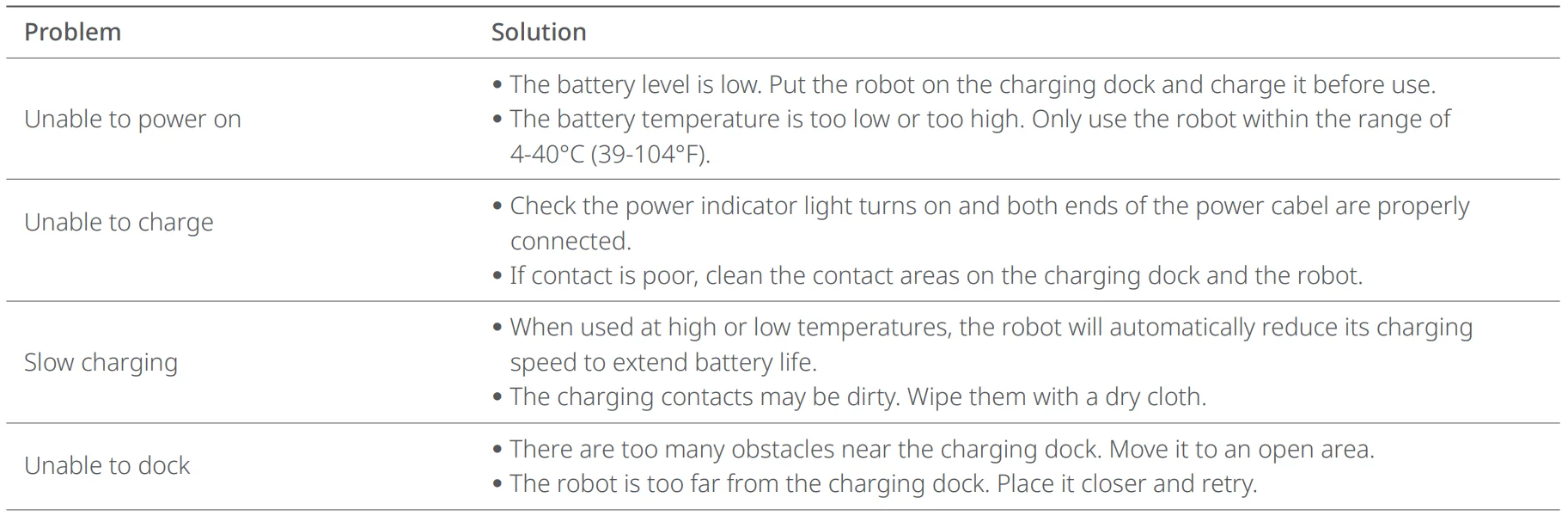
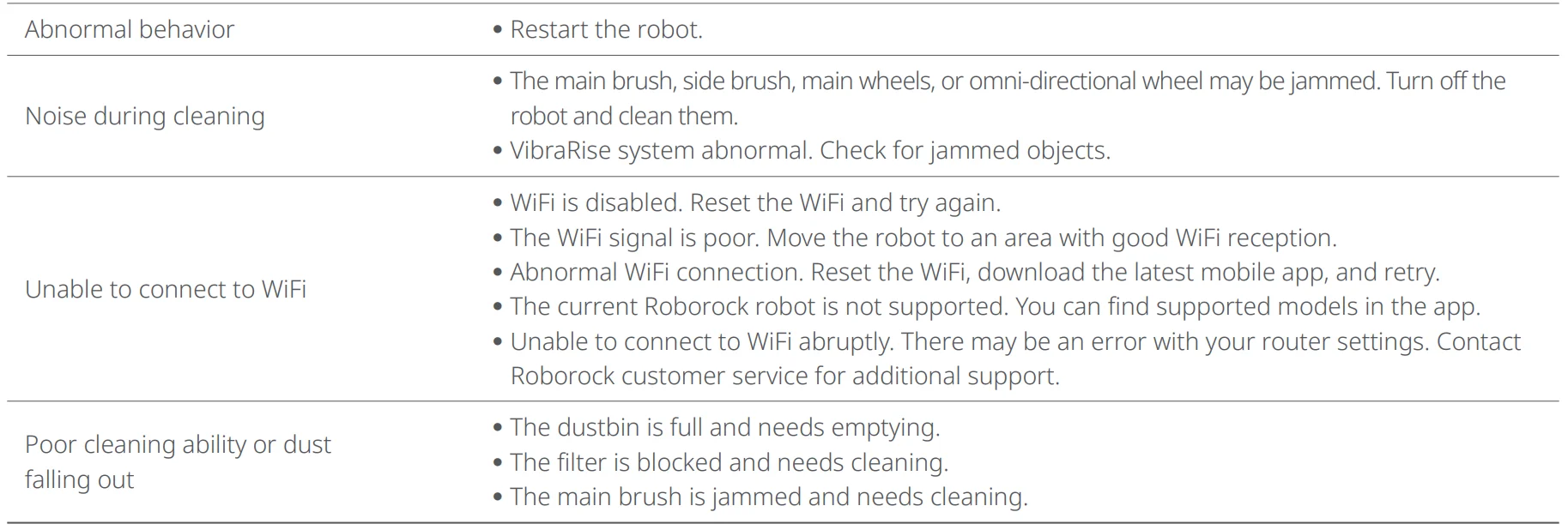
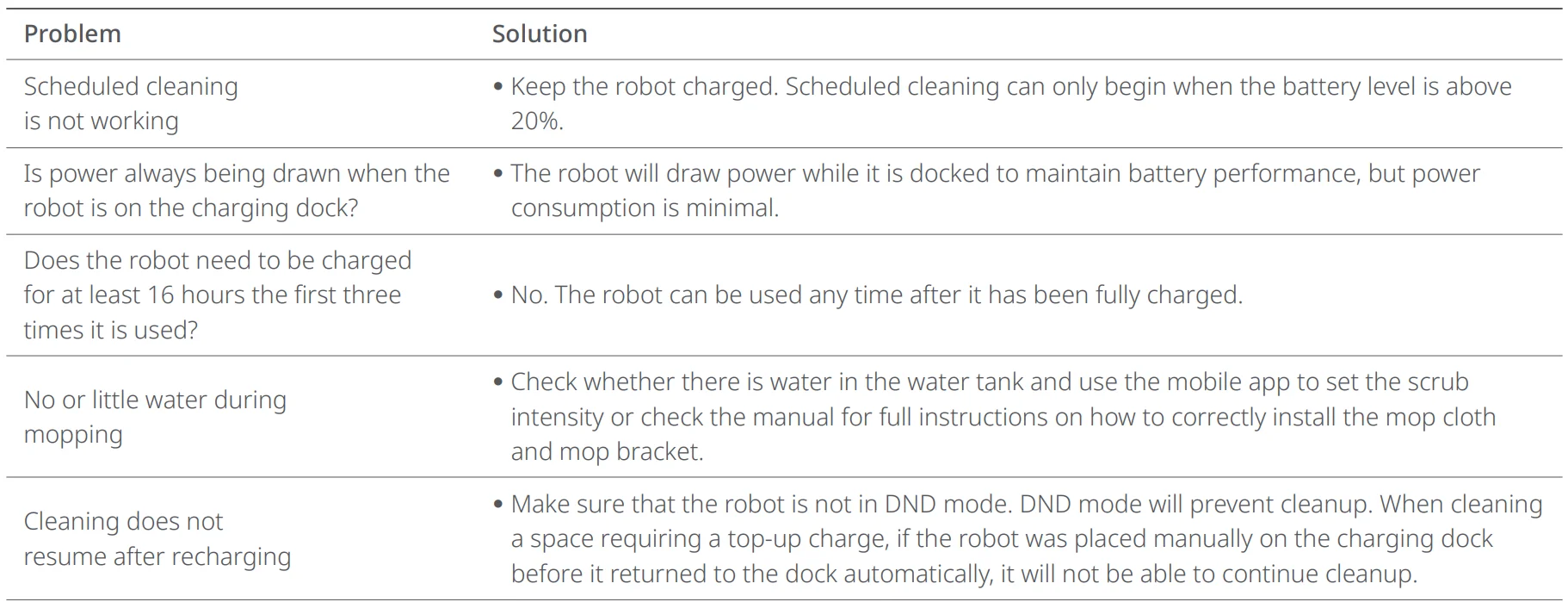
If an error occurs while the robot is cleaning, the power indicator will flash red quickly, and a voice alert will sound. Refer to the following table for troubleshooting.
- After resolving any of the following errors, relocate your robot and restart cleaning.
- After any sensor errors, clean the sensor and retry.
- If the battery is at an abnormal temperature, wait for it to return to normal before use.
- Error 1: LIDAR turret or laser blocked. Check for obstruction and retry.
- Error 2: Bumper stuck. Clean it and lightly tap to release it.
- Error 3: Wheels suspended. Move the robot and restart.
- Error 4: Cliff sensor error. Clean the cliff sensors, move the robot away from drops and restart.
- Error 5: Main brush jammed. Clean the main brush and bearings.
- Error 6: Side brush jammed. Remove and clean the side brush.
- Error 7: Wheels jammed. Move the robot and restart.
- Error 8: Robot trapped. Clear obstacles surrounding the robot.
- Error 9: No dustbin. Install a dustbin and filter.
- Error 12: Low battery. Recharge and retry.
- Error 13: Charging error. Clean charging contacts and retry.
- Error 14: Battery error.
- Error 15: Wall sensor dirty. Clean wall sensor.
- Error 16: Robot tilted. Move to level ground and restart.
- Error 17: Side brush error. Reset robot.
- Error 18: Fan error. Reset robot.
- Error 21: Vertical bumper pressed. Move the robot and retry.
- Error 22: Dock locator error. Clean and retry.
- Error 23: Could not return to the dock. Clean dock location beacon and retry.
- Error 27: VibraRise system jammed. Check for obstructions.
- Error 28: Robot on carpet. Move the robot to the floor and retry. Filter blocked or wet. Clean, dry, and retry. No-go zone or Invisible Wall detected. Move the robot from this area. Cannot cross the carpet. Move the robot across the carpet and restart. Internal error. Reset the robot.
Note: A system reset may resolve some problems.
If the problem persists after using the recommendations in the table above, please email our after-sales service team:
- Europe Support: [email protected]
- Australia Support: [email protected]
Common Issues

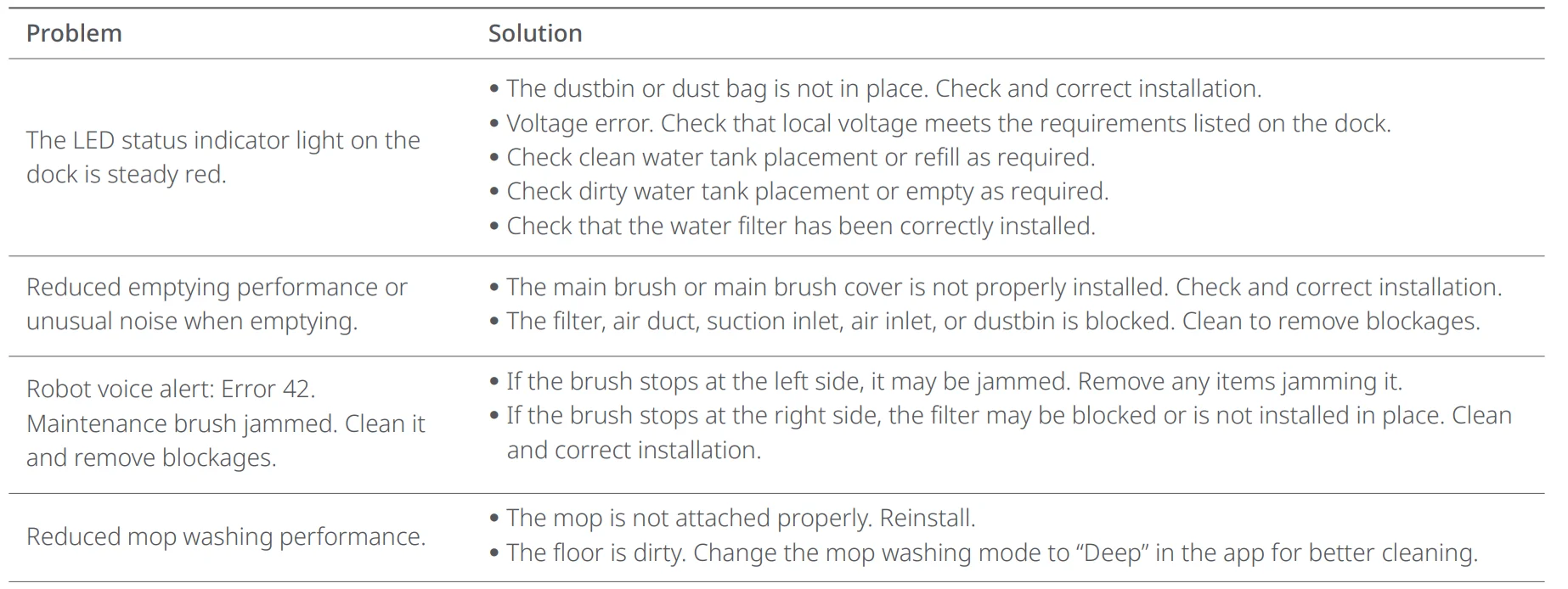
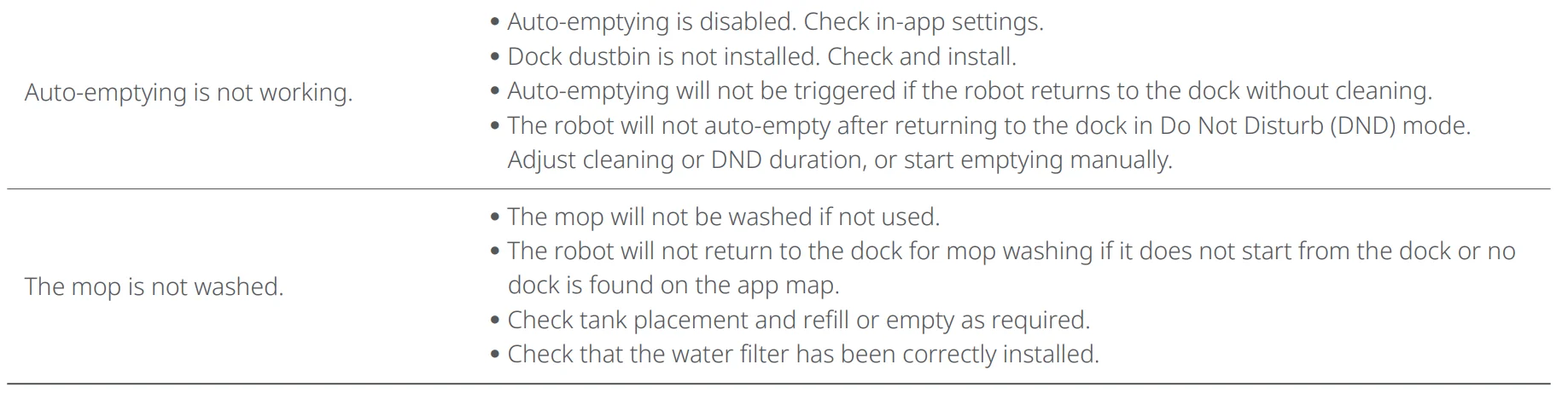
For more manuals by Roborock, visit ManualsLibraryy
Roborock S7MaxV Ultra CE-FAQs
What are the key features of the Roborock S7 MaxV Ultra CE?
The Roborock S7 MaxV Ultra CE is designed for fully automated cleaning with minimal effort. It features strong suction power (up to 5100 Pa), a VibraRise mopping system for deep scrubbing, and an all-in-one dock that empties dust, washes the mop, and refills water automatically. With advanced AI obstacle detection and smart mapping, it efficiently cleans different rooms while avoiding objects like cables, shoes, and furniture.
Can the Roborock S7 MaxV Ultra CE work without Wi-Fi?
Yes, the robot can perform basic cleaning tasks without Wi-Fi. You can start, stop, or dock the device using physical buttons. However, connecting to Wi-Fi unlocks advanced features like scheduling, room-specific cleaning, map customization, and suction control through the mobile app. For the best experience and full functionality, using it with the app is highly recommended.
How does the VibraRise mopping system work?
The VibraRise system uses sonic vibration technology to scrub floors more effectively than traditional robot mops. It vibrates the mop pad at high speed to loosen stubborn dirt and stains. Additionally, the mop automatically lifts when carpets are detected, allowing seamless transition between vacuuming carpets and mopping hard floors without manual intervention.
What cleaning solution should be used in the water tank?
It is recommended to use only official Roborock cleaning solutions or plain water in the tank. Using harsh chemicals, disinfectants, or non-approved cleaners can damage internal components and affect performance. Proper cleaning liquids ensure safe operation, maintain warranty coverage, and prevent clogging or residue buildup inside the system.
How much space is needed for placing the docking station?
For optimal performance, the dock should be placed on a flat surface against a wall. It requires adequate clearance—typically around 0.5 meters on each side and about 1.5 meters in front. This ensures the robot can easily return for charging, emptying, and mop washing without navigation issues or obstruction.
What are common issues with the Roborock S7 MaxV Ultra CE and how to fix them?
Some common issues include failure to return to the dock, reduced suction, or navigation errors. These are often caused by dirty sensors, blocked brushes, or poor dock placement. Regular maintenance—such as cleaning sensors, emptying the dustbin, and checking wheels—usually resolves most problems. Restarting the device or updating firmware can also fix software-related issues.
How high obstacles or thresholds can the robot climb?
The Roborock S7 MaxV Ultra CE can typically climb obstacles up to about 2 cm in height. This allows it to move over small thresholds, rugs, and transitions between rooms. However, it may struggle with higher barriers or thick carpets, so removing such obstacles ensures smoother navigation and uninterrupted cleaning.
How do you clean and maintain the Roborock S7 MaxV Ultra CE?
Regular maintenance is essential for optimal performance. Empty the dustbin, clean the filter, and wash the mop pad frequently. Wipe sensors gently with a dry cloth to maintain accurate navigation. Also, check the main brush and wheels for debris or hair buildup. Keeping all components clean ensures better suction, longer lifespan, and consistent cleaning results.
Can the Roborock S7 MaxV Ultra CE be used on multiple floors?
Yes, it supports multi-level mapping. You can carry the robot to another floor, and it will create a new map without needing to move the dock. Once maps are saved, the robot can recognize different levels and clean efficiently. This makes it suitable for multi-story homes without requiring additional setup for each floor.
What happens if the battery runs out during cleaning?
If the battery gets low, the robot automatically returns to the dock to recharge. After charging sufficiently, it resumes cleaning from where it left off. This “recharge and resume” feature ensures complete cleaning coverage without manual intervention, making it highly convenient for larger homes or extended cleaning sessions.