
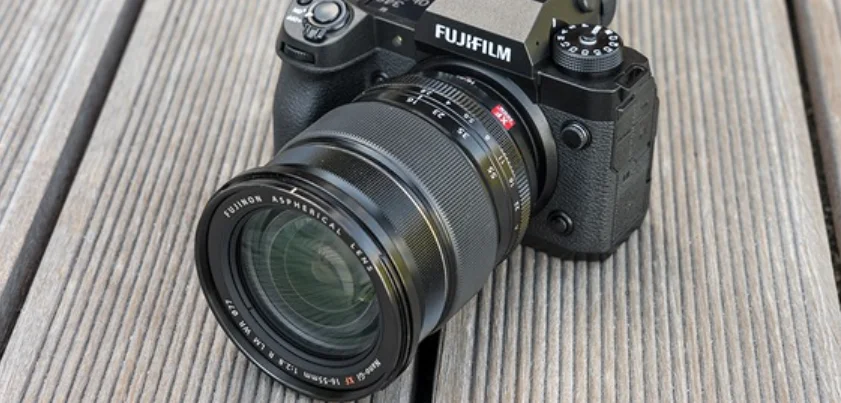

Fujifilm X-H2 Camera
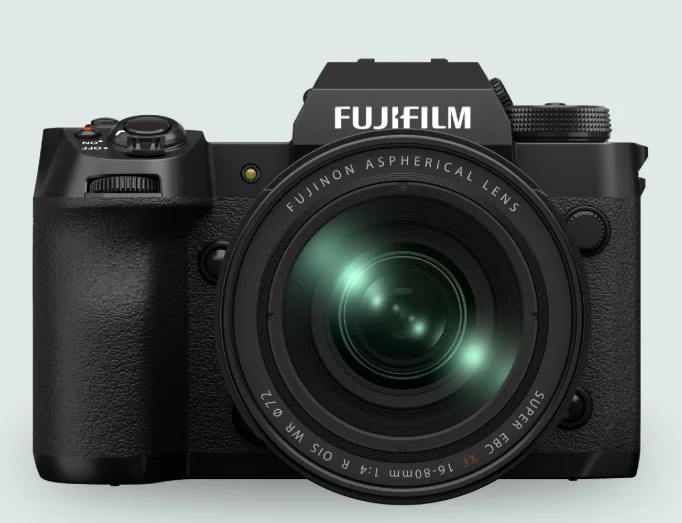
Before You Begin
Parts of the Camera
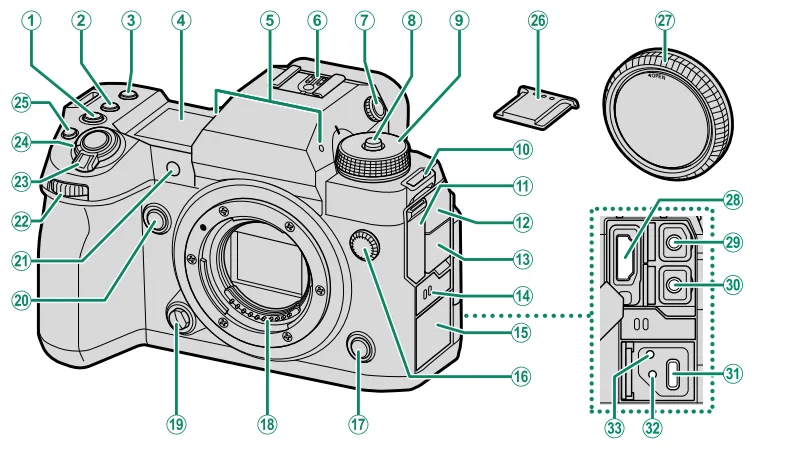
- ISO button
- WB button
- Fn1 button
- Secondary LCD monitor
- Microphone
- Hot shoe
- Diopter adjustment control
- Dial lock release
- Mode dial
- Strap eyelet
- HDMI connector cover
- Microphone jack cover
- Headphone jack cover
- Speaker
- USB connector cover
- Sync terminal
- Fn3 button
- Lens signal contacts
- Lens release button
- Fn2 button
- AF-assist illuminator
Self-timer lamp
Tally light - Front command dial
- ON/OFF switch
- Shutter button
- (movie recording) button
- Hot shoe cover
- Body cap
- HDMI connector (Type A)
- Microphone jack (⌀3.5mm)
- Headphone jack (⌀3.5mm)
- USB connector (Type-C)
- Hole to screw the USB cable
- Hole to screw cable protector

- DRIVE button
(delete) button - (playback) button
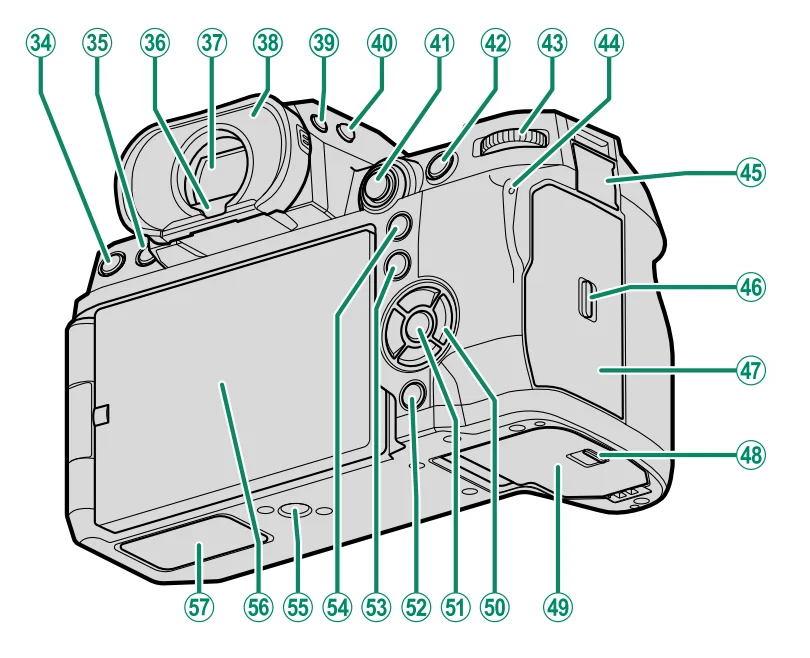
- Eye sensor
- Electronic viewfinder (EVF)
- Eye cup (lockable)
- VIEW MODE button
- Secondary monitor backlight button
- Focus stick (focus lever)
- AFON button
- Rear command dial
- Indicator lamp
Tally light - Remote release connector cover
- Memory card slot cover latch
- Memory card slot cover (detachable)
- Battery-chamber cover latch
- Battery-chamber cover
- Selector buttons
- MENU/OK button
- DISP (display)/BACK button
(Bluetooth) button - Q (quick menu) button
- AEL (exposure lock) button
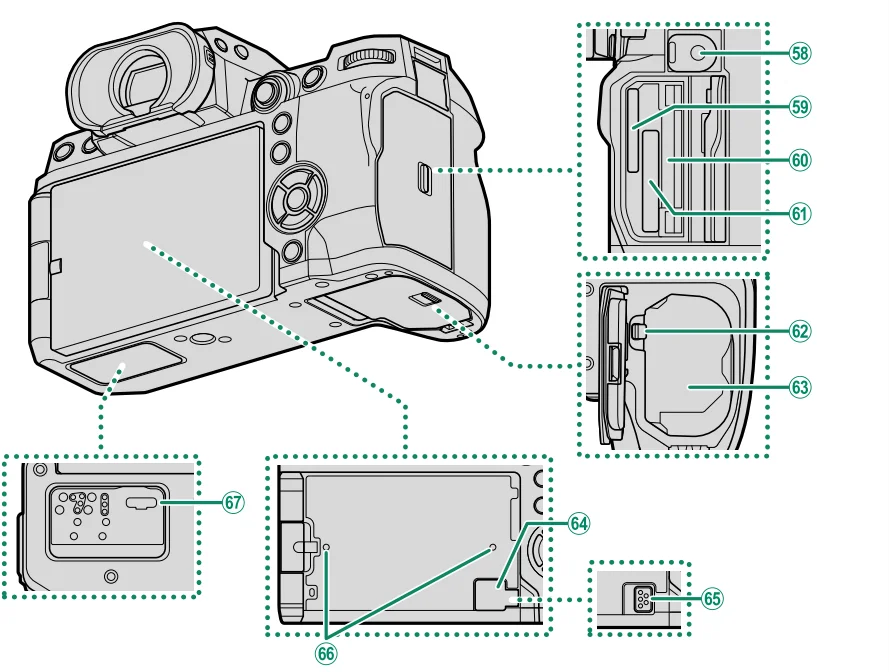
- Tripod mount
- LCD monitor
Touch screen - File transmitter/vertical battery grip connector cover

- Remote release connector (⌀2.5mm)
- Memory card slot 2 (for SD memory cards)
- Serial number plate
- Memory card slot 1 (for Type B CFexpress cards)
- Battery latch
- Battery chamber
- Cooling fan connector cover
- Cooling fan connector
- Hole to screw the cooling fan
- File transmitter/vertical battery grip connector
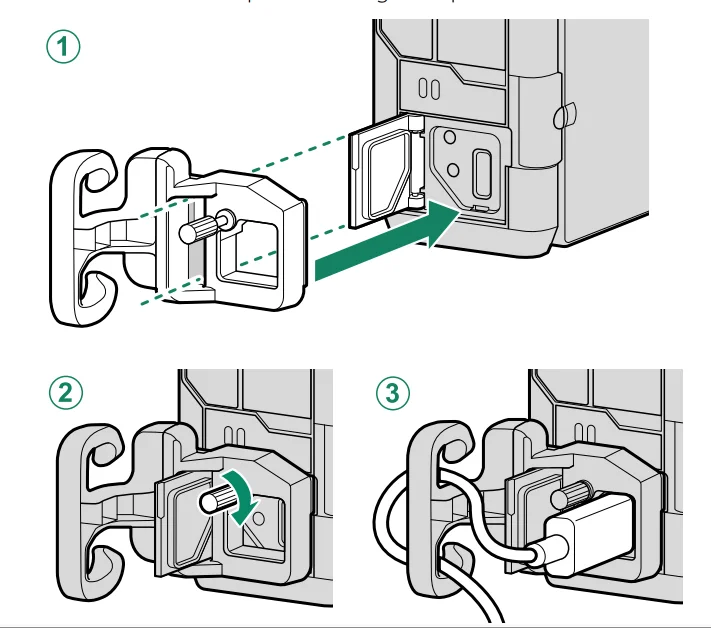
The Cable Protector
Attach the protector as shown to prevent accidental disconnection.
- Slide the protector over the USB connector cover so that the cover passes through the slot in the protector.
- Tighten the lock screw.
- Connect the cable and pass it through the protector as shown.
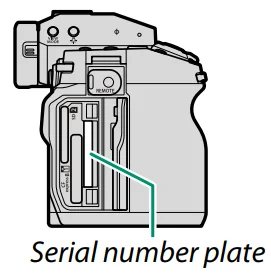
The Serial Number Plate
Do not remove the serial number plate, which provides the CMIIT ID, serial number, and other important information.
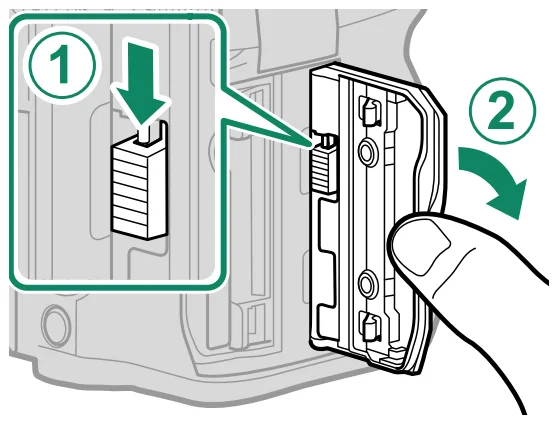
The Memory Card Slot Cover (Detachable)
The memory card slot cover can be removed by lowering the interior latch. Remove the cover for ease of access when A camera rig is attached, or in other situations that make it difficult to open or close the cover.
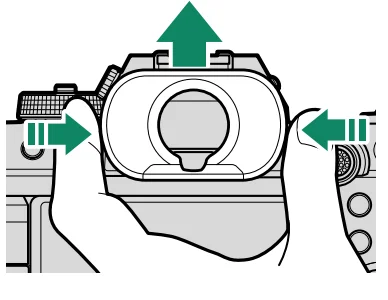
The Eye Cup
To remove the eye cup, hold the buttons on either side and slide the eye cup up.
Focusing the Viewfinder
If the indicators displayed in the viewfinder are blurred, put your eye to the viewfinder and rotate the diopter adjustment control until the display is in sharp focus.
To focus the viewfinder:
- Lift the diopter adjustment control.
- Rotate the control to adjust the viewfinder focus.
- Return the control to its original position and lock it in place.
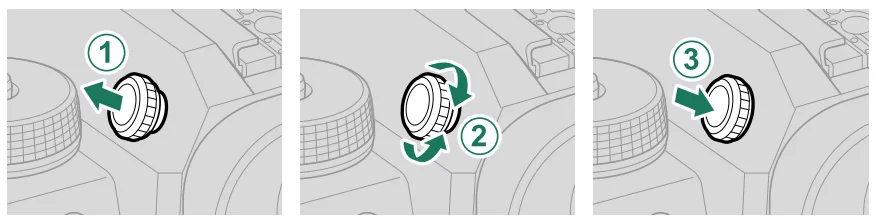
- Lift the control before use. Failure to observe this precaution could cause product malfunction.
Camera Displays
This section lists the indicators that may be displayed during shooting.
- For illustrative purposes, displays are shown with all indicators lit.
The Electronic Viewfinder
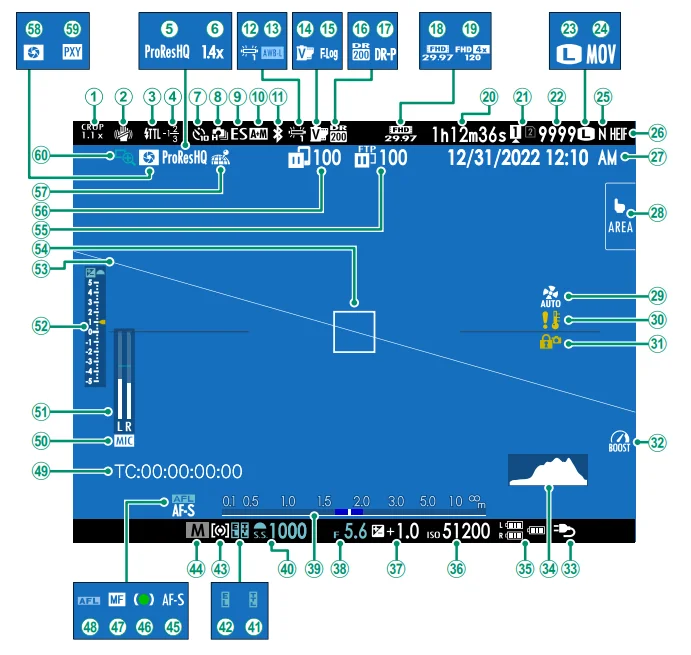
- Crop factor
- IS mode 2
- Flash (TTL) mode
- Flash compensation
- Movie compression
- Digital teleconverter
- Self-timer indicator
- Continuous mode
- Shutter type
- AF+MF indicator 2
- Bluetooth ON/OFF
- White balance
- AWB lock
- Film simulation
- F-Log/HLG recording
- Dynamic range
- D-range priority
- Movie mode
- High-speed recording indicator
- Recording time available/ elapsed recording time
- Card slot options
- Number of available frames 1
- Image size
- File format
- Image quality
- HEIF format
- Date and time
- Touch screen mode
- Cooling fan settings
- Temperature warning
- Control lock 3
- Boost mode
- Power supply
- Histogram
- Battery level
- Sensitivity
- Exposure compensation
- Aperture
- Distance indicator 2
- Shutter speed
- TTL lock
- AE lock
- Metering
- Shooting mode
- Focus mode 2
- Focus indicator 2
- Manual focus indicator 2
- AF lock
- Time code
- Microphone input channel
- Recording level 2
- Exposure indicator
- Virtual horizon
- Focus frame
- FTP upload progress
- Image transfer status
- Location data download status
- Depth-of-field preview
- Proxy setting (ProRes only)
- Focus check
- 1 Shows “9999” if there is space for over 9999 frames.
- 2 Not displayed when ON is selected for
 SCREEN SET-UP > LARGE INDICATORS MODE(EVF).
 - 3 Displayed when controls have been locked by pressing and holding the MENU/OK button. The control lock can be ended by pressing and holding the MENU/OK button again.
 SCREEN SET-UP > LARGE INDICATORS MODE(EVF).
The LCD Monitor
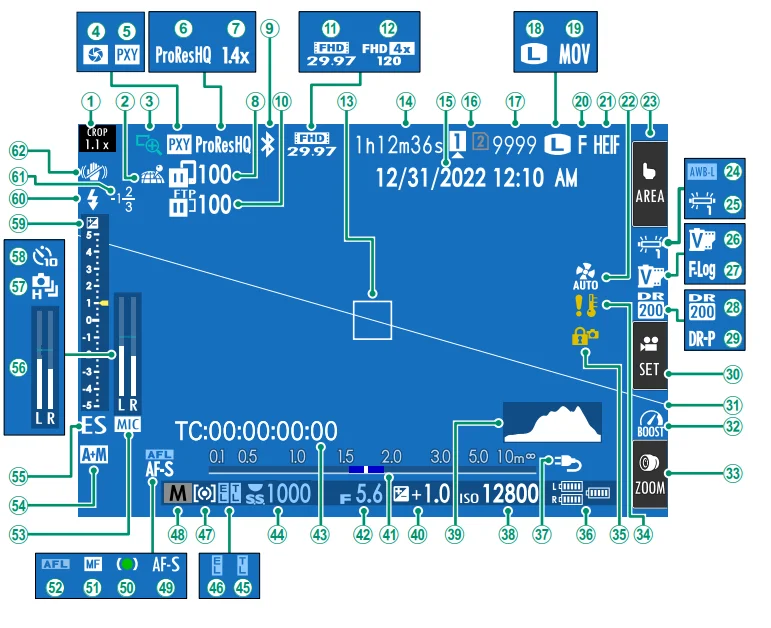
- Crop factor
- Location data download status
- Focus check
- Depth-of-field preview
- Proxy setting (ProRes only)
- Movie compression
- Digital teleconverter
- Image transfer status
- Bluetooth ON/OFF
- FTP upload progress
- Movie mode
- High-speed recording indicator
- Focus frame
- Recording time available/ elapsed recording time
- Date and time
- Card slot options
- Number of available frames 1
- Image size
- File format
- Image quality
- HEIF format
- Cooling fan settings
- Touch screen mode 3
- AWB lock
- White balance
- Film simulation
- F-Log/HLG recording
- Dynamic range
- D-range priority
- Movie optimized control 3
- Virtual horizon
- Boost mode
- Touch Zoom 3
- Temperature warning
- Control lock 4
- Battery level
- Power supply
- Sensitivity
- Histogram
- Exposure compensation
- Distance indicator 2
- Aperture
- Time code
- Shutter speed
- TTL lock
- AE lock
- Metering
- Shooting mode
- Focus mode 2
- Focus indicator 2
- Manual focus indicator 2
- AF lock
- Microphone input channel
- AF+MF indicator 2
- Shutter type
- Recording level 2
- Continuous mode
- Self-timer indicator
- Exposure indicator
- Flash (TTL) mode
- Flash compensation
- IS mode 2
- Shows “9999” if there is space for over 9999 frames.
- 2 Not displayed when ON is selected for
 SCREEN SET-UP > LARGE INDICATORS MODE(LCD).
 - 3 Camera functions can also be accessed via touch controls.
- 4 Displayed when controls have been locked by pressing and holding the MENU/OK button. The control lock can be ended by pressing and holding the MENU/OK button again.
Adjusting Display Brightness
The brightness and saturation of the viewfinder and LCD monitor can be adjusted using the items in the SCREEN SET-UP menu. Choose EVF BRIGHTNESS or EVF COLOR to adjust the viewfinder brightness or saturation, LCD BRIGHTNESS or LCD COLOR to do the same for the LCD monitor.
Display Rotation
When ON is selected forSCREEN SET-UP > AUTOROTATE DISPLAYS, the indicators in the viewfinder and LCD monitor automatically rotate to match camera orientation.
The DISP/BACK Button
The DISP/BACK button controls the display of indicators in the viewfinder and LCD monitor.
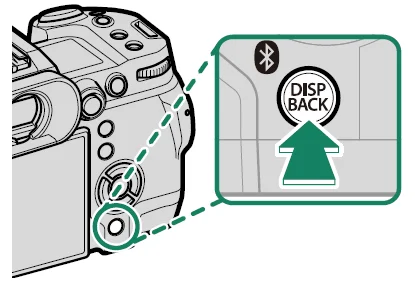
- Indicators for the EVF and LCD must be selected separately. To choose the EVF display, place your eye to the viewfinder while
using the DISP/BACK button.
Customizing the Standard Display
To choose the items shown in the standard indicator display:
- Display standard indicators.
Use the DISP/BACK button to display standard indicators. - Select DISP. CUSTOM SETTING.
SelectSCREEN SET-UP > DISP. CUSTOM SETTING in the
setup menu. - Choose items.
Highlight items and press MENU/OK to select or deselect.- FRAMING GUIDELINE
- FOCUS FRAME
- AF DISTANCE INDICATOR
- MF DISTANCE INDICATOR
- HISTOGRAM
- LIVE VIEW HIGHLIGHT ALERT
- SHOOTING MODE
- APERTURE/S-SPEED/ISO
- INFORMATION BACKGROUND
- Expo. Comp. (Digit)
- Expo. Comp. (Scale)
- FOCUS MODE
- PHOTOMETRY
- SHUTTER TYPE
- FLASH
- CONTINUOUS MODE
- DUAL IS MODE
- TOUCH SCREEN MODE
- WHITE BALANCE
- FILM SIMULATION
- DYNAMIC RANGE
- BOOST MODE
- COOLING FAN SETTING
- FRAMES REMAINING
- IMAGE SIZE/QUALITY
- MOVIE MODE & REC. TIME
- DIGITAL TELE-CONV.
- IMAGE TRANSFER ORDER
- MIC LEVEL
- GUIDANCE MESSAGE
- BATTERY LEVEL
- FRAMING OUTLINE
- Press DISP/BACK to save changes.
- Press DISP/BACK as needed to exit the menus and return to the shooting display.
First Steps
Attaching the Strap
Attach the strap.
Attach the strap to the two strap eyelets as shown below.
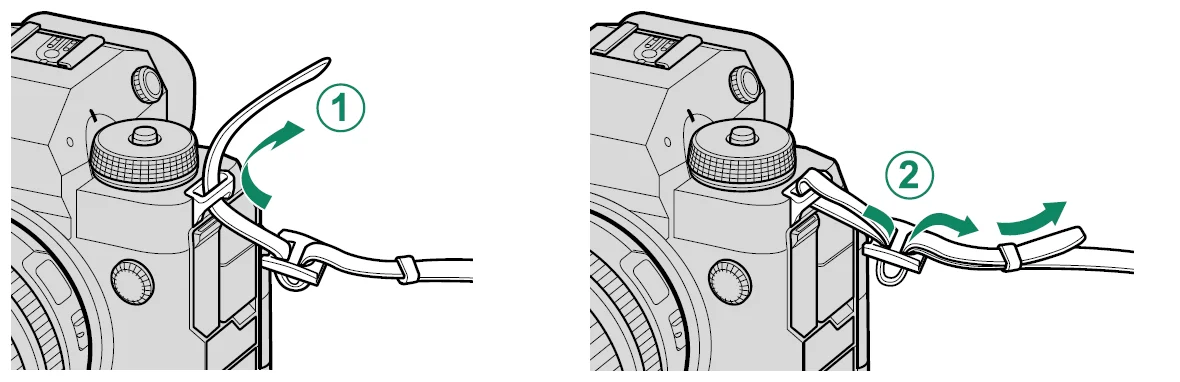
- To avoid dropping the camera, be sure the strap is correctly secured.
Remove the body cap from the camera and the rear cap from the lens. Place the lens on the mount, keeping the marks on the lens and camera aligned (1), and then rotate the lens until it clicks into place
(2).\
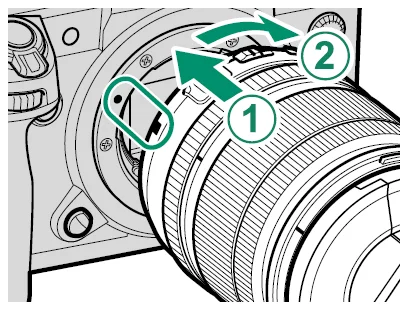
- When attaching lenses, ensure that dust or other foreign matter does not enter the camera.
- Be careful not to touch the camera’s internal parts.
- Rotate the lens until it clicks securely into place.
- Do not press the lens release button while attaching the lens.
Removing Lenses
To remove the lens, turn the camera off, then press the lens release button (1) and rotate the lens as shown (2).
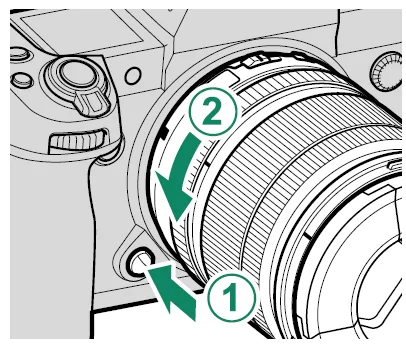
- To prevent dust from accumulating on the lens or inside the camera, replace the lens caps and camera body cap when the lens is not attached.
Lenses and Other Optional Accessories
The camera can be used with lenses and accessories for the FUJIFILM
X-mount.
- Observe the following precautions when attaching or removing (exchanging) lenses.
- Check that the lenses are free of dust and other foreign matter.
- Do not change lenses in direct sunlight or under another bright light source. Light focused into the interior of the camera could cause it to malfunction.
- Attach the lens caps before exchanging lenses.
- See the manual provided with the lens for information on use.
Inserting the Battery
Insert the battery in the camera as described below.
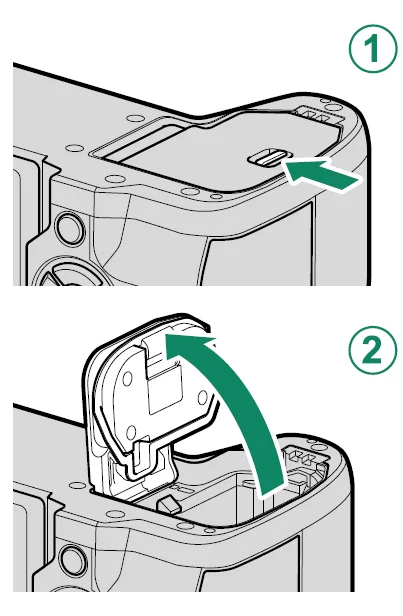
- Open the battery-chamber cover.
Slide the battery-chamber cover latch as shown and open the battery- chamber cover.- Do not open the battery-chamber cover when the camera is on. Failure to observe this precaution could damage image files or memory cards.
- Do not use excessive force when handling the battery-chamber cover.

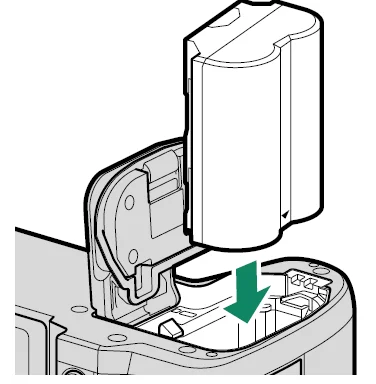
- Insert the battery as shown.
- Insert the battery in the orientation shown. Do not use force or attempt to insert the battery upside down or backwards.
- Confirm that the battery is securely latched.

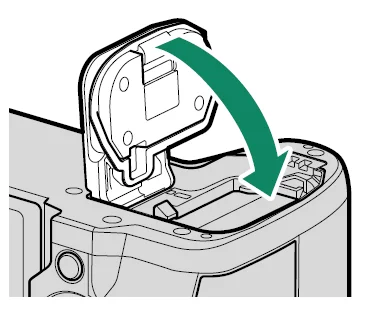
- Close the battery-chamber cover.
Close and latch the cover.- If the cover does not close, check that the battery is in the correct orientation. Do not attempt to force the cover shut.
Removing the Battery
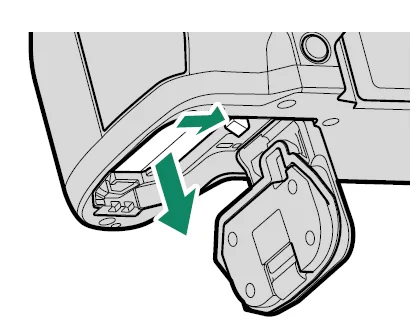
Before removing the battery, turn the camera off and open the battery-chamber cover. To remove the battery, press the battery latch to the side, and slide the battery out of the camera as shown.
- The battery may become hot when used in high-temperature environments. Observe caution when removing the battery.
Inserting Memory Cards
Pictures are stored on memory cards (sold separately).
- The camera is equipped with two memory card slots. Use Slot 1 with CFexpress cards and Slot 2 with SD, SDHC, or SDXC cards.
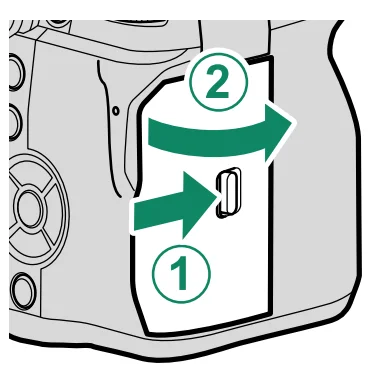
- Open the memory card slot cover.
Unlatch and open the cover.- Do not turn the camera off or remove the memory card while the memory card is being formatted or data are being recorded to or deleted from the card. Failure to observe this precaution could damage the card.
- Insert the memory card.
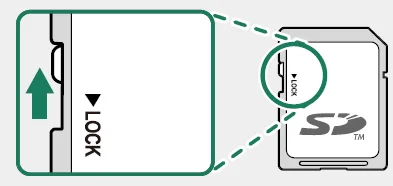
Holding the card in the orientation shown, slide it in until it clicks into place at the back of the slot. Close and latch the memory card slot cover.- Be sure card is in the correct orientation; do not insert at an angle or use force.
Compatible Memory Cards
- The camera can be used with SD, SDHC, SDXC, and CFexpress Type B memory cards. Both the UHS-I and UHS-II bus interfaces are supported.
- CFexpress or UHS-II memory cards are recommended for high-speed burst photography.
- The types of memory cards suitable for movie recording vary with the settings selected.
- A list of supported memory cards is available on the Fujifilm
website. For details, visit: https://fujifilm-x.com/support/compatibility/cameras/.- Do not turn the camera off or remove the memory card while the memory card is being formatted or data is being recorded to or deleted from the card. Failure to observe this precaution could damage the card.

- Memory cards can be locked, making it impossible to format the card or to record or delete images. Before inserting a memory card, slide the write-protect switch to the unlocked position.
- Memory cards are small and can be swallowed; keep them out of reach of children. If a child swallows a memory card, seek medical assistance immediately.
- MiniSD or microSD adapters that are larger or smaller than memory cards may not eject normally; if the card does not eject, take the camera to an authorised service representative. Do not forcibly remove the card.
- Do not affix labels or other objects to memory cards. Peeling labels can cause a camera malfunction.
- Movie recording may be interrupted with some types of memory cards.
- Formatting a memory card in the camera creates a folder in which pictures are stored. Do not rename or delete this folder or use a computer or other device to edit, delete, or rename image files. Always use the camera to delete pictures; before editing or renaming files, copy them to a computer and edit or rename the copies, not the originals. Renaming the files on the camera can cause problems during playback.
- Do not turn the camera off or remove the memory card while the memory card is being formatted or data is being recorded to or deleted from the card. Failure to observe this precaution could damage the card.
Charging the Battery
For reasons of safety, the battery is not charged upon shipment. The camera will not function if the battery is not charged; be sure to charge the battery before use. Before charging the battery, turn the camera off.
- An NP-W235 rechargeable battery is supplied with the camera.
- Charging takes about 180 minutes.
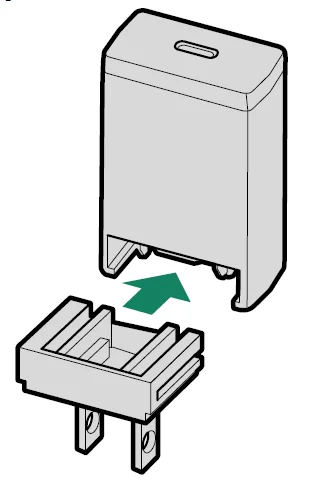
- Attach the plug adapter to the AC power adapter.

Attach the plug adapter as shown, making sure that it is fully inserted and clicks into place on the AC power adapter terminals.- The supplied plug adapter is for use exclusively with the AC-5VJ AC power adapter. Do not use it with other devices.
- The shape of the plug adapter varies with the country of sale.
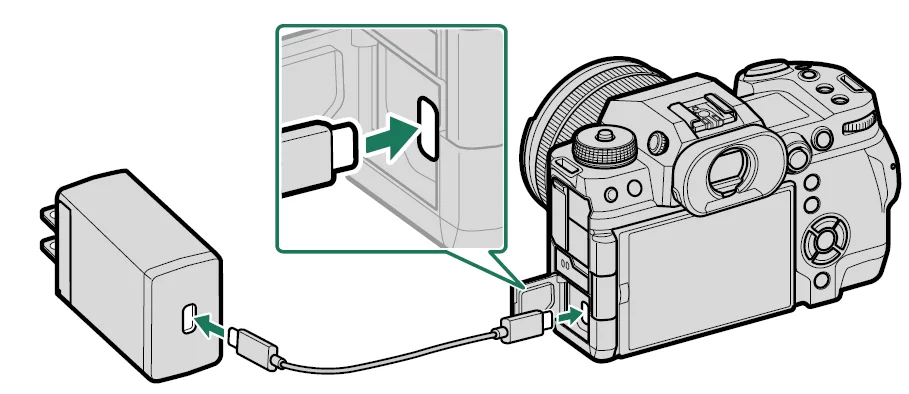
- Charge the battery.

Connect the camera to the supplied AC power adapter using the supplied USB cable. Then plug the AC power adapter into an indoor power outlet.- Connect the cable to the camera’s USB connector (Type-C).
- Be sure the connectors are fully inserted.
Taking Photographs
P, S, A, and M Modes
P, S, A, and M modes give you varying degrees of control over shutter speed and aperture.
Mode P: Program AE
Let the camera choose shutter speed and aperture for optimal exposure. Other values that produce the same exposure can be selected with program shift.
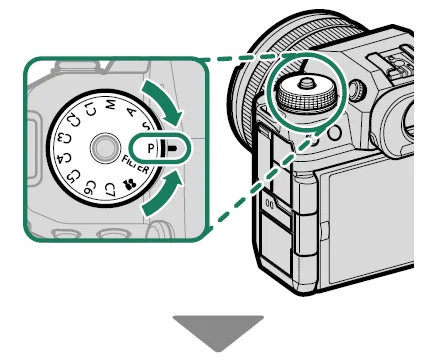
- Rotate the mode dial to P.

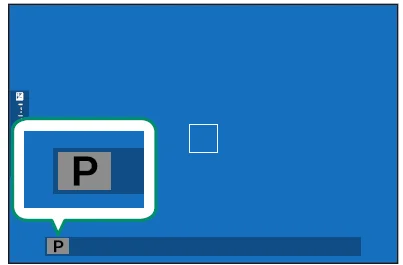
- P will appear in the display.

- If the subject is outside the metering range of the camera, the shutter speed and aperture displays will show “– – –”.
- Rotate the mode dial only after pressing the dial lock release to release the dial.
Mode M: Manual Exposure
In manual mode, the user controls both shutter speed and aperture. Shots can be deliberately overexposed (brighter) or underexposed (darker), opening the door for a variety of individual creative expression. The amount the picture would be under- or over-exposed at current settings is shown by the exposure indicator; adjust shutter speed and aperture until the desired exposure is reached.
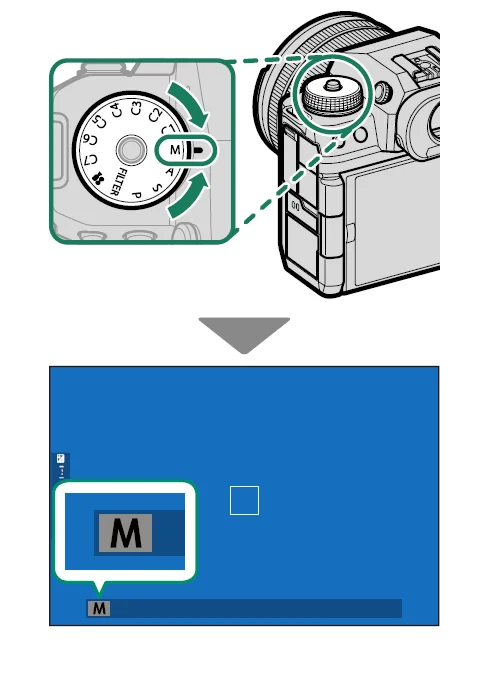
- Rotate the mode dial to M.
M will appear in the display.
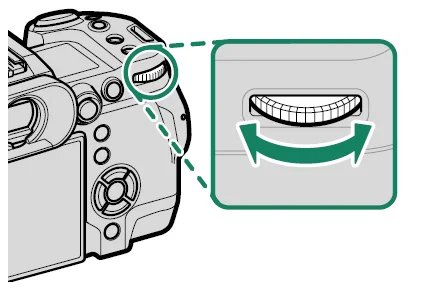
- Rotate the rear command dial to choose a shutter speed and the lens aperture ring to choose an aperture.
- The manual exposure display includes an exposure indicator that
shows the amount the picture would be under- or over-exposed at current settings. - If the lens is not equipped with an aperture ring or if the aperture ring is in the A position, aperture can be adjusted by rotating the front command dial.
- The roles played by the front and rear command dials can be changed using
 BUTTON/DIAL SETTING > COMMAND DIAL SETTING.
 - Rotate the mode dial only after pressing the dial lock release to release the dial.
The Shooting Menus
IMAGE QUALITY SETTING (Still Photography)
Adjust image quality settings for still photography. To display image quality settings, press MENU/OK in the photo shooting display and
Select the I.Q (IMAGE QUALITY SETTING) tab.
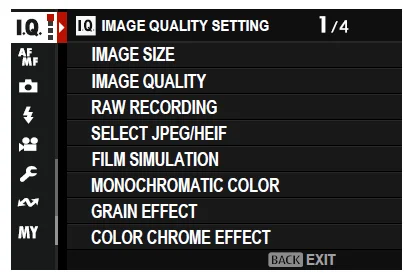
- The options available vary with the shooting mode selected.
IMAGE SIZE
Choose the size and aspect ratio at which still pictures are recorded.
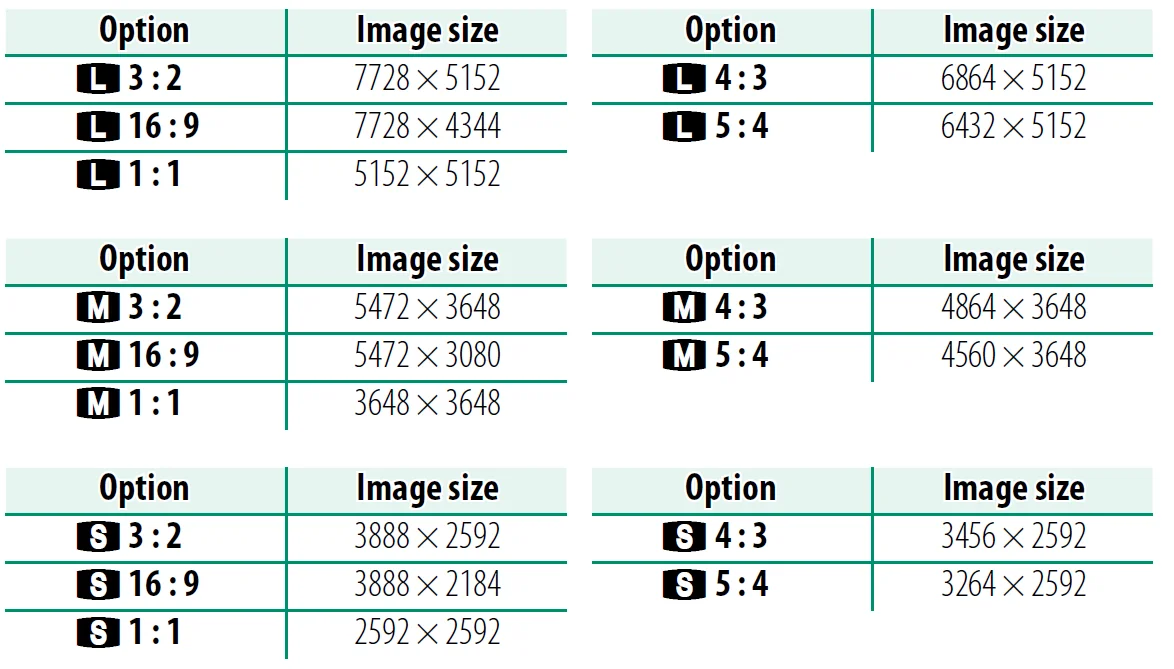
The following options are available in SPORTS FINDER MODE and when 1.29X CROP is selected in burst mode:

- IMAGE SIZE is not reset when the camera is turned off or another shooting mode is selected.
RAW RECORDING
Choose whether to compress RAW images.
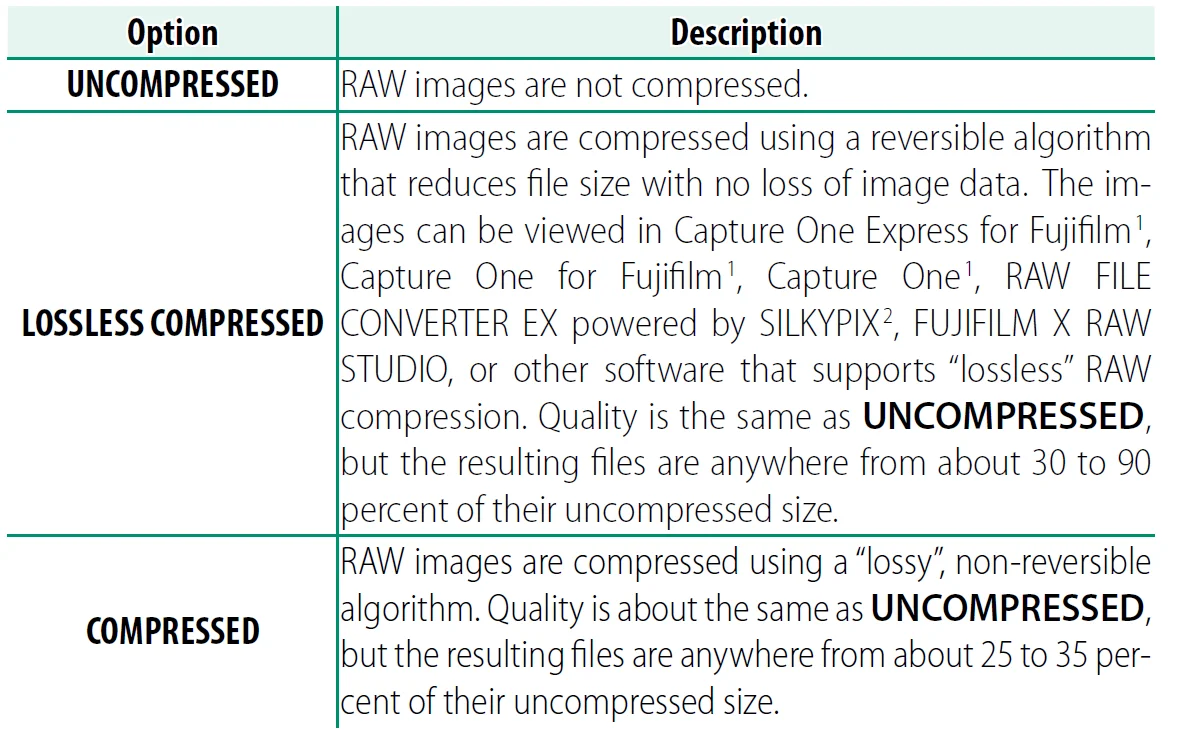
- For information on when support will be available, visit: https://www.captureone.com/
- For information on when support will be available, visit: https://fujifilm-x.com/support/compatibility/software/raw-fileconverter-ex-poweredby-silkypix/
SELECT JPEG/HEIF
Choose whether pictures are recorded in JPEG or HEIF.
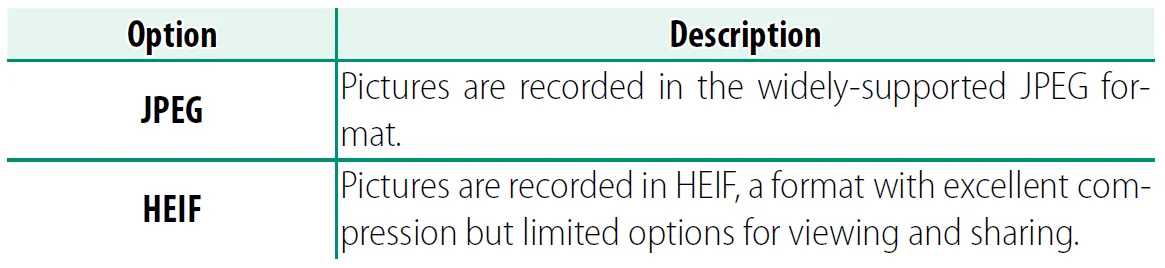
- JPEG is automatically selected in place of HEIF during filter effect, panorama, multiple-exposure, and HDR photography.
- Selecting HEIF disables CLARITY and sets COLOR SPACE to sRGB.
- HEIF pictures are stored on the memory card as files with the extension “.HIF”. Before the pictures can be viewed on a computer, the extension must be changed to “.HEIC”. This occurs automatically when HEIF pictures are uploaded from the camera to a computer via USB.
Playback and the Playback Menu
The Playback Display
This section lists the indicators that may be displayed during
playback.
- For illustrative purposes, displays are shown with all indicators lit.
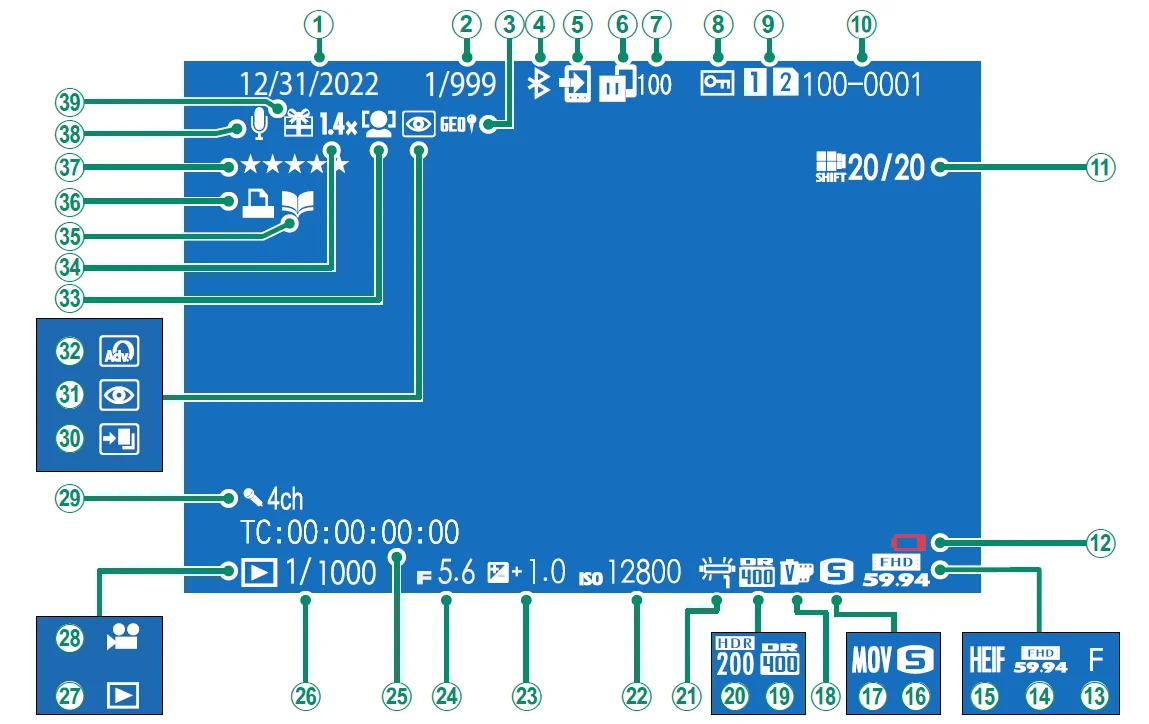
- Date and time
- Frame-number display
- Location data
- Bluetooth ON/OFF
- Image transfer order
- Image transfer status
- Number of frames selected for upload
- Protected image
- Card slot
- Frame number
- Pixel-shift multi-shot
- Low battery
- Image quality
- Movie mode
- HEIF
- Image size
- Film format
- Film simulation
- Dynamic range
- HDR
- White balance
- Sensitivity
- Exposure compensation
- Aperture
- Time code
- Shutter speed
- Playback mode indicator
- Movie icon
- Four-channel (quadrophonic) audio
- HDR image
- Red-eye removal indicator
- Filter
- Face detection indicator
- Digital teleconverter
- Photobook assist indicator
- DPOF print indicator
- Rating
- Voice memo
- Gift image
Viewing Pictures
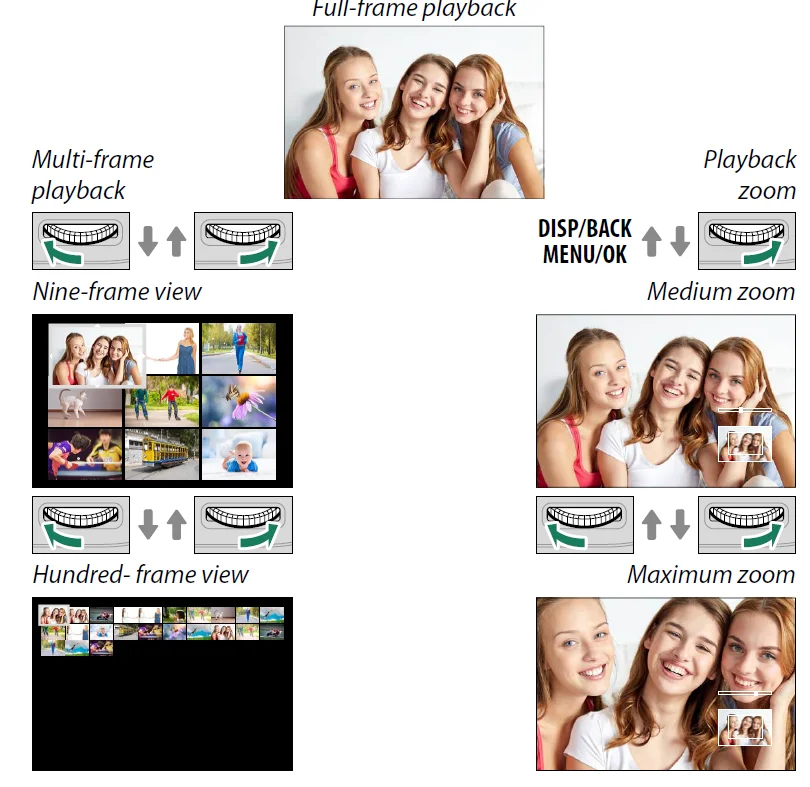
Read this section for information on playback zoom and multi-frame playback.
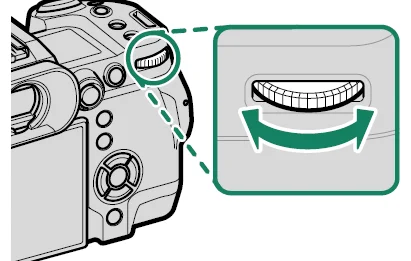
Use the rear command dial to go from full-frame playback to playback zoom or multi-frame playback.
The Playback Menu
Adjust playback settings.
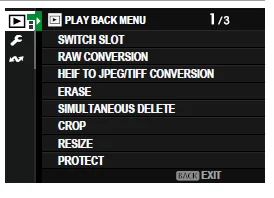
The playback menu is displayed when you press MENU/OK in playback mode.
SWITCH SLOT
Choose the card from which images will be played back.
RAW CONVERSION
Even if you don’t have a computer, you can use the camera to
modify RAW pictures and save them in other formats.
Saving RAW Pictures in Another Format
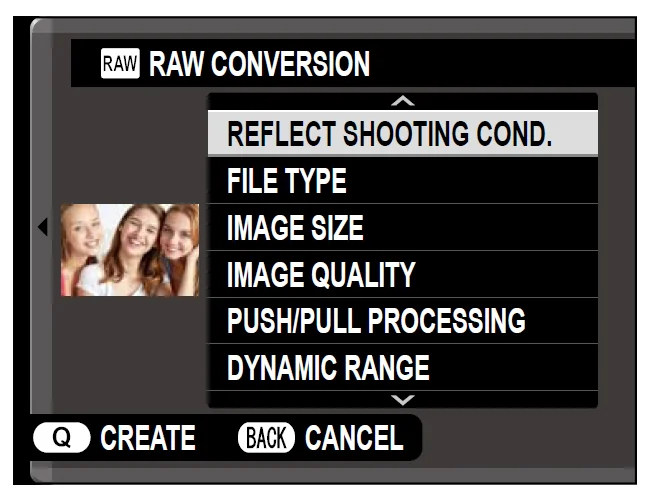
- Display a RAW picture.
- Highlight RAW CONVERSION in the playback menu.
- Press MENU/OK.
A list of settings will be displayed. - Press the focus stick (focus lever) up or down to highlight a
setting. - Press the focus stick right to display options.

- Press the focus stick up or down to highlight the desired option.
- Press MENU/OK to select the highlighted option. The settings list shown in Step 3 will be displayed. Repeat Steps 4 to 7 to adjust additional settings.
- Press the Q button.
A preview of the copy will be displayed. - Press MENU/OK.
The copy will be saved.
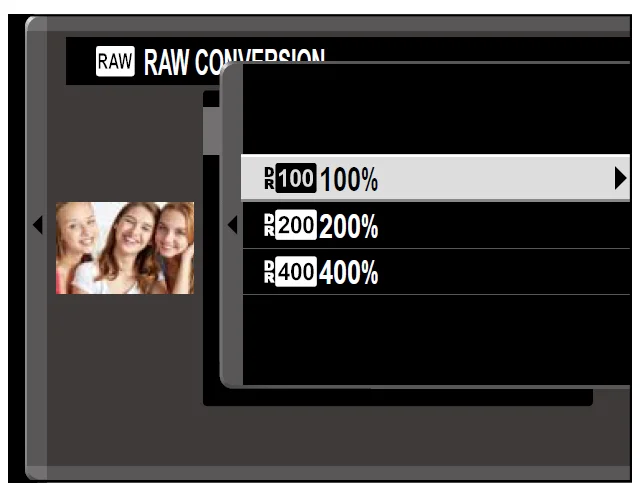
RAW conversion options can also be displayed by pressing the Q button when a RAW picture is displayed during playback.
Network/USB Setting Menus
Adjust camera network and USB settings.
For more information on the network/USB settings menu, visit: https://fujifilm-dsc.com/en/manual/x-h2_connection/
The Setup Menus
DATE/TIME
To set the camera clock:
- SelectUSER SETTING > DATE/TIME in the(SET UP) tab.
- Press the focus stick (focus lever) left or right to highlight the year, month, day, hour, or minute and press up or down to change. To change the order in which the year, month, and day are displayed, highlight the date format and press the focus stick up or down.
- Press MENU/OK to set the clock.
For more manuals by Fujifilm, visit ManualsLibraryy
Fujifilm X-H2 Camera-FAQs
Is the Fujifilm X-H2 Camera worth buying?
Yes, the Fujifilm X-H2 is considered a great choice for photographers who prioritize image quality. It features a high-resolution sensor, strong dynamic range, and reliable performance at higher ISO levels. The camera is especially useful for professionals and enthusiasts who need detailed images for cropping and editing. Its solid build and advanced features make it a dependable option for both studio and outdoor photography.
What type of photography is the Fujifilm X-H2 best suited for?
The Fujifilm X-H2 excels in high-resolution photography such as landscape, studio, product, and commercial work. Its 40MP sensor captures fine details, making it ideal for large prints and professional editing. While it can handle general photography, it is especially suited for users who prioritize detail over speed. It’s a versatile option but leans more toward photography than fast-action shooting.
How many megapixels does the Fujifilm X-H2 have?
The Fujifilm X-H2 features a 40.2-megapixel APS-C sensor, one of the highest resolutions in its class. This allows users to capture extremely detailed images with excellent sharpness and clarity. The high resolution also provides flexibility for cropping without losing quality. It is particularly beneficial for professional photographers who require precision and fine detail in their work.
Can the Fujifilm X-H2 record 8K video?
Yes, the Fujifilm X-H2 supports 8K video recording at 30 frames per second with high-quality 10-bit color. This makes it a powerful option for content creators and videographers who want cinematic-quality footage. It also supports advanced video formats and internal recording, allowing users to produce professional-grade videos without needing external devices.
What processor is used in the Fujifilm X-H2?
The Fujifilm X-H2 is powered by the X-Processor 5, which delivers fast performance, improved autofocus, and efficient image processing. This processor enables high-resolution shooting, smooth video recording, and better noise handling. It also helps enhance overall camera responsiveness, making it suitable for both photography and video tasks.
Is the Fujifilm X-H2 good for video creators?
Yes, the Fujifilm X-H2 is a strong option for video creators. It offers 8K recording, advanced color profiles, and high-quality internal recording options. While it is more focused on photography, it still delivers excellent video performance. Features like stabilization and professional codecs make it suitable for YouTubers, filmmakers, and hybrid shooters.
What is the difference between the Fujifilm X-H2 and X-H2S?
The main difference lies in performance and purpose. The X-H2 focuses on high resolution with its 40MP sensor, making it ideal for detailed photography. In contrast, the X-H2S has a lower resolution but uses a faster stacked sensor for high-speed shooting and better low-light performance. Choose the X-H2 for detail and the X-H2S for speed and action.
How does the Fujifilm X-H2 compare to the Sony A7 IV?
The Fujifilm X-H2 and Sony A7 IV are both high-end hybrid cameras, but they differ in sensor type. The X-H2 uses an APS-C sensor with higher resolution, while the Sony A7 IV has a full-frame sensor with better low-light performance. The X-H2 stands out for its 8K video and detail, while the A7 IV is stronger in low-light conditions.
Is the Fujifilm X-H2 suitable for beginners?
The Fujifilm X-H2 is not primarily designed for beginners, but motivated learners can still use it effectively. Its advanced features and controls may feel complex at first. However, with practice and guidance from the user manual, beginners can gradually understand its capabilities. It’s better suited for intermediate to advanced users who want professional-level results.
Why are Fujifilm cameras so popular among photographers?
Fujifilm cameras are popular because of their unique color science, film simulation modes, and stylish design. They offer a creative shooting experience that many photographers enjoy. The combination of image quality, manual controls, and reliability makes them appealing to both hobbyists and professionals. Fujifilm cameras are not just tools but also inspire creativity and personal expression.