
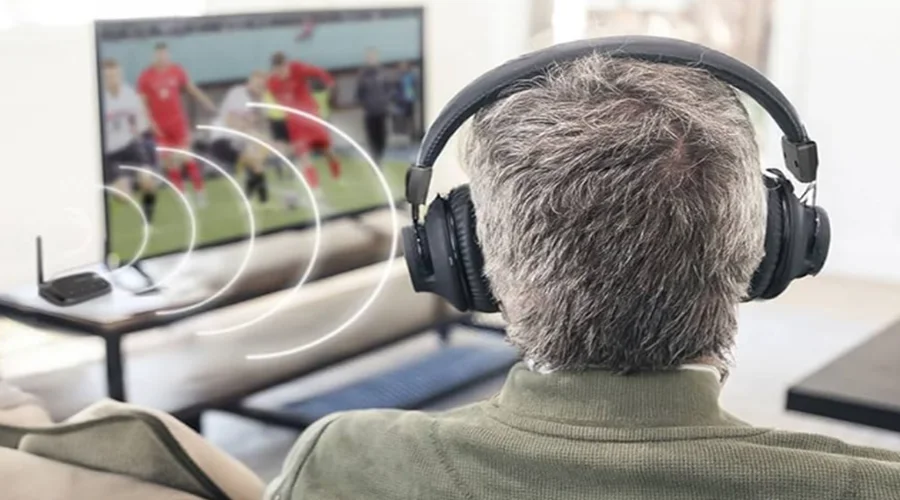

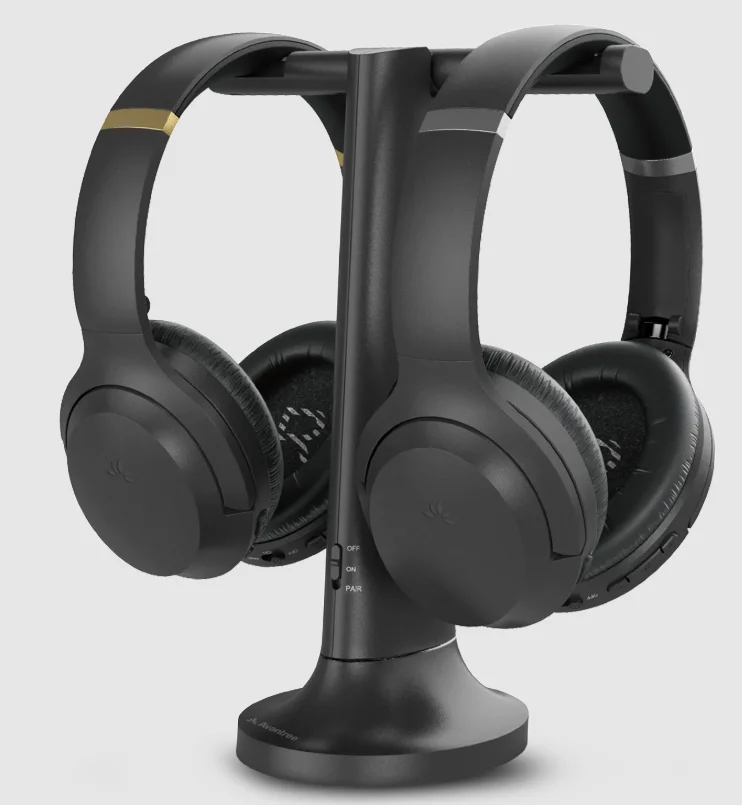
Avantree Ensemble Wireless Headphones
Box Contents
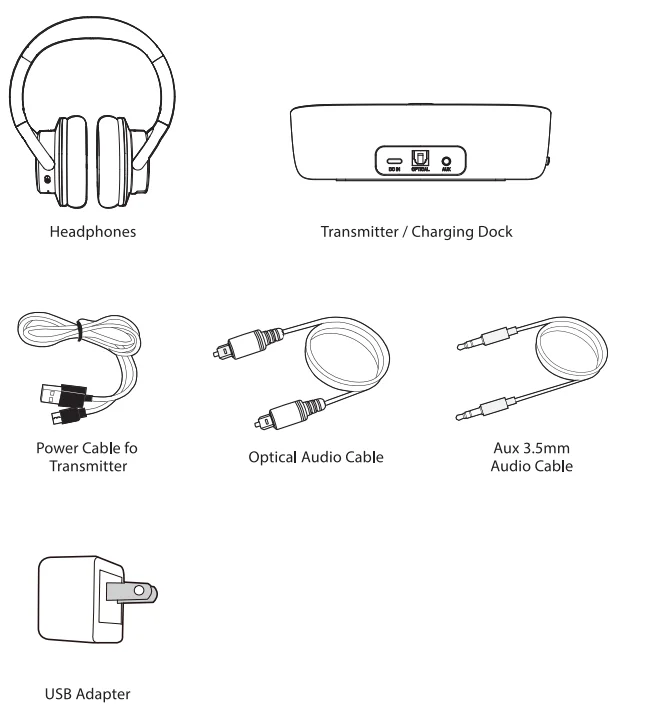
To view and purchase Ensemble accessories, please visit avantree.com/ensemble/accessories
Product Introduction
Product Overview
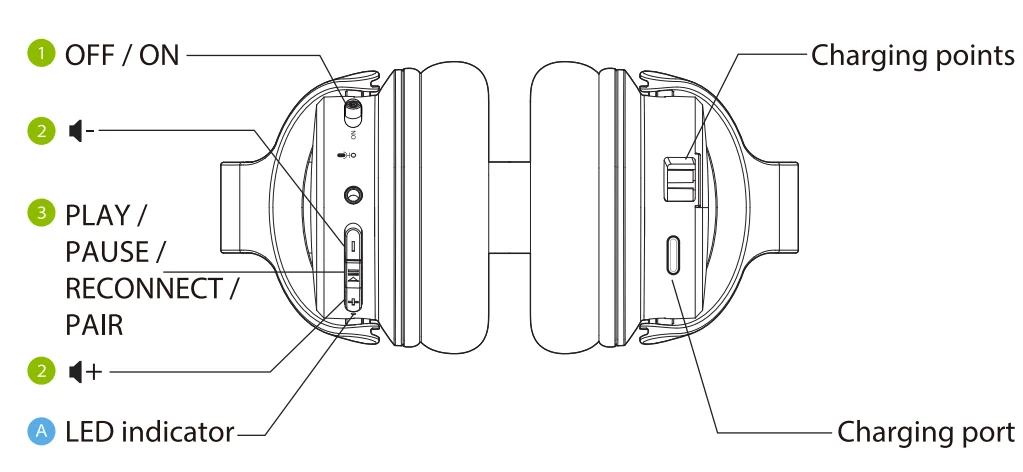
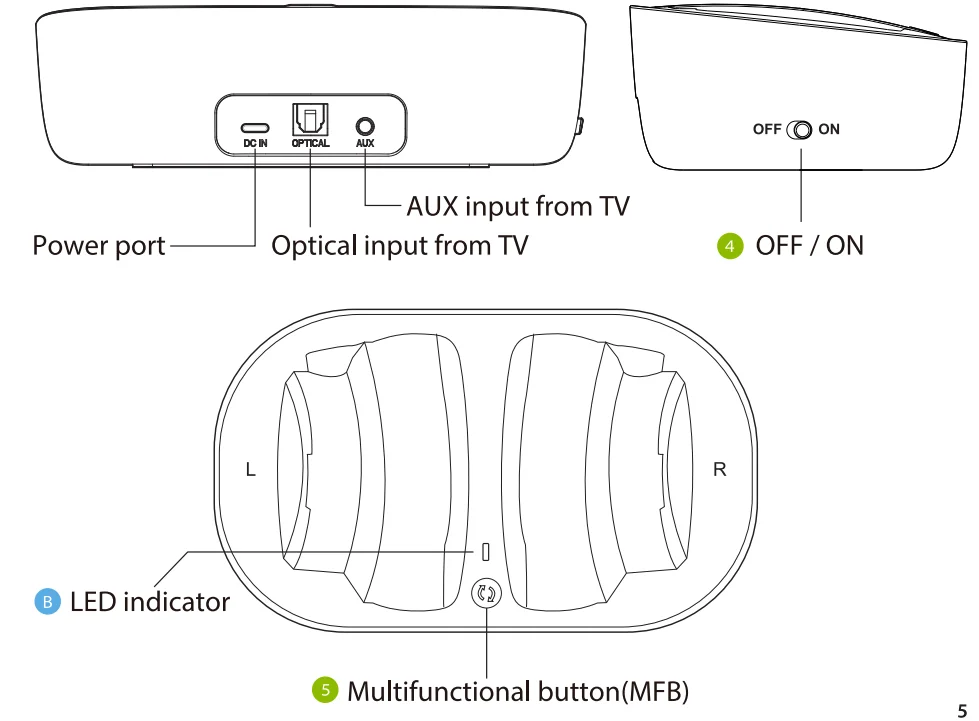
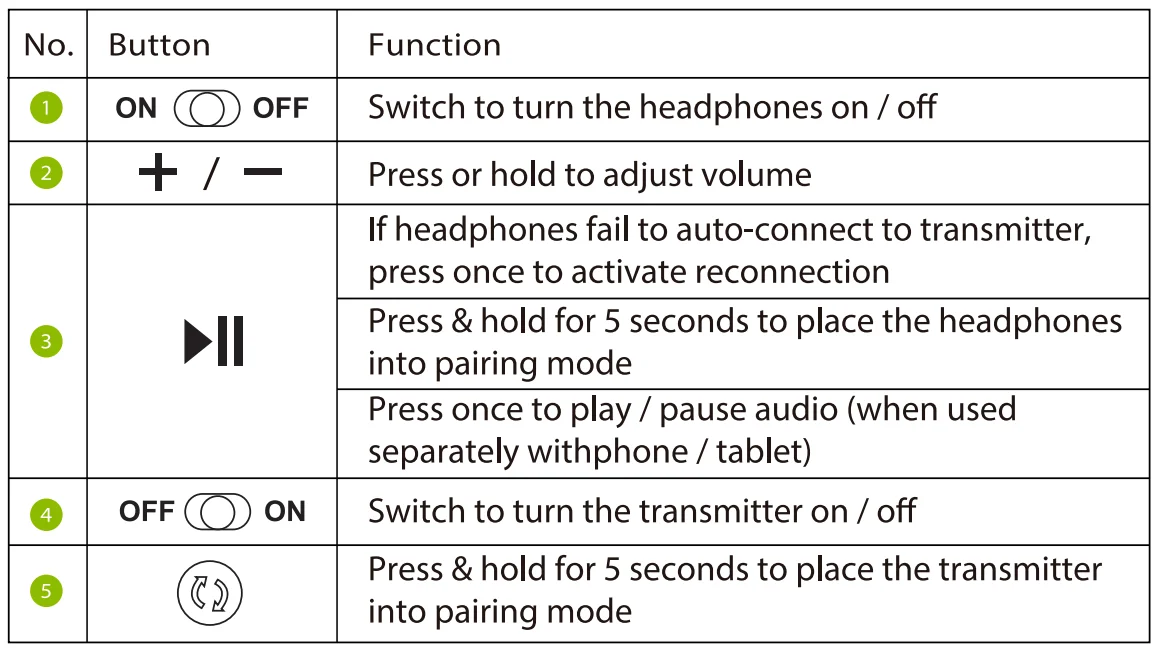
Button Functions
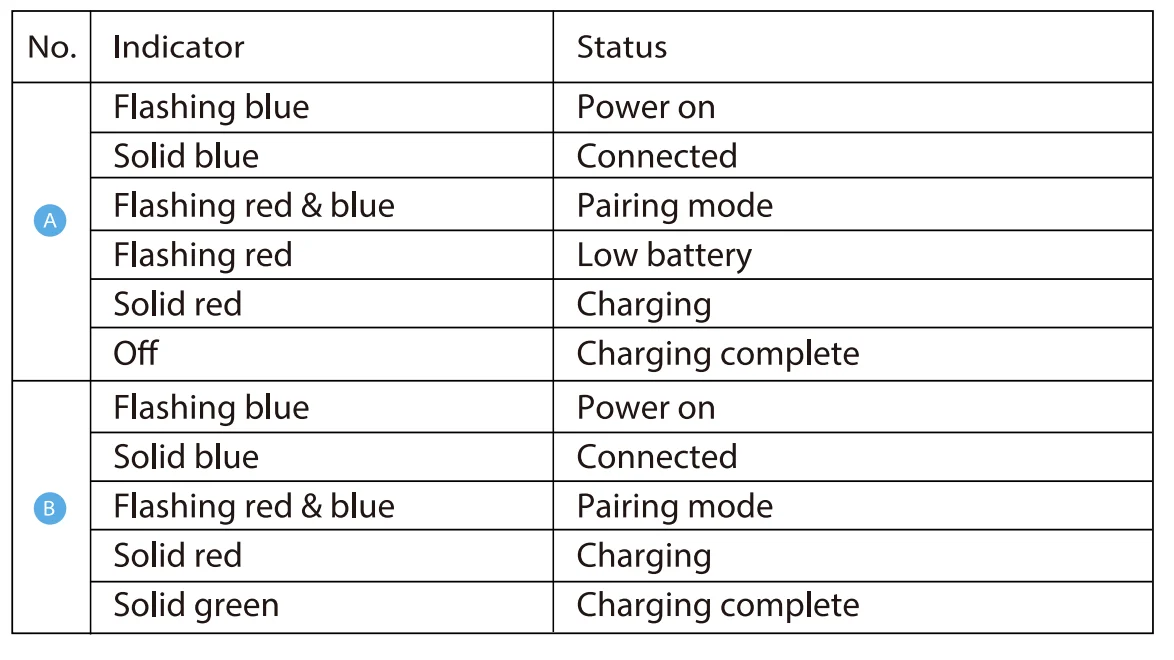
LED Indicators
Setup
Connecting the Transmitter to Your TV
The transmitter must be connected to a power source to function. El Connect it to a nearby wall outlet via the provided USB adapter and power cable. Once the transmitter is connected to its power source, you can connect it to your TV’s audio ports. You can choose one of 3 different ways to do this:
- Option 1 -Optical port (recommended)
Plug the provided optical audio cable into the TV’s DIGITAL AUDIO OUT (OPTICAL) port, then plug the other end into the transmitter’s optical port.
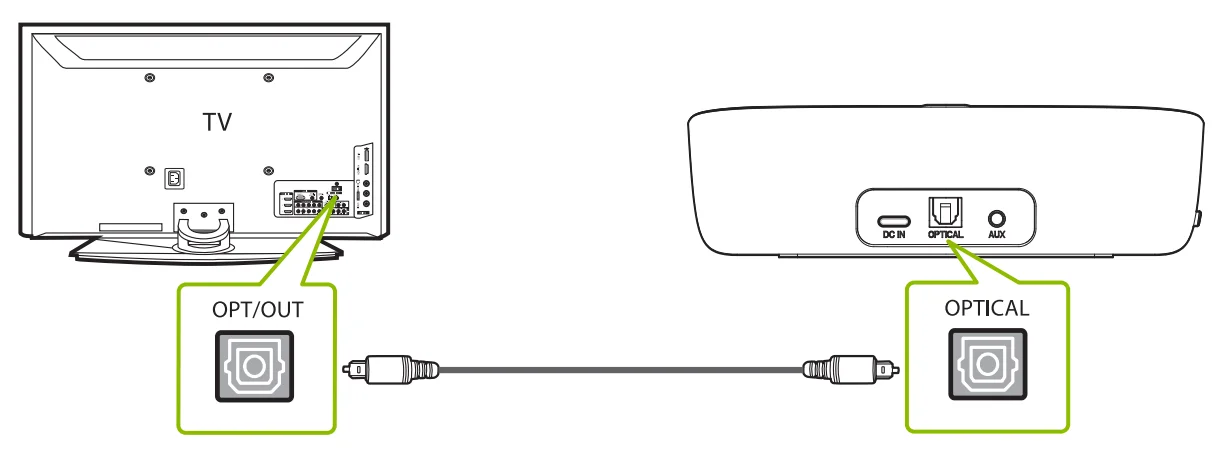
NOTE: Most TVs support audio output through only one digital output port at a time, so if your TV’.5 HOM/ ARC port is in use, the optical port may be disabled. You can either unplug the HOM/ ARC or try connecting the transmitter via RCA/AUX.
- Option 2-AUX 3.5mm port
Plug the provided AUX 3.5mm audio cable into the TV’s AUX 3.5mm output port, then plug the other end into the transmitter’s AUX 3.5mm port.3
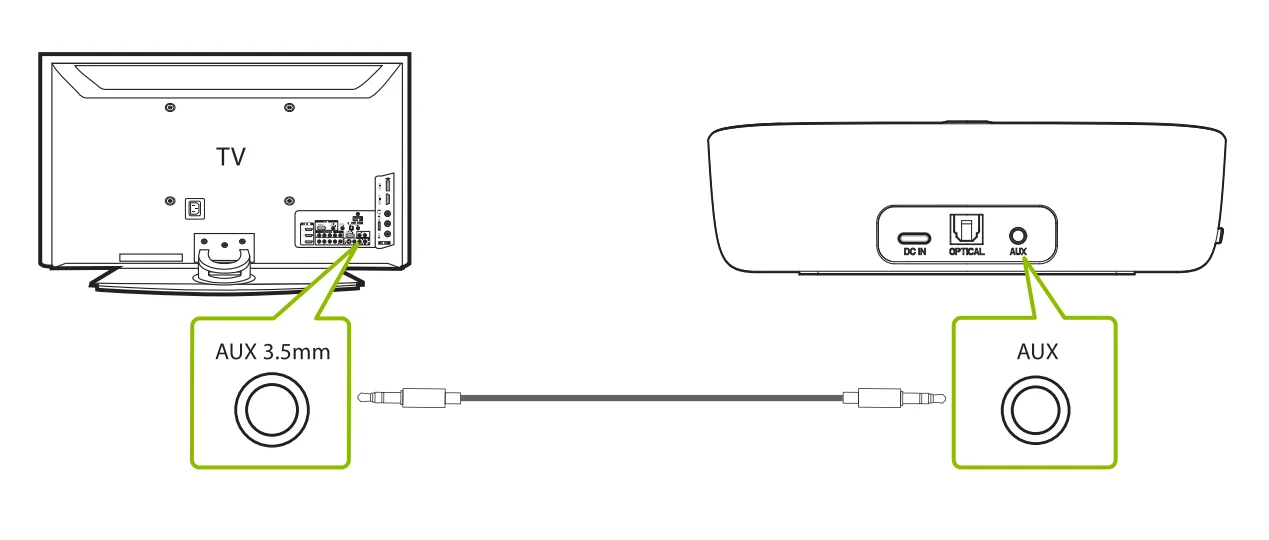
- Option 3-RCA port
Connect the RCA adapter(not included) to the AUX 3.5mm audio cable.
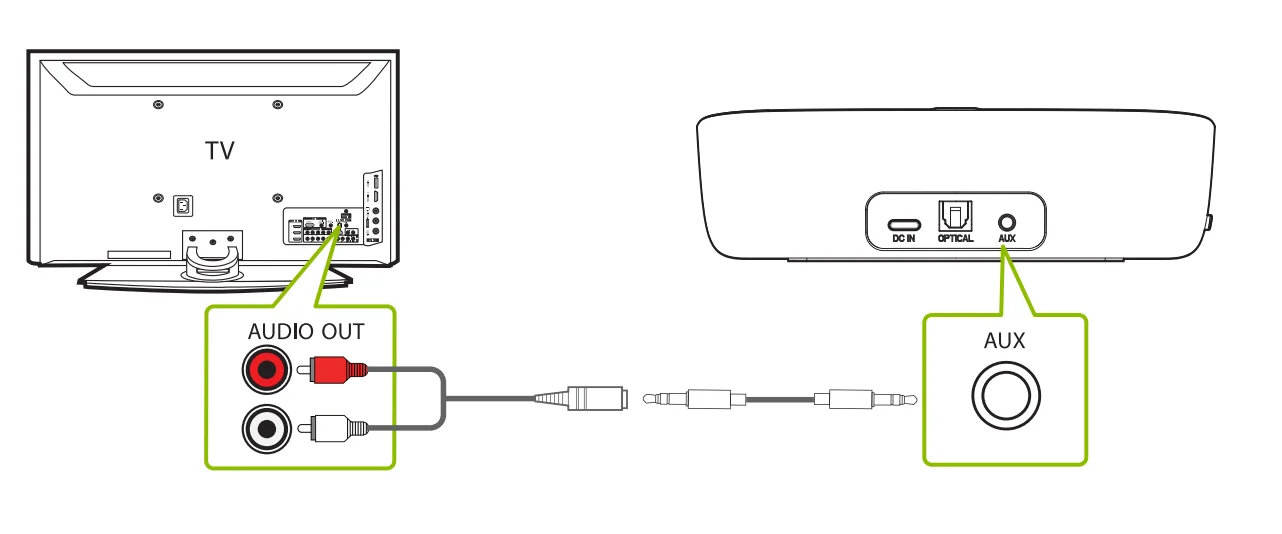
Connecting the Headphones to the Transmitter
- STEP 1
On your headphones, slide the off ON switch to the ON position. The LED indicator should start flashing blue.
 - STEP 2
The transmitter is ON by default. If not, slide its OFFON switch to the ON position. The LED indicator should start flashing blue. - STEP 3
Keep the headphones close to the transmitter; they should connect within 3-5 seconds. Once connected, both the headphones’ and the transmitter’s LED indicators will turn solid blue.
 ON switch to the ON position. The LED indicator should start flashing blue.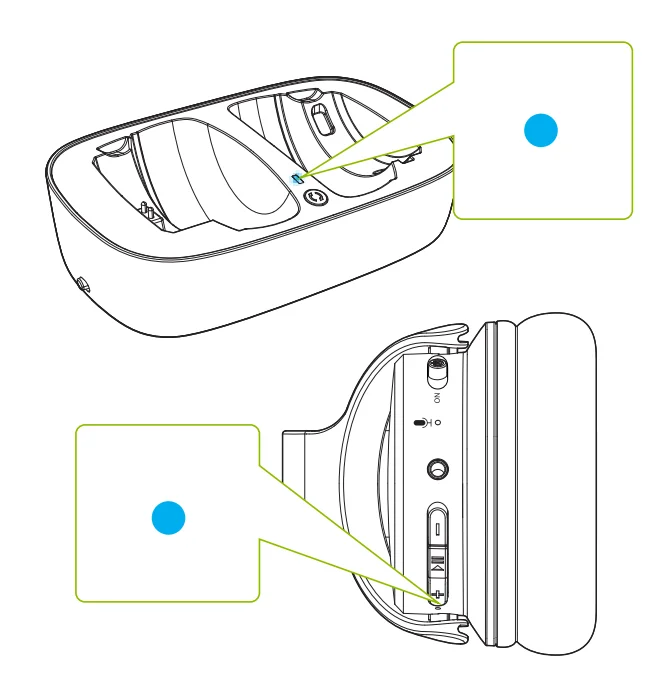
Setting Up Your TV (For optical connections only)
If you connected to your TV via the optical OUT or “OPT OUT” port, you’ll need to configure your TV settings before you receive audio.
- STEP 1
Using your TV’s remote control, press the SETTINGS button and navigate to the AUDIO tab within the settings menu. (Please note that there may be differences in the setting names depending on your brand of TV). - STEP 2
Proceed to AUDIO OUTPUT and select “OPTICAL OUT / DIGITAL OUT”. Many TVs will do this automatically; skip this step as needed. - STEP 3
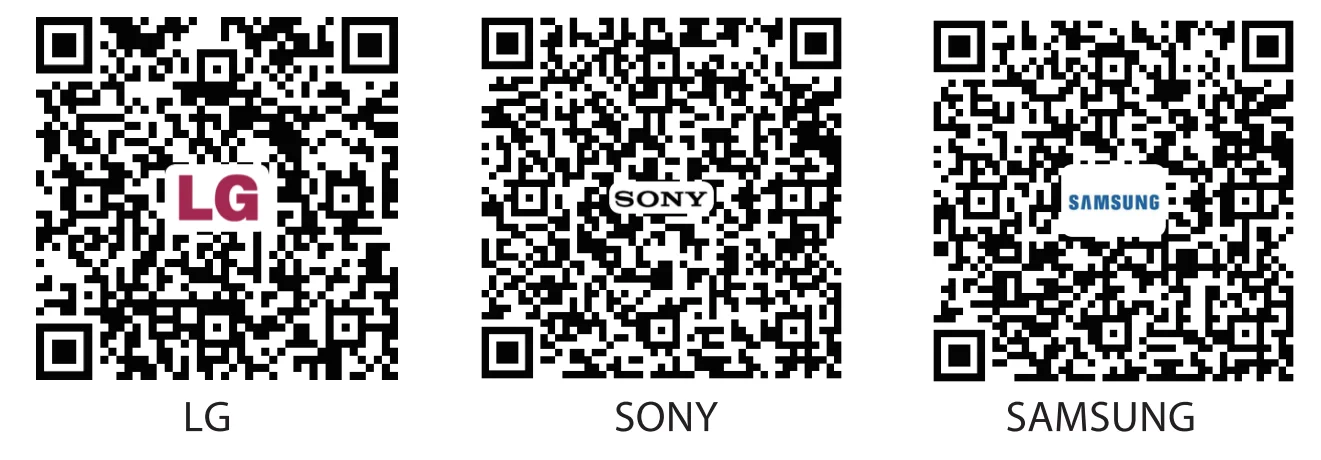
Set Audio Output format to “PCM / STEREO” ON or “DOLBY” OFF. If you’re having trouble finding these settings, you can scan the QR code corresponding to your TV’s brand OR visit
avantree.com/ensemble/tv-audio-settings for a more detailed guide.
NOTE 1: Some smart TVs automatically reset their settings after system updates. Make sure your audio output and input format is set to “PCM” and NOT ”AUTO” or “DOLBY.”
NOTE 2: When using Netflix or Amazon Prime, you may need to start the movie/show before changing the audio settings to “PCM.”
Advanced Features
Adding a Second Pair of Headphones
You can add a second pair of Ensemble headphones (AS50) to your setup while maintaining low latency.
- STEP 1
Make sure your original Ensemble headphones & transmitter have connected. - STEP 2
On your transmitter, press & hold the button until the LED indicator flashes red & blue.
 button until the LED indicator flashes red & blue.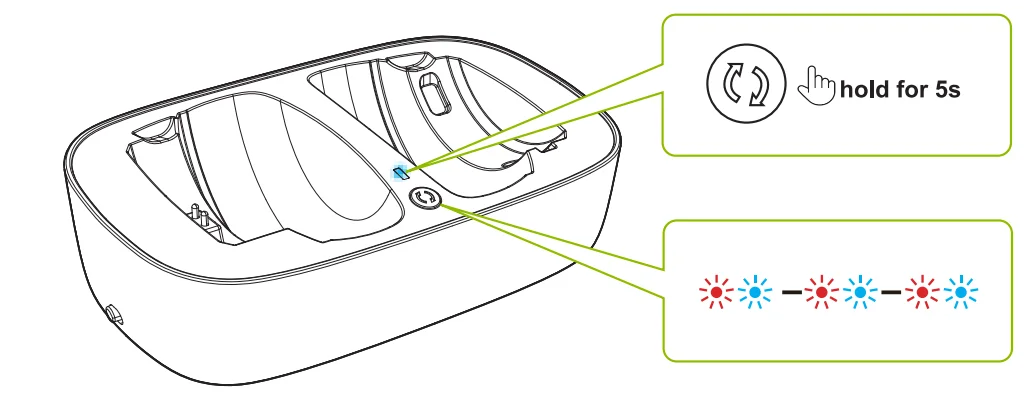
- STEP 3
Turn on your second pair of AS50 headphones, then press & hold the button until the LED indicator flashes red & blue.
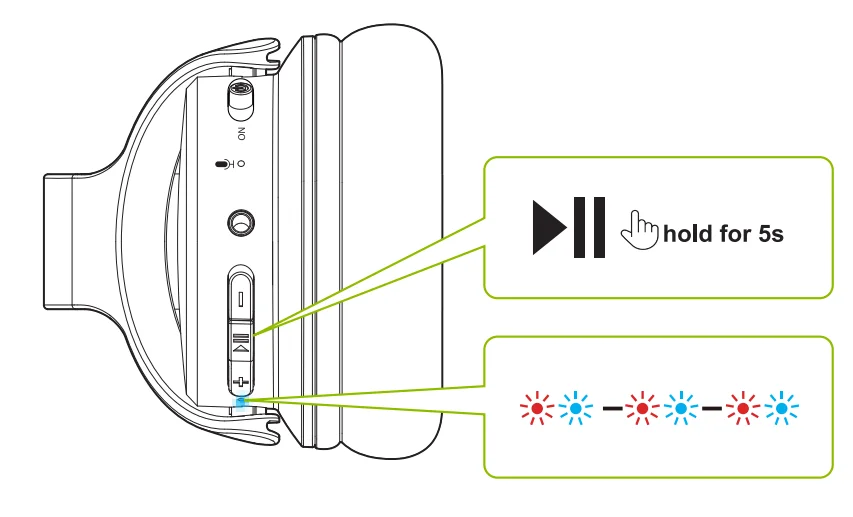
- STEP 4
Once connected, the headphones’ & transmitters’ LED indicators will turn solid blue.
For subsequent use, please turn the original pair of Ensemble headphones on first. Once that’s connected to the transmitter, you can turn on your second pair of AS50 headphones and wait for a few seconds. If it fails to reconnect, press the button once to activate reconnection. To purchase AS50 headphones, scan the QR code.
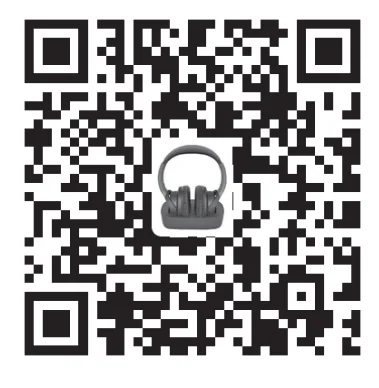
Using the Headphones with Your Phone/Tablet
- STEP 1
Turn OFF or unplug the transmitter. - STEP 2
Turn on the headphones and press & hold thebutton until the LED indicator flashes red & blue. - STEP 3
Turn on your audio source’s Bluetooth and select “Avantree AS50” from the Bluetooth menu.
Charging the Headphones
Place the headphones on the charging dock to charge. The charging dock’s LED will turn red while charging and green once charging is complete.
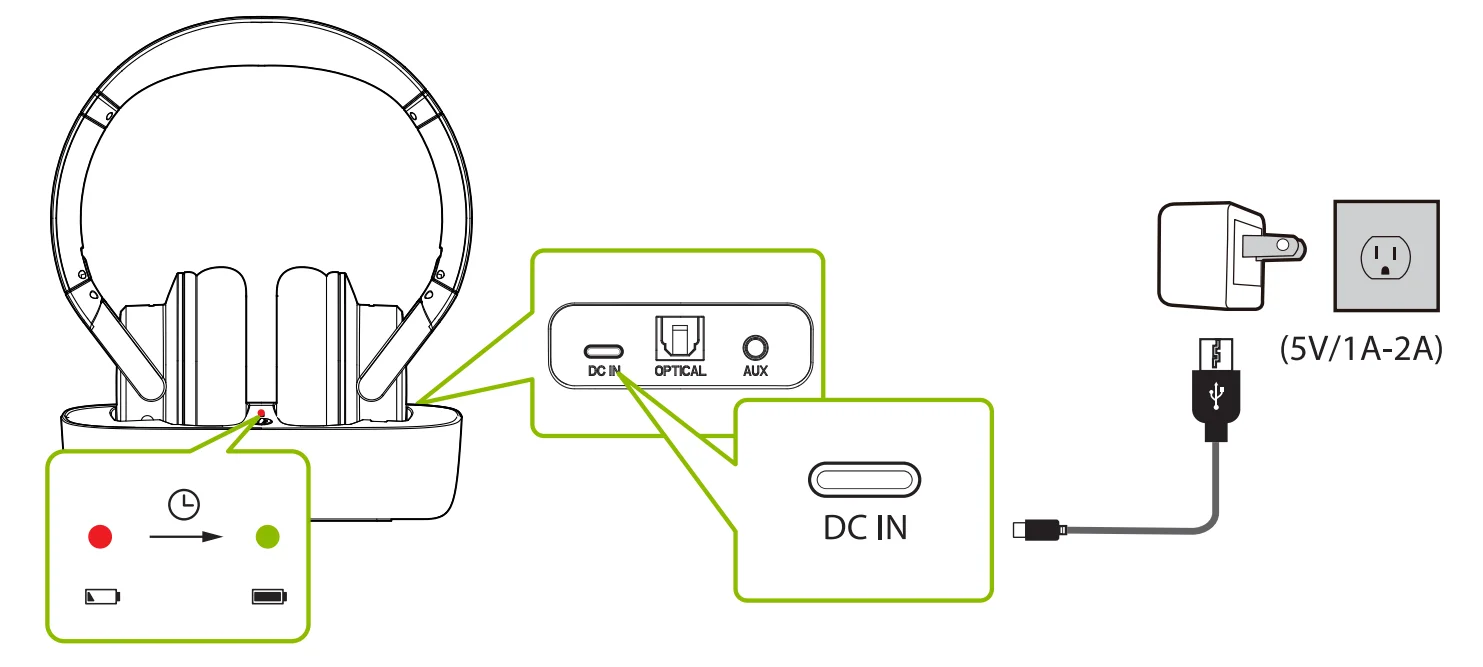
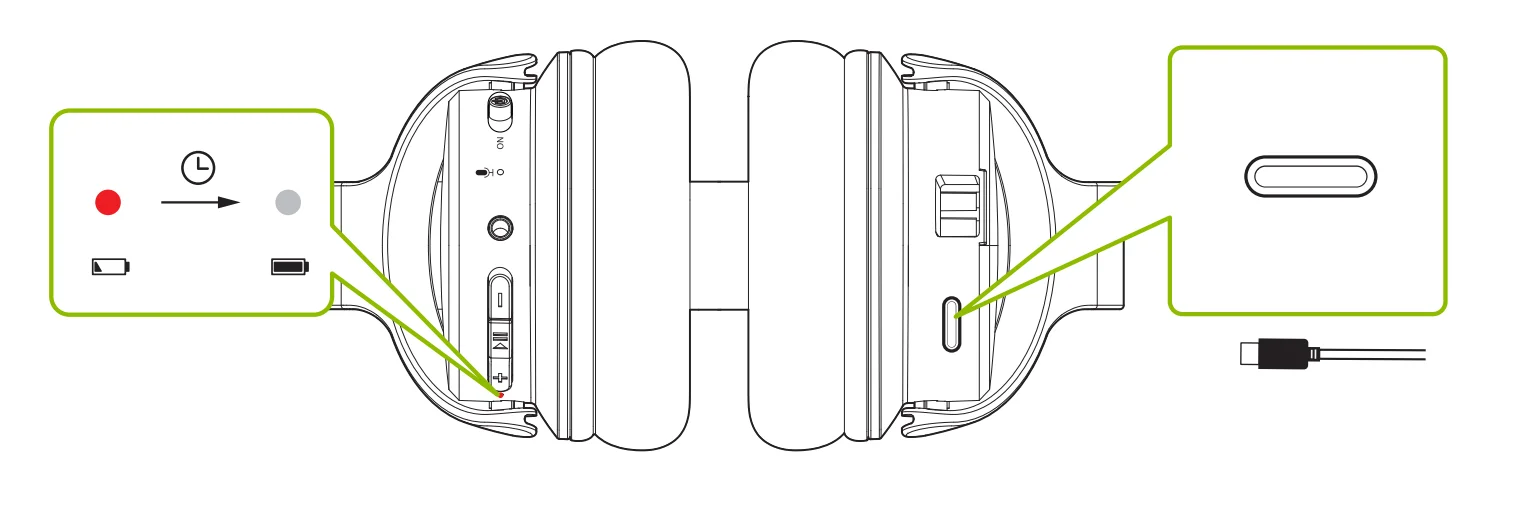
You can also charge the headphones through its power port using a charging cable. A solid red light indicates that charging is in progress; once the light turns off, your headphones will be at full battery. It typically takes 3 hours to fully charge.
Specifications
Transmitter
Headphones
FAQ
Below are some of the most common questions people have during setup.
I have a Samsung / LG TV. Why are my headphones failing to reconnect to El the transmitter?
Samsung/ LG smart TVs tend to pair with any Bluetooth devices they can find, which blocks the Avantree headphones from reconnecting to its transmitter. Try following the steps below to fix this:
- DENY the Device – If a pop-up appears on your TV asking you to Allow or Deny/ Block the device to connect to the TV, you MUST DENY/ BLOCK the device from connecting.
- REMOVE the Device – If your device is already paired with the TV, you’ll need to remove the device in your TV’s settings: SETTINGS> GENERAL> EXTERNAL DEVICE MANAGER>DEVICE CONNECTION MANAGER> DEVICE LIST> EDIT> Select all Avantree devices >DELETE.
Please note that the routing may differ based on your TV’s brand/ model. - Turn OFF the TV – Physically turn your TV OFF or pull the plug (the remote control does NOT turn the TV off; it places it into standby mode, which still allows the TV to connect to devices).
Can I have audio through my TV’s speakers and wireless headphones at the same time?
This completely depends on whether or not your TV supports the ability to output audio to 2 devices simultaneously. You can try a few different methods to test if your TV is capable of this or not– please refer to avantree.com/ensemble/sound for more details.
Why am I not getting sound when watching Netflix / Amazon Prime?
Why aren’t my headphones connecting to the transmitter?
For answers to questions like these and for a full FAQ list, you can visit avantree.com/support/ensemble, or you can contact us directly for additional assistance.
Contact Us
- Support Tickets avantree.com/submit-a-ticket
- Support Email [email protected]
- USA/CA + 1800 232 2078 (9am-6pm PST, Mon-Fri )
- UK +44 20 8068 2023 (9am-6pm, GMT, Mon-Sat)
- DE +49 32221097297 (11 am-9pm, CET, Mon-Sat)
- FR + 33 176340312 (1 1 am-9pm, CET, Mon-Sat)
- IT +39 06 9480 3330 (9am-6pm, CET, Mon-Sat)
- ES + 34 931786261 (9am-6pm, CET, Mon-Sat )
- AU + 6128310 9897 (11am-7pm, AEST, Mon-Fri)
- FAQ avantree.com/support/ensemble
- Video Guide avantree.com/submit-a-ticket
For more manuals by Avantree, visit ManualsLibraryy
Avantree Ensemble Wireless Headphones-FAQs
How do I set up Avantree Ensemble wireless headphones?
To set up your Avantree Ensemble headphones, connect the transmitter to your TV using the provided cable. Turn on both the transmitter and headphones—they usually pair automatically. If not, press the pairing button on each device until the LED indicators flash, then wait for them to connect.
How do I use wireless headphones for the first time?
Start by fully charging your headphones. Turn them on and enable Bluetooth on your phone, TV, or computer. Put the headphones in pairing mode (flashing LED), then select them from your device’s Bluetooth list. Once connected, you can begin listening immediately.
How do I reset my Avantree headphones?
Most Avantree headphones can be reset by pressing and holding the “+” and “–” buttons together for about 7–10 seconds. The LED indicator will flash or turn pink, confirming the reset. This clears previous pairings and restores default settings.
How do I pair my wireless headphones with a TV?
Go to your TV’s Bluetooth settings and select “Pair new device.” Put your headphones in pairing mode and keep them nearby. Once they appear on the TV screen, select them to connect. Ensure the TV audio output is set to Bluetooth.
How do I put my headphones in pairing mode?
Turn on the headphones and press and hold the power or Bluetooth button until the LED starts flashing (usually red and blue). This indicates the headphones are discoverable and ready to pair with a device.
Why won’t my headphones go into pairing mode?
This usually happens if the headphones are already connected to another device or have low battery. Turn them off and back on, ensure they are charged, and hold the pairing button long enough until the LED flashes.
Why is there no sound coming from my wireless headphones?
Make sure your device’s audio output is set to the headphones. Check volume levels on both the headphones and the connected device. Also, confirm that Bluetooth is properly connected and that audio playback is not muted.
Do I need Wi-Fi to use wireless headphones?
No, wireless headphones use Bluetooth technology, which works through radio signals. You don’t need an internet or Wi-Fi connection—just ensure Bluetooth is enabled on the device you want to connect.
Where is the reset button on headphones?
Some models have a small reset button located on the ear cup or inside the charging case. It may be recessed, so you might need a pin or paperclip to press and hold it for several seconds.