
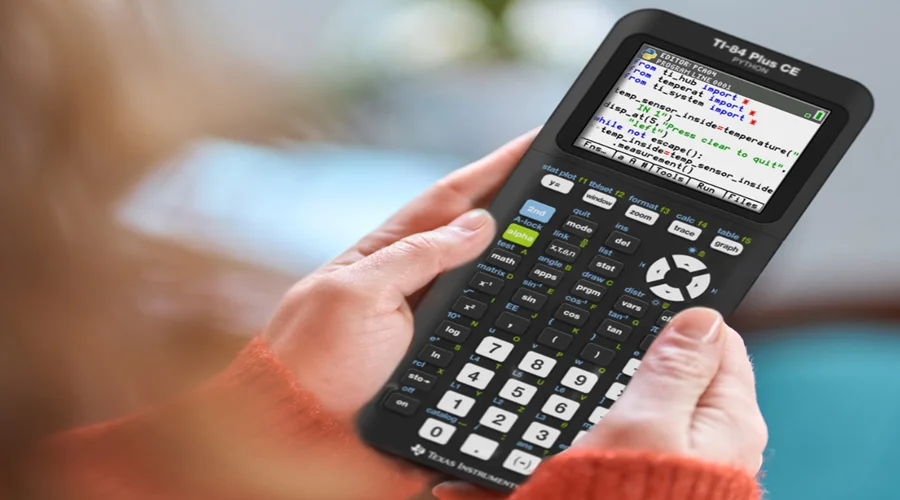

Texas Instruments TI-84 Color Graphing Calculator
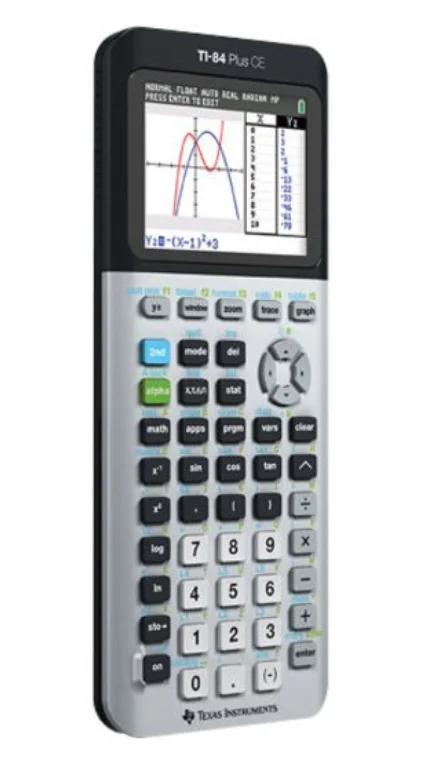
Using Your TI-84 Plus CE Graphing Calculator
The TI-84 Plus CE graphing calculator comes with a USB cable, plenty of storage and operating memory. It also comes pre-loaded with software applications (Apps) to perform pre-algebra, algebra, calculus, biology, chemistry, and physics calculations.
Key Features
- High resolution, full-color backlit display
- Distinguish between multiple graphs and plots with color-coded equations, plots, and objects
- Make graphs easier to read by adding grid lines
- TI Rechargeable Battery
- Recharges using a USB cable, wall charger, or TI Charging Station CE
- Familiar TI-84 Plus functionality
- Similar menu structure and navigation as the TI-84 Plus family with enhanced features
- Built-in MathPrint™ functionality to input and view math symbols, formulas and stacked fractions
- Import and use images
- Use TI Connect™ CE Software to send images (.gif, .jpg, .png, .tif, .bmp) from a computer to a calculator
- Graph on top of images to connect concepts to the real world.
The applications extend the functionality of your calculator, allowing you to perform specific math and science functions and to deepen your understanding of concepts. Pre-loaded applications include:
- Cabri™ Jr
- Probability Simulations
- CellSheet™
- Science Tools
- Conic Graphing
- SmartPad for TI-SmartView™ CE
- Inequality Graphing
- TI-Innovator™ Hub
- Periodic Table
- Transformation Graphing
- Polynomial Root Finder and Simultaneous Equation Solver
- Vernier EasyData®
Note: When Apps are not on your CE, please update to the latest at education.ti.com/84ceupdate.
Use this guide to learn more about these features and other essential tools of your TI-84 Plus CE graphing calculator.
Using the Keyboard
This section covers basic graphing calculator settings and explains how to navigate the home screen and menus.
Turning the TI-84 Plus CE On and Off
This section covers basic on and off features for your graphing calculator.
Turning the Graphing Calculator On
Press on. An information screen displays:
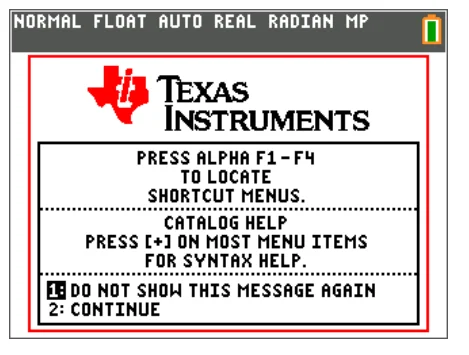
- Press 1 to continue to the home screen but not see this information screen the next time you press on.
-or- - Press 2 to continue to the home screen.
Note: Any entry from this information screen will take you to the home screen (a blank screen).
The information screen shows the following for information purposes only. You must go to the home screen before you can complete the following.
- Press alpha [f1]-[f4] to locate shortcut menus.
- Press + on most menu items for Catalog Help.
Note: This message also displays when you reset RAM. You may see a context-sensitive shortcut menu located atƒb for interactive features or actions such as interactive drawing features from the graph screen or TI-Basic program editing.
Turning the Graphing Calculator Off
Press 2nd [off].
- The Constant Memory™ function retains settings and memory, and clears any error condition.
- If you turn off the TI-84 Plus CE and connect it to another graphing calculator or personal computer, any communication will “wake” it up.
Automatic Power Down™ (APD™)
- To prolong battery life, APD™ automatically turns the TI-84 Plus CE off after about three to four minutes of inactivity.
- If APD™ turns the graphing calculator off, it will return as you left it, including the display, cursor, and any error.
Using the TI-84 Plus CE Keyboard
This section describes the functions of specific keys on the graphing calculator keyboard.
TI-84 Plus CE Keyboard
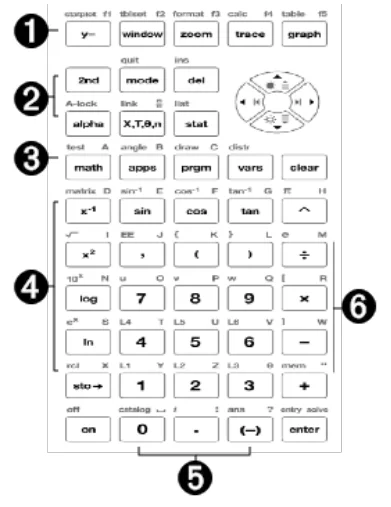
- Graph/Plot Setup Keys allow access to interactive graphing features. When some graph screen features are active, you may see a shortcut menu in the alpha [f5] location for feature options.
- Editing Keys allow you to edit expressions and values. Paste a MathPrint fraction template to your expression.
- Math and Statistics Keys display menus that access math, statistics, and other basic functions.
- Scientific Keys allow access to the capabilities of a standard scientific calculator—including trigonometric functions.
- Number Keys allow you to enter numbers.
- Common Math Functions allow you to divide, multiply, subtract, and add.
Function Keys
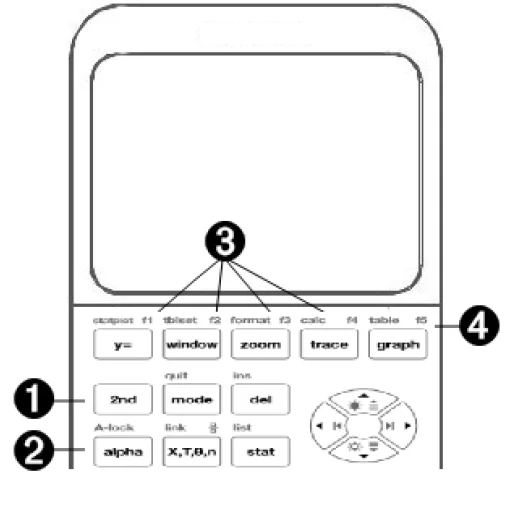
- 2nd
Access the second function printed to the left above each key. - alpha
Access the third function printed to the right above each key. - alpha [f1]-[f4]
Access shortcut menus for fraction templates, n/d, quick matrix entry, select MATH menus, and VARS menu functions. - alpha [f5]
Context-sensitive shortcut menu for interactive features or actions, such as interactive drawing features from the graph screen or TI-Basic program editing.
Using Shortcut Menus
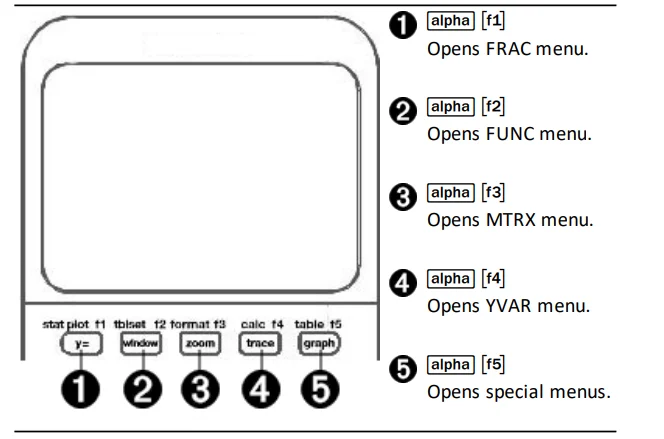
Shortcut menus allow quick access to the following:
- [f1] Templates to enter fractions, and to toggle between whole and mixed fractions, and fractions and decimals.
- [f2] Selected functions from the MATH, MATH and MATH NUM menus as you would see them in a textbook, when in MathPrint™ mode. Functions include absolute value, numeric differentiation, numeric integration, summation, log base n, square root, permutations, combinations, and factorials.
- [f3] Quick MathPrint™ matrix entry, when available.
- [f4] Names of function variables from the VARS Y-VARS menu.
To open a shortcut menu, press alpha plus the corresponding f-key: [f1] for FRAC, [f2] for FUNC, [f3] for MTRX, [f4] for YVAR, or [f5] for special menus within interactive graph activities, such as when using DRAW or Quick Plot and Fit Equation, and for TI-Basic program editing.
To select a menu item:
-either-
- Press the number corresponding to the item.
-or- - Use the arrow keys to move the cursor to the appropriate line and then press [enter].
You can select all shortcut menu items except matrix templates using standard menus. For example, you can choose the summation template from several places:
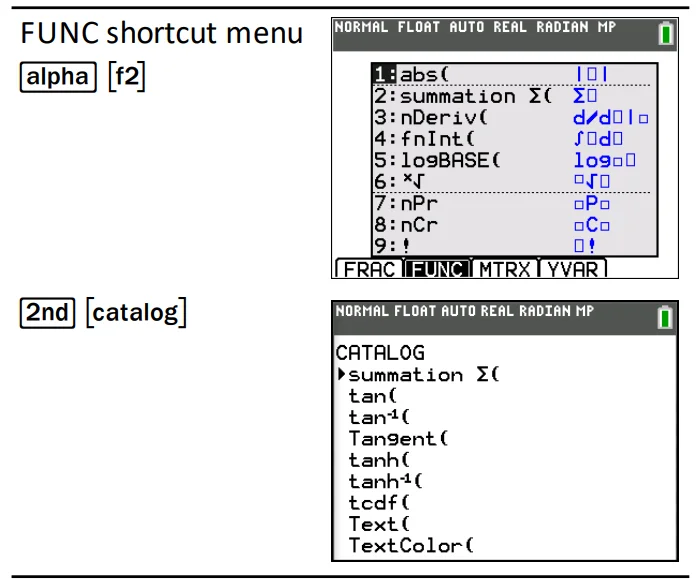
The shortcut menus are available to use where input is allowed. If the calculator is in Classic mode, or if a screen is displayed that does not support MathPrint™ display, entries will be displayed in Classic mode. The MTRX menu is only available in MathPrint™ mode on the home screen and in the Y= editor.
Note: Shortcut menus may not be available if alpha plus f-key combinations are used while an application is running.
Working with Graphs
This section covers how to change color options on a graph, how to draw points on a graph, and how to insert an image as a background on a graph.
Using Color on the TI-84 Plus CE
The TI-84 Plus CE graphing calculator has many color options and a high-resolution display that allows more information to be shown on the screen. The TI-84 Plus CE uses color in the following ways:
- Y= editor for line color.
- DRAW commands for line color, such as vertical lines, circles, and text on the graph screen.
- The graph format screen for grid, axes, or border color, and applying a background image or color.
- Statistical Plots.
Color options for various features are accessed via a spinner menu. With the cursor on a color selection for a feature, use the to change the color. When the cursor is on any spinner menu, the context help in the status bar frequently displays the hint: PRESS [<] OR [>] TO SELECT AN OPTION.
Note: Take care to choose appropriate color combinations for the graph areas so that all features are visible.
Resetting Color Options to Default
- With the cursor on a function in [Y=], press clear clear to return to the default color and line style for that function.
- You can reset the calculator to its default settings, including color settings, by pressing 2nd [mem] 7 2 2.
Using Color on the Graph Screen
The examples below show how to set up the graph of a function. Here, the mode is set to FUNCTION and the default settings are assumed.
Using QuickPlot and Fit Equation
QuickPlot and Fit Equation allow you to drop points on a graph screen and model a curve to those points using regression functions. You can select color and line style, draw points on a graph, and choose an equation to fit the drawn points. You can then store the results of the plot and equation.
QuickPlot and Fit Equation is an option in the stat CALC menu.
Before starting the QuickPlot and Fit Equation interactive feature on the graph area, be sure to set your Background Image Var and other graph settings from the FORMAT screen. Also, set your WINDOW or ZOOM settings.
Working With Images
The TI-84 Plus CE uses both pictures and background images. They are both stored in Flash archives, but they are used in different ways.
Using Pictures and Backgrounds
- Image Vars (Image1 – Image9, and Image0) are variables stored in the archive memory. An Image Var is used as a Background Image in the graph area. Several images are pre-loaded on the TI-84 Plus CE. You can also convert images to TI-84 Plus CE Image Vars in the TI Connect™ CE software and load them to the calculator. You cannot create images on the calculator.
Note: TI Connect™ CE software is available as a free download from education.ti.com/go/download. - Pic Vars (Pic1 – Pic 9, and Pic0) are also variables stored in the archive memory. Pic Vars can be created by drawing in the graphing area, and the changes can be saved and recalled to the graphing area. Saving a Pic Var will not include the Background Image behind your graphing area.
- Both Image Vars and Pic Vars are stored and run in Flash archive, not in RAM. They are both accessible in the VARS menu.
- Image Vars and Pic Vars can only be shared with another TI-84 Plus CE or TI-84 C graphing calculator.
- TI-84 Plus Pic Vars cannot be shared between the TI-84 Plus and the TI-84 Plus CE graphing calculators.
- If you perform a RAM reset on the TI-84 Plus CE, the Image Vars and Pic Vars remain in Archive memory for use.
Special Information when using intervals in the condition part of the piecewise template:
Textbook format for an interval, such as -2 ≤ X ≤ 5, is allowed only when entered directly in the condition part of the piecewise template in the calculator. Do not use this format in other locations in the calculator for the same interval interpretation.
Note that if an interval form is selected from the CONDITIONS menu, the interval form will paste in the correct logical format for an interval as, for example, -2 + X and X + 5. This is the correct format for all features in the calculator to give the expected logical test result True(1)/False(0) and will also give the correct X interval in piecewise
graphing.
Note:
- Overlapping intervals: The graph is plotted from left (Xmin) to right (Xmax). For each value of X from left to right, the calculator looks for the first valid expression to calculate the Y value. Overlapping intervals are allowed and will be graphed according to the first valid expression that can be computed for an X value.
Tips
- Once a piecewise template is selected with a certain number of pieces, you will not be able to add or delete a piece. You may select a larger number of pieces and enter zeros (False) to have placeholder rows. This is helpful when creating drawings using functions on the graph screen.
- The piecewise function uses one MathPrint™ level out of a maximum of four. You may see the checkerboard cursor
 when you enter a function in the template, but that function is allowed if entered outside of a piecewise template. To keep the maximum number of MathPrint™ levels desired, enter the function in another YVar, such as Y3, and then use Y3 in the piecewise template.
 - You can enter a function from the Home Screen. You can use this method to enter a “tall” function with many pieces. For example, “2X”→!Y1:
 when you enter a function in the template, but that function is allowed if entered outside of a piecewise template. To keep the maximum number of MathPrint™ levels desired, enter the function in another YVar, such as Y3, and then use Y3 in the piecewise template.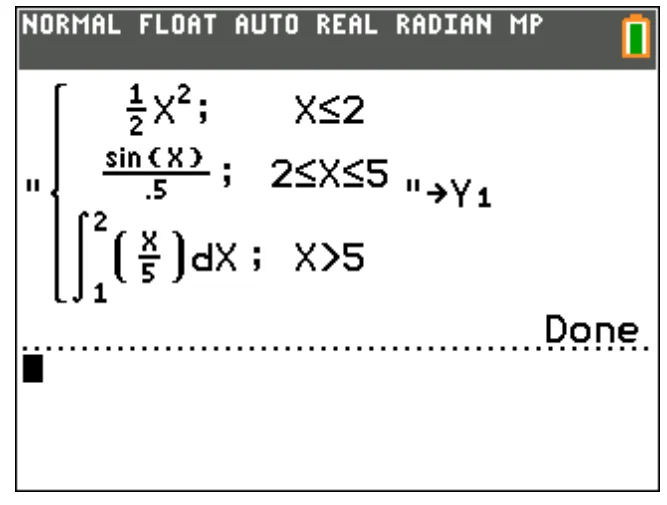
- You can edit or view a function from y= on the home screen if needed and store the function back to y=. Remember the format, “2X”→Y1.
- Quote: alpha [“]
- Recall the YVar: 2nd [rcl] alpha [f4] (select a YVar) and [enter]
- Close quote and store: alpha [“] sto→
- Select the YVar: alpha [f4] and [enter]
Working with Tables
When a function is entered in the Y= editor, you can view a table of values by pressing 2nd [table].
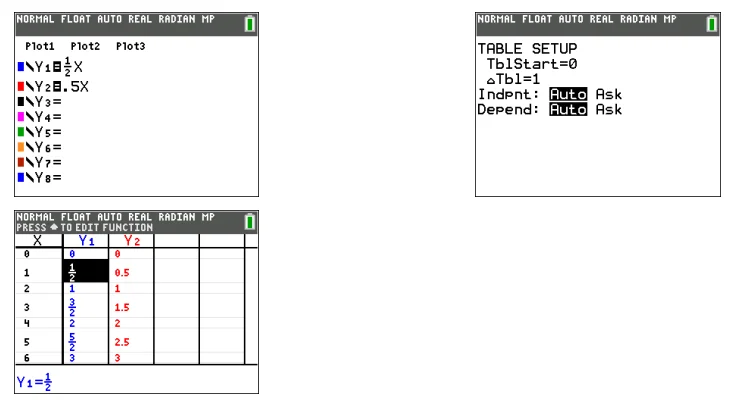
Note: The table setup, 2nd [tablset], determines how table values are displayed. Check the table setup values if the table results are not in the expected format of a fraction. Using a mix of decimals and fractions will not retain fractions.
Working with Matrices
You can enter matrices using the matrix editor on your graphing calculator. For example, you can perform the following operations on matrices:
- Addition
- Inverses
- Division
- Multiplication
- Elementary Row Operations
- Subtraction
Using the Matrix Editor
- Press 2nd [matrix].
- Press
 to navigate to the EDIT submenu.
 - Select from one of 10 allowed matrix variable names [A] – [J].
- Enter the dimension of the matrix, then enter values in each matrix cell.
 to navigate to the EDIT submenu.
Note: Once in the editor, use the arrow keys to navigate between cells.
Example: Matrix [C] as a 3×3 matrix is now in memory.
Performing a Calculation with a Matrix
- Press 2nd [quit] to go to the Home Screen.
- Press 2nd [matrix] use the MATH submenu to select a matrix command.
- Use the NAMES submenu to paste the matrix name.
Note: A matrix name, such as [C], is a special character and can ONLY be pasted for a calculation from the 2nd [matrix] NAMES menu and not typed from the calculator keypad.
Example:
To find the determinant of [C] as entered above:
- Use the 2nd [matrix] MATH menu to paste the
- 1: det( command
-and- - 2nd [matrix] NAMES 3: [C]
as matrix variables to the Home Screen.
- 1: det( command
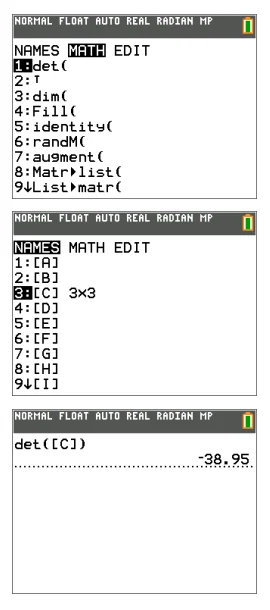
Note: Remember that you cannot type in a matrix name from the calculator keypad. Use the 2nd [matrix] NAMES menu to paste a matrix name.
Working with Variables
You can enter and use several types of data, including real and complex numbers, matrices, lists, functions, stat plots, graph databases, graph pictures, and strings.
Using Variable Names
Variables and Defined Items
You can enter and use several types of data, including real and complex numbers, matrices, lists, functions, stat plots, graph databases, graph pictures, and strings. The TI-84 Plus CE uses assigned names for variables and other items saved in memory. For lists, you can also create your own five-character names.
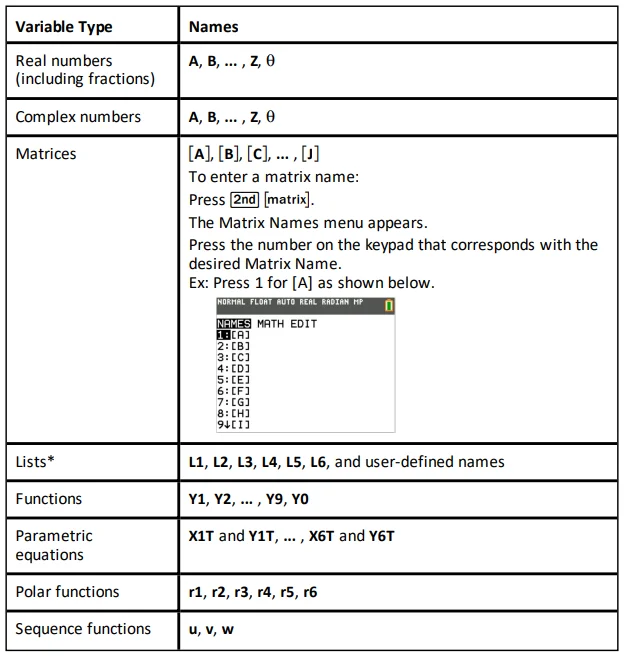
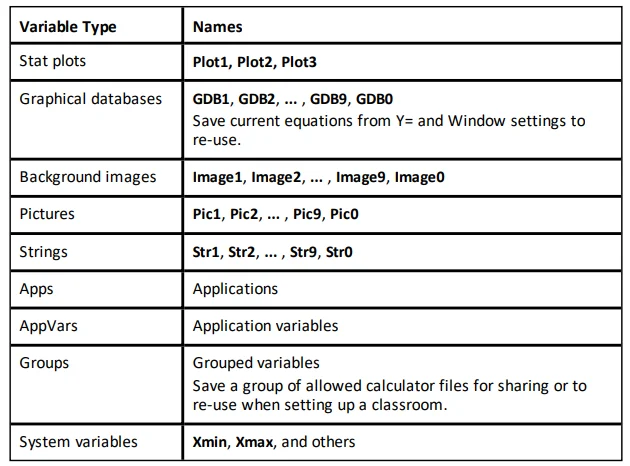
*Once a list contains a complex number, it is designated as a complex list. To change a list to Real numbers, delete the list and enter the Real values.
Notes about Variables
- You can create as many list names as memory will allow.
- From the home screen or from a program, you can store to matrices, lists, strings, and system variables such as Xmax, TblStart, and all Y= functions.
- From an editor, you can store to matrices, lists, and Y= functions.
- From the home screen, a program, or an editor, you can store a value in a matrix element or a list element.
- You can use DRAW STO menu items to store and recall Pic Vars.
- Although most variables can be archived, system variables, including r, T, X, Y, and q cannot be archived.
Note: In TI-Basic programming, it is best practice to avoid using these system variables to avoid unexpected changes in the variable value due to calculations and graphing when executing a program. - Apps are independent applications that are stored in a Flash archive. AppVars is a variable holder used to store variables created by independent applications. You cannot edit or change variables in AppVars unless you do so through the application that created them.
Managing Calculator Files
This section explains how to transfer calculator files from calculator to calculator and describes compatibility between graphing calculators.
Update Latest Release CE Bundle Using TI Connect™ CE
Best Practice: To ensure you have the latest Operating System and all calculator files in the latest release, please update CE calculators using the CE Bundle and TI Connect™ CE software. Please see education.ti.com/84ceupdate and follow the instructions.
Note: You cannot transfer the OS or files using the TI Charging Station CE (see the Using Accessories section). The TI Charging Station CE only charges the TI-84 Plus CE graphing calculators.
Transferring Calculator Files Between Connected Calculators
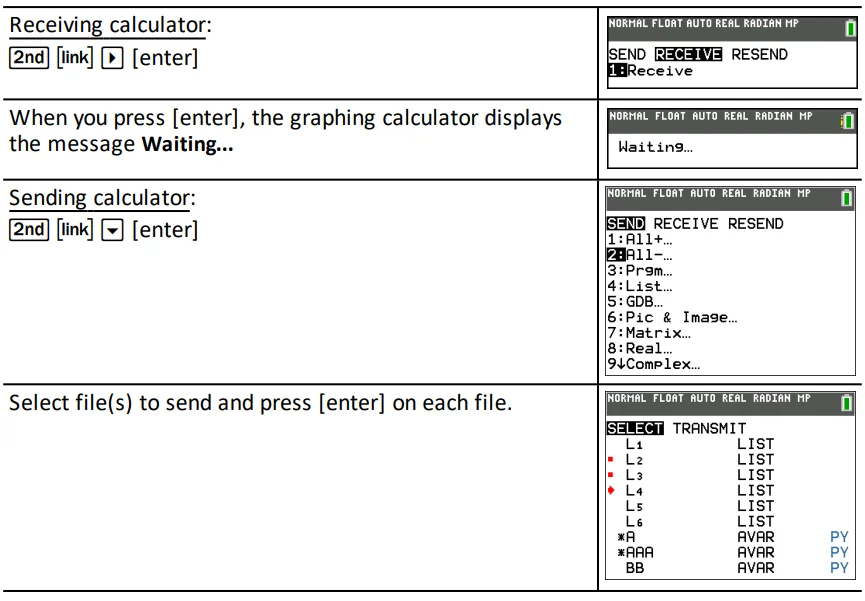
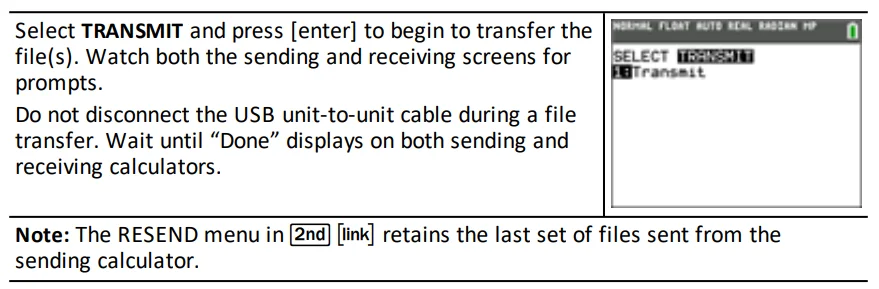
You can transfer calculator files, such as lists or programs, from one calculator to another using a USB unit-to-unit cable. Connect the two calculators by firmly inserting the USB cable ends into the calculators. The USB port is located on the front-right side of the calculator. Do not disconnect the USB unit-to-unit cable during a file transfer. Wait until “Done” displays on both sending and receiving calculators.
Compatibility with Graphing Calculators
Note: Not all TI-84 Plus CE graphing calculator files are compatible with other TI-84 Plus Family graphing calculator files because of the higher resolution of the color screen. In general, numeric files (not limited to lists, variables, matrices, and functions) are shared between these graphing calculators, but Apps are not shared between these graphing calculators, even if they have the same title. When not compatible, the computer file extensions for the TI-84 Plus CE are different from those of a similar variable from the TI-84 Plus/TI-84 Plus Silver Edition graphing calculators.
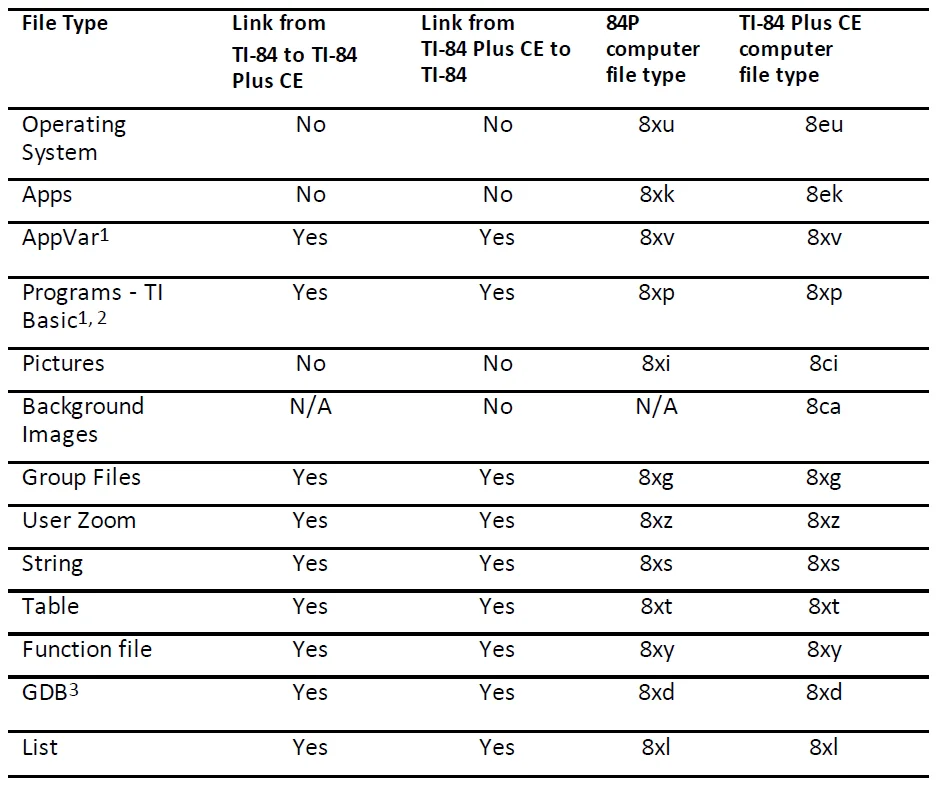
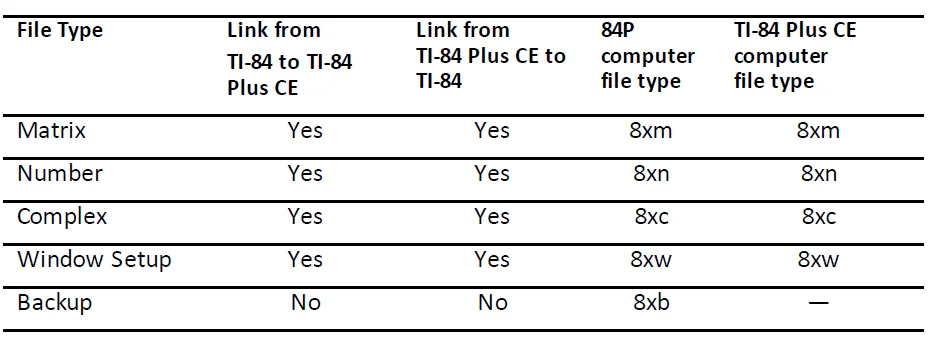
- App Vars and Programs should be reviewed for use after the transfer between the TI-84 Plus family graphing calculators. Some App Vars may not set up an App as expected. Some Programs will need to be modified due to the difference in screen resolution and new commands.
- Programs created using commands available only in the latest OS version will not transfer to graphing calculators with an earlier OS version.
- You may receive a version error if you used the DOT-THIN line style. Change the line style to avoid the error.
Programming
For more information on TI-Basic Programming and Programming with TI-Innovator™ Technology on supported calculators, please see education.ti.com/eguide
Using Applications (Apps)
These applications are preloaded on your TI-84Plus CE . You can view the Applications Guidebook at education.ti.com/eguides. Update your CE with the latest OS and all TI Apps at education.ti.com/84ceupdate.
Press apps to see the complete list of applications.
Cabri™ Jr. App
Construct, analyze, and transform mathematical models and geometric diagrams on your TI graphing calculator. You can:
- Perform analytic, transformational, and Euclidean geometric functions
- Build geometric constructions interactively with points, a set of points for a locus, lines, polygons, circles, and other basic geometric objects
- Alter geometric objects on the fly to see patterns, make conjectures, and draw conclusions
CellSheet™ App
Combines spreadsheet functionality with the power of a graphing calculator. Create cell formulas and use built-in functions. Cells can contain:
- Integers
- Real numbers
- Formulas
- Variables
- Text and numeric strings
- Functions
Each spreadsheet contains 999 rows and 26 columns. The amount of data you can enter is limited only by the available RAM. - Store (x,y) coordinate pairs to lists for viewing and optimizing functions for linear programming.
Conic Graphing App
Presents equations in function, parametric, or polar form and provides a simple way to graph the four conic shapes:
- Ellipse
- Circle
- Parabola
- Hyperbola
Enter the required parameters to graph, trace, or solve for the conic’s characteristic.
Inequality Graphing App
Gives you new features for graphing equations and inequalities and evaluating the relationship between them. You can:
- Enter inequalities using relation symbols
- Graph inequalities and shade the union and intersection regions
- Enter inequalities (vertical lines only) in an X=editor
- Trace points of interest (such as intersections) between relations
- Store (x,y) coordinate pairs to lists for viewing and optimizing functions for linear programming.
For more manuals by Texas Instruments, visit ManualsLibraryy
Texas Instruments TI-84 Color Graphing Calculator-FAQs
How do I graph a function on the TI-84 Color Graphing Calculator?
Press the Y= button and type your equation into the editor. Next, press WINDOW to adjust the graph settings if needed, then press GRAPH to display the function. You can use TRACE to check values on the graph at specific points.
How can I change graph colors on the TI-84?
Open the graph style or format settings and move the cursor to the color option. Use the arrow keys to browse different colors and select the one you want for lines, points, or backgrounds.
How do I turn on and activate the TI-84 calculator?
Press the ON key to power up the calculator. If it is new, fully charge the battery first using the included USB cable. Follow the setup prompts on the screen to begin using it.
Is the TI-84 calculator beginner-friendly?
Yes, the TI-84 is widely considered easy to use for students. Its menu layout, labeled buttons, and simple navigation make it suitable for both beginners and advanced math users.
Can the TI-84 Plus CE display color graphs?
Yes, the TI-84 Plus CE features a high-resolution full-color screen that allows graphs, charts, and equations to appear in different colors for easier viewing and comparison.
Can I put pictures or images on the TI-84?
Yes, the TI-84 Plus CE can store and display images or backgrounds. You can access saved pictures through the picture and background menu options.
What does the orange or amber charging light mean?
An amber or orange light indicates that the calculator battery is charging. Once the battery is fully charged, the light usually changes to green.
How do I solve equations on the TI-84 calculator?
You can use built-in math functions or the graphing feature to solve equations. Enter the equation, graph it, and use the calculator tools to find intersections, roots, or values.