
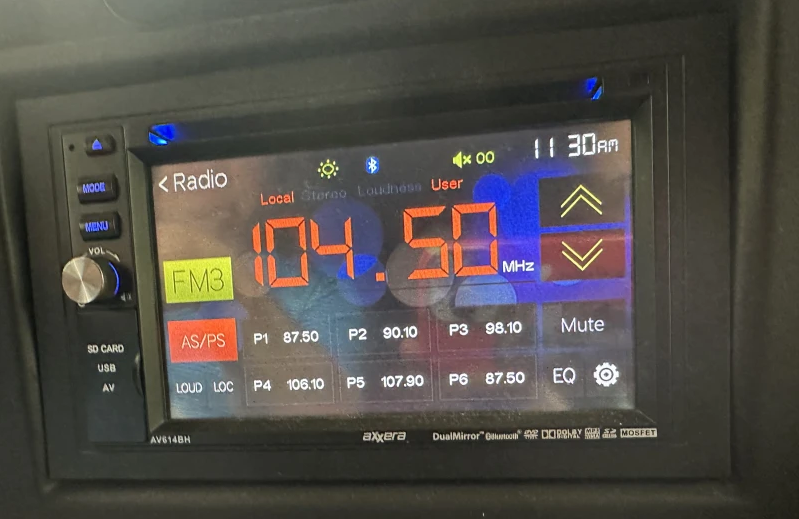

Axxera AV614BH DVD Multimedia Receiver
WARNING
Upon installation of this Monitor/DVD player (“unit”) into a vehicle, the driver of the vehicle must not operate this unit by watching videos or playing video games while driving. Failure to follow this instruction could lead to driver distraction, which could result in serious injury or death to the vehicle’s occupants or persons outside the vehicle and/or property damage. Several states prohibit the installation of monitors/DVD players if the screen is visible from the driver’s seat. If you reside in a jurisdiction that has enacted such a law, this unit must not be installed so that the screen is visible from the driver’s seat. When installing this unit in the front console/dashboard, the unit must be positioned so that it is facing the front passenger seat only. Failure to follow this instruction could lead to driver distraction, which could result in serious injury or death to the vehicle’s occupants or persons outside the vehicle and/or property damage. This unit is designed so that it may be operated only when the vehicle is in “Park,” and the parking brake is fully engaged. To this end, this unit includes a parking brake lock-out feature which prohibits the unit from operating if the vehicle is not in “Park” and/or the parking brake is not fully engaged. When installing this unit, the installer must connect the parking brake detect wire to the parking brake mechanism to make the parking brake lock-out feature operable. DO NOT simply ground the parking brake detect wire to a metal portion of the vehicle. Failure to properly install the parking brake lock-out feature could lead to driver distraction, which could result in serious injury or death to the driver’s occupants or persons outside the vehicle and/or property damage. Once the parking brake lock-out feature is installed, the owner/user must not attempt to disrupt/neutralize the parking brake lock-out feature by (a) partially engaging the parking brake and/or (b) purchasing/using any device or unit designed to send necessary brake signals to the unit. Failure to follow these instructions could lead to driver distraction, which could result in serious injury or death to the driver’s occupants or persons outside the vehicle and/or property damage. When operating this unit, keep the unit’s volume level low enough so that the vehicle’s occupants can hear traffic-related sounds such as police and emergency vehicles. Failure to follow this instruction could lead to driver distraction, which could result in serious injury or death to the vehicle’s occupants or persons outside the vehicle and/or property damage.
Safety Information
Please read all instructions carefully before attempting to install or operate. Due to its technical nature, it is highly recommended that your Axxera AV614BH is installed by a professional installer or an authorized dealer. This product is only for use in vehicles with a 12VDC negative ground. To prevent damage or injury:
- Make sure to ground the unit securely to the vehicle chassis ground.
- Do not remove the top or bottom covers of the unit.
- Do not install the unit in a spot exposed to direct sunlight, excessive heat, or the possibility of water splashing.
- Do not subject the unit to excessive shock.
- When replacing a fuse, only use a new one with the prescribed rating. Using a fuse with the wrong rating may cause the unit to malfunction.
- To prevent short circuits when replacing a fuse, disconnect the wiring harness first.
- Use only the provided hardware and wire harness.
- You cannot view the video while the vehicle is moving. Find a safe place to park and engage the parking brake.
- If you experience problems during installation, consult your nearest Axxera dealer.
- If the unit malfunctions, reset the unit as described on page 10 first. If the problem still persists, consult your nearest Axxera dealer or call tech assistance @ 1-866-382-5476.
- To clean the monitor, wipe only with a dry silicone cloth or soft cloth. Do not use a stiff cloth or volatile solvents such as paint thinner and alcohol. They can scratch the surface of the panel and/or remove the printing.
- When the temperature of the unit falls (as in winter), the liquid crystal inside the screen will become darker than usual. Normal brightness will return after using the monitor for a while.
- When extending the ignition, battery or ground cables, make sure to use automotive-grade cables or other cables with an area of 0.75mm (AWG 18) or more to prevent voltage drops.
- Do not touch the liquid crystal fluid if the LCD is damaged or broken. The liquid crystal fluid may be hazardous to your health or fatal. If the liquid crystal fluid from the LCD contacts your body or clothing, wash it off with soap immediately.
FCC Compliance
This device complies with Part 15 of the FCC Rules. Operation is subject to the following two conditions:
- This device may not cause harmful interference, and
- This device must accept any interference received, including interference that may cause undesired operation.
Warning: Changes or modifications to this unit not expressly approved by the party responsible for compliance could void the user’s authority to operate the equipment.
Note: This equipment has been tested and found to comply with the limits for a Class B digital device, pursuant to Part 15 of the FCC Rules. These limits are designed to provide reasonable protection against harmful interference in a residential installation. This equipment generates, uses, and can radiate radio frequency energy and, if not installed and used in accordance with the instructions, may cause harmful interference to radio communications. However, there is no guarantee that interference will not occur in a particular installation. If this equipment does cause harmful interference to radio or television reception, which can be determined by turning the equipment off and on, the user is encouraged to try to correct the interference by one or more of the following measures:
- Reorient or relocate the receiving antenna.
- Increase the separation between the equipment and receiver.
- Connect the equipment into an outlet on a circuit different from that to which the receiver is connected.
- Consult the dealer or an experienced radio/TV technician for help.
Preparation
Before You Start
- Disconnect the negative battery terminal. Consult a qualified technician for instructions.
- Avoid installing the unit where it would be subject to high temperatures, such as from direct sunlight, or where it would be subject to dust, dirt or excessive vibration.
Getting Started
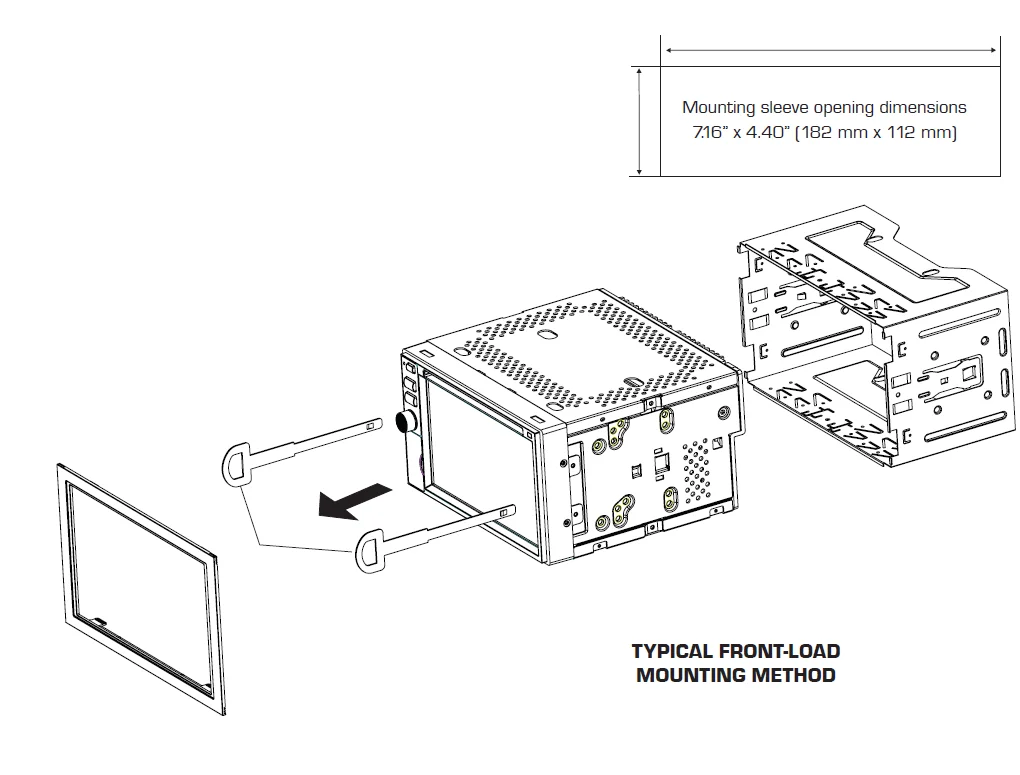
- Insert the supplied keys into the slots as shown, and slide the unit out of the mounting sleeve.
- Install the mounting sleeve into the opening, bending tabs to secure.
- Connect the wiring harness as shown on page 6. Consult a qualified technician if you are unsure.
- Certain vehicles may require an installation kit and/or wiring harness adapter (sold separately).
- Reconnect the negative battery terminal, and test for correct operation.
- Snap the trim ring into place (if required).
- Slide the unit into the mounting sleeve to secure.
Wiring Diagram – Inputs/Outputs
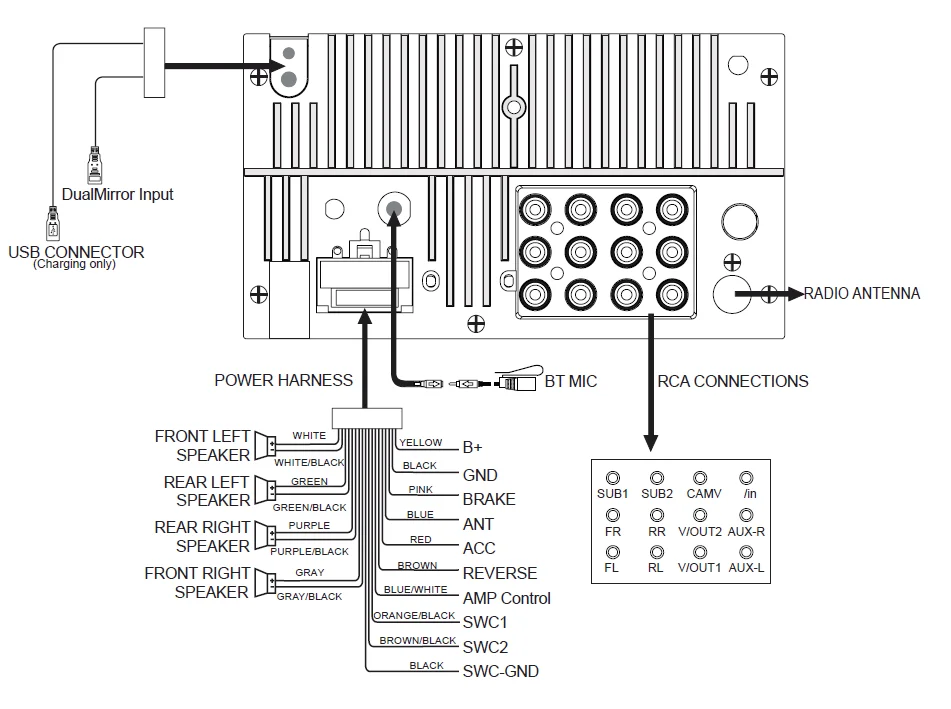
Note: When replacing a fuse, make sure to use the correct type and amperage. Using an incorrect fuse could cause damage.
Wiring Notes
- Subwoofer output
The Subwoofer preamp audio output (blue jacket with black RCA) is active in all audio modes. - Rear camera input
A rear-view camera (not included) can be used with the Camera input. Refer to page 29 for details. - Steering wheel interface input
The steering wheel interface feature is built-in and is programmable. Please reference the included Steering Wheel Interface Operation printed insert for programming assistance. - Connecting a device
DualMirror technology allows you to mirror the screen of select Android smartphones as well as iPhone, iPod, and iPad devices.
Control Locations
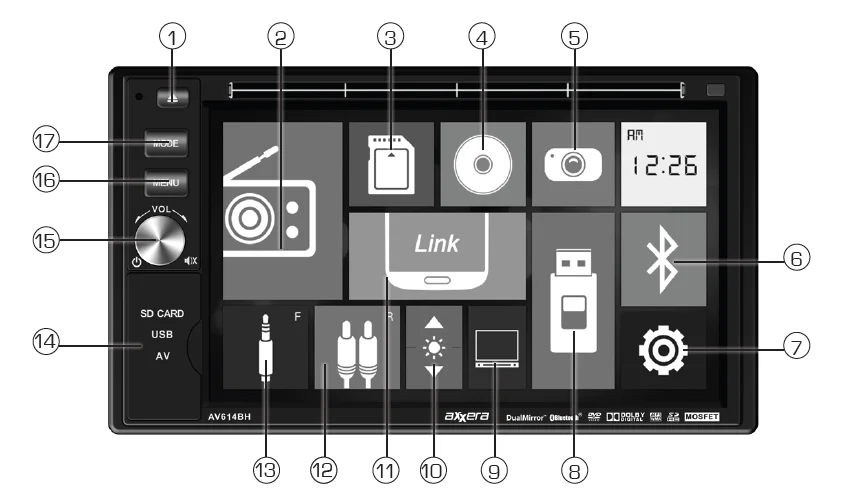
- Eject
- Tuner Icon
- SD Card Icon
- Disc Icon
- Camera Icon
- Bluetooth Icon
- Settings
- Disc Icon
- Standby
- Brightness
- DualMirror Icon
- Rear Auxiliary Icon
- Front Auxiliary Icon
- SD/USB/AV Input
- Power/Volume/Mute
- Menu
- Mode
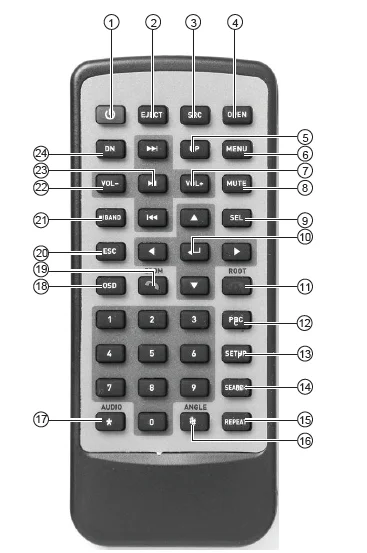
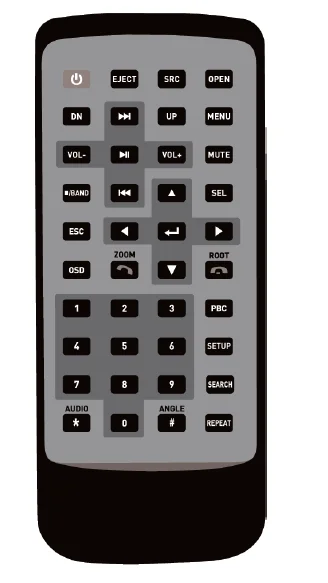
- Power
- Eject
- Mode / Source
- Open
- Up
- Menu
- Volume Up
- Mute
- Select
- Enter
- Root / End Call
- PBC
- Setup
- Search
- Repeat
- Angle / # Key
- Audio / * Key
- On-Screen Display
- Zoom / Talk
- Escape
- Stop / Band
- Volume Down
- Play / Pause
- Down
Remote Control Preparation
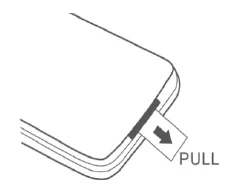
- Remove battery insulation tape.

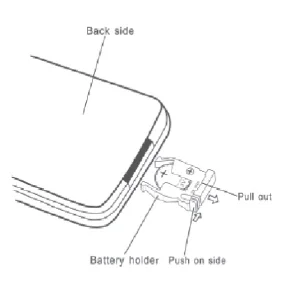
- To insert or replace the battery, remove the battery holder.

- Remove the battery from the battery holder.

- Install the new battery. Make sure to keep the (+) side up.

- Insert the battery holder.
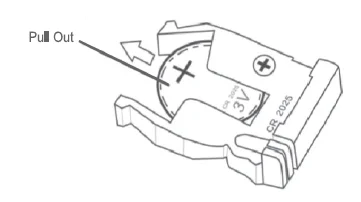
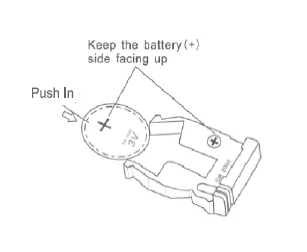
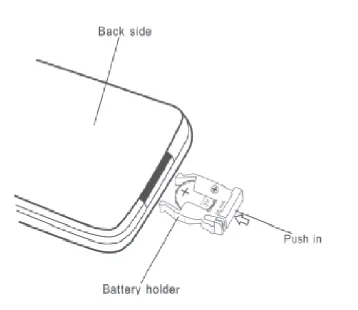
Notes:
- The remote control uses one 3-volt Lithium CR2025 battery. Remove the battery if the remote will not be used for a month or longer.
- Remove and dispose of the battery properly.
- Do not store the battery with metallic objects or materials.
General Operation
- Installing the Monitor:
To install the monitor, align the pins on the back of the monitor with the pins on the front of the unit, and press until it clicks in place. To remove, press the release tab (next to the SD card slot) and pull the monitor away from the unit. - Power On/Off:
Momentarily press the POWER/SOURCE button to turn the unit on. Hold for 2 seconds to turn the unit off. - Source:
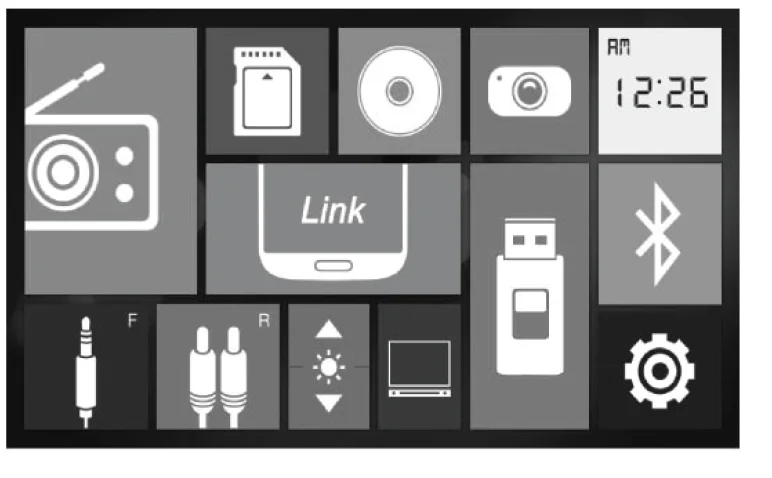
Press SRC to step through all available input modes: Tuner, Disc (which includes DVD and CD playback), USB, DualMirror, SD, AV1, AV2, and Camera. Modes of operation are indicated on the OSD On Screen Display. An optional device, USB flash drive, and SD card must be connected/ inserted to appear in the mode selection string. Modes of operation can also be accessed from the Main Menu screen (see below). - Volume:
Press the VOL+ and VOL- buttons to increase or decrease playback volume. - 3.5mm A/V Input:
Connect external audio/video devices to this 3.5mm auxiliary A/V input. - Menu:
Press the key area in the top left corner of the touchscreen to access the main menu screen. From the main menu, view,/ select any operational mode (Tuner; Disc, USB, DualMirror, Bluetooth, SD, AV Front, AV Rear, or Camera), enter the Setup menu, or put the unit in Standby mode.
- Standby:
Press the standby icon (to the right of the TILT icon) to put the unit in standby mode. Press any spot on the touch screen to exit standby mode. - Setting the Clock:
To set the clock to the current time, press the time display on the Main Menu, then press the clock icon. Adjust to the desired time, then press the check mark to save your entry. - Reset:
To resolve abnormal operation or if the unit is inoperable, use the tip of a pen to press the RESET button (located on the front panel to the left of the OPEN button). The unit will reset the main processor to the default settings. - Bass/Middle/Treble:
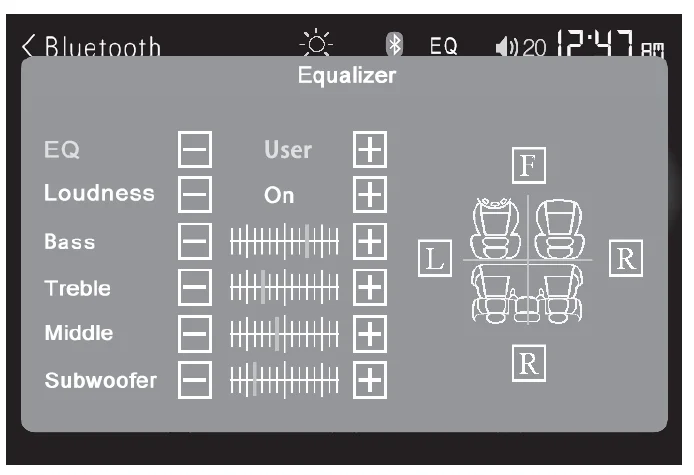
Press EQ to access the Audio menu and adjust the following options: EQ, Loudness, Bass, Treble, Balance, Fader, Subwoofer, and Middle.
- EQ :
Select between the preset equalization curves (Pop, Jazz, Classical, Rock and User). - Loudness:
Select Off or On to deactivate or activate the Loudness feature. - Bass:
Increase or decrease Bass levels. - Treble:
Increase or decrease Treble levels. - Balance:
Adjust Balance levels left to right. - Fader:
Adjust Fader levels front to rear. - Subwoofer:
Increase or decrease Subwoofer levels. - Middle:
Increase or decrease the middle levels.
Setup Menu
Bluetooth
- Bluetooth: Turn Bluetooth sgl on or off.
- Auto Connect – Select “On to program the unit to automatically connect to the Bustooth device. Select ‘Off o daable the auto connect feature.
- Auto Answer – Select “On” to program the unto automatically accept incoming calls via Bluetooth. Select ‘OFF to disable the auto-answer feature.
Video
- Camera Mirror – Turn the camera mirror function on or off.
ASP
- Power On Volume – Select Last Volume to program the unit to turn on at the volume setting selected at the time it was turned off. Select the Fed for the union turn on at. faed volums Seting every ms.
- Fixed Volume – When Fixed is selected in the Power On Volume menu. Select the desired turn-on volume level for the unit
- Bass Center Frequency – 60, 80. 100, 200
- Bass Q Value 10, 125,15.20
- Mid Center Frequency 500, 1k. 15k 25k
- MidQValue- 5.75.1, 125
- Treb Center Frequency – 10k, 12k. 15k. 17K
- Loud Center Frequency – 100, 1k. 10k
Media
- Parental Control – ress to set parental control.
- Subtitle – English, Spanish, Auto, Of
- Audio English, Spanish
- DVD Menu -English, Spanish.
- View Mode – il. Original, Auto Ft, Pan Scan
Color
- Press to manually adjust Brightness, Contrast, and Color settings using the controls at the bottom of the screen.
- Standard Press to elect standard color settings.
- Press to lower the brightness settings.
- High- Press to increase the brightness, contrast, and color settings.
Display
- Dim Control – Press to enable or disable automatic im control
- Day When dm control son. press to select this scart ms, end ime. and dm level for daytime use.
- Night – When dim control is on, press to select the tart tims, end te and dm level for nightme uss.
AM/FM Tuner Operation
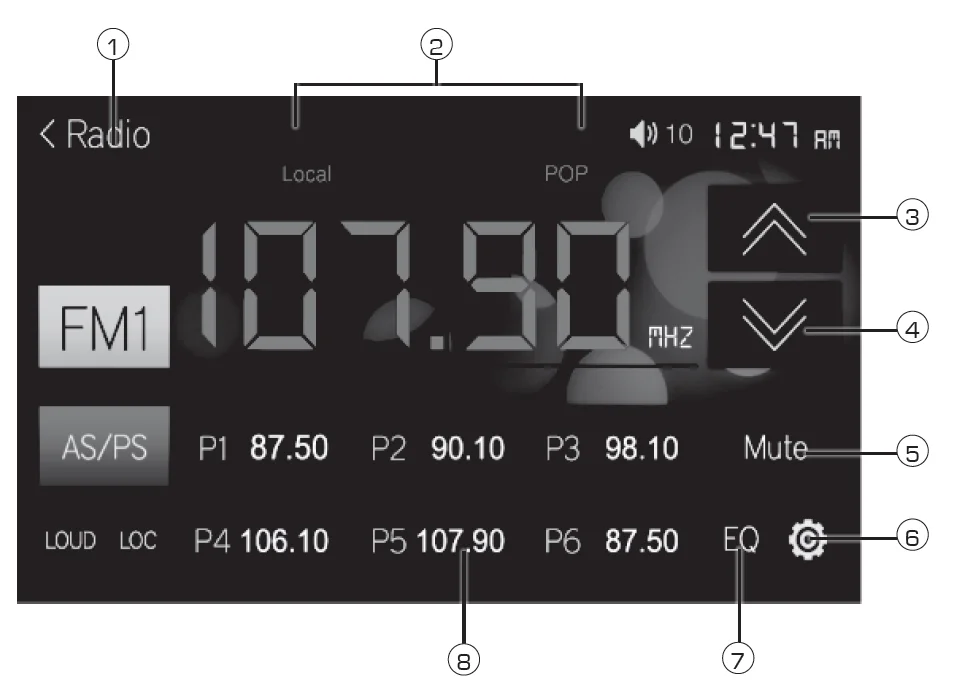
- Tuner Operation: Select the Tuner icon from the Main Menu screen.
- Current Mode Indicator 1: Displays the current mode of operation. Press to return to the Main Menu screen.
- Information Display 2: Displays current frequency, along with additional tuning information.
- Tune Frequency Up 3: Press to tune the radio to a higher frequency. Press and release to tune the unit up one step at a time. Press and hold to tune up quickly.
- Tune Frequency Down 4: Press to tune the radio to a lower frequency. Momentarily press to tune the unit down one step at a time. Press and hold to tune down quickly.
- Mute 5: Press to silence the audio. Press again to return to previously selected volume levels.
- Setup 6: Press to enter the Setup menu (refer to page 11 for details).
- Audio Setup 7: Press to enter the Audio Setup menu (refer to page 10 for details).
- Preset Station Display 8: Displays the first six preset stations stored in memory. Press and hold any preset button to store the current station in that preset spot. Up to 18 FM and 12 AM stations can be stored in memory. Momentarily press any preset station to play it instantly. Preset stations can also be accessed by entering the desired number (1-18) with the remote control.

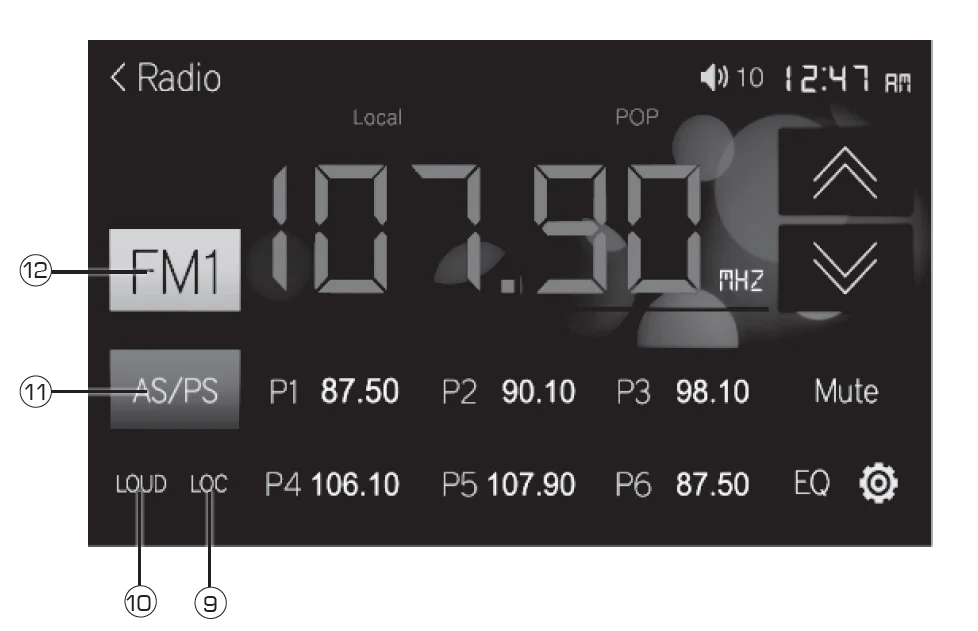
- Local / Distance Tuning 9: Press to choose between Local (LOC) or Distance (DX) tuning options. The local option tunes to nearby radio stations with sufficiently strong signals for good reception. In areas where reception is poor, switching to distance tuning enables the unit to tune in to more distant stations. Distance tuning is the default tuning mode.
- Loudness 10: Press to activate the Loudness feature. Press again to return to normal playback.
- Automatically Store / Preset Scan 11: Press to scan all preset stations and listen to the first 10 seconds of each. Press again to stop scanning and listen to the station. Press to automatically find and store the strongest stations as presets.
- Band 12: Press to step select the desired band. Three FM and two AM bands are available.
CD/USB/SD Card Operation
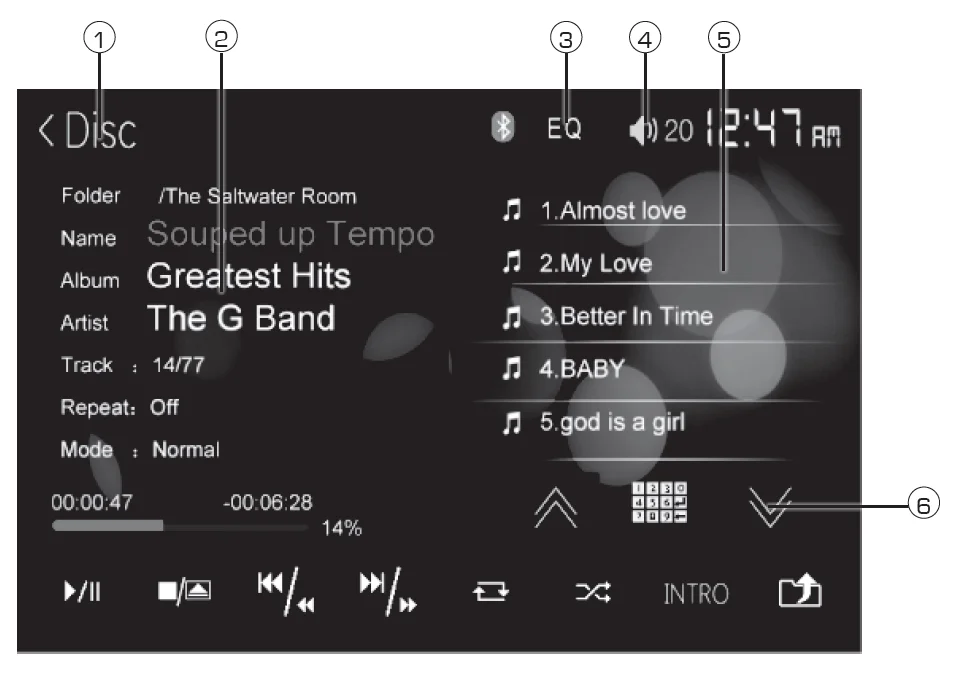
CD/MP3/WMA or JPG Operation
To play audio files from a disc or MP3/WMA files from a disc, USB device, or SD card, insert the disc or device, and playback will begin automatically. To return to disc, USB, or SD card playback from another mode of operation, select the corresponding icon from the Main Menu.
- Disc Playback – From the Main Menu screen, press TILT UP until the CD slot is exposed. Insert the disc into the slot, and playback will begin automatically.
- USB Playback – Insert a USB device into the USB slot on the side of the unit.
- SD Card Playback – Insert an SD card into the SD slot on top of the unit. When inserting an SD card, the label should face up.
- Current Mode Indicator: Displays current mode of operation. Press to return to the Main Menu screen.
- Information Display: Displays current information about audio playback.
- Audio Setup: Press to enter the Audio Setup menu (refer to page 10 for details).
- Mute: Press to silence the audio. Press again to return to previously selected volume levels.
- CD Track List: Displays the first five tracks on the disc or device. Use the arrow keys (6 & 11) to scroll up and down the entire list.
- Scroll Down: Press to scroll down to the next page in the playlist.

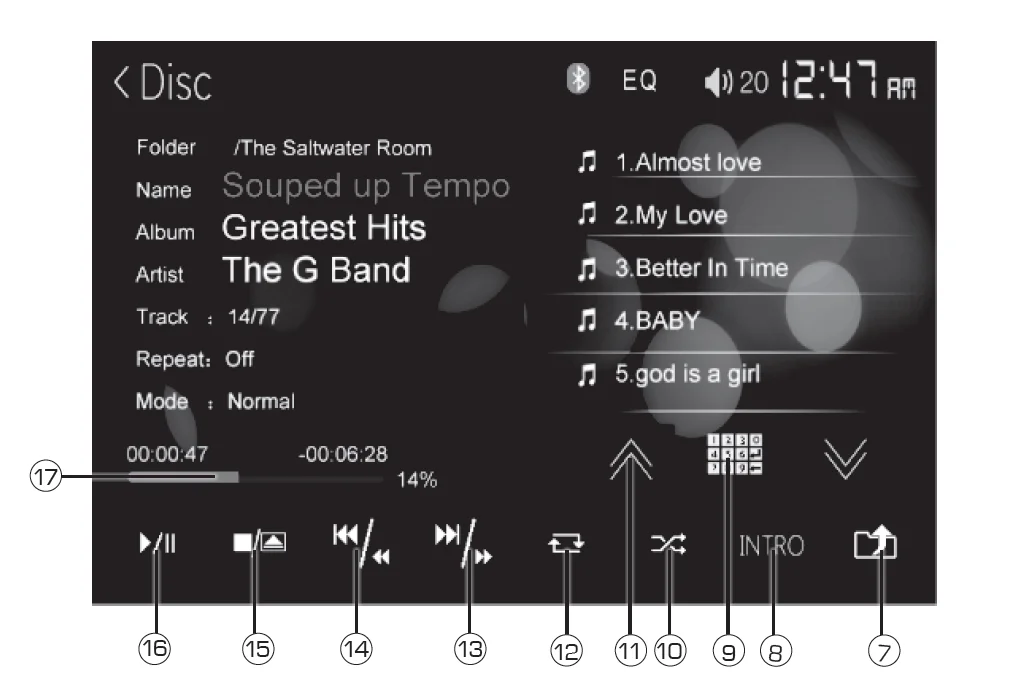
- Previous Folder: Press to navigate up to the previous folder.
- Intro: Press to play the first 10 seconds of each song in the playlist.
- Direct Track Access: Press to display the keyboard for direct track/file access. Enter the desired track/file number on the keyboard, then press Enter to begin playback.
- Random: Press to play all tracks/files on the disc or device in random order. Press again to cancel random playback.
- Scroll Up: Press to scroll up to the previous page in the playlist.
- Repeat: Press to repeat the current track/file. Press again to cancel the repeat function.
- Next Track Fast Forward: Press to advance to the next track/file. Press and hold to fast-forward the current track /file.
- Previous Track / Fast Reverse: Press to go back to the previous track/file. Press and hold to fast-forward or rewind the current track/file.
- Stop / Eject: Press to stop playback. Press and hold to eject the disc.
- Play / Pause: Press to pause playback. Press again to resume playback.
- Elapsed Time Indicator: Press to pause playback. Press again to resume playback.
Media Compatibility – USB/SD Card
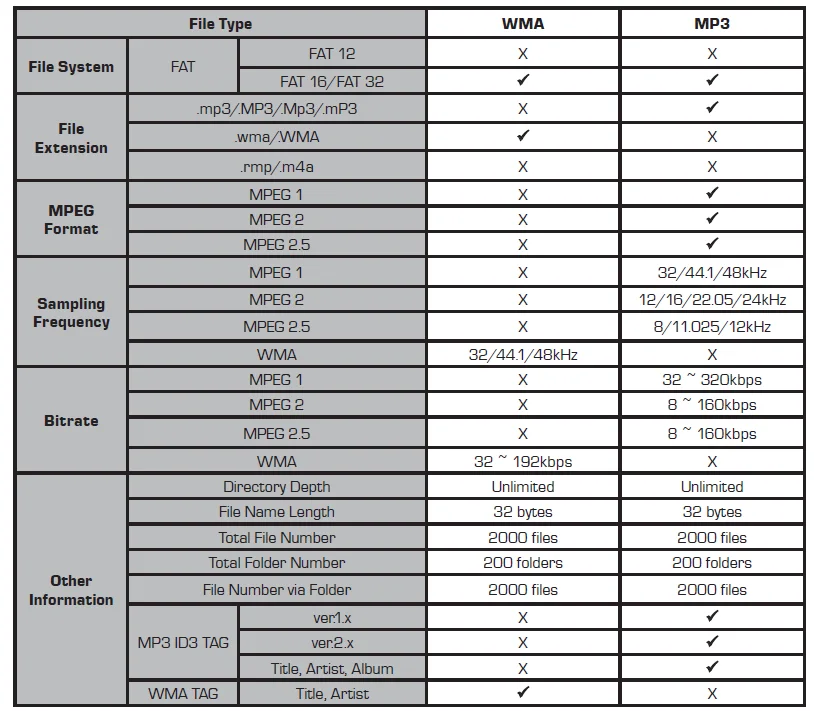
Notes:
- For USB mode, it is not possible to view JPG files on the in-dash monitor while the vehicle is moving. This is a safety feature to prevent driver distraction.
- The JPG image viewer function will only operate when the vehicle is in park, and the parking brake is engaged.
- Due to ongoing technological advancement, some USB flash drives and/or SD cards may be incompatible with this unit.
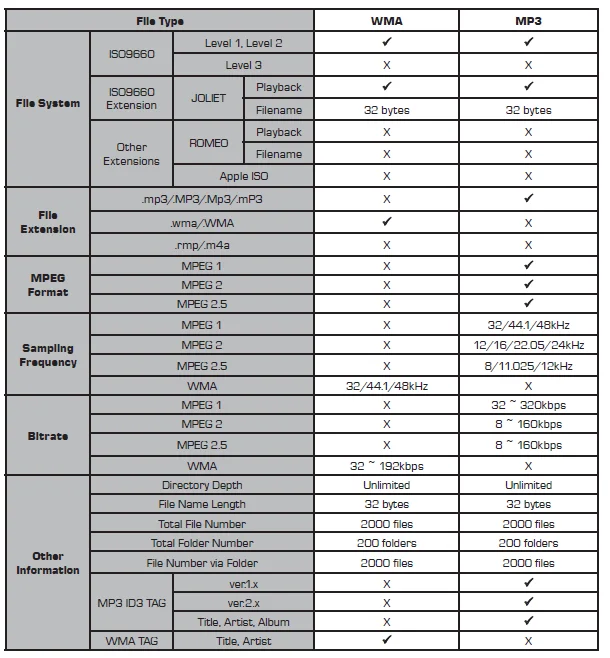
Notes:
- It is not possible to view JPG files on the in-dash monitor while the vehicle is moving. This is a safety feature to prevent driver distraction.
- The JPG image viewer function will only operate when the vehicle is in park, and the parking brake is engaged.
Limited One-Year Warranty
This warranty gives you specific legal rights. You may also have other rights which vary from state to state.
Dual Electronics Corp. warrants this product to the original purchaser to be free from defects in material and workmanship for a period of one year from the date of the original purchase. Dual Electronics Corp. agrees, at our option, during the warranty period, to repair any defect in material or workmanship or to furnish an equal new, renewed or comparable product (whichever is deemed necessary) in exchange without charges, subject to verification of the defect or malfunction and proof of the date of purchase. Subsequent replacement products are warranted for the balance of the original warranty period.
Who is covered?
This warranty is extended to the original retail purchaser for products purchased from an authorized Dual dealer and used in the U.S.A.
What is covered?
This warranty covers all defects in material and workmanship in this product. The following are not covered: software, installation/ removal costs, damage resulting from accident, misuse, abuse, neglect, product modification, improper installation, incorrect line voltage, unauthorized repair or failure to follow instructions supplied with the product, or damage occurring during return shipment of the product. Specific license conditions and copyright notices for the software can be found at www.dualav.com.
Specifications
- Disc
- Frequency response: 20Hz-20kHz
- Channel separation © 1kHz >50dB
- D/A converter: 24 Bit
- FM Tuner
- Tuning range: 87.5MHz107.9MHz
- Usable sensitivity: 10dBf
- 50dB quieting sensitivity: 20dBf
- Stereo separation @ 1kHz 38dB
- Frequency response: 30Hz-13kHz
- AM Tuner
- Tuning range: 530kHz-1710kHz
- Usable sensitivity: 24uV
- Frequency response: 30Hz-2.3kHz
- Front USB
- Compatibility High Speed USB 2.0
- USE Class: Mass storage class
- Rear USB (charging only) | Output: VDC, 1A
- SD
- Compatibility SD memory card & SDHC memory card
- Monitor
- Panel size: 6.2″ diagonal measurement
- Hesoluton: 800 (H) x 480 (V)
- Brightness (cd/m?): 250
- Contrast ratio: 450:1
- Piels: 152,000
- General
- Speaker output impedance: 4 ohms.
- Line output voltage: 4 volts
- Line output impedance: 200 ohms.
Design and specifications subject to change without notice.
For more Blogs, visit ManualsLibraryy
Axxera AV614BH DVD Multimedia Receiver-FAQs
What media formats does the Axxera AV614BH support?
The Axxera AV614BH plays DVD-Video, DVD-R/RW, DVD+R/RW, CD-Audio, and CD-R/RW discs. It also supports MP3 and WMA audio files and JPEG photos from USB flash drives or SD cards (up to 32 GB). Playback begins automatically once a supported device or disc is inserted.
How do I turn on and operate the receiver?
To power on the AV614BH, press the POWER/SOURCE button briefly; hold it for two seconds to turn off. Use the SRC/MODE button to cycle through modes like radio, disc, USB, SD, Bluetooth, DualMirror, and auxiliary inputs. Volume and navigation are controlled via the touchscreen and buttons.
Can I watch videos while driving?
No. For safety, video playback on the built-in screen is disabled unless the vehicle is in Park and the parking brake is engaged. This complies with strict safety regulations to prevent driver distraction.
How do I pair my phone with the Bluetooth system?
Activate Bluetooth on your phone, then search for available devices. Select “Dual BT” from the list and complete the pairing process. Once paired, you can stream music and make hands-free calls using the receiver. Some phones may behave differently depending on Bluetooth versions.
What is DualMirror™, and how does it work?
DualMirror™ lets you mirror the display of select Android phones and iPhones to the receiver screen. Connect your device via the rear HDMI input and use the USB port for charging. Note the USB port charges only and doesn’t transfer playback data.
Can I install a rear-view camera with this unit?
Yes. The AV614BH includes a rear-camera input. When a camera is connected and wired correctly, the screen can automatically switch to camera view when you shift into reverse, helping with parking and safety.
What should I do if the unit doesn’t power on?
Check that the wiring harness is connected correctly: the yellow and red power wires must have proper 12 V input; the black ground wire should be secure. Also check the fuse and ensure the battery connection is solid. Incorrect wiring or voltage can prevent powering up.
How do I play music from a USB flash drive or SD card?
Insert a compatible USB drive into the front USB port or an SD card into the SD slot. The receiver supports MP3/WMA music files; playback begins automatically and can be controlled via the touchscreen or mode selector.
Does the AV614BH have a built-in radio tuner?
Yes. This model includes an AM/FM tuner with manual, seek, and preset station tuning. You can save multiple presets and choose between local or distance tuning to improve reception.
How do I reset the AV614BH if it malfunctions?
If the receiver becomes unresponsive, use a small pointed object (like a pen tip) to press the RESET button on the front panel. This restores the unit to default settings. If problems persist, consult the manual or a professional installer.