


CyberPower CP1500PFCLCD PFC Sinewave UPS Battery Backup
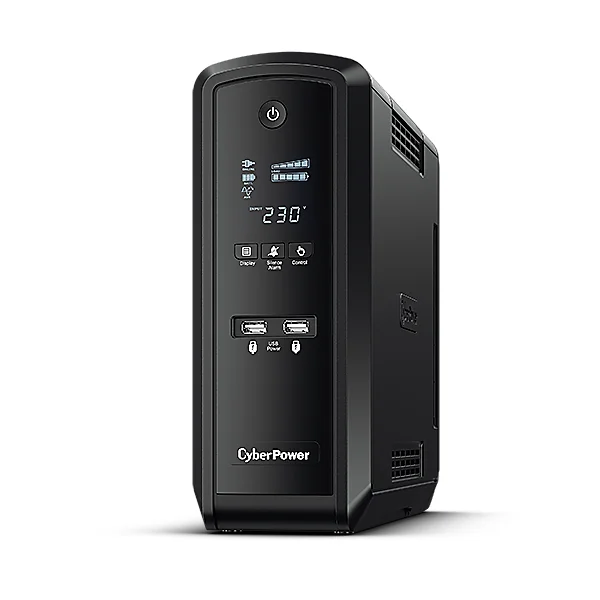
FEATURES
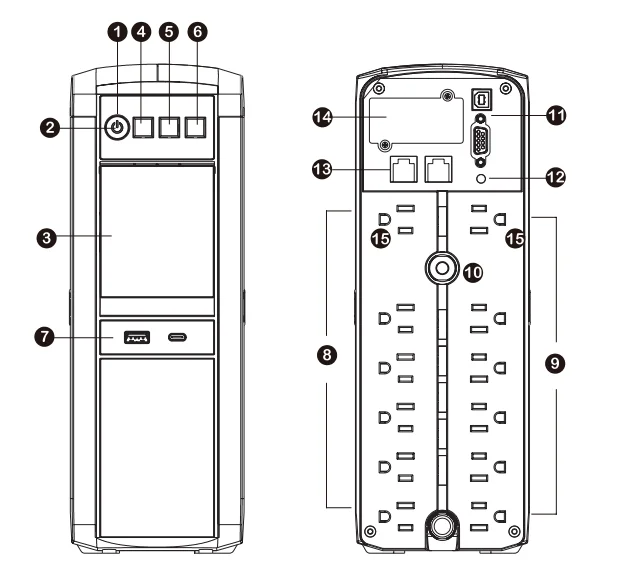
- Power Switch
- Power On Indicator
- LCD Module Display
- Down/Display Button
- Up/Mute Button
- Enter/Setup Button
- USB charge ports (Except for CP1350PFCLCD)
- Battery and Surge-Protected Outlets
- Full-Time Surge Protection Outlets
- Circuit Breaker
- DB9/USB Ports to PC
- Wiring Fault Indicator (red)
- Communication Protection Ports (RJ45)
- SNMP/HTTP Network Slot (Except for CP1350PFCLCD)
- Widely-Spaced Outlets Designed for AC Adapters
PRODUCT REGISTRATION
Thank you for purchasing a CyberPower product. This UPS is designed to provide unsurpassed power protection, operation, and performance during the lifetime of the product. Please take a few minutes to register your product at: www.CyberPowerSystems.com/registration. Registration certifies your product’s warranty, confirms your ownership in the event of a product loss or theft, and entitles you to free technical support. Register your product now to receive the benefits of CyberPower ownership.
IMPORTANT SAFETY WARNINGS
(SAVE THESE INSTRUCTIONS)
This manual contains important safety instructions. Please read and follow all instructions carefully during installation and operation of the unit. Read this manual thoroughly before attempting to unpack, install, or operate your UPS.
- CAUTION! To prevent the risk of fire or electric shock, install in a temperature and humidity-controlled indoor area free of conductive contaminants. (Please see specifications for acceptable temperature and humidity range.)
- CAUTION! To reduce the risk of electric shock, do not remove the cover except to service the battery. Turn off and unplug the unit before servicing the batteries. There are no user-serviceable parts inside except for the battery.
- CAUTION! Hazardous live parts inside can be energized by the battery even when the AC input power is disconnected.
- CAUTION! The UPS must be connected to an AC power outlet with fuse or circuit breaker protection. Do not plug into an outlet that is not grounded. If you need to de-energize this equipment, turn off and unplug the unit.
- CAUTION! To avoid electric shock, turn off the unit and unplug it from the AC power source before installing a computer component.
- CAUTION! To reduce the risk of fire, connect only to a circuit provided with 20 amperes maximum branch circuit overcurrent protection in accordance with the National Electric Code, ANSI/NFPA 70.
- CAUTION! Not for use in a computer room as defined in the Standard for the Protection of Electronic Computer/Data Processing Equipment, ANSI/NFPA 75.
- CAUTION! Do not dispose of batteries in a fire. The batteries may explode.
- CAUTION! Do not open or mutilate batteries. Released electrolyte is harmful to the skin and eyes. It may be toxic.
- DO NOT USE FOR MEDICAL OR LIFE SUPPORT EQUIPMENT!
- CyberPower Systems does not sell products for life support or medical applications. DO NOT use in any circumstance that would afect operation and safety of life support equipment, any medical applications,ons or patient care.
- DO NOT USE WITH OR NEAR AQUARIUMS!
To reduce the risk of fire or electric shock, do not use this product with or near an aquarium. Condensation from the aquarium can cause the unit to short out. - DO NOT USE UPS ON ANY TRANSPORTATION!
- To reduce the risk of fire or electric shock, do not use the unit on any transportation, such as airplanes or ships. The effect of shock or vibration caused during transit and the damp environment can cause the unit to short out.
INSTALLING YOUR UPS SYSTEM
UNPACKING
Inspect the UPS upon receipt. The box should contain the following:
- UPS unit
- User’s manual
- USB A+B Type cable
- Function Setup Gui: The PowerPanel® software is available on our website. Please visit www.cyberpowersystems.com and go to the Software Section for a free download.
SUPPORTS Active PFC POWER SUPPLIES
This CyberPower UPS system supports High Efciency power supplies with Active Power Factor Correction (Active PFC). Active PFC is used to improve the efficiency of power delivery. The current US Energy Star® Program Requirements for Computers (version 7.1) mandates Active PFC for all power supplies over 100 watts. Additionally, programs such as 80 Plus® are often used to identify high-efficiency power supplies with Active PFC.
OVERVIEW
The CP1350PFCLCD/CP1500PFCLCD provides complete power protection from utility power that is not always consistent and features 1445 Joules of surge protection. All units provide long-lasting battery backup during power outages with maintenance-free batteries. The CP1350PFCLCD/ CP1500PFCLCD ensures consistent power to your computer system and includes software that will automatically save your open files and shut down your computer system during a utility power loss.
AUTOMATIC VOLTAGE REGULATOR
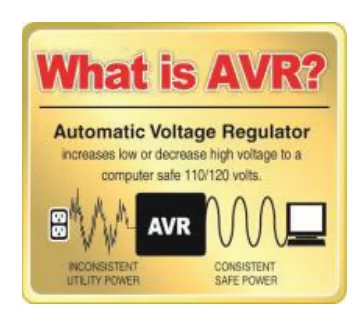
The CP1350PFCLCD/CP1500PFCLCD stabilizes inconsistent utility power voltage to nominal levels that are safe for equipment. Inconsistent incoming utility power may be damaging to important data files and hardware, but with Automatic Voltage Regulation (AVR), damaging voltage levels are corrected to safe levels. AVR automatically increases low utility power to a consistent and safe 110/120 volts. If incoming utility voltage drops below 90 volts or exceeds 140 volts, the units automatically switch to battery backup power.
DETERMINE THE POWER REQUIREMENTS OF YOUR EQUIPMENT
- Ensure that the equipment plugged into the UPS does not exceed the UPS unit’s rated capacity. If the rated capacities of the unit are exceeded, an overload condition may occur and cause the UPS unit to shut down or the circuit breaker to trip.
- There are many factors that can affect the amount of power that your electronic equipment will require. For optimal system performance,e keep the load below 80% of the unit’s rated capacity.
HARDWARE INSTALLATION GUIDE
- Your new UPS may be used immediately upon receipt. However, after receiving a new UPS, to ensure the battery’s maximum charge capacity, it is recommended that you charge the battery for at least 8 hours. Your UPS is equipped with an auto-charge feature. When the UPS is plugged into an AC outlet, the battery will automatically charge whether the UPS is turned on or turned off.
Note: This UPS is designed with a safety feature to keep the system from being turned on during shipment. The first time you turn the UPS on, you will need to have it connected to AC power,r or it will not power up. - With the UPS unit turned off and unplugged, connect your computer, monitor, and any other peripherals requiring battery backup to the battery power supplied outlets. Plug the other peripheral equipment (eg, printer, scanner, speakers, etc.) into the full-time surge protection outlets. DO NOT plug a laser printer, paper shredder, copier, space heater, vacuum cleaner, sump pump, or other large electrical device into the “Battery and Surge Protected Outlets”. The power demands of these devices will overload and possibly damage the unit.
- Plug the UPS into a 2-pole, 3-wire grounded receptacle (wall outlet). Make sure the wall branch outlet is protected by a fuse or circuit breaker and does not service equipment with great electrical demands (e.g., air conditioner, refrigerator, copier, etc.). The warranty prohibits the use of extension cords, outlet strips, and surge strips in conjunction with the UPS unit.

- Press the power switch to turn the unit on. The Power On indicator light will illuminate, and the unit will “beep.
- If an overload is detected, an audible alarm will sound, and the unit will emit one long beep. To correct this, turn off the UPS and unplug at least one piece of equipment from the battery power supplied outlets. Make sure the circuit breaker is depressed, and then turn the UPS on.
- To maintain optimal battery charge, leave the UPS plugged into an AC outlet at all times.
- To store the UPS for an extended period of time, cover it and store it with the battery fully charged. While in storage, recharge the battery every three months to ensure optimal battery life.
- Ensure the wall outlet and UPS are located near the equipment being attached for proper accessibility.

CYBERPOWER GREENPOWER UPS™ TECHNOLOGY
Advanced Energy-Saving Patented Bypass Technology
CyberPower’s patented GreenPower UPS™ with Bypass Technology reduces UPS energy costs by up to 75% compared to conventional UPS models. Even when utility power is normal, conventional UPS models constantly pass power through a transformer. By contrast, under normal conditions, the advanced circuitry of a GreenPower UPS™ bypasses the transformer. As a result, the power efficiency is significantly increased while decreasing waste heat, using less energy, and reducing energy costs.

When an abnormal power condition occurs, the GreenPower UPS™ automatically runs power through its transformer to regulate voltage and provide “safe” power. Since utility power is normal over 88% of the time, the GreenPower UPS™ operates primarily in its efficient bypass mode. The GreenPower UPS™ is also manufactured in accordance with the Restriction on Hazardous Substances (RoHS) directive, making it one of the most environmentally-friendly on the market today.
SYSTEM FUNCTION BLOCK DIAGRAM

BASIC OPERATION
- Power Switch
Used as the master on/off switch for equipment connected to the battery power supplied outlets. - Power On Indicator
This LED is illuminated when the utility power is normal, and the UPS outlets are providing power, free of surges and spikes. The - LCD module display
High resolution and intelligent LCD shows all the UPS information using icons and messages. For more information, please review the “Definitions for Illuminated LCD Indicators” section below. - Down/Display Button
The button can be used to select the LCD contents, including Input Voltage, Output Voltage, and Estimated Run Time. Short-press the button to scroll down the function menu. Pressing the button for 2 seconds will keep the LCD always on or turn the LCD off while in AC/ Utility power mode. For more information about the Down/Display Button, please refer to the Function Setup Guide. - Up/Mute Button
Press the button to scroll up the function menu. Holding the button for more than 2 seconds will silence the alarm. For more information about the Up/Mute Button, please refer to the Function Setup Guide. - Enter/Setup Button
Press the button for 2 seconds to enter the setup menu and then select the functions for cconfiguration For more information about the Enter/Setup Button, please refer to the Function Setup Guide. - USB charge ports (Except for CP1350PFCLCD)
The USB Power ports (Type A and Type C) provide DC 5V 3.1A power output with battery backup. - Battery and Surge-Protected Outlets
The unit has 6 battery powered and surge protected outlets to ensure temporary, uninterrupted operation of your equipment during a power failure.
(DO NOT plug a laser printer, paper shredder, copier, space heater, vacuum cleaner, sump pump, or other large electrical device into the “Battery and Surge Protected Outlets.” The power demands of these devices will overload and possibly damage the unit.) - Full-Time Surge Protection Outlets
The unit has 6 surge suppression outlets. - Circuit Breaker
Located on the back of the UPS, the circuit breaker provides overload and fault protection. - USB Port to PC
The USB communication port allows communication between the USB port on the computer and the UPS unit. DB9 Port: This port is used for connecting the UPS to equipment designed to operate with a dry contact closure. - Wiring Fault Indicator (red)
This LED indicator will illuminate to warn the user that a wiring problem exists, such as a bad ground, a missing gground or reversed wiring. If this is illuminated, disconnect all electrical equipment from the outlet and have an electrician verify tthat he outlet is properly wired. The unit will not provide surge protection without being plugged into a grounded and properly wired wall outlet. - Communication Protection Ports (RJ45)
Bi-directional communication ports provide surge protection to a 10/100/1000 Ethernet connection. - SNMP/HTTP Network Slot (Except for CP1350PFCLCD)
Remove the cover panel to install an optional RMCARD provides remote monitoring and management of your UPS over a network. - Widely-Spaced Outlets Designed for AC Adapters
The UPS unit has 2 widely-spaced outlets, so AC power adapters can be plugged into the UPS without overlapping or blocking adjacent outlets.
REPLACING THE BATTERY
Replacement of batteries located in an OPERATOR ACCESS AREA
- When replacing batteries, replace with the same number of the following battery: CyberPower / RB1270X2C for the CP1350PFCLCD; CyberPower / RB1290X2 for the CP1500PFCLCD.
- CAUTION! Risk of Energy Hazard, 24 V, maximum 9 Ampere-hour battery. Before replacing batteries, remove conductive jewelry such as chains, wrist watches, and rings. High energy conducted through these materials could cause severe burns.
- CAUTION! Do not dispose of batteries in a fire. The batteries may explode
- CAUTION! Do not open or mutilate batteries. Released material is harmful to the skin and eyes. It may be toxic.
- CAUTION: A battery can present a risk of electrical shock and high short circuit current. The following precautions should be observed when working on batteries:
- Remove watches, rings, or other metal objects.
- Use tools with insulated handles.
CAUTION – RISK OF EXPLOSION IF BATTERY IS REPLACED BY AN INCORRECT TYPE. DISPOSE OF USED BATTERIES ACCORDING TO LOCAL REGULATIONS
BATTERY REPLACEMENT PROCEDURE: CP1350PFCLCD/CP1500PFCLCD

- Turn off and unplug all connected equipment.
- Turn the UPS off and unplug it from the AC power source.
- Turn the UPS on its side.
- Remove the front panel retaining screws located on the bottom of the UPS.
- Slide the front panel completely out of the unit.
- Remove the fixed stand from the upper battery.
- Remove the batteries from the compartment.
- Disconnect the battery wires from the batteries.
- Install the replacement batteries by connecting the red wire (+) and black wire (-) to the same color connectors from both the upper and lower battery packs. Note: Only use new batteries for replacement, and both batteries should be replaced at the same time to ensure maximum life span.
- Put the batteries back into the compartment and reattach the fixed stand.
- Slide back the battery compartment cover and tighten the retaining screws.
- Recharge the UPS for 8-16 hours to fully charge the battery.
REMINDER: Batteries are considered HAZARDOUS WASTE and must be disposed of properly. Most retailers that sell lead-acid batteries collect used batteries for recycling, as required by local regulations.
DEFINITIONS FOR ILLUMINATED LCD INDICATORS

- ONLINE:
The UPS is supplying utility power to connected equipment. - ENERGY-SAVING:
The UPS is in energy-saving bypass mode. See the “CYBERPOWER GREENPOWER UPS™ TECHNOLOGY” section for more information. - AVR (Automatic Voltage Regulation):
This icon appears whenever your UPS is automatically correcting low or high AC line voltage without using battery power. This is a normal, automatic operation of your UPS, and no action is required on your part. - ON BATTERY:
During a severe sag or loss of utility power, this icon appears, and an alarm sounds (two short beeps followed by a pause) to indicate the UPS is operating from its internal batteries. During a prolonged sag or loss of utility power, the alarm will beep rapidly every 1/2 second to indicate the UPS’s batteries are nearly out of power. You should save fles and turn off your equipment immediately or allow the software to shut the system down. - BATTERY CAPACITY:
This meter displays the approximate charge level (in 20% increments) of the UPS’s internal battery. During a severe sag or loss in utility power, the UPS switches to battery power, the ON BATTERY icon appears, and the charge level decreases. - REPLACE battery:
This icon illuminates when the batteries are not connected well, or when the batteries areworn out. - FAULT: This icon appears if there is a problem with the UPS. Press the POWER button to turn the UPS on.
- E01: Charger Fault – Overcharge
(Contact CyberPower Systems for support.) E02: Charger Fault – No Charge (Contact CyberPower Systems for support.) - E11: Battery Overvoltage
(Contact CyberPower Systems for support.) E21: Battery Output Short Fault (Turn on the UPS) - E22: Battery Mode or AC/Utility Power Mode Overload Fault (Unplug at least one piece of equipment from battery outlets and turn the UPS on again.)
- E01: Charger Fault – Overcharge
- OVERLOAD:
This icon appears, and an alarm sounds to indicate that the battery-supplied outlets are overloaded. To clear the overload, unplug one piece of equipment from the battery-supplied outlets at a time until the icon turns off and the alarm stops. - CURRENT LOAD:
This meter displays the approximate output load level (in 20% increments) of the UPS battery outlets. - SCHEDULE:
Users can set upthe schedule to turn on and shut down the computer and UPS through PowerPanel® software. The LCD will show how much time is left before the UPS turns back on or shutsdown. - MUTE:
This icon appears whenever the UPS is in silent mode. However, when there is a problem with the UPS, the alarm will still beep even in silent mode. - INPUT Meter:
This meter measures the AC voltage that the UPS system is receiving from the utility wall outlet. The UPS is designed, through the use of automatic voltage regulation, to continuously correct output voltage to connected equipment to a safe 110/120 voltage output range. In the event of a complete power loss, severe sag, or over-voltage, the UPS relies on its internal battery to supply a consistent 110/120 output voltage. The INPUT voltage meter can be used as a diagnostic tool to identify poor-quality input power. - OUTPUT meter:
This mmeasuressures real time, the AC voltage that the UPS system is providing to the computer, such as normal AC line mode, AVR mode, and battery backup mode. (Note: The OUTPUT meter shows the status of the battery backup outlets in terms of load, frequency, and voltage.) - EVENT:
This meter records the number of power outages. - ESTIMATED RUNTIME:
This displays the run time estimate of the UPS with the current battery capacity and load. - SENSITIVITY setup:
This meter is also used to set up the UPS sensitivity when you are in the programming mode. If the connected equipment can tolerate more power events (example: unstable power often associated with stormy weather), select LoSensitivity. The go-to Battery Mode less often. If the connected equipment is more sensitive to power events, select High Sensitivity, and the UPS will go to Battery Mode more often.
For more information about function setup, please refer to the Function Setup Guide.
TROUBLESHOOTING
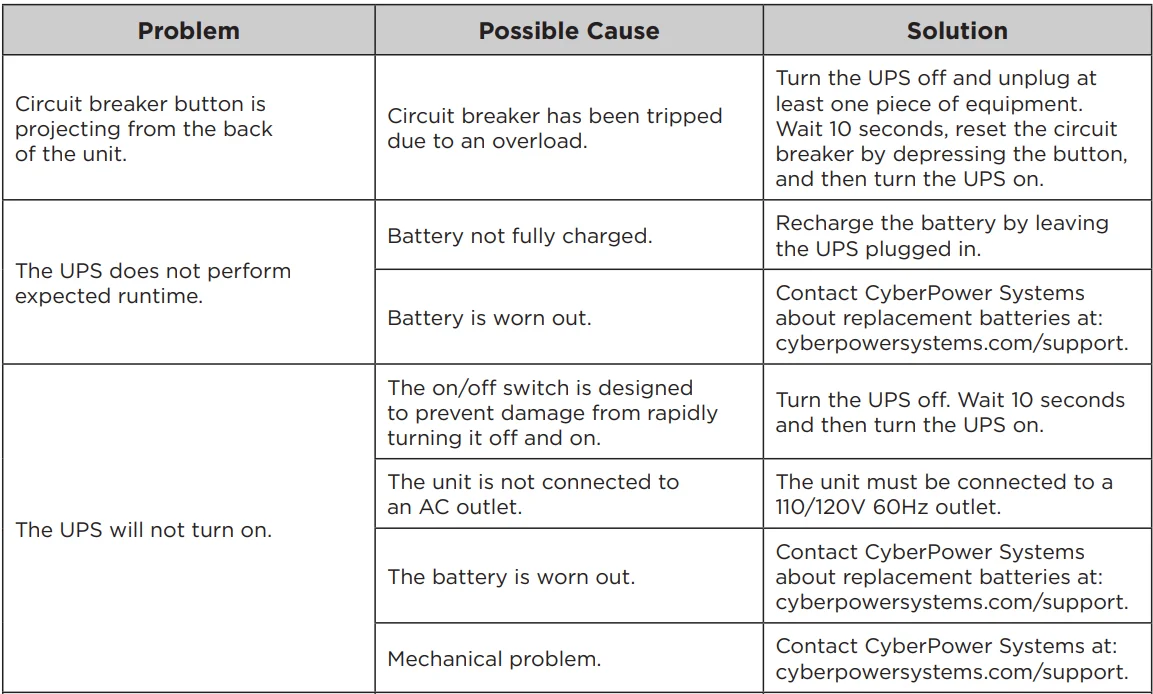

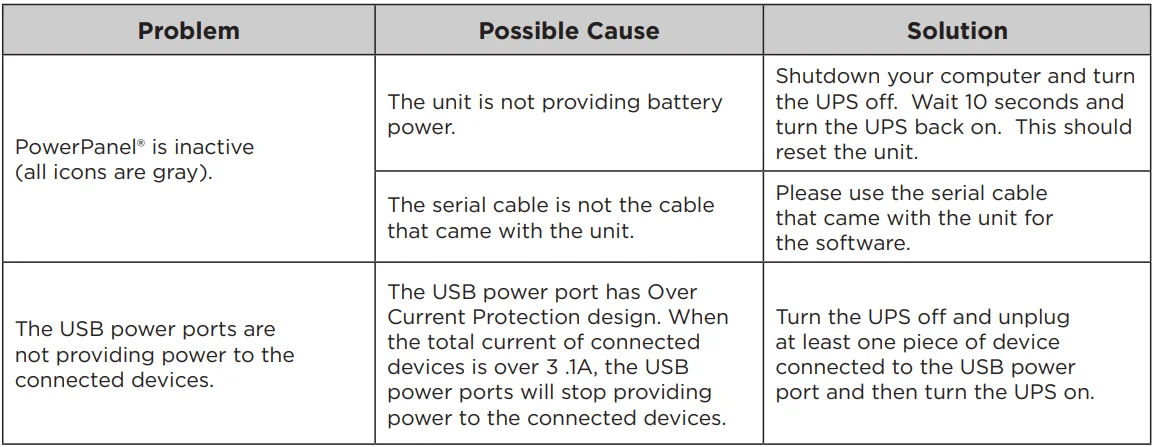
Additional troubleshooting information can be found at “Support” at www.CyberPowerSystems.com
TECHNICAL SPECIFICATIONS
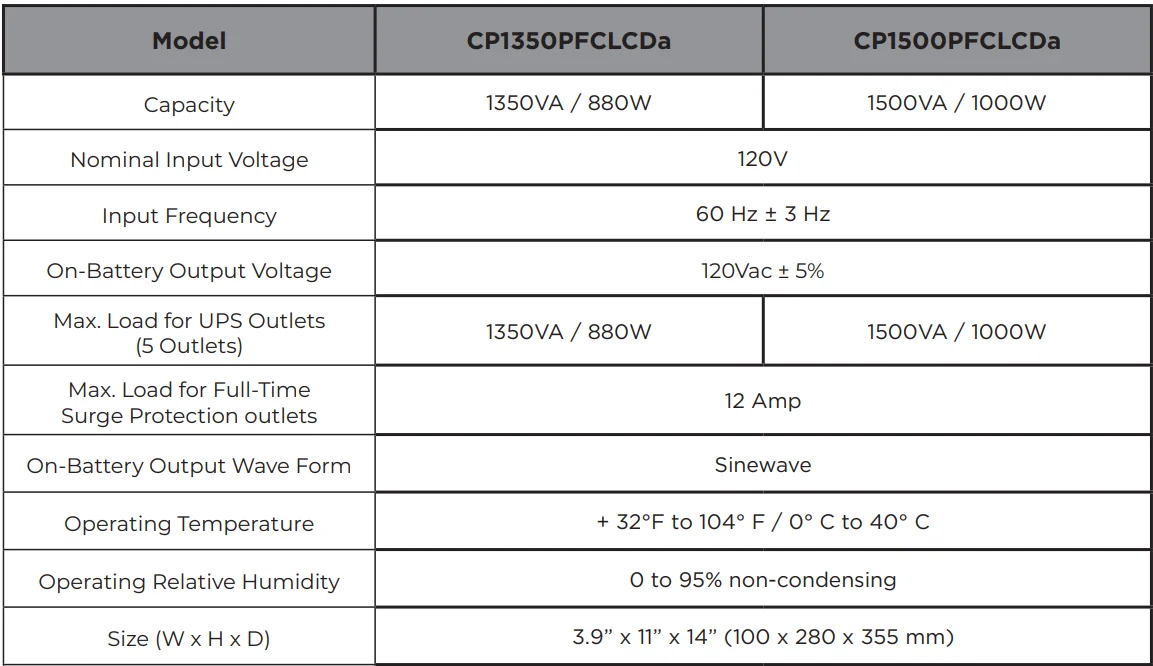
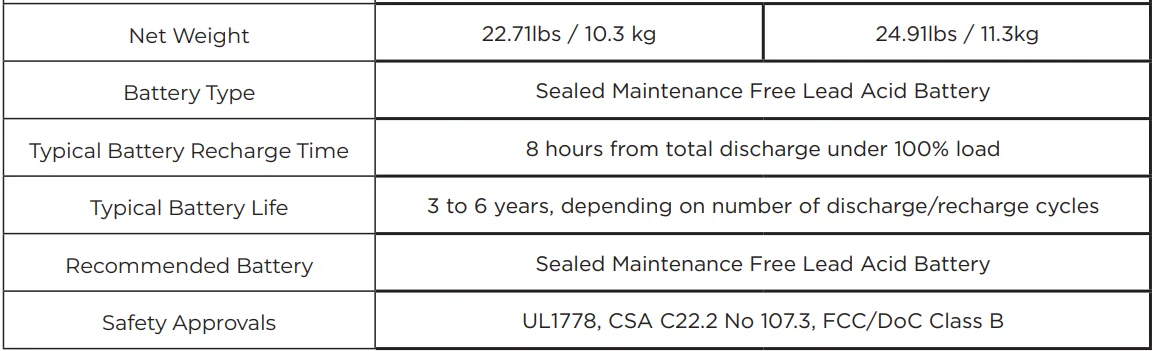
FCC COMPLIANCE STATEMENT
This device complies with part 15 of the FCC rules. Operation is subject to the following two conditions: (1) this device may not cause harmful interference, and (2) this device must accept any interference received, including interference that may cause undesired operation.
Note: This equipment has been tested and found to comply with the limits for a Class B digital device, pursuant to part 15 of the FCC Rules. These limits are designed to provide reasonable protection against harmful interference in a residential installation. This equipment generates, uses, and can radiate radio frequency energy and, if not installed and used in accordance with the instructions, may cause harmful interference to radio communications. However, there is no guarantee that interference will not occur in a particular installation. If this equipment does cause harmful interference to radio or television reception, which can be determined by turning the equipment off and on, the user is encouraged to try to correct the interference by one or more of the following measures:
- Reorient or relocate the receiving antenna.
- Increase the separation between the equipment and receiver.
- Connect the equipment to an outlet on a circuit different from that to which the receiver is connected.
- Consult the dealer or an experienced radio/TV technician for help.
Warning: Changes or modifications not expressly approved by the party responsible for compliance could void the user’s authority to operate the equipment.
Canadian Compliance Statement
CAN ICES-3 (B)/NMB-3(B)
LIMITED WARRANTY AND CONNECTED EQUIPMENT GUARANTEE
Please visit www.CyberPowerSystems.com for a copy of the Limited Warranty and Connected Equipment Guarantee.
Where Can I Get More Information?
The application of the United Nations Convention on Contracts for the International Sale of Goods is expressly excluded. CyberPower is the warrantor under this Limited Warranty. For further information, please feel free to contact CyberPower at: Cyber Power Systems (USA), Inc. 4241 12th Ave E., STE 400, Shakopee, MN 55379; call us at (877) 297-6937; or submit a web ticket online at cyberpowersystems.com/support.
Cyber Power Systems (USA), Inc. encourages environmentally sound methods for the disposal and recycling of its UPS products. Please dispose of and/or recycle your UPS and batteries in accordance with the local regulations of your state.
WARNING: This product can expose you to chemicals,s including bisphenol A (BPA) and styrene, which are known to the State of California to cause reproductive harm and cancer. For more information, go to www.P65Warnings.ca.gov.
For more manuals by CyberPower, visit ManualsLibraryy
CyberPower CP1500PFCLCD PFC Sinewave UPS Battery Backup- FAQs
How many batteries are in the CyberPower CP1500PFCLCD?
The CyberPower CP1500PFCLCD contains 2 internal batteries.
What type of batteries does the CP1500PFCLCD use?
It uses sealed lead-acid batteries, each rated at 12V / 9Ah.
Are the batteries hot-swappable in CP1500PFCLCD?
No. The batteries are not hot swappable, so the UPS must be powered off before replacement.
What is the battery life of a CyberPower UPS?
Typically, CyberPower UPS batteries last 1 to 3 years, depending on temperature, usage, and power conditions.
How often should I replace my CyberPower UPS battery?
Most manufacturers recommend replacing UPS batteries every 3 to 5 years for reliable backup performance.
Is the CyberPower CP1500PFCLCD a pure sine wave UPS?
Yes. The CP1500PFCLCD provides pure sine wave output, making it safe for sensitive electronics and active PFC power supplies.
How do I replace the battery in a CyberPower CP1500PFCLCD?
Turn off and unplug the UPS, remove the battery compartment cover, disconnect the old batteries, connect the new ones, and reassemble carefully.
Is it worth replacing a UPS battery?
Yes. If the UPS is in good condition and under 5 years old, replacing the battery is usually more cost-effective than buying a new unit.
Can I replace a 12V 7Ah battery with a 12V 9Ah battery?
Yes. A 12V 9Ah battery is compatible and will provide longer runtime, as long as it fits physically.