
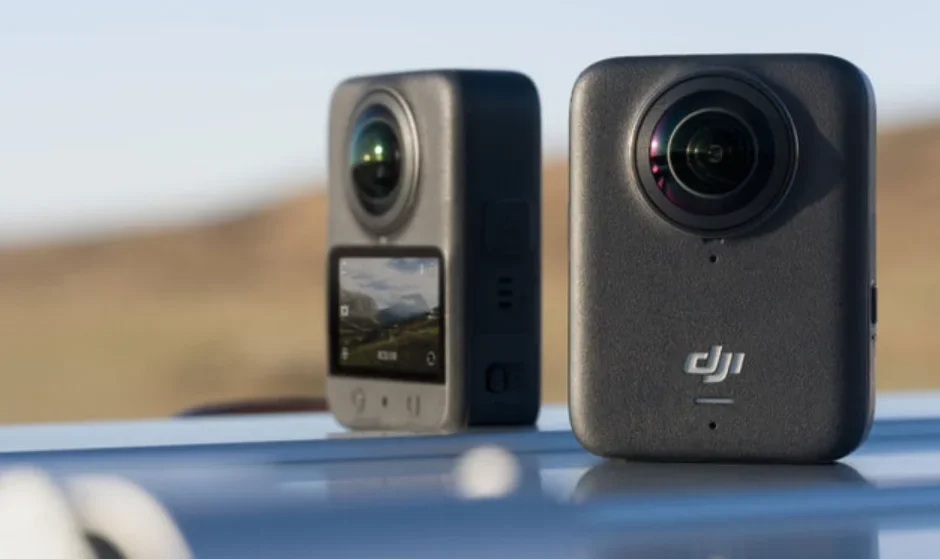

DJI Osmo 360 Camera
Product Profil
The following accessories are included in the Osmo 360 Adventure Combo. They can also be purchased separately. Visit the official store for a full list of compatible accessories.
- Osmo Action Multifunctional Battery Case 2 (hereinafter referred to as “Battery Case”)
- Osmo Adjustable Quick-Release Adapter Mount (hereinafter referred to as “Adapter Mount”)
- Osmo 1.2 m Invisible Selfie Stick
Osmo 360
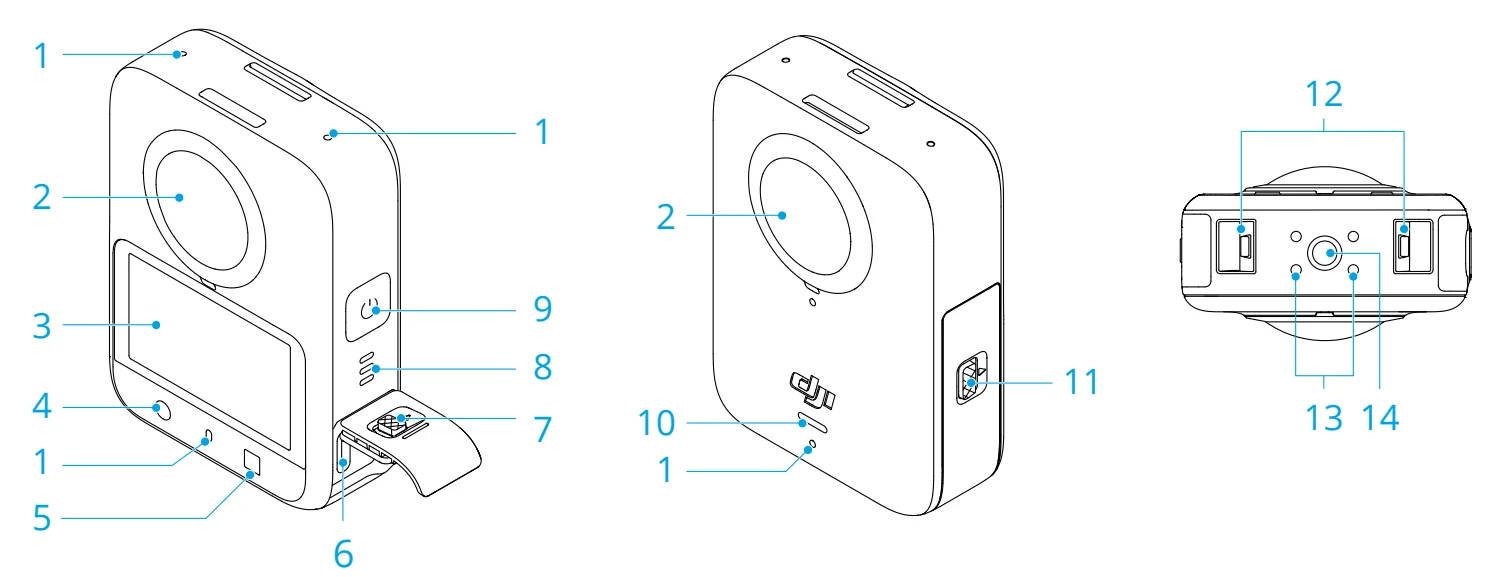
- Microphone
- Lens
- Touchscreen
- Shutter/Record Button
- Function Button
- USB-C Port
- USB-C Port Cover Release Button
- Speaker
- Power/Quick Switch Button
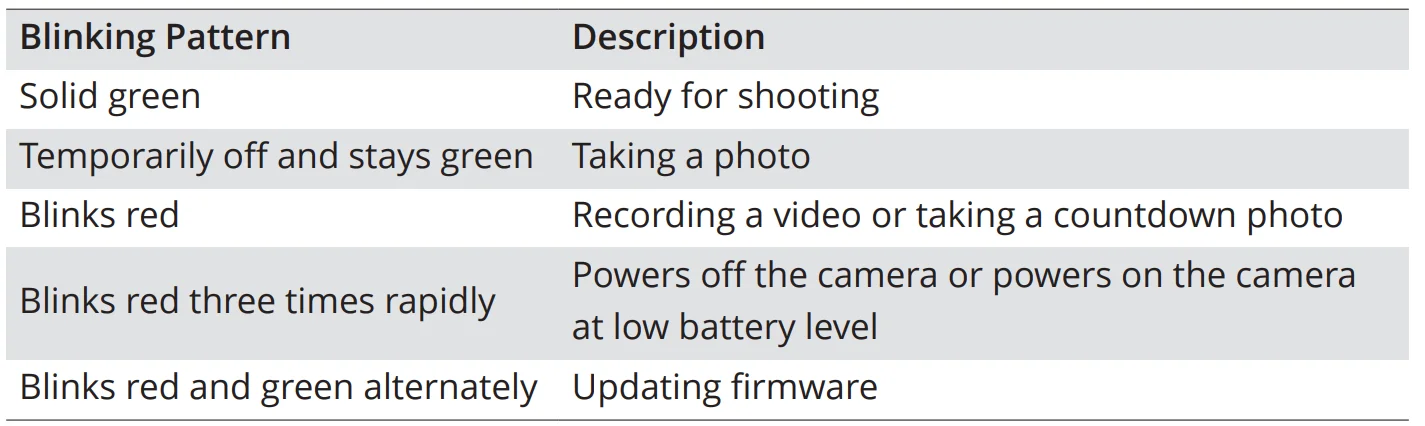
- Status LED

- Battery Compartment Cover Release Button
- Quick-Release Slot
- Charging Contacts
- 1/4″-20 UNC Port
Battery Case
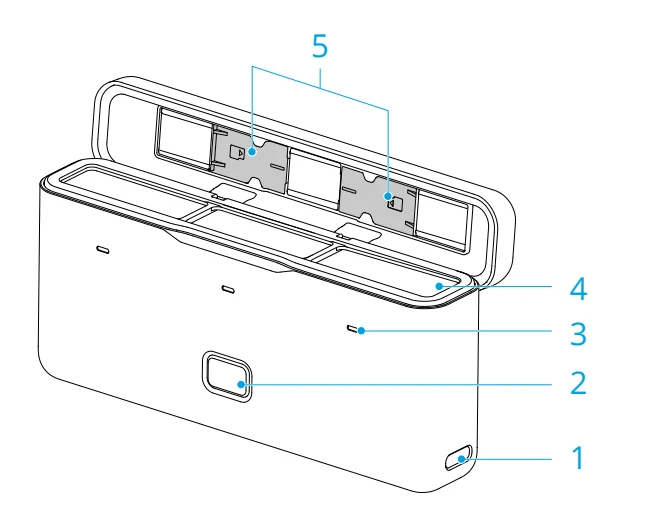
- USB-C Port
- Status Button
Press once to check the battery level. - Status LEDs

- Battery Ports
- microSD Card Slot
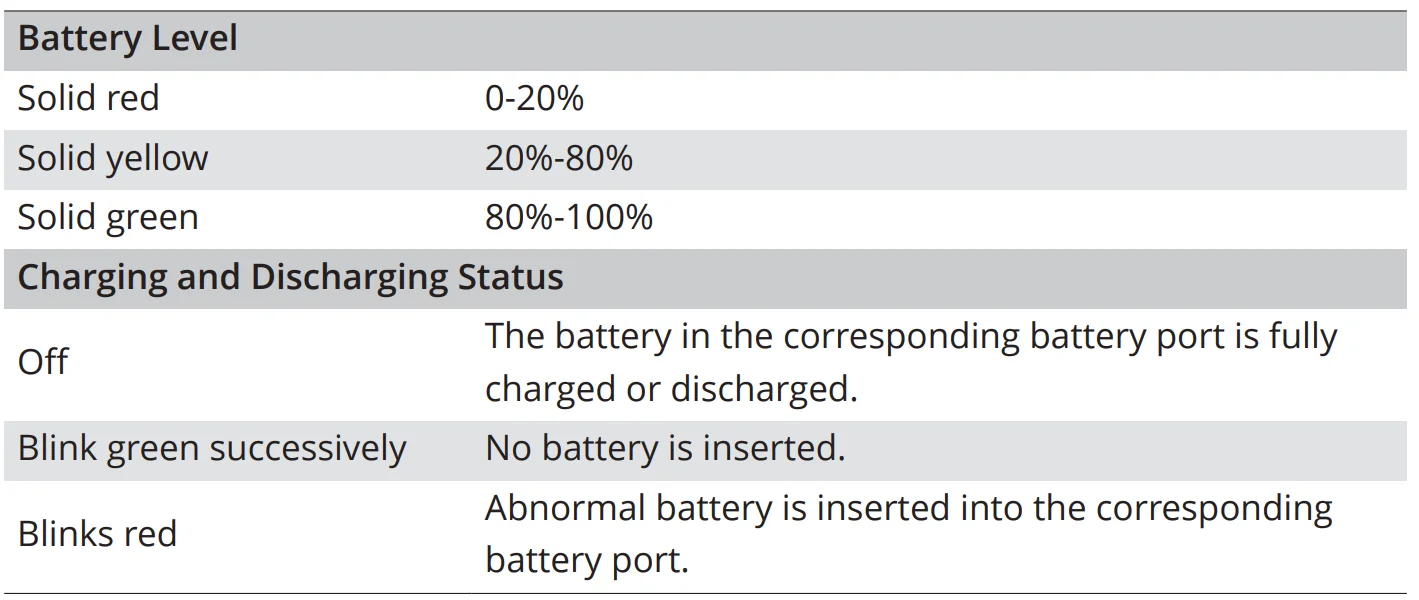
Hint & Tips
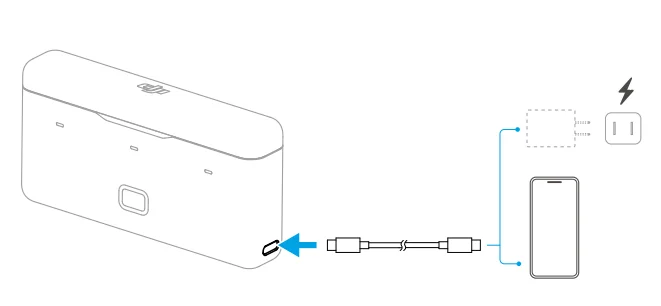
- With batteries inserted, the battery case can charge the batteries or external devices such as smartphones.

- When charging the batteries, it is recommended to use a USB-C charger that supports PD (Power Delivery) or PPS (Programmable Power Supply). The battery with the highest power level will be charged first.
- When charging external devices, the battery with the lowest power level will be discharged first.
Warnings
- Place the battery case on a flat and stable surface when in use. Make sure the device is properly insulated to prevent fire hazards.
- DO NOT touch the metal terminals on the battery ports.
- Clean the metal terminals with a clean, dry cloth if there is any noticeable buildup.
- The battery case is not waterproof. DO NOT place it in water or spill any liquid on the case.
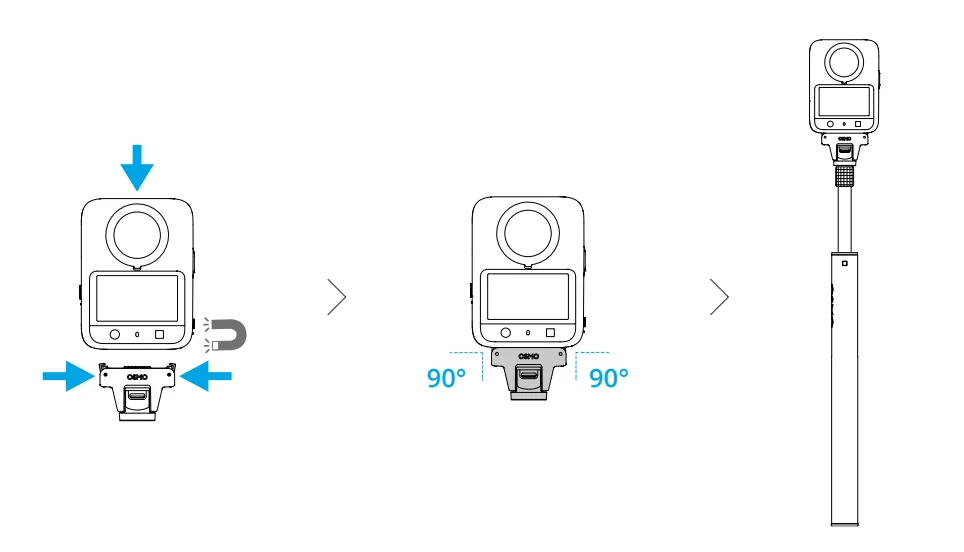
Adapter Mount and Selfie Stick
Screw the selfie stick into the threaded hole in the bottom of the camera.
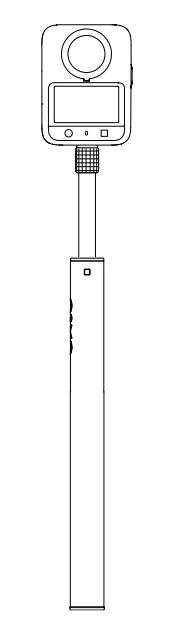
Alternatively, use the Adapter Mount to assemble the camera and the selfie stick.
Preparation
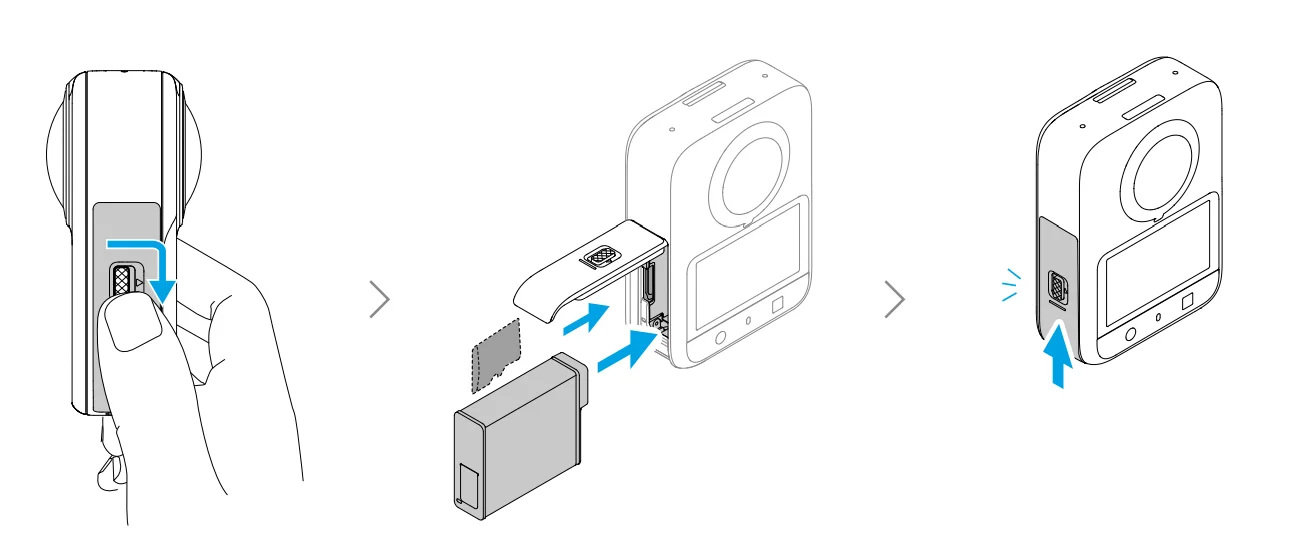
Attaching the Battery and Charging
Insert the battery and completely close the cover.
Hints and Tips
- The camera has 105GB of usable storage and supports microSD cards for storage expansion. Refer to Specifications for the recommended microSD cards.
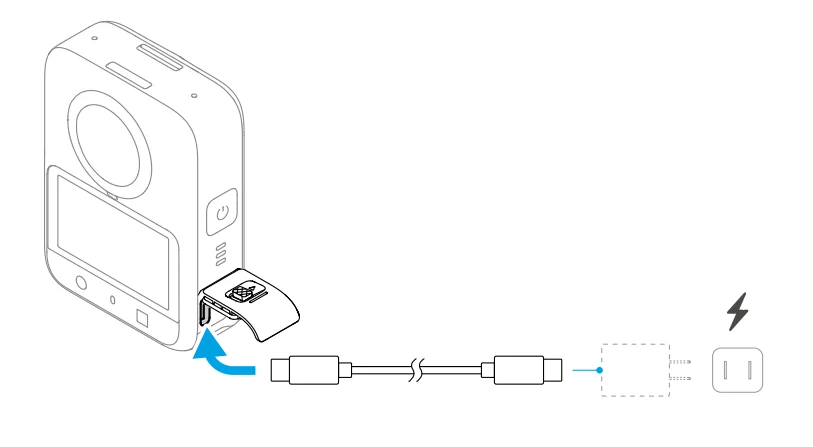
It is recommended to use a USB-C charger that supports PD or PPS.
Activation
Make sure to activate the camera using DJI Mimo before first use.
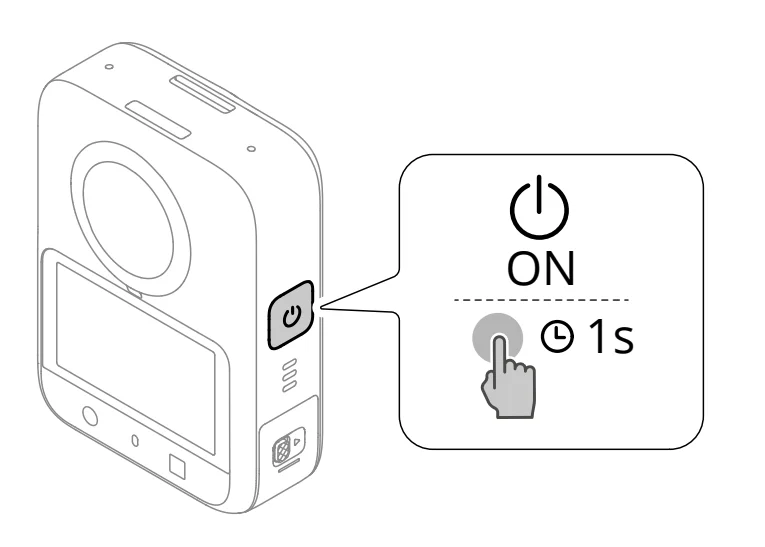
- Press and hold the power button to power on the camera.

- Scan the QR code on the screen to download the DJI Mimo app.
- Enable Wi-Fi and Bluetooth on the mobile device.
- Launch DJI Mimo on the mobile device, tap the camera icon to connect to the camera, and then follow the instructions to activate the camera.
When the camera is used with the DJI Mimo app, you can monitor the current camera view, set the camera parameters, and control the camera with a mobile device.
Refernces
- To check the Android and iOS operating system versions supported by the app, visit https://www.dji.com/downloads/djiapp/dji-mimo.
- The interface and functions of the app may vary as the software version is updated. Actual user experience is based on the software version used.
Hints and Tips
If there is a problem when connecting to DJI Mimo, follow the steps below:
- Make sure both Wi-Fi and Bluetooth are enabled on the mobile device.
- Make sure the DJI Mimo app has the latest firmware version.
- In the liveview on the camera, swipe down from the top of the screen and tap
 > Wireless Connection > Reset Connection. The camera will reset all connections and Wi-Fi passwords.
Firmware Update
A prompt will appear in DJI Mimo when new firmware is available. Tap the prompt and follow the on-screen instructions to update the firmware.
Hints and Tips
If the update fails, follow the steps for troubleshooting.
- Restart the camera and DJI Mimo.
- Enable Wi-Fi and Bluetooth on the mobile device.
- Connect the camera to DJI Mimo and try the update again. Contact DJI Support if the update fails again.
Using the Product
Button Features
Power/Quick Switch Button
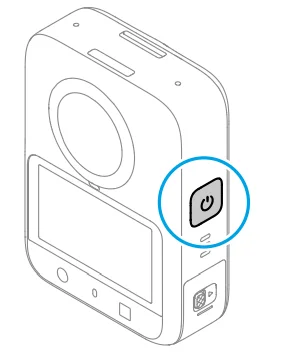
- Press and hold: Power on/off.
- In the liveview: Press once to enter the Quick Switch page. Press again to cycle through preset shooting modes.
* To modify the presets, tap in the upper right corner of the Quick Switch page.
 - On other pages: Press once to return to the liveview.
 in the upper right corner of the Quick Switch page.
Shutter/Record Button
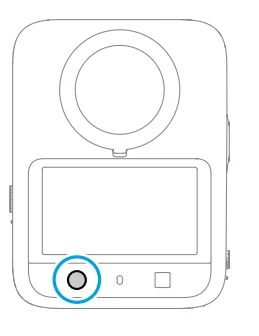
- When powered on Press once: Take a photo or start/stop recording.
- When powered off Press once: Power on and start recording (SnapShot). Press again to stop recording. After shooting, the camera will automatically power off if left idle for three seconds.
* SnapShot is the quickest way to start shooting and never miss a moment of the action. By default, SnapShot applies the shooting settings from the last use of panoramic mode. To modify, enter the Control Center and tap > SnapShot.
Function Button
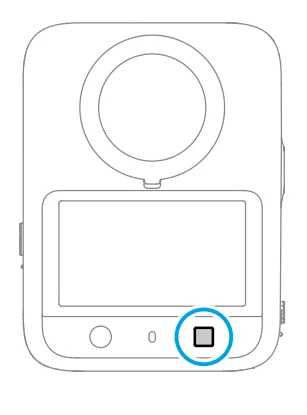
- When powered on Press once: Switch between front and rear views (panoramic mode) / front and rear lenses (single lens mode).
- Press twice: Recenter the view (panoramic mode).
- When powered off
* Make sure SnapShot is enabled for the function button. To do so, enter the Control Center and tap > SnapShot. Scroll to the Function button and turn on the switch. Then, you can set the mode to use. Press once: Power on and start recording (SnapShot). Press the Shutter/Record button once to stop recording. After shooting, the camera will automatically power off if left idle for three seconds.
Operating the Touchscreen
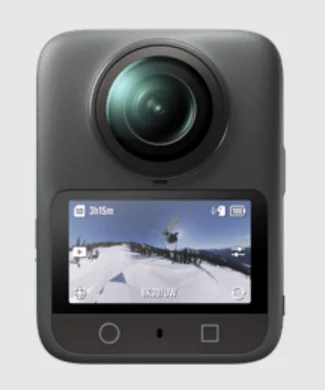
After the camera powers on, the touchscreen shows the liveview.
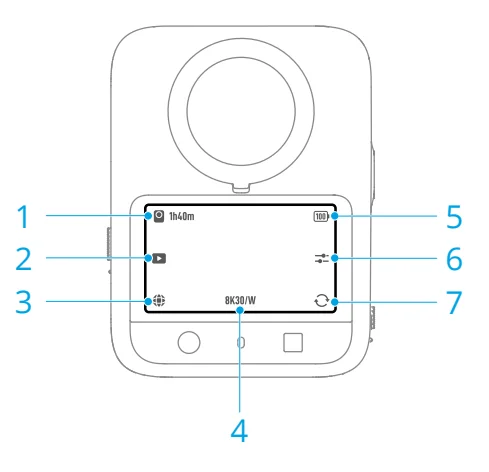
- Storage Capacity/Remaining Recording Time
- Playback
During playback, swipe left from the right edge of the screen to return to the liveview. - Shooting Mode
- Shooting Specifications
- Battery Level
- Image/Audio Parameters
- View/Lens Switch
Setting the Shooting Mode
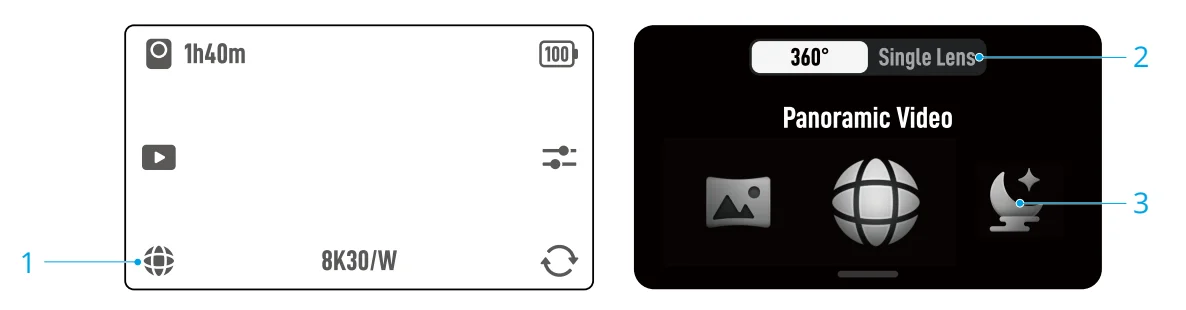
- Tap the icon to enter the mode switch page.
- Tap to select a lens mode:
- 360°: Panoramic mode, which uses both lenses for shooting.
- Single Lens: Uses one lens for shooting.
- Swipe to select a shooting mode. Different lens modes support different shooting modes.
Tap the selected shooting mode or swipe up from the bottom of the screen to return to the liveview.
View/Lens Switch
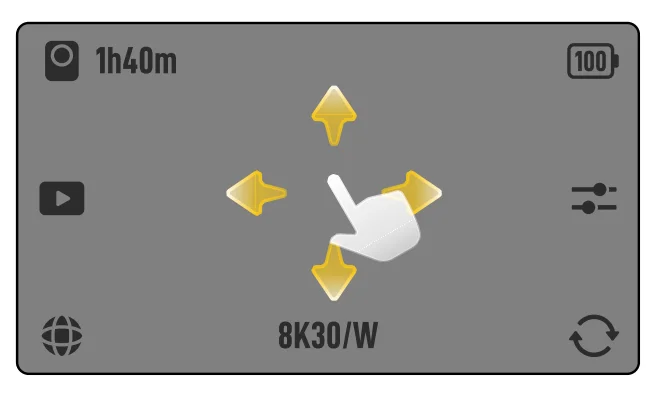
In 360° Mode
Slide in the center of the screen to adjust the view. Tap to recenter the view. Tap
 to switch between front and rear views.
- These operations only change what is shown on the screen and do not affect the recorded spherical video.
- Support for these operations varies by shooting mode. Refer to the actual interface.
In Single Lens Mode
Tapto switch between front and rear lenses.
Setting the Shooting Parameters
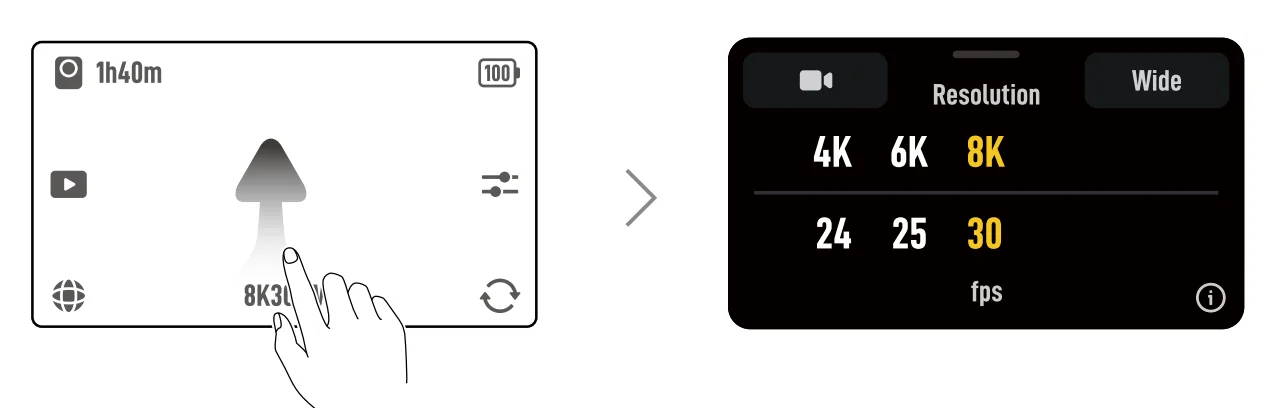
Various parameters can be set in different shooting modes. Refer to the actual interface.
- Swipe up from the bottom of the screen to set the parameters for each shooting mode.
 References
- Tap
 to enable Pre-Rec or Loop Recording.
- Pre-Rec: When enabled, the camera will pre-record footage within the set time duration. Once the Shutter/Record button is pressed, the camera will save the latest pre-recorded footage before pressing the Shutter/Record button and keep recording, then save the footage as a whole video. This function allows the camera to save the footage before pressing the Shutter/Record button to avoid taking up too much storage space, helping capture highlights.
- Loop Recording: When enabled, the camera records a video by overwriting older footage with new footage at selected time intervals. This function allows the camera to save storage space, and is suitable for use in scenes where the user is waiting to capture unanticipated highlights (such as driving).
- Tap
 to set the EIS (Electronic Image Stabilization) mode.
- Off: Records the video with the largest FOV.
- RockSteady: Stabilizes footage while retaining the dynamics of movement, which is suitable for first-person perspective shooting.
- HorizonSteady: Eliminates roll axis jitters within 360º. It ensures that the image remains level and stable even in scenarios involving intense bumps or turns.
Once you have set the parameters, swipe down from the top of the screen to return to the liveview.
- Tap
- In the liveview, tap to adjust image and audio parameters. Tap PRO to adjust pro parameters.
 References
 to enable Pre-Rec or Loop Recording.
 to set the EIS (Electronic Image Stabilization) mode.
References
- D-Log M is designed for professional color grading when post-editing. In high-contrast or multi-color scenarios (e.g., garden, field, etc.), it can enlarge the dynamic range for more color-grading in post-production. With D-Log M selected, you can enable Color Recovery to preview the color effects in the liveview.
Control Center
Swipe down from the top of the screen to enter the control center. Swipe left or right in the control center to view all options. Swipe up from the bottom of the screen to return to the liveview.
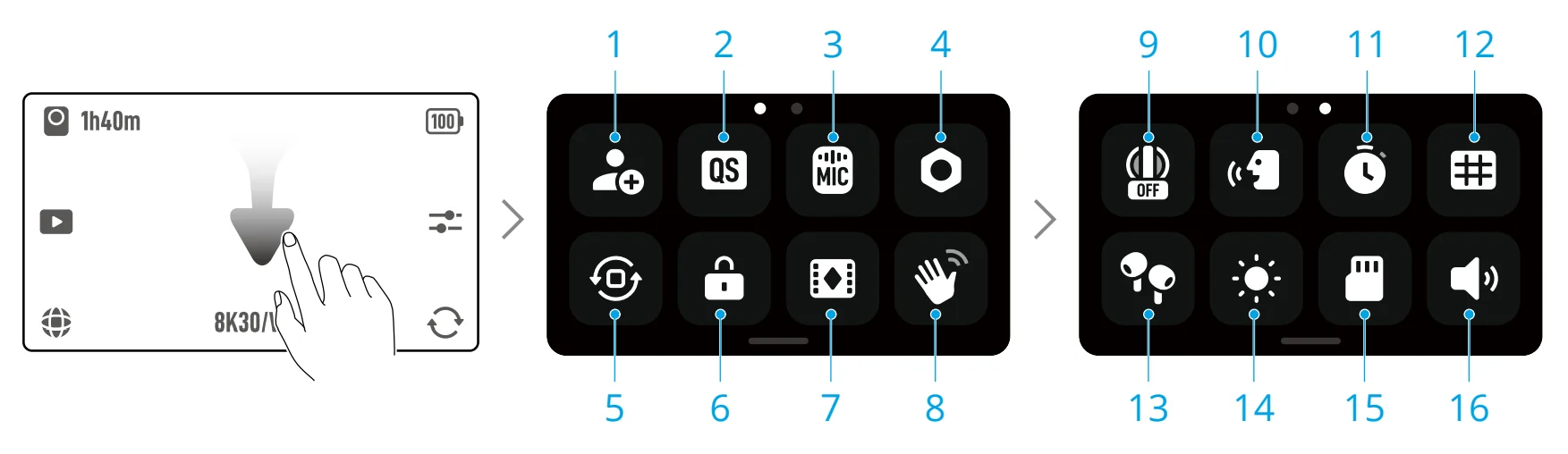
- Custom Modes
Save the current shooting settings as a custom mode and select a scene. Next time, you can switch to this mode using the touchscreen or quick switch button. - Quick Switch
Select which shooting modes can be selected when pressing the Quick Switch button and enable/disable the Voice Prompt feature.- When Voice Prompt is enabled, the camera announces the current shooting mode each time you press the Quick Switch button. When the camera is installed on a helmet or other hard-to-see locations, you can accurately select the required mode with Voice Prompt.
- Wireless Microphone
The camera can connect to two DJI wireless microphone transmitters simultaneously. Visit the official website to view the supported models.
Follow the on-screen instructions for linking. Once linked, you can use the transmitter to control the camera to start recording, with the audio being captured by the transmitter.- Visit the DJI website and refer to the user manual of the mic product for more information.
- Enter the control center, tap , and enable Built-in Mic Audio Backup. When enabled, the built-in microphone of the camera will also record audio while shooting video, and save the audio as a separate .wav file.
- When the transmitter is linked to the camera, tap Wireless Microphone settings to adjust the audio parameters of the transmitter.
- Settings
- Orientation Lock
- Screen Lock
- Editing Assistant
Available only in panoramic video mode. If Editing Assistant is enabled before recording, you can switch to selfie view with one click when editing the video in the official software. - Gesture Control
When enabled, you can use hand gestures to take photos or start/stop recording. - Lens Protection Mode
When the camera is used with Osmo 360 Transparent Lens Protectors (sold separately), tap Transparent Lens Protectors before shooting. - Voice Control
Enable Voice Control to control the camera with voice commands. - Timer Shooting
- Grid
- Wireless Earbuds
Make sure the earbuds are in pairing status. When the device name appears in the list, tap to connect. Once connected, the camera records videos using the audio captured by the earbuds. - Brightness
- Storage
Check the camera storage information. With a microSD card inserted, all the images can be stored to the microSD card. Tap Storage to format the internal storage or the microSD card.- Formatting will permanently delete all data. Make sure to back up all required data before formatting.
- Sounds Volume
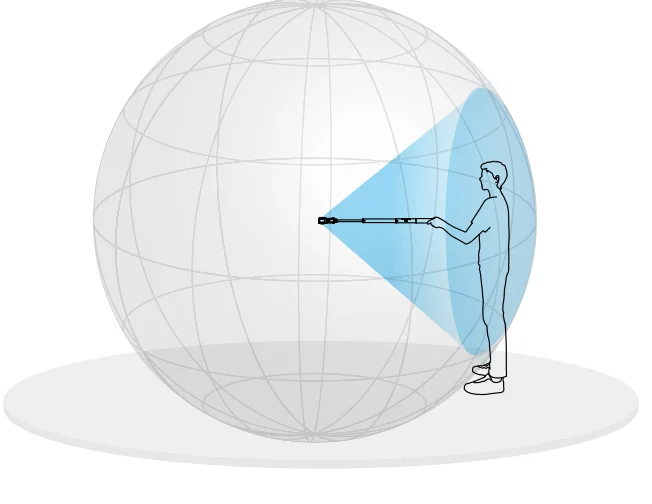
Using a Selfie Stick
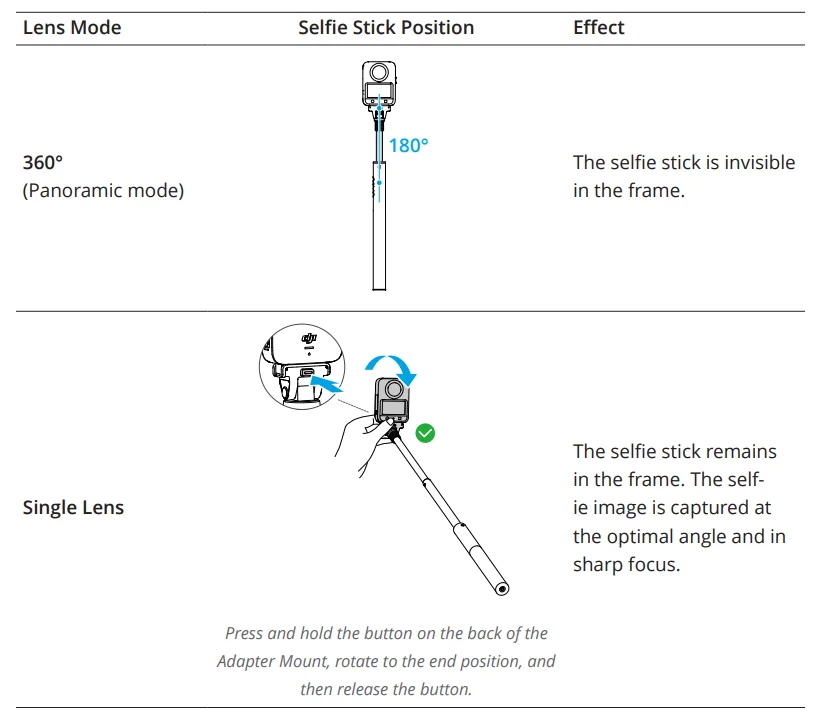
In 360° > Selfie Mode, the camera records only the area on the selfie stick side. You can use the official editing software to create wide-angle videos with the invisible selfie stick effect.
Export and Sharing
Transferring Files
Transferring Files to a Mobile Device
- Enable Wi-Fi and Bluetooth on the mobile device. Launch DJI Mimo and tap the camera icon on the home screen.
- Connect the camera to DJI Mimo, tap the Playback icon to preview photos and videos.
- Tap the icon
 to download photos and videos.
 to download photos and videos.
Transferring Files to a Computer
Power on the camera and connect it to a computer using the provided cable. When connected to a computer, a pop-up will appear. Tap Transfer File: USB to download the files from the camera to the computer. When transferring a file, the camera cannot take photos or record videos. Reconnect the device to the computer if a file transfer is interrupted.
Editing Panoramic Videos
Panoramic videos shot with the camera must be edited before you can share them as regular videos. Use DJI Mimo on your phone for quick editing or professional software on your computer for advanced editing. Watch the tutorial videos for details.
Usage Notes
Lens
- Keep the surface clean and scratch-free to avoid affecting image quality.
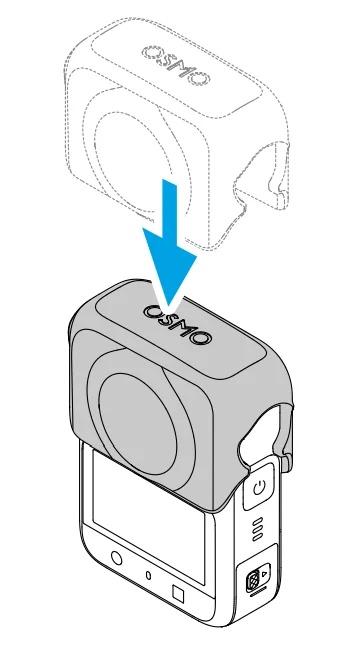
- After shooting, attach the rubber lens protector to the camera. Keep the inside of the protector clean to prevent dirt or scratches.

Battery
- DO NOT use non-official batteries. DJI takes no responsibility for any damage caused by non-official batteries.
- Discharge and charge the battery completely once every three months to keep it in good condition.
- When the battery voltage is too low, the battery will enter a low-power state. Charging the battery will exit low-power mode.
- DO NOT store the battery for an extended period of time after fully discharging. Otherwise, the battery may over-discharge and cause irreparable damage.
- Discharge the battery to 40-65% if it will not be used for 10 days or more. This can greatly extend the battery life.
Underwater Usage
- The camera unit can be used underwater at depths of up to 10 m.
- The camera may stitch images incorrectly when shooting panoramic videos underwater because water bends light differently than air. It is not recommended to use the camera alone for underwater shooting.
- Make sure the battery and battery compartment are dry and clean before inserting the battery. Otherwise, it may affect the battery contact and waterproofing ability. Make sure the battery compartment cover is firmly fastened after the battery is inserted. Note that the red marks should not be visible after the cover is properly fastened.
- Avoid jumping into water at high speed with the product. Otherwise, the impact may result in water seepage.
- Rinse the camera with tap water after using it underwater. Allow it to dry naturally before using again. Wipe the surface of the camera with a soft and dry cloth.
- DO NOT dry the camera with hot air using a hair dryer, the microphone membrane and the built-in breathable membrane will rupture, and the camera will no longer be waterproof.
- After using the camera in water, open the battery compartment cover facing downward to prevent water from entering the gaps in the battery compartment if you need to replace the battery. Wipe off any water droplets in the gaps of the battery compartment and clean the red waterproof rubber ring to prevent any foreign objects from remaining. Otherwise, it will affect the waterproof performance during subsequent use.
Cleaning
- DO NOT spill any liquids containing alcohol or cleansing solution on the camera.
- If the holes of the microphone, heat dissipation slots, or other parts of the camera are blocked by sand or other foreign matter, rinse with fresh water while the camera is in a sealed waterproof state.
- Clean the lens with a lens cleaning pen, lens air blower, or lens cleaning cloth.
- Clean the battery and battery compartment with a clean, dry cloth.
- Make sure the quick-release slots on the camera are clear of dust and sand when attaching the Quick-Release Adapter Mount.
Specifications
Visit the following website for specifications. https://www.dji.com/360/specs
For more manuals by DJI, visit ManualsLibraryy
DJI Osmo Action Camera-FAQs
How do I activate the DJI Osmo 360 Camera?
For first-time setup, download the DJI Mimo app on your smartphone. Turn on Wi-Fi and Bluetooth, power on the camera, open the app, and follow the on-screen instructions to connect and activate.
How do I connect the Osmo 360 to my phone?
Enable Wi-Fi and Bluetooth on your phone, open DJI Mimo, tap the camera icon, and select your Osmo 360 from the device list. Once paired, you can control settings, preview footage, and transfer files.
How do I start recording on the Osmo 360?
Simply press the shutter/record button on the camera to begin recording. Press it again to stop. You can also start or stop recording directly from the DJI Mimo app.
Can the DJI Osmo 360 take photos?
Yes. The camera captures high-resolution 360° photos up to 120MP, allowing you to shoot immersive still images with wide detail.
Is the DJI Osmo 360 waterproof?
The Osmo 360 is designed as a waterproof action camera. However, always check the official depth rating and ensure all covers are securely closed before underwater use.
Does the Osmo 360 need an SD card?
Some versions include built-in storage (e.g., 105GB). However, using a compatible microSD card is recommended for extended recording sessions.
How long can the Osmo 360 record?
Recording time depends on resolution and battery life. At high resolutions like 8K, continuous recording may last around 100 minutes under optimal conditions.
Can I control the camera from my phone?
Yes. Through the DJI Mimo app, you can adjust settings, switch modes, preview live footage, and download media.
Can the Osmo 360 shoot normal (non-360) videos?
Yes. You can switch to single-lens mode to capture standard wide-angle videos and photos like a traditional action camera.
Where are my DJI photos and videos stored?
Files are saved to the camera’s internal storage or SD card. You can transfer them to your phone via DJI Mimo or to a computer using a USB cable.