
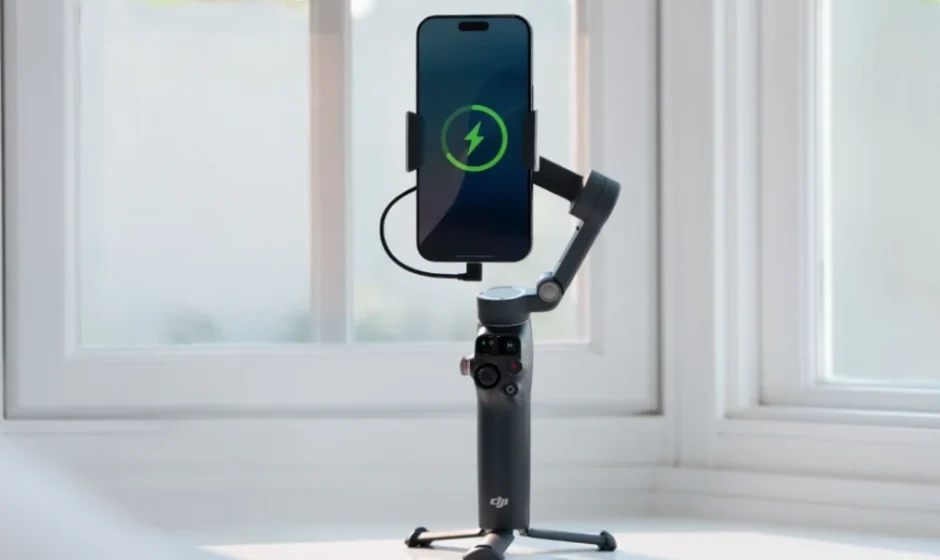

DJI Osmo Mobile 8
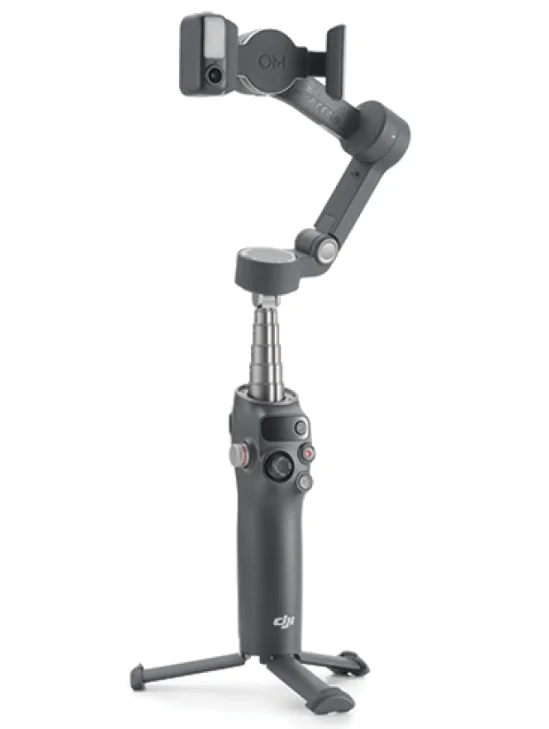
Product Profile
Osmo Mobile 8
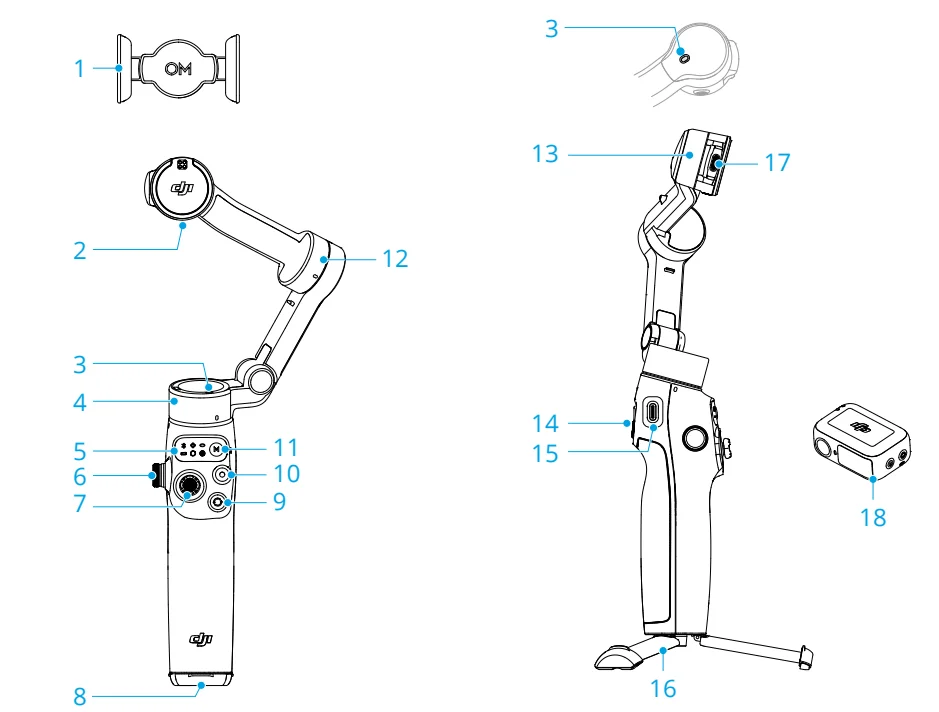
- Magnetic Phone Clamp
- Counterweight Mounting Hole
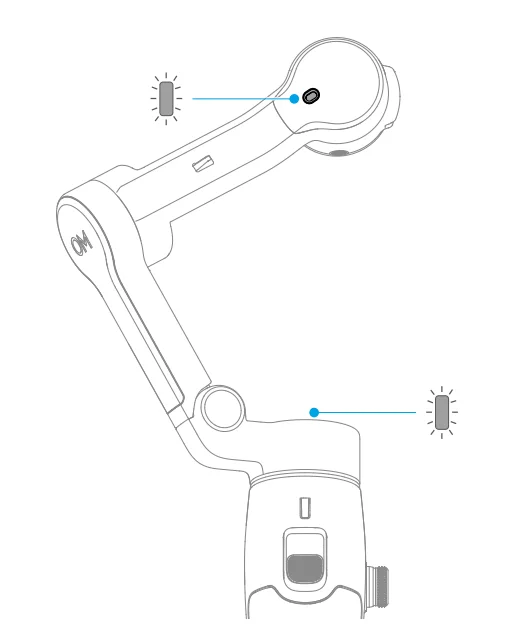
- Function Status Indicator
- Pan Motor
- Status Panel
- Side Wheel
- Joystick
- 1/4″-20 UNC Port
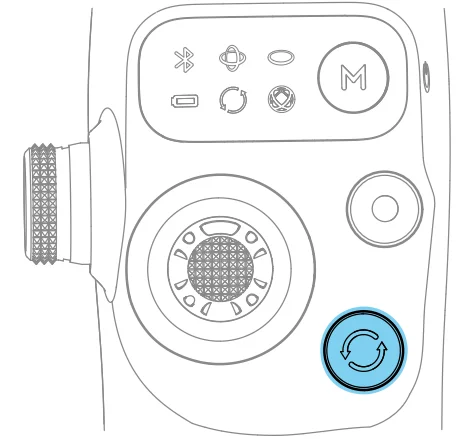
- Switch Button
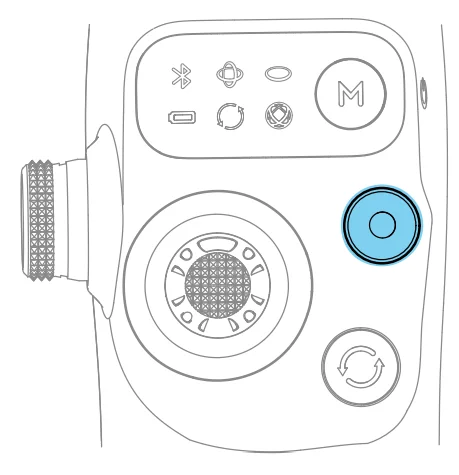
- Shutter/Record Button
- Power/M Button
- Tilt Motor
- Roll Motor
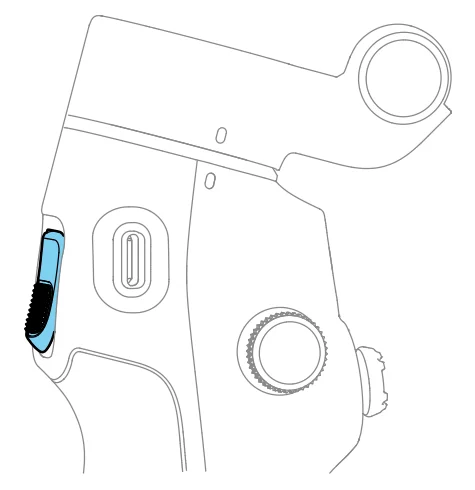
- Trigger
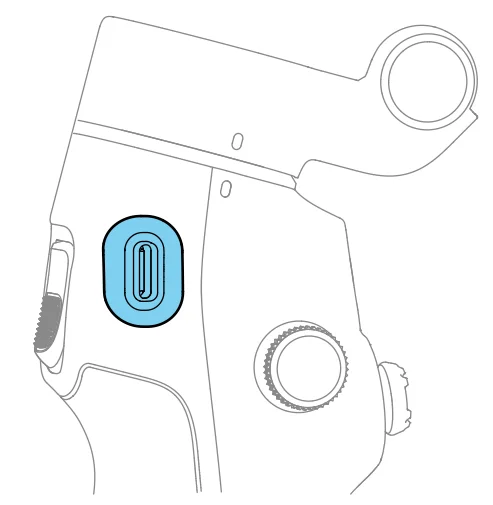
- Charging Port (USB-C)
- Built-in Tripod
- Output Port (USB-C)
- DJI OM Multifunctional Module
References: DJI OM Multifunctional Module is hereinafter referred to as “Multifunctional Module”.
Multifunctional Module
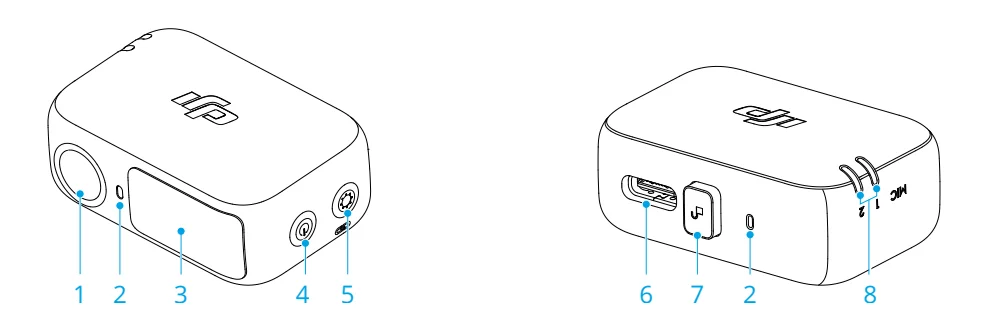
- Tracking Camera
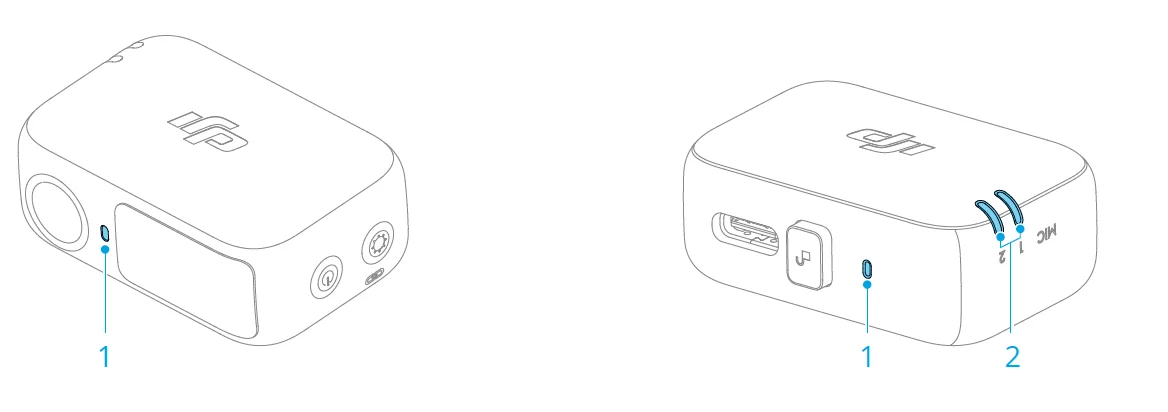
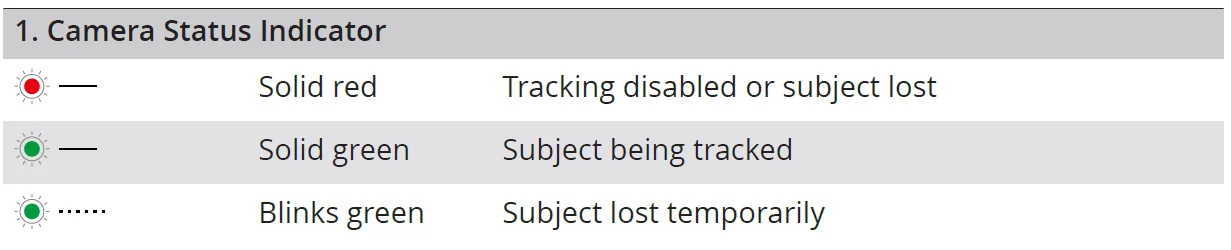
- Camera Status Indicator
- Fill Light
- Brightness Control Button
- Color Temperature Control/Bluetooth Pairing Button
- Audio Data/Phone Charging Port (USBC)
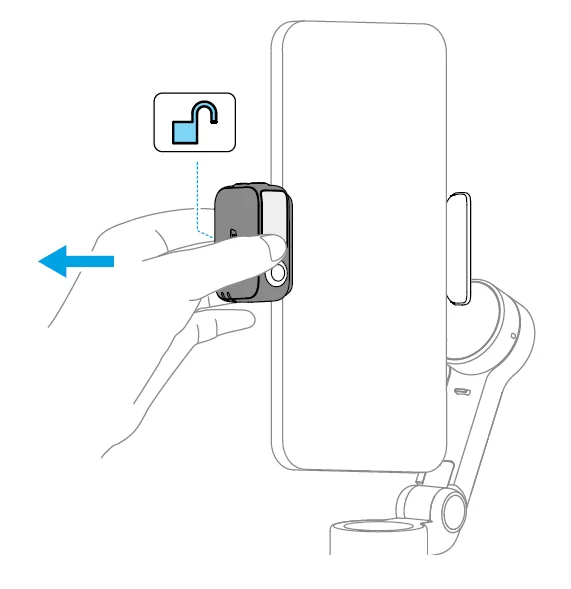
- Release Button
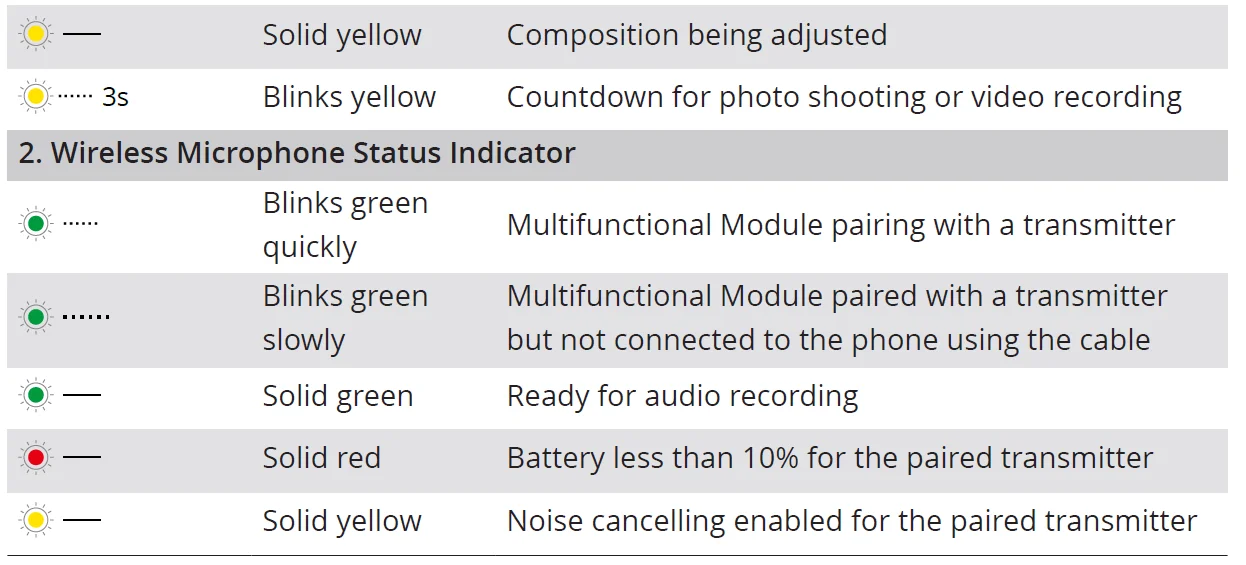
- Wireless Microphone Status Indicator
Using for the First Time
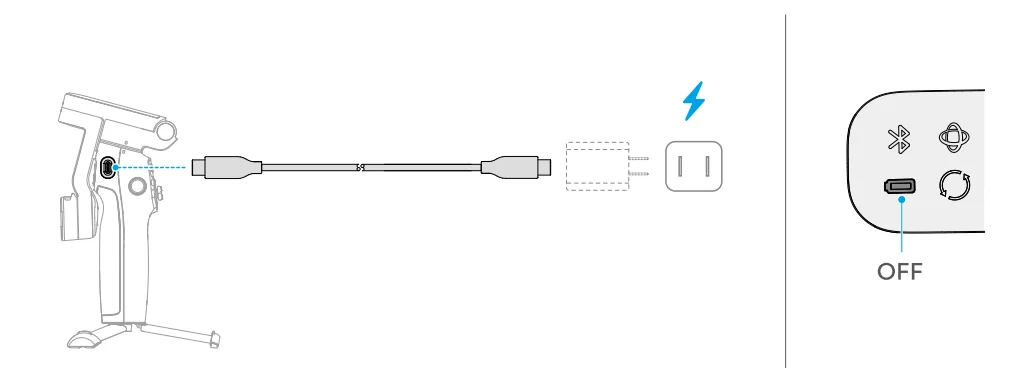
Charging
The product is fully charged when the Battery Level Indicator turns off.
Unfolding
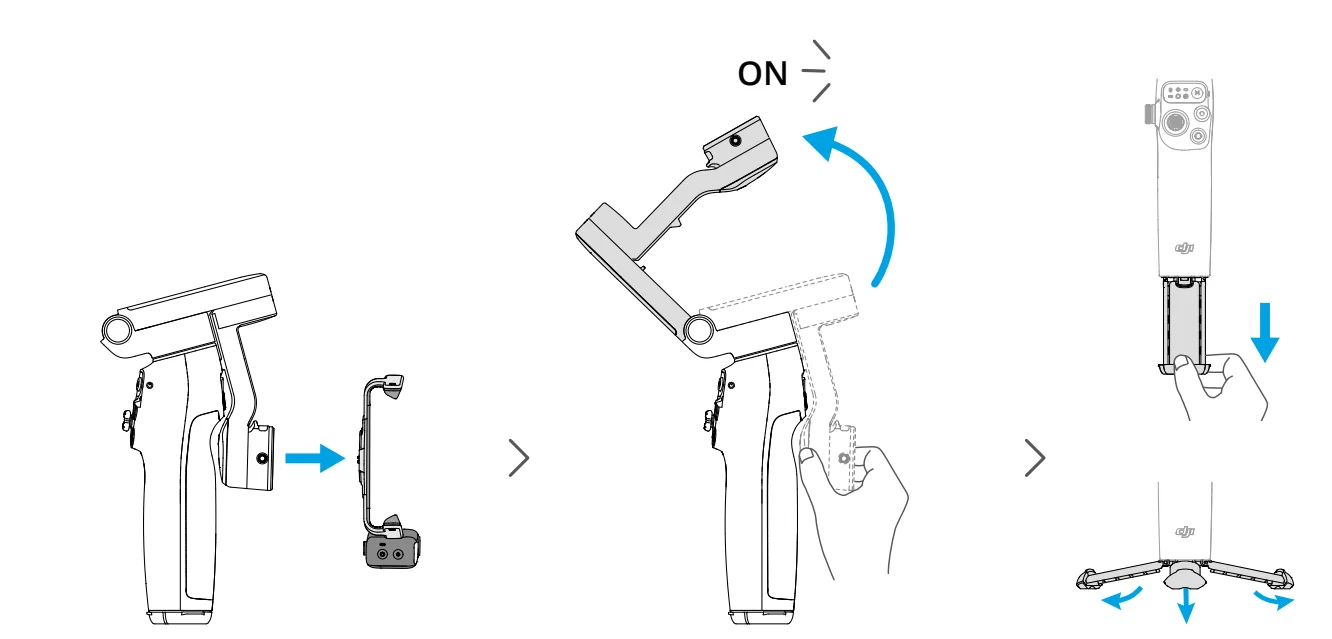
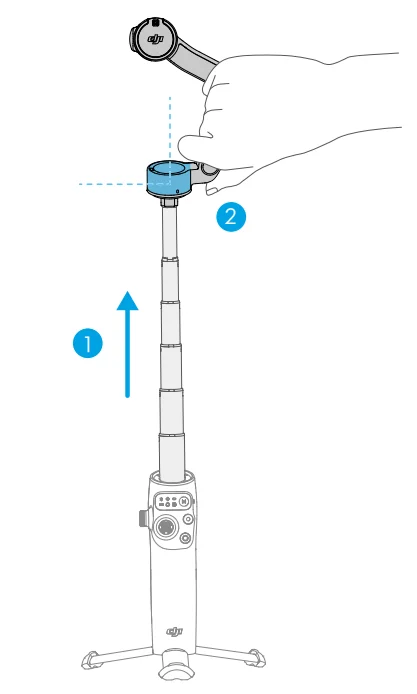
Hints & Tips: The built-in tripod is suitable for stable, level surfaces in windless environments. In other conditions, it is recommended to attach the DJI OM Grip Tripod (sold separately) to the bottom of the gimbal.
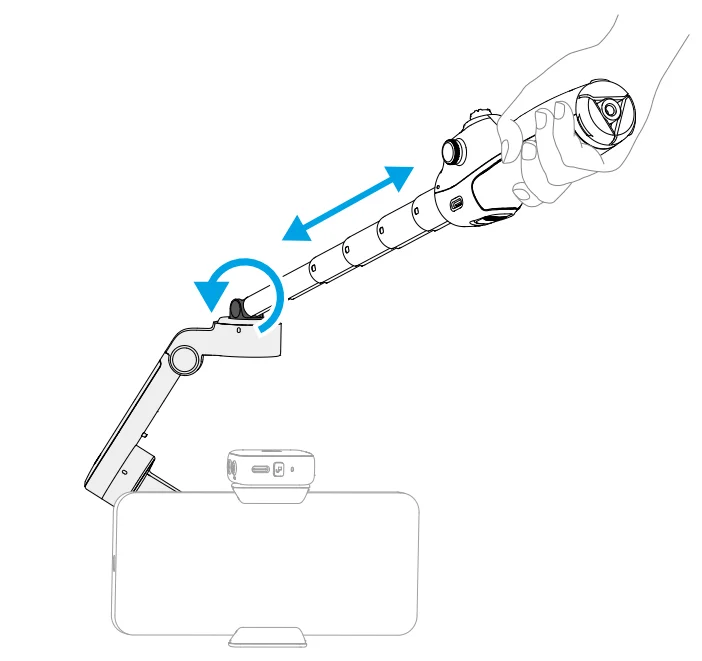
If you extend the built-in extension rod, make sure to adjust the Pan Motor to be level with the ground. This ensures balance after the phone is attached to the gimbal.
Attaching the Phone
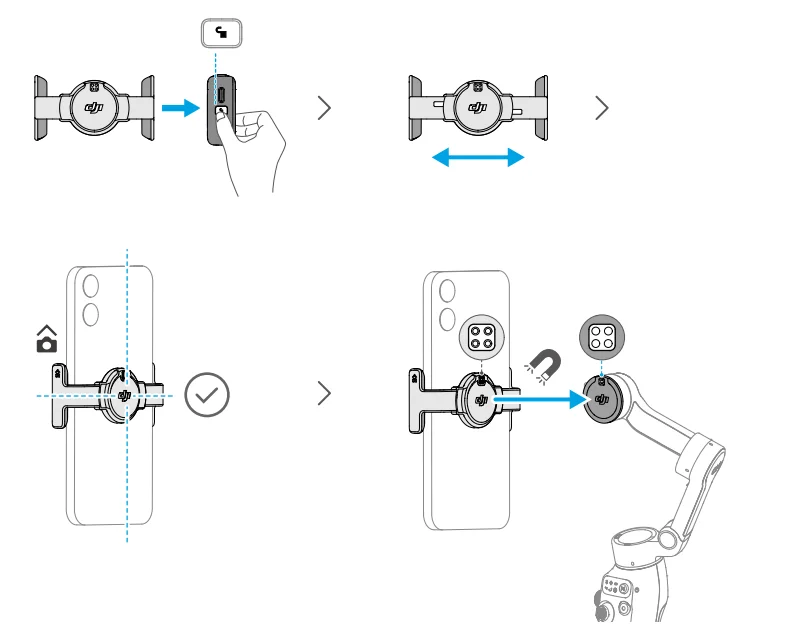
A steady gimbal mode light indicates that the gimbal is stabilizing the phone. If the light is not displayed after you attach the phone, press the M button to enable stabilization.
Connecting to the DJI Mimo App
- Scan the QR code to download DJI Mimo.

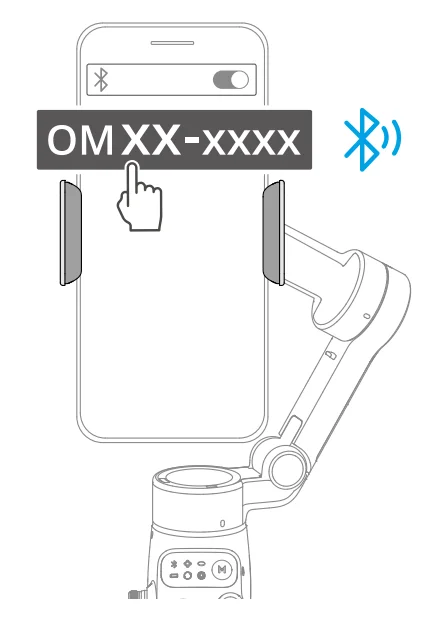
- Enable Bluetooth on your phone, open DJI Mimo, and connect to the gimbal.


References
- To check the Android and iOS operating system versions supported by DJI Mimo, visit https://www.dji.com/downloads/djiapp/dji-mimo.
- The interface and functions of DJI Mimo may vary as the software version is updated. Actual user experience is based on the software version used.
Hints & Tips
If the Bluetooth connection fails, try the following steps:
- Go to Bluetooth settings on your phone. Remove any existing connections with the gimbal and forget the device.
- Reset Bluetooth for the gimbal.
- Tap the new device name in Bluetooth settings. Once connected, relaunch DJI Mimo.
Firmware Update
A prompt will appear in DJI Mimo when new firmware is available. Tap the prompt and follow the on-screen instructions to update the firmware. Ensure that the Battery Level Indicator shows solid green before the update. DO NOT exit DJI Mimo during the update. If the update fails, restart DJI Mimo, reestablish the Bluetooth connection, and retry.
Basic Features
Buttons and Ports
The following feature descriptions are based on DJI Mimo usage examples. Support for certain features in the system camera may vary depending on the phone model. For more information, visit https://www.dji.com/osmo-mobile-8.
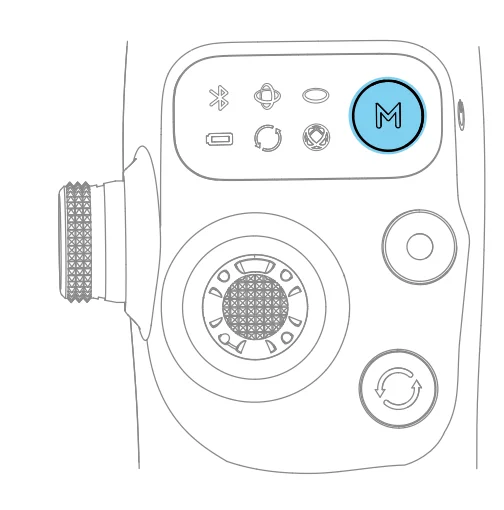
- Power/M Button
When powered off- With the gimbal folded, press once: Check the battery level
- With the gimbal unfolded, press once: Power on
- When powered on
- Press once: Switch between gimbal modes
- Press three times: Enter standby mode (press any button to exit)
- Press and hold: Power off
* The M button can also control phone charging using the gimbal or Multifunctional Module.
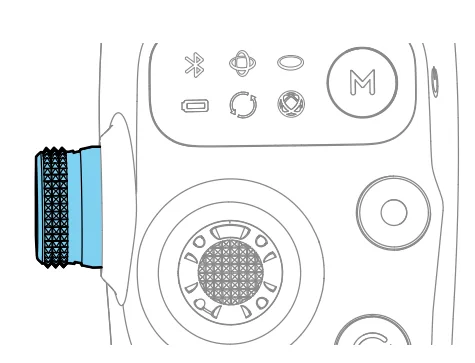
- Side Wheel
- Press once: Switch between focus, zoom, or joystick zoom mode
- Rotate: Control focus or zoom
- In joystick zoom mode, vertically move the joystick to control zoom.
* The side wheel can control the fill light when used with the Multifunctional Module.
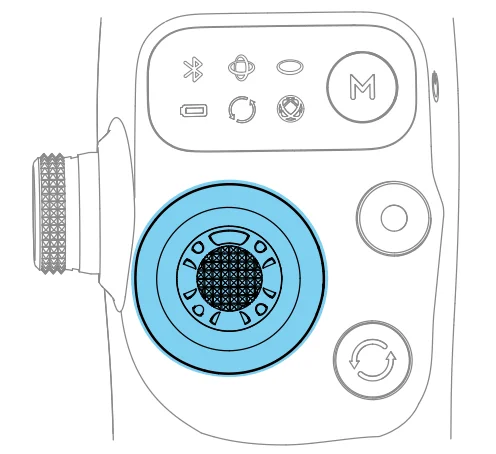
- Joystick
- Move vertically and horizontally to tilt and pan the mobile phone. The joystick control direction can be set in DJI Mimo.
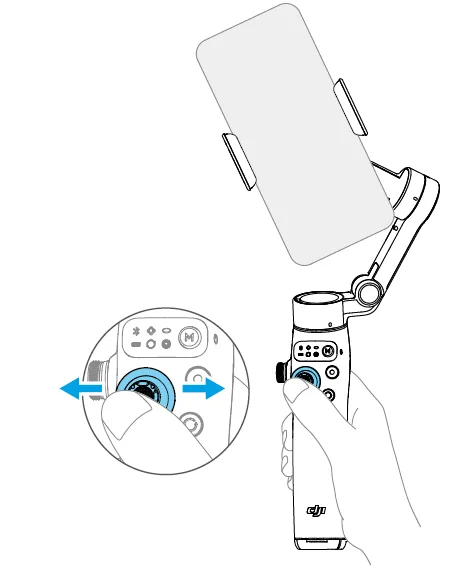
- Push the joystick twice to the left or right, and the gimbal will automatically rotate.

- Shutter/Record Button
- Press once in the camera view: Take a photo or start/stop recording
- Press once in other views: Return to the camera view
- Press twice: Take a photo during recording
- Press and hold: Burst shooting when in photo mode

- Switch Button
- Press once: Switch between front and rear cameras
- Press twice: Switch between landscape and portrait mode
- Press three times: Switch between photo and video modes
- Press and hold: View playback

- Trigger
- Press once: Start or stop ActiveTrack
- Press twice: Recenter the gimbal
- Press three times: Rotate the phone 180 degrees in thehorizontal plane
- Press once, and then press and hold: Adjust the following speed to fast mode. Release to exit.
- Press and hold: Enter lock mode. Release to exit.

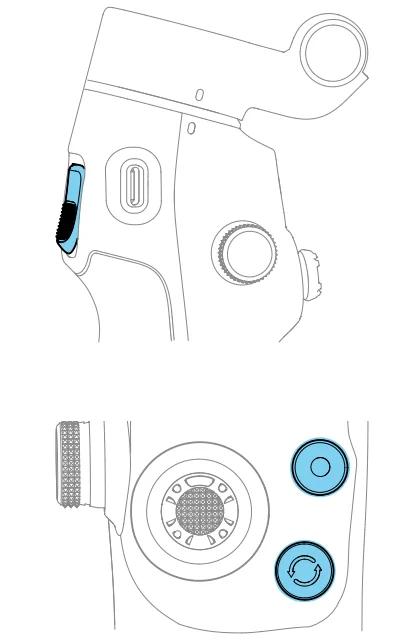
- Combination Operation
- Press the switch button, shutter/record button, and trigger simultaneously for more than one second to reset the Bluetooth name and connection and reconnect.

- Press the switch button, shutter/record button, and trigger simultaneously for more than one second to reset the Bluetooth name and connection and reconnect.
- Charging Port (USB-C)
- Charging the gimbal

- Charging the gimbal
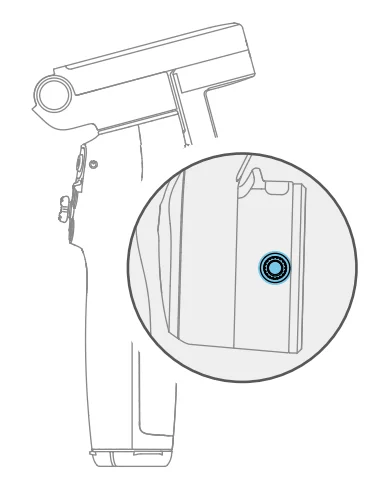
- Counterweight Mounting Hole
- For mounting counterweights when the phone has a heavy lens module or lens filters attached.
* Contact official technical support to purchase the counterweights.
- For mounting counterweights when the phone has a heavy lens module or lens filters attached.
Indicators
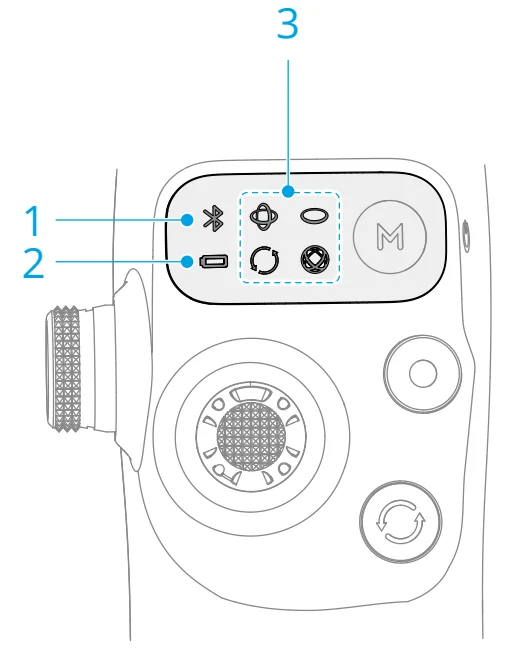
- System Status Indicator

- Battery Level Indicator


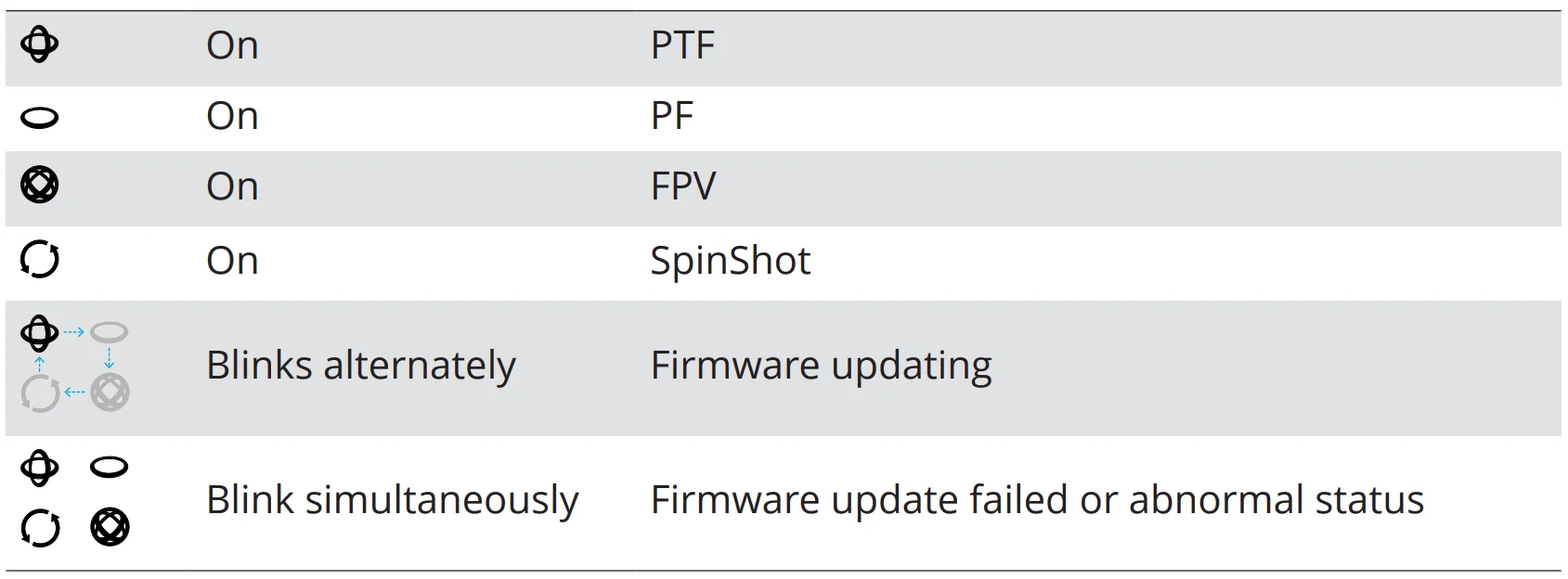
- Gimbal Mode Indicator

- Function Status Indicator




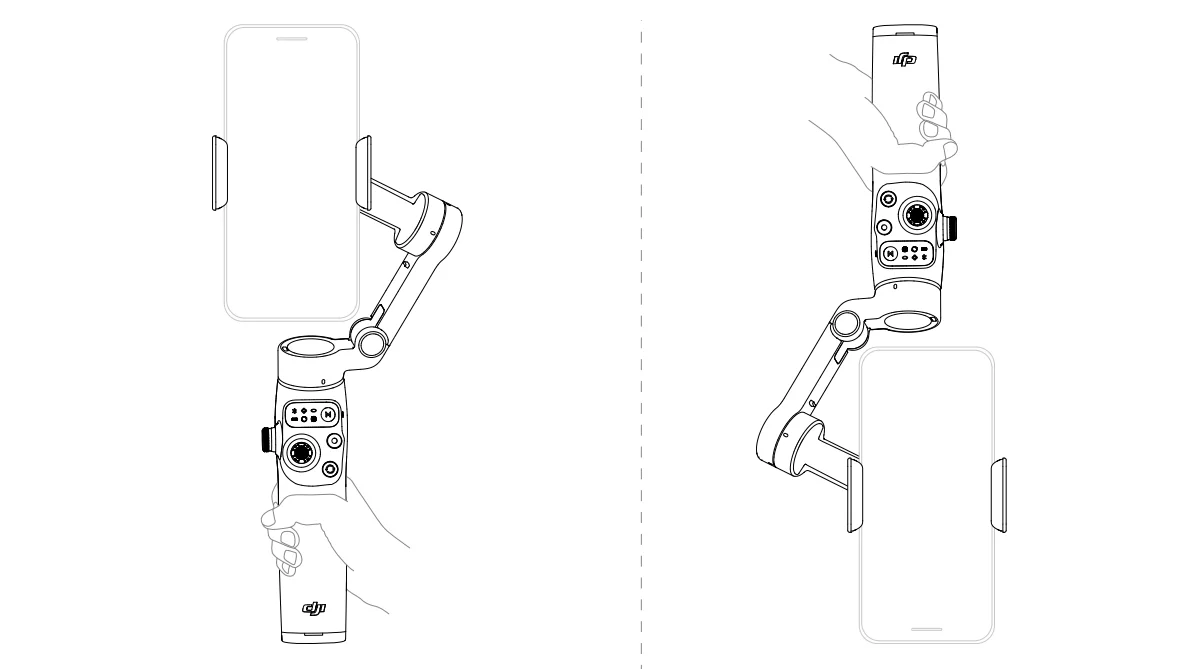
Grip Gestures
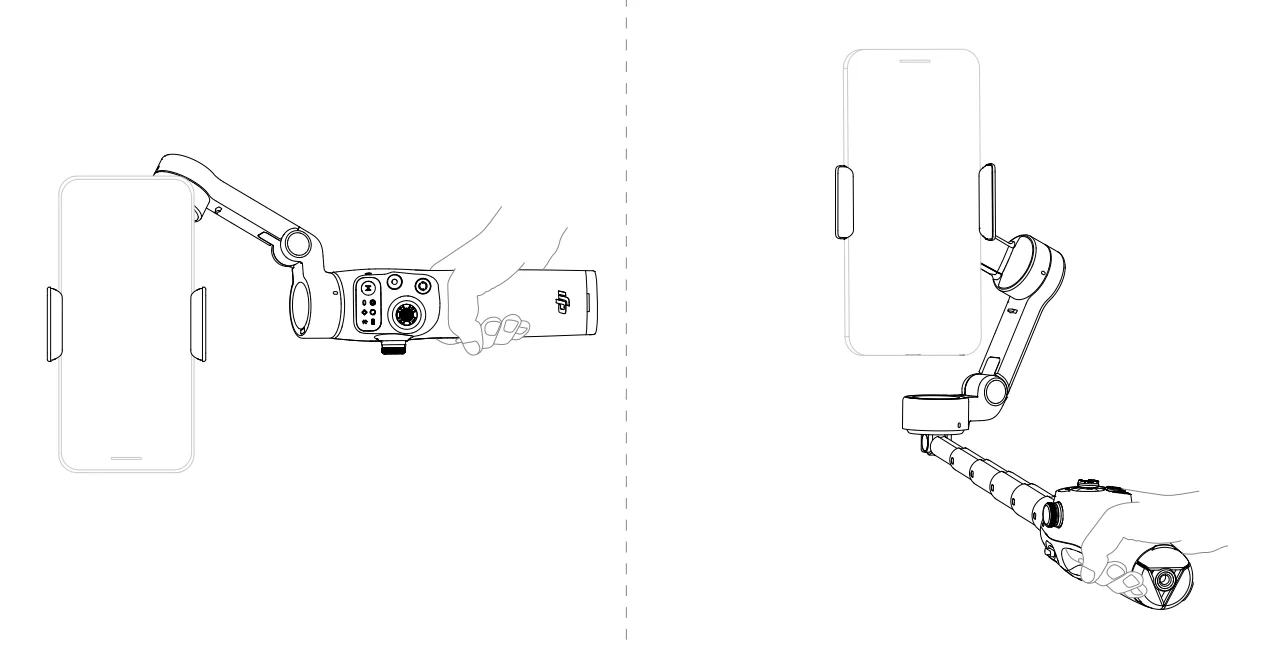 Hints & Tips
- Grip gestures apply to both landscape and portrait orientations.
- If the built-in tripod is extended, grip the handle to ensure stability. DO NOT grip only the tripod.
The built-in extension rod of Osmo Mobile 8 can be used for low-angle shooting. Click to watch the tutorial videos.
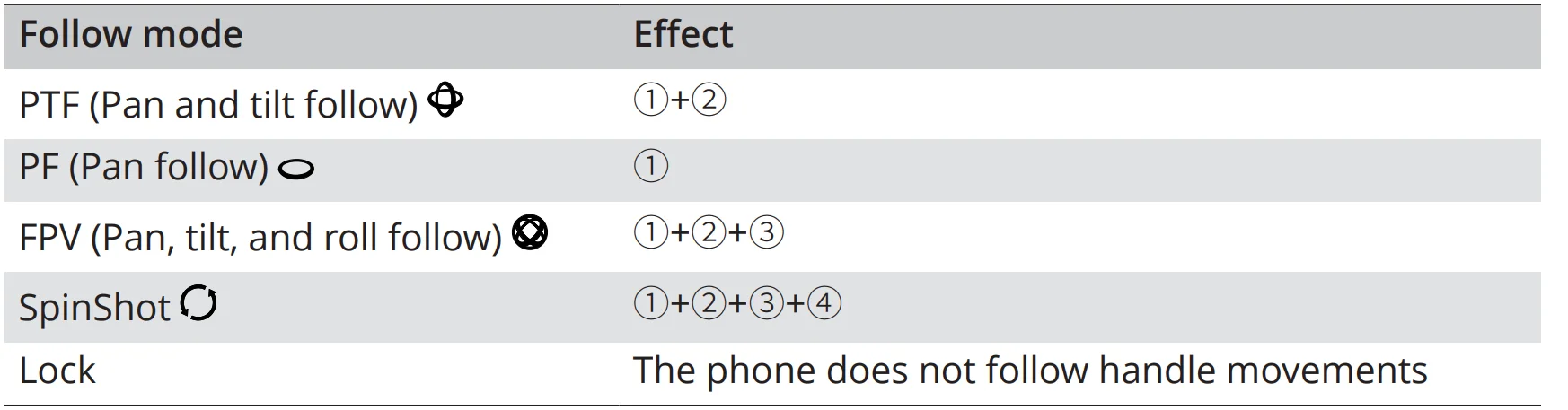
Follow Modes
Click to watch the tutorial videos.
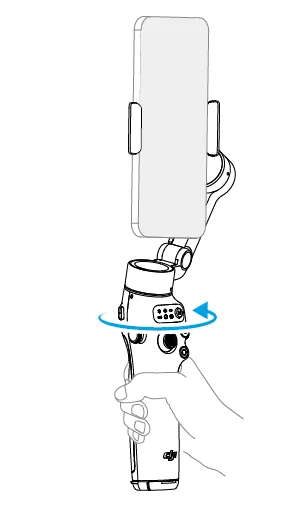
- Rotate the handle in the horizontal plane, and the phone follows

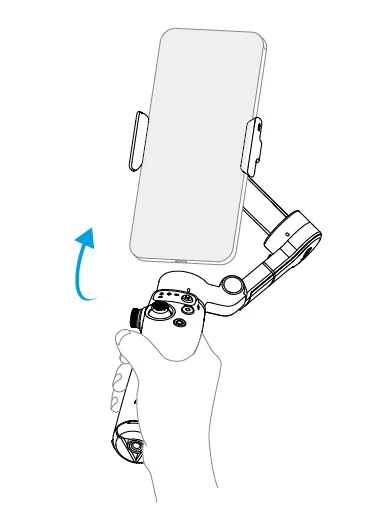
- Swing the handle back and forth, and the phone follows

- Rotate the handle in the vertical plane and the phone follows

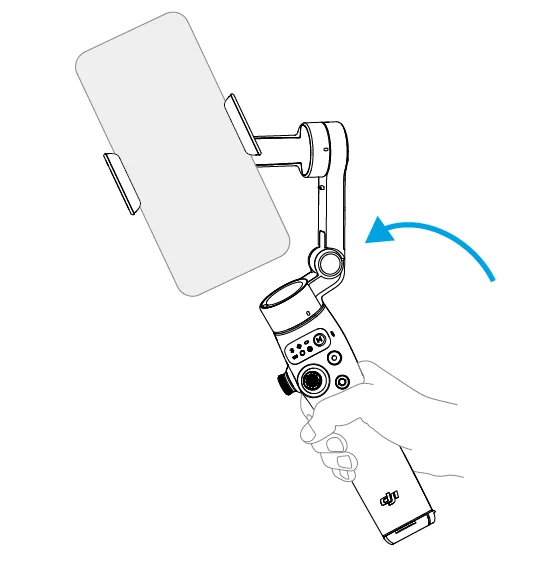
- Move the joystick left or right to rotate the phone in the vertical plane
Automatic Pan and Roll
Push the joystick twice to the left or right, and the gimbal will automatically pan or roll in different follow mode.
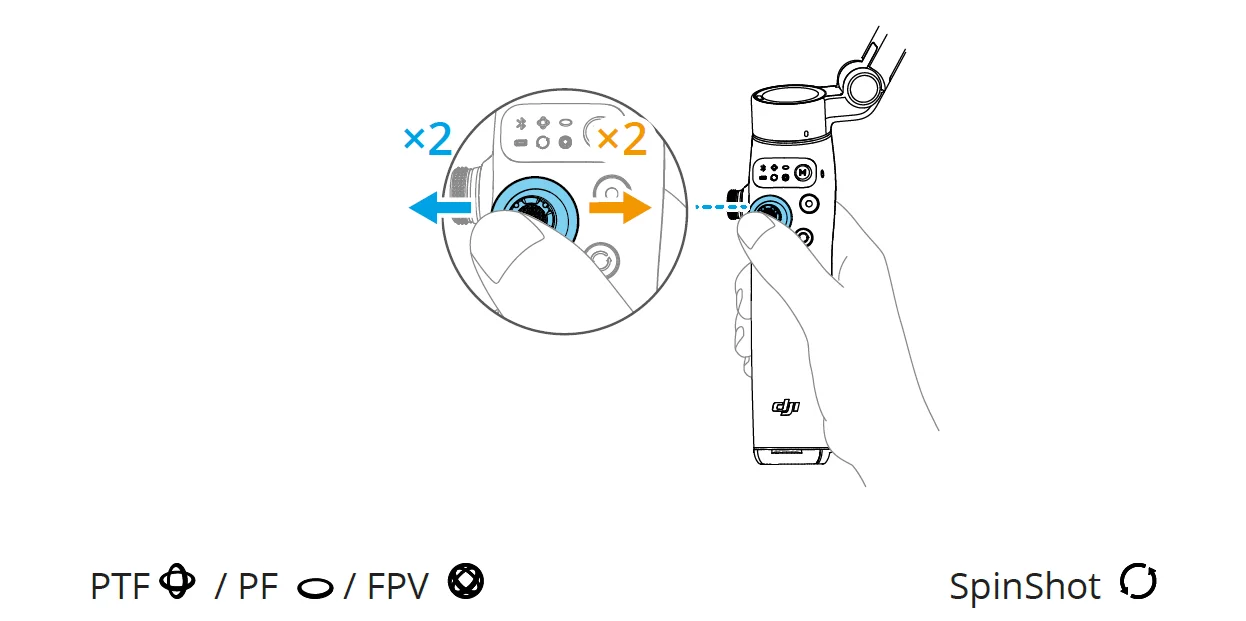
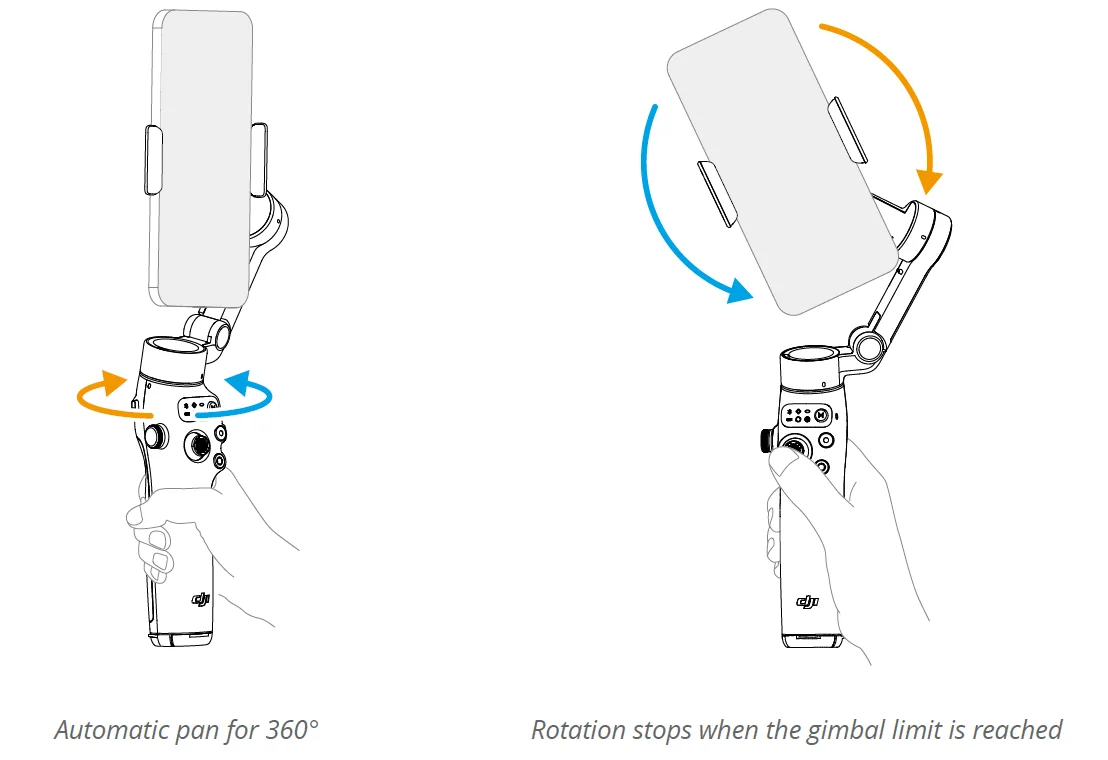
Hints & Tips: Double-press the trigger to stop the rotation and recenter the gimbal.
Phone Charging
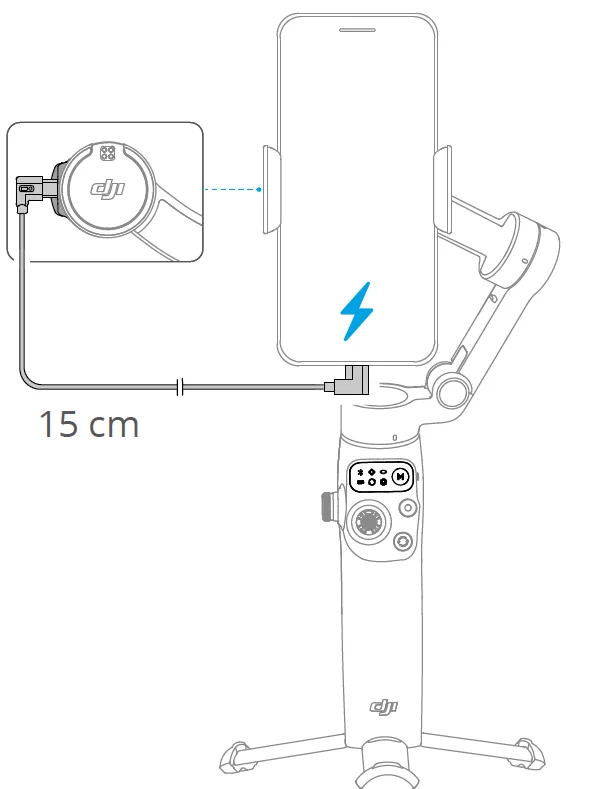
Hints & Tips: Make sure that the gimbal is sufficiently charged (the indicator shows).
Storage
Hints & Tips:
- For Osmo Mobile 8, retract the extension rod before performing the following steps.
- When the gimbal powers off, it automatically rotates to the folding position. Remove the phone, phone clamp, and Multifunctional Module together. For the next use, attach them as a whole and unfold the gimbal to start shooting.
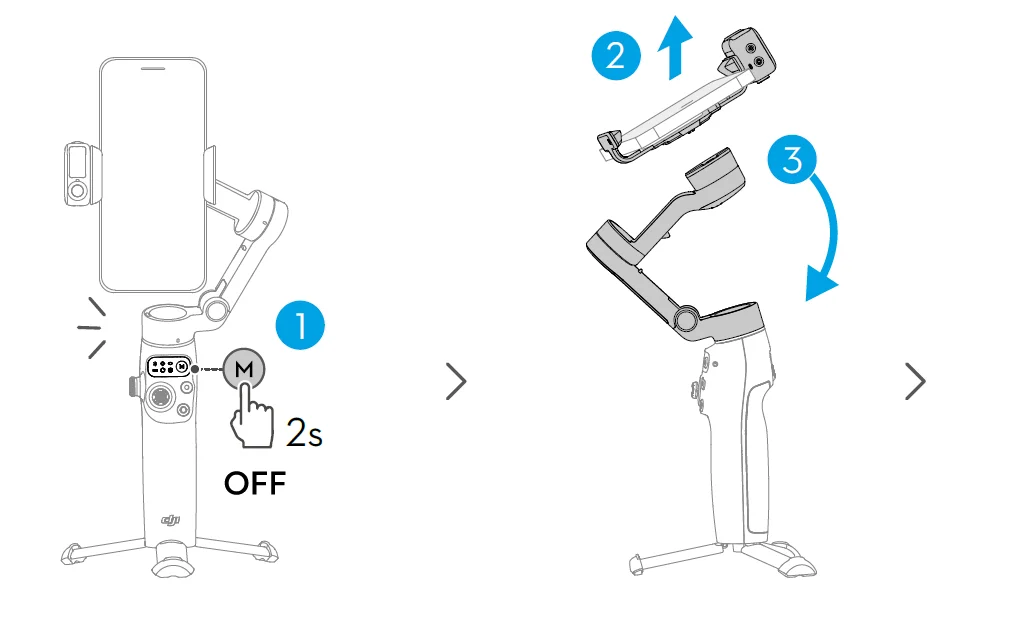
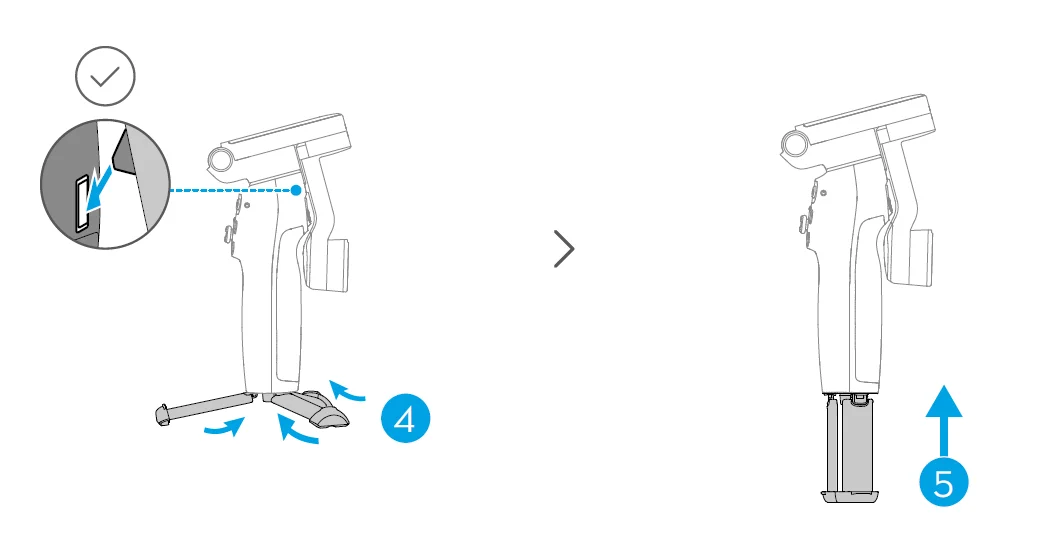
Advanced Features
Multifunctional Module
Installing and Removing
- Example:
Capture photos or videos of yourself
- Example:
Capture photos or videos of others
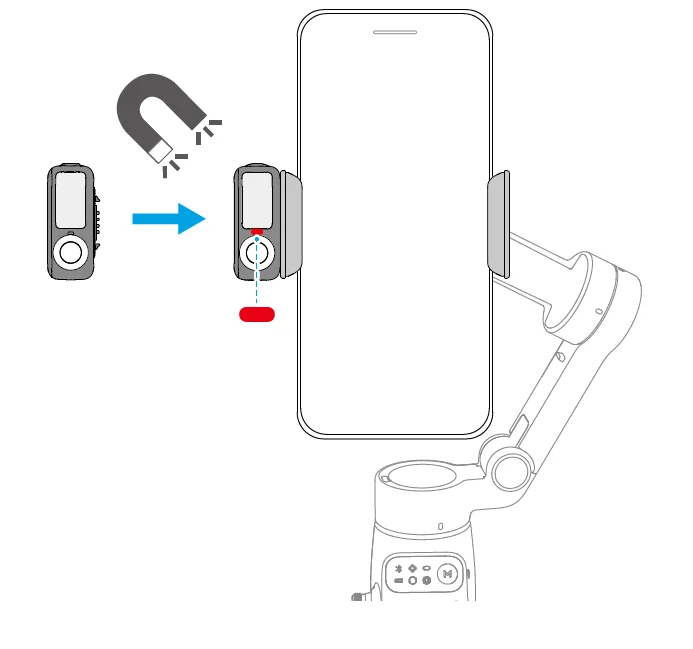
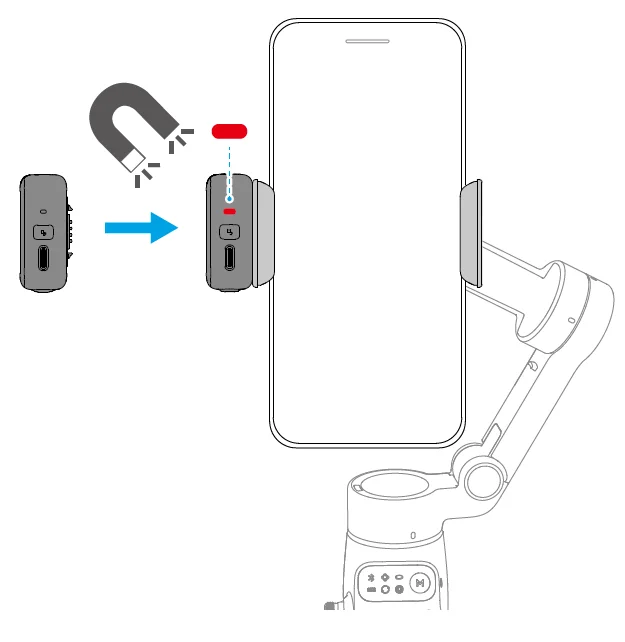
Hints & Tips:
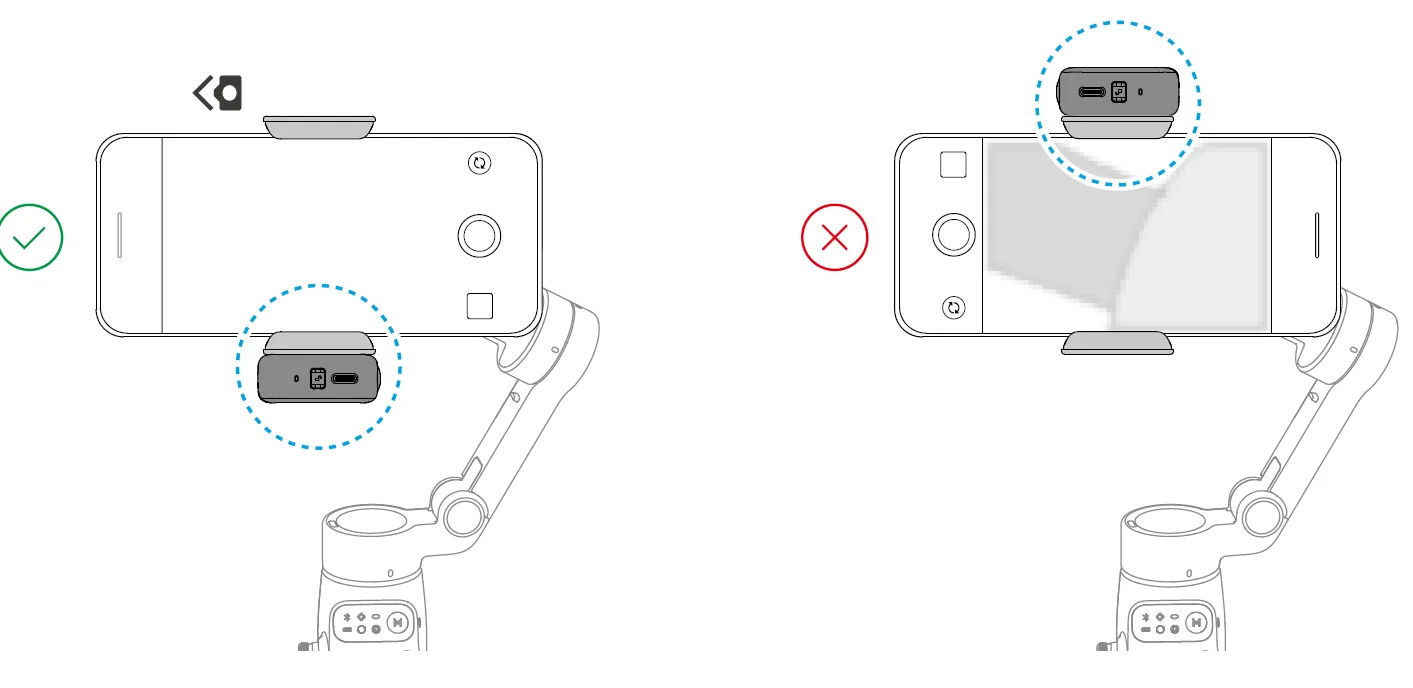
- If the indicator shown in the preceding figure does not turn on after the Multifunctional Module is installed, check whether the marks on the gimbal and the phone clamp are aligned.
- If the Multifunctional Module is idle for more than five minutes, it automatically enters sleep mode, and the indicator turns off. To exit sleep mode, press the trigger on the gimbal.
Avoid blocking the rear camera when shooting in landscape mode.
Remove Multifunctional Module:
Tracking and Shooting
The multifunctional module allows you to enable tracking in the system camera and third-party camera apps, without the need to use DJI Mimo.
Warning:
- The multifunctional module supports tracking people, cats, and dogs.
- The tracking and shooting features of the Multifunctional Module are disabled in DJI Mimo.
Hints & Tips:
- Position the tracking camera of the Multifunctional Module and the phone camera towards the subject. For example, both cameras are used to take selfies in the following illustrations.
- To achieve optimal gesture recognition, keep the subject 0.5m to 3m away from the tracking camera.
- During tracking, keep the subject 0.5m to 8m away from the tracking camera.
Tracking
- Enable Bluetooth on the phone and connect to the gimbal.

- Enable tracking: Show the gesture to the
 camera or press the trigger. The indicator turns solid green.
- Adjust the composition as needed during tracking.
- Method 1: Use the joystick.
- Method 2: Use hand gestures.
Show the gesture to the camera. The indicator turns solid yellow, and tracking is automatically paused. The subject can move to the desired position in the frame.
Show thegesture again to confirm the composition. The indicator turns solid green, and tracking automatically resumes.
To restore the default composition for each method, press the trigger twice.
- Stop tracking: Show thegesture or press the trigger again. The indicator turns solid red.
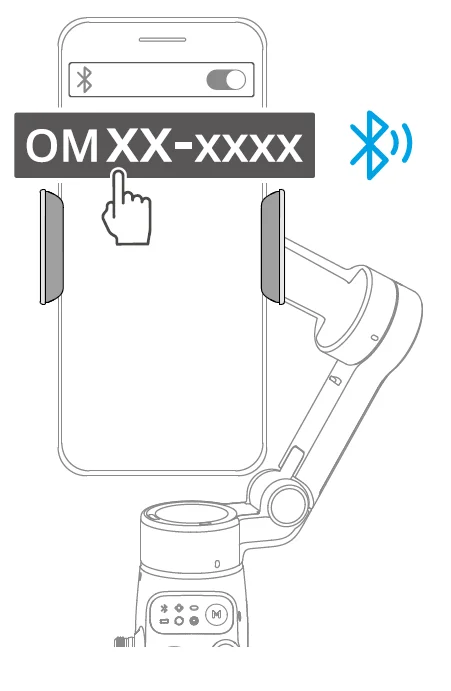
 camera or press the trigger. The indicator turns solid green.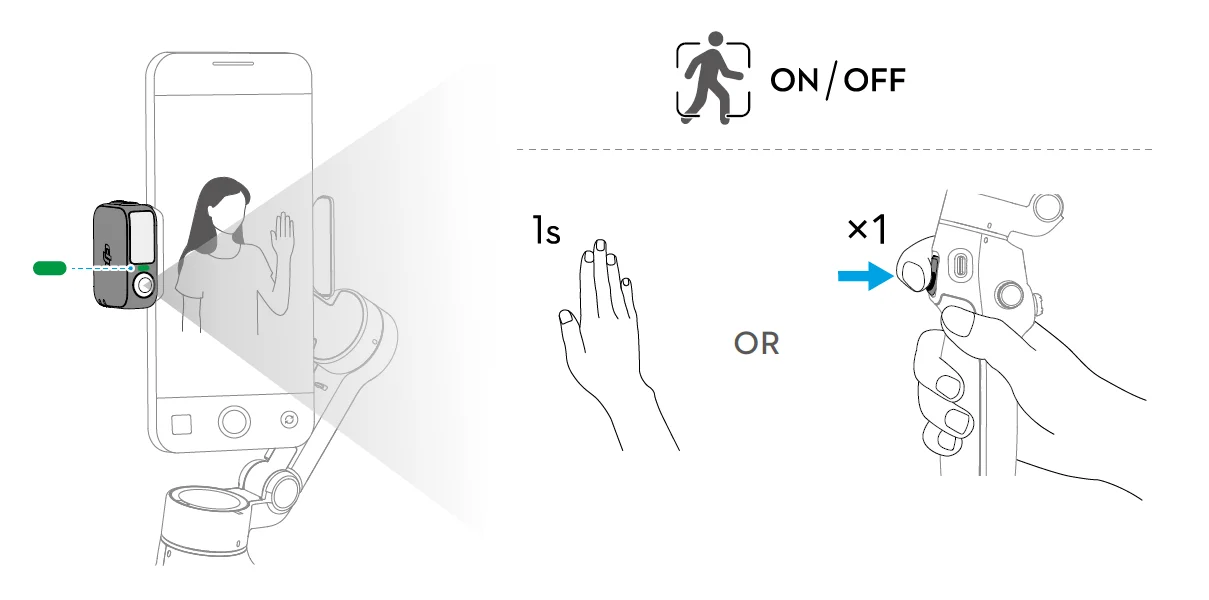
 gesture to the camera. The indicator turns solid yellow, and tracking is automatically paused. The subject can move to the desired position in the frame.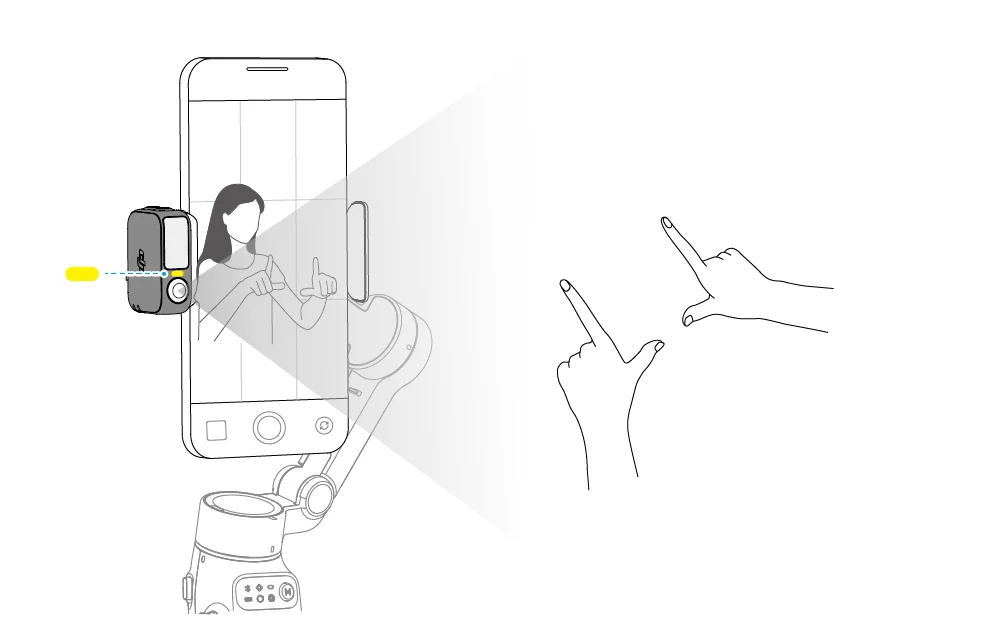
Shooting
Whether tracking is enabled or not, you can use the gesture to start a countdown for taking a photo or starting/stopping recording. The indicator pulses yellow during the countdown.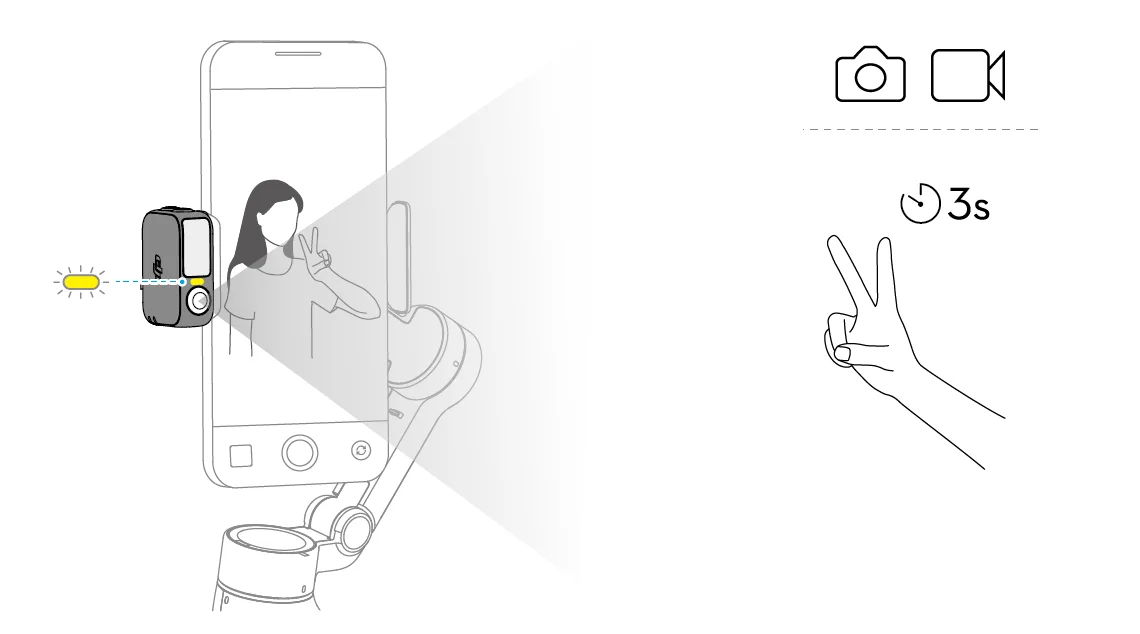
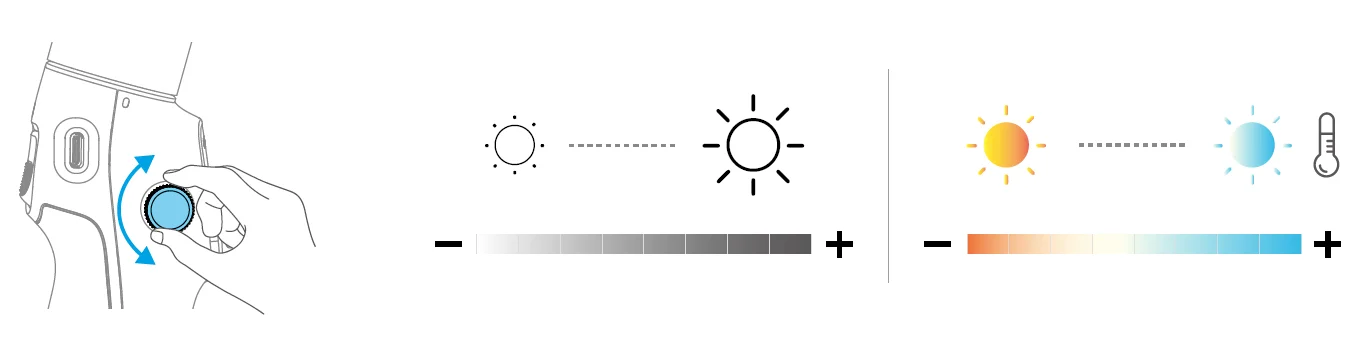
Fill Light
Make sure that the Multifunctional Module is properly installed.
Adjust brightness:
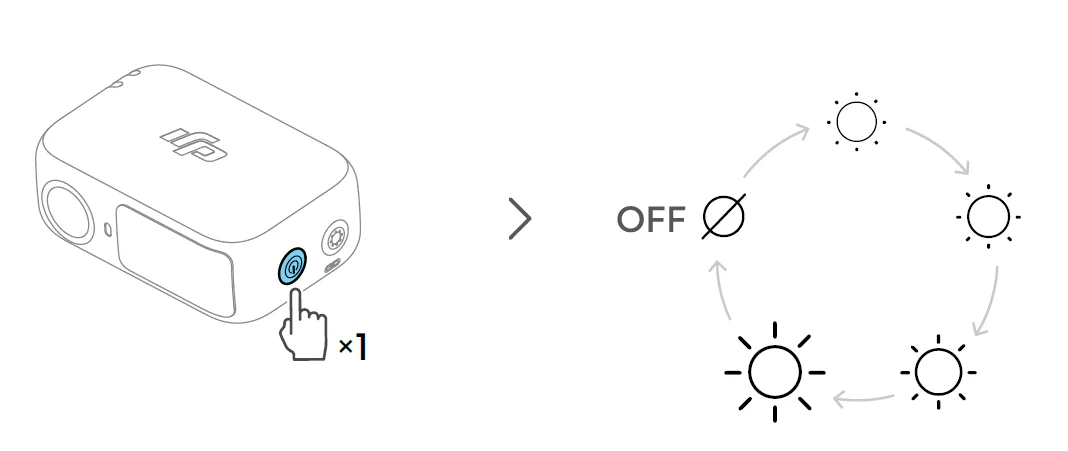
Adjust color temperature: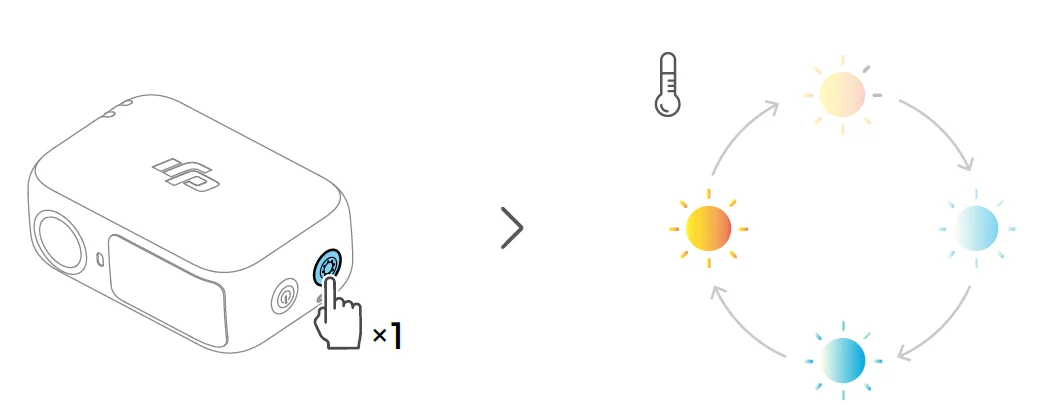 Osmo Mobile 8 allows you to control the fill light on the Multifunctional Module using the side wheel:
- Press and hold: Turn on/off the fill light
- Rotate: Adjust brightness or color temperature

- Press once: Switch between controlling brightness and color temperature
- Press twice in DJI Mimo: Set the effect of rotating the side wheel to focus/zoom control or brightness/color temperature control
Connecting to Wireless Microphones
The multifunctional module can connect to two wireless microphone transmitters (hereinafter referred to as “transmitters”). The two transmitters must be the same model. Supported transmitters:
- DJI Mic 3
- DJI Mic Mini
- DJI Mic 2
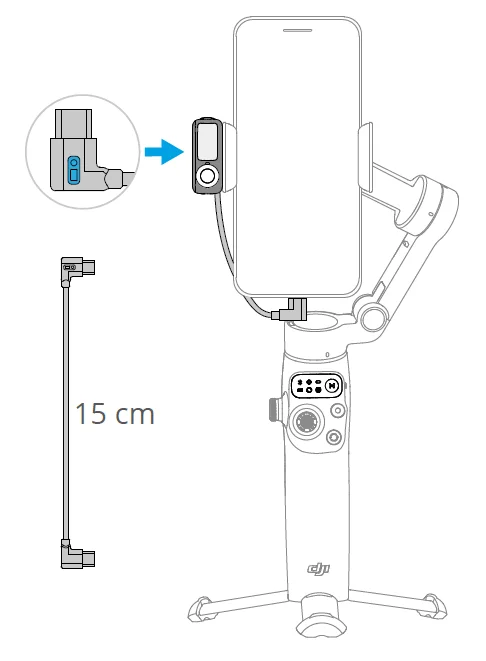
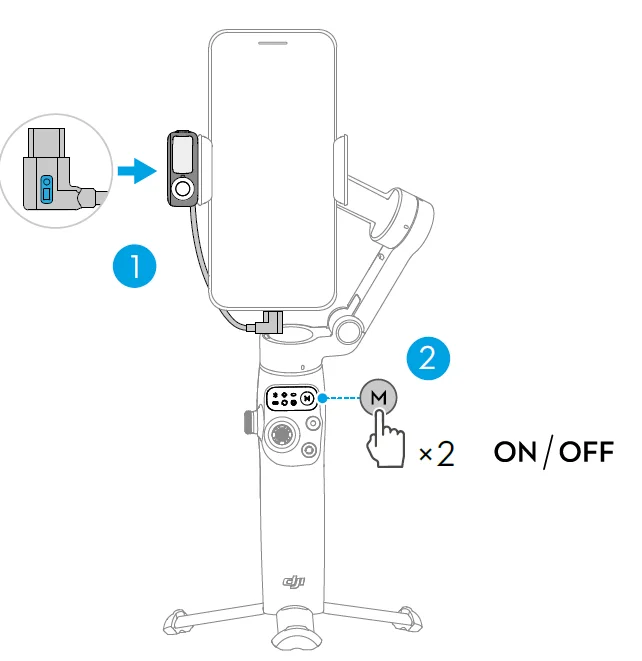
- Connect the Multifunctional Module to the phone.

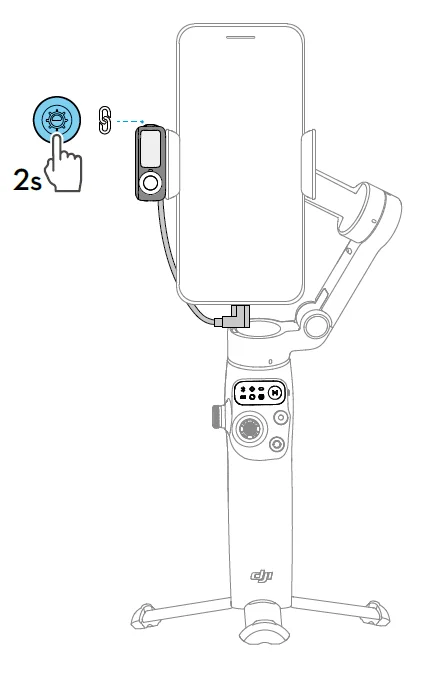
- Enable Bluetooth pairing for Multifunctional Module.

- Power on the transmitter and set linking mode. For more information, refer to the User Manual of the corresponding microphone on the official website.
- DJI Mic Mini / DJI Mic 3: Linking mode with the receiver.
- DJI Mic 2: Linking mode via Bluetooth.
- Once linked, the indicator of the Multifunctional Module turns solid green. The indicator of the transmitter switches to the linked status in the corresponding mode. You can start recording.
Hints & Tips:
- To prevent the cable connecting the Multifunctional Module and the phone from obstructing the gimbal, bend the cable as needed. Make sure to use the cable included in the package.
- For iPhone 14 and earlier models, a USB-C to Lightning cable (sold separately) is required to connect to the Multifunctional Module.
- You can configure wireless microphone settings in DJI Mimo.
Phone Charging
Hints & Tips: Make sure that the gimbal is sufficiently charged (the indicator shows or ).
).
Indicators
Firmware Update
Make sure that the Multifunctional Module is properly installed. When using DJI Mimo to update the gimbal firmware, the module firmware is updated together. Please wait for the upgrade to complete.
Apple DockKit Tracking
iPhone users can connect to the gimbal via NFC (near-field communication) and use the tracking feature based on Apple DockKit, without the need for the Multifunctional Module. This feature supports the system camera and third-party apps. For detailed instructions, watch the tutorial videos.
- Device requirement:
- Model: iPhone 12 or later, excluding iPhone SE (3rd generation) and iPhone 16e.
- System: iOS 18.5 or above.
- This feature cannot be used simultaneously with the tracking feature of the Multifunctional Module or DJI Mimo.
- Refer to the compatibility list for more information on third-party apps that support Apple DockKit.
DockKit Pairing
- Unlock the phone and stay on the home screen. Make sure the network connection is normal. Enable Bluetooth and NFC.
- Unfold the gimbal. Touch the phone’s NFC area to the gimbal’s NFC area. Wait for the pop-up window and follow the instructions.

- Remove the Multifunctional Module and then attach the phone to the gimbal.

- The gimbal will nod when pairing is successful.
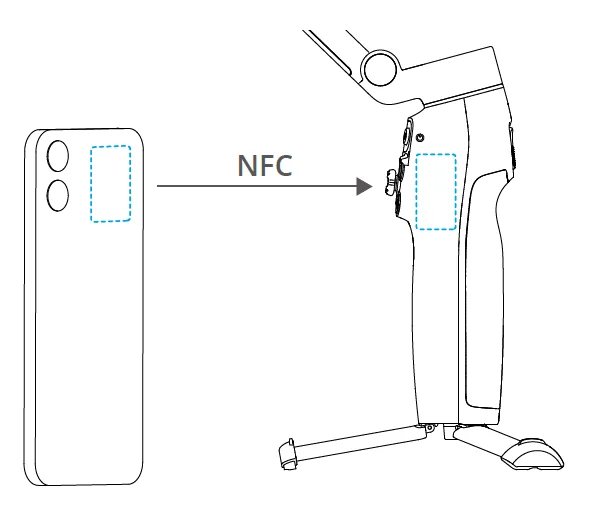
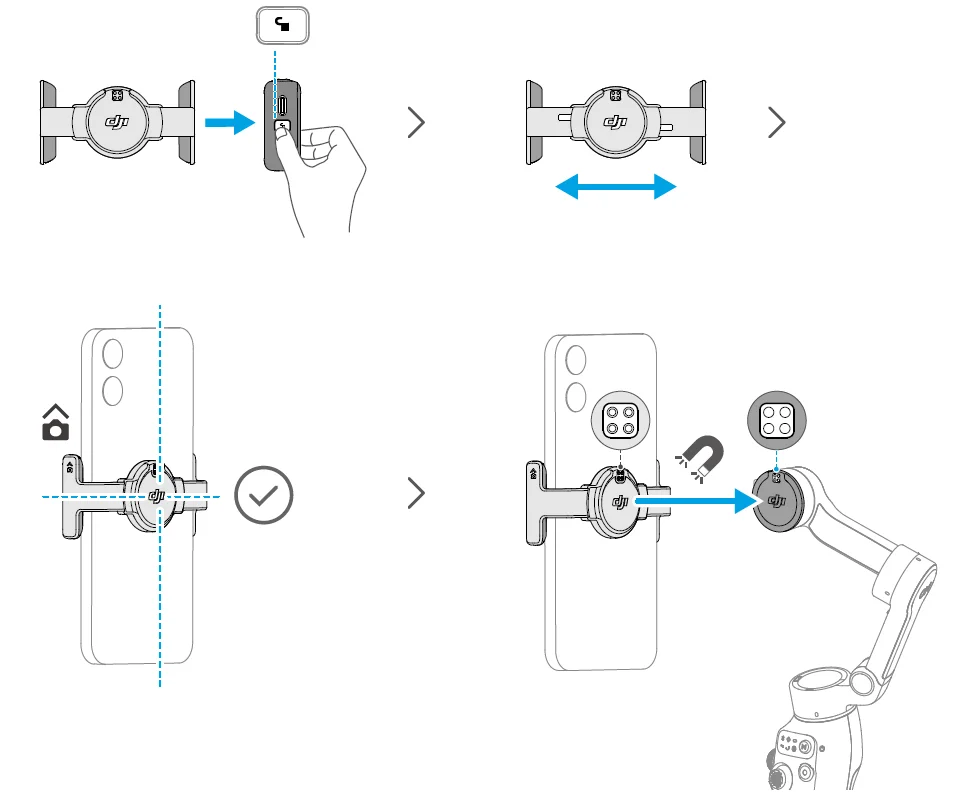
Hints & Tips: To pair with another phone, reset Bluetooth for the gimbal before pairing.
Enabling Tracking
Open the system camera, and tracking will automatically start when the subject enters the frame.
- Press the trigger once to enable or disable DockKit tracking. The Apple Watch can be used for remote control if it is paired with the phone. *
* The watch requires a version of WatchOS 11 or later.
Function Status Indicator
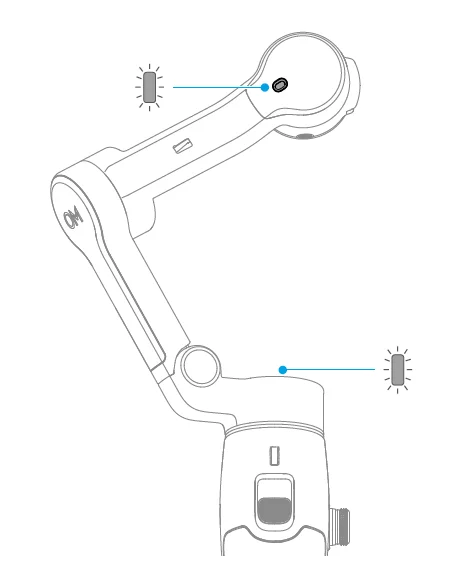
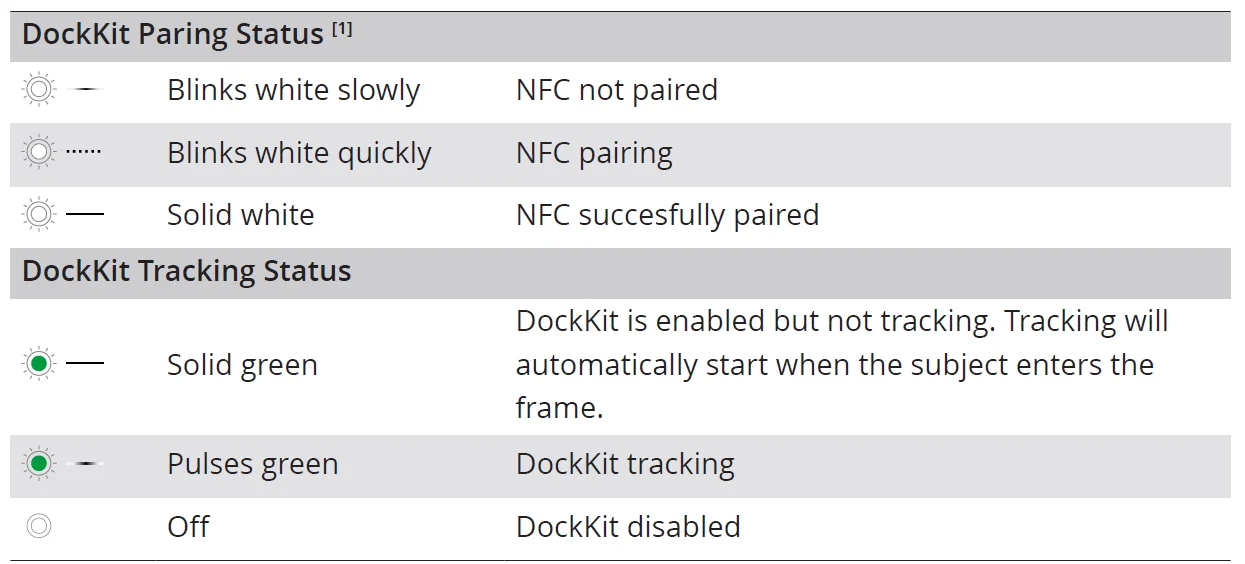
[1] Disabled by default. Modify the status indicator settings in DJI Mimo.
Remote Control With Watch
You can use DJI Mimo on an Apple Watch to view the camera feed, control the gimbal, and enable ActiveTrack remotely.
- Pair the watch with your phone and install DJI Mimo on both devices.
- Run DJI Mimo on the phone, connect to the gimbal, and enter the camera view.
- Run DJI Mimo on the watch to start remote control.
Hints & Tips:
- Keep the devices within the Bluetooth range.
- To view the supported watch devices, visit https://www.dji.com/osmo-mobile-8/faq.
Maintenance
Warning
- Put out any product fire using water, sand, a fire blanket, or a dry powder fire extinguisher.
- Never disassemble or pierce the product in any way, or the battery may leak, catch fire, or explode.
Hints & Tips
- It is recommended to use a soft, dry cloth to clean the product.
- When the phone is attached to the gimbal, the compass feature of the phone may experience interference. In such cases, calibrate the compass according to the prompts in the phone.
- The NFC (near-field communication) and wireless charging functions of the phone may be affected when the phone clamp is attached. These functions will no longer be affected once the phone clamp has been removed from the phone.
- The built-in extension rod contains a spring. If the extension rod is extended for more than a week, the spring may become deformed, and the extension rod can no longer be used normally. It is recommended to retract the extension rod and fold the gimbal after use.
Specifications
Visit https://www.dji.com/osmo-mobile-8/specs for more information.
Phone Compatibility
Visit https://www.dji.com/osmo-mobile-8 for more information.
For manuals by DJI, visit ManualsLibraryy
DJI Osmo Mobile 8-FAQs
Is there a DJI Osmo Mobile 8?
Yes, DJI officially released the Osmo Mobile 8 in November 2025. It features 360° spin shots, improved native tracking, and a direct phone connection for smoother performance.
What is the payload capacity of Osmo Mobile 8?
It supports smartphones weighing approximately 170–300 grams, making it compatible with most modern iPhones and Android devices.
How long does the battery last?
The Osmo Mobile 8 offers up to 10 hours of battery life and can also charge your smartphone while filming.
How do I charge the DJI Osmo Mobile 8?
Attach your phone, open the DJI app, go to Gimbal Settings, select Auto Calibration, place it on a flat surface, and tap “Start.” Avoid touching it during calibration.
Does Osmo Mobile 8 work with iPhone?
Yes, it supports both iPhone and Android smartphones through the DJI app.
Is DJI a Chinese company?
Yes, DJI (Da-Jiang Innovations) is a Chinese technology company headquartered in Shenzhen, China.
Can I use Osmo Mobile 8 with a GoPro?
It is designed primarily for smartphones. However, with special adapters, some users mount lightweight action cameras, though balance may vary.