
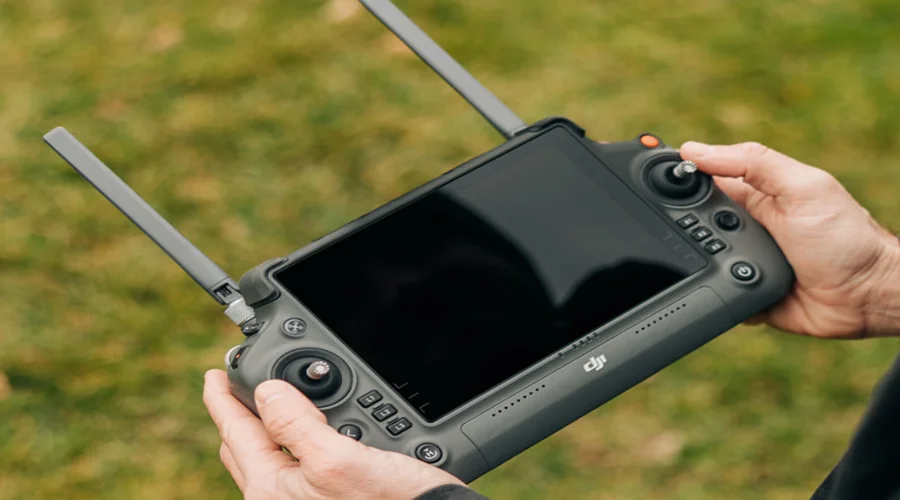
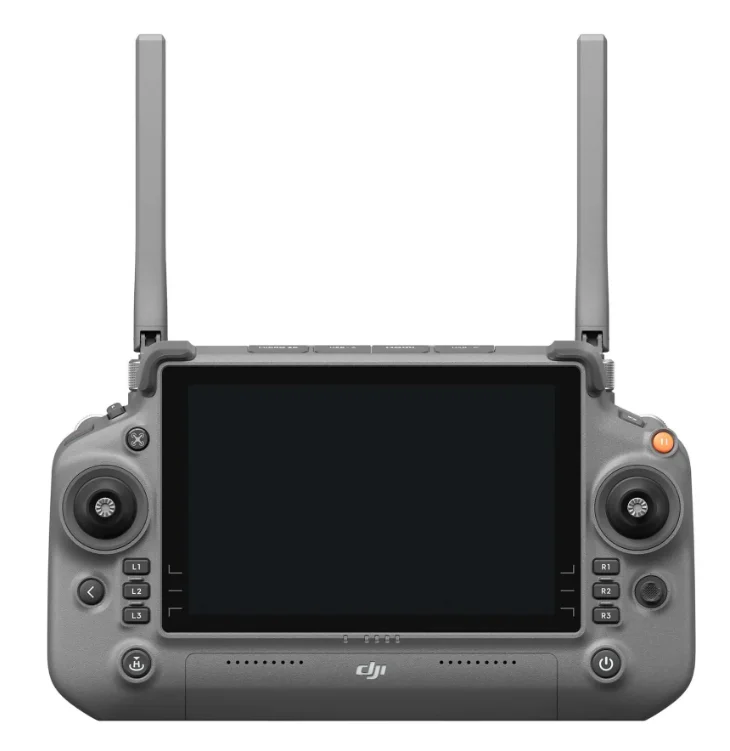
DJI RC Plus Remote Controller
Product Profile
Introduction
The DJI RC Plus remote controller features DJI’s signature OcuSync video transmission technology, which can match the user’s aircraft model to the proper OcuSync firmware and transmit live HD videos from the camera of the aircraft for viewing on the touchscreen. The remote controller comes with a wide range of functional buttons for easy control of the aircraft and camera. The remote controller supports dual transmission, switching between 5.8G and 2.4G depending on the environmental interference for a stable and reliable link. The remote controller has a maximum operating time of 3 hours 18 minutes with the internal battery and up to 6 hours when used with an external WB37 intelligent battery.
- High-Bright Screen: The remote controller has a high-performance 8-core CPU and a 7.02-inch high-brightness 1200 cd/m2 touchscreen with a resolution of 1920×1200 pixels.
- Multiple Connection Options: The Android operating system comes with a variety of functions, such as Bluetooth and GNSS. Users can connect to the internet via Wi-Fi.
- Audio and Video: The remote controller has built-in speakers and supports H.264 4K/120fps and H.265 4K/120fps videos as well as video output via the HDMI port.
- Extended Storage Capability: The internal storage of the remote controller is 64 GB and supports the use of a microSD card to store photos and videos, making it easier to export to another device, such as a computer.
- Reliable in More Environments: The remote controller can operate normally within a wide temperature range from -20 to 50° C (-4 to 122° F).
- Used with matched DJI aircraft models: There are various versions of the DJI RC Plus. Make sure to use the DJI RC Plus version that matches the aircraft model.
- Ingress Protection Rating: The remote controller is IP54 rated in accordance with the global IEC 60529 standard.
Overview
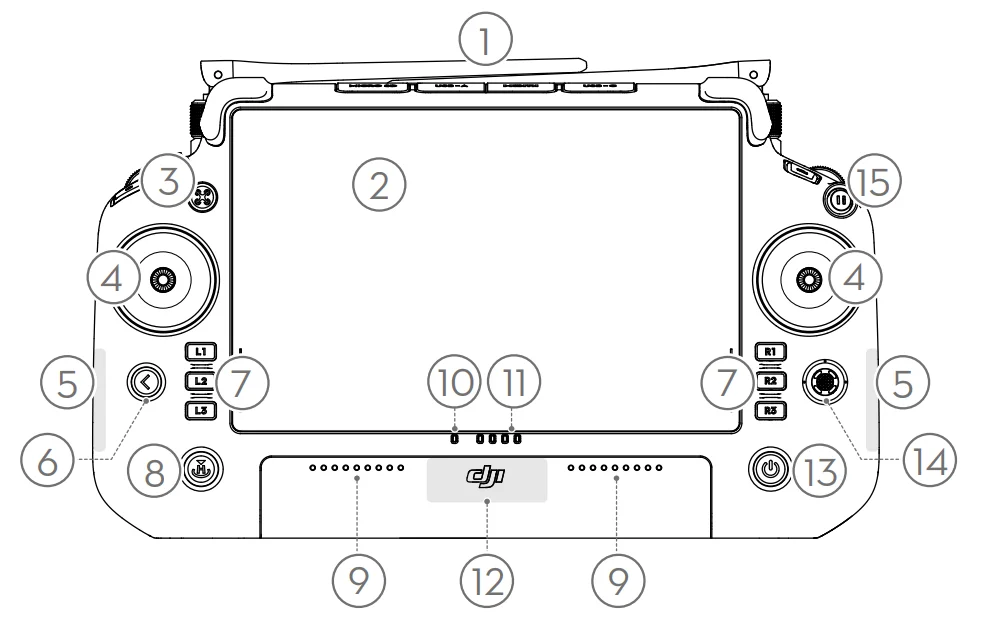
- External RC Antennas
Transmit control and video wireless signals between the remote controller and the aircraft. - Touchscreen
Displays system and app views and supports up to 10 touch points. Make sure the touchscreen is clean and completely dry before use. Otherwise, viewing and touch effects may be affected. - Indicator Button
Functions may vary with different aircraft models. Refer to the user manual for the compatible aircraft. Refer to the Guide on the home screen for more information. - Control Sticks
Flight control mode can be set in DJI Pilot 2. - Internal Wi-Fi Antennas
DO NOT block the internal Wi-Fi antennas during usage. Otherwise, the signal may be affected. - Back/Function Button
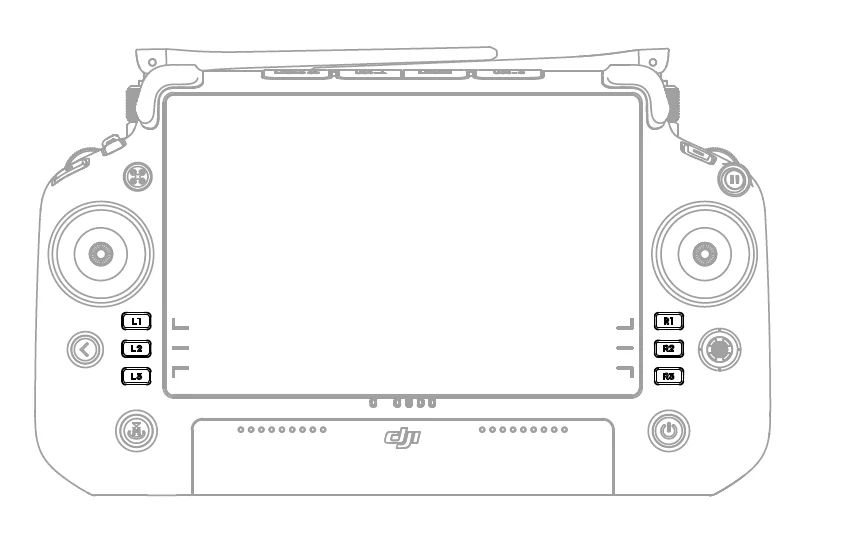
Press once to return to the previous screen. Press twice to return to the home screen. Use the back button and another button to activate combination buttons. Refer to the Combination Buttons section for more information. - L1/L2/L3/R1/R2/R3 Buttons
Functions may vary with different aircraft models. Go to camera view in DJI Pilot 2 to view the specific functions of these buttons. - Return to Home (RTH) Button
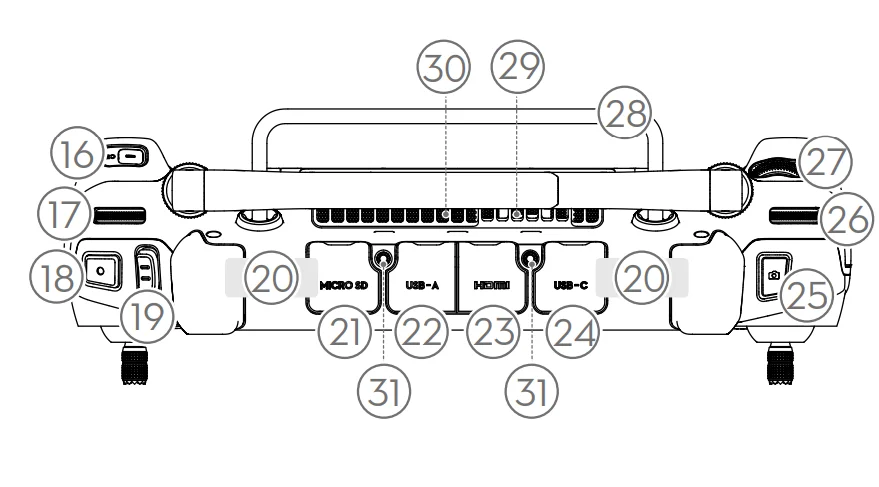
Press and hold to initiate RTH. Press again to cancel RTH. - Microphone
DO NOT block the microphones during usage. - Status LED
Indicates the remote controller status. Refer to the Guide on the home screen for more information. - Battery Level LEDs
Displays the current battery level of the remote controller. - Internal GNSS Antennas
DO NOT block internal GNSS antennas during usage. Otherwise, the positioning accuracy may be affected. - Power Button
Press once to check the current battery level. Press once, then press again and hold for two seconds to power the remote controller on or off. When the remote controller is powered on, press once to turn the touchscreen on or off. - 5D Button
View the default 5D button functions in DJI Pilot 2. Refer to the Guide on the home screen for more information. - Flight Pause Button
Press once to have the aircraft brake and hover in place (only when GNSS or Vision Systems are available).
- C3 Button
Customize functions in DJI Pilot 2. - Left Dial
Controls the tilt of the gimbal. - Record Button
Press once to start or stop recording. - Flight Mode Switch
Switch between different modes. Functions may vary with different aircraft models. Refer to the user manual for the compatible aircraft. - Internal RC Antennas
Transmit aircraft control and video wireless signals. DO NOT block the internal RC antennas during usage. Otherwise, the signal may be affected. - microSD Card Slot
For inserting a microSD card. - USB-A Port
Functions may vary with different aircraft models. Refer to the user manual for the compatible aircraft. Users can also insert third-party devices, such as a USB flash drive or a memory card. - HDMI Port
For outputting an HDMI signal to an external monitor. - USB-C Port
For charging the remote controller. - Focus/Shutter Button
Press the button halfway down for autofocus and all the way down to take a photo. - Right Dial
Controls the pan of the gimbal. - Scroll Wheel
Functions may vary with different aircraft models. - Handle
- Speaker
- Air Vent
For heat dissipation. DO NOT block the air vent during usage.
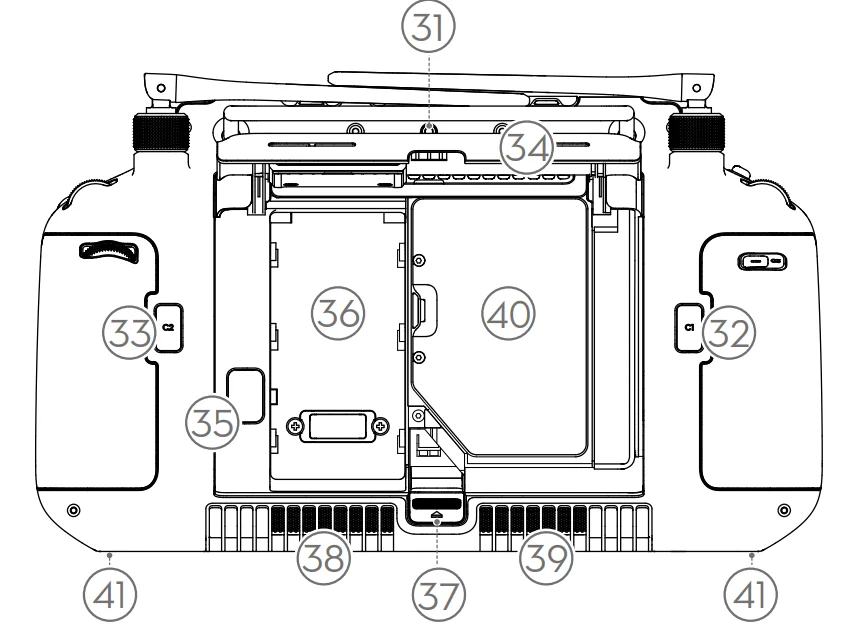
- Reserved Mounting Holes
For mounting external devices. - C1 Button
Customize functions in DJI Pilot 2. - C2 Button
Customize functions in DJI Pilot 2. - Rear Cover
- Battery Release Button
- Battery Compartment
For installing the WB37 intelligent battery. - Rear Cover Release Button
- Alarm
- Air Intake
For heat dissipation. Do not block the air intake during usage. - Dongle Compartment
For inserting the dongle to the USB-C connector. - M4 Screw Hole
For mounting the strap bracket.
Preparing the Remote Controller
Using Optional Accessories
Mounting the WB37 Intelligent Battery
A WB37 battery (excluded) can be mounted onto the remote controller in the following steps.
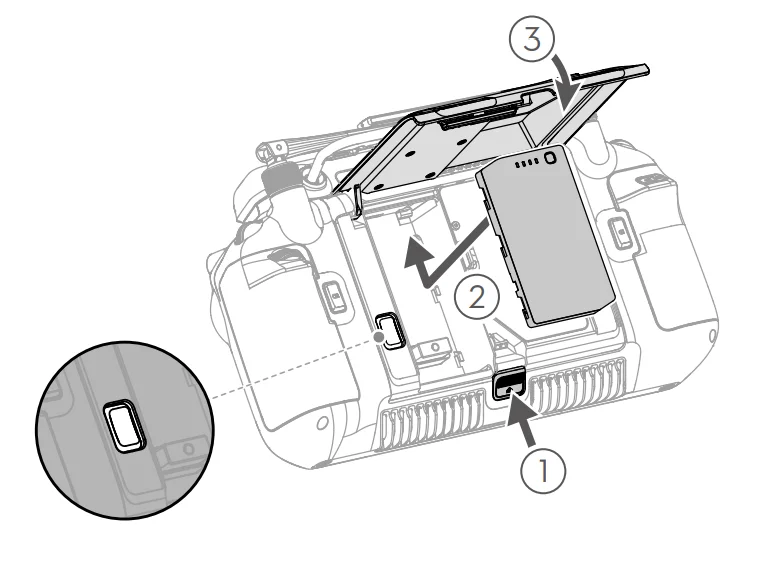
- Push the rear cover release button to the end to open the rear cover.
- Insert the WB37 battery into the battery compartment and push it to the top. There will be a clicking sound to indicate the battery is installed firmly.
- Close the rear cover.
* To remove the WB37 battery, press and hold the battery release button and push the battery downward.
Mounting the Dongle
The USB-C connector in the dongle compartment can be used to connect a USB-C dongle (excluded) in the following steps.
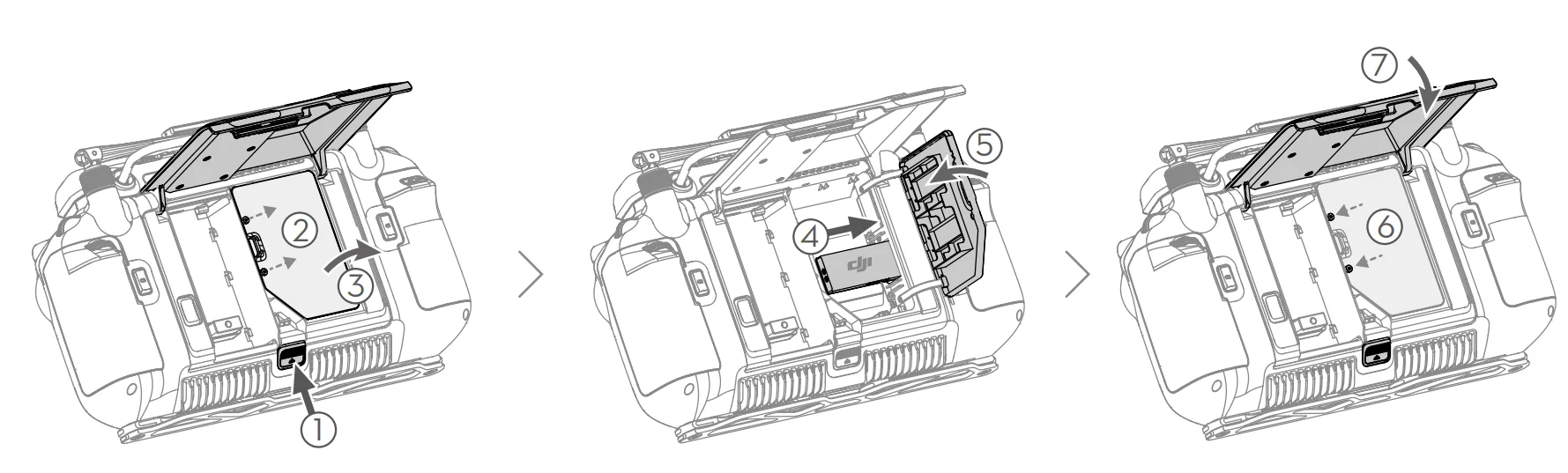
- Push the rear cover release button to the end to open the rear cover. Remove the screws to open the dongle compartment.
- Insert the dongle into the USB-C connector. Close the dongle compartment.
- Attach the dongle compartment with the screws. Close the rear cover.
Remote Controller Strap
Strap brackets may vary with different aircraft models. Refer to the user manual for the compatible aircraft model if a strap bracket is used.
Adjusting the Antennas
Lift and adjust the antennas. The strength of the remote controller signal is affected by the position of the antennas.
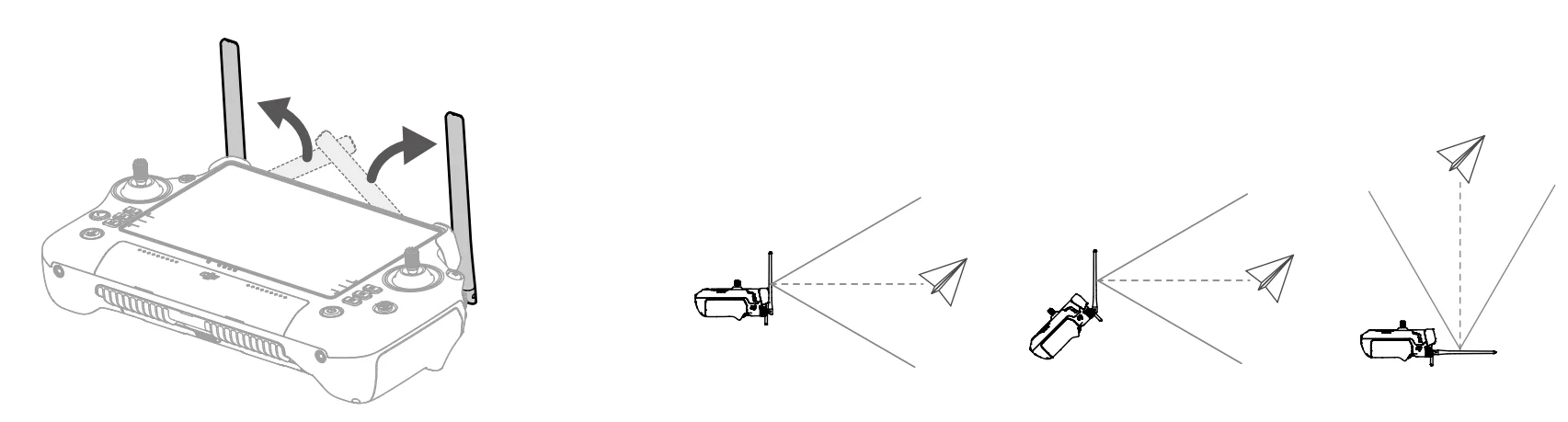
Adjust the direction of the external RC antennas and make sure their flat side is facing the aircraft, so that the controller and aircraft are within the optimal transmission zone.
Warning:
- DO NOT push the antennas beyond their limit. Otherwise, they may be damaged. Contact DJI Support to repair or replace the antennas if they are damaged. Damaged antennas greatly decrease
performance. - During the flight, DO NOT use other 2.4 GHz or 5.8 GHz communication devices in the same frequency band at the same time, so as not to interfere with the communication signal of the remote controller. Such as enabling the mobile phone Wi-Fi.
- A prompt will appear in DJI Pilot 2 if the transmission signal is weak during flight. Adjust the antennas to make sure that the aircraft is in the optimal transmission range.
IP Rating
- The DJI RC Plus remote controller has been tested in a lab environment and rated IP54 in accordance with the global IEC 60529 standard. The protection rating is not permanent, however,
and may lower over an extended period.- DO NOT use the remote controller when the precipitation exceeds 50mm in 24 hours.
- DO NOT open any cover in the rain, including the external port cover, remote controller rear cover, dongle compartment cover, or air vent and air intake covers. DO NOT mount or remove control sticks or antennas in the rain. Before opening any cover or removing the control sticks or antennas, move the remote controller indoors and make sure it is clean and completely dry.
- When using the remote controller in the rain, make sure all covers are attached firmly, and control sticks are screwed in place securely.
- It is normal to have water stains around the port when opening the port cover after use. Wipe off water stains before using the external port.
- The product warranty does not cover water damage.
- The remote controller is not qualified for an IP54 rating in the following circumstances:
- The cover of the external port is not attached firmly.
- The remote controller rear cover is not attached firmly.
- The air vent and air intake covers are not installed firmly.
- The dongle compartment cover is not attached firmly.
- The control sticks are not screwed in place securely.
- Antennas are not screwed in place securely.
- The remote controller has suffered other damage, such as a cracked shell or compromised waterproof adhesive.
Remote Controller Operations
Charging the Battery
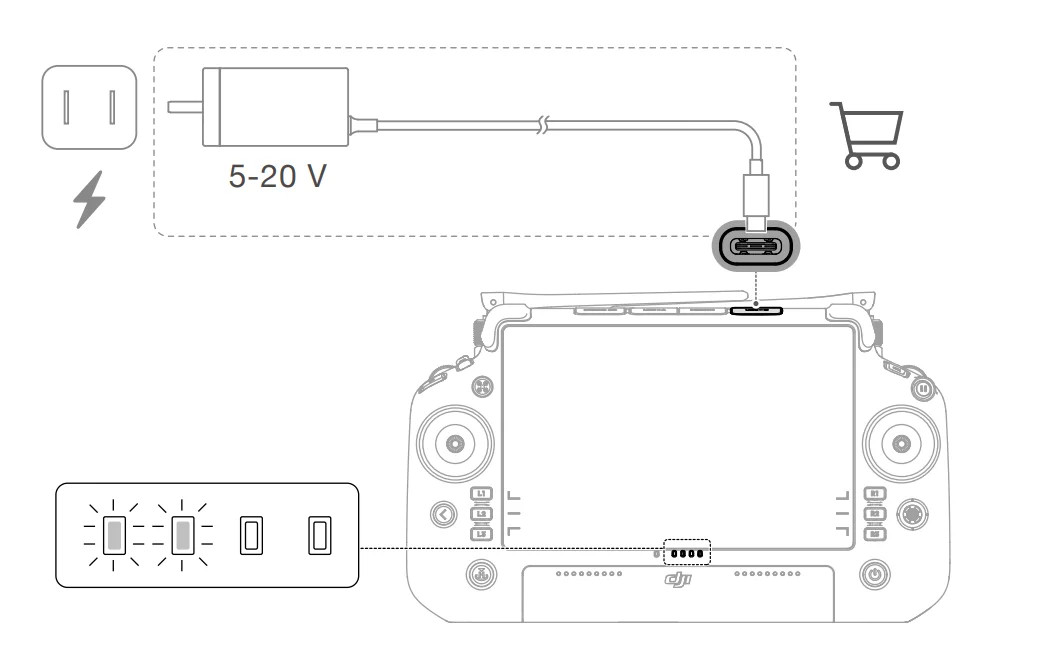
The internal battery will be placed in hibernation mode before delivery. It must be charged before first-time use. The battery level LEDs will start to flash to indicate that the internal battery is activated. It takes approximately 2 hours to fully charge the remote controller’s internal battery using a recommended charging device.
Hints & Tips:
- Charging time for a WB37 battery (if installed) with 0% power:
- When it is mounted on the remote controller and the internal battery power is 0%, approximately 2 hours (the internal battery will be fully charged simultaneously)
- When it is mounted on the remote controller and the internal battery power is 100%, approximately 1 hour and 10 minutes
Warning:
- For optimal charging, it is recommended to use the charging device from the compatible aircraft or a certified USB-C charger with a maximum rated power of 65W and a maximum voltage of 20V, such as the DJI 65W Portable Charger.
- Fully discharge and charge the remote controller every three months. The battery depletes when stored for an extended period.
Checking the Battery Level
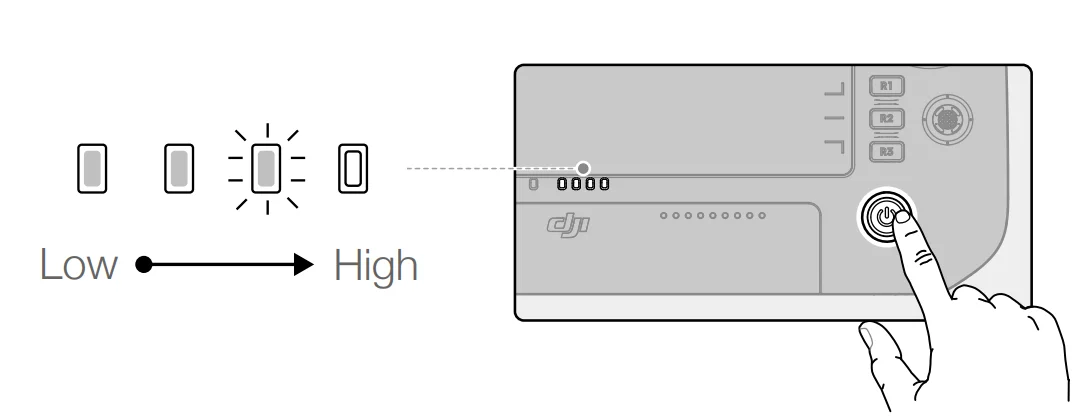
Press the power button once to check the current battery level.
Powering On/Off
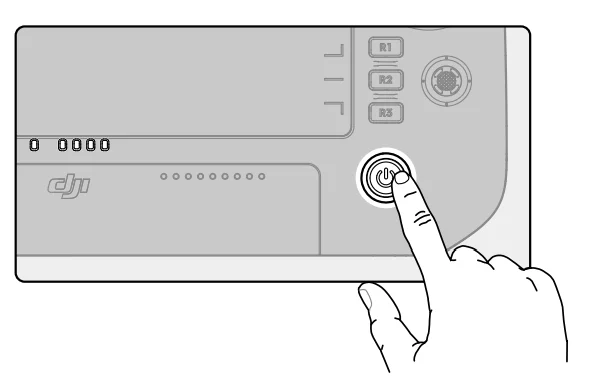
Press once and then press again and hold for two seconds to power the remote controller on or off.
Activating the Remote Controller
The remote controller needs to be activated before its first use. Make sure the remote controller can connect to the internet during activation. Follow the steps below to activate the remote controller:
- Power on the remote controller. Select a language option and tap Next. Read the Terms of Use and Privacy Policy carefully and tap Agree.
- Connect to a Wi-Fi network to access the internet. Then set the time zone, date, and time.
- If you have a DJI account, log in with your password. If you are a new user, create a DJI account and log in.
- After logging in, tap Activate on the activation interface.
- A prompt will appear on the screen, indicating that the remote controller is activated.
- After activating the remote controller, choose if you would like to join the DJI Product Improvement Project. Join this project to help DJI better understand your needs.
Warning: Check the internet connection if the activation fails. Make sure internet access is available and try activating the remote controller again. Contact DJI Support if the activation fails multiple times.
Linking the Remote Controller
The remote controller is already linked to the aircraft when it is purchased together as part of a combo. Otherwise, follow the steps below to link the remote controller and the aircraft after activation.
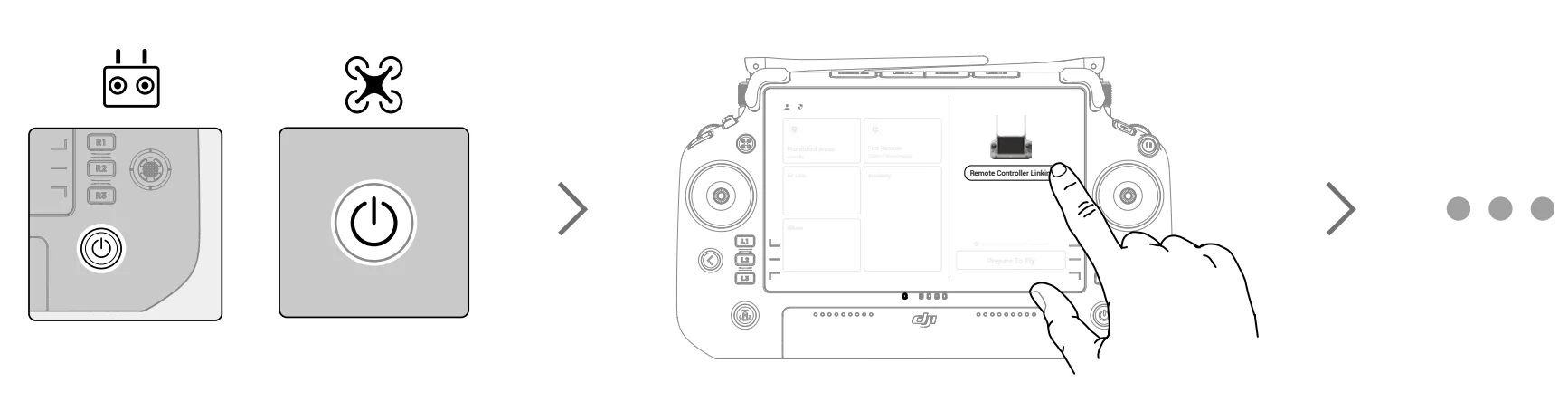
- Power on the aircraft and the remote controller.
- Run DJI Pilot 2 and tap Link Remote Controller to link. The status LED of the remote controller will blink blue, and the remote controller will beep during linking.
- Press and hold the power button on the aircraft for at least five seconds. The aircraft power indicator will blink and will beep twice to indicate linking has started. When linking is successful, the aircraft rear indicators will blink green while the remote controller will beep twice, and the remote controller status LEDs will turn solid green.
Hints & Tips:
- Make sure the remote controller is within 50cm (1.6ft) of the aircraft during linking.
- Make sure the remote controller is connected to the internet when logging in using a DJI account.
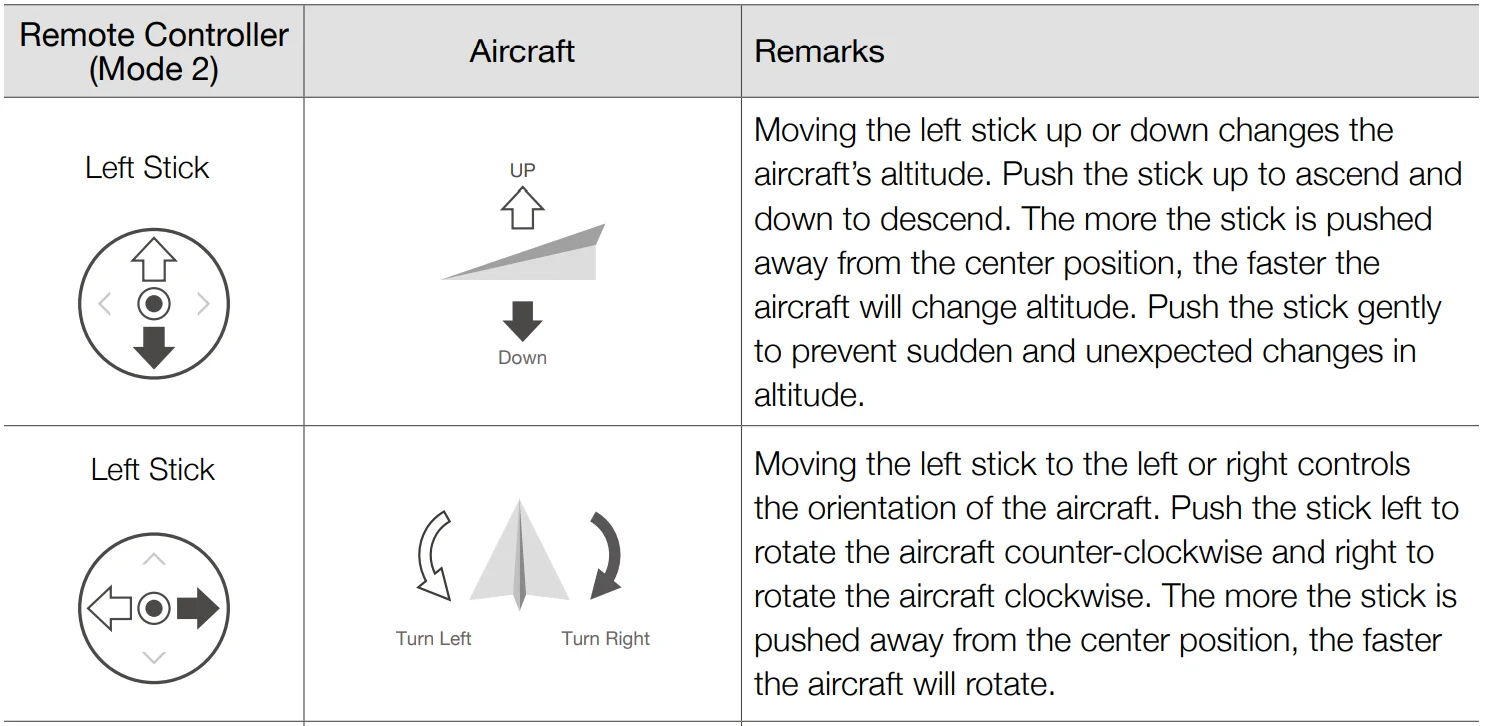
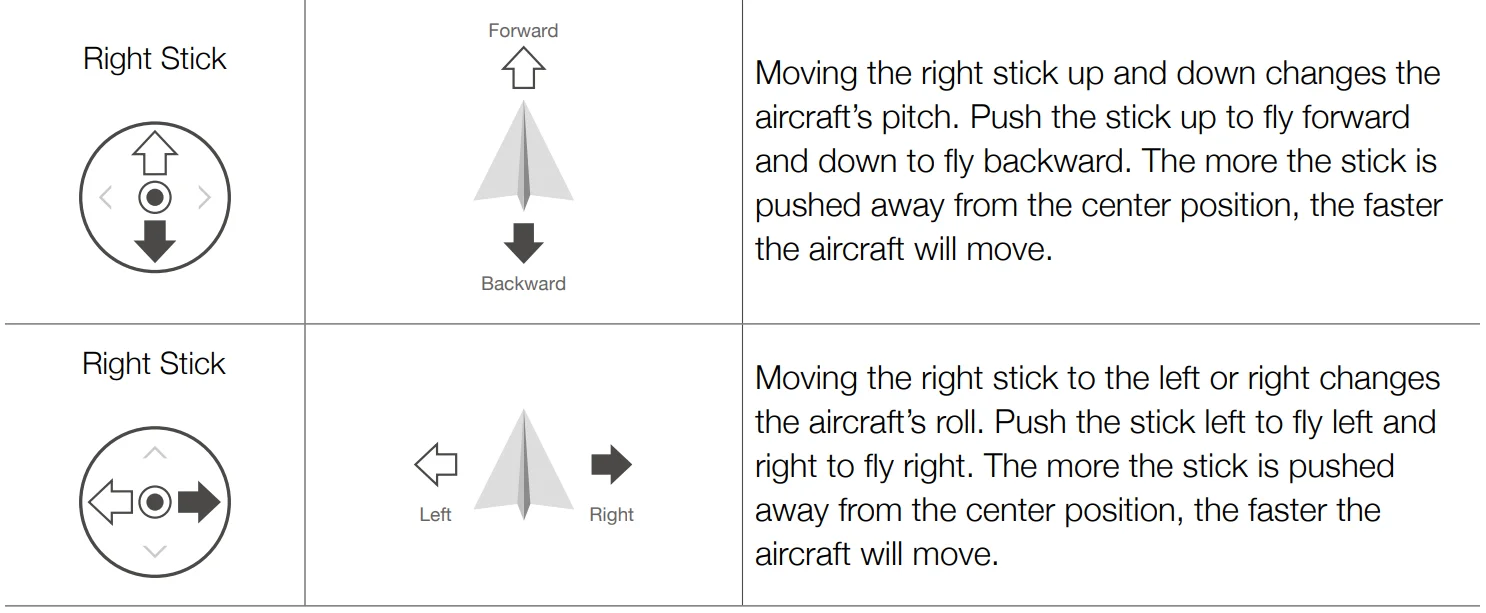
Control Stick Mode
There are three pre-programmed modes as well as custom modes that can be configured in DJI Pilot 2. The modes are Mode 1, Mode 2, and Mode 3.
- Mode 1

- Mode 2

- Mode 3

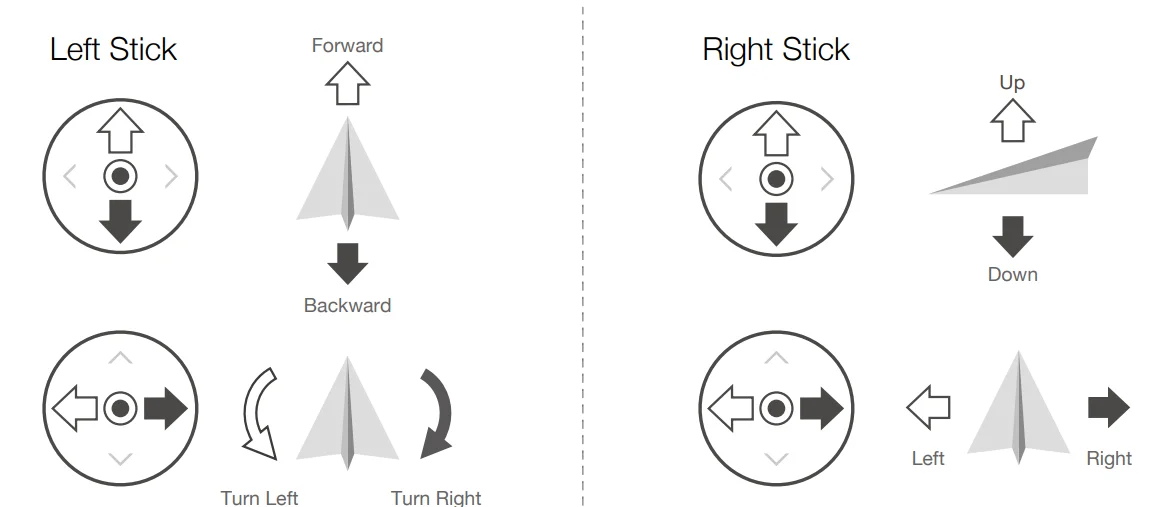
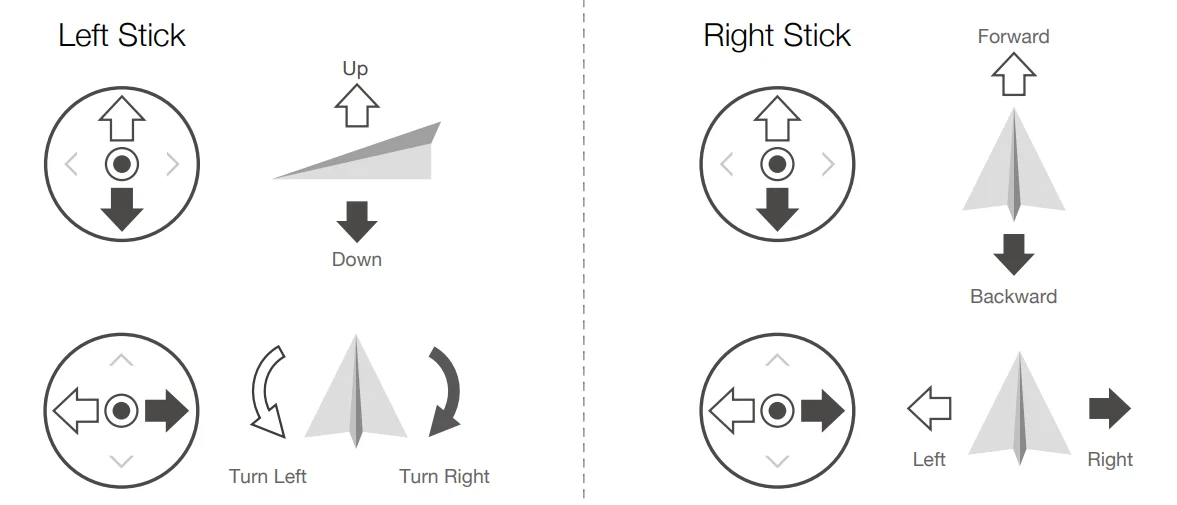
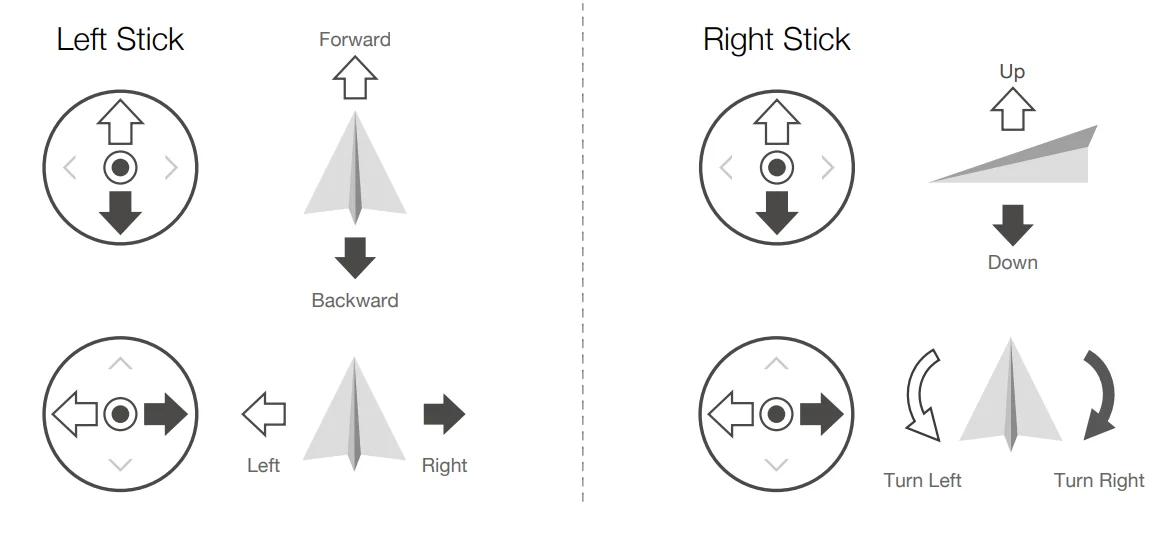
The default mode is Mode 2. See the figures below to check the function of each control stick in the three pre-programmed modes.
RREFERNECES:
- Center position: control sticks are centered.
- Moving the control stick: control sticks are pushed away from the center.
Warning:
- Keep the remote controller away from magnetic materials such as magnets and loudspeaker boxes to avoid magnetic interference.
- To avoid damage to the control sticks, it is recommended that the remote controller be stored in the carrying case when being carried or transported.
Flight Mode Switch
Toggle the switch to select the flight mode.

The description below is an example using Matrix 30T.
- N-mode (Normal): The aircraft utilizes the GNSS and downward vision system to automatically stabilize itself. The vision and Infrared sensing system works properly and the aircraft can actively brake and avoid obstacles.
- S-mode (Sport): The aircraft utilizes the GNSS and downward vision system to automatically stabilize itself. The flight speed and attitude of the aircraft are increased in order to enhance the maneuverability of the aircraft. The maximum flight speed of the aircraft is increased in this mode. The aircraft cannot actively brake and avoid obstacles in S-mode.
- F-mode (Function): F-mode can be set to T-mode (Tripod mode) or A-mode (Attitude mode) in DJI Pilot 2. T-mode is based on N-mode. The flight speed is limited to allow easier control of the aircraft. Attitude mode must be used with caution.
Hint & Tips: Refer to the flight modes section in the user manual of the corresponding aircraft model for a more detailed description of aircraft operation in different flight modes.
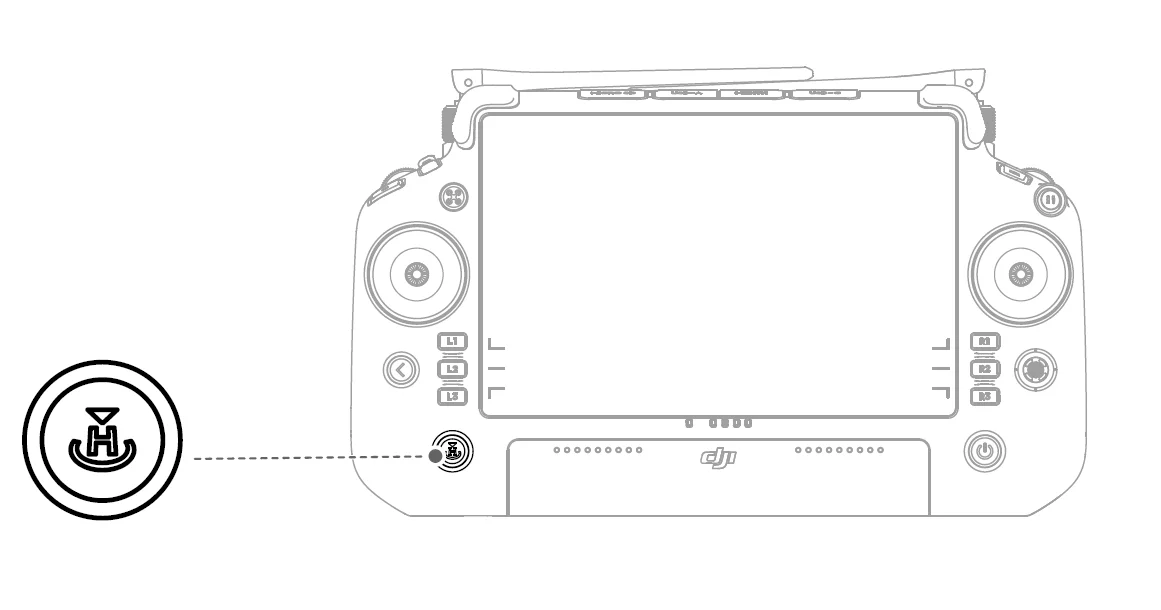
RTH Button
Press and hold the RTH button until the remote controller beeps twice to start RTH. The aircraft will fly to the last updated Home Point. Press the button again to cancel RTH and regain control of the aircraft.
Controlling the Camera
The buttons on the remote controller can be used to control the camera remotely.
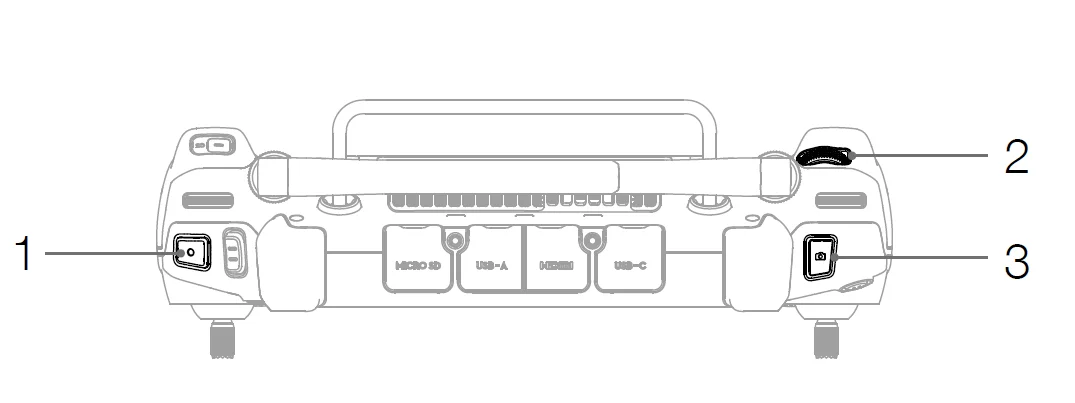
- Record Button
Press once to start or stop recording. - Scroll Wheel
Functions may vary with different aircraft models. Refer to the user manual for the compatible aircraft. - Focus/Shutter Button
Press halfway down to autofocus and press all the way down to take a photo. The photo mode can be set in DJI Pilot 2.
Controlling the Gimbal
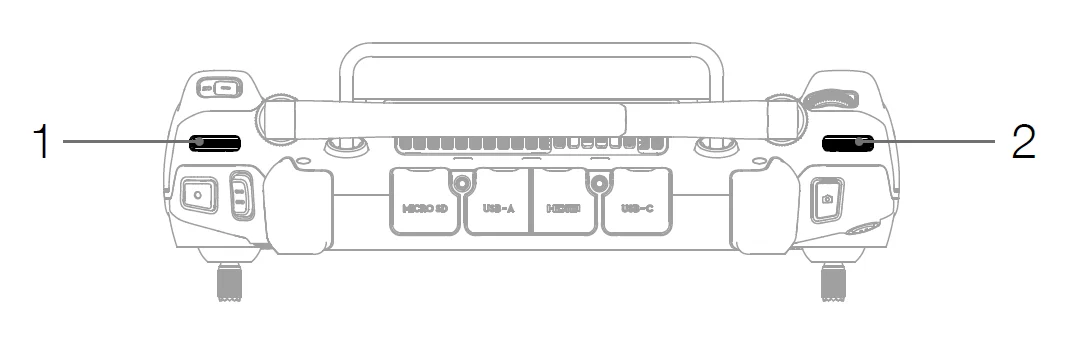
- Left Dial
The left dial controls the gimbal tilt. Dial left, the gimbal will tilt downwards. Dial right, the gimbal will tilt upwards. - Right Dial
The right dial controls the gimbal pan. Dial left, the gimbal pan will rotate to the left. Dial right, the gimbal pan will rotate to the right.
L1/L2/L3/R1/R2/R3 Buttons
Functions may vary with different aircraft models. Refer to the user manual for the compatible aircraft. Find the descriptions of these button functions next to the L1/L2/L3/R1/R2/R3 buttons after running DJI Pilot 2.
Touchscreen Operations
Home Screen
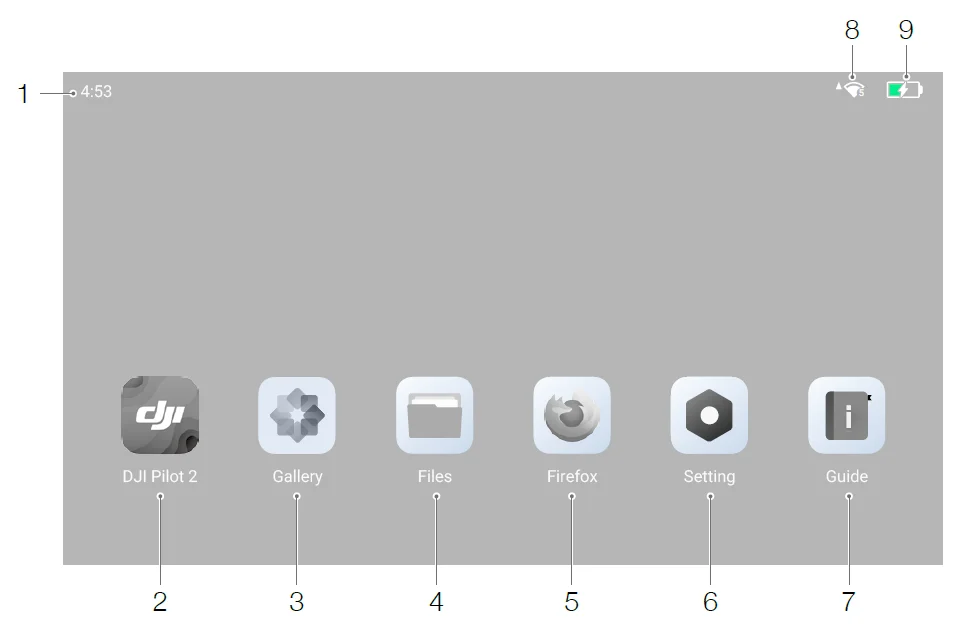
- Time
Displays local time. - DJI Pilot 2
Tap to open DJI Pilot 2. - Gallery
Tap to view stored images and videos. - Files
Tap to view stored files. - Browser
Tap to open the browser. - Settings
Tap to open system settings. - Guide
Tap to read the guide with concise information on the remote controller buttons and LEDs. - Wi-Fi Signal
Displays Wi-Fi signal strength when connected to a Wi-Fi network. Wi-Fi can be enabled or disabled in the shortcut settings or in the system settings. - Battery Level
Displays the battery level of the internal battery of the remote controller. The battery level of the external WB37 intelligent battery will also be displayed when installed.
Screen Gestures
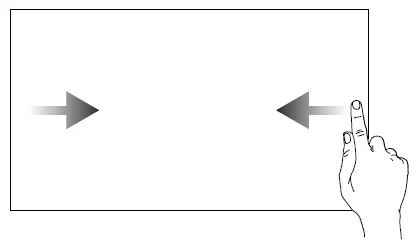
- Slide from the left or right to the center of the screen to return to the previous screen.

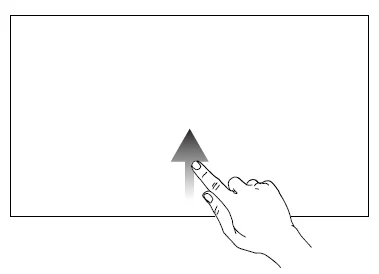
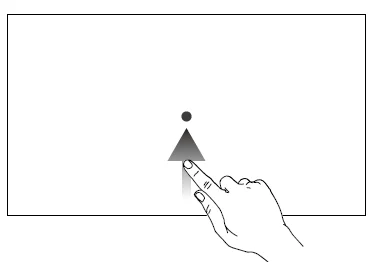
- Slide up from the bottom of the screen to return to the home screen

- Slide up from the bottom of the screen and hold to access recently opened apps.
Combination Buttons
Users can use combination buttons for certain frequently-used features. Use the back button with other buttons to form these combinations.
Checking Available Combination Buttons
Power on the remote controller, enter the home screen, and tap Guide to check the combination buttons.
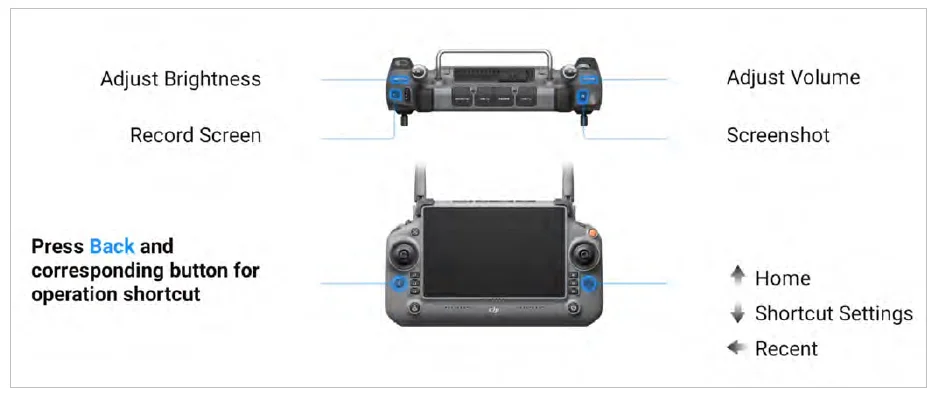
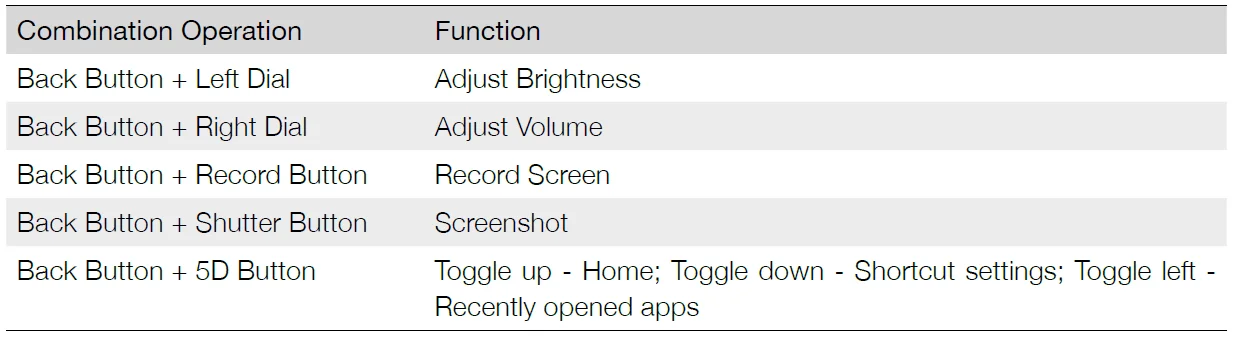
Using Combination Buttons
The default functions of the combination buttons cannot be changed. The following table displays the default function of each button combination. Use the back button and the other button at the same time to execute a specific function.
DJI Pilot 2
Tap DJI Pilot 2 on the home screen to check the flight status and set flight and camera parameters. Since the DJI RC Plus is compatible with multiple aircraft models, the interface of different aircraft models in DJI Pilot 2 may vary. Refer to the DJI Pilot 2 App section in the user manual of the relevant aircraft for more information.
Advanced Features
Calibrating the Compass
The compass may need to be calibrated after the remote controller is used in areas with electromagnetic interference. A warning prompt will appear if the compass of the remote controller requires calibration. Tap the warning prompt to start calibration. In other cases, follow the steps below to calibrate your remote controller.
- Enter the home screen.
- Open Settings, swipe up, and select Compass.
- Follow the diagram on the screen to calibrate your remote controller.
- The user will receive a prompt when the calibration is successful.
If the remote controller compass is working normally, “Calibration Success” will be prompted after entering the calibration view. It is not necessary to perform the calibration.
Maintenance
Firmware Update
Using DJI Pilot 2
- Power on the remote controller and make sure it is connected to the internet.
- Run DJI Pilot 2. A prompt will appear when a new firmware version is available. Tap the prompt to enter the update screen.
- The update will start automatically after the latest firmware is downloaded.
- The remote controller automatically restarts when the update is complete.
Safety Precautions for Handling Batteries
- DO NOT allow the batteries to come into contact with any kind of liquid. If the inside of a battery comes into contact with water, chemical decomposition may occur, potentially resulting in the battery catching on fire and possibly leading to an explosion.
- The battery should be used in an environment of -20 to 50° C (-4 to 122° F) while the ideal environment is 15 to 35° C (59 to 95° F). Using the battery in an ambient temperature above 35℃ (95° F) or below 15℃ (59° F) can cause battery wear and shorten battery life.
- The battery life may be reduced if it is charged at a high temperature. After each flight, allow the battery to cool down to approximately room temperature before charging. Charging the battery at a temperature of 15 to 35° C (59 to 95° F) can extend the battery life significantly.
- DO NOT leave the batteries near heat sources such as a furnace or heater, under direct sunlight, or inside a vehicle in hot weather.
For more manuals by DJI, visit ManualsLibraryy
DJI RC Plus Remote Controller-FAQs
What drones are compatible with the DJI RC Plus?
The DJI RC Plus is designed for DJI’s professional enterprise drones, including the DJI Matrice 350 RTK, DJI Matrice 300 RTK, and DJI Matrice 30 Series.
How do I turn on the DJI RC Plus controller?
Press and release the power button once, then press and hold it for a few seconds until the screen lights up. Make sure the battery is charged before powering on.
How do I update the DJI RC Plus firmware?
You can update using DJI Assistant 2 on a computer. Connect the controller via USB, log in to your DJI account, and select “Firmware Update” to install the latest version.
How do I calibrate the DJI RC Plus?
Open the DJI app, go to Settings > Control > RC Calibration, and follow the on-screen instructions. Ensure the aircraft is powered off during calibration.
Can I install third-party apps on DJI RC Plus?
Yes. In Settings, enable installation from unknown sources, then download and install compatible APK files directly onto the controller.
What is the DJI RC Plus 2 Enhanced version?
The DJI RC Plus 2 Enterprise Enhanced is an upgraded version designed for the DJI Matrice 4T and DJI Matrice 4E, offering improved brightness, durability, and performance for demanding operations.
What does “C Mode” mean on the DJI controller?
C Mode (Cine Mode) reduces flight speed and control sensitivity, making the drone more stable and smoother for cinematic video capture.
Is the DJI RC Plus touchscreen?
Yes, it features a large, high-bright built-in touchscreen display designed for outdoor visibility.
Can I use my phone with DJI RC Plus?
No phone is required since the controller has a built-in display. However, certain data transfers and updates can be done via USB connection.
How do I factory reset DJI RC Plus?
Go to Settings > System > Reset Options, then select Factory Reset. This will erase stored data and restore default settings.