
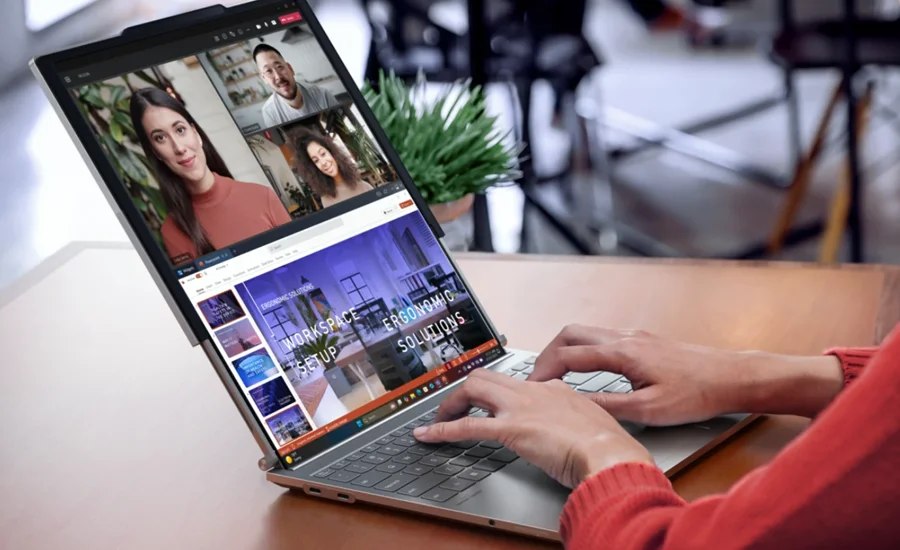

Lenovo Thinkbook plus Gen 6 Rollable Ai Laptop
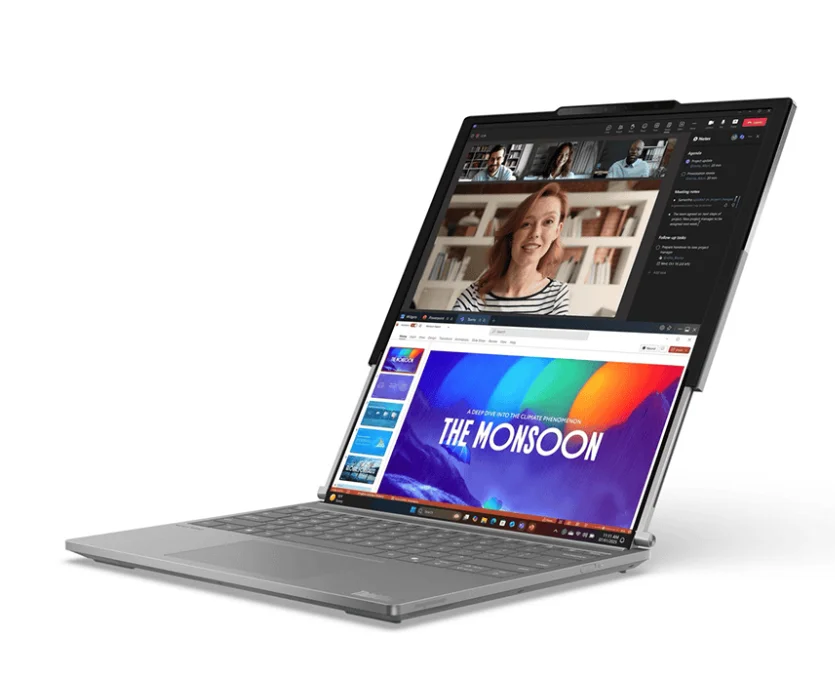
Meet your computer
Front view
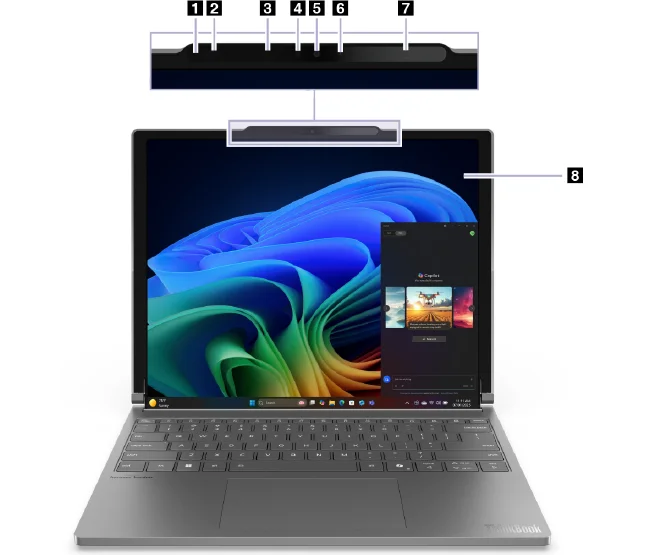
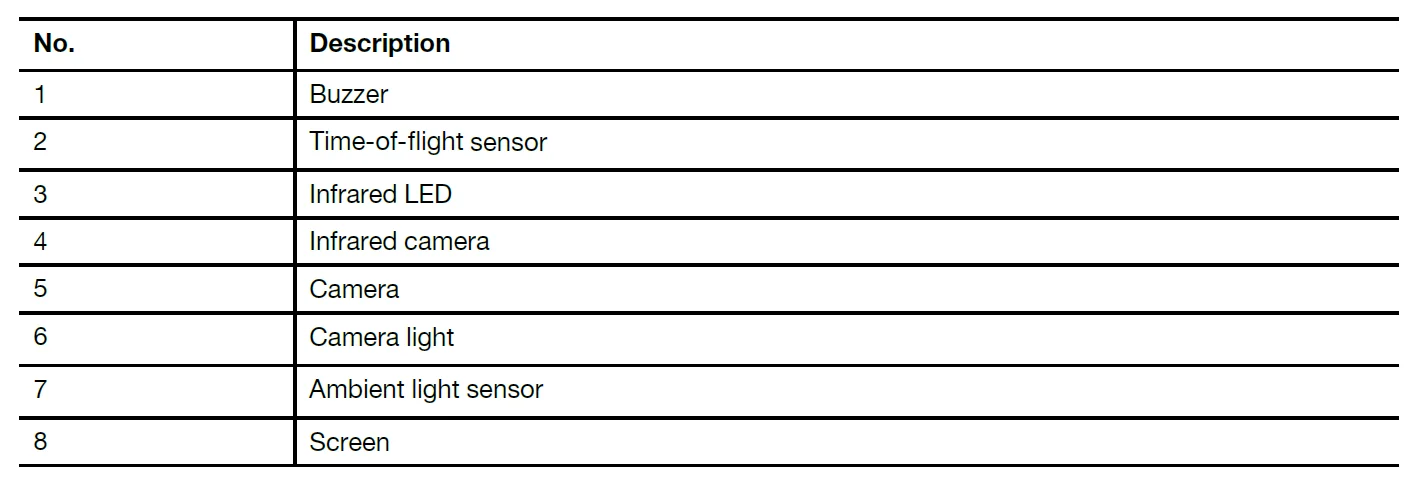
Buzzer
The buzzer is an electrical component that generates sound through the transmission of electrical signals to provide an audible alarm or notification. It is used on your computer to alert you to the incorrect operation during the screen rolling process. If you adjust the opening angle of the computer to less than 90 degrees during the screen rolling process, the screen will stop rolling and the buzzer will produce an audible alarm simultaneously.
Time-of-flight sensor
The time-of-flight sensor (also referred to as a ToF sensor) emits an infrared laser and uses the reflected infrared energy to measure the distance and depth of objects in front of it. The data collected by the sensor can be used to detect human presence or recognize gestures.
Note: The infrared laser emitted by the ToF sensor is invisible to the human eye.
Laser safety information
This device is classified as a Class 1 consumer laser product per IEC 60825-1:2014, EN 60825-1:2014 +A11:2021, and EN 50689:2021. This device complies with FDA performance standards for laser products except for conformance with IEC 60825-1 Ed. 3, as described in Laser Notice No. 56, dated May 8, 2019.
CAUTION: This device contains a laser that could be damaged during repair or disassembly, which could result in hazardous exposure to infrared laser emissions. There are no user-serviceable parts within the device. Do not attempt to disassemble or service the device.
Infrared LED
The infrared LED generates and emits near-infrared waves that are received and used by a camera (or a dedicated infrared camera) for facial recognition.
Infrared camera
The infrared camera receives near-infrared waves emitted by an infrared LED and reflected by a human face. It is used for facial recognition.
Camera
The built-in camera captures visible light and converts it to digital signals. It is used for video recordings and video conferencing.
Camera light
The camera light indicates whether the camera is activated.
Ambient light sensor
The ambient light sensor detects and measures the intensity of light in the user’s environment. The data collected by this sensor can be used to enable adaptive brightness for the PC’s built-in display.
Screen
The screen of the built-in display is where text, graphics, and videos are displayed.
Top view
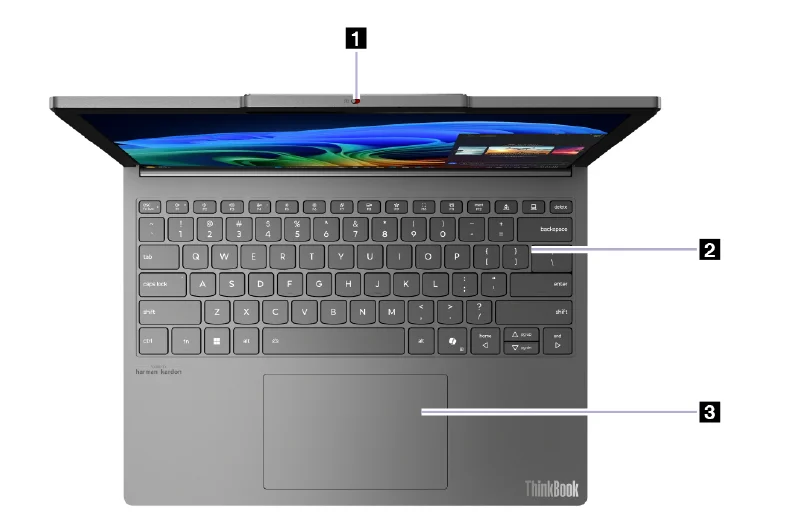

Camera switch
This toggle switch is used to enable or disable the built-in camera.
Note: This switch is designed for privacy protection. The default state of the camera is on. If you don’t need to use the camera, slide the switch to the off position to prevent any apps from using the camera.
Keyboard
The keyboard is the PC’s built-in input device for typing characters. It also includes keys that can make you more productive when interacting with the PC, apps, and the Windows operating system.
Note: Keyboard layouts vary by language and geographical location. The keyboard on your PC may look slightly different from those depicted in the product illustrations in this publication.
Touchpad
The touchpad is the PC’s built-in pointing device. Slide your finger on the touchpad to move the pointer on the screen and tap or double-tap to select or execute a screen item. The touchpad also supports Windows multi-finger gestures, providing a convenient alternative for switching between app windows and the desktop, activating the search box, or adjusting volumes.
Left view
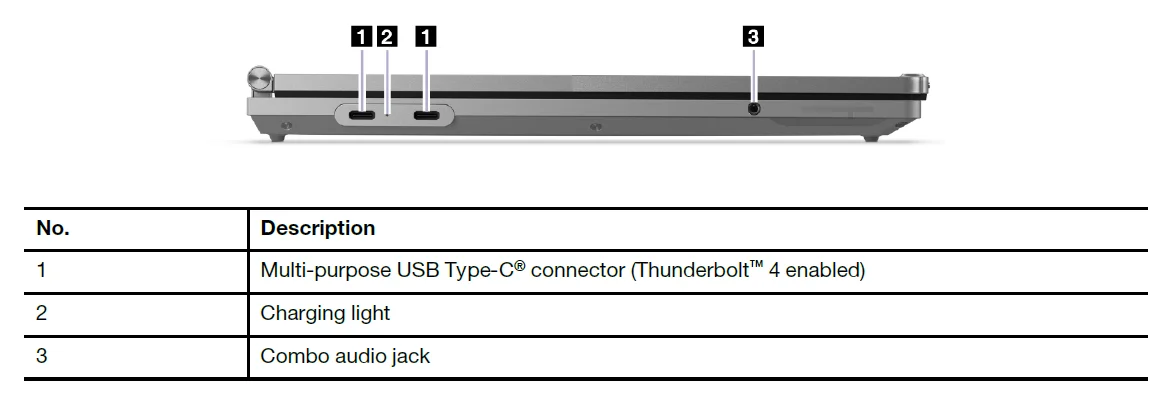
Multi-purpose USB Type-C connector
You can use the included power adapter and this USB Type-C® connector to supply power to the PC. When this connector is not used by the included power adapter, it can also be used to connect:
- Storage or peripheral devices that follow the universal serial bus (USB) specification for data transfer and device interconnection
- Display devices
Note: When connecting display devices, you need to use appropriate cables and adapters (if needed) according to the connection capabilities of the display device. - Thunderbolt™-enabled docks or devices
Charging light
The charging light indicates whether the PC is plugged into an electrical outlet. When the PC is plugged into an electrical outlet, the color of the light indicates whether the battery is fully charged (or will shortly be fully charged).

Combo audio jack
The combo audio jack is used to connect single-plug headsets, headphones, or external speakers.
Right view
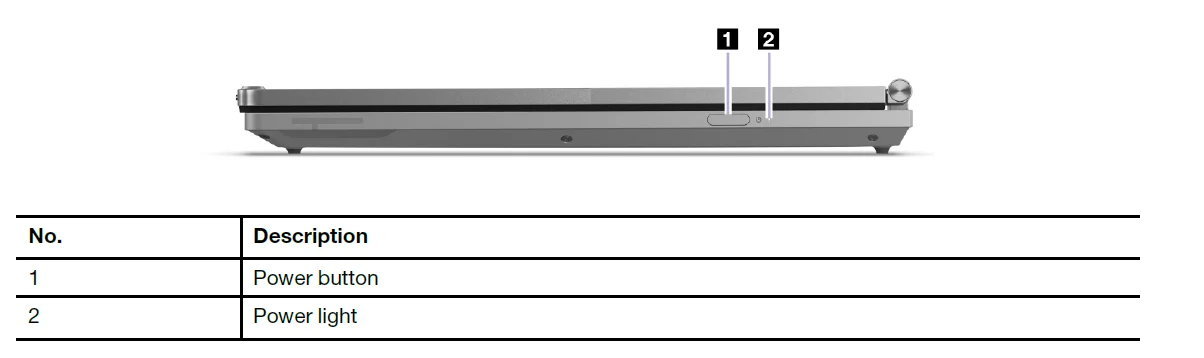
Power button
Press the power button to turn on your PC.
Note: By default, on a Windows PC, pressing the power button when the PC is turned on will put the PC into sleep mode.
Power light
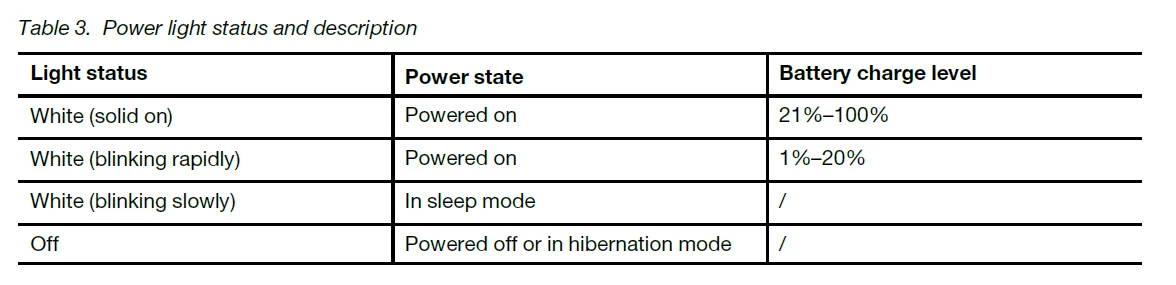
The power light indicates the current power state of the PC: whether it is powered on, powered off, in sleep mode, or in hibernation mode. When the PC is powered on, this light can also indicate a low battery by blinking rapidly.
Bottom view
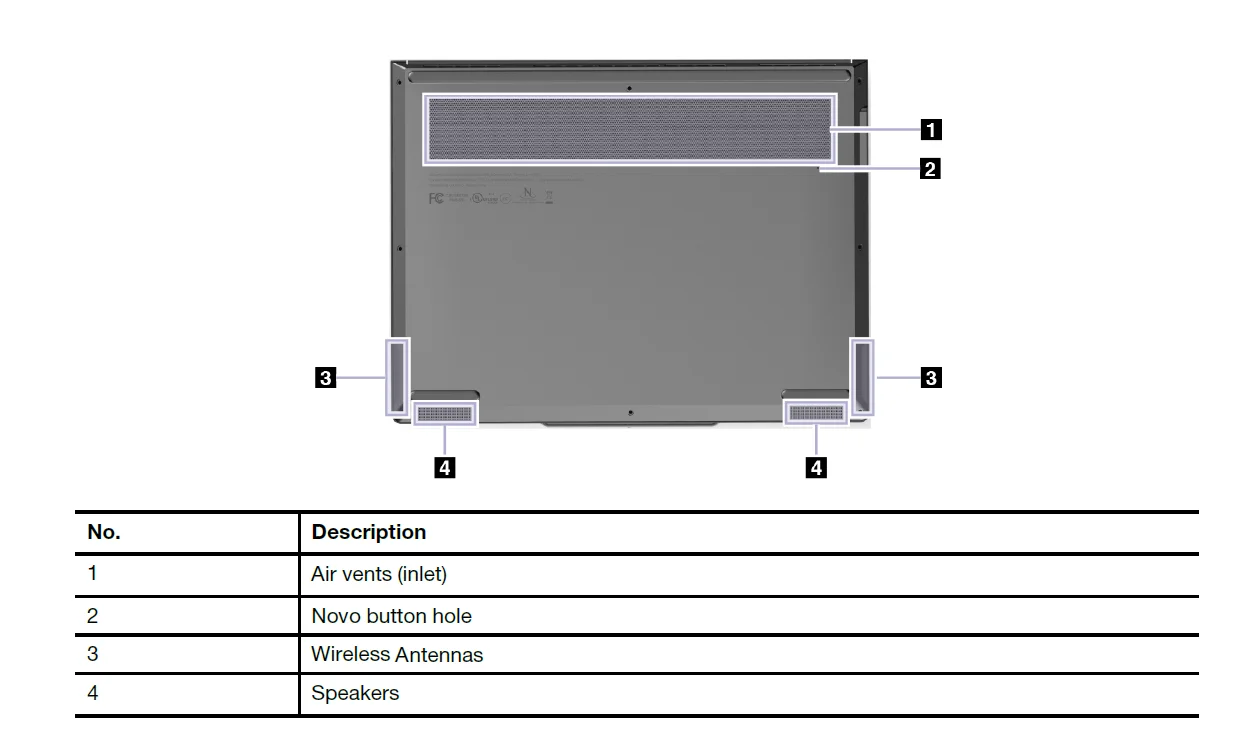
Air vents (inlet)
The air vents allow air to be sucked inside of the PC to cool the internal components.
Important: When the PC is operating, do not place it on a bed, sofa, carpet, or other flexible surfaces. Otherwise, the air vents will be blocked and the PC may overheat, reducing performance or causing the PC to be unresponsive or even shut down.
Novo button hole
When the PC is powered off, you can press the Novo button to display the Novo button menu. From the menu, you can then choose to:
- Open the firmware setup utility
- Display the boot device selection menu
- Display the Windows advanced startup options page
Note: The Novo button is rarely used during normal PC operations. To prevent users from accidentally pressing it, the Novo button is placed in a recessed hole. You can use a straightened paper clip to press this button.
Antennas
The antennas transmit and receive radio waves to allow data to be transferred between your PC and a Wi-Fi network device or a Bluetooth device.
Note: The antennas are hidden inside the PC.
Speakers
The speakers are the PC’s built-in sound output devices.
Rear view
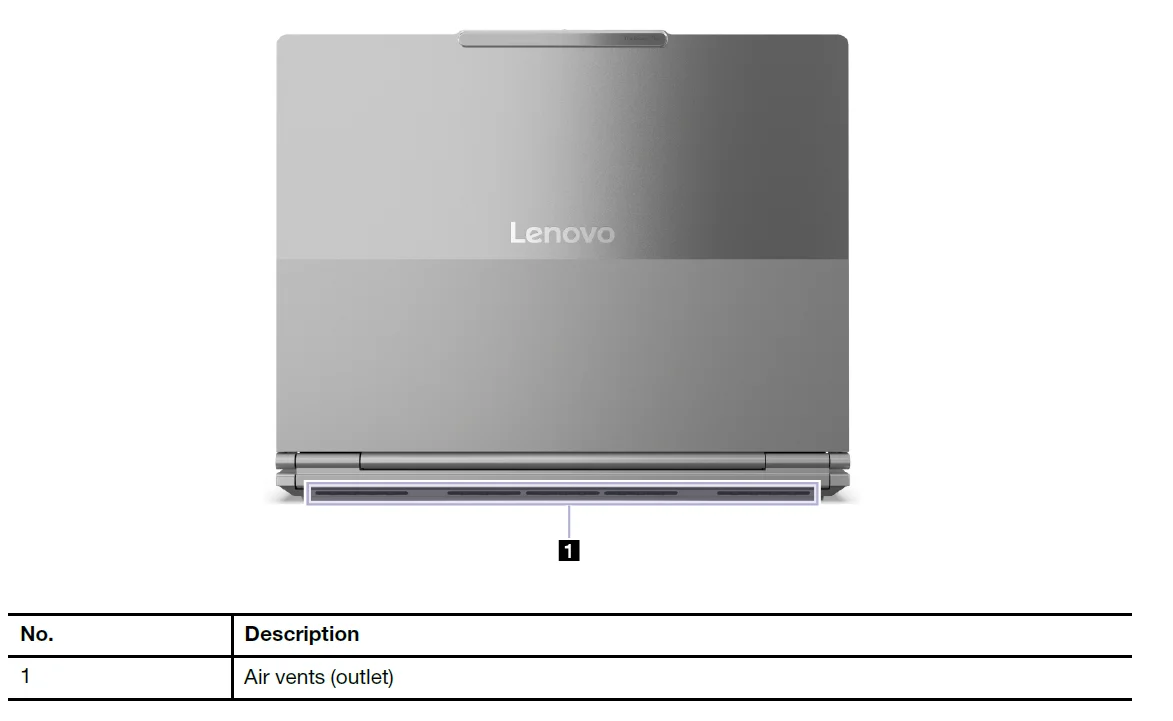
Air vents (outlet)
The air vents allow hot air to be discharged from the PC.
Important: When the PC is operating, do not place it on a bed, sofa, carpet, or other flexible surfaces. Otherwise, the air vents will be blocked and the PC may overheat, reducing performance or causing the PC to be unresponsive or even shut down.
Specifications
Dimensions
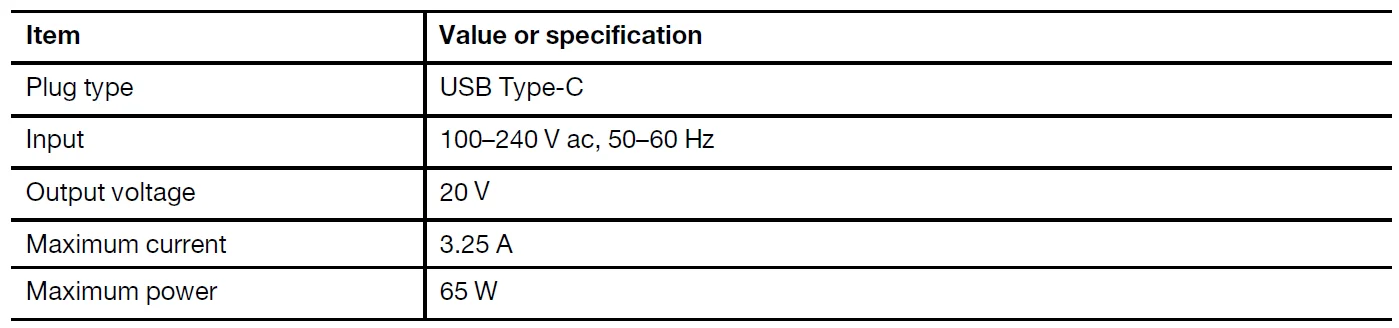
AC power adapter 
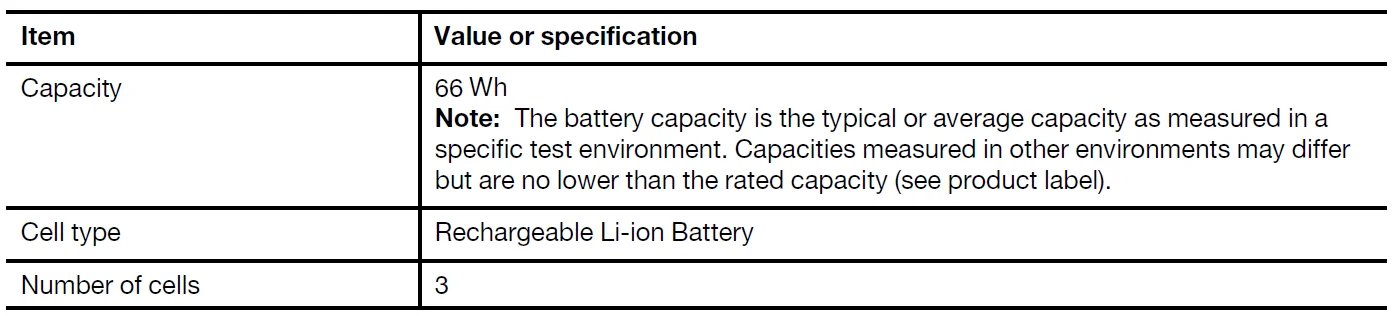
Rechargeable battery pack 

Microprocessor
To view the microprocessor information of your computer, type system information in the Windows search box and then press Enter.
Memory 

Maximize productivity with your ThinkBook Plus Gen 6 Rollable
Roll up and down the screen
The ThinkBook Plus Gen 6 Rollable is designed to redefine productivity and multitasking with its unique rollable screen technology. To vertically extend the screen from 14 inches to 16.7 inches, you can choose either to press a dedicated hotkey or use the rolling gestures.
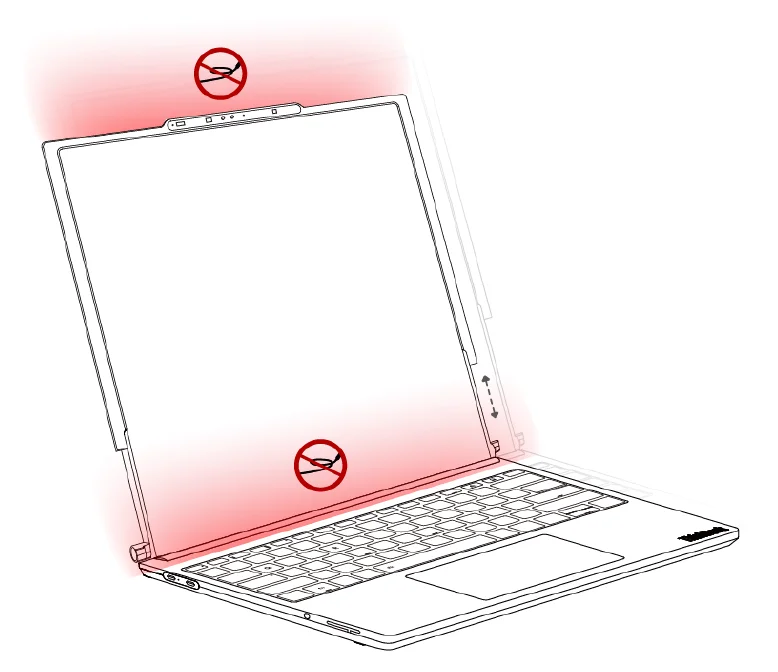
Attention: Before rolling up and down the screen, please ensure that:
- The screen’s opening angle is greater than 90 degrees. If you adjust the opening angle of the computer to less than 90 degrees during the screen rolling process, the screen will stop rolling and the buzzer will produce an audible alarm simultaneously.
- No obstacles are blocking the rolling process. If obstacles are preventing the screen from rolling up or down, the screen will automatically return to its initial state after hitting the obstacles. If obstacles are preventing the screen from both rolling up and rolling down, the screen will roll up and down three times and then hover in the middle.
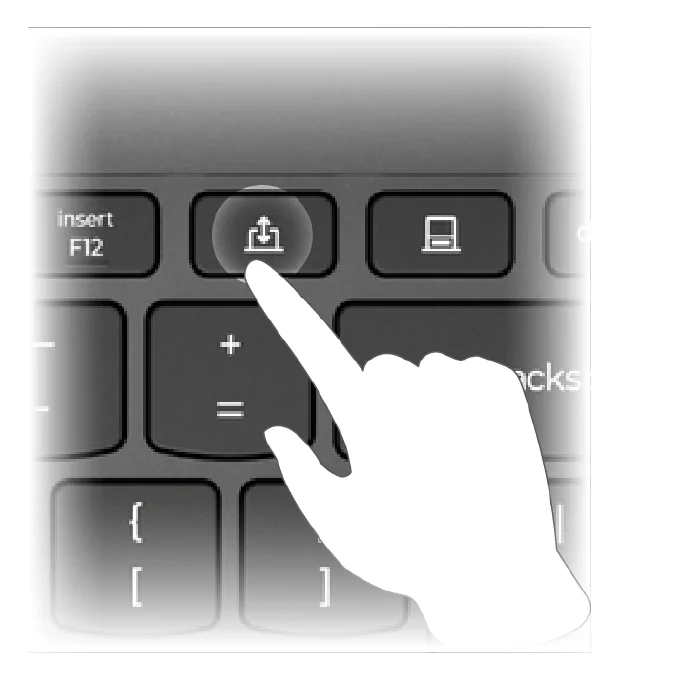
Roll up and down the screen through the dedicated hotkey
There is a dedicated hotkey located on the upper right of the keyboard that can be used to roll up and down the screen. Press this hotkey marked withto adapt the screen size.
Roll up and down the screen through rolling gestures
Your computer supports rolling up and down the screen by recognizing gesture movements through the ToF sensor. The rolling gesture feature is turned off by default. Follow the steps below to turn on this feature and roll up and down your screen:
- Open the ThinkBook Workspace app.
- Click settings on the upper right.
- Click the rolling gesture switch to turn it on.
- Stretch out your palm and face the ToF sensor. Wait for the on-screen reminder to show that your palm has been successfully recognized and then move your palm up or down to roll up or down the screen.
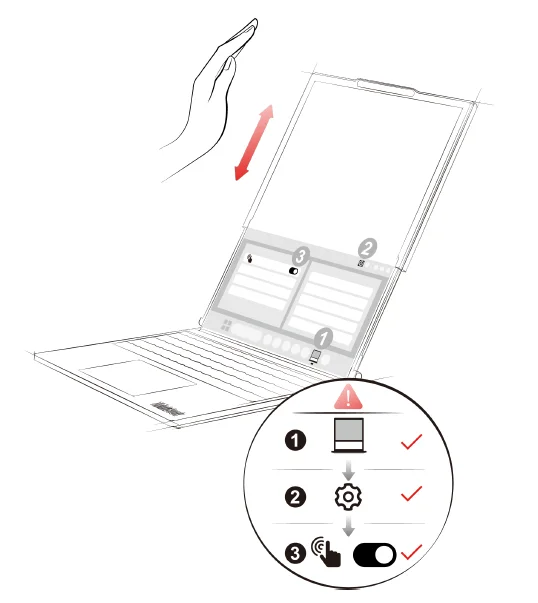
Note: Please ensure that the distance between your palm and the ToF sensor is between 20 cm to 40 cm.
Get started with your computer
Your PC and its operating system
The operating system is the most important software installed on a PC. The operating system manages the PC’s hardware devices, provides utility apps and user interfaces, and allows various apps to be installed so that a PC can be used for different purposes. Your PC is pre-installed with the Windows 11 operating system.
Initial setup of the Windows operating system
When you turn on your PC for the first time, the Windows operating system will guide you through the initial setup process. Most importantly, you will:
- Create a user account
- Connect to a wireless network that has Internet access
- Select language-related settings
Note: If you choose to set up Windows for personal use, you are required to either use an existing Microsoft account or create a new one as your user account. After the initial setup, you have the option to switch to a local account.
Enroll your fingerprints
You can use the biometric fingerprint option to sign in to Windows quickly if your computer includes a fingerprint sensor. This sign-in option provides a reliable and secure way of identity verification.
- Step 1.
Select Start ➙ Settings ➙ Accounts ➙ Sign-in options. - Step 2.
Under Ways to sign in, select Fingerprint recognition (Windows Hello) to set up sign-in with a fingerprint sensor. - Step 3.
Follow the on-screen instructions to enroll your fingerprints.
Notes:
- You need to set up a PIN code before you are allowed to use this sign-in option.
- It is recommended that you enroll multiple fingerprints in case of any injuries to your fingers.
Set up facial recognition
Apart from text-based passwords, Windows 11 supports additional user authentication methods for PCs with the required hardware devices. For PCs equipped with a built-in infrared LED and an infrared camera, you can enable facial recognition to sign into Windows using your face.
- Step 1.
Select Start ➙ Settings ➙ Accounts ➙ Sign-in options ➙ Facial recognition. - Step 2.
Select Set up ➙ Get started and follow the on-screen instructions to enroll your face.
Note: If you are using a local account to sign into Windows, you must set a password for the account before you can enable facial recognition.
Windows Update
From time to time, your PC receives update notifications. These may include new features, security updates, and new device drivers. While security-related updates are typically downloaded and installed automatically, you can manually control the installation of other available updates. In Windows Update, you can view available updates, manually check for updates, and configure update- related settings. To navigate to Windows Update, select Settings ➙ Windows Update.
Windows recovery options
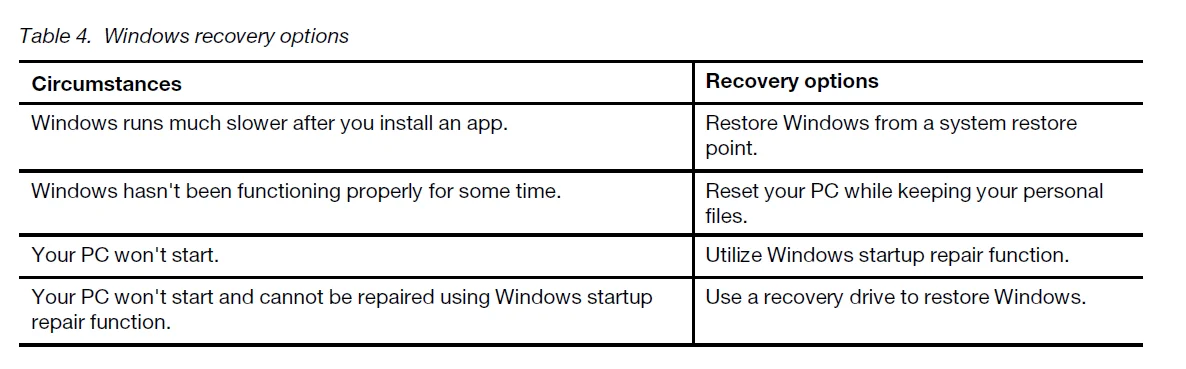
When using your PC and the operating system, you may encounter problems. Windows provides several recovery options for you to restore it to normal. The following table will help you decide which option to use for various circumstances.
Reset Windows
Resetting Windows allows you to reinstall the operating system while retaining your personal files. This gives the operating system a fresh start and, in some cases, restores the PC’s original performance.
Note: It is strongly recommended to restore Windows with the screen rolled out.
- Step 1.
Select Settings ➙ System ➙ Recovery. - Step 2.
Under recovery options, select Reset PC. When prompted, choose between Keep my files and Remove everything. - Step 3.
Follow the on-screen instructions to complete the reset process.
Create a recovery drive
It is a good idea to create a recovery drive when you have finished setting up Windows for the first time. If you experience a major issue and your Windows cannot start, you can use the recovery drive to restore Windows onto your PC.
- Step 1.
Prepare an empty USB drive with a storage capacity of 16 GB or more. - Step 2.
In the search box on the taskbar, type Create a recovery drive and select the matched app. - Step 3.
Make sure Back up system files to the recovery drive checkbox is selected and select Next. - Step 4.
When prompted, connect the USB drive to your PC, select it, and then select Next. - Step 5.
Select Create.
Connect to a network
Connect to a Wi-Fi network
Ensure that you have a secure Wi-Fi network account and the required credentials.
- Step 1.
Select the network icon on the bottom right of your display. - Step 2.
Select an available network, and then select Connect. If you want to be automatically connected to this Wi-Fi network the next time you start your computer, select Connect automatically before selecting Connect. - Step 3.
Input your credentials if necessary, and then follow the on-screen instructions to connect to the disired Wi-Fi network.
Establish a wired connection
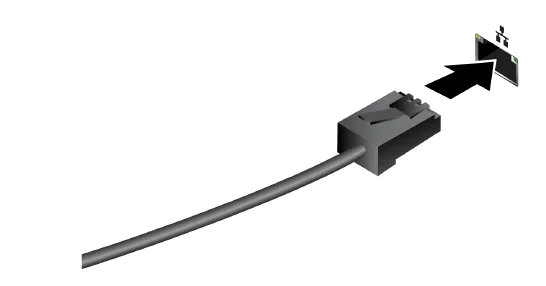
- Step 1.
Plug an Ethernet cable into the Ethernet connector on your computer. - Step 2.
Plug the other end of the Ethernet cable into a network wall jack or a router.
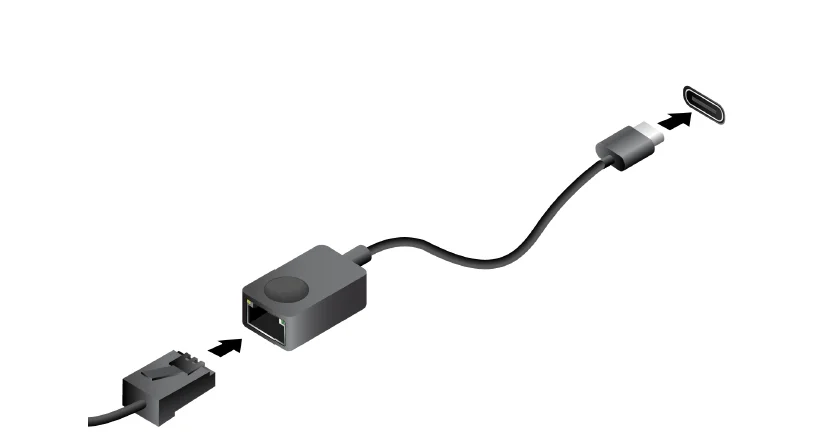
Note: If your computer does not include an Ethernet connector, you can purchase a USB-C to Ethernet adapter from Lenovo at https://www.lenovo.com/accessories.
Use power efficiently
Use the power management features in this section to achieve the best balance between performance and power efficiency.
Rechargeable battery pack
Your computer includes a built-in, rechargeable battery pack that makes mobile computing a reality. When the computer is plugged into an electrical outlet, the battery charges. If you use the computer when you don’t have access to an electrical outlet, the battery discharges to supply electricity that the computer system requires for operation. You can charge the battery any time you want. The battery packs of Lenovo computers support multiple charging modes that are suitable for different power usage habits. You can switch the battery’s active charging mode in Lenovo Vantage or Lenovo PC Manager. Battery charging is also affected by its temperature. The recommended temperature range for charging the battery is between 10°C (50°F) and 35°C (95°F).
Note: You can check the battery temperature in Lenovo Vantage. To maximize the life of the battery, once the battery is fully charged, it must discharge to 94% or lower before it will be allowed to recharge again.
Normal mode
Normal mode is the most basic charging mode. In normal mode, it typically takes 2 to 4 hours for the battery to charge from 0% to 100%.
Rapid charge mode
If you want the battery to be charged faster than in normal mode, switch the battery charging to rapid charge mode. The following table lists the typical time needed for batteries in rapid charge mode to be charged to 80% and 100%, respectively.

Explore your computer
The display device
The built-in display is your PC’s primary visual output device. Your PC is equipped with two USB Type-C connectors, all of which support visual output. You can connect up to two external display devices to your PC to enhance productivity. The built-in display of your PC is touch-enabled. You can tap and swipe directly on the screen. You can also use multi-touch gestures on the screen to navigate within Windows more efficiently.
Enable adaptive brightness
For PCs equipped with an ambient light sensor, you can enable adaptive brightness in the Windows operating system so that it adjusts according to ambient lighting conditions.
- Step 1.
Select Settings ➙ System ➙ Display. - Step 2.
Under Brightness, select the switch for adaptive brightness to turn it on.
Adjustable display refresh rate
Your eyes might not notice it, but the content displayed on the computer screen refreshes constantly. Display refresh rate refers to the number of times per second the screen content refreshes itself and is measured in hertz (Hz). A refresh rate of 60 Hz is sufficient for most situations and is energy-efficient. However, when viewing videos or playing video games, a higher refresh rate usually provides a smoother viewing experience. The displays of some Lenovo computers support dual refresh rates. For such a computer, you can manually switch its display to work at either the higher or lower refresh rate. For Windows operating systems, the manual settings are usually found in Settings ➙ System ➙ Display. As a shortcut, you can also use the key combination fn + R to switch the display refresh rate.
Note: Not all displays support dual refresh rates. If you cannot find settings to change the display refresh rate, the display’s refresh rate may be fixed or cannot be manually adjusted.
Connecting external displays
You can use both the USB Type-C connectors on your PC to connect external display devices. Depending on the connection capability of the display device, you have several options for connecting displays.
Direct connection
If the external display is equipped with a USB Type-C connector that is Thunderbolt-enabled or supports DisplayPort™ Alt Mode, you can use a double-sided USB Type-C cable to connect the display to any of the USB Type-C connectors on your PC.
Connection using an adapter
If the display is equipped with a DisplayPort or an HDMI connector, you can use an adapter to connect the display to your PC. The adapter features a USB Type-C connector (plug) on one end and a DisplayPort or an HDMI connector (socket) on the other. Connect the adapter to your PC and then connect the display to the adapter.
Connection using a docking station
A USB4 or Thunderbolt-certified docking station can be connected to expand your PC’s connectivity capabilities. Use a double-sided USB Type-C cable to connect the PC to the downstream USB Type-C connector on the docking station. You can then connect the display to the DisplayPort or HDMI connector on the docking station.
Change display settings
- Step 1.
Right-click on a blank area on the desktop, and then select Display settings. Your computer shows the Display window. - Step 2.
Select the display for which you want to change the settings. - Step 3.
Change the display settings as necessary.
PC and accessibility
PCs are powerful general-purpose computing devices that many individuals rely on for accessing information, connecting with friends, pursuing education, conducting research, and completing work tasks. This reliance extends to individuals with vision, hearing, cognitive, or mobility impairments, as well as to those whose abilities may decline due to illness or aging. This chapter explores the accessibility features available on your Lenovo PC, including both hardware components and those offered by the pre-installed operating system. By gaining a comprehensive understanding of the available accessibility features and how to activate and configure them, you can enhance your PC’s usability for individuals with disabilities.
Accessibility features of the PC hardware
Lenovo PCs are designed with accessibility in mind. Throughout the design process, special considerations are prioritized for individuals with disabilities and best industry practices are implemented in hardware design.
USB connectors for connecting assistive technology devices
Several types of assistive technology devices are available on the market that can be connected to a PC to enhance its accessibility. For example, a refreshable braille display is an assistive technology device that enables individuals who are both deaf and blind to use a PC. When connected to a PC, a refreshable braille display can work in conjunction with a compatible screen reader to provide tactile output in braille characters. Blind individuals who have been trained to read braille can run their fingers over the display to comprehend the information presented on the PC. Many assistive technology devices utilize USB technology for connectivity. Most Lenovo PCs are equipped with at least one USB connector that adheres to the relevant USB specifications and is backward compatible. A Lenovo PC may feature a USB Standard-A connector, a USB Type-C connector, or both. If the plug type of the assistive technology device does not match the USB connector on your PC, you can easily purchase and use a USB adapter to resolve the issue.
Keyboard accessibility
The keyboard serves as the primary input device for many PC users. Lenovo keyboards, whether integrated or supplied separately with the PC, are designed and manufactured with accessibility in mind. This section highlights the accessibility features of Lenovo keyboards that benefit all users, including those with disabilities.
keyboard layout
The alphabetic keys on a Lenovo keyboard are arranged in a QWERTY layout, which is standard for input devices featuring alphabetic keys. The F and J keys have bumps that make them tactilely distinguishable from other keys. This feature serves as an orientation aid for skilled typists, allowing them to rest their index fingers without looking at the keys. Some Lenovo keyboards include a separate numeric keypad. The numeric keys are organized in four rows and three columns, arranged in ascending order from left to right and bottom to top. Additionally, the 5 key features a bump to make it tactilely distinguishable.
Standard modifier keys
Lenovo keyboards are equipped with standard modifier keys for PCs, including:
- the alt key
- the ctrl key
- the shift key
- the Windows logo key
These keys are extensively used as the modifier key for shortcuts by the operating system and other applications.
For more manuals by Lenovo, visit ManualsLibraryy
Lenovo Thinkbook plus Gen 6 Rollable Ai Laptop-FAQs
How much does the Lenovo ThinkBook Plus Gen 6 Rollable cost?
The starting price is $3,300 internationally, and in India, it’s expected around ₹2,99,990. Prices may vary depending on configuration and region.
What is unique about the ThinkBook Plus Gen 6 display?
It features a rollable 14″ OLED screen that expands vertically up to 16.7″, offering a large workspace for multitasking and split-screen productivity.
Is the ThinkBook better than a ThinkPad?
ThinkBooks are more modern, stylish, and value-focused, ideal for freelancers and small businesses. ThinkPads prioritize durability, security, and enterprise features.
How does the ThinkBook compare to HP laptops?
Lenovo laptops are generally more durable with better keyboards, while HP offers premium designs. Choose Lenovo for reliability, HP for aesthetics or specific features.
Does the rollable display have any drawbacks?
Yes, there may be visible creases on the rollable screen and some limited I/O ports, which is common in rollable display technology.
Is OLED better than QLED for laptops?
OLED offers better contrast, deeper blacks, wider viewing angles, and more natural colors, making it ideal for creative work and media consumption.
Does the touchscreen affect battery life?
Yes, using touchscreen features can consume more power, but modern OLED laptops are designed to manage battery efficiency effectively.
Can the ThinkBook Plus Gen 6 handle gaming or heavy apps?
Yes, it supports high-performance tasks including AI workloads and gaming, depending on configuration. Pair it with a good GPU for optimal performance.
How long do Lenovo ThinkBooks usually last?
With proper care, a ThinkBook or ThinkPad can last 5 to 7 years, often longer with good maintenance.