
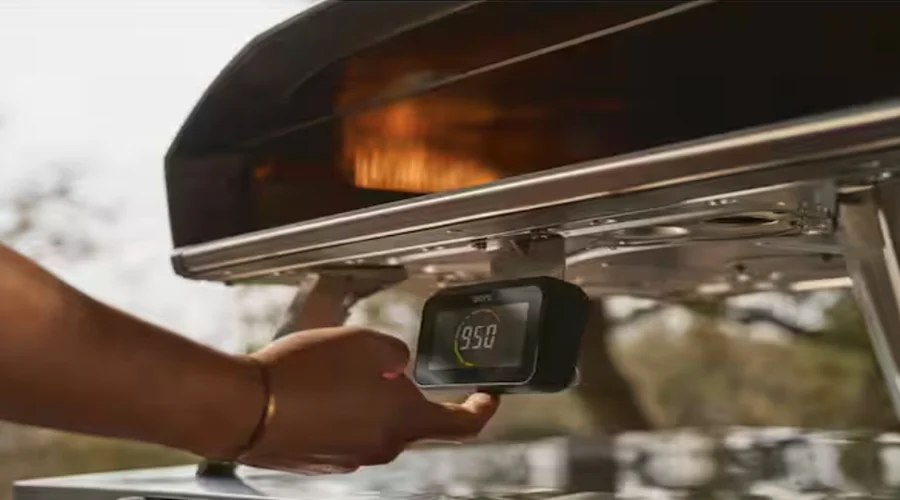

Ooni Connect Digital Temperature Hub
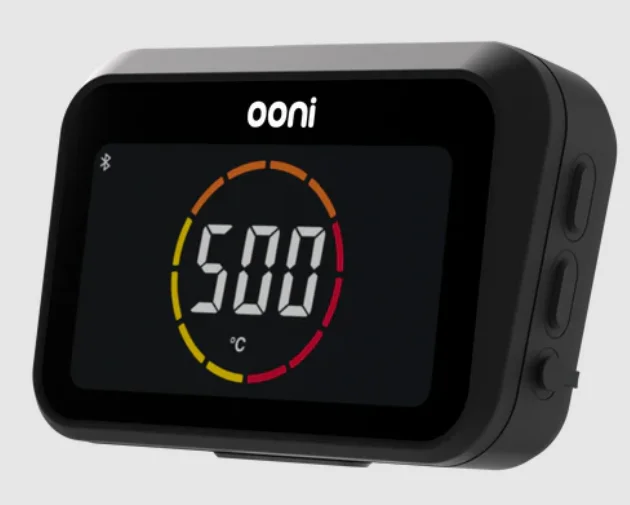
All references to “Ooni” in this manual include Ooni Limited and its relevant subsidiaries and holding companies as defined in section 1159 of the Companies Act 2006. OONI DOES NOT ACCEPT ANY RESPONSIBILITY, LEGAL OR OTHERWISE, FOR THE INCIDENTAL OR CONSEQUENTIAL DAMAGE TO PROPERTY OR PERSONS RESULTING FROM THE USE OF YOUR OONI OVEN WHICH DOES/DID NOT COMPLY WITH ANY OF THE PROVISIONS OF THIS MANUAL. OONI SHALL IN NO EVENT BE LIABLE FOR ANY SPECIAL, INDIRECT, CONSEQUENTIAL, OR OTHER DAMAGES OF ANY NATURE WHATSOEVER IN EXCESS OF THE ORIGINAL PURCHASE PRICE OF YOUR OONI OVEN. Some states or countries do not allow the exclusion or limitation of incidental or consequential damages; therefore, such limitations or exclusions may not apply to you. Product Name: Ooni Connect™ Digital Temperature Hub.
Model: UU-C00182
Caution: The user is cautioned that changes or modifications not expressly approved by the party responsible for compliance could void the user’s authority to operate the equipment. This device contains licence-exempt transmitter(s)/receiver(s) that comply with Innovation, Science and Economic Development Canada’s licence-exempt RSS(s) and Part 15 of the FCC Rules. Operation is subject to the following two conditions:
- This device may not cause interference.
- This device must accept any interference, including interference that may cause undesired operation of the device.
NOTE: This equipment has been tested and found to comply with the limits for a Class B digital device, pursuant to Part 15 of the FCC Rules. These limits are designed to provide reasonable protection against harmful interference in a residential installation. This equipment generates, uses and can radiate radio frequency energy and, if not installed and used in accordance with the instructions, may cause harmful interference to radio communications. However, there is no guarantee that interference will not occur in a particular installation.
If this equipment does cause harmful interference to radio or television reception, which can be determined by turning the equipment off and on, the user is encouraged to try to correct the interference by one or more of the following measures:
- Reorient or relocate the receiving antenna.
- Increase the separation between the equipment and receiver.
- Connect the equipment into an outlet on a circuit different from that to which the receiver is connected.
- Consult the dealer or an experienced radio/TV technician for help.
FCC& IC Radiation Exposure Statement:
This equipment complies with FCC and Canada radiation exposure limits set forth for an uncontrolled environment. This equipment should be installed and operated at a minimum distance of 20cm between the radiator and your body. This transmitter must not be co-located or operating in conjunction with any other antenna or transmitter.
WARNING: Read the instructions before using the Ooni Connect Digital Temperature Hub and retain them for future reference. Food probes and other accessible parts may be hot and sharp. Keep young children away. Only use the Ooni Connect™ Digital Temperature Hub as instructed by this manual. To avoid damage, only mount the Ooni Connect™ Digital Temperature Hub and route the cable(s) to the location(s) instructed in this manual. The food probes are suitable for use at temperatures of up to 480 °F (250 °C). Do not use at temperatures exceeding this or on open flames. Do not modify the Ooni Connect™ Digital Temperature Hub.
CAUTION
- Hand-wash and dry the food probes before first use.
- The food probes are not dishwasher safe.
- Do not use chemicals or abrasive detergents to clean the food probes.
- Risk of explosion if the battery is replaced by an incorrect type.
- The Ooni Connect™ Digital Temperature Hub works with Ooni food probes; other accessories may be inaccurate, not work, or potentially cause damage.
Ooni Connect Digital Temperature Hub
Use the Ooni Connect Digital Temperature Hub for accurate and immediate temperature measurements in Celsius (°C) or Fahrenheit (°F). Connect the food probe(s) to get the perfect slow roast or seared steak, and connect to the Ooni app to monitor all of this without having to touch your oven.
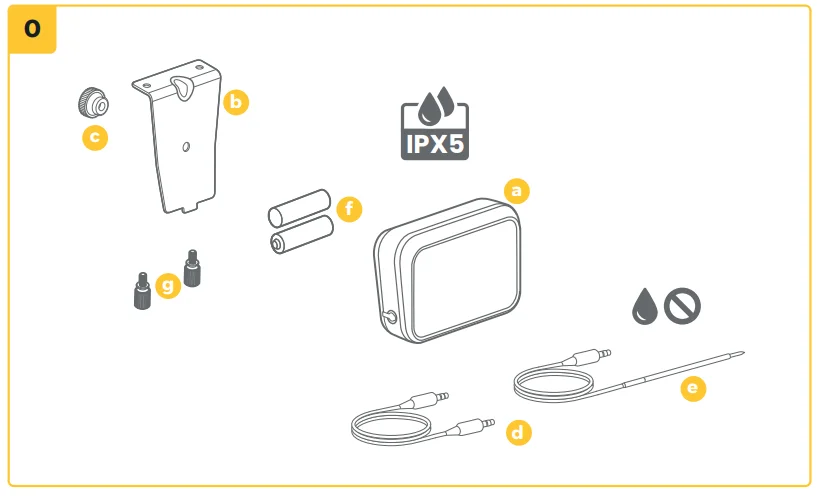
0. What’s in the box
- a. Ooni Connect Digital Temperature Hub
- b. Mounting bracket
- c. Thumb nut (comes attached to Hub)
- d. Ambient temperature cable
- e. Food probe
- f. AA Batteries
- g. Mounting Bracket screws
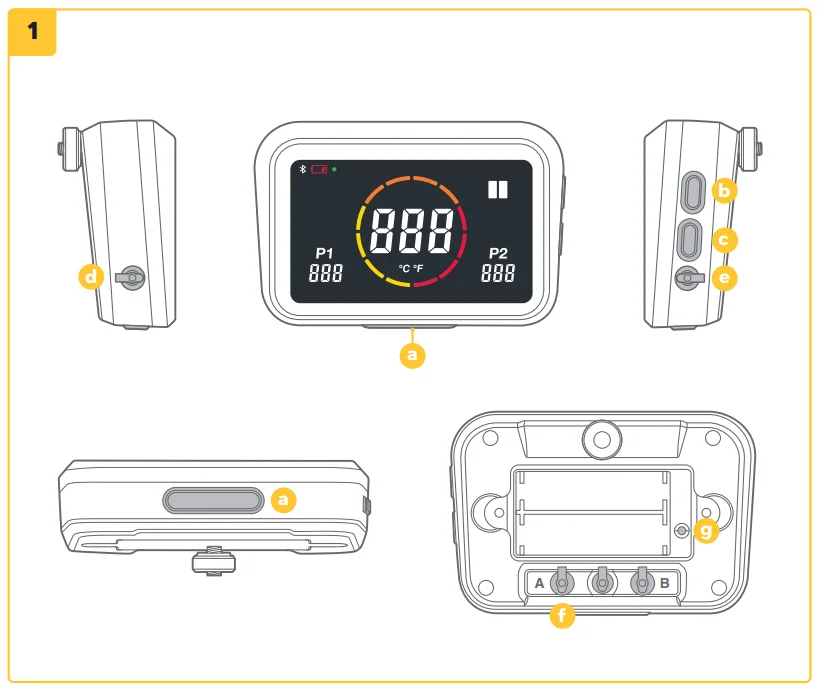
1. Buttons and inputs:
- a. Power button (long press) °C / °F selector (short press)
- b. Temperature cycle (short press) Bluetooth activation (long press)
- c. Back-light button Eco-mode (long press) Back-light (short press)
- d. Food probe input 1
- e. Food probe input 2 (optional)
- f. Ambient temperature input A
- g. Factory reset button
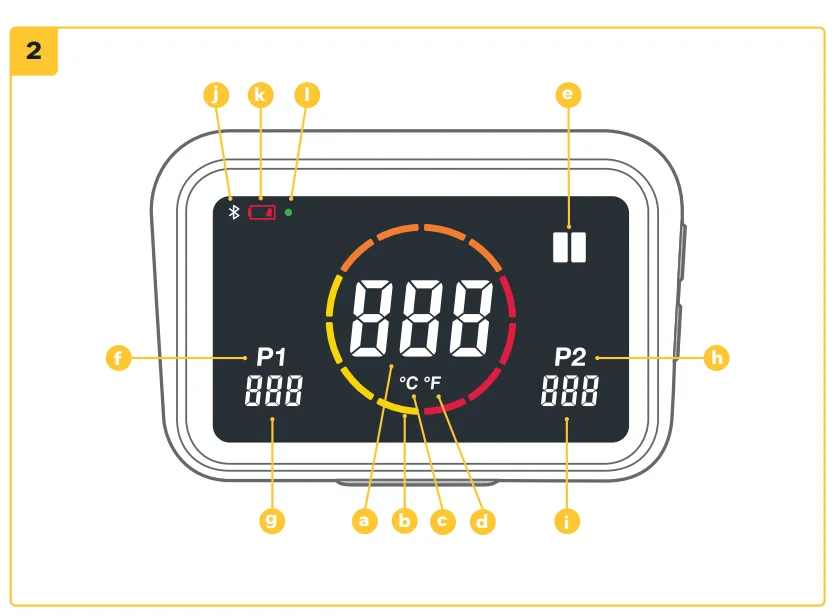
2. Screen
- a. Main temperature display
- b. Temperature ring
- c. °C indicator
- d. °F indicator
- e. Ambient temperature Indicator
- f. Food probe 1 Indicator
- g. Food probe 1 display
- h. Food probe 2 indicator (optional)
- i. Food probe 2 display (optional)
- j. Bluetooth status indicator
- k. Low battery indicator
- l. Eco mode indicator
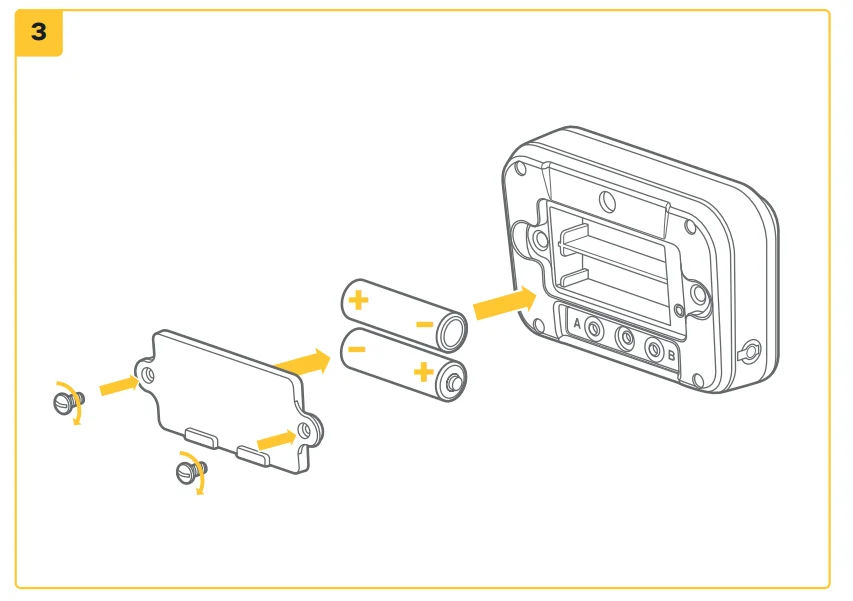
3. Install batteries
Remove the screws using a screwdriver and remove the hatch. Insert 2x AA batteries. Replace the hatch and secure the screws.
- If you are storing the oven for more than a month, remove the batteries.
Set up and assembly
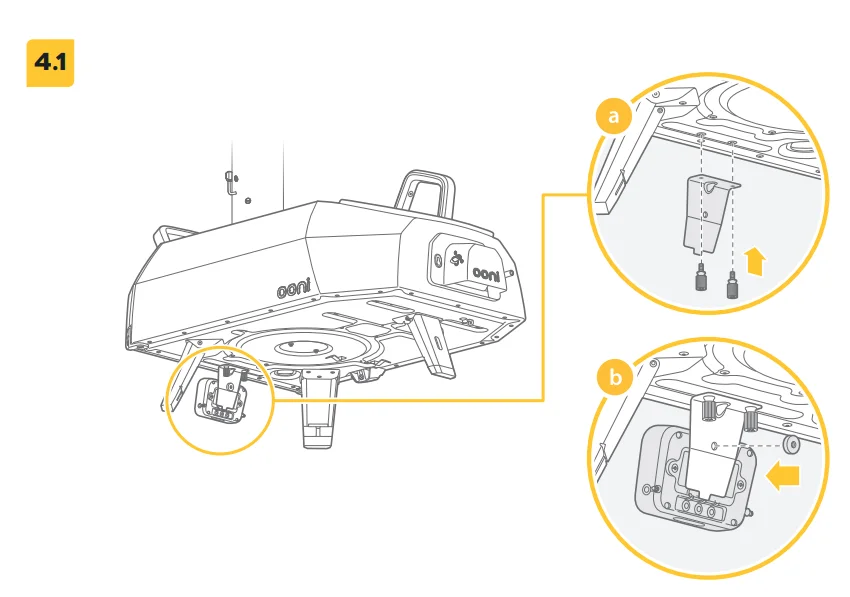
Attaching Ooni Connect Digital Temperature Hub
- a. Using 2x bracket screws, attach the mounting bracket to the underside of the oven.
- b. Attach the Ooni Connect™ Digital Temperature Hub to the bracket using the thumb nut (comes attached to the Hub).
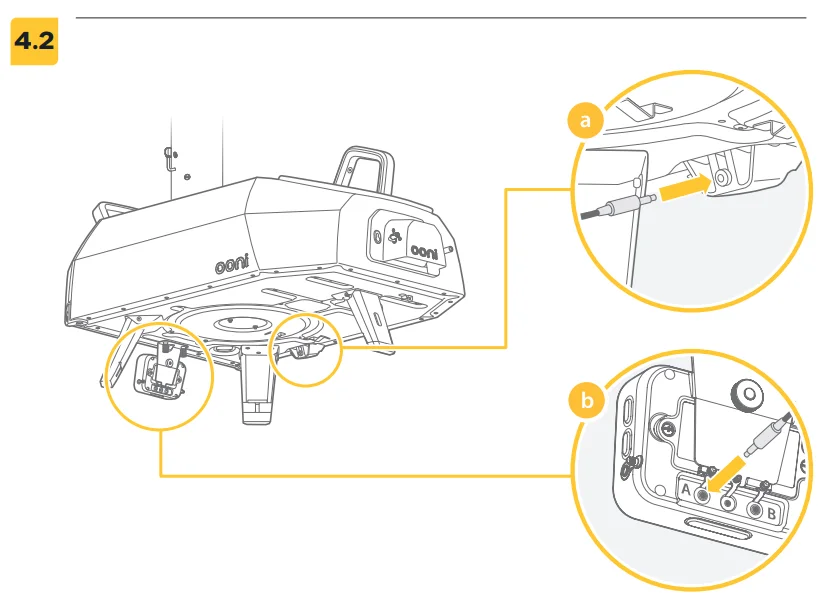
Attach the ambient temperature cable
- a. Plug the ambient temperature cable into the input on the underside of the oven.
- b. Plug the opposite end into the corresponding input on the back of the Ooni Connect™ Digital Temperature Hub.
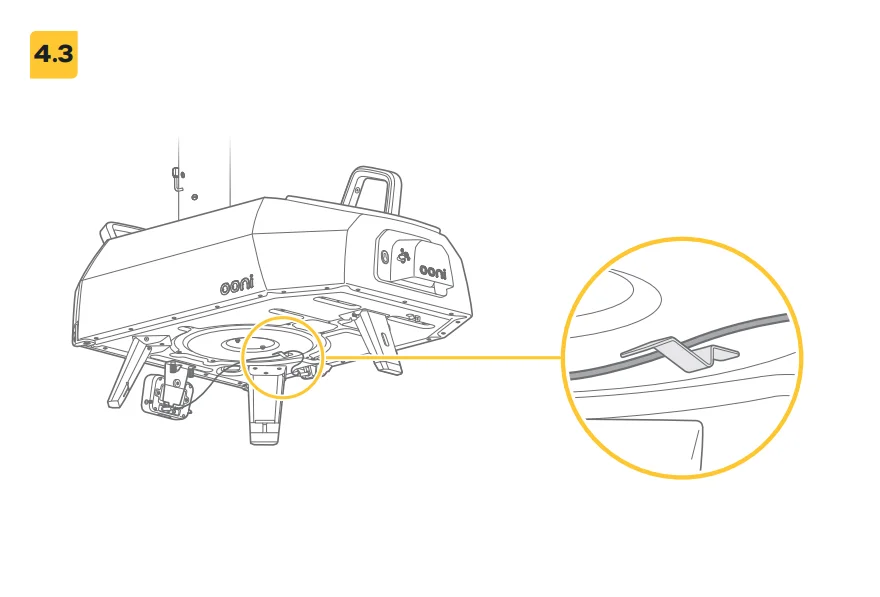
Securing the ambient air temperature cable
Clip the cable to the underside of the oven.
Using the Ooni Connect Digital Temperature Hub
Download the Ooni app

Scan to download the Ooni app
Setting up your Ooni Connect Digital
Temperature Hub is simple, and the Ooni app will walk you through each step. If you already have the Ooni app, be sure to update to the latest version.
Powering On/Off device
- a. Turn on the device with a short press of the power button.
- b. Turn off the device with a long press on the power button.
Turn off your device when not in use to save battery. The device will automatically switch off after 45 minutes.
Setting the Oven ID
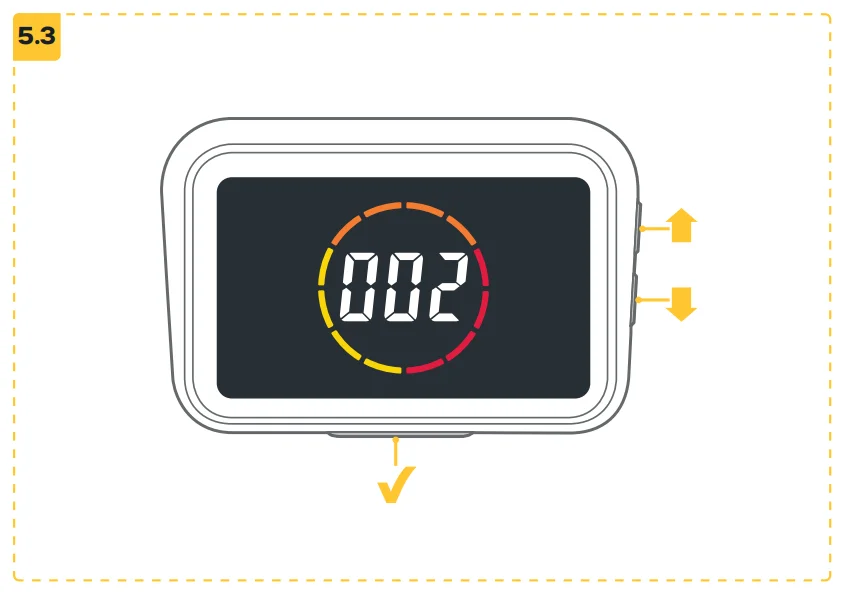
After the first power-on, you will need to set the Oven ID for your Ooni Connect™ Digital Temperature Hub. Use the Temperature Cycle Button and the Back-Light button to cycle between the Oven ID numbers until you reach the correct one. The Oven ID for Ooni Karu 2 Pro is 002. Confirm this Oven ID by pressing the Power Button.
Changing the Oven ID
Press and hold the Temperature Cycle Button and Back-light button together for 3 seconds to re-select the Oven ID. Update the Oven ID and confirm the selection.
Activating Bluetooth pairing
Ensure Bluetooth is enabled on your device. Open the Ooni app and navigate to the Ooni Connect tab. Press the temperature cycle button on your Ooni Connect Digital Temperature Hub for 3 seconds until the Bluetooth status indicator starts flashing. Follow the instructions in the Ooni app to connect your device. A successful connection will cause the Bluetooth status indicator to stop flashing and remain illuminated.
If the Bluetooth status indicator starts flashing rapidly, it indicates a problem with the connection. Try restarting the pairing process if the problem persists. If a connection is not made, the Bluetooth will turn off after a short period of time.
Reading the food probe
Check that the food probe is plugged into the correct input, and then the temperature will appear on the display. When using the food probe, remove the cap and then ensure it is inserted into the thickest part of the meat, and make sure to avoid bones or fat. The part of the food probe that goes into the meat should not be exposed to temperatures above 250 °C (480 °F).
WARNING: Before and after use, clean the food probe with hot, soapy water, taking care not to submerge the wire in the water, and dry immediately. Take care when handling the food probe as it is sharp. Always wear heat-resistant gloves if handling the food probe when it is hot. Do not use the food probes at temperatures exceeding 450 °C (842 °F).
Changing the unit of measurement
Use a short, single press of the power button to cycle between Celsius (°C) and Fahrenheit (°F).
Eco Mode
Use a long press of the back-light button to cycle between full brightness and Eco mode. When in Eco mode, a short press of any button will fully illuminate the display for a short period of time.
Low battery warning
When the batteries are running out, the low battery warning will come on, indicating you should change batteries at the next available opportunity.
WARNING: Always ensure the oven and temperature hub are fully cool before replacing the batteries.
High (Hi) or Low (Lo) Temperature
The Ooni Connect Digital Temperature Hub is designed to read cooking temperatures between -30 °C (-22 °F) and 550 °C (999 °F) and food probe temperatures between 0°C (32°F) and 100°C (212°F). If the temperatures are outside this range, the relevant display will show either Hi or Lo.
Care and maintenance
- Ooni Connect Digital Temperature Hub: Wipe down with a damp cloth and dry immediately.
- Food probes: Before and after every use, clean with hot, soapy water, taking care not to submerge the wire in the water and dry immediately. Not dishwasher safe. Store your Ooni Connect Digital Temperature Hub inside for extended periods without use; remove the battery to prolong battery life and prevent damage. Never submerge the Ooni Connect Digital Temperature Hub, food probe or wiring in water.
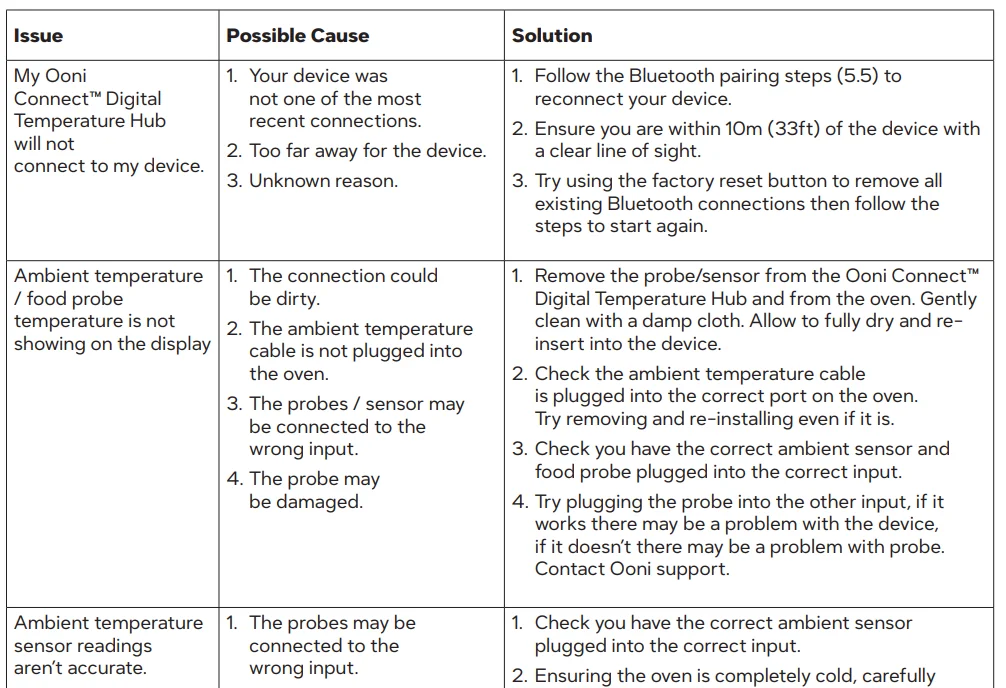
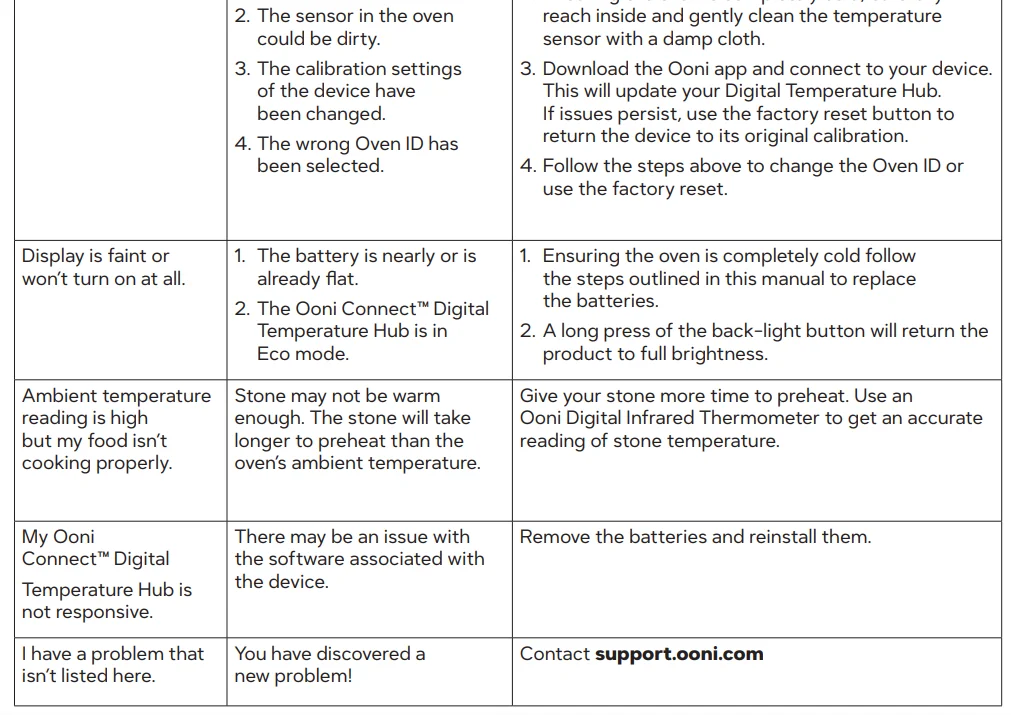
Troubleshooting
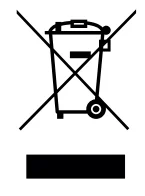
This marking indicates that this product should not be disposed of with other household wastes throughout the EU and UK. To prevent possible harm to the environment or human health from uncontrolled waste disposal, recycle it responsibly to promote the sustainable reuse of material sources. To return your used device, please use the return and collection systems or contact the retailer where this product was purchased. They can take this product for environmentally safe recycling.
You must have a live internet connection for the Ooni app to work. We recommend you update to the latest version of iOS and Android to operate the Ooni app. Your mobile device must have Bluetooth wireless technology 4.0 support (Bluetooth wireless technology Low Energy) in order to set up a connection with the appliance.
Check your device specification for compatibility.
- BLE 2.4GHz
- 2.4GHz, 2.5mW
The Bluetooth word mark and logos are registered trademarks owned by Bluetooth SIG, Inc., and any use of such marks by Ooni Limited is under license. Other trademarks and trade names are those of their respective owners.
For more manuals by Ooni, visit ManualsLibraryy
Ooni Connect Digital Temperature Hub-FAQs
What is the Ooni Connect Digital Temperature Hub?
It is a smart temperature monitoring device designed for Ooni ovens. It connects with probes to track food and oven temperatures in real time and allows remote monitoring through a mobile app for more accurate cooking.
How do I use the Ooni Connect Digital Temperature Hub?
Insert the temperature probe into your food and switch on the hub. The device displays live readings instantly, and you can also track temperatures through the connected app for better control while cooking.
How can I control the temperature in my Ooni oven?
Temperature control mainly depends on fuel and airflow. Adjusting fuel levels and managing airflow through vents or the chimney helps maintain consistent heat inside the oven.
What is the ideal temperature for cooking pizza in an Ooni oven?
For best results, aim for around 400–450°C (750–850°F). At this range, pizzas cook quickly and evenly, giving a crispy crust and perfectly melted toppings.
How long does it take to preheat an Ooni oven?
Preheating usually takes about 15–25 minutes, depending on the model and fuel type. Proper preheating ensures the stone reaches the right temperature for cooking.
Where should I measure temperature inside the oven?
Measure the temperature at the center or slightly toward the back of the pizza stone. The rear area is typically hotter, giving a more accurate cooking reading.
Can I monitor temperature remotely?
Yes, the hub connects to a mobile app, allowing you to check temperatures from a distance without constantly opening the oven.
How do I clean the temperature probe or thermocouple?
After the oven cools completely, gently wipe the probe with a dry cloth. If needed, use compressed air to remove dust or debris for accurate readings.
Why is my Ooni oven not reaching high temperatures?
This can happen due to low fuel supply, incorrect regulator settings, or poor airflow. Ensuring proper fuel and ventilation usually resolves the issue.
Can I use my Ooni oven in different weather conditions?
Yes, Ooni ovens can work in various weather conditions, but it’s important to protect them with a cover when not in use to prevent damage from rain or snow.