
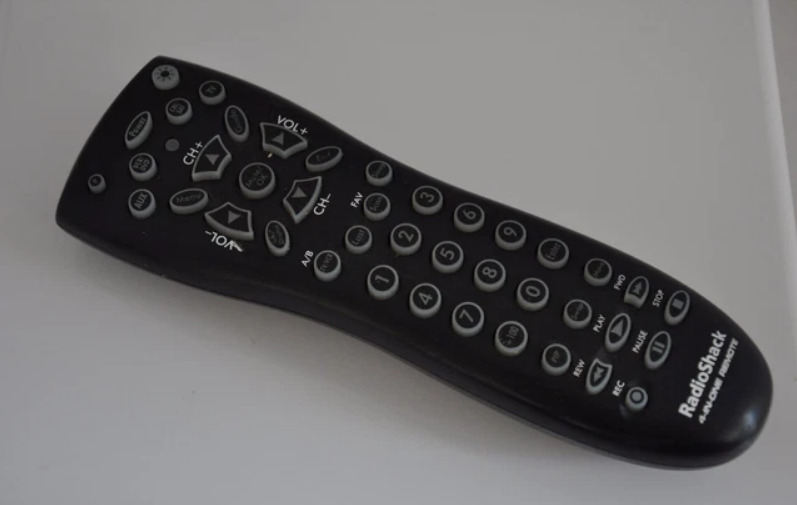

Radio Shack 15-2147 Universal Remote Control
INSTALLING BATTERIES
Your RadioShack Low-Cost 3-in-1 Remote requires two (2) AA batteries (not supplied).
Battery Use And Safety
- Use only fresh batteries of the required size and recommended type.
- Do not mix old and new batteries, different types of batteries (that is, standard, alkaline, or rechargeable), or rechargeable batteries of different capacities.
- If you do not plan to use the remote for an extended period, remove the batteries. They can leak chemicals that can destroy electronic parts.
To Install Batteries:
- Open the battery compartment cover (located on the back of the remote).
- Place the AA batteries in the compartment and match the + and – polarity symbols inside.
- Replace the cover.
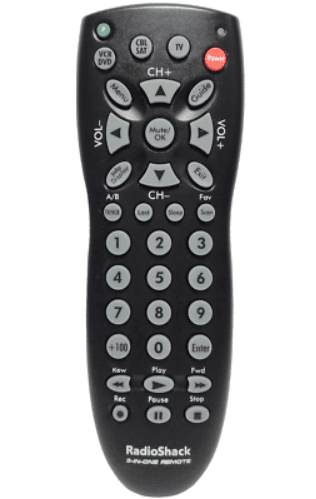
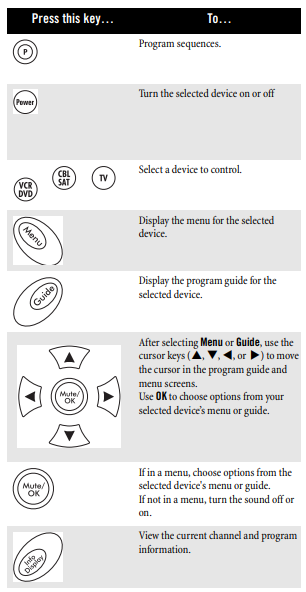
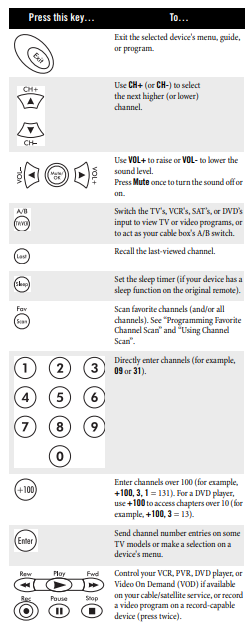
A QUICK LOOK AT THE CONTROLS
PROGRAMMING A DEVICE
The RadioShack Low-Cost 3-in-1 Remote comes preprogrammed to operate an RCA TV, VCR, DVD, and Satellite receiver. To control devices other than default brands, follow these steps; otherwise, skip this section. Before proceeding, find the codes for the devices you
want to program in Manufacturer’s Codes and write them down, or highlight them
- Turn on the device (for example, a DVD player) and, if needed, load media (for example, a DVD).
- On the remote, press a device key (that is, VCR/DVD, CBL/SAT, or TV).
- Press and hold P until the red LED blinks twice, then release.
- Enter the first four-digit code for your device. The LED blinks once as each digit is entered. If the code is correct, the LED blinks twice
- Aim the remote at the device and press Power (or Play, if it does not have a Power key). The device should turn off. If it does not, repeat steps 2 to 5, trying each code for your brand
until you find one that works. If you cannot find a code that works, see “Searching for Your Code”. - Repeat steps 1 to 5 for each device you want to control. For future reference, write down each working device code in a safe place.
SEARCHING FOR YOUR CODE
If your device does not respond to the remote after trying all codes listed for your brand, or if your brand is not listed, try searching for your code. For example, to search for a code for your TV
- Press TV once.
- Press and hold P until the red LED blinks twice, then release.
- Enter 9 9 1. The LED blinks twice.
- Aim the remote at the TV and press Power. The remote sends IR codes from its library to the selected device, starting with the most popular code first.
- If the TV responds, go to step 6. If the TV does not respond, press CH+. The remote will try the next code. Continue until the TV responds. NOTE: Press CH- to try the previous code.
- To lock in the code, press P once. The LED blinks twice.
- To search for other device codes, repeat steps 1 to 6, substituting the appropriate key for the device.
CHECKING THE CODES
If you have set up the remote using the procedure in “Searching for Your Code”, you may need to find out which four-digit code is operating your equipment. For example, to find out which code is assigned to your TV:
- Press TV once.
- Press and hold P until the red LED blinks twice, then release.
- Enter 9 9 0. The LED blinks twice.
- To view the code for the first digit, press 1. Count the LED blinks (for example, three blinks = 3), and write down the number.
- Repeat step 4 for the three remaining digits, using 2 for the second digit, 3 for the third digit, and 4 for the fourth digit.
- To check for other device codes, repeat steps 1 to 5, substituting the appropriate key for each device you are checking.
REASSIGNING DEVICE KEYS
The remote can be set to control a different device than the one it’s labeled for (see Manufacturer’s Codes). For example, to control a second TV (instead of a VCR or DVD player), perform these steps to
reassign the unused VCR/DVD key to operate the second TV:
- Press and hold P until the red LED blinks twice, then release.
- Enter 9 9 2. The LED blinks twice.
- Press TV then VCR/DVD. The VCR/DVD key is now ready to be programmed as your second TV. (see Programming A Device).
To use another unused device key, substitute the desired key for the VCR/DVD key in step 3. To clear a reassigned mode and reset it to its original device type, perform steps 1 and 2 above, then press the mode to be cleared twice.
PROGRAMMING FAVORITE CHANNEL SCAN
The remote allows you to store a list of up to 10 favorite channels, in any order, that will be immediately scanned when you press Fav (Scan). NOTE: Only channels from one device can be stored for Favorite Channel Scan.
- Press a device mode key.
- Press and hold P until the red LED blinks twice, then release.
- Enter 9 9 6. The LED blinks twice.
- Use the keypad to enter a favorite channel number (for example, 031), and then press P (if fewer than 5 digits or 4 digits plus the Enter key are entered).
- Repeat step 4 for each favorite channel to be stored, up to a total of 10 channels. NOTE: If you try entering more than 10 channels, or if more than 10 seconds elapse between key presses, the remote automatically exits programming. NOTE: If your device requires you to press Enter after channel numbers, you must press it after entering your channel number when programming.
- To exit programming with less than 10 channels, press and hold P for three seconds. The LED blinks twice.
USING CHANNEL SCAN
Use Fav (Scan) to start a three-second scan of all favorite channels (if programmed; see “Programming Favorite Channel Scan”) or all channels (if Favorite Channel Scan is not programmed).
- Press a device mode key.
- Press Fav (Scan) once.
- If Favorite Channel Scan has been set up, the device scans favorite channels up to 10 times through the set of channels, then continues to scan all channels for the device.
- If Favorite Channel Scan has not been set up, scanning starts with the current channel. To stop scanning channels at any time, press any key once
CHANGING VOLUME LOCK
The RadioShack Low-Cost 3-in-1 Remote comes preset to allow independent volume control of each selected device (Global Volume Unlock). However, you may change the Volume Lock setting to Global Volume Lock so that one device’s volume will control volume in all other modes. After that, you can perform Individual Volume Unlock on a selected device to set its volume control for independent
operation
Locking Volume Control to One Mode (Global Volume Lock)
- Press and hold P until the red LED blinks twice, then release.
- Enter 9 9 3 and then press the mode key for the device you want to control volume (for example, TV). The LED blinks twice. Now, when you press VOL+, VOL-, or Mute, the selected device (for example, the TV) will control the volume regardless of the current mode.
Unlocking Volume Control for a Single Device (Individual Volume Unlock)
- After performing Global Volume Lock (above), press the mode key for the device you want to have independent volume control.
- Press and hold P until the red LED blinks twice, then release.
- Enter 9 9 3 and then press VOL-. The LED blinks four times.
- Repeat steps 1 to 3 for any other device that you want to have independent volume control.
Unlocking All Volume Control (Restoring Global Unlock)
- Press and hold P until the red LED blinks twice, then release.
- Enter 9 9 3 and then press VOL+. The LED blinks four times. Volume is independently controlled for all programmed devices.
TROUBLESHOOTING
- PROBLEM: The LED does not blink when you press a key.
SOLUTION: Replace batteries with two (2) new AA alkaline batteries. - PROBLEM: The LED blinks when you press a key, but the device does not respond. SOLUTION: Make sure the remote is aimed at your device and is not more than 15 feet away.
- PROBLEM: LED blinks one long blink. SOLUTION: An entry error has occurred (for example, wrong key). Try the entry sequence again.
- PROBLEM: The Remote does not control devices, or the commands are not working properly. SOLUTION: Try all listed codes for the device. Make sure the device operates with an infrared remote control.
- PROBLEM: CH+, CH-, and Last do not work for your RCA TV.
SOLUTION: Due to the RCA design from 1983 to 1987, only the original remote control will operate these functions. - PROBLEM: No volume on a second TV. SOLUTION: See “Changing Volume Lock”.
- PROBLEM: Channels do not change properly. SOLUTION: If the original remote control required you to press Enter to change channels, press Enter on this remote after entering the channel number.
FOR MORE MANUALS BY RADIO SHACK, VISIT MANUALSLIBRARYY
Radio Shack 15-2147 Universal Remote Control-FAQs
Can I use this remote without the original remote?
Yes! You only need the correct 4-digit code for your device brand.
How do I reset the remote?
Remove batteries.
Press and hold POWER for 5 seconds.
Reinsert batteries and reprogram.
Can I control multiple devices with this remote?
Yes! It supports TV, DVD, cable box, and audio systems—just program each device separately.
How do I test if the remote is working?
Use a phone camera: Point the remote at the camera and press a button. If you see an IR light flash, the remote is working.
Why is my remote not responding after programming?
Wrong code – Try another code for your brand.
Weak batteries – Replace them.
IR interference – Avoid bright lights or sunlight near the TV sensor.
How many devices can this remote control?
The RadioShack 15-2147 can store codes for multiple devices (TV, DVD, cable, etc.), but only one at a time (switch using device buttons).
What if my device brand isn’t listed in the codes?
Try auto-scan mode (if available) or search online for updated codes.
How long do the batteries last?
Typically 6–12 months, depending on usage. Use fresh alkaline batteries for best performance.
Where can I buy a replacement remote?
eBay / Amazon (used or new)
RadioShack’s website (if still available)