
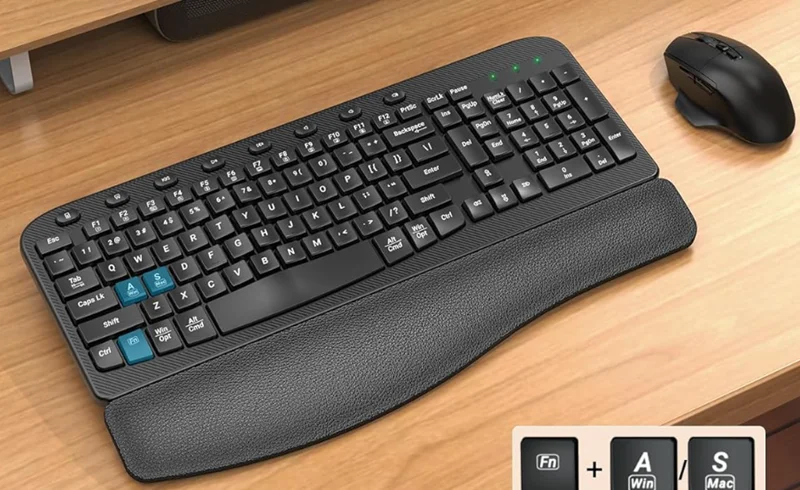

Sablute KL15 Wireless Keyboard and Mouse Combo
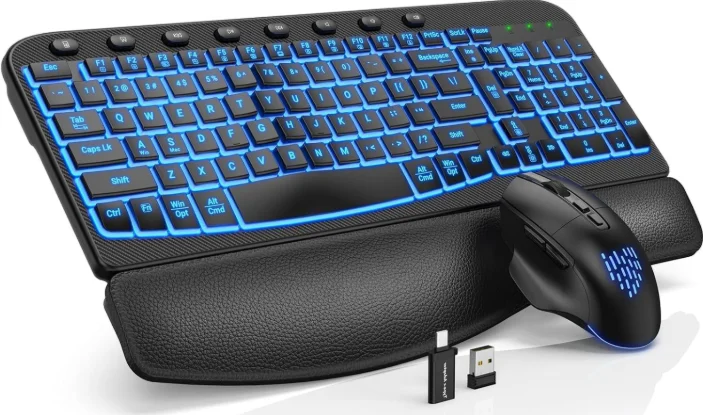
Product Specification
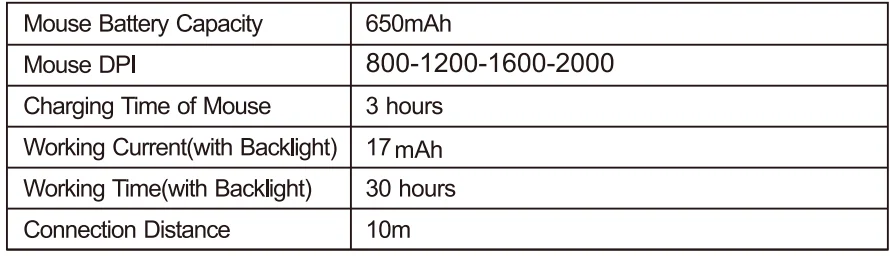
Keyboard parameters:
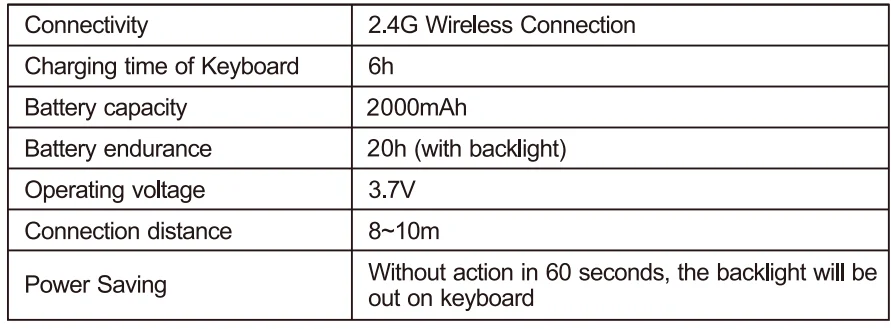
Mouse parameters:
Compatible Systems: Windows XP, Windows 7/8/10/11, Mac OS, iPad OS, IOS, Android
Note
- Compatible Systems: All Windows Series, Mac OS, Linux, Chrome OS.
- The multimedia keys are for Win 8 and Win 10; for other systems, there may be no function for some combined keys.
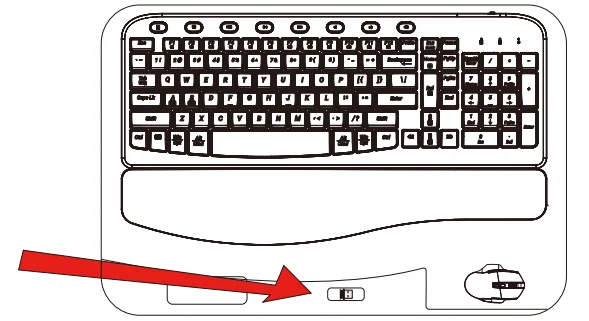
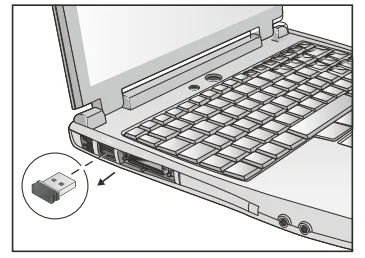
Where are the USB receivers for keyboard and mouse?
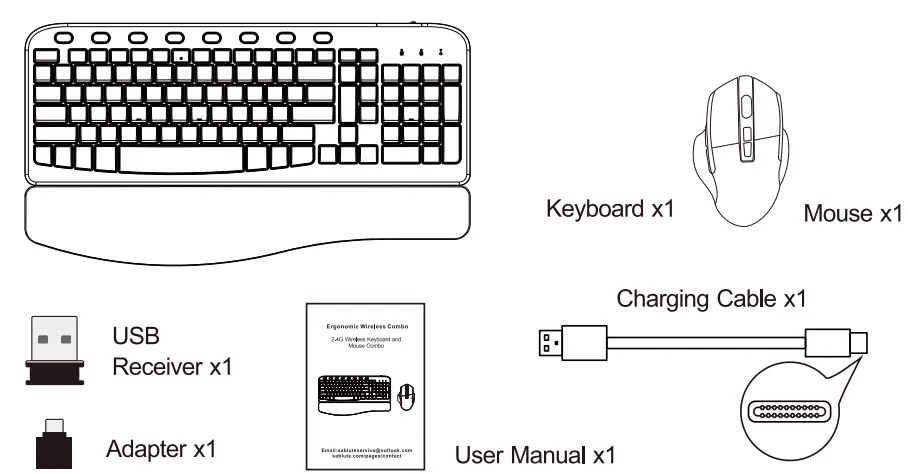
You will receive:
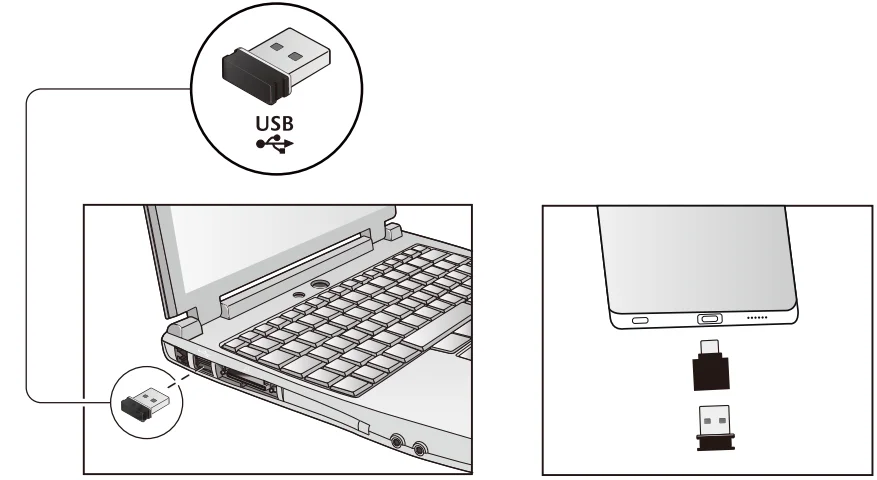
How to set up
- Please put the USB receiver into your computer. If your device includes a Type-C port, you can also use the adapter.

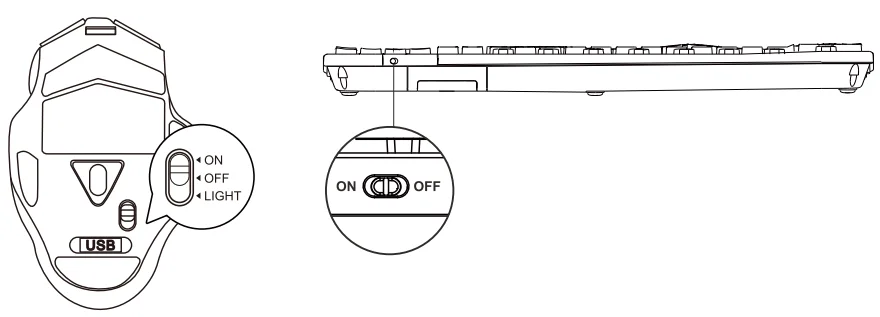
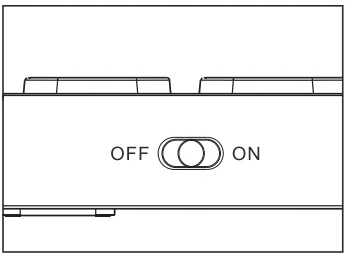
- Turn on the keyboard and mouse.

- The keyboard and mouse will connect to the computer automatically, and no drivers are required.
Instructions for the keyboard backlight
- Press and hold the
 key, then press the backlight key to turn on/off.
 - Press and hold the key, then press the
 to change the backlight color.
 - Press and hold the key, then press the key to increase the backlight brightness.
- Press and hold the key, then press the
 key to decrease the backlight brightness.
 key, then press the
  backlight key to turn on/off.
 to change the backlight color.
 key to increase the backlight brightness.
 key to decrease the backlight brightness.
LED Indicators Description
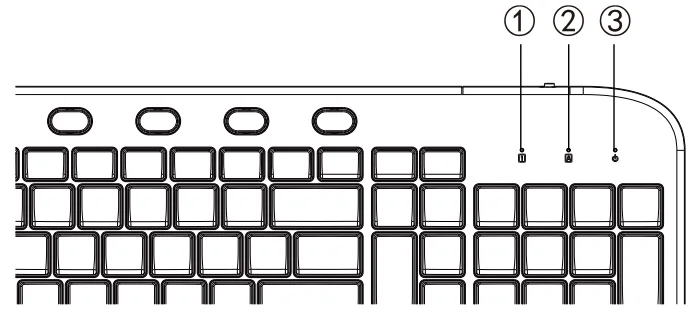
LED Indicator of the Keyboard
- NUM LOCK: The Num Lock LED light will turn green when the Num Lock function is activated.
- CAPS LOCK: The Caps Lock LED light will turn green when the Caps Lock function is activated.
- Charging Indicator: When the battery is running down, the green LED light will flash. When charging, the red light will turn on. When fully charged, the red light will turn off.
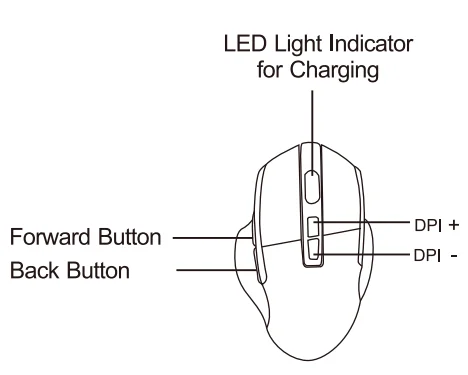
LED Indicator of the Mouse
- Charging: the LED red light will turn on.
- Fully Charged: The LED red light will turn off.
- When the battery is running down, please charge the mouse to make sure it works properly.

How to repair the keyboard to the USB receiver (The keyboard and mouse share a USB receiver.)
- Unplug the USB dongle.

- Turn on the keyboard.

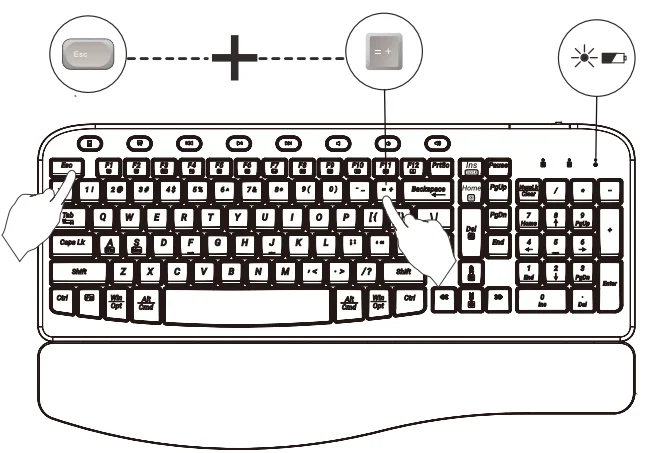
- Press and hold the “ESC” and the “=” key together for 3-5 seconds. Function is activated.
- LED indicator for low battery/connection lights constantly.

Instruction for charging
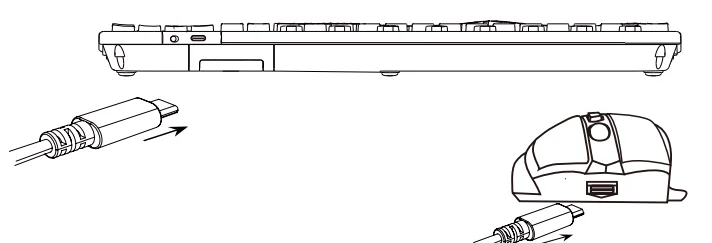
Charging Troubleshooting
- If the charging indicator light is not on:
- A: Check if the charging power source is properly connected.
- B: Inspect the charging port for any looseness.
- C: Verify if the charging output voltage is at 4.2V.
- If the charging indicator light is on but the device is not operational:
- A: Generally, it may need around half an hour of charging. Please ensure that the charging time is sufficient.
- B: Check if the USB receiver is connected to the keyboard. If not, please reconnect it.
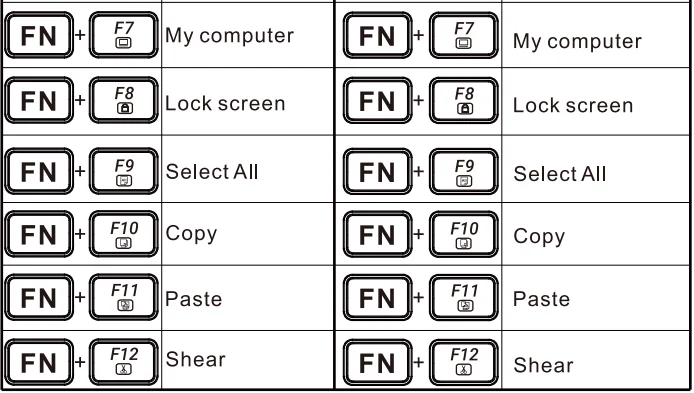
Multimedia button description
The functions below can be realized by combining the FN button.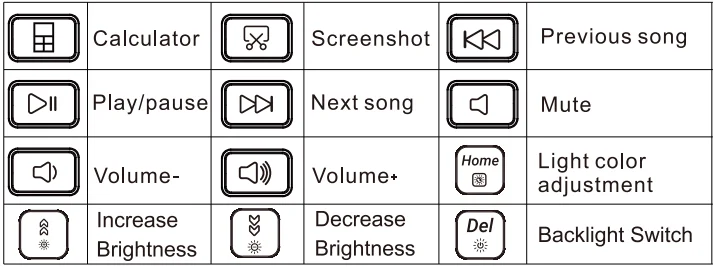
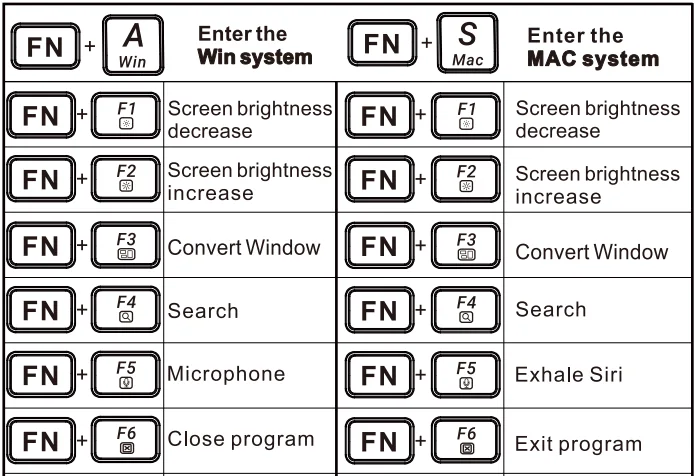
FAQ
Q1: What should I do if the keyboard gets delayed or stuck?
A1:
- Please check that there is no 2.4GHz device (e.g., router) nearby to interfere with the connection.
- Please check that the keyboard has been fully charged.
- Please check that there is no full metal case that may block the signal.
Q2: What should I do if the keyboard and mouse cannot be charged?
A2:
- Please check whether the charging port is connected. Please try to replace the charging cable.
- Try to change the USB port, and if the problem cannot be solved, please feel free to contact us.
Q3: What should I do if the backlight stops working?
A3:
- Please charge for half an hour and then re-insert the USB.
- Please try to restart the keyboard and mouse.
Q4: Where is my USB receiver?
A4:
- The USB receiver is placed on top of the keyboard inside the package; please look for it carefully.
- Please contact us to get a free replacement if you have lost the USB receiver.
Q5: What should I do if the keyboard cannot be connected?
A5:
- Switch on the keyboard, press
 , the light flashes quickly.
 - Plug the 2.4GHz USB receiver into the computer.
- Within 10 seconds, put the keyboard at 10 cm from the receiver for pairing.
- When the light turns off, the keyboard pairing is successful.
 , the light flashes quickly.
Cautions
- Please fully charge the keyboard when you first receive the product, as this helps to maintain the battery life.
- Please remove the power supply when charging is complete.
- If the keyboard is not used for a long time, it is recommended to turn off the power switch of the keyboard.
- Please do not expose this product to water because it may cause a short-circuit and damage the product.
- Please do not drop or hit this product because shocks may damage the components inside.
- Please do not place this product near extreme heat or sources of fire.
FCC Statement
This equipment has been tested and found to comply with the limits for a Class B digital device, pursuant to part 15 of the FCC rules. These limits are designed to provide reasonable protection against harmful interference in a residential installation. This equipment generates, uses, and can radiate radio frequency energy and, if not installed and used following the instructions, may cause harmful interference to radio communications.
However, there is no guarantee that interference will not occur in a particular installation. If this equipment does cause harmful interference to radio or television reception, which can be determined by turning the equipment off and on, the user is encouraged to try to correct the interference by one or more of the following measures:
- Reorient or relocate the receiving antenna.
- Increase the separation between the equipment and receiver.
- Connect the equipment to an outlet on a circuit different from that to which the receiver is connected.
- Consult the dealer or an experienced radio/TV technician for help. Changes or modifications not expressly approved by the party responsible for compliance could void the user’s authority to operate the equipment.
This device complies with Part 15 of the FCC Rules. Operation is subject to the following two conditions:
- This device may not cause harmful interference.
- This device must accept any interference received, including interference that may cause undesired operation.
Customer service
Buy on SABLUTE, You will get:
 30-Day Money-Back Guarantee
- 90-Day Free Replacement
- Hassle-Free Warranty Without Returning
- Lifetime Customer Support
 30-Day Money-Back Guarantee
Contact us
For FAQs and more information, please visit: sablute.com/pages/contact, [email protected].
For More Manuals By Sablute, Visit ManualsLibraryy.
Sablute KL15 Wireless Keyboard and Mouse Combo -FAQs
What are the main features of the Sablute KL15 Wireless Keyboard and Mouse Combo?
The Sablute KL15 Wireless Keyboard and Mouse Combo offers a compact, ergonomic design with reliable 2.4GHz wireless connectivity. It typically includes a full-sized keyboard layout, a responsive optical mouse, and plug-and-play functionality. The combo is designed for everyday productivity, smooth typing, and comfortable long-term use.
Is the Sablute KL15 compatible with all operating systems?
The Sablute KL15 Wireless Keyboard and Mouse Combo is generally compatible with major operating systems like Windows, macOS, and sometimes Linux. Most features work instantly without drivers, though certain shortcut keys may vary depending on the system. Always check compatibility details before purchasing for specific device requirements.
How do you connect the Sablute KL15 wireless combo to a computer?
To connect the Sablute KL15 combo, simply plug the included USB receiver into your computer’s USB port. Both the keyboard and mouse will automatically pair using 2.4GHz wireless technology. No additional software is required, making setup quick, seamless, and suitable even for non-technical users.
What is the wireless range of the Sablute KL15 keyboard and mouse?
The Sablute KL15 Wireless Keyboard and Mouse Combo typically offers a wireless range of up to 10 meters. This ensures stable connectivity for everyday use in home or office environments. Performance may vary slightly depending on obstacles, interference, and the positioning of the USB receiver.
Does the Sablute KL15 combo require batteries, and how long do they last?
Yes, the Sablute KL15 Wireless Keyboard and Mouse Combo runs on batteries, usually AA or AAA depending on the model. Battery life can last several months with regular use, thanks to power-saving features like automatic sleep mode, which helps extend usage without frequent replacements.
Is the Sablute KL15 keyboard comfortable for long typing sessions?
The Sablute KL15 keyboard is designed with user comfort in mind, featuring low-profile keys and a standard layout. This helps reduce finger fatigue during extended typing sessions. While not mechanical, it provides a quiet and smooth typing experience suitable for work, study, and general use.
Can the Sablute KL15 wireless combo be used for gaming?
The Sablute KL15 Wireless Keyboard and Mouse Combo is primarily designed for everyday computing tasks rather than high-performance gaming. While it can handle casual games, it may lack advanced features like high DPI sensitivity or anti-ghosting keys, which are preferred for competitive gaming setups.
Does the Sablute KL15 include multimedia or shortcut keys?
Yes, the Sablute KL15 keyboard often includes built-in multimedia and shortcut keys that allow quick access to volume control, media playback, and common functions. These keys enhance productivity and convenience, making it easier to control system settings without navigating through menus.
Is the Sablute KL15 combo portable and travel-friendly?
The Sablute KL15 Wireless Keyboard and Mouse Combo is relatively lightweight and compact, making it easy to carry for travel or remote work. Its wireless design eliminates cable clutter, and the small USB receiver can often be stored inside the mouse for added portability.
What should you do if the Sablute KL15 stops working or disconnects?
If the Sablute KL15 combo stops working, check the batteries, ensure the USB receiver is properly connected, and try a different USB port. Restarting your device or re-pairing the connection may also help. Interference from other wireless devices can sometimes affect performance temporarily.