
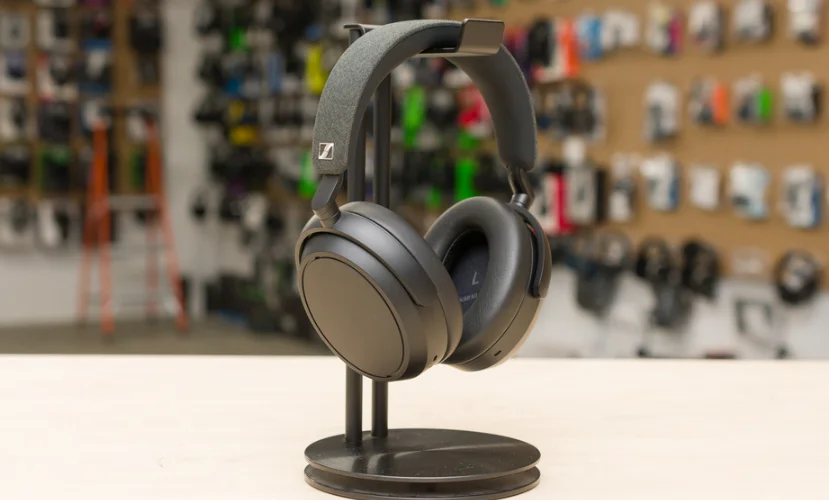

Sennheiser Momentum 4 Wireless Headphones
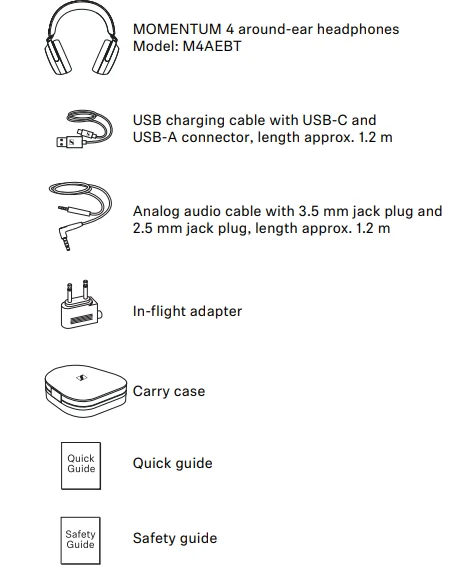
Package contents
Online, you can find:
- This detailed instruction manual and additional information www.sennheiser-hearing.com/download.
- The Sennheiser Smart Control app for configuring the headphones and for additional functions www.sennheiser-hearing.com/smartcontro.
- A list of accessories on the MOMENTUM 4 product page at www.sennheiser-hearing.com/momentum-4-wireless (to purchase online or contact your local Sonova Consumer Hearing partner: www.sennheiser-hearing.com/service-support.
Product overview
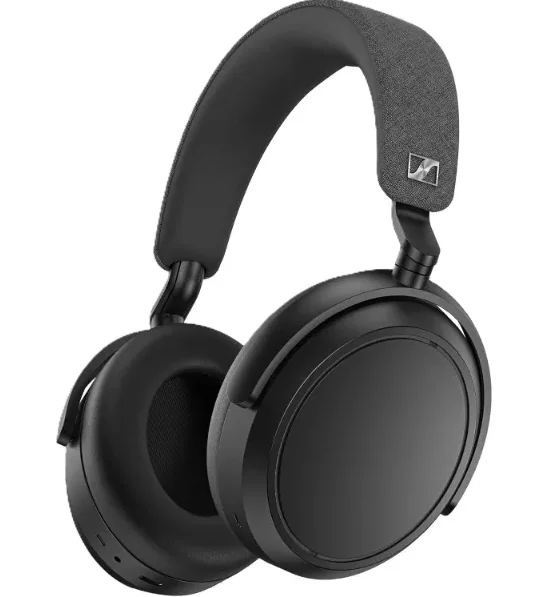
MOMENTUM 4
Model: M4AEBT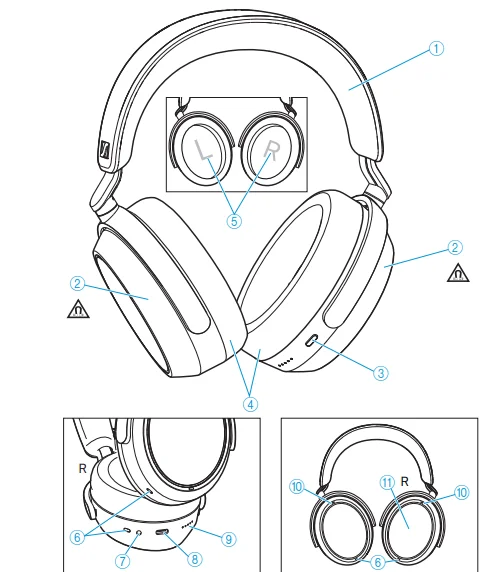
- Headband, steplessly adjustable
- Ear cups
- Multi-function button of the headphones:
- On/off button
- Voice assistant button
- Pairing button: pressing for 5 seconds activates the Bluetooth pairing mode
- Ear pads
- Marking for the right ear (R) and for the left ear (L) (inside the ear cups)
- Speech microphones (4 pcs.) for phone calls
- Input for analog audio cable, 2.5 mm; when a cable is connected, flight mode is activated/Bluetooth is deactivated
- USB-C socket for charging, calling, streaming via PC/Mac
- LED display
- Microphones for active noise cancellation ANC: 2x directed outward, 2x directed inward (not visible)
- Touch pad (outside of the right ear cup)
Overview of the Smart Control
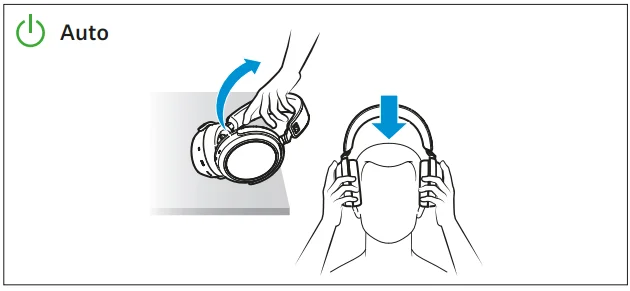
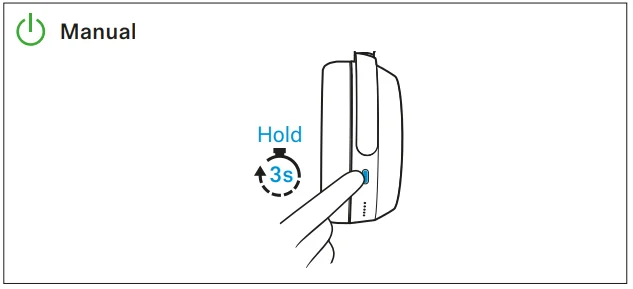
Switch on the headphones
- Automatic switch-on: by lifting and putting on.

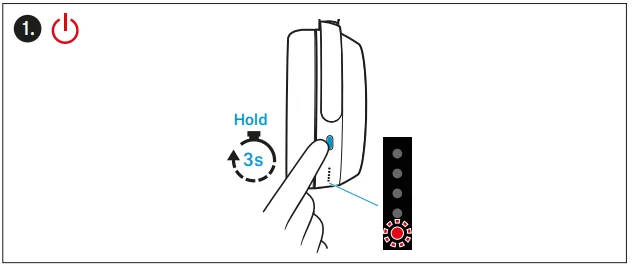
- Manual switch-on: by pressing the multi-function button for 3 seconds.

Gesture control via the touch pad
- Tap

- Horizontal swipe

- Vertical swipe

- Stretch

- Pinch






Note: You can also deactivate the touch pad function, see: > 34. The headphones are equipped with a sensor that automatically detects whether the headphones are worn or taken off from your ears (Smart Pause function). You can find more information here: > 33.
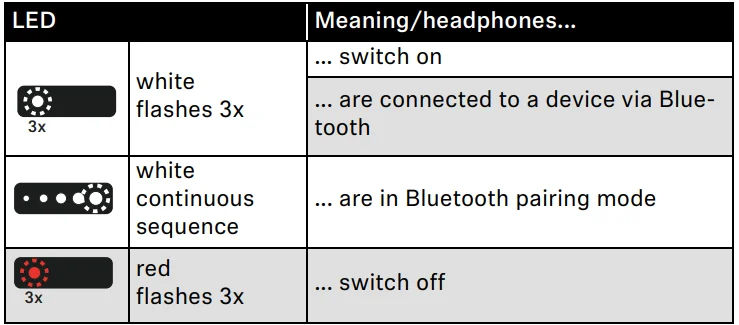
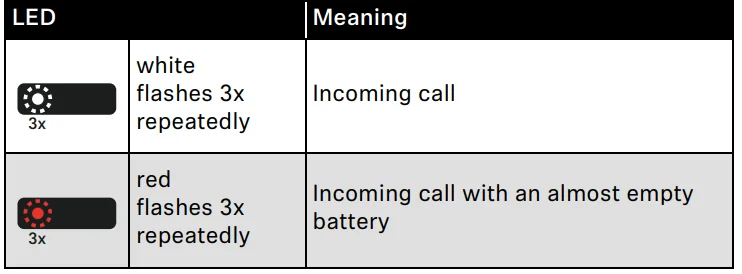
Overview of the LED display
During operation
During phone calls
During charging
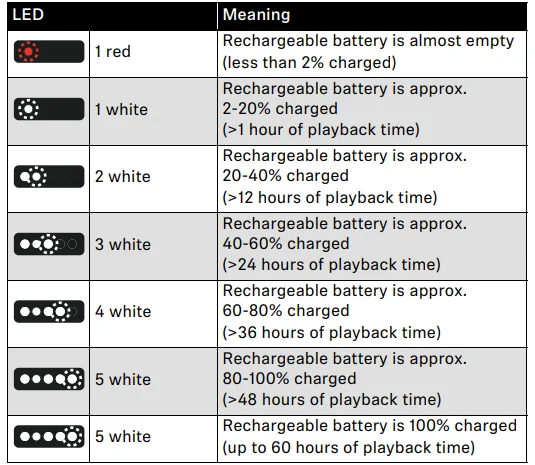
If the LED display does not light up:
- Clean the charging socket (> 38).
- Charge the rechargeable battery until the LED display lights up again (at least 30 minutes) (> 14). If the rechargeable battery is completely discharged, it may take several minutes for the LED display to indicate the charging process.
Overview of sound signals and voice prompts
The headphones output voice prompts and sound signals in case of various events.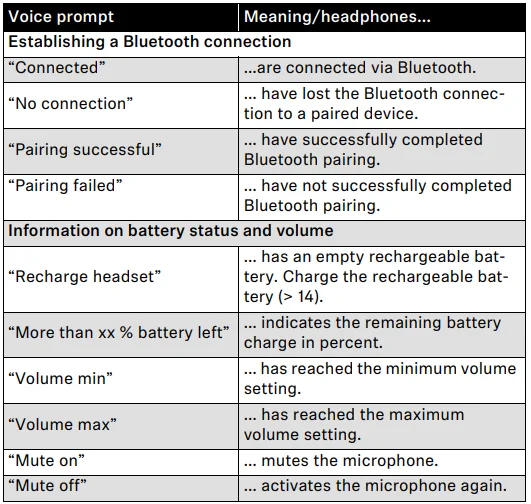
You hear short sound signals when the headphones:
- are switched on or off,
- are put on or taken off,
- are in pairing mode (melody),
- detect devices in the pairing list,
- cancel the pairing process,
- receive a gesture via the touch pad (increasing the volume, starting/pausing music playback, answering/holding/rejecting calls, adjusting the ANC function or Transparency Mode),
- receive an incoming call (ring tone),
- are connected to a device via the audio cable or USB cable,
- are disconnected from the connection via the audio cable or USB cable.
Getting started
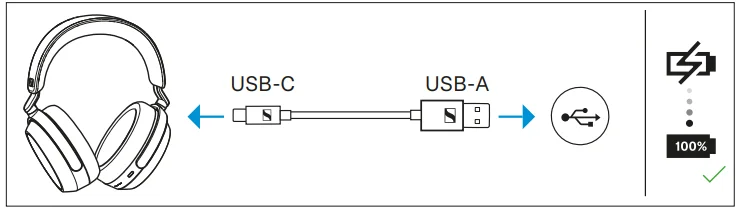
1. Charging the rechargeable battery
The headphones’ rechargeable battery is not fully charged upon delivery.
- Before using the headphones for the first time, charge the rechargeable battery for a complete charging cycle without interruption (> 14).

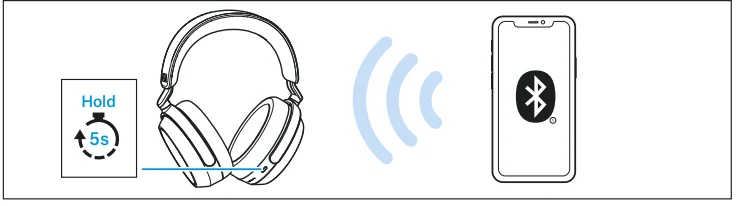
2. Connecting the headphones to a Bluetooth device
- Connect the headphones to your smartphone via Bluetooth (> 15).

3. Smart Control app for your smartphone
The Sennheiser Smart Control app allows you to use all functions and settings of the headphones and to, e.g., adjust the sound to your liking using the equalizer (> 19).
4. Putting the headphones on and adjusting the headband
For good sound quality and the best possible wearing comfort, the headband can be adjusted to properly fit your head (> 21).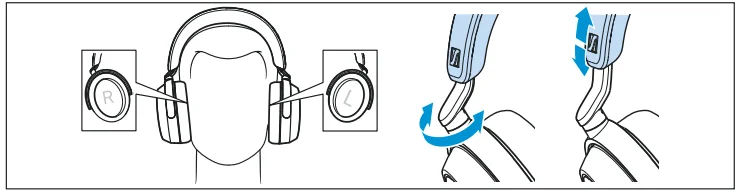
Using the headphones
Information on the rechargeable battery and the charging process
The headphones have a built-in rechargeable battery. A complete charging cycle takes approx. 2 hours. The charging time may vary depending on the power source used and the ambient temperature. Before using the headphones for the first time, charge the rechargeable battery for a complete charging cycle without interruption. When the headphones are being charged, the LED display lights up (> 9). Once the headphones are fully charged, the LEDs flash white for approx 5 minutes and then go off.
When the battery charge drops to a low level, the voice prompt “Recharge headset” asks you to recharge the headphones. If the headphones are not charged, the voice prompt will be repeated every 10 minutes until the headphones switch off. Sonova Consumer Hearing recommends using the supplied USB cable and a compatible standard USB power supply for charging the headphones. While the headphones are being charged, you can still listen to music or make phone calls. In this case, however, the charging time may be longer. At the end of its operational lifetime, this product with its built-in rechargeable battery must be disposed of separately from normal household waste. You can find more information here: > 43.
Charging the headphones’ rechargeable battery
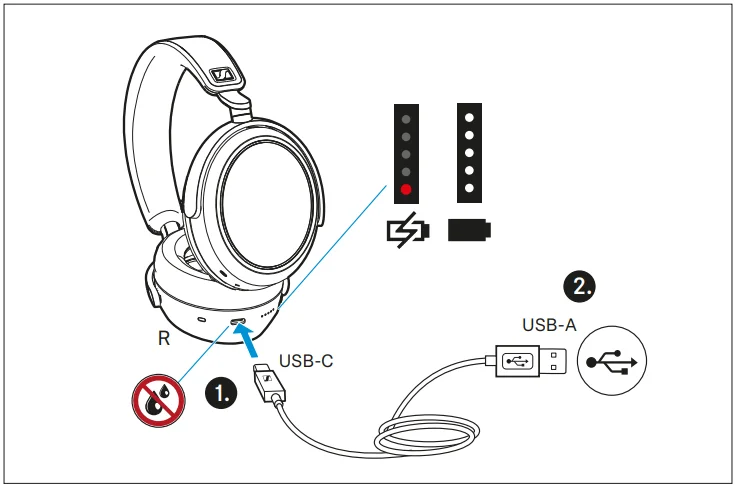
- Make sure that the charging socket is free from moisture and contamination. Connect the USB-C connector of the charging cable to the USB socket of the headphones.
- Connect the USB-A connector to a corresponding socket of a USB power source (to be ordered separately). Make sure that the USB power source is connected to the power supply system. The charging process of the headphones begins. The LED display indicates the charge status.

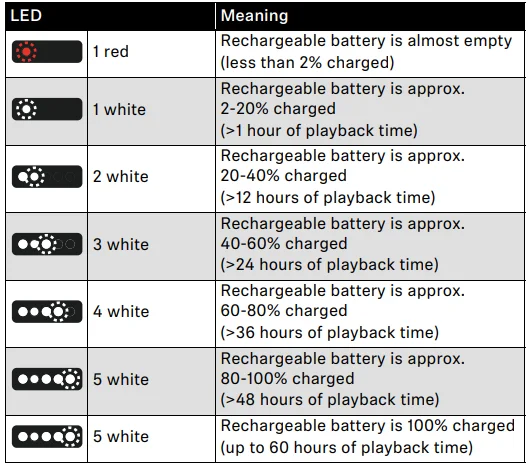
If the LED display does not light up:
- Clean the charging socket (> 38).
- Charge the rechargeable battery until the LED display lights up again (at least 30 minutes) (> 14). If the rechargeable battery is completely discharged, it may take several minutes for the LED display to indicate the charging process.
Connecting the headphones to a Bluetooth device
To be able to use the Bluetooth connection, you must register both devices (headphones and e.g. smartphone) once. This process is called pairing. If the operation differs from the steps mentioned, also refer to the instruction manual of the Bluetooth device you are using.
Information on the Bluetooth wireless connection
The headphones are compliant with Bluetooth 5.2. If your audio source supports one of the following high-resolution audio encoding methods, music is automatically played in high audio quality: aptX™ Adaptive (aptX™, aptX™ Low Latency) or AAC. Otherwise, the headphones will play your music in normal audio quality (SBC). Paired devices establish the Bluetooth wireless connection immediately after switch-on and are ready for use. On switch-on, the headphones automatically try to connect to the last two connected Bluetooth devices.
The headphones can save the connection profiles of up to six Bluetooth devices with which they have been paired. Audio playback is only possible from one device at a time. If you pair the headphones with the seventh Bluetooth device, the saved connection profile of the least used Bluetooth device will be overwritten. If you want to re-establish a connection with the overwritten Bluetooth device, you have to pair the headphones again.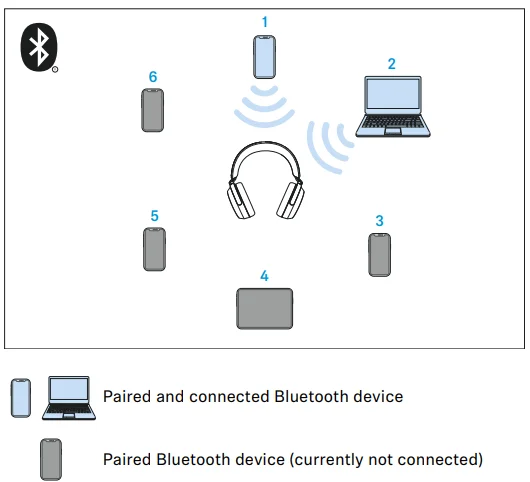
Pairing the headphones with a Bluetooth device
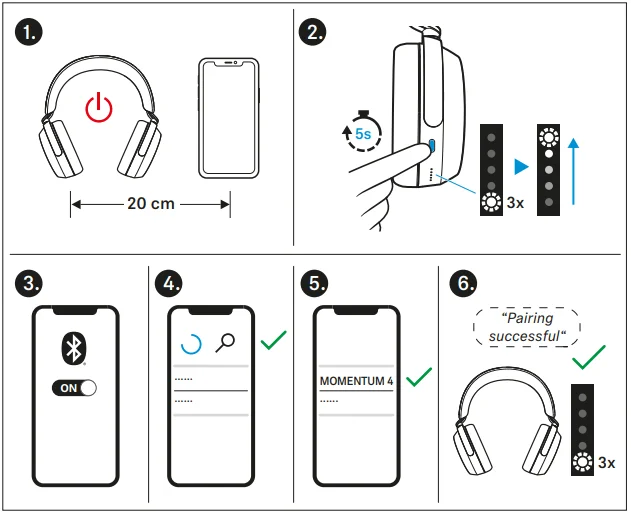
- Switch the headphones off and place them close to the Bluetooth device (max. 20 cm).
- Press the multi-function button for 5 seconds. The headphones are switched on, and you hear a sound signal. The LEDs light up white 3x. The headphones switch to pairing mode. The LEDs light up as a white continuous sequence, and a melody can be heard.
- Activate Bluetooth on your Bluetooth device.
- Via the menu of your Bluetooth device, start the search for new Bluetooth devices. All active Bluetooth devices in the proximity of your Bluetooth device are displayed.
- From the list of found Bluetooth devices, select “MOMENTUM 4”. If necessary, enter the default pin code “0000”.
- If pairing was successful, you hear the voice prompts “Pairing successful” and “Connected” one after the other. The LED flashes white 3x.

Switching the connection to paired Bluetooth devices/“Connections.”
To selectively switch the audio connection to paired Bluetooth devices using the “Connections” function, you require the Smart Control app (> 19).
- In the Smart Control app, tap “Connections”. The list of Bluetooth devices paired with the headphones appears.
- From the list, select the paired device to which you want to connect the headphones. Make sure that the desired device is switched on and Bluetooth is activated. The Bluetooth audio connection between the desired Bluetooth device and the headphones is established. The app connection between the device with the Smart Control app installed and the headphones remains active (only Bluetooth Low Energy for communication between the app and headphones; the device name is highlighted in bold).
Disconnecting the headphones from a Bluetooth device
- Via the menu of your Bluetooth device, disconnect the connection to the headphones. The headphones are disconnected from the Bluetooth device. You hear the voice prompt “No connection”. The headphones switch to standby mode.
Installing the Smart Control app
To make full use of all the settings and functions of the headphones, you need to have the free Sennheiser Smart Control app installed on your smartphone. Download the app from the Apple App Store or Google Play and install it on your smartphone. Alternatively, you can use your smartphone to scan the following QR code or to call up the following Internet site: www.sennheiser-hearing.com/smartcontrol.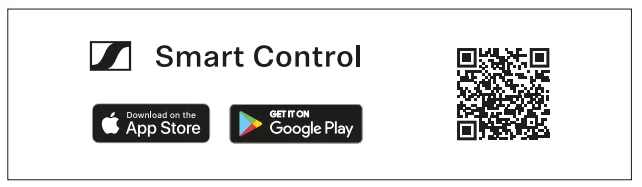
- Connect your smartphone to the headphones via Bluetooth (> 15).
- Start the Smart Control app.
- Follow the instructions in the app. The Smart Control app recognizes the headphones and activates all available settings and functions.
Switching the headphones on
Automatic switch-on
- When the headphones are in the supplied carry case: take out the headphones from the carry case. One LED flashes white 3x. The headphones automatically switch on.
- Put on the headphones. You hear a sound signal. If Bluetooth is activated on the headphones and a paired device is available, you hear the voice prompt “Connected”. If Bluetooth is deactivated on the headphones (> 35), you only hear a sound signal. The active noise cancellation ANC may be activated (> 26).
Manual switch-on
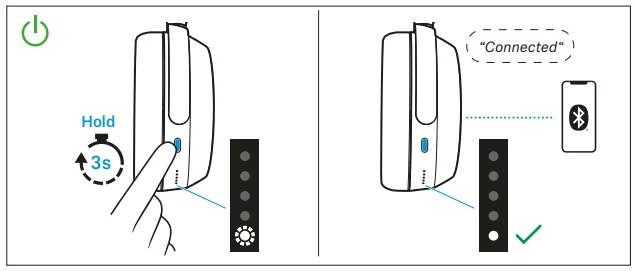
- Press the multi-function button for 3 seconds. One LED flashes white 3x. You hear a sound signal. If Bluetooth is activated on the headphones and a paired device is available, the LED lights up white, and you hear the voice prompt “Connected”. If Bluetooth is deactivated on the headphones (> 35), you only hear a sound signal. The active noise cancellation may be activated (> 26).

Switching the headphones off
Automatic switch-off
After taking off the headphones, they automatically switch off after 15 minutes. You can adjust the time span using the Smart Control app (> 19). After being placed in the supplied carry case, the headphones immediately switch off automatically.
Manual switch-off
- Press the multi-function button for 3 seconds. You hear a sound signal. One LED flashes red 3x. The headphones switch off.

Putting the headphones on and adjusting the headband
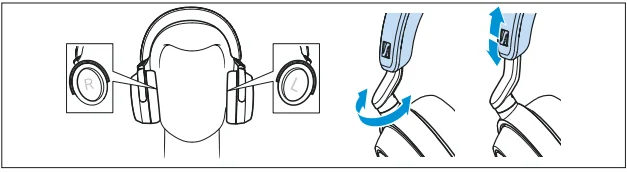
For good sound quality, the best possible noise cancellation, and the best possible wearing comfort, the headband can be adjusted to properly fit your head.
- Wear the headphones so that the headband runs over the top of your head. The markings for the right side (R) and for the left side (L) can be found on the inside of the ear cups.
- Move the ear cups up or down the headband slider until:
- your ears are comfortably covered by the ear pads,
- you feel even, gentle pressure around your ears,
- A snug fit of the headband on the head is ensured. For optimal sound quality, the ear pads must surround your ears.

Information on active noise cancellation ANC
Due to its closed design, the headphones offer effective passive isolation from ambient noise. In addition, the headphones have an active noise cancellation (ANC) function, which allows you to reduce ambient noise to a minimum. Even when ANC is activated, your headphones’ sound quality is always at its best. You can activate or deactivate ANC when the headphones are connected to your audio source via Bluetooth or via the audio cable/USB cable (provided that the battery is sufficiently charged).
If you want to create a quiet space in a noisy environment, you can simply use the headphones – without connected cables and without Bluetooth devices – as noise protection by using ANC (> 26). With the Smart Control app, you can select different ANC modes that provide the optimal settings for your application/situation.
Notes on active noise cancellation
- Continuous and low-frequency noise, such as motor or fan noise, is particularly well suppressed.
- Speech or high-frequency noise is significantly reduced, but can remain perceptible.
- In very quiet environments, slight noise may occur. In this case, deactivate ANC.
- If an unusual (whistling or beeping) noise occurs, take the headphones off and put them on again. Make sure that the ear cups fit properly around your ears.
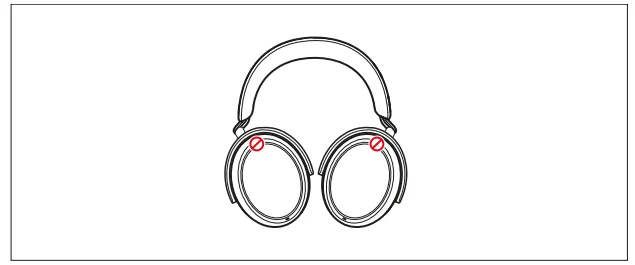
- To avoid loud, unusual (whistling or beeping) noise and to ensure proper noise cancellation, do not cover the microphone openings of the active noise cancellation circuitry located on the outside of the ear cups.

Information on the Transparency Mode – Hearing ambient sounds or conversations
With the Transparency Mode activated, you can hear ambient sounds or communicate without having to remove the headphones. This allows you to hear, e.g., announcements in the train or aircraft, or to have short conversations. The Transparency Mode optimally complements the active noise cancellation ANC.
Via the adjustable intensity of the Transparency Mode and the active noise cancellation ANC, you can determine how much ambient noise reaches your ears or whether you want to listen exclusively to your music (ANC at full intensity). If you use the Transparency Mode at full intensity, disturbing sounds, e.g., low-frequency noise such as aircraft noise, are always suppressed so that you can stay relaxed and in touch with your surroundings.
Switching between the active noise cancellation ANC and the Transparency Mode
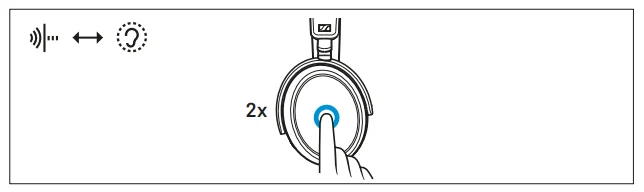
You can use the gesture control on the touchpad to switch between the active noise cancellation ANC and the Transparency Mode, e.g., if you want to transition from ambient awareness to idle mode as quickly as possible. This function is not available during an active call, see: > 29.
- To switch between the modes, tap the touch pad 2x.

FAQ/If a problem occurs …
If a problem has occurred, proceed in the following order until the problem is solved, and you can use the headphones again:
- Press the multi-function button for 15 seconds (reset) (> 41).
- Connect the headphones to the Smart Control app to install the latest firmware (> 39).
- Reset the headphones to the factory default settings (> 41).
- Check the list of frequently asked questions to see if there is a solution to the problem (> 40).
- Contact your Sonova Consumer Hearing partner to solve the problem (> 40).
Current list of frequently asked questions (FAQ)
Visit the MOMENTUM 4 product page at www.sennheiser-hearing.com/download. There you will find a current list of frequently asked questions (FAQ) and suggested solutions.
Your question has not been answered, or the problem persists?
If a problem occurs that is not listed in the FAQ section, or if the problem cannot be solved with the proposed solutions, please contact your Sonova Consumer Hearing partner for assistance. To find a partner in your country, search at www.sennheiser-hearing.com/service-support.
Leaving the Bluetooth transmission range
Wireless calling and streaming are only possible in the Bluetooth transmission range of your smartphone. The transmission range largely depends on environmental conditions such as wall thickness, wall composition, etc. With a free line of sight, the transmission range of most smartphones and Bluetooth devices is up to 10 meters.
If you, and therefore the headphones, leave the Bluetooth transmission range of the smartphone, the sound quality deteriorates increasingly until you hear the voice prompt “Lost connection” and the connection breaks down completely. If you immediately re-enter the Bluetooth transmission range, the connection is automatically re-established.
Resetting the headphones
If the function of the headphones is disturbed, perform a reset. Individual settings, such as the pairing settings, are not deleted.
- Press the multi-function button for 20 seconds. You hear a short confirmation sound.

Deleting the Bluetooth pairing list of the headphones
You can delete the Bluetooth pairing list using the Smart Control app. Follow the instructions in the app.
Resetting the headphones to the factory default settings
To be able to reset the headphones to the factory default settings, you require the Smart Control app (> 19).
- Switch on the headphones (> 19) and connect them to a Bluetooth device on which the Smart Control app is available.
- Select the “Factory default settings” function in the app settings.
- Follow the instructions in the app.
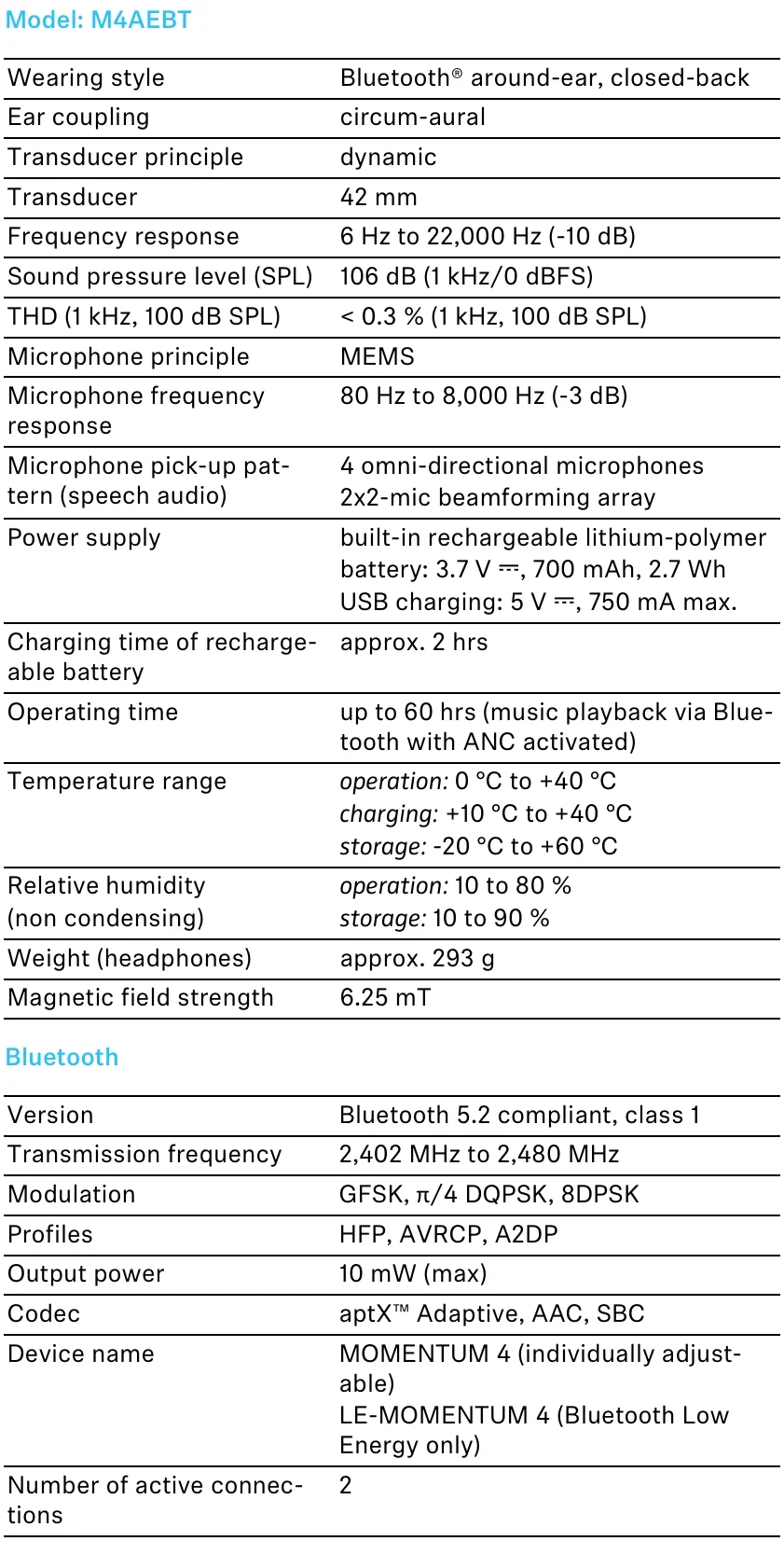
Specifications
For More Manuals By Sennheiser, Visit ManualsLibraryy.
Sennheiser Momentum 4 Wireless Headphones-FAQs
What makes the Sennheiser Momentum 4 Wireless headphones stand out from competitors?
The Sennheiser Momentum 4 Wireless Headphones stand out due to their exceptional battery life, premium sound quality, and adaptive noise cancellation. With up to 60 hours of playback and customizable audio via an app, they deliver a balanced listening experience that appeals to both casual users and audiophiles.
How good is the sound quality on the Momentum 4 Wireless headphones?
The sound quality is widely praised for being clear, detailed, and balanced. Powered by 42mm drivers, these headphones deliver strong bass, rich mids, and crisp highs. Users can further personalize the sound using built-in EQ settings, making them suitable for various music genres and listening preferences.
How effective is the noise cancellation on these headphones?
The adaptive noise cancellation adjusts automatically to your environment, helping block out distractions like traffic or background chatter. While not always the absolute best in class, it performs very well in everyday situations, making it ideal for travel, office use, and commuting.
What is the battery life of the Sennheiser Momentum 4 Wireless?
One of its biggest strengths is battery life, offering up to 60 hours of playback on a single charge, even with active noise cancellation enabled. A quick 5-minute charge can provide several hours of listening, making it highly convenient for long trips and daily use.
Are the Momentum 4 Wireless headphones comfortable for long use?
Yes, these headphones are designed with comfort in mind, featuring a lightweight build, padded headband, and cushioned ear cups. They are suitable for extended listening sessions, whether you’re working, traveling, or relaxing, without causing significant fatigue or discomfort.
Do these headphones support high-quality Bluetooth codecs?
Yes, they support multiple codecs including SBC, AAC, aptX, and aptX Adaptive. This ensures high-quality wireless audio across different devices, delivering better sound performance and lower latency compared to standard Bluetooth headphones.
Can you customize sound settings on the Momentum 4 Wireless?
Yes, the headphones work with the Sennheiser Smart Control app, allowing users to adjust EQ settings, sound modes, and personalization features. This customization helps tailor the listening experience based on individual hearing preferences and audio tastes.
Are the Sennheiser Momentum 4 Wireless headphones good for calls?
They perform well for calls thanks to built-in beamforming microphones with wind noise suppression. This setup ensures clearer voice pickup, making them suitable for phone calls, video meetings, and voice assistant interactions in various environments.
How portable are the Momentum 4 Wireless headphones?
The headphones feature a fold-flat design and come with a compact carrying case, making them easy to transport. Their lightweight build and travel-friendly design make them a convenient option for commuting, flights, or daily use on the go.
Are the Sennheiser Momentum 4 Wireless headphones worth buying?
They offer a strong balance of sound quality, battery life, comfort, and features at their price point. While competitors may outperform them in specific areas, their overall performance and versatility make them a highly recommended choice for most users.