
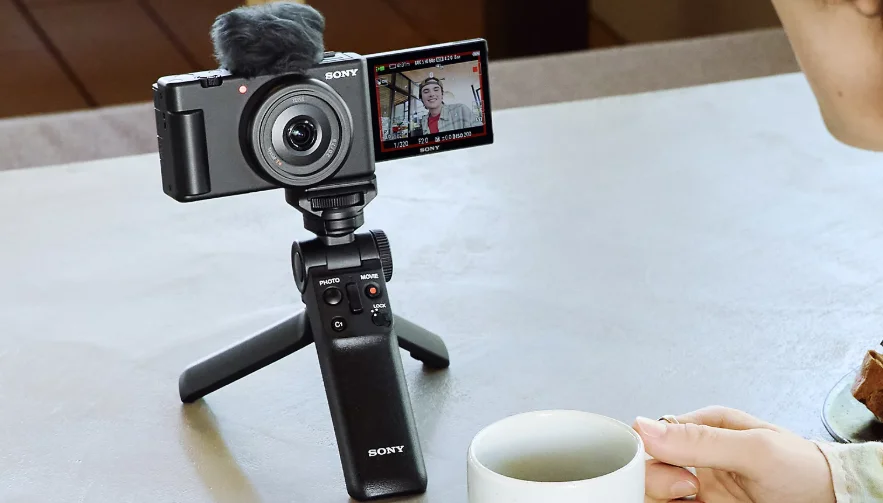

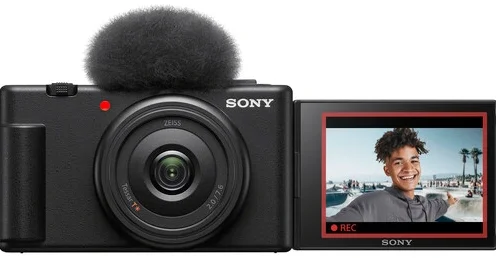
Sony ZV-1F Digital Camera
We use environmentally conscious packaging materials.
Environmentally conscious packaging materials were used for the camera and supplied accessories. Note the following due to the characteristics of the packaging materials.
- Powder, etc., from the packaging materials may adhere to the camera or supplied accessories. In this case, remove it with a commercially available blower or cleaning paper before use.
The packaging materials will deteriorate with continuous use. Be careful when carrying the product by the packaging.
Preparations
Checking the supplied items
The number in parentheses indicates the number of pieces.
- Camera (1)
- Rechargeable battery pack NP-BX1 (1)
- USB Type-C® cable (1)
- Wind screen (1) (attached to the wind screen adaptor)
- Windscreen adaptor (1)
- Lens cap (1) (attached to the camera)
- Startup Guide (this manual) (1)
- Reference Guide (1)
Insert the battery pack (supplied)/memory card (sold separately) into the camera.
Open the battery/memory card cover, and insert the battery pack and a memory card into the camera. Then, close the cover.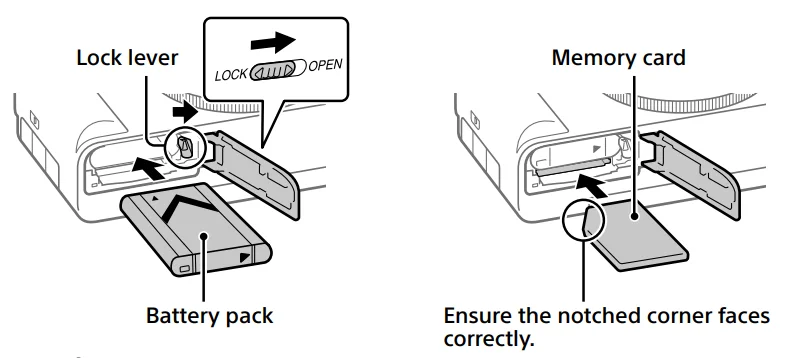
- Battery pack: Make sure that the battery pack is facing in the correct direction, and insert it while pressing the battery lock lever.
- Memory card: Insert the memory card with the notched corner facing as illustrated.
- This camera is compatible with SD memory cards or Memory Stick media. For details on the compatible memory cards, refer to the “Help Guide.” When you use a memory card with this camera for the first time, format the card using the camera in order to stabilize the performance of the memory card.
Note:
- Formatting erases all data, including protected images. Once erased, this data cannot be restored. Save valuable data to a computer, etc., before formatting.
Charging the battery pack
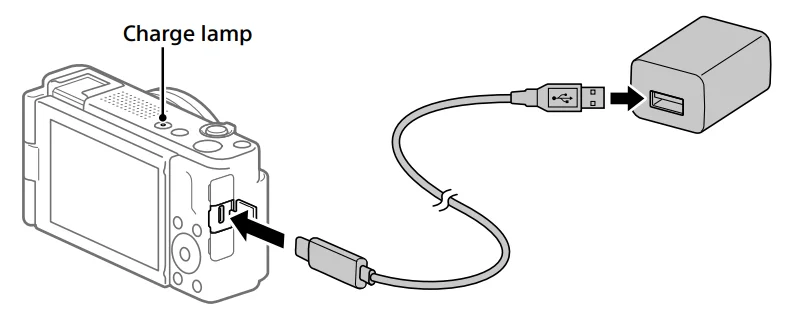
- Turn the power off. If the camera is turned on, the battery pack will not be charged.
- Using a USB Type-C cable (supplied), connect the USB Type-C terminal of the camera to an external power source, such as a commercially available USB AC adapter or mobile battery. The charge lamp will light up when charging starts. When the charge lamp turns off, charging is completed.
Performing initial setup for the camera
By connecting the camera and a smartphone with the Bluetooth function, you can perform initial camera setup, such as date and time settings, from the smartphone. Install the dedicated smartphone application on your smartphone in advance. Install the dedicated smartphone application from the following webpage. Also, update to the latest version of the application. https://www.sony.net/ca/.
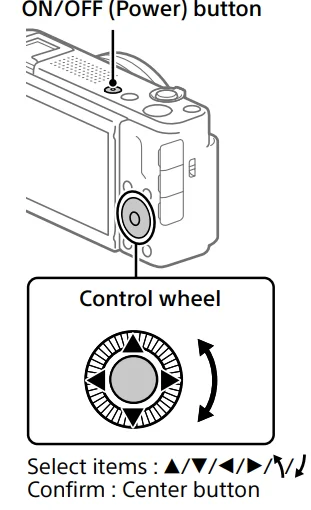
- Press the ON/OFF (Power) button to turn on the camera.
- Select the desired language and then press the center of the control wheel.
- The privacy notice screen will appear. Read the privacy notice regarding biometrics by opening the link using your smartphone, etc.
- Press the center of the control wheel.
- Follow the instructions on the camera screen to register your smartphone.
- Launch the dedicated application on your smartphone to pair the camera with your smartphone.
- If you select to register your smartphone later, the area/date/time setting screen will appear.
- To register your smartphone to the camera after the initial setup, select MENU → (Network) → [Smartphone Connect] → [Smartphone Registration].

- Perform the initial camera setup on the screen of the dedicated application.
- Follow the instructions on the screen to set the following items: – Area/Date/Time – Auto Power OFF Temp. – Device Name. You can change these settings later from the camera menu.
Shooting
Shooting movies
- Press the Still/Movie/S&Q button to select the movie recording mode. Each time you press the button, the shooting mode switches in the order of still image shooting mode, movie recording mode, and slow-motion/quick-motion shooting mode.
- Press the MENU button and select (
 Shooting) → [Shooting Mode] →[ Shoot Mode]→the desired shooting mode.
- Press the MOVIE (Movie) button to start recording.
- Press the MOVIE (Movie) button again to stop recording.
 Shooting) → [Shooting Mode] →[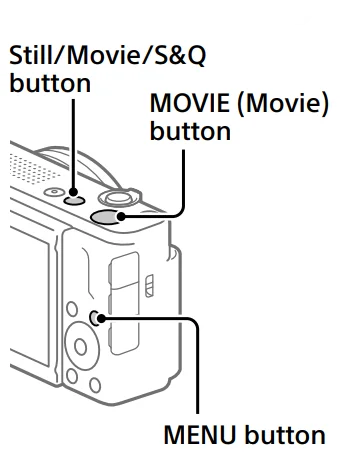
Hint:
- The start/stop movie recording function is assigned to the MOVIE (Movie) button in the default settings. Even without switching shooting modes in Step 1, you can start movie recording from still image shooting mode by pressing the MOVIE (Movie) button.
Using the windscreen (supplied)
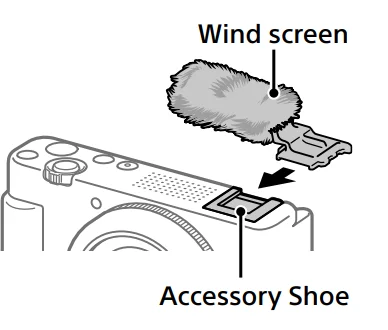
- Use the windscreen to reduce wind noise picked up by the internal microphone when recording a movie.
- Attach the wind screen to the Accessory Shoe.

Shooting still images
- Press the Still/Movie/S&Q button to select the still image shooting mode. Each time you press the button, the shooting mode switches in the order of still image shooting mode, movie recording mode, and slow-motion/quick-motion shooting mode.
- Press the MENU button and select (
 Shooting) → [Shooting Mode] → [ Shoot Mode] → the desired shooting mode.
 - Press the shutter button halfway down to focus.
- Press the shutter button all the way down.

 Shooting) → [Shooting Mode] → [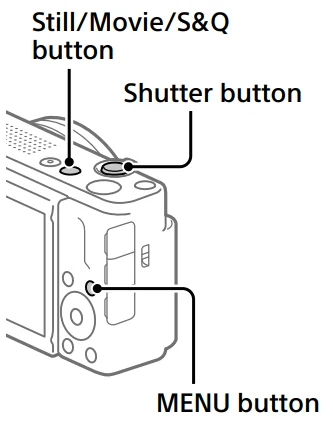
Viewing
- Press the (
 Playback) button to switch to the playback mode.
 - Select an image with the control wheel. You can move to the previous image/next image by pressing the left/right side of the control wheel. To start playing back a movie, press the center button on the control wheel.

 Playback) button to switch to the playback mode.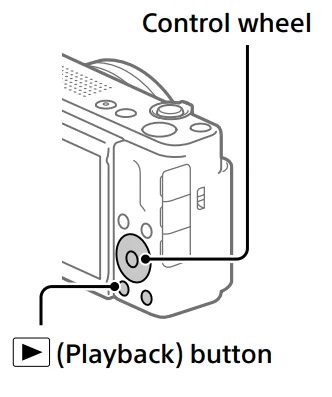
About the dedicated smartphone application
By using the dedicated smartphone application, you can transfer images to the smartphone and view images stored on the camera on the smartphone. To use the dedicated application, you need to pair the camera with your smartphone. For details on the pairing method, refer to the following Help Guide (Web manual) URL: https://rd1.sony.net/help/dc/2210_pairing/h_zz/.
Note: The name, operating method, screen display, etc. of the dedicated application may change without notice due to future version upgrades.
Notes on use
Refer to “Precautions” in the “Help Guide” as well. Notes on handling the product
- This camera is designed to be dust-and moisture-resistant, but is not waterproof or dust-proof.
- Do not leave the lens exposed to a strong light source such as sunlight. Because of the lens’s condensing function, doing so may cause smoke, fire, or a malfunction inside the camera body or the lens. If you have to leave the camera exposed to a light source such as sunlight, attach the lens cap to the lens.
- If sunlight or other strong light enters the camera through the lens, it may focus inside the camera and cause smoke or fire. Attach the lens cap when storing the camera. When shooting with backlighting, keep the sun sufficiently far away from the angle of view. Even if it is slightly off-angle, smoke or fire may still occur.
- Do not directly expose the lens to beams such as laser beams. That may damage the image sensor and cause the camera to malfunction.
- This camera (including accessories) has magnet(s) which may interfere with pacemakers, programmable shunt valves for hydrocephalus treatment, or other medical devices. Do not place this camera close to persons who use such medical devices. Consult your doctor before using this camera if you use any such medical device.
- This camera is equipped with a magnetic sensor. If the camera is placed too close to a magnet or a device with an internal magnet, the camera may turn on. Take care not to place the camera near any magnetic devices.
- Increase the volume gradually. Sudden loud noises can damage your ears.
- Do not leave the camera, the supplied accessories, or memory cards within the reach of infants. They may be accidentally swallowed. If this occurs, consult a doctor immediately.
Notes on the monitor
- The monitor is manufactured using extremely high-precision technology, and over 99.99% of the pixels are operational for effective use. However, there may be some small black dots and/or bright dots (white, red, blue, or green in color) that constantly appear on the monitor. These are imperfections due to the manufacturing process and do not affect the recorded images in any way.
- If the monitor is damaged, stop using the camera immediately. The damaged parts may harm your hands, face, etc.
Notes on continuous shooting
When shooting still images continuously, the monitor may flash between the shooting screen and a black screen. If you keep watching the screen in this situation, you may experience uncomfortable symptoms such as a feeling of unwellness. If you experience uncomfortable symptoms, stop using the camera and consult your doctor as necessary.
Notes on recording for long periods of time or recording 4K movies
- Depending on the camera and battery temperature, the camera may become unable to record movies, or the power may turn off automatically to protect the camera. A message will be displayed on the screen before the power turns off, or you can no longer record movies. In this case, leave the power off and wait until the camera and battery temperature go down. If you turn on the power without letting the camera and battery cool sufficiently, the power may turn off again, or you may still be unable to record movies.
- The camera body and battery may become warm with use – this is normal.
- If the same part of your skin touches the camera for a long period of time while using the camera, even if the camera does not feel hot to you, it may cause symptoms of a low-temperature burn, such as redness or blistering. Pay special attention in the following situations and use a tripod, etc. – When using the camera in a high temperature environment – When someone with poor circulation or impaired skin sensation uses the camera – When using the camera with [Auto Power OFF Temp.] set to [High]
Notes on using a tripod
Use a tripod with a screw less than 5.5 mm (7/32 inches) long. Otherwise, you cannot firmly secure the camera, and damage to the camera may occur.
Sony accessories
Using this unit with products from other manufacturers may affect its performance, leading to accidents or malfunctions.
Warning on copyrights
Television programs, films, videotapes, and other materials may be copyrighted. Unauthorized recording of such materials may be contrary to the provisions of the copyright laws.
Notes on location information
If you upload and share still images or movies taken with this camera on the Internet while the location information is linked with the dedicated smartphone application, you may accidentally reveal the location information to a third party. To prevent third parties from obtaining your location information, deactivate the [Location Information Linkage] function of the dedicated application.
Notes on discarding or transferring this product to others
Before discarding or transferring this product to others, be sure to perform the following operation to protect private information.
- Select [Setting Reset] → [Initialize].
Notes on discarding or transferring a memory card to others
Executing [Format] or [Delete] on the camera or a computer may not completely delete the data on the memory card. Before transferring a memory card to others, we recommend that you delete the data completely using data deletion software. When discarding a memory card, we recommend that you physically destroy it.
Note on network functions.
When you use network functions, unintended third parties on the network may access the camera, depending on the usage environment. For example, unauthorized access to the camera may occur in network environments to which another network device is connected or can connect without permission. Sony bears no responsibility for any loss or damage caused by connecting to such network environments.
How to turn off wireless network functions (Wi-Fi, etc.) temporarily
When you board an airplane, etc., you can turn off all wireless network functions temporarily using [Airplane Mode].
How to turn on or off the Wi-Fi function
Select MENU →  (Network) → [
 Cnct./PC Remote] → [Smartphone Connection], and then operate the function from the dedicated smartphone application.
How to turn on or off the Bluetooth function
Select MENU → (Network) → [Bluetooth] → [Bluetooth Function] → [On] or [Off].
Specifications
Camera
[System]
- Camera Type: Digital Camera
[Image sensor]
- Image format: 13.2 mm × 8.8 mm (1.0 type), CMOS image sensor.
- Effective pixel number of the camera: Approx. 20,100,000 pixels.
- Total pixel number of the camera: Approx. 21,000,000 pixels
[Monitor]
- 7.5 cm (3.0 type) TFT drive, touch panel
[General]
- Rated input: 3.6 V, 1.5 W.
- Operating temperature: 0 °C to 40 °C (32 °F to 104 °F).
- Storage temperature: –20 °C to 55 °C (–4 °F to 131 °F).
- Dimensions (W/H/D) (Approx.): 105.5 × 60.0 × 46.4 mm (4 1/4 × 2 3/8 × 1 7/8 in.).
- Mass (Approx.): 256 g (9.1 oz) (including battery pack, SD Card)
[Wireless LAN]
- Supported format: IEEE 802.11 b/g/n.
- Frequency band: 2.4 GHz
[Eco and energy saving]
- Power consumption (Off mode): Not available.
- Power consumption (Standby mode/Low power mode): 0.5 W.
- Power consumption (Networked standby mode): 2.0 W (Bluetooth) / 2.0 W (all terminals and networks connected).
- Low power mode activated: Within 20 minutes (default).
- Networked standby mode activated: Within 20 minutes (default)
Rechargeable battery pack NP-BX1
- Rated voltage: 3.6 V
Recommended USB AC adaptor
- Input: 100-240 V, 50/60 Hz.
- Output: 5 V, 1.5 A or more
Design and specifications are subject to change without notice.
Trademarks
- USB Type-C® and USB-C® are registered trademarks of USB Implementers Forum.
- Wi-Fi, the Wi-Fi logo, and Wi-Fi Protected Setup are registered trademarks or trademarks of the Wi-Fi Alliance.
- The Bluetooth® word mark and logos are registered trademarks owned by Bluetooth SIG, Inc., and any use of such marks by Sony Group Corporation and its subsidiaries is under license.
- QR Code is a trademark of Denso Wave Inc.
- In addition, system and product names used in this manual are, in general, trademarks or registered trademarks of their respective developers or manufacturers. However, the ™ or ® marks may not be used in all cases in this manual.
Additional information on this product and answers to frequently asked questions can be found at our Customer Support Website. https://www.sony.net/.
For More Manuals By Sony, Visit ManualsLibraryy.
Sony ZV-1F Digital Camera -FAQs
What are the main features of the Sony ZV-1F Digital Camera?
The Sony ZV-1F Digital Camera features a 20.1MP 1-inch sensor, ultra-wide 20mm lens, flip-out touchscreen, and 4K video recording. It is designed mainly for vloggers and content creators who want better video quality, simple controls, and portable performance for daily content creation and social media videos.
Is the Sony ZV-1F good for beginners?
Yes, the Sony ZV-1F is beginner-friendly because it offers simple controls, automatic shooting modes, touch operation, and easy background blur features. Many first-time creators and vloggers use it as an upgrade from smartphones while still enjoying a lightweight camera that feels easy to learn and operate.
Does the Sony ZV-1F support 4K video recording?
Yes, the Sony ZV-1F supports high-quality 4K video recording with strong detail and smooth performance for vlogging and content creation. It is optimized for YouTube videos, TikTok clips, livestreaming, and casual filmmaking while remaining compact enough for travel and everyday handheld shooting situations.
Is the Sony ZV-1F good for vlogging?
The Sony ZV-1F is specifically built for vlogging and works very well for creators who record themselves regularly. Its ultra-wide lens helps fit more into the frame, while the flip screen, built-in microphone, and lightweight design make handheld recording easier for solo content creators.
How is the autofocus performance on the Sony ZV-1F?
The Sony ZV-1F provides reliable autofocus with face and eye tracking for video recording. While it uses contrast-detection autofocus instead of Sony’s faster phase-detection system, most casual vloggers still find its performance accurate enough for talking videos, product showcases, and everyday content creation.
Does the Sony ZV-1F have good audio quality?
Yes, the Sony ZV-1F includes a directional three-capsule microphone that captures clear voice recordings for vlogs and videos. It also comes with a windscreen accessory that helps reduce outdoor wind noise, making the camera useful for travel videos, walking vlogs, and outdoor content recording.
Can the Sony ZV-1F be used as a webcam?
Yes, the Sony ZV-1F can function as a webcam through USB connection for livestreaming, online meetings, and content creation. Many users appreciate the improved image quality compared to standard webcams, especially for streaming, remote work, video calls, and professional-looking online presentations.
Is the Sony ZV-1F good for photography?
The Sony ZV-1F can take good casual photos, especially in bright lighting conditions, but it is mainly designed for video creators. Its fixed ultra-wide lens works well for selfies, landscapes, and social media pictures, though some users prefer other cameras for more versatile photography needs.
Does the Sony ZV-1F have a zoom lens?
No, the Sony ZV-1F uses a fixed 20mm ultra-wide lens instead of a zoom lens. This wider view is excellent for selfies and vlogging, but users wanting flexible zoom photography or close-up framing may prefer cameras with interchangeable or zoom lenses instead.
Is the Sony ZV-1F worth buying?
The Sony ZV-1F is worth considering for beginner vloggers and creators who want a compact camera with strong video quality and easy operation. It may not satisfy advanced photographers, but it remains popular for YouTube, TikTok, travel content, and upgrading from smartphone video recording.