
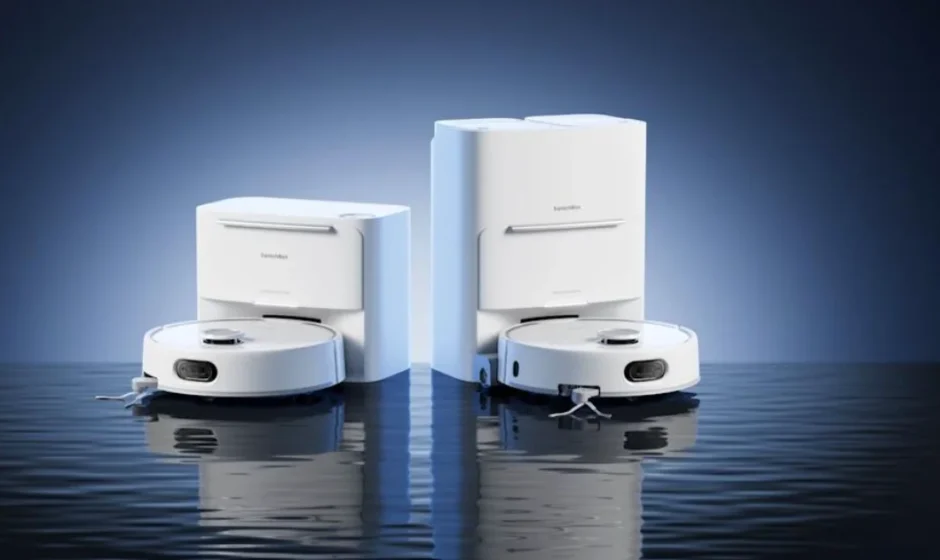

SwitchBot Floor Cleaning Robot S20
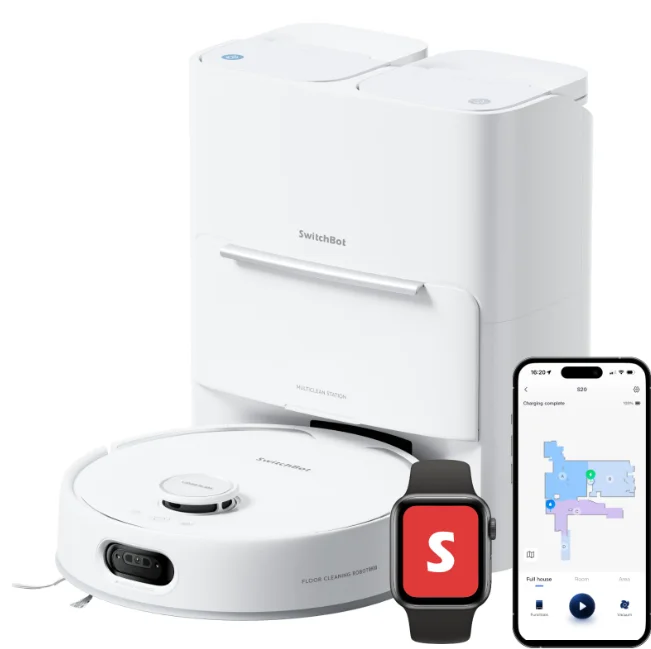
Product Overview
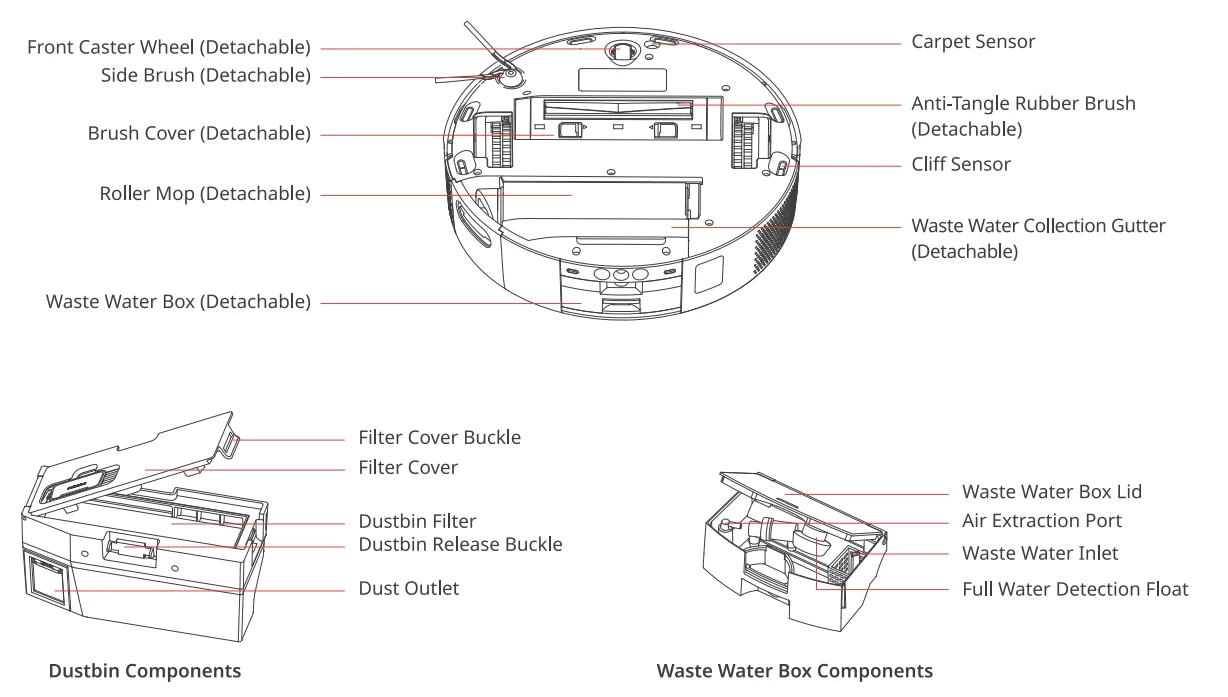
List of Components
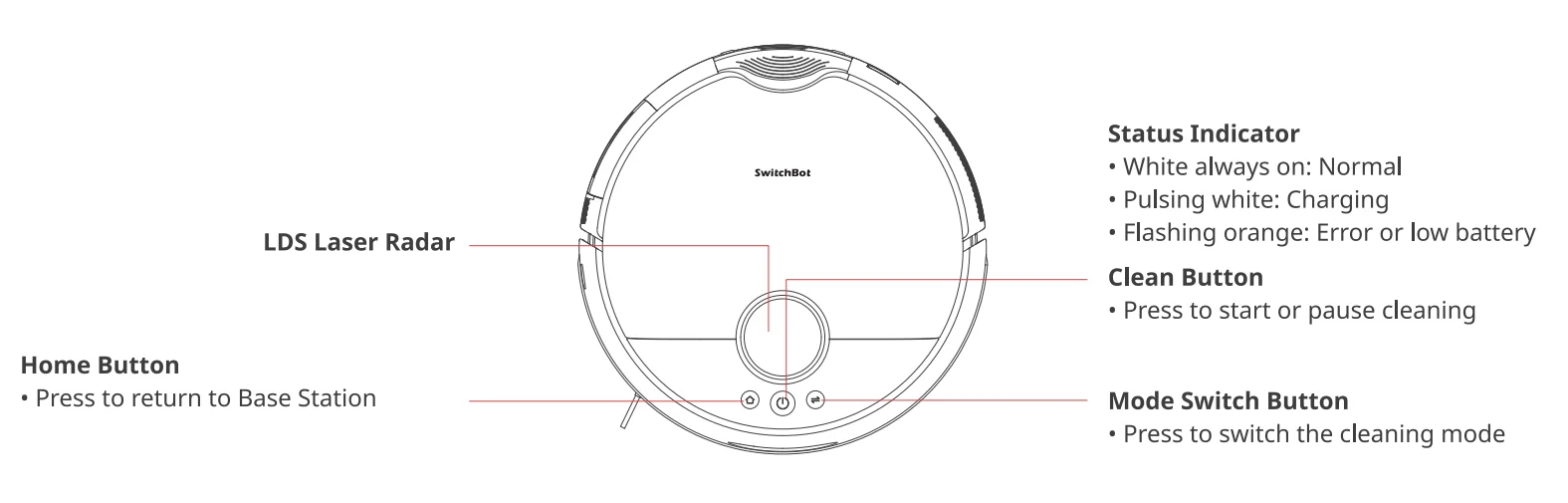
Note: Press any button to stop the robot during cleaning or docking.
Robot Top View
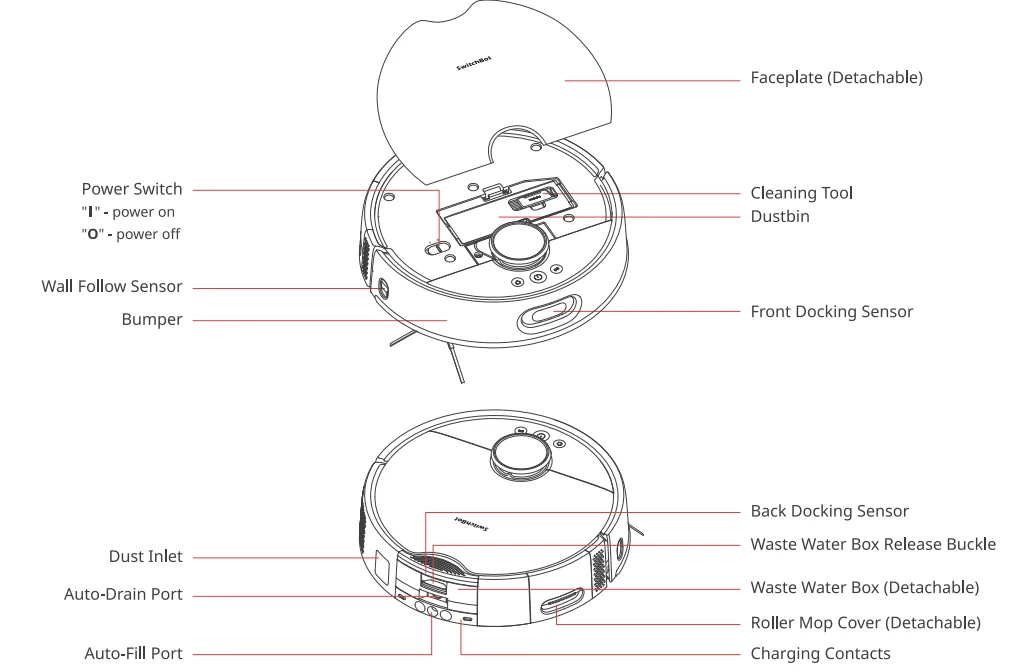
Robot Bottom View
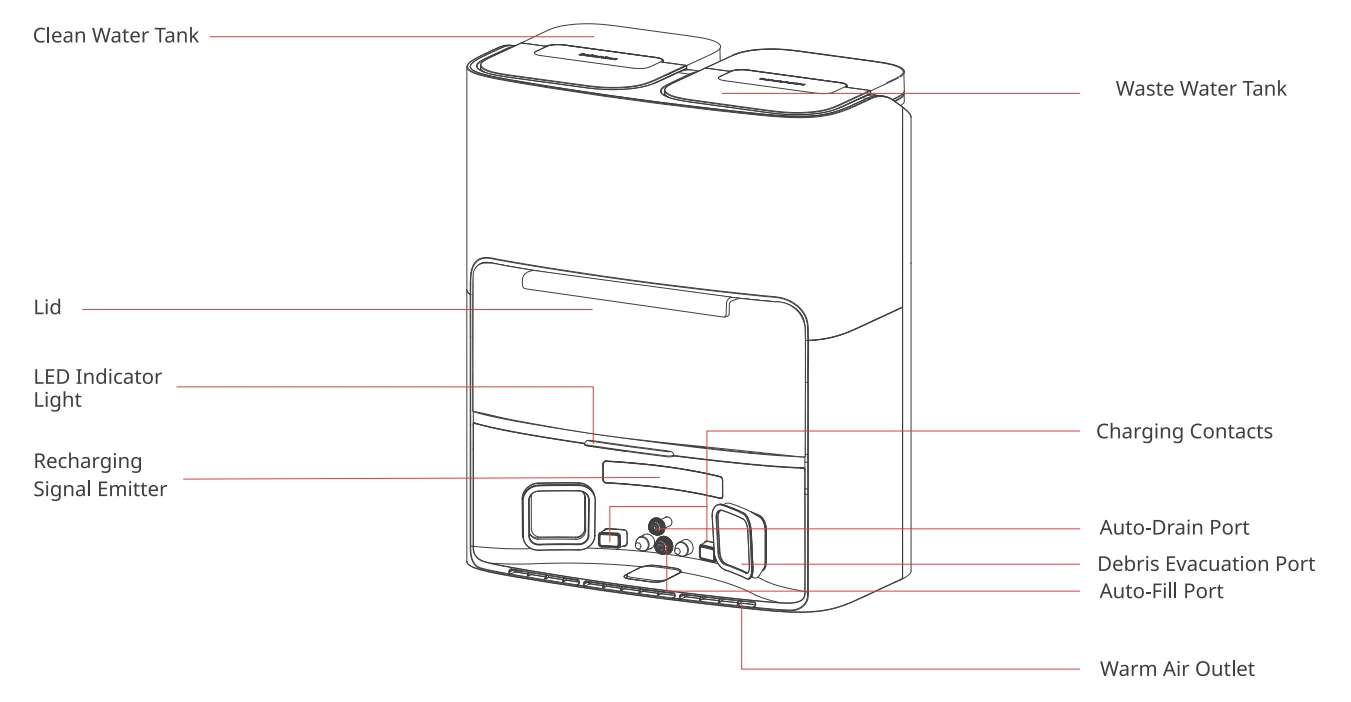
Base Sation
Front View
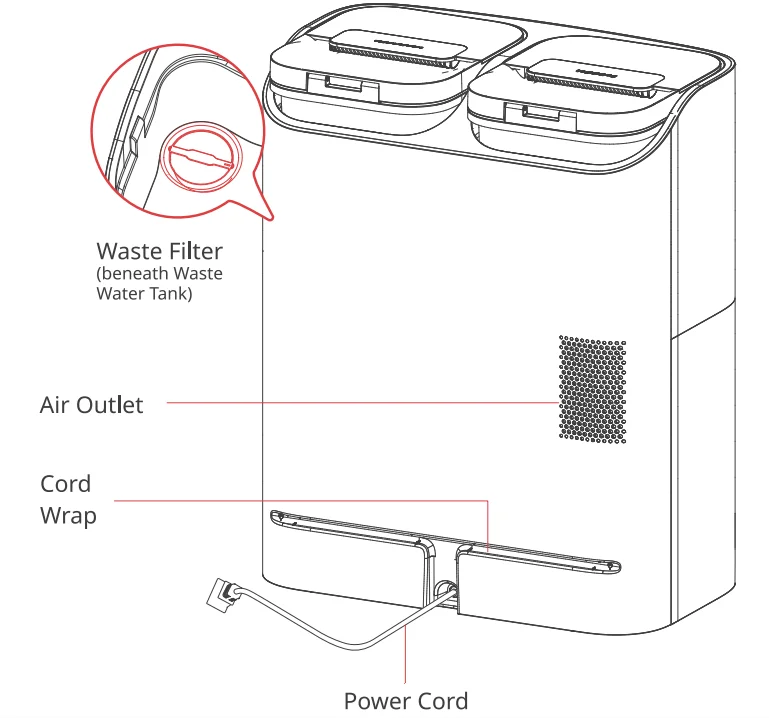
Back View
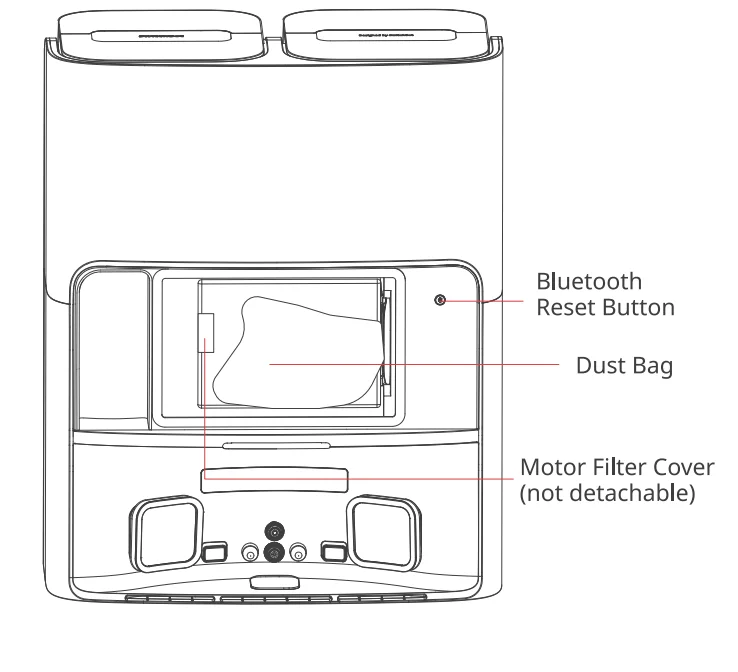
Dust Bag Compartment
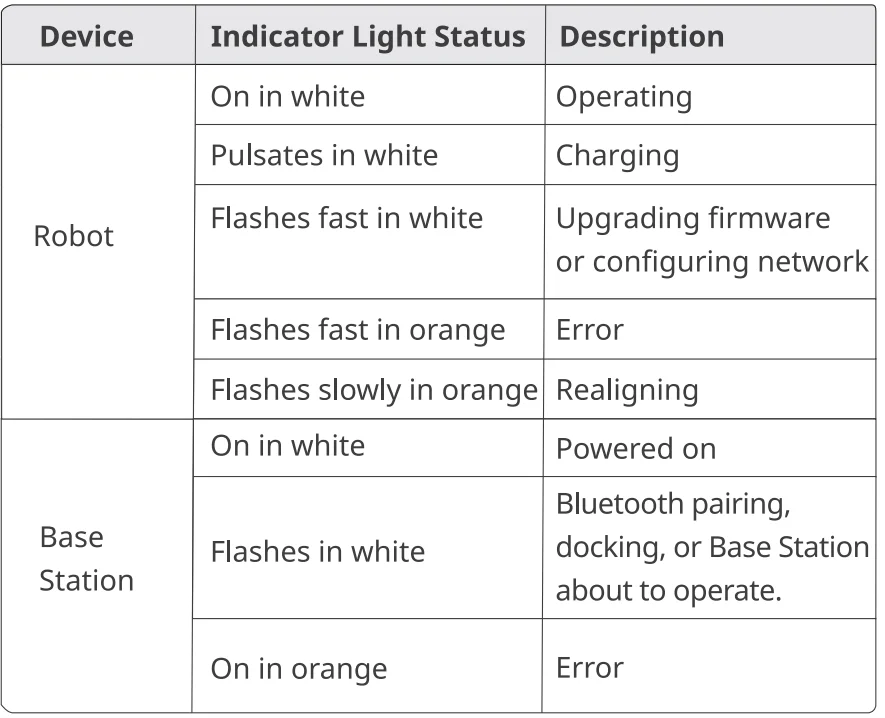
LED Indicator Light
Preparing for Use
Setting Up the Base Station and Robot
- Unpack and check package contents. Ensure you have everything listed in our manual.

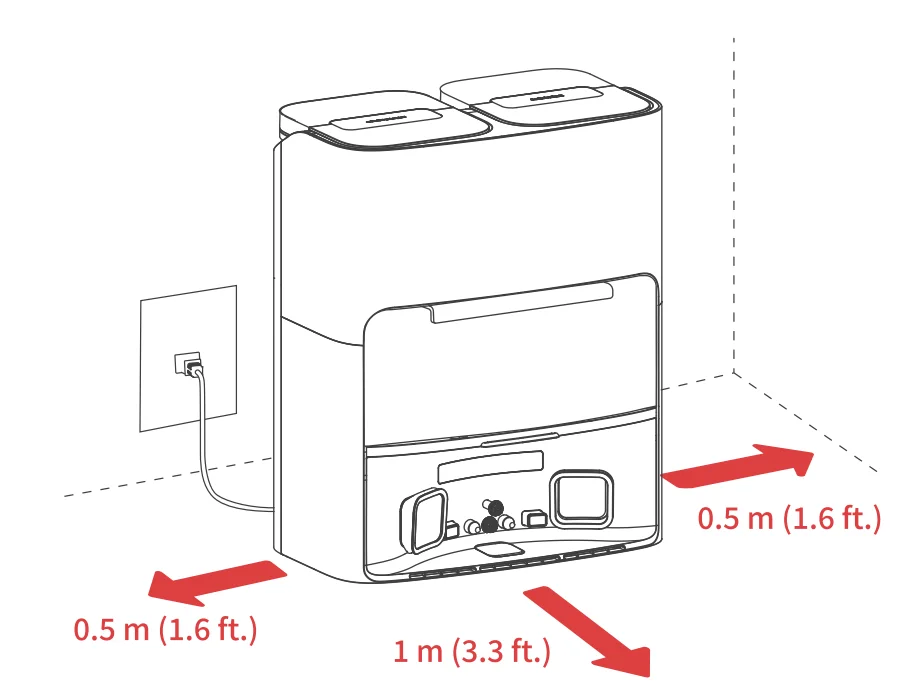
- Place your Base Station at a proper position.
- Choose a suitable location for your station with a strong Wi-Fi signal.
- Plug the station’s power cord into an outlet.

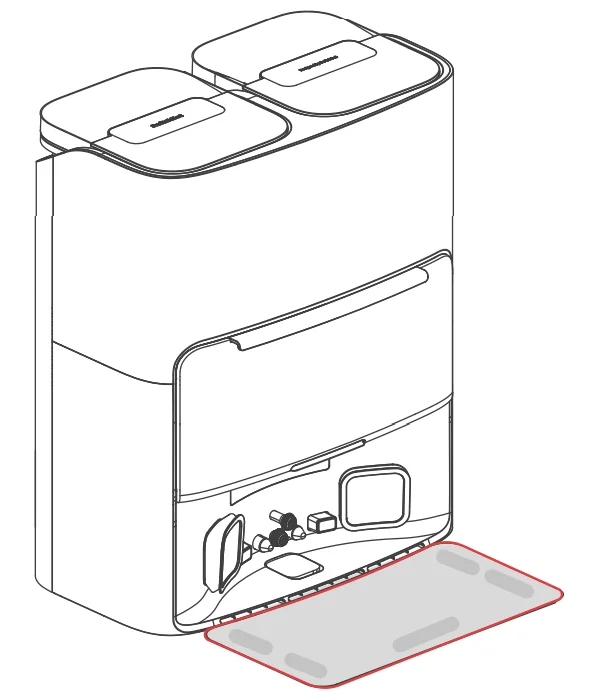
- Locate the included Moisture-proof Pad, remove the tape liner, and attach it to the ground in front of the station.

Please Note:- Organise the power cord. If left on the ground, it may be dragged by the robot, causing the station to move or disconnect from power.
- Place the station on a level indoor surface, away from open flames, heat sources, water, narrow spaces, or areas where the robot may fall.
- Placing the station on non-hard surfaces (such as carpets, mats, etc.) poses a risk of tipping over, and the robot may not be able to leave its station properly.
- Do not place the station under direct sunlight or block its signal emitter area with any objects, as this may prevent the robot from returning automatically.
- Please follow the maintenance instructions for the station and avoid using wet cloths or rinsing it with water.
Set up your robot.
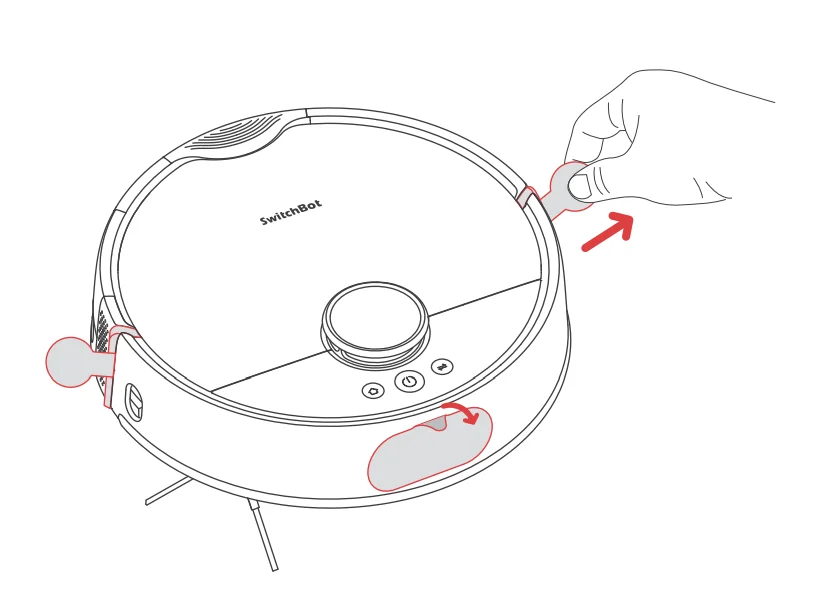
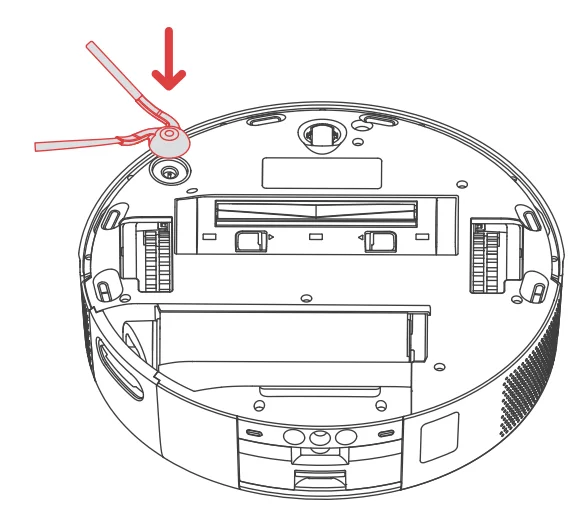
- Remove the foam strips on both sides of your robot. Install the Side Brush, then power on.

Tip:
When you hear a clicking sound, it means the Side Brush has been properly installed.
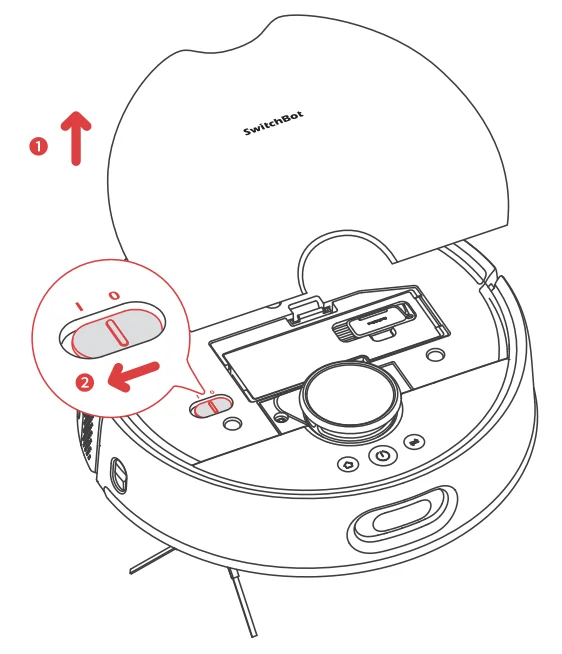
- Remove the faceplate and turn on the Power Switch. “I” means powering on, and “O” means powering off.

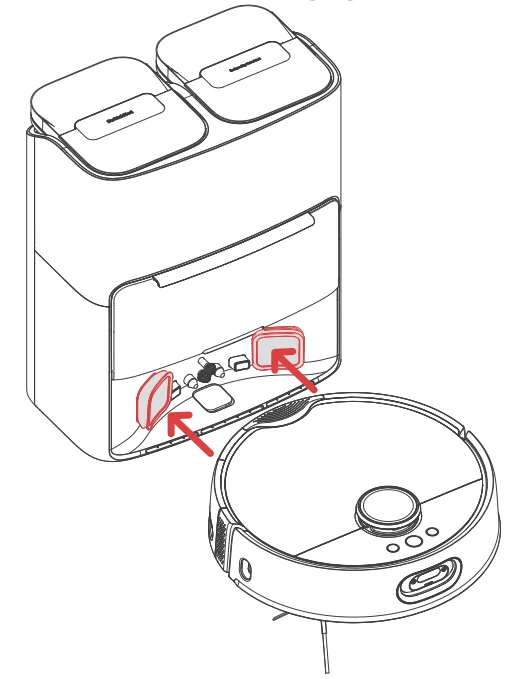
- Dock your robot at the station. You will hear a sound prompt when docked successfully.
Tips: Dock your robot for 30 minutes of charging before initial use.
Add your robot to the SwitchBot app.
- Scan the QR code to download our app. Register an account or directly log in if you already have one.
- Tap the”+” icon located at the right-hand corner of the home page, select Add Device.
- Follow the instructions to add your robot.
You will need:
- A smartphone or tablet using Bluetooth 4.2 or later.
- The latest version of our app is downloadable via the Apple App Store or Google Play Store.
- A Switch Bot account, you can register via our app or sign in to your account directly if you already have one.


iOS and Android system requirements:

https://support.switch-bot.com/hc/en-us/articles/12567397397271
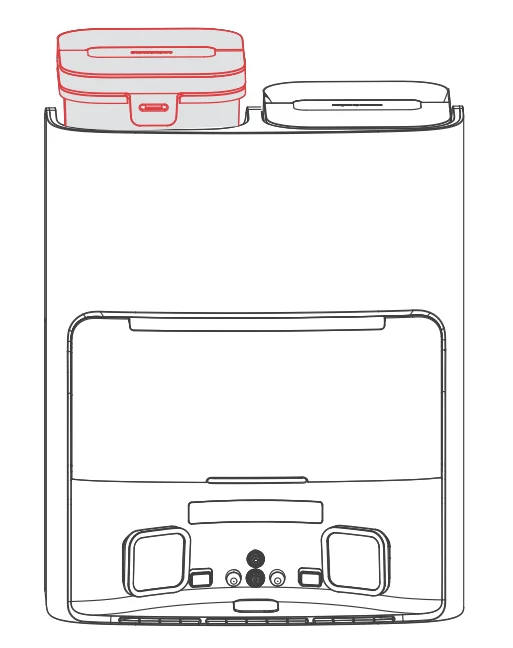
Fill with clean water
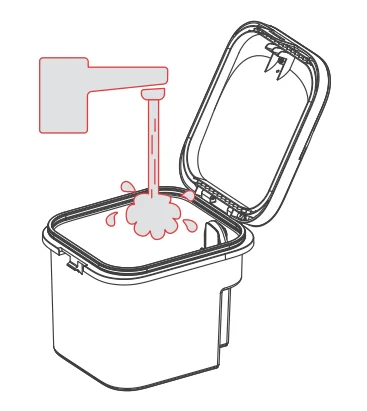
Take out the Clean Water Tank and inject water to the highest water level.
Please note: Hot water is not recommended because it may cause device damage.
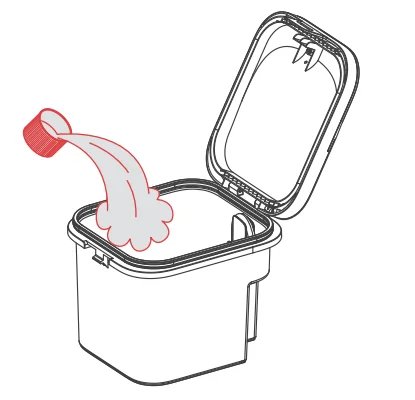
Add Floor Cleaning Solution
The recommended cleaning solution-to-water ratio is 1:200. When the clean water tank is filled to the Max level, add 2-3 caps of SwitchBot Cleaning Solution.
Please note:
- Please use the official SwitchBot cleaning solution, with each bottle containing 150 ml (5 fl oz.) and a cap volume of 6 ml (0.2 fl oz).
- Do not use non-official cleaning agents, as they may cause corrosion and device damage.
- When using with a SwitchBot Humidifier, do not add cleaning solution, as it may damage the device.
Decluttering
Before starting the robot, please check the floor and clean up any scattered items such as wires, socks, slippers, children’s toys, etc., to improve the efficiency of the robot. Clear the floor of hard or sharp objects (e.g., nails, glass), and move away items that are fragile, valuable, or potentially dangerous to avoid being caught, tangled, or knocked over by the robot, causing personal or property damage.
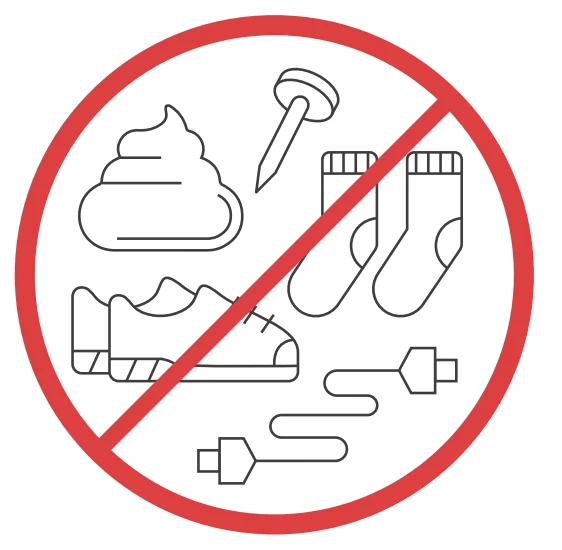
Before cleaning, please use a physical barrier to avoid areas that are hanging in the air or low, ensuring the safety and smooth operation of your robot.
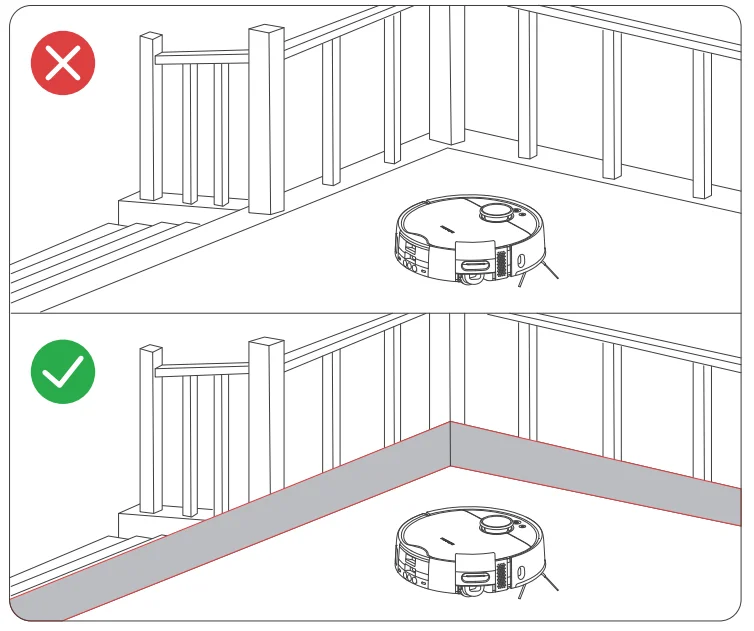
Open the doors of the rooms to be cleaned, arrange the furniture neatly, and try to clear the largest cleaning space. Please avoid standing in front of your robot, doorways, or narrow passages in case your robot cannot detect the area to be cleaned.
Instructions for Use
Mapping
Before starting mapping, ensure your robot is docked and charged. Follow the in-a pp instructions to begin fast mapping. Once mapping is complete, the robot will automatically return to the station and save the map.
Tips: When using for the first-time, short-press the button, and your robot will start mapping while cleaning.
Starting Your Robot
Control your robot via our app or press thebutton on the robot to start. Your robot will plan cleaning routes based on saved maps. For first-time use, your robot will automatically work in the Vacuum mode.
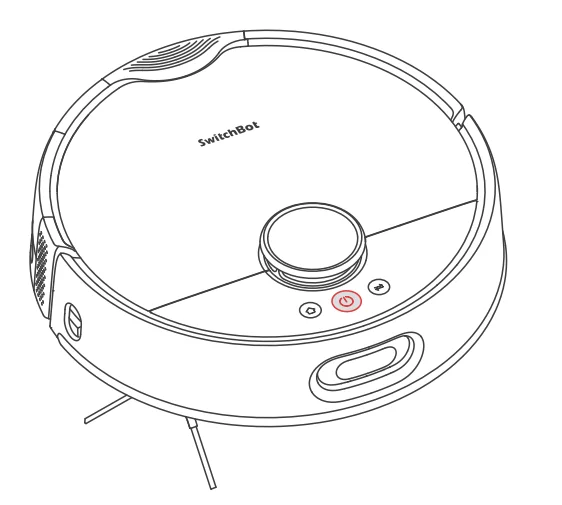
Please note:
- To facilitate the normal water exchange of the robot, please do not move the Base Station during the cleaning and mopping process. If there is a door hiding the station, please keep the door open.
- If the battery is low, please charge it before starting a cleaning task.
- If the battery is insufficient during the cleaning process, the robot will automatically dock to charge.
- When set to clean carpets, the robot will automatically lift the Roller Mop. You can also choose to skip carpet vacuuming in the app.
Switching Mode
You can adjust the cleaning suction power and mopping water volume in the app based on the floor’s dirt level. Or short-press the…button on your robot to switch between default cleaning modes.
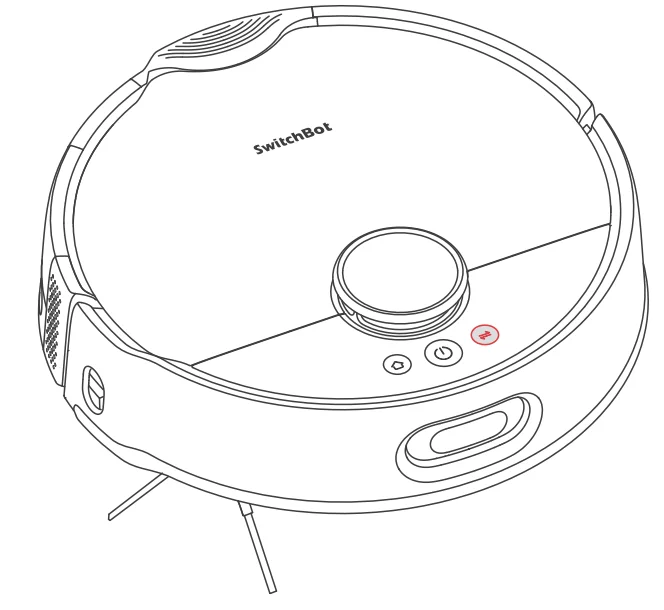
Please note: In Vacuum mode, the Roller Mop will automatically raise and stop rolling.
Pausing Your Robot
Stop your robot via the app or by pressing any button on the robot. When paused, resume the previous cleaning task via the app or by pressing thebutton.
Recharging
- After finishing a cleaning task, your robot will automatically dock to the Base Station to charge.
- When in standby mode, your robot will dock and charge after pressing the
 button.
 - By default, your robot will automatically resume interrupted cleaning tasks (e.g., due to low battery or new commands). If the battery level drops during a task, the robot will dock to recharge and resume the task once the battery reaches above 80%.
Please note: If the robot does not find the Base Station, it will automatically return to the starting position. Please manually dock it for charging.
Exchanging Water
- During a mopping task, your robot will automatically dock to drain wastewater and exchange clean water.
- After completing a mopping or cleaning task, your robot will dock to empty dust, exchange water, deep clean, and dry its Roller Mop, then start a recharging session.
Hibernation
If your robot is not operated for more than 10 minutes, it will automatically enter hibernation. Press any button to wake it up.
Please note: The robot will not enter hibernation while charging.
Do Not Disturb Mode
The default setting for this mode is from 22:00 to 08:00, and you can modify or disable this feature via our app. During the Do Not Disturb period, device button lights will stay off, and your robot will not automatically resume cleaning or play voice prompts.
Child Lock
You can use the Child Lock function in our app to lock the robot buttons. You can unlock it via our app.
Restoring to Factory Settings
Press and hold the ++
++ buttons simultaneously for 6 seconds to restore the robot to factory settings.
Upgrading Firmware
In order to improve user experience, we will regularly release firmware updates to introduce new functions and solve any software defects that may occur during usage. When a new firmware version is available, we will send an upgrade notification to your account via our app. When upgrading, please make sure your product has sufficient battery or stay powered on and make sure your smartphone is within range to prevent interference. You’re advised to enable Automatic Upgrades via the Firmware & Battery page of our app.
Care and Maintenance
Daily Maintenance (Robot)
To keep your robot and station running at peak performance, perform the procedures on the following pages.

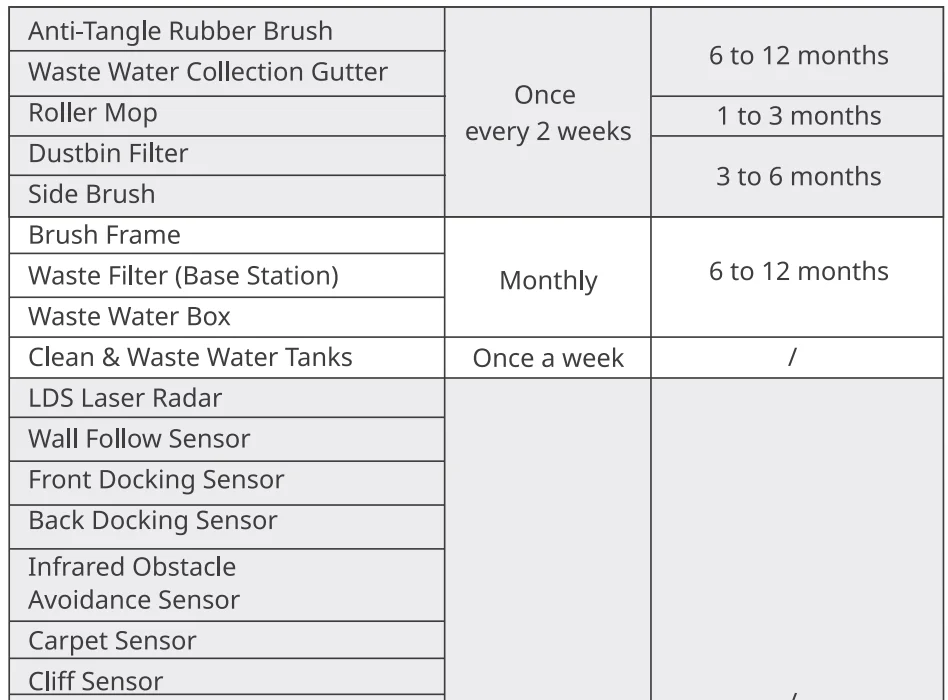
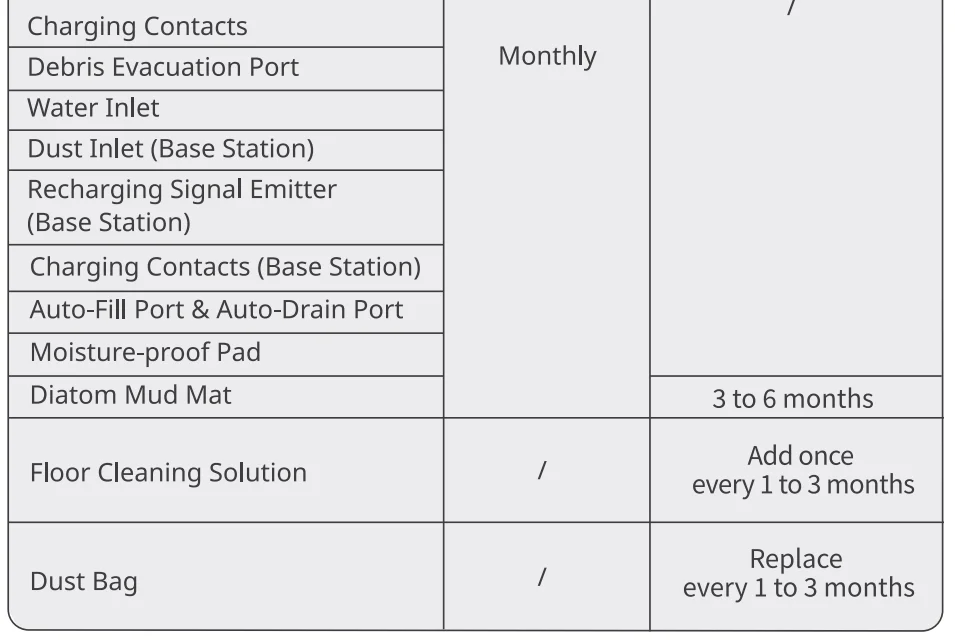
Replacement frequency may vary. Parts should be replaced if visible wear appears. If you need to purchase a refill of SwitchBot Floor Cleaning Solution, please visit the authorised channels or our official website www.switch-bot.com
Anti-Tangle Rubber Brush
- Flip the robot over, press the latch, and remove the brush cover.
- Remove the Anti-Tangle Rubber Brush, pull out the bearings at both ends, and clean any hair or dirt wrapped around the brush. You can use the provided small cleaning tool for this.
- Install the Anti-Tangle Rubber Brush back on the robot. You will hear a clicking sound once it is correctly installed. Make sure both ends of the brush are inserted into the robot’s pegs, and then cover it with the brush cover.
Important:
- Wipe off the dirt on the Anti-Tangle Rubber Brush with a damp cloth. If the brush is soaked, dry it thoroughly and avoid direct sunlight.
- Do not use corrosive cleaning liquids or disinfectants to clean the Anti-Tangle Rubber Brush.
Side Brush
- Remove the Side Brush.
- Clean the Side Brush and its mounting shaft, then reinstall it.
Front Caster Wheel
- Use a small screwdriver or similar tool to pry out the wheel and clean it.
- Rinse the wheel and axle to remove hair or dirt. Dry it and reattach the wheel, pressing it firmly into place.
Troubleshooting
Common Issues
If you encounter any issues, start by updating the firmware or restarting the device, as these steps often resolve common problems. If the issue persists, consult the troubleshooting guide or contact customer support for further assistance.
Unable to power on
- The battery level is low. Put the robot on the Base Station and charge it before use.
- The ambient temperature is too low or too high. Only use the robot within the range of 4°C to 40°C (39°F to 104°F).
Unable to charge
- Check the power cord for any damage and make sure it’s securely plugged in. Ensure the station is powered on, and its indicator light turns on in white.
- Poor contact, please clean the charging contacts on the Base Station and the robot.
- Make sure the firmware of your robot and Base Station is up to date.
Network connection failure
- Incorrect Wi-Fi password, please enter the correct Wi-Fi password.
- Switch to a 2.4GHz network for pairing, as 5GHz networks and enterprise routers are not supported.
- Keep the robot within a range with a good Wi-Fi signal strength.
- The robot may not be in the ready-to-configure state. Exit the app and re-enter. Then follow the pairing steps to try again.
Abnormal task termination
- Your robot’s battery is exhausted.
- Your robot has been stuck or tangled and cannot dock to charge. Set a No-Go Zone or virtual wall in such areas.
Unable to identify Base Station
- Ensure that your station is powered on, with the white light turned on. Keep the power cord organized to avoid wear and entanglement.
- Check the Bluetooth connection between your robot and the station. If your product has undergone a warranty or replacement process, manually pair them after powering on.
Package contents inconsistency
- We’re continuously upgrading our package contents based on customer feedback, but documentation updates may lag. We apologize for any inconvenience.
- If this inconsistency affects the normal use of your product, please contact us.
Abnormal behavior
- Make sure to declutter your room before initiating a cleaning task.
- CheckandremweanyhairordebristangledontheMainWheelsorcasterWheel.
- Check if the floor is slippery or uneven.
- Please turn off and restart the robot.
The Side Brush fell off
- Please reinstall the Side Brush, making sure to hear a “click” to indicate it is in place.
- The Side Brush may have fallen off due to tangled wires. Please clear wires on the floor before use.
Ground not cleaned up
- The dustbin is full. Please empty it.
- The filter may be clogged with dust. Please check and clean as necessary.
- If the filter is not dry after cleaning. Please let it air dry before using.
Water leaked while mopping
- Remove the Roller Mop and Collection Gutter, and clear any debris.
- Ensure the firmware versions of all parts are up to date.
Dust leaked while working
- Remove the Anti-Tangle Rubber Brush and dustbin, and clear any debris near the Anti-Tangle Rubber Brush.
- Your Dustbin is full. Please dock your robot and empty the dust.
Loud operating noise
- The dustbin is full. Please empty it.
- Hard objects may be tangled in the Anti-Tangle Rubber Brush and the dustbin. Please check and clean as necessary.
- The Side Brush and Anti-Tangle Rubber Brush may get tangled with debris. Please check and clean as necessary.
- You can lower the suction power of the robot to Quiet or Low if necessary.
Failed to upgrade firmware
- Exit the firmware upgrade page and try again later.
- Make sure the network connection is stable.
Roller Mop dry/Mopping effect not satisfied
- Set your robot to an appropriate Mopping Water Level via our app.
- Wash your mop prior to a mopping task to get the optimal mopping effect. Stopped due to being stuck
- The robot may be stuck under furniture of a similar height. Consider raising the furniture, manually blocking or using our app to set a virtual wall to avoid the area.
- Check the corresponding area for any wires, curtains, or carpet edges that may be tangled with or obstructing the robot. Manually remove any obstructions for smooth operation.
Water refilling/draining errors
- Check if the Aean WaterTank is properly positioned and has sufficient water.
- Check if the Waste Water Tank is full.
- Check if the silicone joints on the Auto-RII Port and Auto-Drain Port are damaged.
Missed cleaning some rooms
- Please ensure all room doors are fully opened.
- Check if there is a doorstep higher than 1.8 cm at the entrance of the room, as this product cannot overcome higher doorsteps.
- If the entrance is slippery, causing the robot to skid and malfunction, it is recommended to manually clean up the water on the floor.
- Check if there is a small mat or carpet at the entrance of the room.
When in Mop mode, the robot will avoid carpets. You can disable the carpet detection feature in the app settings page.
Robot indicator light on or flashes in orange
- Your robot is trying to free it from being stuck. Please check if your robot is getting stuck.
- Your robot’s battery is low. The indicator light will turn off after it is docked and charged.
- Your robot is abnormal. Please troubleshoot based on the app prompts. If the fault persists, please contact customer support.
Water droplets found after refilling/draining
- During refilling or draining, water droplets may occur. Check if the Diatom Mud Mat is dry.
- Check if the silicone joints on your station are intact.
Didn’t resume cleaning after being fully charged
- Make sure the robot is not in Do Not Disturb mode, as it will not resume cleaning in this mode.
- If the robot is docked manually or by pressing the Home button, it will not resume cleaning after being fully charged.
Purchasing Cleaning Solution
Visit our website or contact Switch Bot customer support to purchase the official SwitchBot Floor Cleaning Solution.
Scheduled cleaning not effective
- The cleaning will only start when the remaining battery is more than 15%.
Tubes cannot be installed
- Refer to the installation video for guidance and select the appropriate installation methods and accessories.
- Ensure all components (gaskets, screws, clamps, etc.) are correctly installed and securely fitted.
- If the provided accessories are not suitable, measure the size of the tubes in your home and contact our support team. We will provide customized accessories tailored to your specific requirements.
The LED Status Indicator on the Base Station stays orange
- The dust bag is not in position. Please check and install it correctly.
- The dust bag is full. Please check and replace with a new dust bag.
- The canister lid of the Base Station is not closed. Please check and close it tightly.
Robot indicator light on or flashes in orange
- Your robot is trying to free it from being stuck. Please check if your robot is getting stuck.
- Your robot’s battery is low. The indicator light will turn off after it is docked and charged.
- Your robot is abnormal. Please troubleshoot based on the app prompts. If the fault persists, please contact customer support.
Purchasing Cleaning Solution
Visit our website or contact SwitchBot customer support to purchase the official SwitchBot Floor Cleaning Solution.
Unable to create maps in the app
- The robot needs to start mapping from the Base Station; it is recommended to use the Fast Mapping feature.
- Do not remove the robot during the first mapping process to avoid locating failure.
Specifications
Robot
- Material: ABS Size: 365 x 365 x 115 mm (14.3 x 14.3 x 4.5 in.)
- Weight: 5.5 kg (12 lb) Power Supply: 21.6 V/4000 mAh lithium-ion battery
- Rated Power: 85 W Operating Temperature: O 0c to 40 °c (32 °F to 104 °F)
- Operating Humidity:< 90% RH Charging Time: 3 to 4 h
- Connectivity: 2.4 GHz Wi-Fi, Bluetooth 4.2 or later 4.2
Base Sation
- Size: 380 x 223 x 460 mm (14.9 x 8.7 x 18.1 in.) Weight: 6.79 kg (15 lb)
- Rated Input: 120 V- 60 Hz Rated Power (Charging): 36 W
- Rated Power (Emptying Dust): 900 W
- Rated Power (Drying Mop and Charging): 150 W
- Rated Output: Max 24 V – 1.5 A
Warranty & Support
Warranty
We warrant to the original owner of the product that the product will be free from defects in materials and workmanship. Please note that this limited warranty does not cover:
- Products submitted beyond the original limited warranty period.
- Products on which repairs or modifying have been attempted.
- Products subjected to falls, extreme temperatures, water, or other operating conditions outside the product specifications.
- Damage due to natural disaster (including but not limited to lightning, flood, tornado, earthquake, or hurricane, etc.).
- Damage due to misuse, abuse, negligence or casualty (e.g. fire).
- Other damage that is not attributable to defects in the manufacture of product materials.
- Products purchased from unauthorized resellers.
- Consumable parts (including but not limited to batteries).
- Natural wear of the product.
Disclaimers
- We are not responsible for any damages caused by natural disasters such as earthquakes, lightning, wind and water damage, fires that are not caused by the product, third party actions, intentional or negligent misuse by the customer; or other abnormal usage conditions.
- We are not responsible for any incidental damages arising from the use or inability to use this product (such as changes or loss of recorded content, loss of business profits, business interruption).
- We are not liable for damages arising from non-compliance with the contents in this manual.
- We assume no responsibility for damages caused by improper actions or use with devices not controlled by us.
Contact & Support
- Feedback: If you have any concerns or problems when using our products, please send feedback via our app through the Profile> Support page.
- Setup and Troubleshooting: support.switch-bot.com
- Support Email: [email protected]
For more manuals by Switch Bot, visit ManualsLibraryy
SwitchBot Floor Cleaning Robot S20-FAQs
Is the SwitchBot Floor Cleaning Robot S20 good for daily home cleaning?
Yes, the SwitchBot Floor Cleaning Robot S20 is designed for everyday maintenance cleaning. With strong suction power, smart navigation, and combined vacuum-and-mop functionality, it effectively removes dust, pet hair, and fine debris from mixed floor types. It’s especially useful for busy households that want consistent, hands-free cleaning without running a traditional vacuum every day.
What are the main functions of the S20 robot cleaner?
The S20 performs sweeping, vacuuming, and mopping in a single cleaning cycle. It uses intelligent mapping to navigate rooms efficiently and avoid obstacles. Once cleaning is complete or the battery runs low, it automatically returns to its charging dock. This fully automated workflow reduces manual effort and keeps floors clean with minimal supervision.
How powerful is the suction on the SwitchBot S20?
The S20 features high suction power suitable for lifting dirt from tiles, hardwood floors, and low-pile carpets. Strong airflow helps capture dust from floor gaps and edges while preventing debris scatter. It balances suction performance with battery efficiency, making it ideal for routine cleaning rather than heavy industrial deep-cleaning tasks.
Is the S20 suitable for hardwood floors and tiles?
Yes, the S20 is safe for hardwood, laminate, tiles, and other sealed hard floors. Its mopping system gently wipes surfaces while vacuuming fine dust. For best results, ensure floors are properly sealed and avoid excessive water settings on delicate wood. It transitions smoothly between hard floors and carpets during cleaning sessions.
Can I use regular floor cleaner or detergent in the S20?
It’s not recommended to use regular household floor cleaners in the water tank unless specified by the manufacturer. Standard detergents can create foam and clog internal pumps. Instead, use approved low-foam cleaning solutions designed for robot mops. This helps protect internal components and maintains long-term performance.
Does the SwitchBot S20 work without Wi-Fi?
Yes, the S20 can perform basic cleaning tasks without Wi-Fi once powered on. However, app features like scheduling, real-time mapping, zone cleaning, and firmware updates require a stable internet connection. Using the mobile app unlocks the robot’s full smart capabilities and customization options.
How often should I run the S20 robot vacuum?
For best results, running the S20 daily or every other day is recommended—especially in homes with pets or high foot traffic. Frequent light cleaning prevents dirt buildup and reduces strain on brushes and filters. Regular maintenance of the dustbin and mop pad will also extend the robot’s lifespan.
What are the disadvantages of robot vacuum and mop combos like the S20?
While convenient, robot cleaners may not completely replace deep manual vacuuming for thick carpets. They require routine maintenance, including emptying dustbins and cleaning brushes. Initial setup and mapping can take time. However, for ongoing surface maintenance, they significantly reduce cleaning workload.
Can the S20 replace a traditional vacuum cleaner?
The S20 is excellent for maintenance cleaning but may not fully replace a powerful upright vacuum for deep carpet extraction. It keeps floors consistently tidy between major cleaning sessions. Many users combine robot cleaning for daily upkeep with occasional manual vacuuming for intensive cleaning needs.