
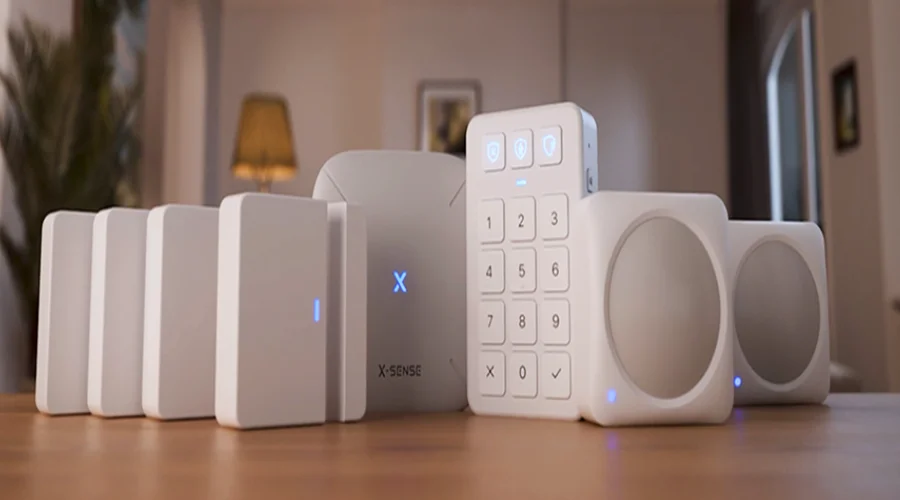

X-Sense Smart Home Security System
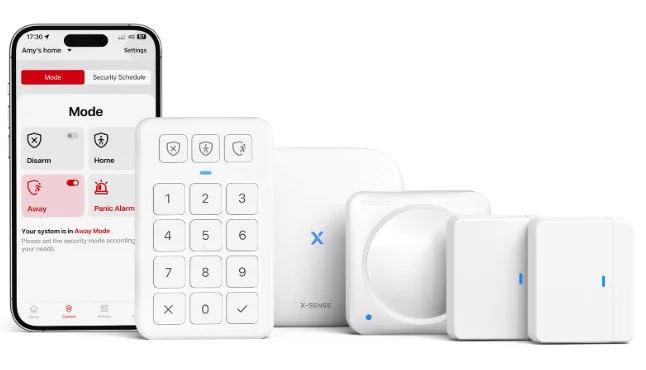
Say Hello to X-Sense Home Security System
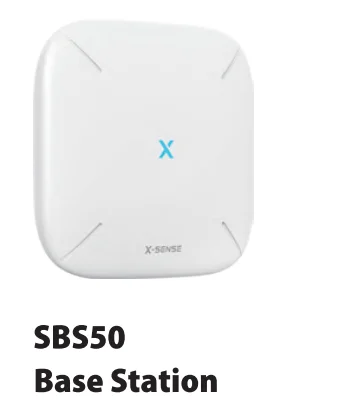
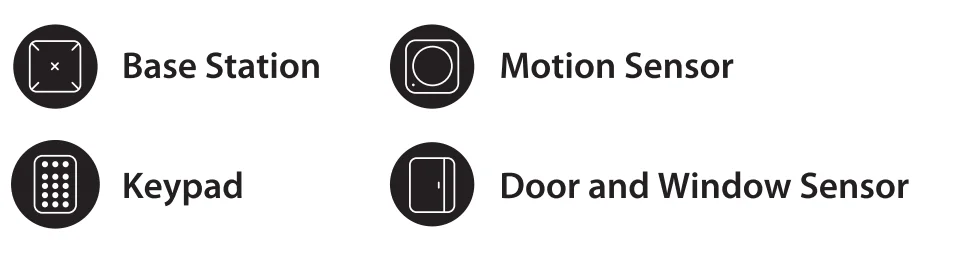
- The SBSSO base station is the central hub of your security system, connecting all your devices to the X-Sense Home Security app, allowing you to control your home from anywhere. It connects to power using the included power supply.
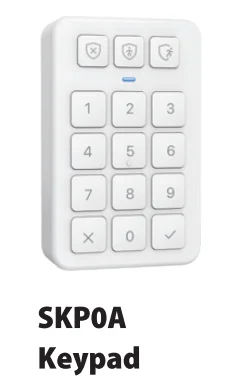
- This keypad gives you hands-on control of the home security system. Mount it on a wall or place it on a table near a door you use often.
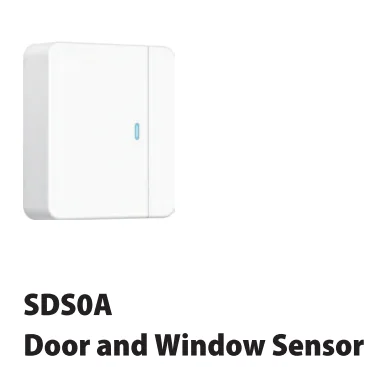
- This door and window sensor is designed to alert you when a door or window is opened. It can be mounted using the double-sided tape on the back.
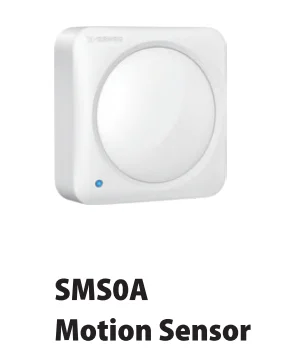
- This motion sensor is designed to alert you to movement inside your home. It can be mounted using the double-sided tape or screws on the back.
Package Contents
A505
- 1 x SBSSO Base Station
- 2 x Door and Window Sensor
- 1 x Motion Sensor
- 1 x Keypad
ASOB
- 1 x SBSSO Base Station
- 4 x Door and Window Sensor
- 2 x Motion Sensor
- 1 x Keypad
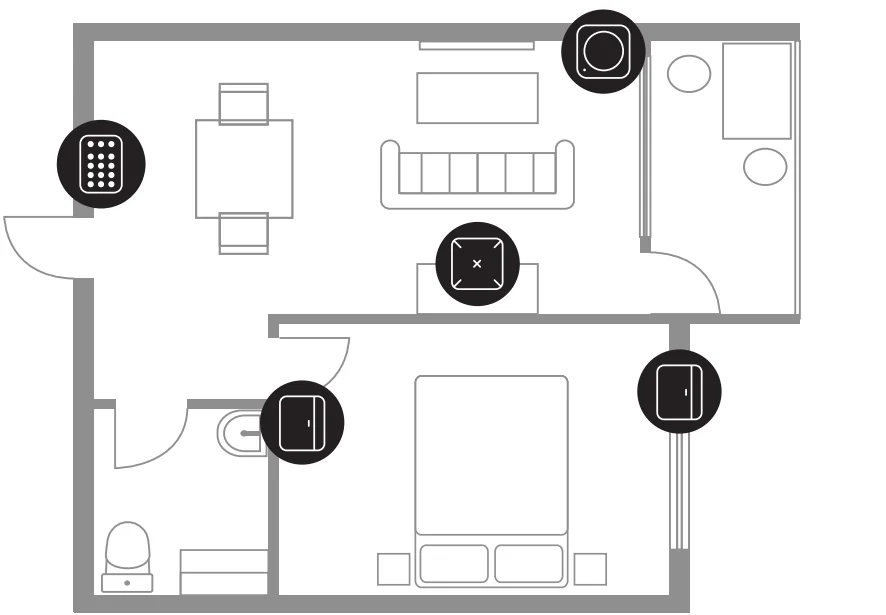
Your X-Sense Home Security System
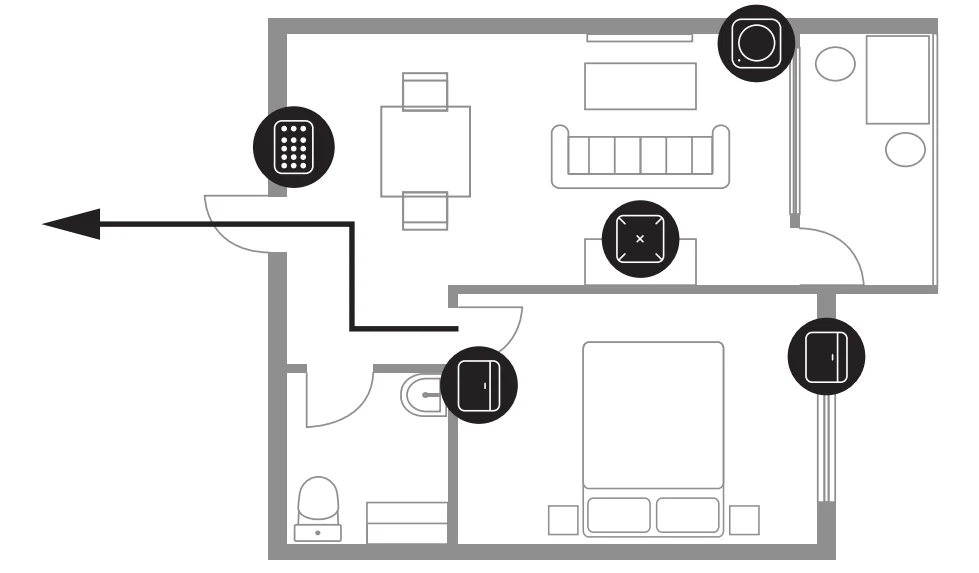
This house diagram illustrates one possible setup for a home security system. You can customize your setup according to the layout of your home.
Set Up Your App Account
Download the X-Sense Home Security App
To download the X-Sense Home Security App, scan the QR code or search for ‘X-Sense Home Security” in the Apple App Store or Google Play. Sign up with a valid email address. If you already have an account, make sure the app is updated to the latest version.

Note: Make sure your smartphone supports iOS 11 and higher, or Android 8.0 and higher.
Set Up Your Base Station
SBS50 Base Station
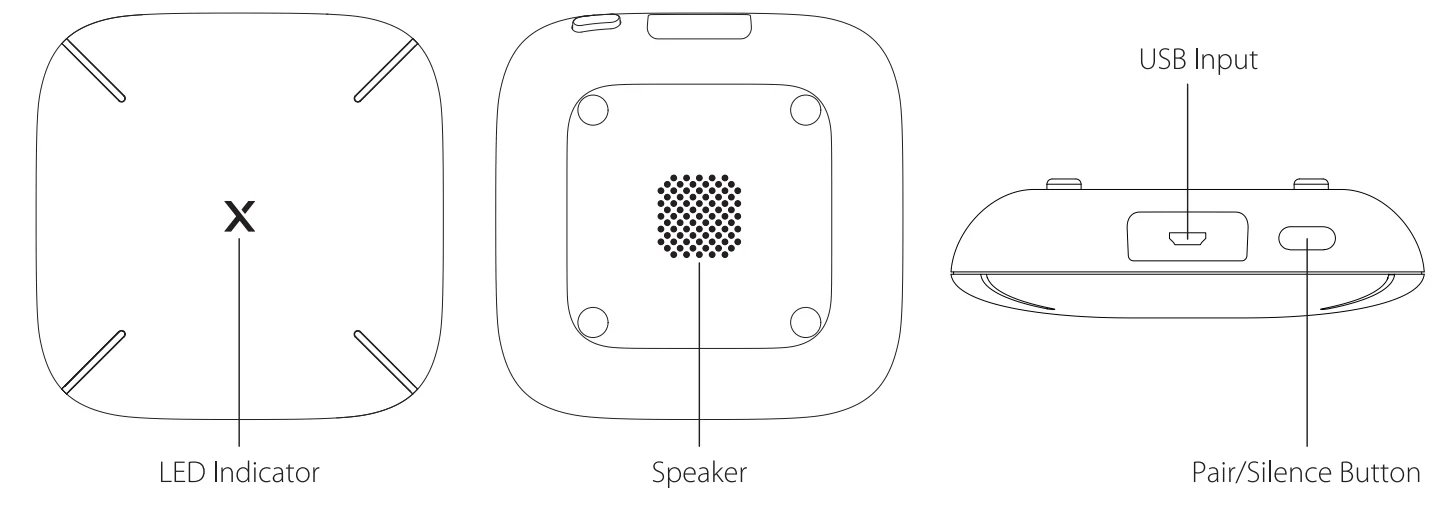
Baton connecting base station, make sure that:
- You know your Wi-Fi network name and password.
- You are connecting your device using a 2.4 GHz Wi-Fi network (incompatible with 5 GHz Wi-Fi networks).
- Make sure the Bluetooth on your phone is turned on.
Note: When the device is configured via Wi-Fi, make sure your mobile phone and device are as close to the router as possible, which can speed up device configuration.
Connecting the Base Station to the Network
- Connect the base station to a power source with the power adapter.
- Tap’+’ in the app, select ‘Base Stations’, select ‘Base Station (58550)’ in the product list, and then you will see the ‘Scan QR Code’ page. Scan the QR code on the bottom of the base station.
- Enter a name for the base station. Select the home you created or create a new home for the base station, then select the room in which it is installed. If you create a new home, you will need to enter a name and select the country or region in which you live.
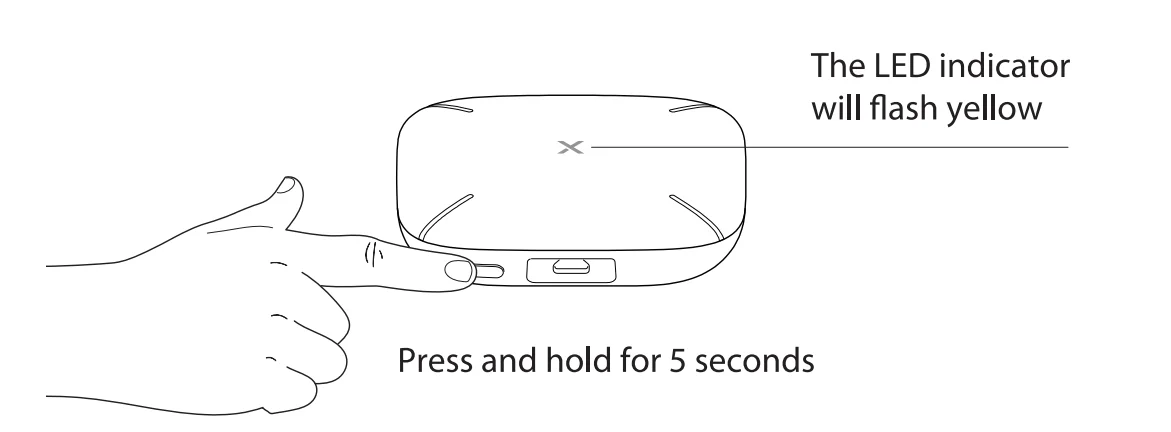
- Press and hold the pair button of the base station for 5 seconds until the LED indicator flashes yellow rapidly, indicating that the base station is waiting to connect to the Wi-Fi.
- Tap ‘Operation confirmed’ and tap ‘Next.’ The page will show searching for nearby Bluetooth devices.
- Enter the correct Wi-Fi and password, then tap ‘Next’ to add the device. You will hear •connecting to Wi-Fi.’
- After successfully connecting, you will hear ‘Wi-Fi connected,’ and the ‘Device added’ page will appear. The LED indicator will stay solid blue and you can find the base station in the device list.
- The plug of the adapter is considered a disconnect device. The socket-out/et shall be installed near the equipment and shall be easily accessible.
- The power delivered by the charger must reach the 5 watts required by the radio equipment in order to achieve the maximum charging speed.
Set Up Your Devices
Setting up your device involves three steps:
- Add the device to the app.
- Carefully read the installation steps in the app.
- Follow the installation steps strictly according to the app.
To avoid any usage Issues, please do not install the device yourself without guidance from the app.
- For the easiest setup, complete all three steps for each device before moving on to the next one. Use the app and this user manual to help you position your security devices to improve your home security.
- If you need to take a break, you can close the app and finish adding security devices later. When you’re ready to resume setup, open the X-Sense app and tap’®’ on the right corner.
Door and Window Sensor
Friendly Reminder:
- The door and window sensor Is set by default to ensure that you receive a push notification when In Home Mode without being armed or when In Disarm Mode. ff you activate “Enable Prompt Tone” In the device settings page, the base station will emit a brief alert sound.
- If you want the base station to emit a continuous alarm sound when the door and window sensor is opened (while you will receive a push notification), please switch to Away Mode, or first select to arm this device in the Home Mode settings, then switch to Home Mode.
Adding to the X-Sense app
Note
- Before adding devices to the system, make sure the base station has been successfully added to the app.
- This product can only connect to the SBSSO base station and does not work with the Link” wireless Interconnected network.
- Tap’+’, and select ‘Home Security Systems· in the product list, select ‘Home Security Systems (Working with 58550 base station)’, and then select ‘Door and Window Sensor (SDS0A)’.
- Enter a name for the sensor. Then tap “Next.”
- Follow the prompts on the page by quickly pressing the pairing button twice on the device until the LED flashes blue rapidly, indicating that the device is waiting to connect to the Wi-Fi.
- Tap ‘Next’to add the device. You will hear “Ready to add the device.’
- After successfully connecting, you will hear ‘Device added,’ and the ‘Device added’ page will appear. Then, the app page will go to ‘Installation & Setup.’ Follow the instructions in the app to complete the installation.
- If you want to add multiple devices to the system, please repeat the above steps.
NOTE: If you fail to add the door and window sensor to the network within 60 seconds, the device will automatically exit the network configuration. To ~nter the network configuration, yau need to repeat the above steps.
Installation
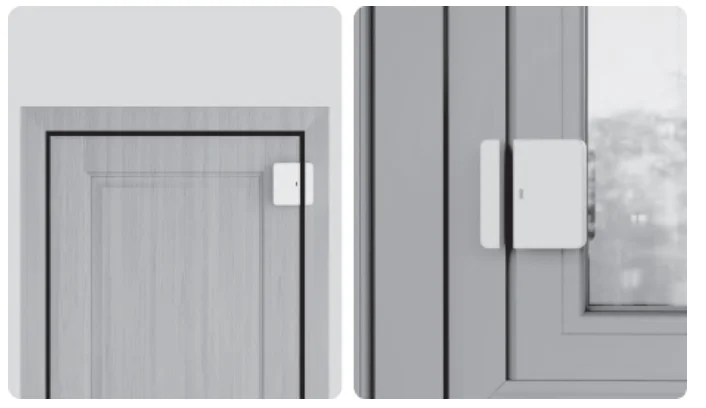
Suitable locations for installing the door and window sensor:
- Front doors
- Back/side doors
- French doors and sliding glass doors
- Doors leading to an attached garage or storage area
- Windows, especially those that can be easily accessed
Locations not suitable for installing the door and window sensor:
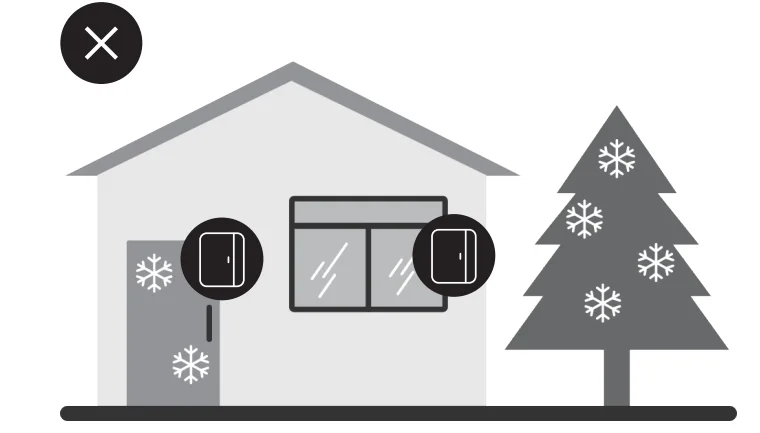
- Do not place it outdoors or in extreme temperature conditions.
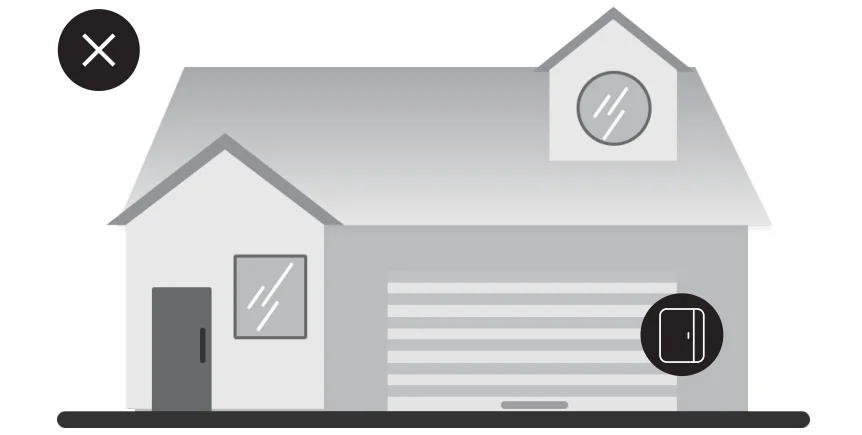
- Not suitable for garage doors.
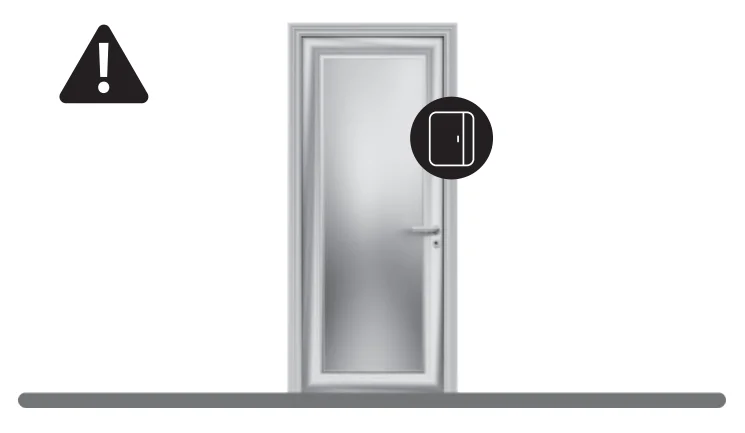
- Please install carefully on metal doors and windows, as the device’s performance will be significantly affected and may also cause wireless signal interference, leading to disconnection.
Please follow the instructions provided in the app carefully to complete the entire installation process. Please pay special attention:
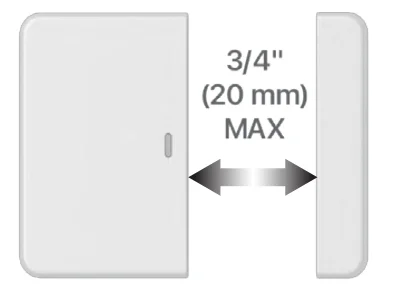
The sensor and magnet must be aligned, and the distance between them should be as small as possible, with a maximum distance not exceeding 3/4″ (20 mm). Metal doors and windows have a significant impact on the device, and when installed on metal doors and windows, the distance between the sensor and magnet needs to be further reduced.
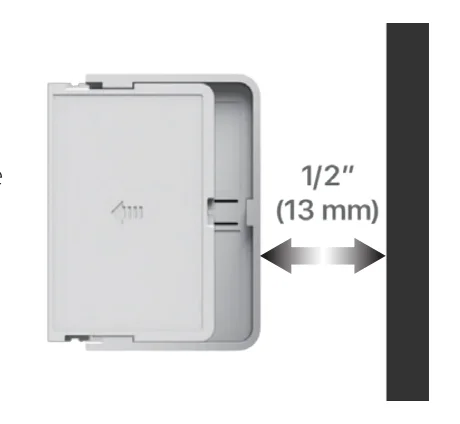
You need to leave 1/2″ (13 mm) of space around the sensor so that you can slide it off to replace the battery.
Special Feature
Unclosed Reminder: You can set up an unclosed reminder through the app. When doors or windows are left open beyond the designated time frame (selectable from 20 seconds to 10 minutes), the base station will immediately emit an alert sound, and your phone will receive a push notification. This feature effectively prevents safety hazards caused by negligence and ensures the security of your home.
Motion Sensor
Friendly Reminder:
- The motion sensor is set by default to not monitor motion when the system is in Disarm Mode or in Home Mode without selecting arming for this motion sensor. This means that motion cannot trigger an alarm, and you can move freely around your home. If you want the motion sensor to monitor motion, please switch to Away mode, or first select arming for this device in the Home Mode setting, and then switch to Home mode. This means that motion will trigger an alarm immediately.
- To reduce frequent notifications and disturbances, the motion sensor is designed with a 1-minute trigger interval. This means that it will take 1 minute after each trigger before it can be triggered again.
- In the Motion Test, motion will be continuously monitored. Please walk back and forth within your desired monitoring range (especially in areas far from the device) once the Motion Test begins. This feature ensures that your desired monitoring range is fully covered and can also help you test for blind spots, pets, and other environmental triggers.
Adding to the X-Sense App
Refer to the steps for adding a door and window sensor to add the motion sensor. Follow the instructions in the app to complete the installation.
Installation
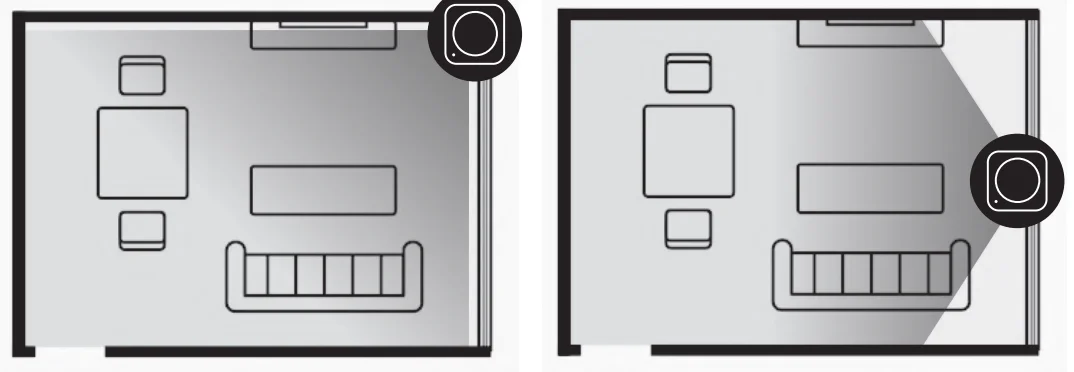
You can install the motion sensor on the wall or in a corner, but placing it in a corner will provide a wider monitoring range.
Suitable locations for installing the motion sensor:
- Front and back entryways
- Hallways
- Rooms
- Basements with outside access
Locations not suitable for installing the motion sensor:
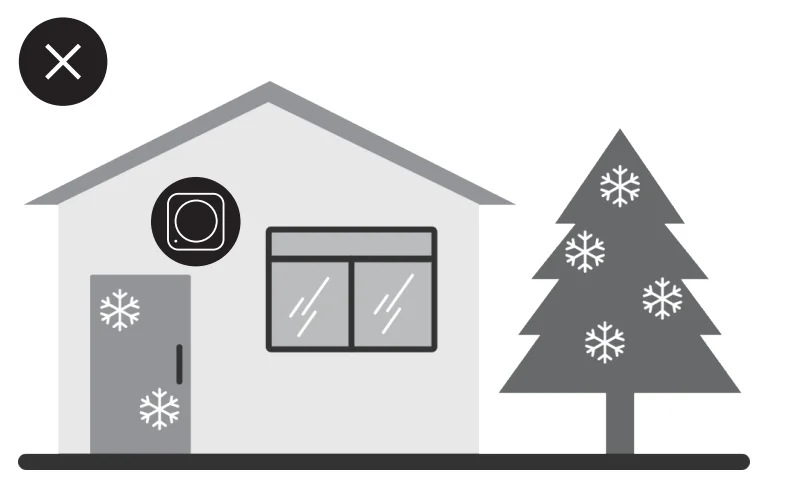
- Do not place it outdoors or in extreme temperature conditions.
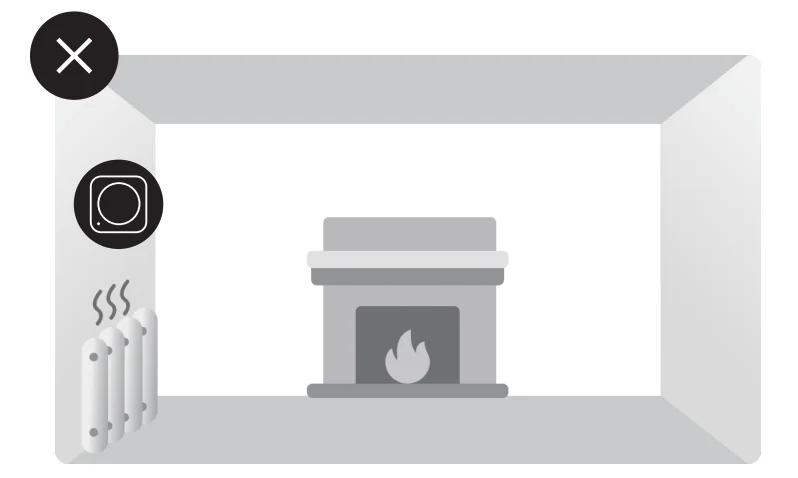
- Please do not place it in direct sunlight or near heaters, stoves, or vents, and avoid placing it near heat-generating household appliances such as microwaves, routers, etc.
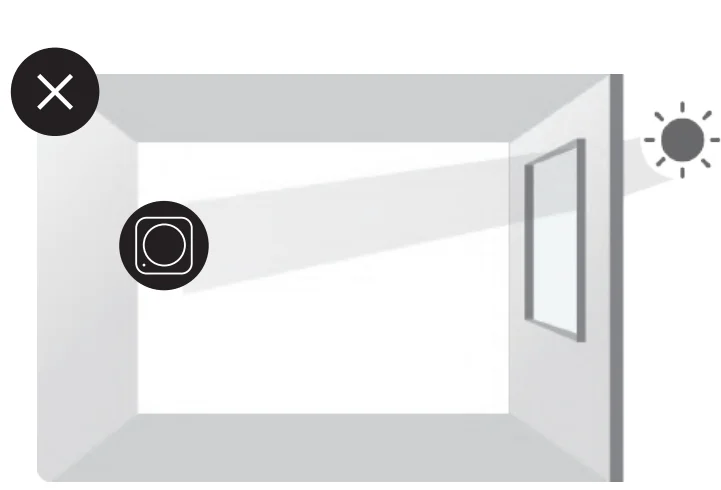
- Do not aim it at windows.
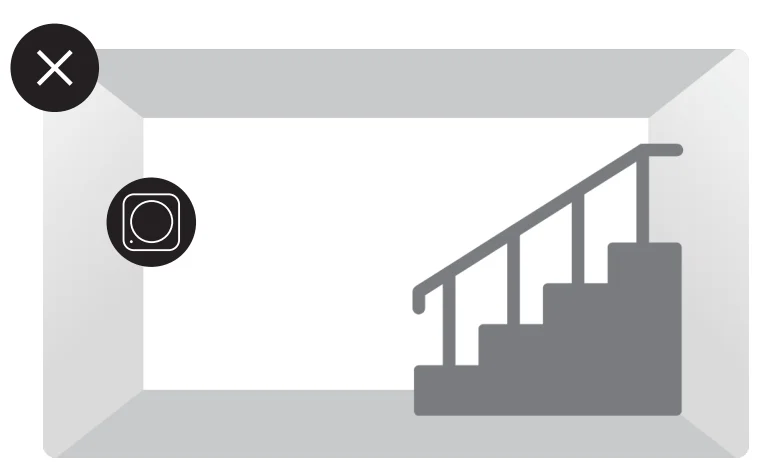
- Do not aim it at the stairs.
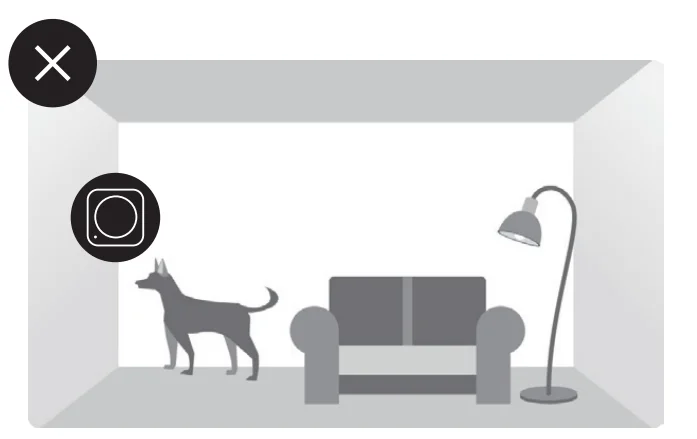
- Do not use near large pets.
Please follow the instructions provided in the app carefully to complete the entire installation process. Please pay special attention:
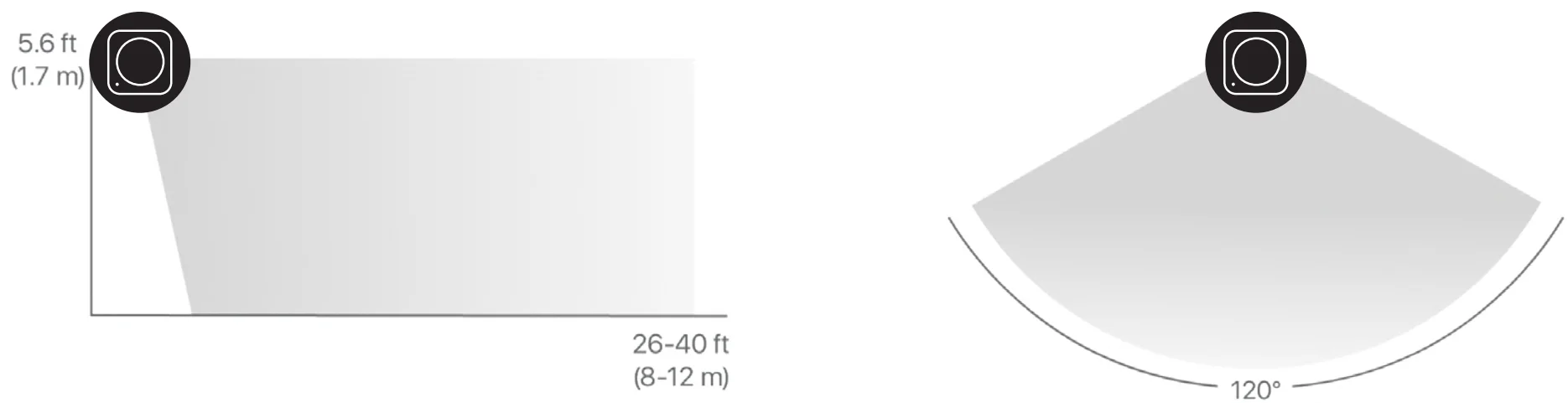
- The maximum monitoring distance of the device is approximately 26-40 ft (8-12 m), and this distance may vary depending on the indoor environment.
- Within a distance of 2 ft (0.6 m) from the device is a blind area for monitoring. Do not install it in narrow passages or similar locations to avoid missed reports.
- Install at a height of 5.6 ft (1.7 m).
To avoid false alarms:
- Do not place the sensor facing heat sources such as stoves, fireplaces, or sunlight through windows.
- Adjust the sensitivity to accommodate environments with pets.
- Try to configure the motion sensor to arm only in Away Mode and disarm in Home Mode as much as possible; this is also the default system setting.
Keypad
Friendly Reminder:
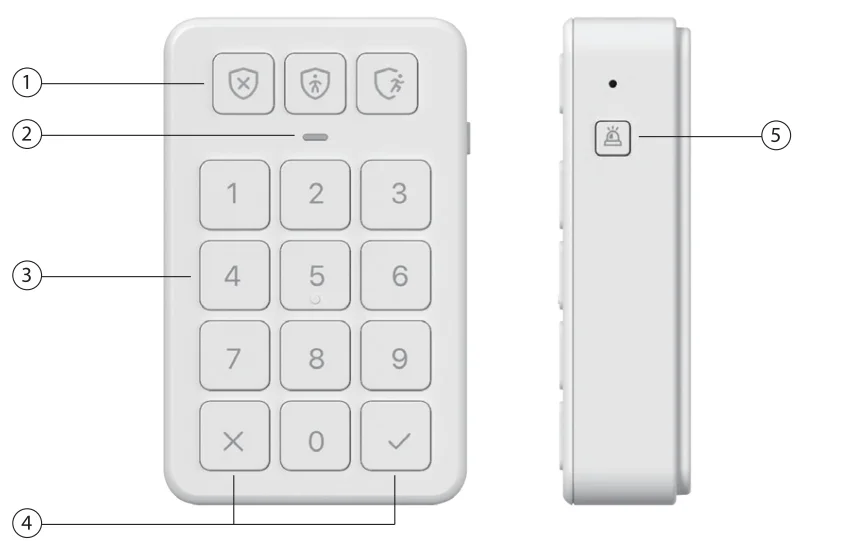
- When switching security modes, you should press the security mode button (the three buttons located in the upper sedion of the keypad) after entering the password, not the checkmark (,/) button. For example, to switch from Disarm Mode to Away Mode, press the security mode button after entering the password.
- Switching security modes requires a password. You cannot switch security modes by directly pressing the security mode button without entering the password.
lntrodudion

Adding to the X-Sense app
Refer to the steps for adding a door and window sensor to add the keypad. Follow the instructions in the app to complete the installation.
Installation
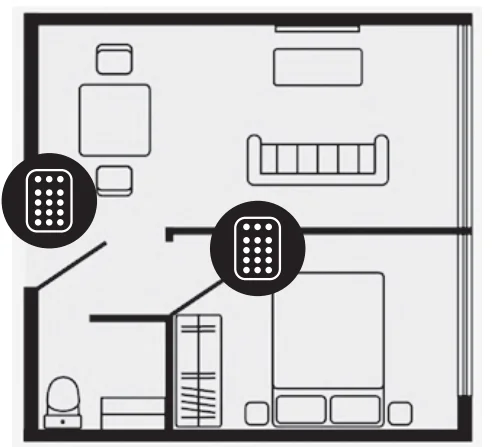
- You’ll use your keypad to arm and disarm your system, so we recommend you place it near the door you most often use to exit and enter.
- Some people install an extra keypad in their bedroom for easy access at night.
Unsuitable locations for installing the keypad:
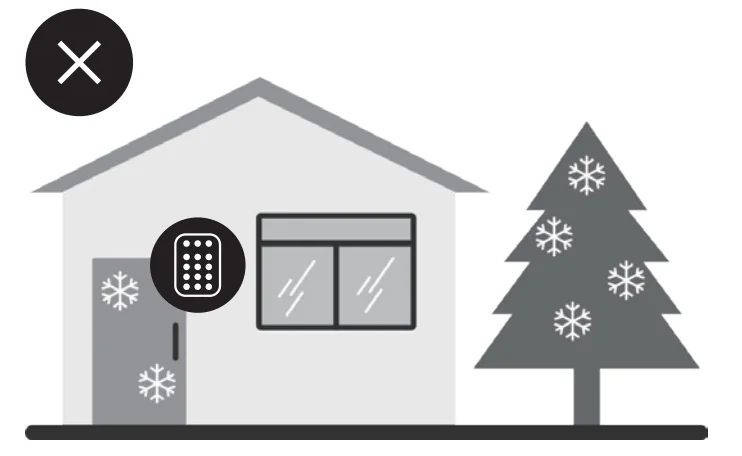
- Do not place it outdoors or in areas with extreme temperatures.
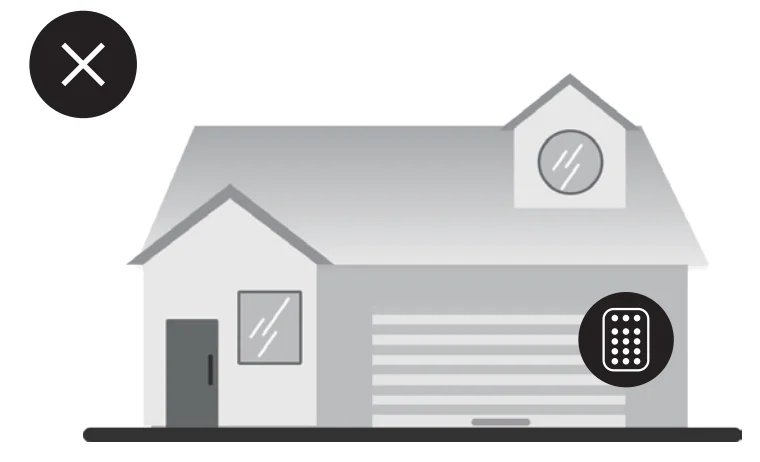
- Not suitable for garage doors.
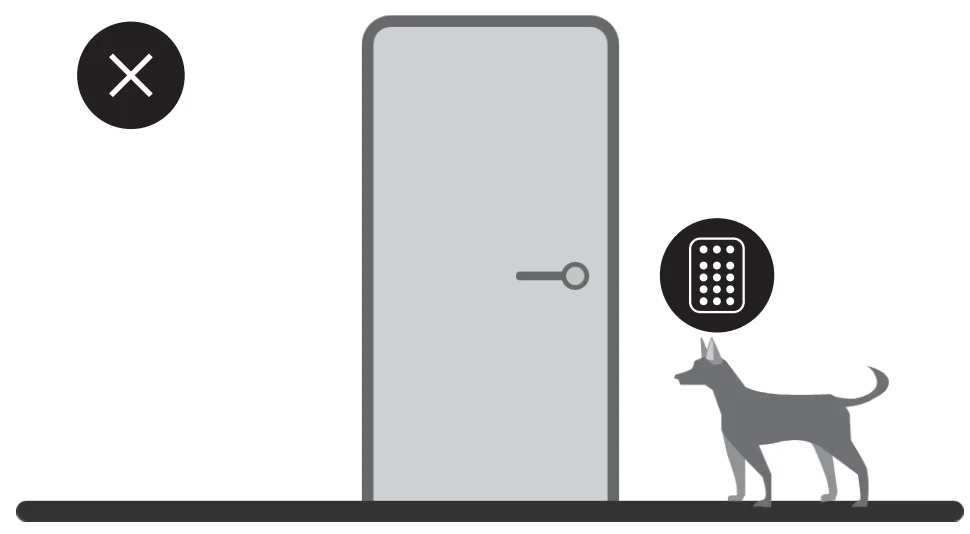
- Install it high enough to be out of reach of pets.
- Metal doors can sometimes cause interference.
Please carefully follow the app instructions to complete the installation, paying special attention to the following:
- After completing the installation process, you can tap on “Password Management” in the “Device Settings” page of the keypad in the app to modify the master password. You can also set specific passwords for family members, friends, or a nanny, and create a password schedule that is only valid during the times allowed by the master user.
- Ensure that you and all users remember the passwords. To maintain optimal security, if you forget a password, the system does not support viewing previously set passwords through the app. You can only set a new password. From the master’s app, tap on the keypad Device Settings page – tap “Password Management” – tap the username for which you need to reset the password – tap “Security Password” – input the security password you wish to update.
- If you have added multiple keypads to the same base station, the same user’s password will remain consistent across all keypads, including your own. For example, if you set the password for shared user A to 1234, their password will be 1234 on all keypads. You cannot set different passwords for the same user on different keypads.
Learn to Use Your Security System
Security Modes
- Your security system has three Security Modes to choose from: Disarm, Home and Away.
- You can switch between them using the Keypad or the X-Sense app.

- No sensors inside your home are armed. Sensor triggers will not generate app notifications or base station alarms. This is useful when you’re at home and want the freedom to go in and out easily.
- In Home Mode, ALL SENSORS are DISARMED by default. You can selectively arm them according to your needs. Sensor triggers in armed mode will generate app notifications, and the base station will emit alarm sounds. This mode should be used when someone wants to stay home and feel safe.
- When you set the system to Away Mode, ALL SENSORS are ARMED by default. Sensor triggers in armed mode will generate app notifications, and the base station will emit alarm sounds. This setting is ideal for when you leave home unoccupied.
How to Arm and Disarm Your Security System
- Using the keypad: Enter your personal password, and then press the Disarm, Home, or Away Mode key to select your desired mode.
- Using the app: Open the app and select “Control” at the bottom to select from Disarm, Home, or Away Mode.
Understanding Entry and Exit Delays
Exit Delay gives you a short period of time to leave once you’ve armed the security system. After you arm your system, you’ll hear a series of beeps to remind you that there are only a few seconds to leave home. When your Exit Delay ends, your system will be armed. At this point, triggering a door and window sensor or motion sensor will immediately set off an alarm (if Entry Delay is not enabled) or start the Entry Delay countdown (if Entry Delay is enabled). Entry Delay gives you a short time to disarm your security system after you return home. You’ll hear a series of beeps during the delay, and when the delay ends, if you don’t disarm, the security system will immediately start alarming.
To set Entry and Exit Delays. Navigate to Control ➔ Settings➔ Home Mode/Away Mode ➔ Exit Delay/Entry ~ay in the app and set up accordingly. You have the option to select ‘Of!’ for no delay, or choose from the following delay times: 15s, 30s, 45s, 60s. 120S. or 180s. Just make sure you give yourself enough time to ann and disarm your system.
Technical Specifications
Specifications of Base Station
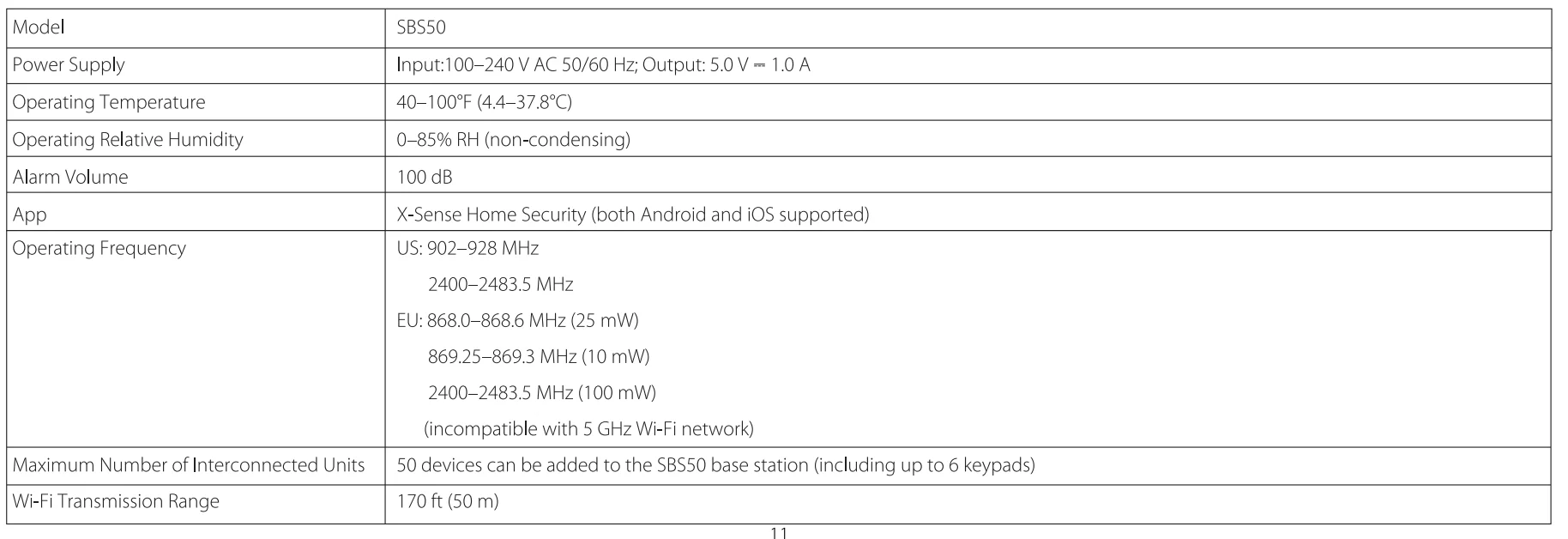
LED Indicator of Base Station


Specifications of Door and Window Sensor
 LED Indicator of Door and Window Sensor
 LED Indicator of Door and Window Sensor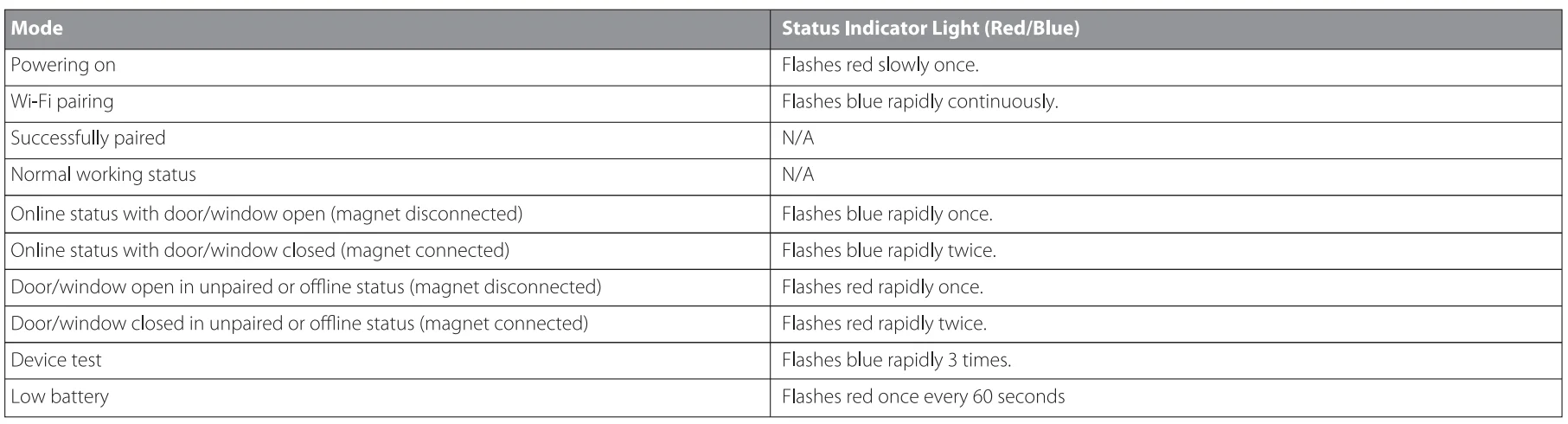
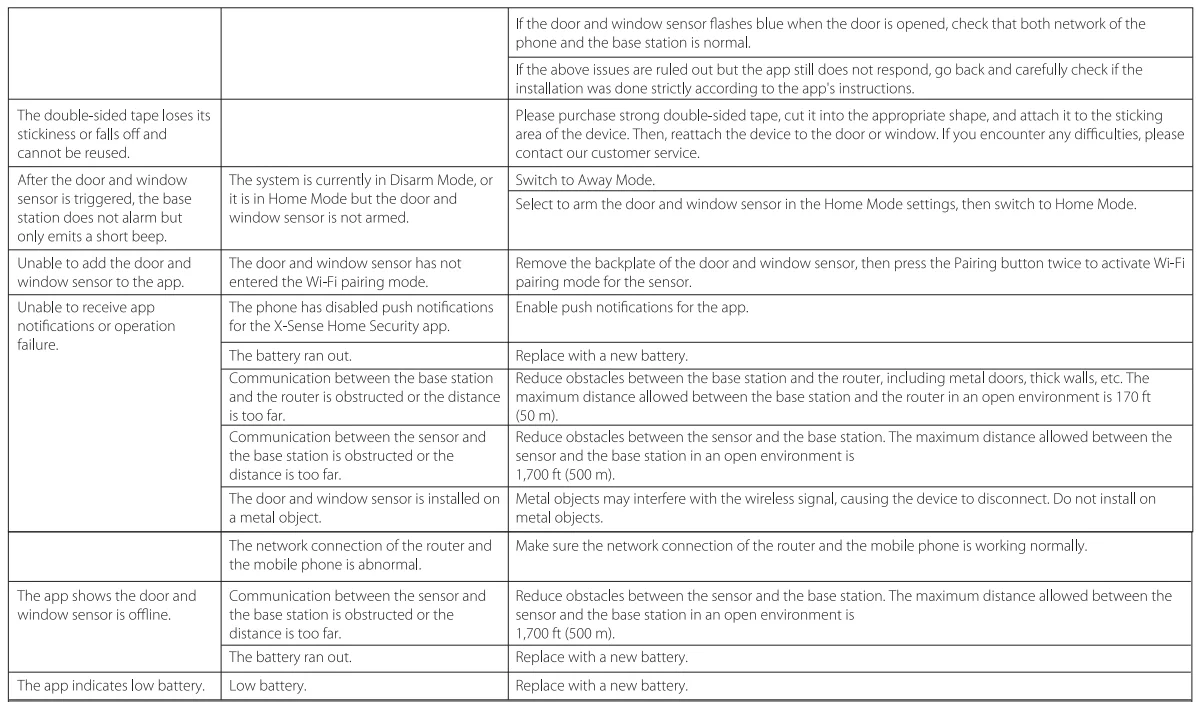
Troubleshooting
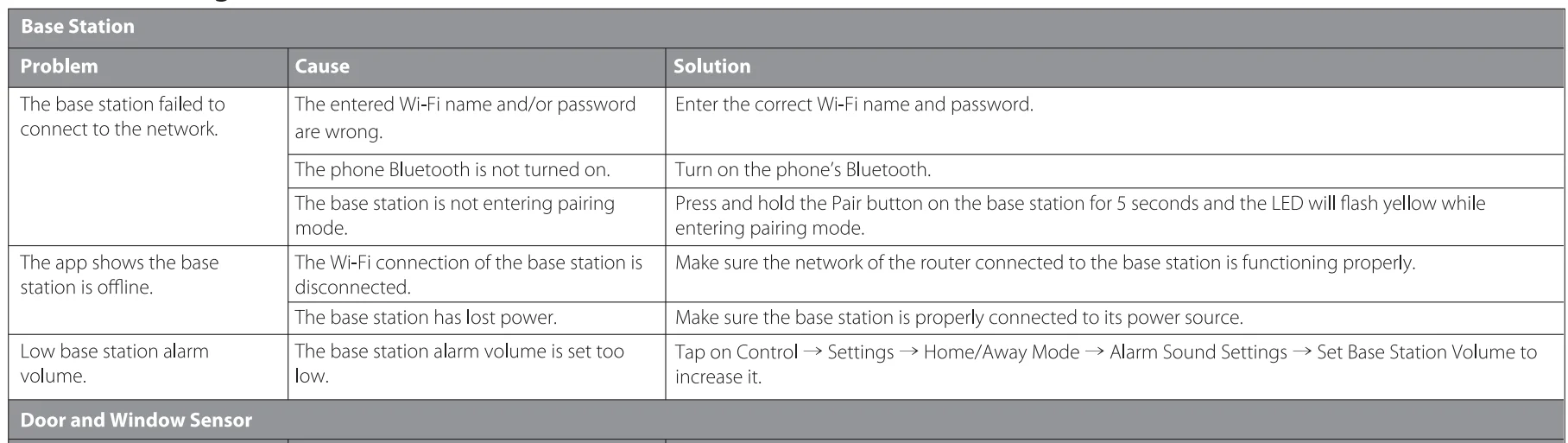
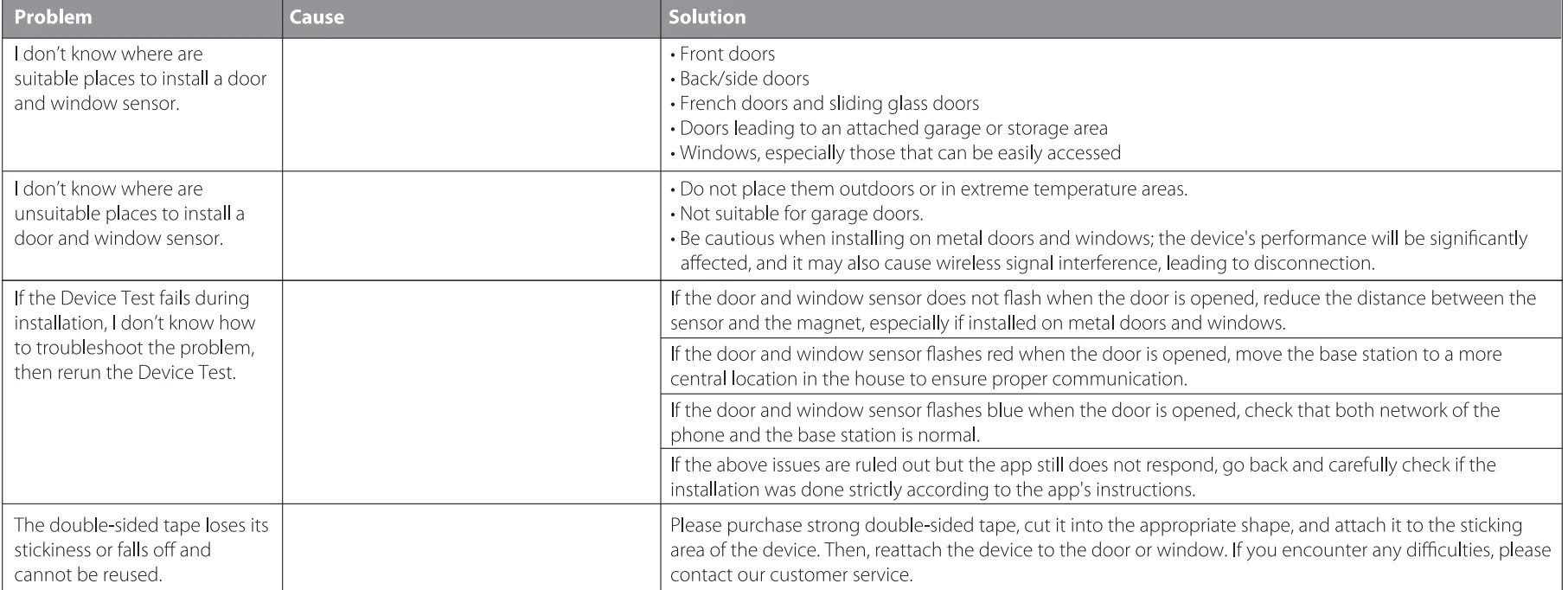

FCC statement
- This device complies with part 15 of the FCC Rules. Operation is subject to the following two conditions:
- This device may not cause harmful interference.
- This device must accept any interference received, including interference that may cause undesired operation.
- Note: This equipment has been tested and found to comply with the limits for a Class B digital device. These limits are designed to provide reasonable protection against harmful interference in a residential installation. This equipment generates, uses and can radiate radio frequency energy and, if not installed and used in accordance with the instructions, may cause harmful interference to radio communications. However, there is no guarantee that interference will not occur in a particular installation. If this equipment does cause harmful interference to radio or television reception, which can be determined by turning the equipment off and on, the user is encouraged to try to correct the interference by one or more of the following measures:
- Reorient or relocate the receiving antenna.
- Increase the separation between the equipment and receiver.
- Connect the equipment into an outlet on a circuit different from that to which the receiver is connected.
- Consult the dealer or an experienced radio/TV technician for help.
- Changes or modifications not expressly approved by the party responsible for compliance could void your authority to operate the equipment.
- The distance between the user and the products should be no less than 20 cm.
WARNING
- BATTERIES
- KEEP NEW OR OLD USED BATTERIES OUT OF REACH OF CHILDREN.
- In the event of a battery leaking, do not allow the liquid to come into contact with the skin or eyes. If contact has been made, wash the affected area with copious amounts of water and seek medical advice immediately.
- NEVER charge a battery unless it is a rechargeable battery.
- Do not mix alkaline, standard (carbon-zinc) or rechargeable (Ni-Cd; Ni-MH) batteries.
- Different types of batteries or new and old used batteries, are not to be mixed. Do not mix batteries of different manufacturers, capacities, or sizes.
- Batteries must be inserted with the correct polarity. Replacement of a battery with an incorrect type can defeat the safeguard. There will be a risk of fire or explosion if a battery is replaced by an incorrect type.
- RF ENERGY EXPOSURE AND PRODUCT SAFETY GUIDE
- Before using this device, please read this guide, which contains important operating instructions for safe usage, control information and operational instructions for compliance with RF Energy Exposure limits in applicable national and international standards.
- User instructions should accompany the device when transferred to other users.
Simple EU Declaration of Conformity
X-Sense Electronics Co., Ltd. declares that the radio equipment type complies with the essential requirements and other relevant provisions of RED Directive 2014/53/EU and the RoHS Directive 2011/65/EU and the WEEE Directive 2012/19/EU; the full text of the EU declaration of conformity is available at the following internet address: wwwx-sense.com.
Manufacturer and Service Information
- X-Sense Electronics Co., Ltd.
- Address: Room 402, Building 4, No. 9, Jinshagang 1st Road, Shixia Village, Dalang Town, Dongguan City, 523750 Guangdong, P.R. China
- Email: [email protected]
For more manuals by X-Sense, visit ManualsLibraryy
X-Sense Smart Home Security System-FAQs
What is the X-Sense Smart Home Security System used for?
The system is designed to protect your home by detecting hazards like smoke, carbon monoxide, and unauthorized entry. It connects multiple devices into one network, allowing you to monitor safety conditions in real time through a mobile app.
What are the key features of X-Sense systems?
Key features include real-time notifications, interconnected alarms, voice alerts, automatic self-testing, and continuous monitoring. These functions work together to provide a reliable and modern home security solution.
Does X-Sense require a monthly subscription?
In most cases, X-Sense does not require a monthly fee for basic features. You can access alerts, monitoring, and device control without ongoing costs, depending on the model you use.
How do I connect X-Sense devices to the app?
You can connect devices by setting up the base station, downloading the app, and following step-by-step pairing instructions. The process usually involves scanning a code or pressing a button on the device.
Is X-Sense easy to install?
Yes, the system is designed for simple DIY installation. Most devices can be set up quickly without professional help, making it convenient for homeowners to secure their space.
How long do X-Sense devices last?
Most X-Sense alarms are built with long-lasting components, including sealed batteries that can last up to 10 years. This reduces the need for frequent maintenance or battery replacement.
Does X-Sense include cameras?
Some X-Sense security kits include cameras, while others focus on alarms and sensors. Camera-enabled systems allow you to visually monitor your home along with receiving safety alerts.
Is X-Sense compatible with smartphones?
Yes, the system works with a dedicated mobile app that lets you monitor devices, receive alerts, and manage settings. The app provides real-time updates and makes it easy to control your entire security setup from anywhere.