
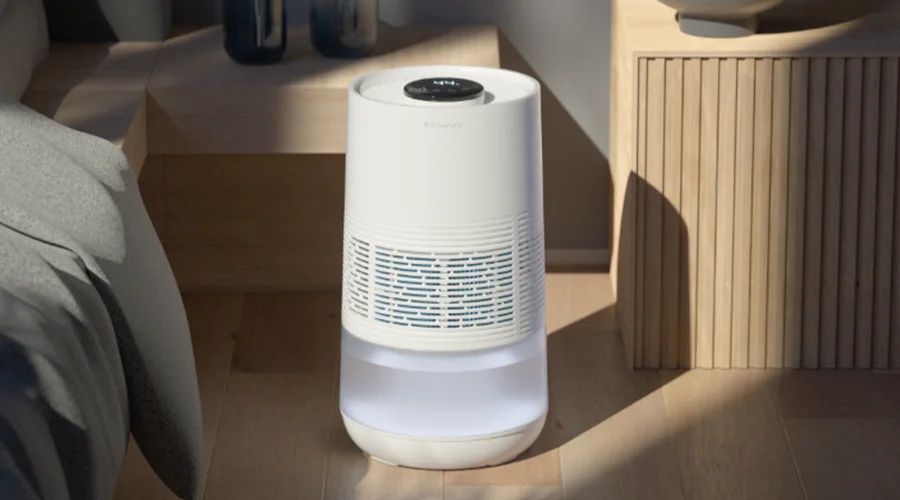

Blueair DreamWell Humidifier H35i
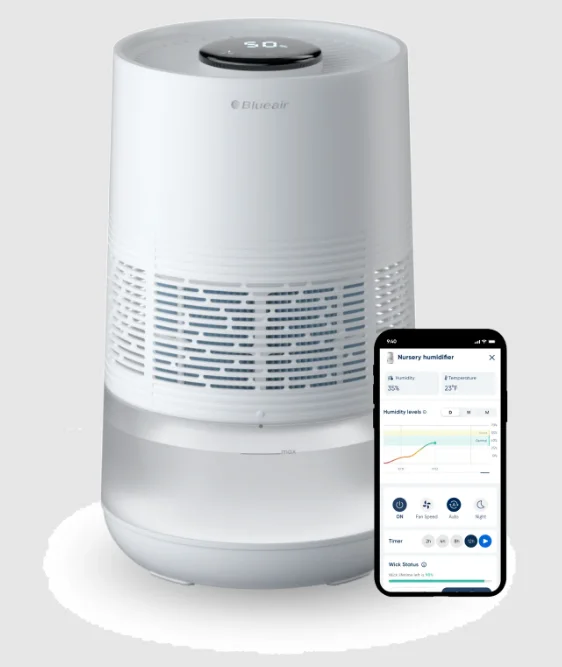
Read and save these instructions.
Blueair Humidifier is an electrical appliance for indoor use only. Take the necessary precautions to reduce the risk of fire, electric shock, or injury.
WARNING: RISK OF ELECTRIC SHOCK – These servicing instructions are for use by qualified personnel only. To reduce the risk of electric shock, do not perform any servicing other than that contained in the operating instructions unless you are qualified to do so. This appliance is not intended for use by persons (including children) with reduced physical, sensory or mental capabilities, or lack of experience and knowledge, unless they have been given supervision or instruction concerning use of the appliance by a person responsible for their safety.
Safety Information
- Product name: Blueair Humidifier
- Model number: 3531911000
- To reduce the risk of fire, electric shock, or injury, only use manufacturer-recommended replacement parts.
- Supervise children to ensure that they do not play with the appliance.
- Children shall not do cleaning and user maintenance without supervision.
- Always disconnect the appliance from the power supply before maintenance.
- If your Blueair appliance is found to be defective, we will replace it with the same or a similar model at no cost, per the warranty terms. Please use caution when attempting repairs yourself, as this poses a risk of electric shock or injury.
- Ensure the power cord and plug are not at risk of getting damaged. To avoid hazards, damaged power cords or plugs must be replaced by the manufacturer.
- If the appliance is damaged or malfunctions, turn it off, disconnect it from the power supply and contact Blueair.
- The power plug must be firmly inserted in the power outlet.
- Overfilling or cleaning the product without unplugging it may cause electric shock.
- Do not run the cord under carpeting, furniture, or appliances, or cover it with rugs. Keep the cord away from traffic areas to prevent tripping.
- Do not use dishwasher except for dishwasher safe* water tank.(*Based on life test of 50-90 minute cycles at min. 158°F (70°C) , using leading detergent)
- To reduce the risk of electric shock, this equipment has a polarised plug (one blade is wider than the other). This plug fits in a polarised outlet only one way. If it doesn’t fit, reverse the plug. If it still doesn’t fit, contact qualified personnel to install the proper outlet. Do not alter the plug.
- When unplugging the unit, pull on the adapter, not the power cord.
- Use the provided adapter to plug the humidifier directly and firmly into an appropriate electrical outlet. If the plug does not fit, do not alter the adapter in any way. Contact qualified personnel to install the correct outlet.
- Do not use an extension cord with this appliance.
- Do not use the included adapter for anything else but the appliance.
- Do not allow objects to enter or block the evaporative outlet as this can cause electric shock or damage the appliance.
- Do not place any objects on top of or directly against the appliance.
- Do not sit on, stand, climb onto, or hang from the appliance.
- Keep the appliance, including the adapter, at a safe distance from heated surfaces and open fire.
- When plugged in, keep the appliance away from standing water, such as bathtubs, and ensure the area around the appliance is dry before plugging it in the appliance.
- Keep the appliance and adapter away from chemicals such as pesticides and deodorants.
- Place the humidifier on the floor or a stable surface to prevent tipping.
- Do not use the appliance outdoors.
- Always turn off and unplug the appliance before moving it, refilling water, cleaning, or performing maintenance.
- Never clean with gasoline, chemical solvents, or corrosive materials, as these agents may damage the humidifier.
- Only fill the water tank with clean water; do not use any other liquids.
WARNING: Skin or eye damage may result from directly viewing the light produced by the UV lamp located inside the pump of this apparatus.
Regulatory Information
WARNING: Changes or modifications to this unit not expressly approved by the party responsible for compliance could void the user’s authority to operate the equipment.
NOTE: This equipment has been tested and found to comply with the limits for a Class B digital device, pursuant to Part 15 of the FCC Rules. These limits are designed to provide reasonable protection against harmful interference in a residential installation. This equipment generates, uses, and can radiate radio frequency energy and, if not installed and used in accordance with the instructions, may cause harmful interference to radio communications.
However, there is no guarantee that interference will not occur in a particular installation. If this equipment does cause harmful interference to radio or television reception, which can be determined by turning the equipment off and on, the user is encouraged to try to correct the interference by one or more of the following measures:
- Reorient or relocate the receiving antenna.
- Increase the separation between the equipment and receiver.
- Connect the equipment into an outlet on a circuit different from that to which the receiver is connected.
- Consult the dealer or an experienced radio/TV technician for help.
This device complies with Part 15 of the FCC Rules. Operation is subject to the following two conditions:
- This device may not cause harmful interference.
- This device must accept any interference received, including interference that may cause undesired operation.
This Class B digital apparatus complies with Canadian ICES-003. This device contains licence-exempt transmitter(s)/receiver(s) that comply with Innovation, Science and Economic Development Canada’s licence-exempt RSS(s). Operation is subject to the following two conditions: (1) This device may not cause interference, and (2) This device must accept any interference, including interference that may cause undesired operation of the device.
FCC/ISED RF Exposure Information: This equipment should be installed and operated with a minimum distance of 20 centimetres between the radiator and your body.
Product Map
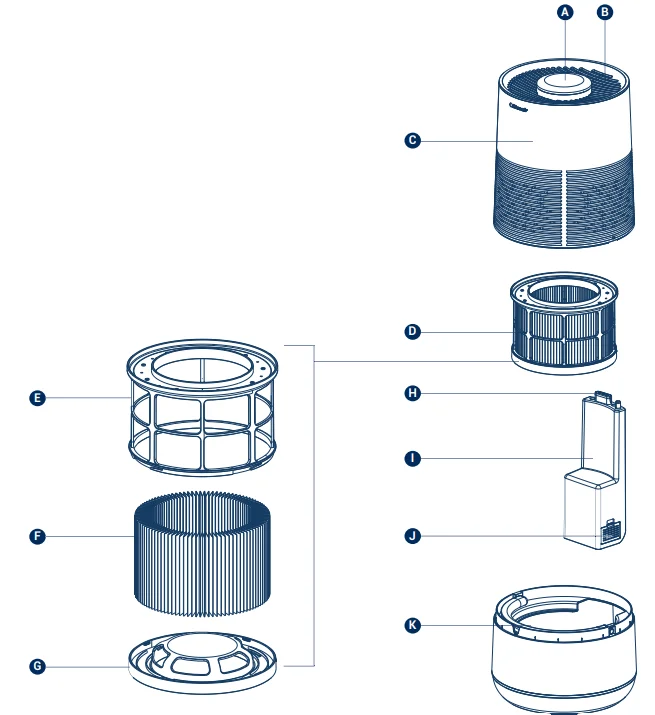
- A. User Interface
- B. Evaporative Outlet / Water Tank Fill Inlet
- C. Upper Body
- D. Wick Filter
- E. Reusable Filter Frame
- F. Replaceable Wick Filter
- G. Reusable Filter Cage Base
- H. Three Pin Connector
- I. Water Pump Module
- J. Water Pump Sponge Filter
- K. Water Tank
Control Panel
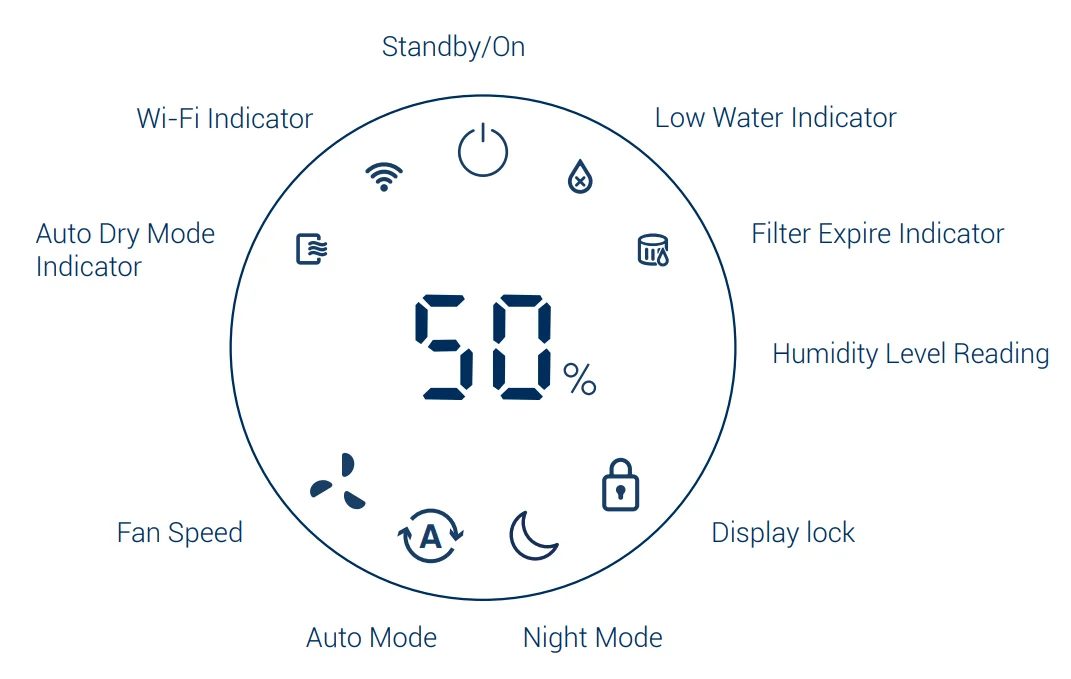
Control and Display
- Turn On/Standby Button
Press to turn the humidifier on/standby. - Auto Dry Mode Indicator
Turns on when Auto Dry Mode is running. Auto Dry mode continues using the fan to circulate air and dry the filter wick to prevent dampness. Auto Dry mode cycle is 2 hours.
Note: When turned on, Auto Dry Mode will activate for 2 hours. There is a 5-minute delay before Auto Dry Mode is activated. You can exit Auto Dry Mode or disable this feature in the app if desired. For the best hygiene and user experience, we recommend leaving this feature activated - Wi-Fi Indicator
To enable WiFi pairing, long-press the “Auto Mode button” for 5 seconds. - Low Water Indicator
Lights up when the water in the tank is low. See refilling instructions (p. 13). Lights up when the humidifier top is removed. When the water level is low, the Fan Speed, Auto, and Night Mode buttons will blink when tapped as a reminder to refill the water. - Filter Reset Indicator
Tums on when the filter wick needs 10 be replaced.
Reminder! After replacing it with a new filter wick, you will need to reset its status on the device. Press the fan button for 15 seconds, and the filter icon will blink and turn off. Humidity Percentage shows real-time humidity level readings. - Auto Mode
Tap Auto Mode to enter the function. When set on Auto Mode, your humidifier will automatically adjust humidification power to meet your target humidity level. Set your target humidity level by tapping the Auto Mode button multiple times to choose between 30%, 40%, 50%, 60%, 70% or 80%. (Default is set to 50%) You can also set Auto Mode or your target humidity level on the Blueair app. - Fan Speed
Tap to choose your humidification rate:
- Display Lock
Turns on when Display Lock is activated. Locks all buttons on the interface. To activate/deactivate, long-press for 5 seconds. The interface will blink when any other button is tapped to indicate that Display Lock is on. - Night Mode
Tap to turn Night Mode on. Night Mode turns the humidifier to a custom fan speed with the quietest operation and dims the display to a low light level. You can also turn off the display completely in the Blueair app.

Connect to the Blueair app
Connecting to the Blueair app allows you to control the humidifier remotely and monitor humidity levels. The app offers enhanced functions and features.
- Step 1
Download the Blueair app from the App Store or Google Play.
- Step 2
Open the app. Create or sign in to your Blueair account.
- Step 3
Click on Connect Product and select Humidifier. Follow the instructions to complete app pairing.
First-time connection tips

- Make sure to turn on your humidifier. Once the Wi-Fi indicator is blinking, it is ready to be paired with your app.

- Bluetooth is required for first-time pairing. Turn your phone’s Bluetooth on and keep your phone within 3ft of the humidifier for initial pairing.

- Keep your humidifier within 15 feet of your Wi-Fi router to maintain optimal connection.

- Make sure you are using a visible Wi-Fi network that is not hidden. VPN (Virtual Private Network) should be deactivated while using the Blueair App.

- This humidifier can only connect to 2.4 GHz Wi-Fi. If you are using a dual-band Wi-Fi router, make sure to select 2.4GHz.



How to Use Tips
- Adjust Interface Brightness
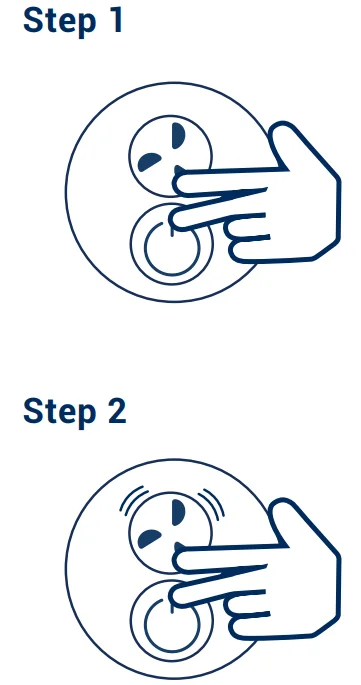
Press the Fan Speed button and the On/Standby button simultaneously. Keep holding the On/Standby button and tap the Fan Speed button to adjust brightness. If the brightness is at the lowest level, it will increase by one level. If it’s at the highest level, it will decrease by one level. You can also adjust the brightness using the Blueair app.
- Enable/Disable Wi-Fi Pairing
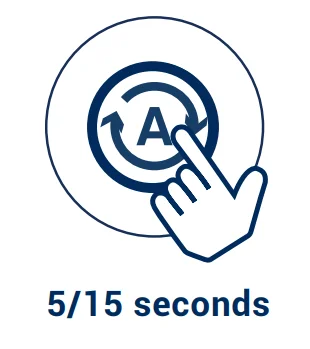
If you choose not to connect the product, you can disable Wi-Fi by long-pressing the Auto Mode button for about 15 seconds and then releasing it. To reconnect your humidifier to Wi-Fi, hold the Auto Mode button for about 5 seconds until the Wi-Fi LED starts blinking. Then follow the instructions in the “Connect to the Blueair App” section..

- Enable/Disable Display Lock
Long-press the Display Lock button for about 5 seconds (until all the LEDs of the interface light up and blink once). Then release. When Display Lock is enabled, the air purifier will continue to operate, but all lights will flash twice when any button is pressed. The device can be put into standby by pressing the On/Standby button twice when Display lock is enabled. To unlock, hold down the button again for about 5 seconds until the lights flash and the buttons are functional again.

- Filter Reset
Extra long press the Fan Speed Button for about 15 seconds until the LEDs on the interface light up, then release.
Reminder! After replacing the wick filter, it is required to reset the status on the device. If done correctly, the wick filter replacement indicator will blink three times and then disappear.
- Factory Reset
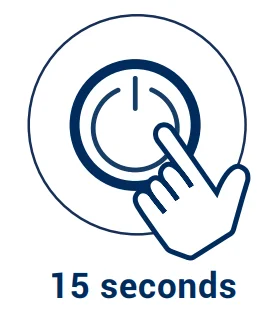
Extra long press the On/Standby button for about 15 seconds (until all the LEDs of the interface light up and blink four times). Then release. After a factory reset, the humidifier restarts with the default configuration and will go into Standby mode.
Maintenance Information
Important! Turn the humidifier off and disconnect fr om the power supply before maintenance.
Changing your wick filter
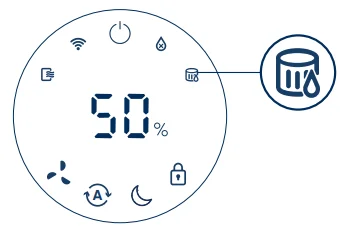
When your humidifier’s indicator light turns red, it’s time to change the wick filter.
- Step 1
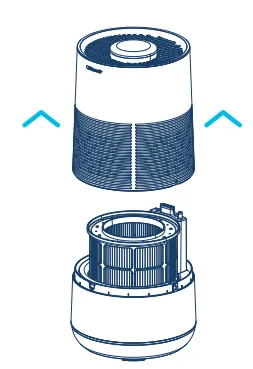
Turn off and unplug. Lift the upper body away from the base.
- Step 2
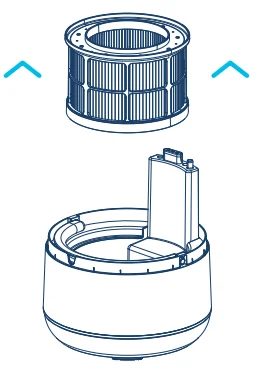
Remove the wick filter assembly that rests on top of the pump and water tank.
- Step 3
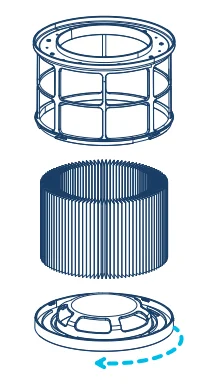
Remove the wick filter from its assembly by twisting the base clockwise. Dispose of the old wick and replace it with a new one. Then reassemble.
- Step 4
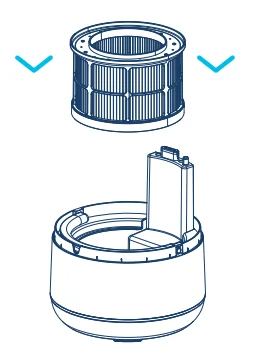
Place the wick assembly back into the base, aligning it with the orientation arrows for proper installation.
- Step 5
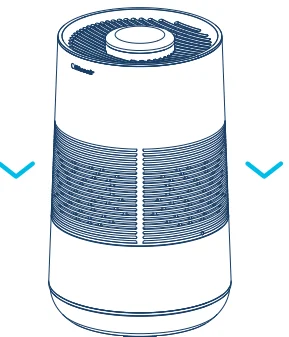
Place the upper body back onto the base, aligning the dots on the front of the top and bottom halves. Plug in.

- Step 6
Important! To reset the filter indicator, turn the device back on and long-press the Fan Speed button for about 15 seconds until the LEDs light up. Then release.
Pump Sponge Filter Replacement:
To replace, unlatch the door on the pump and remove the sponge filter. Discard and replace at the same time as the main wick filter. Included with replacement part #111687.
Filling and Refilling
Your Blueair humidifier is safe to use with clean water of your choice, including tap. It is recommended that the water tank be cleaned weekly to ensure proper operation. When your device detects low water, a red Low Water Indicator will appear on the display.
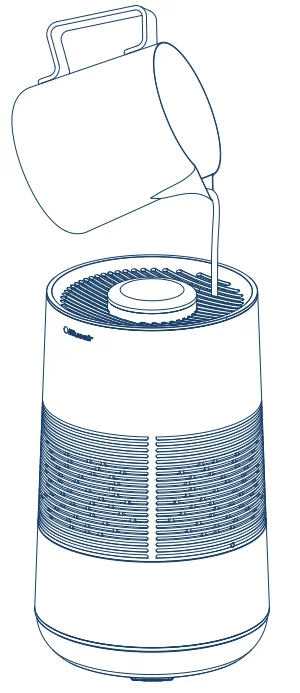
Option 1: Top Pour
- Turn off the device. Carefully pour water directly into the top grill, avoiding the waterproof display.
- Turn on the device. The Low Water Indicator will turn off automatically once water is sensed.
- The device will resume its previous mode.
Note: If water is added while the device is on, please note there may be some water splash and a draining sound if the fan is on; this is normal and will subside once the refill is complete. We recommend turning the device off.
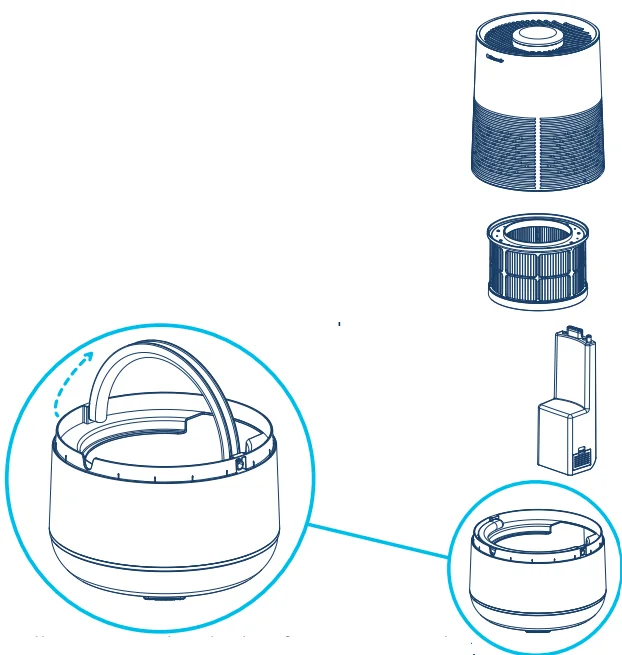
Option 2: Bucket Fill
- Turn off & lift the top, wick and pump to refill the water tank. Refill the water tank to the max fill line.
- Reassemble the device and turn it on.
- Once water is automatically detected, the Low Water Indicator will turn off, and the device will resume at fan speed 1.
Cleaning Instructions:
To ensure optimal performance, clean your device weekly. Always disconnect the device from power prior.
- Water Tank: Clean the water tank using a mild detergent. Water tank is dishwasher safe*, but do not put any other parts in the dishwasher. Wipe the water tank dry before reassembling. (*Based on life test of 50-90 minute cycles at min. 158°F ( 70°C), using leading detergent)
- Wick filter assembly: Soak with mild or acid cleanser. 20g citric acid for every 1L of water for 1 hour. Rinse well under running tap water.
- Water Pump: Disassemble the device and remove the pump. Soak the pump with mild or acidic cleanser. 20g of citric acid for every 1L of water for 30 minutes. Rinse well under running tap water. Rinse the sponge inside the pump with water.
- Upper Body: Wipe the body with a soft, dry or damp cloth to remove dust. Do not submerge yourself in water.
Disposal and Recycling
This humidifier should be recycled as electronic waste. If you have any questions regarding the disposal of this humidifier, please contact your local waste management for the best way to recycle.
Troubleshooting
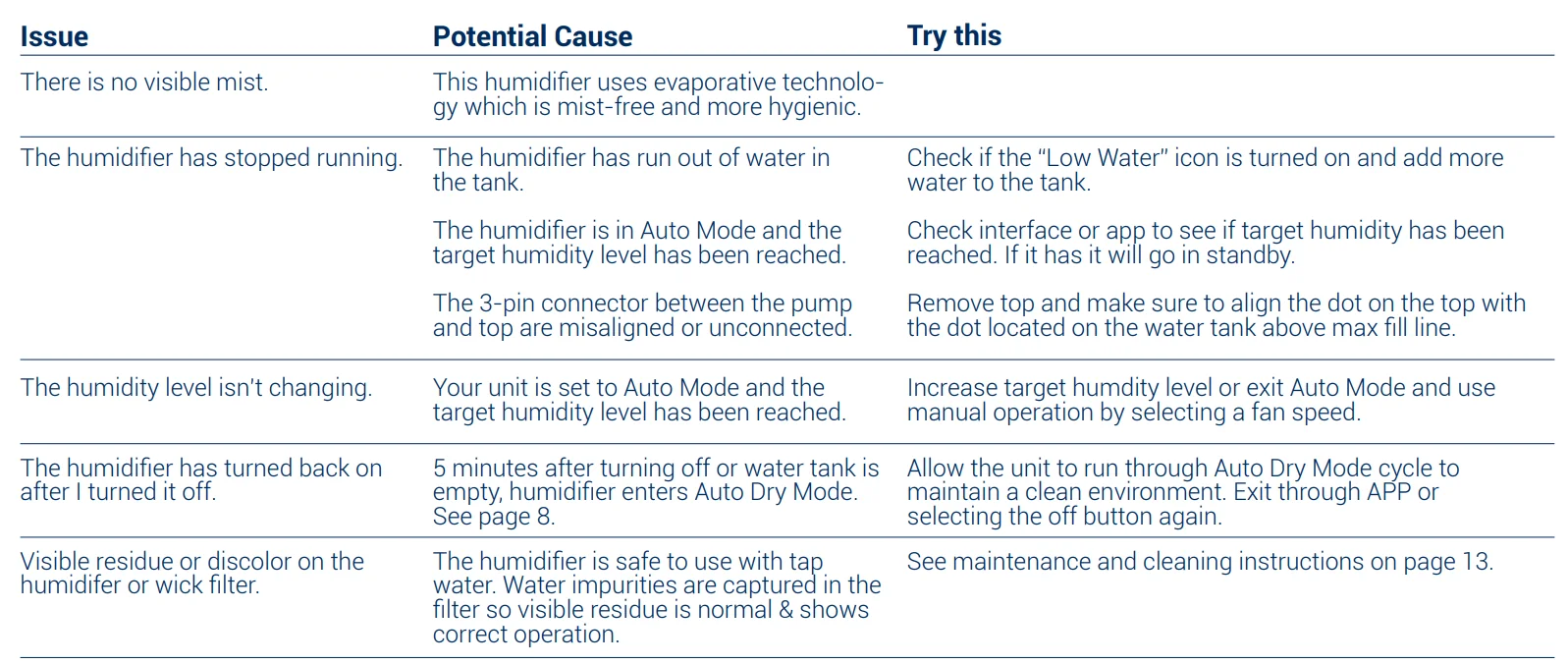
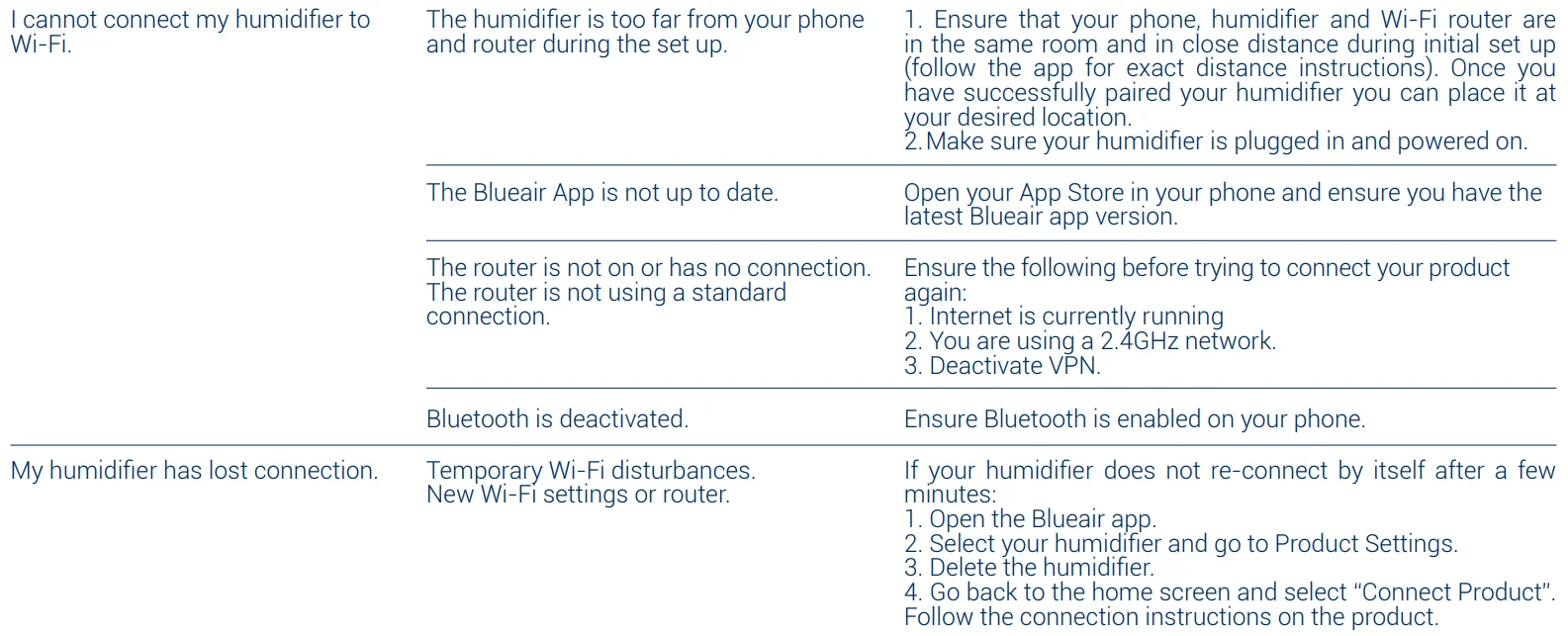
For more information and troubleshooting tips, please check the Support page on www.blueair.com
For more manuals by Blueair, visit ManualsLibraryy
Blueair DreamWell Humidifier H35i-FAQs
How often should I clean the Blueair DreamWell Humidifier H35i?
It is recommended to clean the humidifier regularly and perform a deeper cleaning about once a month. Frequent maintenance helps remove mineral buildup, keeps the mist clean, and improves overall performance and durability.
Can I use tap water in the Blueair DreamWell H35i?
Yes, the humidifier can work with tap water, but distilled or demineralized water is usually better. It helps reduce mineral deposits, prevents white dust, and keeps the wick filter cleaner for a longer time.
What humidity level is best for indoor comfort?
The ideal indoor humidity level is generally between 30% and 50%. This range helps reduce dry air discomfort while preventing excess moisture that may lead to mold or condensation.
Where should I place the humidifier for the best results?
Place the humidifier on a flat and stable surface at least 12 inches away from walls or furniture. A central location with good airflow helps distribute moisture evenly throughout the room.
What does Auto Dry Mode do on the Blueair humidifier?
Auto Dry Mode helps dry the wick filter after use by running low airflow for a short period. This feature reduces moisture buildup inside the unit and helps minimize cleaning needs.
How can I improve humidifier performance?
For better performance, keep doors and windows closed, reduce drafts, and place the humidifier in the center of the room. Regular cleaning and proper water use also help maintain steady humidity output.
How do I clean the water tank and wick filter?
Wash the water tank with mild detergent and rinse it thoroughly. The wick filter can be soaked in a citric acid or mild cleaning solution to remove mineral buildup before drying completely.
How often should I replace the wick filter?
The wick filter should be replaced when it becomes heavily discolored, develops odors, or no longer absorbs water effectively. Regular inspection helps maintain efficient humidification.
Can I leave water sitting in the humidifier tank?
It is best not to leave water in the tank for long periods. Empty and rinse the tank after use to help prevent bacteria, mold, and unpleasant odors from forming.
How do I know if the humidifier is working properly?
You should notice improved air moisture and reduced dryness in the room. Checking the humidity level and ensuring water is flowing correctly can also confirm proper operation.