
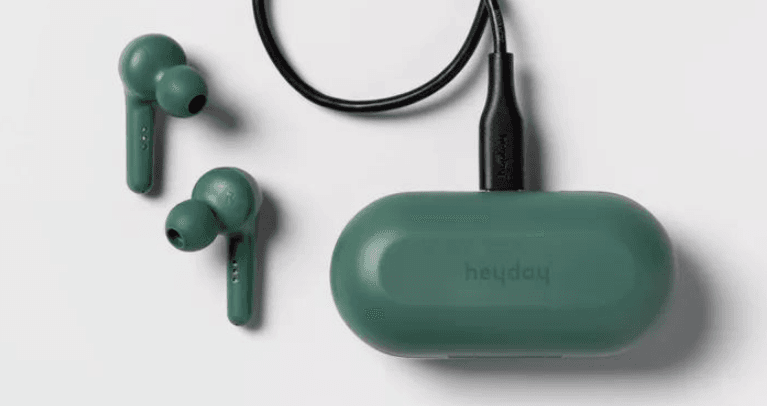

Heyday True Wireless Earbuds
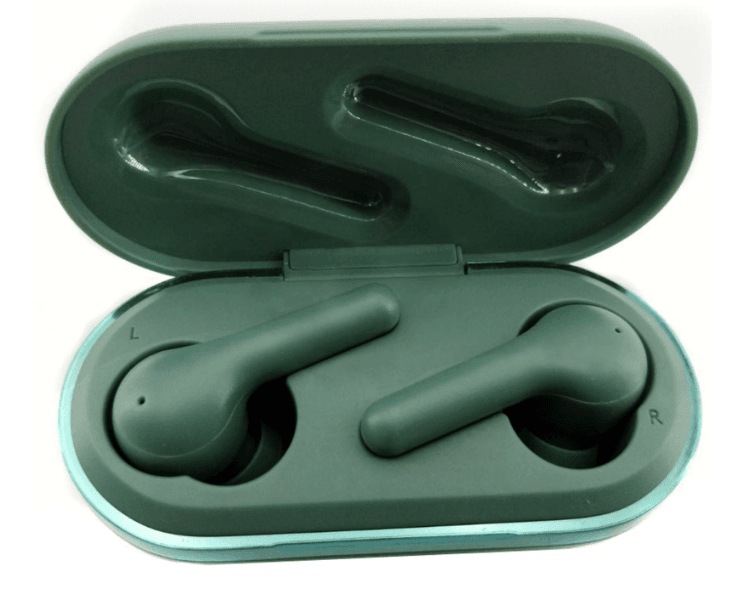
Open case
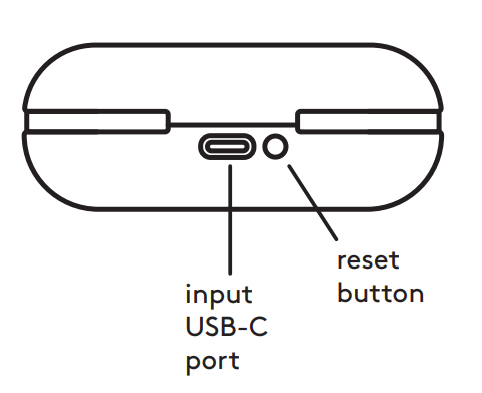
back
included
- TWS Earbuds
- TWS Earbud Case
- USB-C Charging Cable
- Small, Medium, and Large Earbud Tips
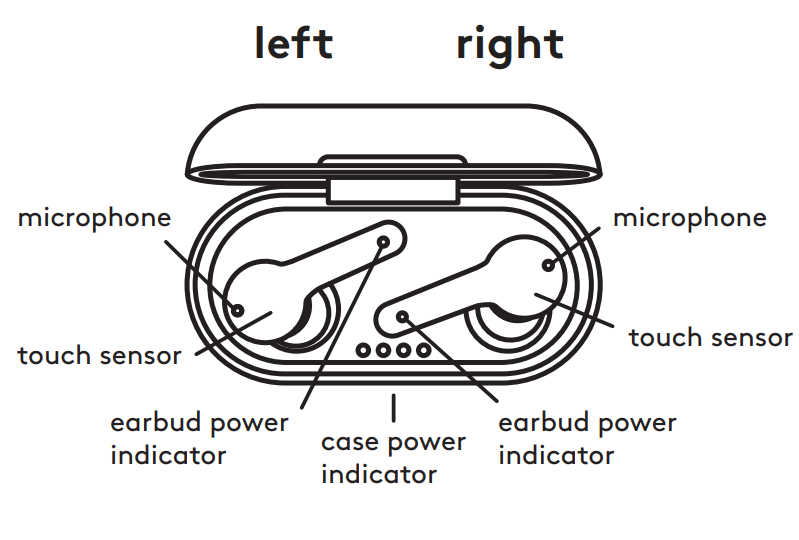
indicators
- Earbud Rapid Flashing Red/White – Pairing mode
- Earbud Flashes White and Fades – Paired
- Earbud Flashing Red – Low power
- Earbud Solid Red – Charging
- Earbud No Light – Charging complete
- Case One Light – 25% charged
- Case Two Lights – 50% charged
- Case Three Lights – 75% charged
- Case Four Lights – 100% charged
- Ascending Tones – Power on
- Descending Tones – Power of
- Three Rapid Tones – Ready to pair
- Single Chime – Paired
- Two Rapid Dings – Low battery
- Quick Beep – Next(R) / previous(L) song
Pairing
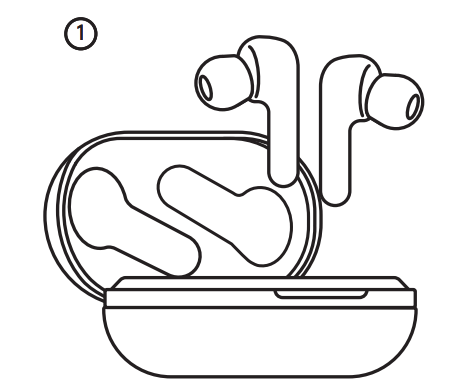
To pair the earbuds to your device for the first time, open the case and remove both earbuds.
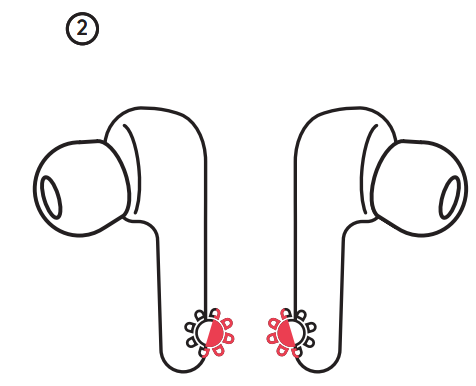
The buds will start to turn red and white, which means that they are ready to pair.
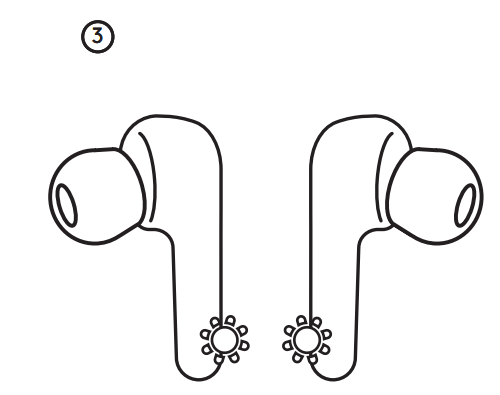
Use the Bluetooth settings on your device to pair with HEYDAY EARBUD 05. When the earbuds have successfully paired, they will turn white for five seconds and then fade.
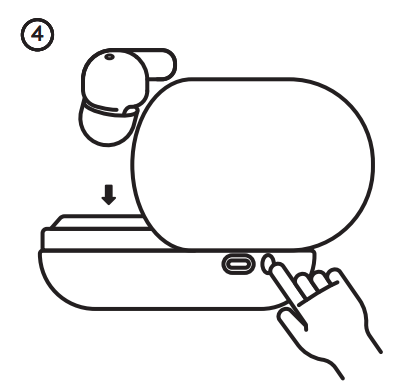
To reenter pairing, put both earbuds back in the charging case with the lid open. Hold the reset button on the back so the case power indicator flashes 3 times. To reset to
factory settings, hold it so the indicator flashes 6 times. After reentering pairing or resetting, start the pairing process at step 1.
touch controls
Quick tip: The touch sensor is located in the center of the earbud. Be sure to touch here so the inputs register
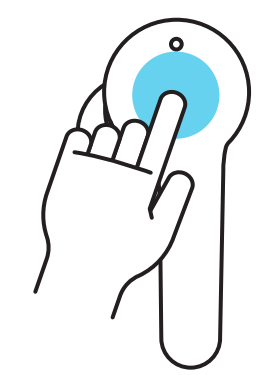
left earbud
- play/pause
- answer/end call
- prev. song
- reject call
- voice assist
or
- 1 tap
- hold 2 sec.
- 2 taps
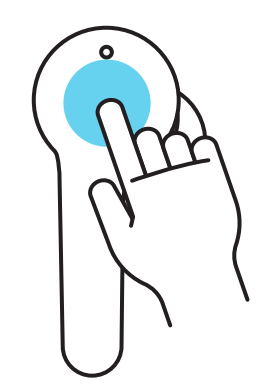
right earbud
- play/pause
- answer/end call
- next song
- reject call
- voice assist
indicates that the left and right earbuds have different functions
earbud tips
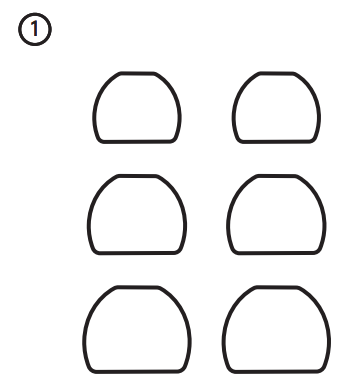
The earbuds come with small, medium, and large earbud tips and can be changed at any time.
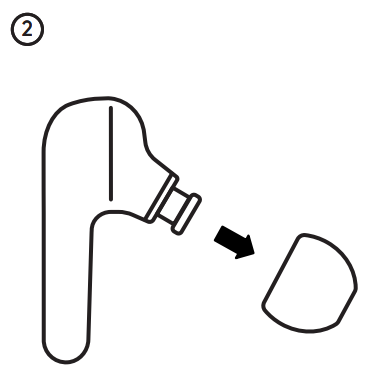
To change the size of the earbud tip, squeeze it and pull it away from the earbud.
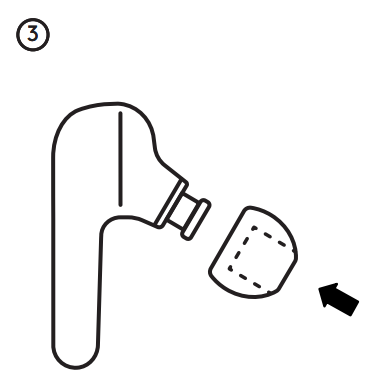
Select the size that is the most comfortable for you and push it onto the earbud. The earbud tip has an interior sleeve that slides onto the earbud. Repeat steps 2 and 3 for the second earbud.
charging earbuds
- Place both earbuds back into the case
- Charging is complete when the lights turn off
- Full charge requires approximately 1 hour
charging case
- Plug the USB-C end of the charger into the back of the case
- Plug the USB end into a power supply of at least DC 5V 1A. Warning: Please use UL
Compliant power supply - Full charge requires approximately 2 hours and will provide 24 hours of earbud use
- Charging is complete when all 4 LEDs are solid white
IPX5 water resistance
- The earbuds are resistant to sweat, which means they’re perfect for workouts. Note: The charging case does not have the same rating and should not be used under the same conditions
Single earbud use
- After pairing to your device, remove only the right earbud from the case to enter single-earbud use
Troubleshooting
- If the earbuds are not working correctly, place them into the case with the lid open
and reset them - If the earbuds won’t turn on, recharge the battery and try again
- If the earbuds won’t charge, make sure the power supply works, is 5V>1A, not
damage,d, and that the case is charged - If the earbuds still won’t charge, make sure the charging pins are clear of debris, as this may cause a connection issue; if they are using a soft, dry cloth to clean them
- If the earbuds make no sound or do not show as an available device, make sure they are not paired; if so, unpair the device and reconnect to the desired device
Need some help?
Can’t get it to pair? Have a question or comment?
- call us at: 877-698-4883 or: 877-MyTgtTech
safety
- Do not use near any water source
- Do not modify or repair this device
- Do not use chemical detergents to clean your device; use a soft, dry cloth
- WARNING: The battery (battery or batteries or battery pack) shall not be exposed to excessive heat such as sunshine, fire, or the like.
FOR MORE MANUALS BY HEYDAY, VISIT MANUALSLIBRARYY
Heyday True Wireless Earbuds- FAQs
How long does it take to fully charge Heyday earbuds and the case?
The earbuds take approximately 1.5 hours to fully charge.
The charging case also requires about 1.5 hours to reach a full charge.
Why do my Heyday earbuds keep disconnecting?
Temporary disconnections can occur if the earbuds lose Bluetooth connection. To fix:
Place the earbuds back in their case and let them turn off.
Turn off Bluetooth on your device, wait 15 seconds, then turn Bluetooth back on and reconnect.
Do Heyday earbuds have a built-in microphone?
Yes, Heyday True Wireless Earbuds include a built-in microphone, allowing for calls and use of voice assistants.
How long do Heyday earbuds last on a single charge?
Battery life varies by model:
Standard models: Up to 5 hours of use per full charge.
ANC models: Up to 7–8 hours (with ANC on/off), plus up to 24 hours more with the charging case.
Are Heyday earbuds compatible with iPhones?
Yes, Heyday earbuds are compatible with iPhones as well as Android smartphones via Bluetooth connection.
What should I do if my earbuds are not pairing or connecting?
Remove both earbuds from the charging case to power them on (they should enter pairing mode automatically).
If not, press and hold both earbuds for 1.5 seconds.
Go to your device’s Bluetooth settings and select “Heyday Earbuds” from the list to pair.
How do I reset Heyday earbuds if they’re not working properly?
Place both earbuds in the charging case, then press and hold the reset button (often on the case) for about 6 seconds. This will power-cycle the earbuds and reset the connection.