
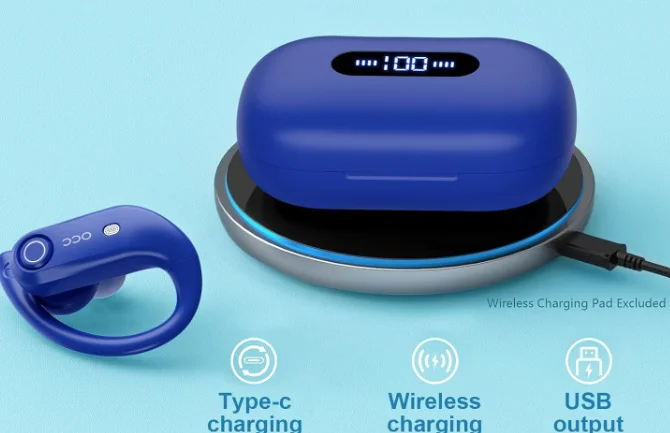

Occiam K23 Wireless Earbuds Bluetooth Headphones
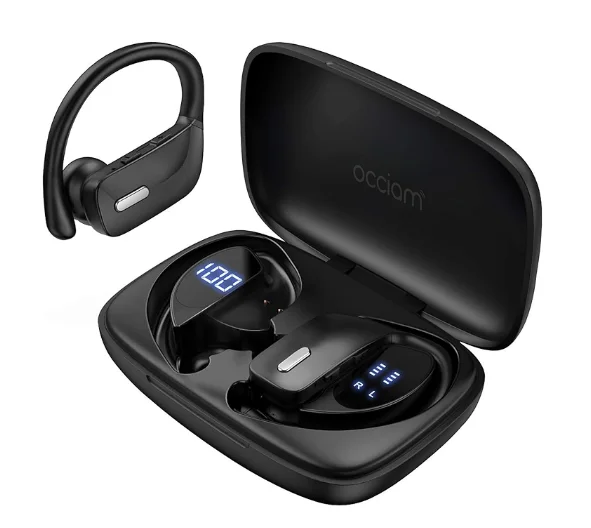
What’s in the box?
- Charging Case x1

- Wireless Earbuds x2

- Type-C Cable x1

- Ear tips x3

- User Manual x1
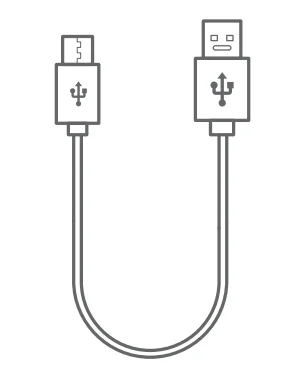
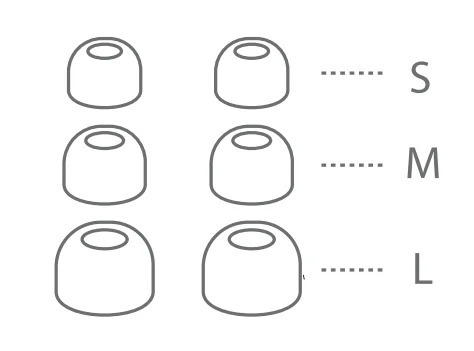
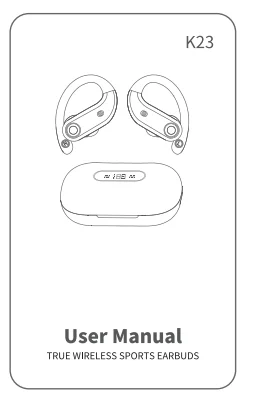
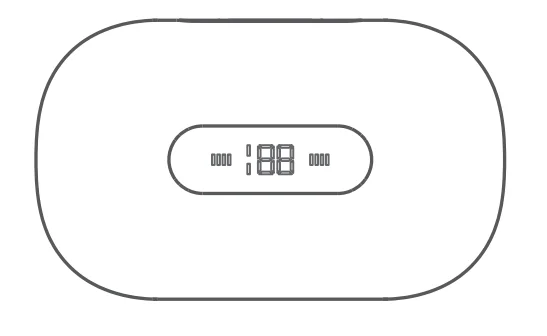
* Note: Please remove protective films from the LED Power Display and Charging Contacts before using them.
Overview
Product Parameters
- Bluetooth Version: BT5.0+EDR
- Supports: HSP/HFP/A2DP/AVRCP
- Charging Interface: Point-Contact
- Charging Port: Type-C
- Battery Capacity: (Li-ion battery inside) Earbud: 75mAh
- Charging case: 2200mAh
- Battery Life: Twin Earbuds will last 8 hours on a single full charge(Actual battery life changes with the song types and volume requirements)
- Standby Time: Up to 100 hours
- Charging Time: 1-1.5 Hrs for earbuds / 2.5Hrs for charging case
- Transmission Range: 33 feet (with no obstacle)
- Earbud Weight / Size: 10g / 37*55*30mm
- Charging Case Weight / Size: 130g / 106*63.5*40mmA
Bluetooth Connection with Mobile Phone
Before first use (or not in use for a long time), please charge both earbuds and the charging case with the supplied Type-C Charging Cable.
- Step 1: Take out the twin earbuds from the charging case. They will automatically power on and enter pairing mode. At this time, the LED indicator of the vice earbud goes off, and the LED indicator of the master earbud flashes white slowly.
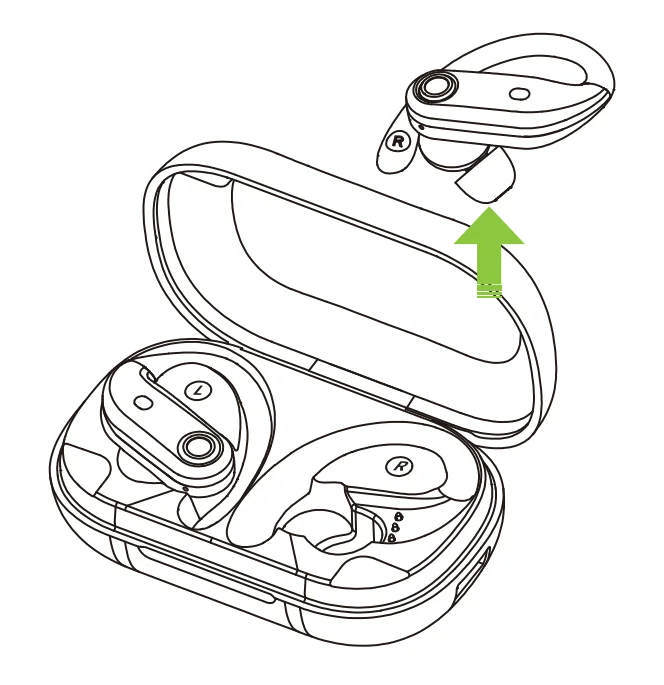
- Step 2-Activate the Bluetooth setting on your phone, search and connect to “K23”. Once connected, the LED indicator of the master earbud goes off.
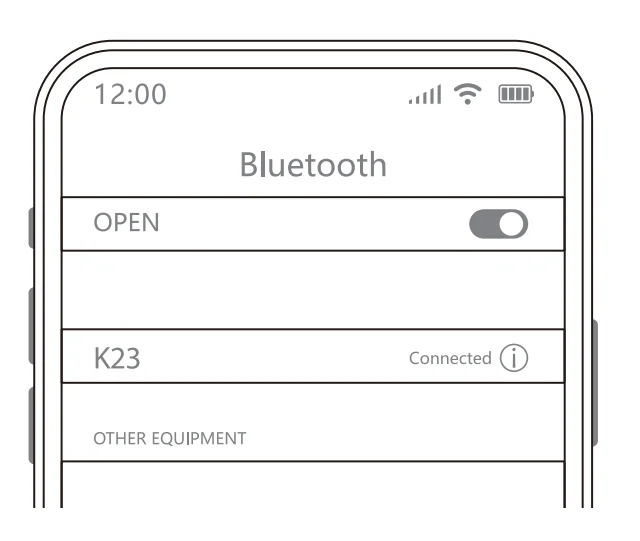
*Note: If the earbuds are not connected to your device for over 3 minutes, the earbuds will power off.
For The Second Time And Subsequent Using
If your device has already connected with the earbuds, the second time using them, when you take out the earbuds from the charging case, they will connect with your device automatically.
Connect with Other Devices
If you want to connect the earbuds with other devices, there are three methods as follows:
- Delete”K23″ from the Bluetooth list of the previously connected device.
- Before they connect to other devices, please turn off the Bluetooth of the previously connected device.
- Reset the earbuds.
Mono Mode (Only Left/Right Earbud is being Used)
- ‘You can use one earbud alone, leaving another earbud in the charging case. Turn on the Bluetooth on your device, search for “K23”, and click to connect.
- Two earbuds can be used alone in two devices at the same time, like you have two completely separate earphones. Just make sure the two earbuds are over 10 meters apart before connecting them to your two different devices. After the connection is successful, even if the two earbuds are close together, they will not interfere with each other.
*Note: If you want to get them back to stereo mode from mono mode, please reset them.
Factory Restore Setting 4 Restore Setting
When should I reset?
- When only one side plays music.
- When you can’t use both earbuds together.
- When both earbuds fail to pair with each other or occur connection related issues.
How to reset?
- Step 1: Deactivate the Bluetooth setting of all devices near the earbuds.
- Step 2: Pick up two earbuds from the charging case, and the earbuds will power on automatically.
- Step 3: Turn off both earbuds manually.
- Step 4: Long-press 10 seconds on the button of one earbud until the earbud LED indicator flashes 5 times quickly (If you wear the earbud, you will hear a voice prompt “di didi” ), then the earbud will power off, which means resetting is finished.
- Step 5: Repeat step 4 to reset another earbud.
*Note: After resetting, the pairing record between the earbuds and all your devices will be cleared. In case there is any unsuccessful message in your devices, please consider to delete historical record of K23, and try the pairing process again.
Power On / Power Off 4 On / Power Off
Auto Power On
Take out the earbuds from charging case, the earbuds will automatically power on and start pairing.
Auto Power Off
Put the earbuds back into the charging case, the earbuds will automatically power off and enter charging mode.
Manual Power On
If the earbuds are not in the charging case, press and hold each earbud for 3 seconds.
Manual Power Off
If the earbuds are not in the charging case, press and hold each earbud for 5 seconds.
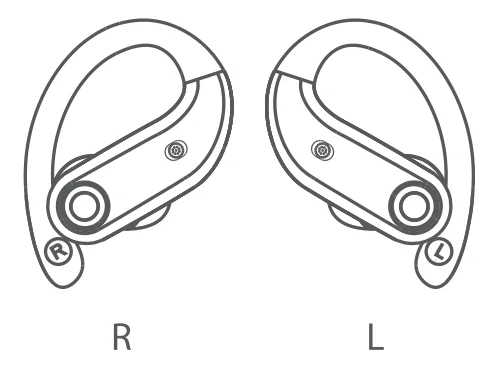
How to wear the earbuds correctly?
Gently push the earbuds into your ear and adjust the earbuds to get a comfortable fit.
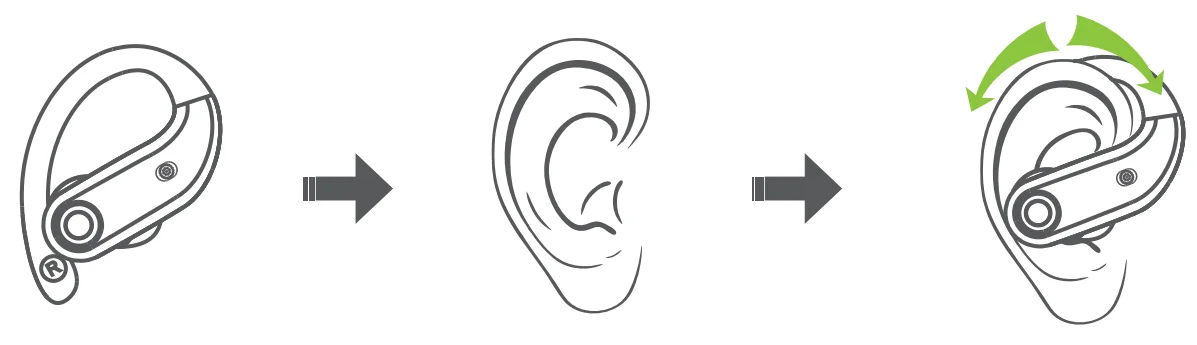
How to place headphones
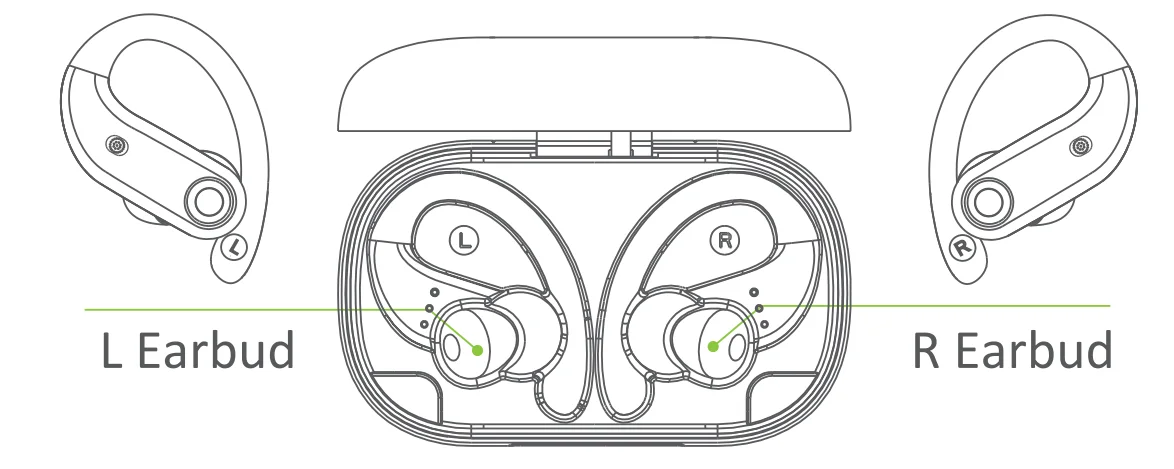
Functions
For music
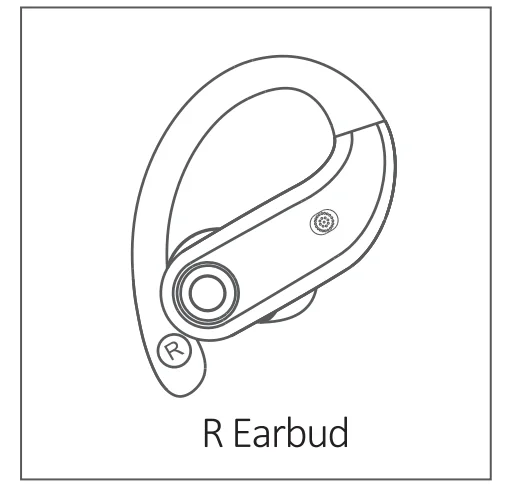
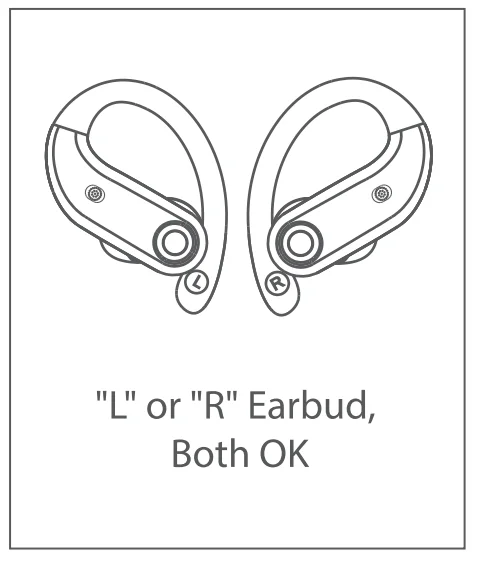
[Functions on “R Earbud”]
- Play/Pause: Click Once
- Next Track: Quick Double-Click
- Volume +: Long Press MFB
Note: At mono mode, R earbud only support next song and volume +.
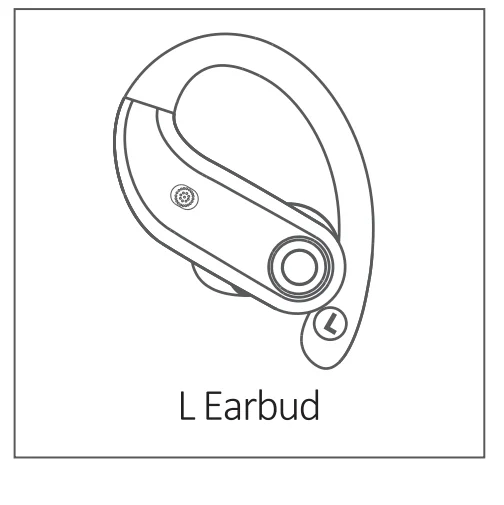
[Functions on “L Earbud”]
- Play/Pause: Click Once
- Previous Track: Quick Double-Click
- Volume -: Long Press MFB
Note: At mono mode, L earbud only support previous song and volume -.
For Call
- Answer Call: Click Once
- End Call: Click Once
- Reject Call: Long Press 2S
Switch to the third-party call while hanging up your current call: Click Once. Deline the third-party call and keep your current call: Long Press MFB
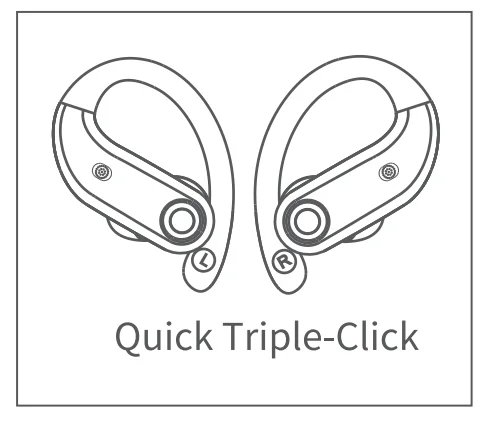
Voice Assistance
Activate Siri or other voice assistants: Quick Triple-Click
Earbud Charging
Low Battery Alert
When the battery power is less than 10% (and the voltage is lower than 3.3V, a voice prompt “Low Battery” will be advised. After several instances of low battery alert, the earbuds will shut down as normal.
Earbuds Charging
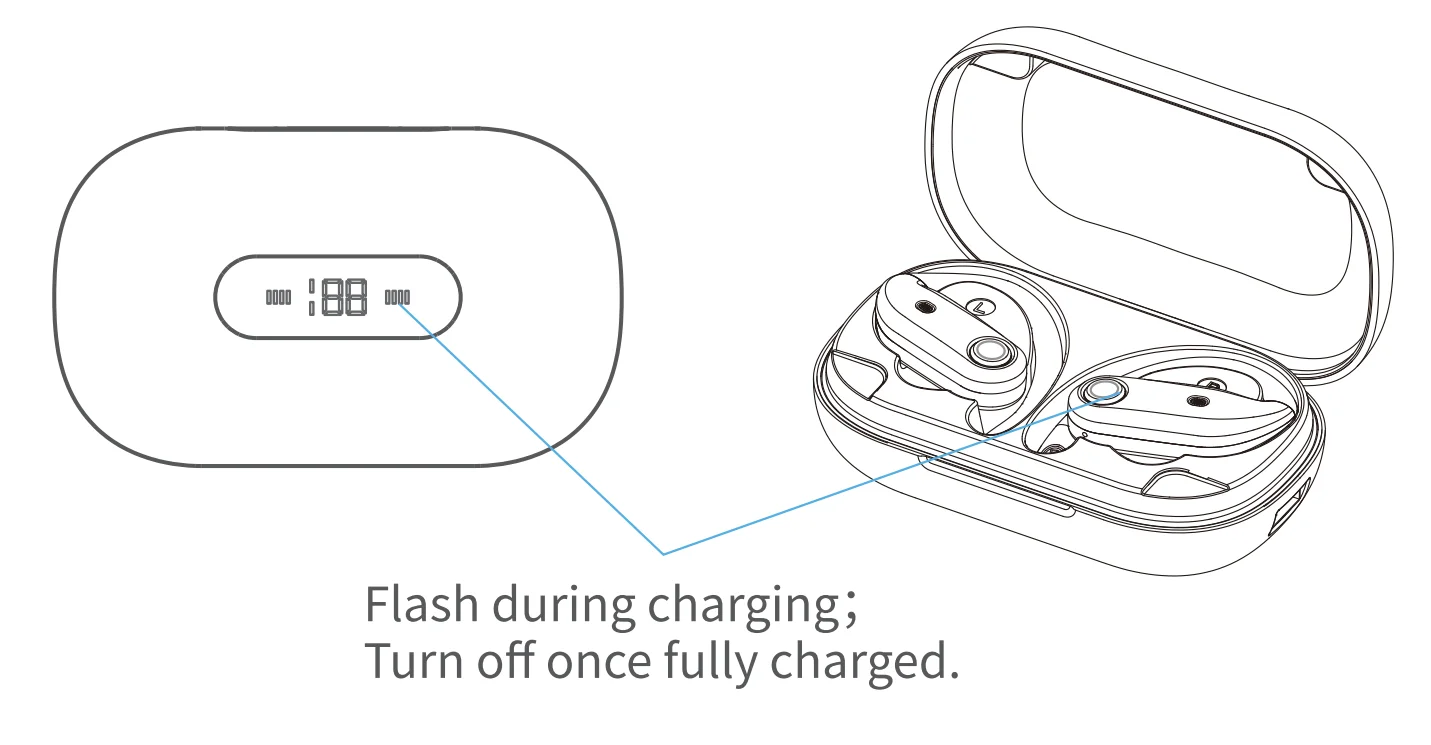
Put the earbuds into the charging case, and they will power off & be charged. When the earbud LED indicator flashes white light, it means that the earbud is being charged from the charging case. Meanwhile, the LED bar for the earbud on the charging case flashes white light from the 1st grid to the 4th grid repeatedly. Once fully charged, the earbud LED indicator will turn off, and the LED bar for the earbud on the charging case will be off too.
Charging Warning
- After using a period of time, they don’t charge or cannot even can’t turn on because there may be an oxidized layer or something else on the charging connector or charging pin. You can handle this problem by using an alcohol rag to clean the magnet connector on the earbuds and charging pin on the charging case.
- Earbuds can automatically turn off immediately and start charging when you put them back into the charging case. Also, they will automatically power on and pair when being picked up.
How to check the remaining battery percentage of the earbuds?
Windows 10
- Step 1: Open Settings, then press “Windows Key +I” and click on the “Device”
- Step 2: Go to the left-pane menu and click the “Bluetooth &other devices”
- Step 3: Under “Mouse, keyboard, open”, you will see a battery percentage indicator on the right side.
Mac
OPTION 1
- Step 1: Click the Apple icon and then “System Preferences” from the menu bar.
- Step 2: Select “Bluetooth.”
- Step 3: Mark the checkbox for “Show Bluetooth” in the menu bar.
- Step 4: To check battery levels, click the “Bluetooth” button from the menu bar. Select your device, and the pop-up menu will display the battery level.
OPTION 2: OTHER DEVICES (E.G., MAGIC KEYBOARD)
- Step 1: Click the Apple icon > System Preferences from the menu bar.
- Step 2: Select the Keyboard.
- Step 3: At the bottom of the window, you’ll see the Keyboard battery level.
Android Phone
- Step 1: Pair and connect a Bluetooth device to your Android phone.
- Step 2: Open up the Settings app and go to “Connect Devices.”
- Step 3: Tap on the word “Bluetooth” (not the switch next to it), and you will see a complete list of all connected devices and their battery level.
Compatible Bluetooth Devices on iOS Phone
- Step 1: Open the Bluetooth function of your phone and pair your Bluetooth device.
- Step 2: Open the “Today View” Settings and click the “Edit” button.
- Step 3: Once in the “Add Widgets” menu, tap the green plus (+) icon next to the “Batteries” widget under “More Widgets.”
- Step 4: Then you can check the battery using the situation on the “Today” view.
Charging Case Charging Case Charging
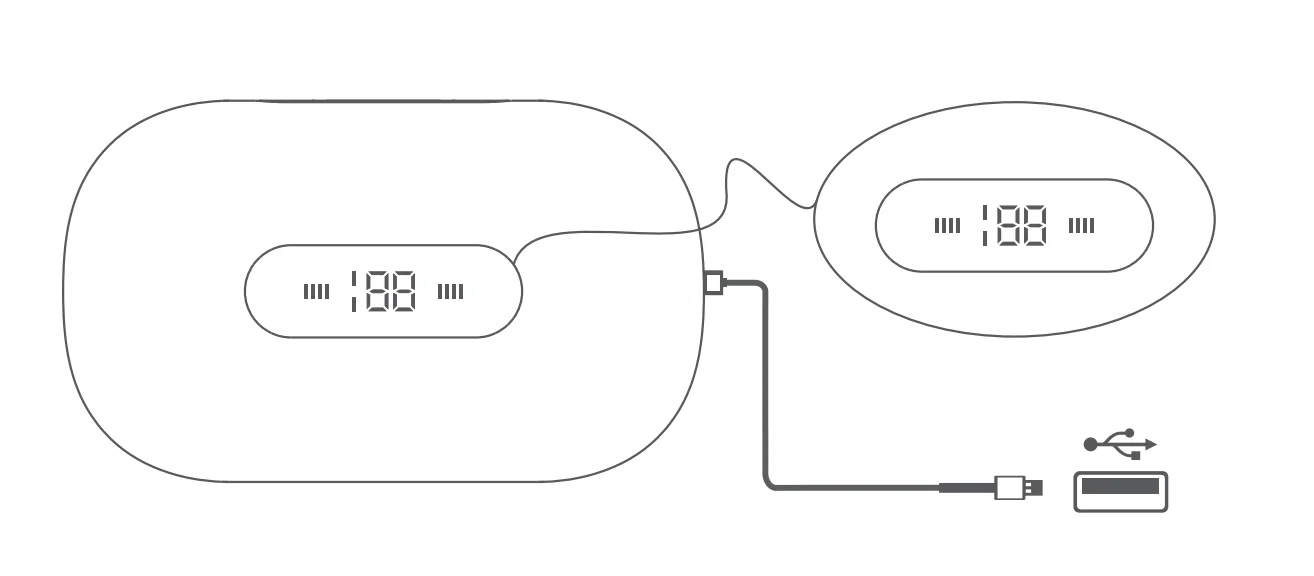
Type-C USB charging
There is a Type-C USB charging cable in the small white box of the package. Please use the 5V/1A adapter with type-C charging cable to charge the charging case. During Charging, the charging case led power display will flash and display the battery in real time. After a full charge, the number is displayed as 100.
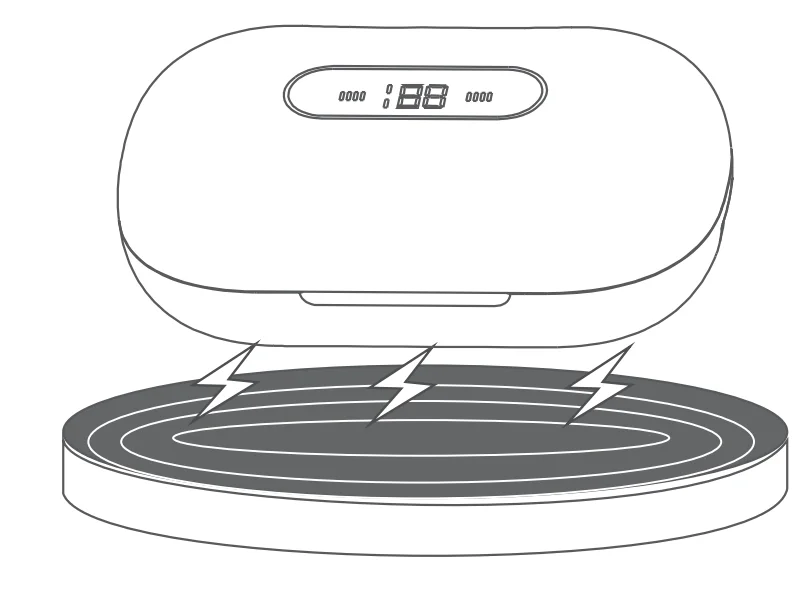
Wireless Charging
Easy to charge your charging case without cables, just put your charging case on the wireless charging pad. If the charging case doesn’t start to charge, please try to reposition it.(Wireless Charging Pad Not Included)
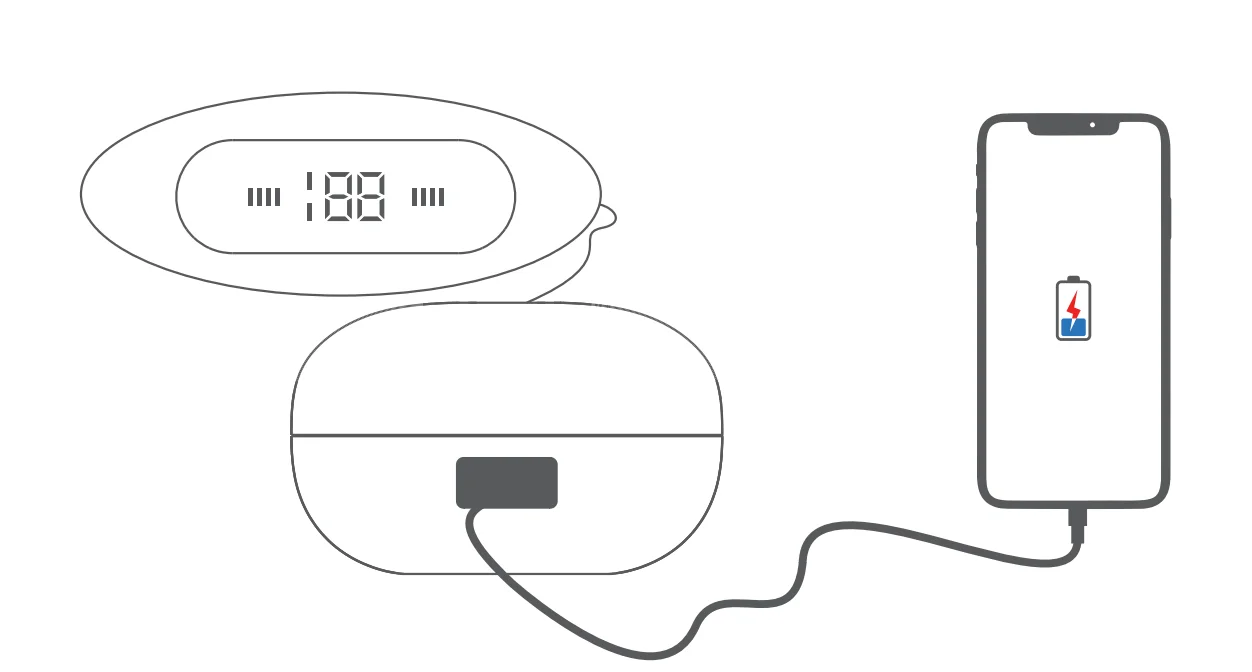
To Charge Your Phone
Fully charged charging case supports charging your mobile phone, connect it to your mobile phone with your charging cable.
How to enable absolute Bluetooth volume on Android?
To protect users from potential hearing damage, Android’s limit on max volume is quite low for Bluetooth audio devices. If you feel the volume is too low, please access developer options and enable absolute volume, so you’ll be able to max the volume at your own volition and to the full capabilities of your Bluetooth earphones.
Find the Build Number Firstly
- Android 4.1 and lower: the Developer options screen is available by default.
- Android 4.2 and higher: The Developer options in Android phones are hidden; you must enable this screen through Build Number.
- Android 9 and higher: Settings > About Phone > Build Number
- Android 8.0.0 and Android 8.1.0 : Settings > System > About Phone > Build Number
- Android 7.1 and lower: Settings > About Phone > Build Number
Enable Developer Options
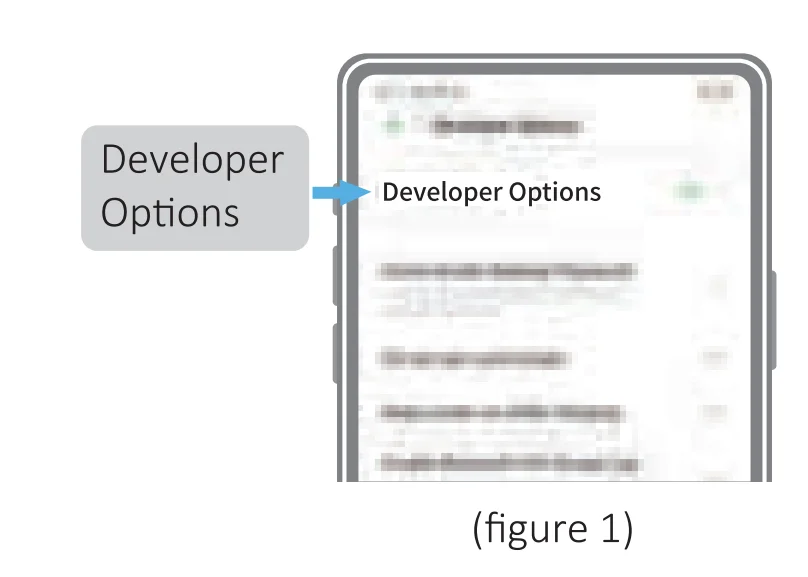
Locate the Build number and tap it about 7 times in succession to enable Developer options. You may also have to tap in your PIN for verification. Once developer options are activated, you will see a message that reads” You are now a developer ”. Go back to the Settings pane, search for Developer options as an entry. At the top of the Developer options screen, you can toggle the options as figure 1.
Enable Absolute Volume
Scroll down until you reach the Networking section. Once there, enable (toggle ON) the absolute volume option as figure 2.
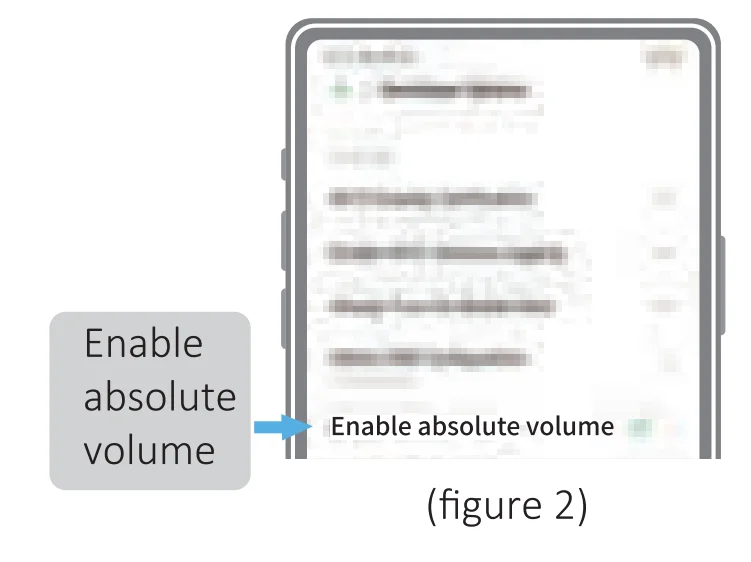
Note: These options in the figures may be different depending on the device you’re using. Typically, the choices depend on the type and model of the device you are working with.
Safety Instruction 4 Instruction
- Using earphones at high to moderate volumes for extended periods of time will result in permanent hearing damage. It is advised that you keep volume levels moderate to low at times for your safety.
- Do not use earbuds while driving a car, cycling, operating machinery, or performing other activities that require hearing surrounding sounds.
- Do not use earphones in thunderstorm weather, as the earphones may not work properly in such conditions, and increase the risk of being hit by lightning.
- Earphones may not work properly under high temperature or high humidity conditions. Do not use any corrosive cleaner/oil to clean the earphones.
- If the earphone comes in contact with liquids, quickly wipe them away.
- If submerged in water, do not turn the earphones on until completely dried. (Tips: liquid submersion voids the warranty.)
- Keep the earphones and packaging out of reach of children.
- Please use the original charging cable provided by the earphone manufacturer for charging or choosing Type-C cable.
For more manuals by Occiam, visit ManualsLibraryy
Occiam K23 Wireless Earbuds Bluetooth Headphones-FAQs
How do I put Occiam K23 earbuds into pairing mode?
Before first use, fully charge both earbuds and the charging case using the Type-C cable. Take both earbuds out of the case, and they will automatically power on and enter pairing mode. You’ll notice LED lights flashing, indicating the earbuds are ready to connect. Open your phone’s Bluetooth settings and select Occiam K23 from the available devices list.
How do I connect Occiam K23 earbuds to my phone?
Once the earbuds are out of the case and in pairing mode, enable Bluetooth on your smartphone. Search for nearby devices and tap Occiam K23 to connect. After the first successful pairing, the earbuds will automatically reconnect to your phone whenever they are removed from the charging case.
How can I reset Occiam K23 wireless earbuds?
To reset the earbuds, place both buds back into the charging case and keep the lid open. Press and hold the touch buttons on both earbuds for about 5–10 seconds until the LED lights flash. This clears previous connections and restores default settings, helping fix pairing or sound issues.
How do I turn on Occiam K23 wireless earbuds?
The earbuds automatically turn on when removed from the charging case. If they don’t, place them back in the case for a few seconds and remove them again. Ensure the case has sufficient battery power to activate the earbuds.
How long does the battery of Occiam K23 earbuds last?
The Occiam K23 earbuds provide several hours of playback on a single charge, with additional charges available through the case. Battery life depends on volume level and usage. Like most wireless earbuds, overall lifespan is typically 1–3 years due to battery wear.
Why are my Occiam K23 earbuds not charging?
Charging issues are often caused by dirty charging pins. Clean the metal contacts on both the earbuds and the charging case using a soft cloth or alcohol wipe. Make sure the earbuds are seated properly and the case is charged.
How do I know if my Occiam K23 earbuds are charging?
When placed correctly in the charging case, the earbuds’ LED indicators will light up, usually in red or blue. If no light appears, check the charging contacts for dust or debris and clean them gently. Also, ensure the charging case has enough battery power.
Why is only one Occiam K23 earbud working?
This usually happens when the earbuds lose sync with each other. Place both earbuds back in the charging case, then remove them together to allow automatic re-pairing. If the issue continues, perform a full reset to restore stereo sound on both earbuds.